
You probably do not even realize how much you have improved since your first day with Linux. Let me remind you of that.
from It's FOSS https://ift.tt/2MOZriK
via IFTTT


Emerging from the ashes of Nokia and MeeGo in 2011, Jolla is a Finnish company founded by former Nokia engineers. They continued developing Linux-powered mobile operating systems and devices when MeeGo was abandoned.
Their first product, the Jolla Phone, launched in November 2013 after a successful crowdfunding campaign. It ran Sailfish OS, a gesture-based Linux system that Jolla continues developing to this day.
Now, they have launched the new Jolla Phone as part of a crowdfunding campaign that has already crossed the 2,000 units booked mark the Jolla team set for bringing this phone into production.

Powered by Sailfish OS 5, the new Jolla Phone is quite different from an Android or iOS-equipped phone. It does not track users or send data to corporate servers. The operating system respects privacy by default.
Jolla commits to minimum five years of OS support with no forced obsolescence. Users get long-term software updates without being pushed to upgrade hardware prematurely, and the phone supports Android apps through AppSupport.
This lets anyone run their favorite Android applications in a sandboxed environment. Users can also keep their device completely de-Googled if it suits them.
The power button on the right integrates a fingerprint reader for quick unlocking and authentication, while a physical privacy on the left switch allows you to exert hardware-level control to disable the on-board microphones, Bluetooth, and any specific Android apps.
Moreover, the battery is user-replaceable through a detachable back cover (third-party back covers could be a thing too). You won't need any tools or an advanced degree in electronic engineering to replace it (Google and Apple should learn from this).

The Sailfish OS community members shaped this device through voting. Jolla asked the community to decide on RAM, storage, display size, cameras, and other key features.
While the full specifications are not out yet, Jolla has shared the following key specs for the new Jolla Phone:
The phone comes in three color options. Snow White, Kaamos Black, and The Orange.
It is available to pre-order on the official website with a €99 refundable booking amount. The final price for the pre-order model is €499, including local VAT. But these are early bird prices.
The final retail price for the new Jolla Phone is expected to be in the €599 to €699 range (incl VAT). Pre-order supporters will get a special edition back cover exclusive to the first batch.
The phone targets the EU, UK, Switzerland, and Norway initially. However, the device is designed to work outside Europe with global roaming support. Jolla estimates delivery by the end of the first half of 2026.
European governments are pushing back against Big Tech's grip on public infrastructure. Denmark announced earlier this year that its Ministry of Digital Affairs was switching from Microsoft to LibreOffice. In more recent news, Switzerland's data protection authorities declared international cloud services unsuitable for handling personal data.
One German state has been leading this charge for quite some time. Schleswig-Holstein started its open source journey early, becoming something of a vanguard in Europe's move away from proprietary software.
Now, Dirk Schrödter, the Minister for Digital Transformation of the state, has shared some remarkable numbers (in Deutsch) that prove the financial case for implementing open source for government use cases.
According to Schrödter's ministry, Schleswig-Holstein will save over €15 million in license costs in 2026. This is money the state previously paid Microsoft for Office 365 and related services.
The savings come from nearly completing the migration to LibreOffice. Outside the tax administration, almost 80% of workplaces in the state government are said to have made the switch.
The remaining 20% of workplaces still depend on Microsoft programs. Technical dependencies in certain specialized applications keep these systems tied to Word or Excel for now. But converting these remaining computers is the end goal.
There is also a one-time €9 million investment set in motion for 2026, which would be used to complete the migration and further develop the open source solutions for the ministry.
These numbers deserve attention from governments worldwide. Schleswig-Holstein proves that breaking free from proprietary software isn't just ideologically appealing but financially smart.
The €15 million annual savings will compound year after year. That is public money staying in the economy instead of flowing to a user data-hungry tech giant based overseas.
More importantly, this is about data sovereignty. Why should governments hand sensitive government data to companies subject to foreign surveillance laws? Open source alternatives keep data in-house, under local control, without forced cloud uploads.
Let's be honest. Installing packages from their GitHub repositories can be a pain, especially if you use different Linux distros, BSD and macOS.
You have to go to the release pages of the tool's GitHub repo, look for the appropriate binary file for your distribution, your system architecture (x86/ARM), get it, extract it and run it to install it.
If that feels like a lot to you, you can use eget.
Provided the repository, Eget searches through the project to find the latest binaries and downloads and extracts them. After that, the user only needs to use the sudo privileges to move the executable to a directory in $PATH, and all works well.
Eget works in a simple way that doesn't require a lot of tinkering at all. For a basic demonstration, I will attempt to install Cmatrix, a replication of the famous letter rain from The Matrix.
I know that cmatrix is available from the default repositories of the most distributions; still, I wanted something simple and could not think of anything better 😉
First, I need the location of the GitHub repository, which in this case is abishekvashok/cmatrix. The command then becomes:
eget abishekvashok/cmatrixThe executable is downloaded and can be run from right here, but then it would be an issue to run them like a regular terminal program. So I move the downloaded binary to a directory in the $PATH, which in most cases, /usr/local/bin/ should work. So:
sudo mv cmatrix /usr/local/binFinally, we try to see if it works:
cmatrixNow that you know how it works in general, let's see what other options the tool provides.
While it works most of the time, there are some cases in which it doesn't quite get there. For example, I tried to install the Kew terminal music player with it, and it couldn't find the binaries but even then, the utility far outweighs the few instances of failure.
To see the options that Eget has, you can enter this command:
eget --helpThe most useful flag is the one that allows you to move the downloaded and extracted file to a directory directly, not requiring you to manually move it later:
eget --to=[needed location] [project repo]To only download a specific version of the program, you can specify it:
eget --tag=[version number] [project repo]You can even download pre-releases instead of proper releases if you want the cutting edge software:
eget --pre-release [project repo]If you would only like to download the binaries and not extract them, you can do so by using:
eget --download-only [project repo]If you have a file with a list of repositories that you want to install in a file, you can even do that:
eget --download-all [file name]To only upgrade a program, i.e., only to download it if there's a new version of it, use the following command:
eget --upgrade-only [project repo]There are some more interesting options, all of which can be found with the aforementioned --help flag.
To make the installation even easier, you can edit the configuration file and include all the options that you need from Eget. This includes the options that were mentioned in the section above.
For example, you can add a new default value to the target where the file must be installed, instead of it being "./", which is the working directory of the command. You can edit the parameters globally or even for repositories specifically.
Say I want to configure the target directory to /usr/local/bin and activate the upgrade only option globally, and for the specific repository of Cmatrix, I want to verify the hash and also download the source. My config file, located at ./.eget.toml will look like:
[global]
    upgrade_only = true
    target = "/usr/local/bin"

["abishekvashok/cmatrix"]
    verify_sha256 = true
    download_source = true
There are far many more global and repository specific parameters you can vary.
You cannot install eget to install eget, obviously 😆
You need to rely on curl to download files in the terminal:
curl https://zyedidia.github.io/eget.sh | shThen all you need to do is to move the downloaded executable to a directory in $PATH, for which again, I am using /usr/local/bin:
sudo mv eget /usr/local/bin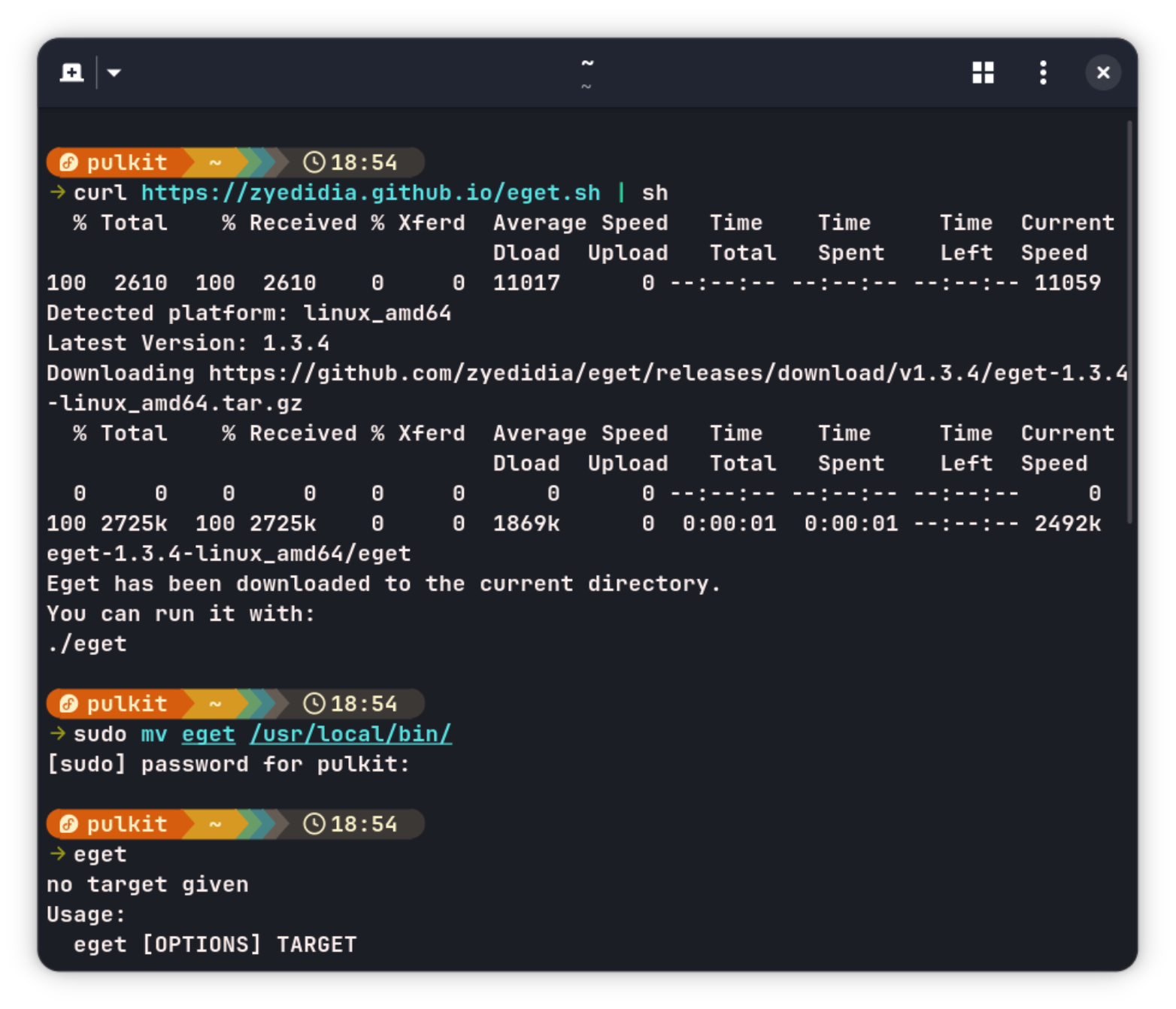
And just like that, it is ready to be used.
More than end users, eget is helpful for application developers. If you provide simple, static pre-built binaries for your tool, eget can be handy. Instead of confusing the end users with various installation instructions for all kind of systems, you could recommend them to use eget without worrying about which commands to use for the installation.
It could also be a hood option for off-beat distributions that don't have dedicated package managers yet or don't have lots to offer from their repositories.
Let me know what you think of eget. Is it worth a try? Does it solve a problem for you? The comment section is yours.

Searching on Linux used to be a chore, unless you knew how to work your way around the CLI with find, locate, and grep — fun times!, but today, times have genuinely changed. And I am not talking about fuzzy search options in the terminal. In this article, we'll look at some of the best GUI tools available for searching your files on Linux - no terminal required.
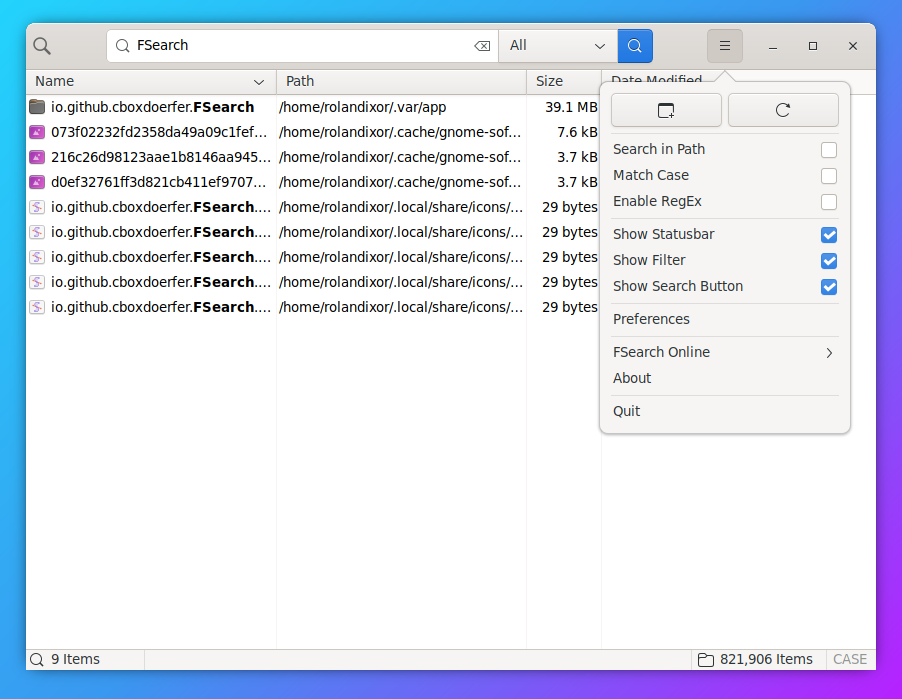
FSearch is a lightweight and modern filename search tool inspired by Everything search for Windows. Actively developed since around 2016, it’s built for speed and simplicity with almost zero overhead. It’s perfect for anyone who wants instant results without battling extensive menus and configuration screens.
FSearch is available on Flathub, and is packaged for many distros. If your distro doesn't package it, you can also grab packages following the project's README. Source code for the latest versions is available from the releases page, though these releases are somewhat behind the GitHub repo itself.
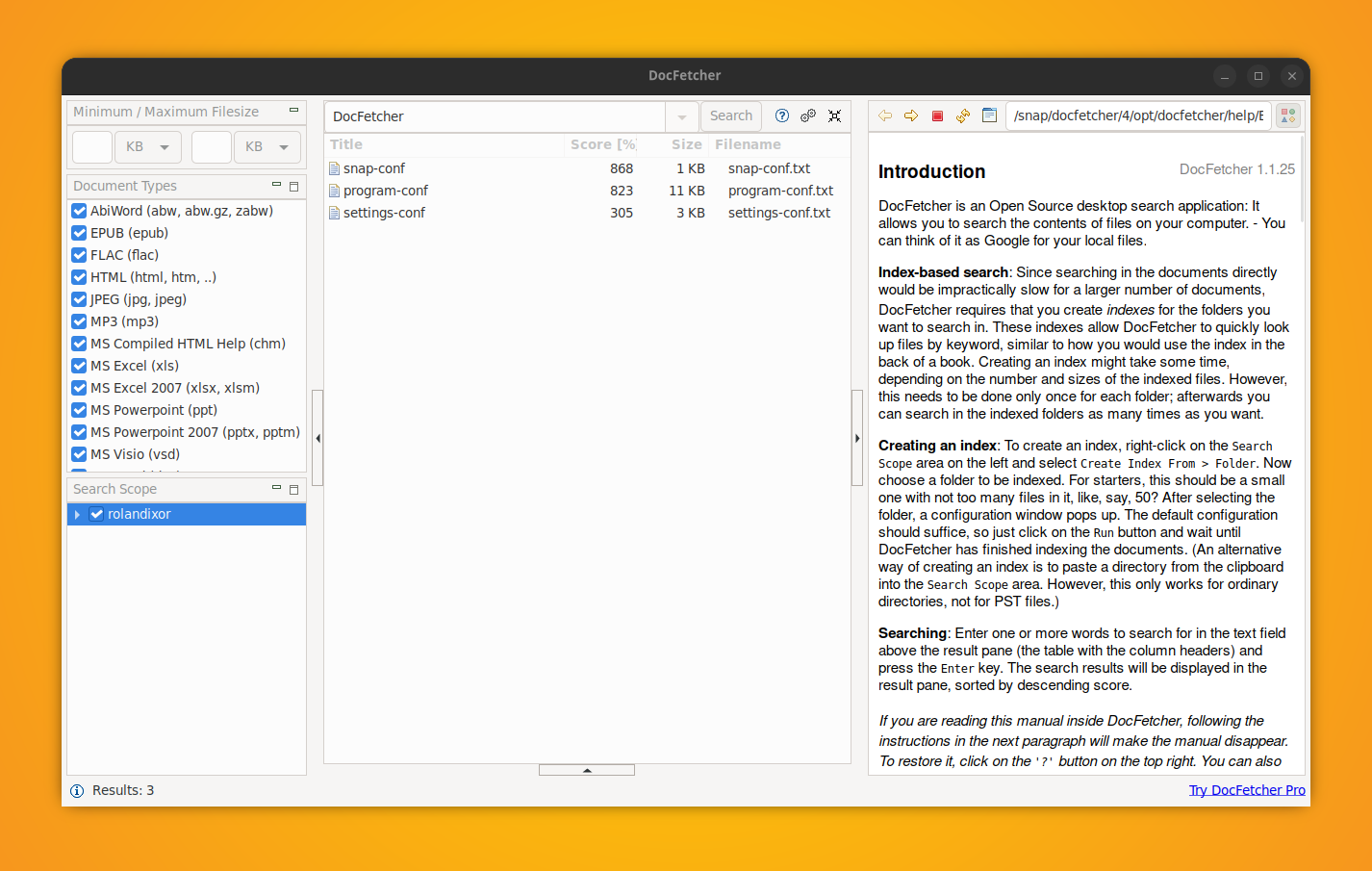
DocFetcher is a long-standing, Java-based search utility that calls itself “Google for your local files.” It’s been around for over a decade and remains one of the most featureful full text search tools on Linux. It’s best for heavy document users who want deeper indexing, previews, and power-user syntax. Do note though, you can only do full text search on files it's already indexed.
DocFetcher is available via the Snap Store for Linux distros that support it. You can also download zipped binaries from the project's Sourceforge, or grab the source code from git.
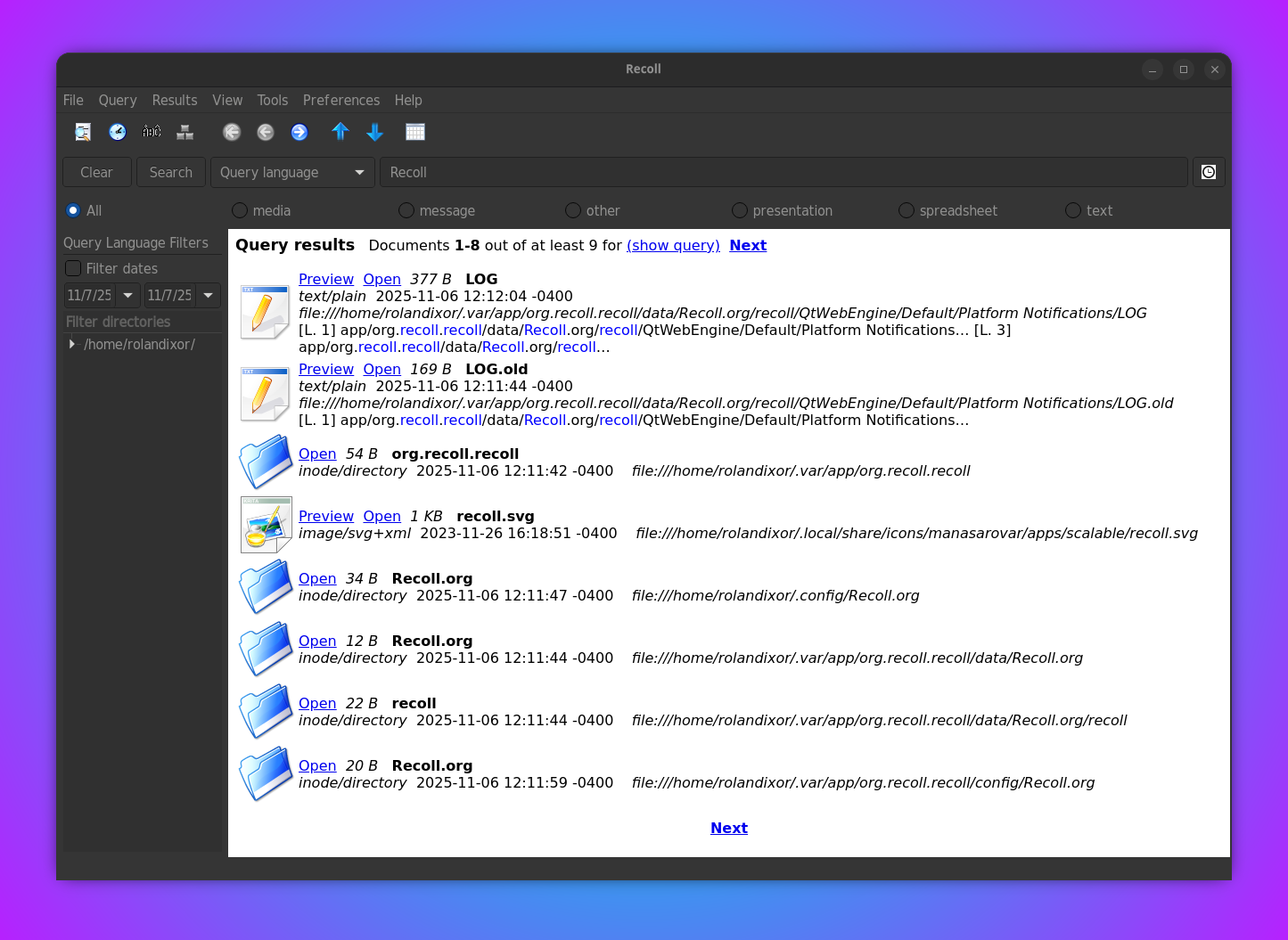
Recoll is a veteran desktop search tool (being around since about 2005) that looks and behaves more like a web search engine. It's a front end tool for the Xapian search engine library, and once indexed, it delivers fast results with advanced operators, field filters, and extensive configuration options. It's not the most modern or flashy, but it suits users who value precision and flexibility over aesthetics.
Recoll is available for many distributions in their standard repos. If you don't find Recoll in your package manager, you can install the Flatpak from Flathub. There's also an experimental AppImage available.
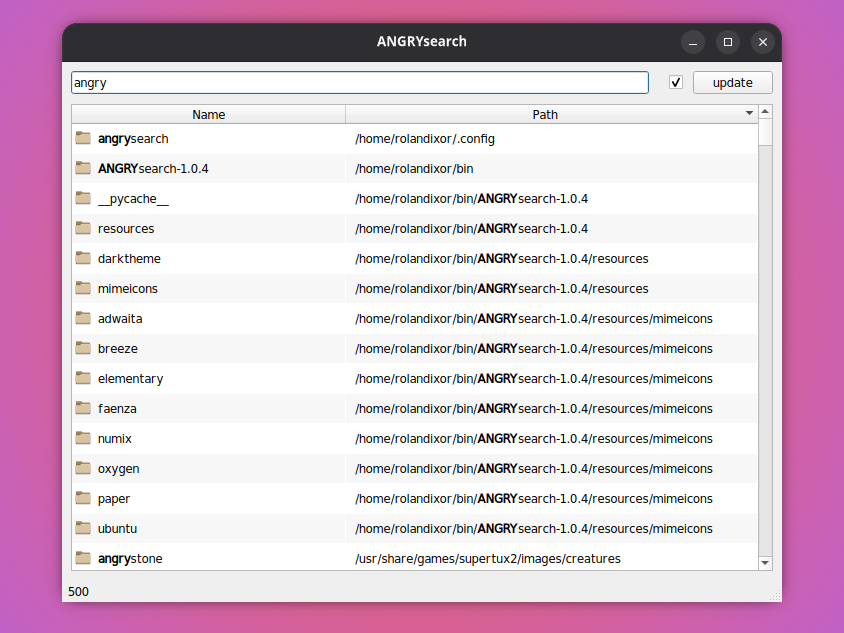
First created in back in 2015, ANGRYsearch is a fast Everything-style search tool for Linux, written in Python and using Qt5. It solely supports filename searches, but is built to index quickly and return substring matches almost instantly. The minimalist interface takes a moment to learn, but its raw speed is a real draw. Since it's written in Python, it can be run without being installed.
ANGRYsearch is available for download from its Github page, but only as source code. Third-party packages are available for Arch, and openSUSE and Fedora.
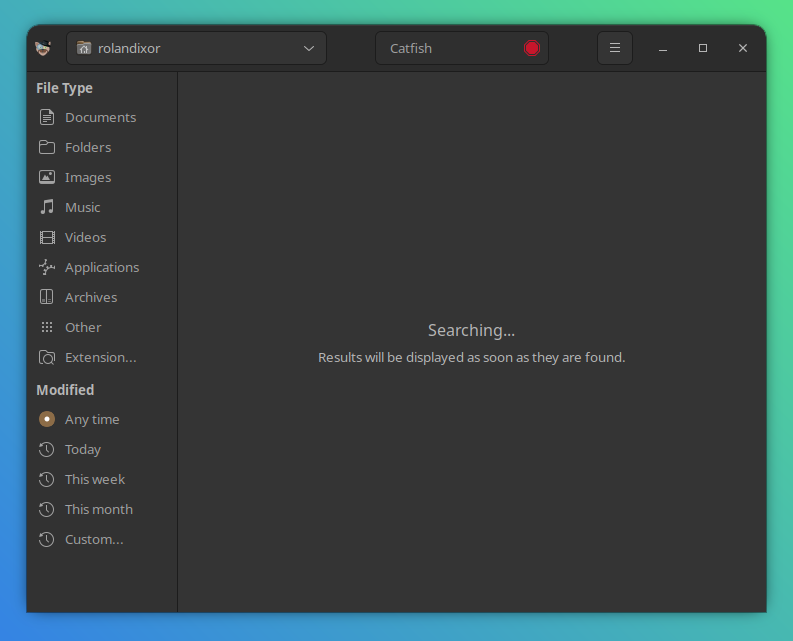
Catfish is the standard search tool for XFCE, and runs well on any desktop. It’s snappy for filename queries via the system’s locate/plocate database, and can optionally search inside files and archives. It can also search for files outside the locate/plocate database, albeit a little more slowly. With a clear, no-nonsense UI, it’s one of the most reliable choices for everyday use.
plocateAs part of XFCE, Catfish should be available with for most distros in the standard repos. If you already use XFCE for your desktop environment, then it is likely installed with your system. You can also grab source code for Catfish on the project's GitLab page.
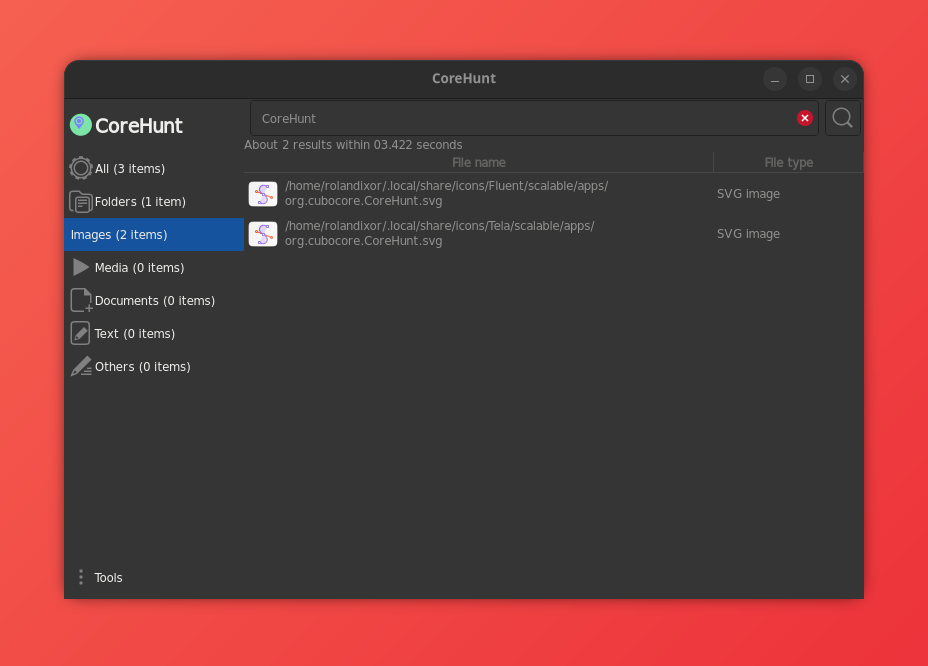
CoreHunt is a newer (circa 2018), minimalist option designed to get you from launch to results with zero fuss. It's written in C++, and it doesn’t rely on a persistent index, keeping the app light at the cost of slower scans on larger numbers of files. If you value simplicity above all else, it stays out of your way.
You can grab CoreHunt on Flathub or, or get packages for your system on the project's README.
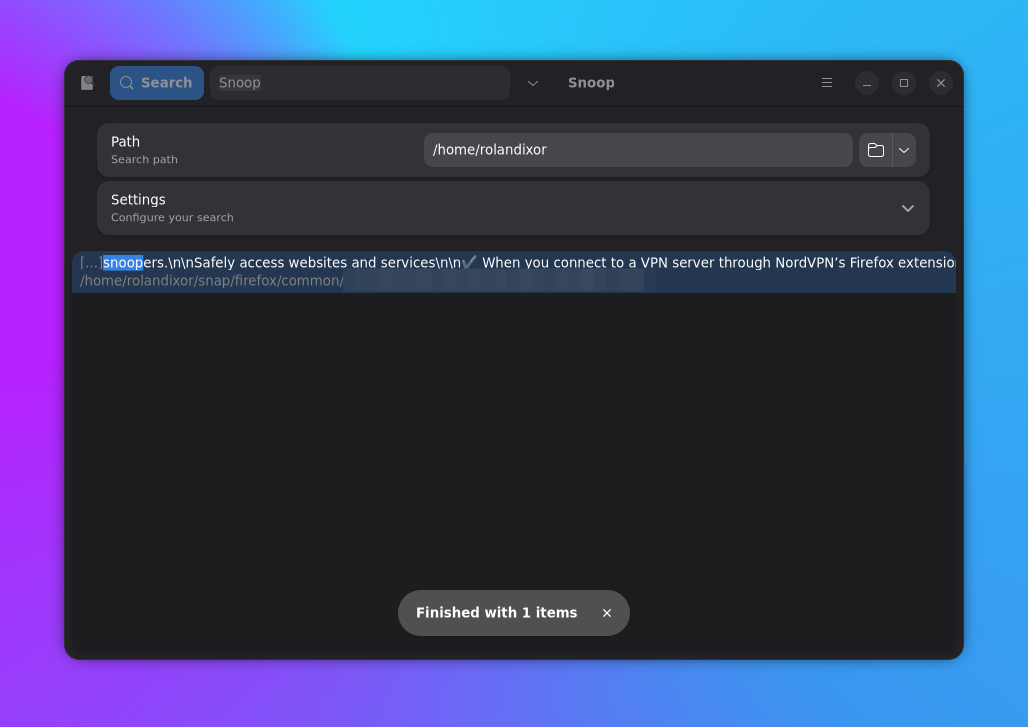
Snoop is a GTK 4 app that reaches beyond typical file search. Alongside files, it can search Firefox bookmarks and Thunderbird mail data, giving it a unique scope for a young project (first released in 2022). It’s still a bit quirky, with some challenges running search queries and duplicate preferences in three places, but the potential is impressive.
You can grab the Flatpak on Flathub, or build from source if you'd prefer not to use this packaging format.
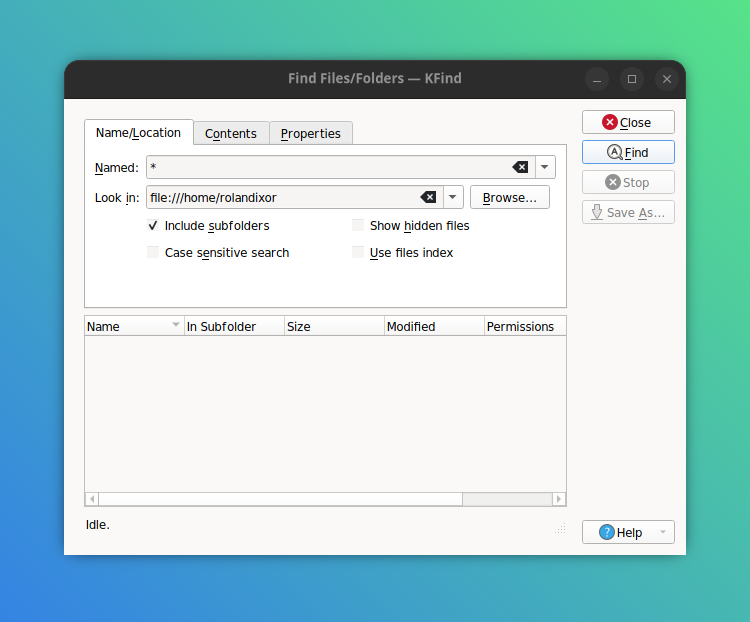
KFind is KDE’s long-running search companion and part of the Plasma suite, predating even the introduction of Dolphin and Baloo. Where possible, it uses Baloo for instant, indexed results, or falls back to classic recursive scanning. It features very fine-grained filters, even some not found in other search tools, and works well inside Plasma or as a standalone tool on other desktops.
KFind is available for most distributions, since it's a part of the standard KDE app collection. You can also grab KFind on Flathub or on the Snap Store.
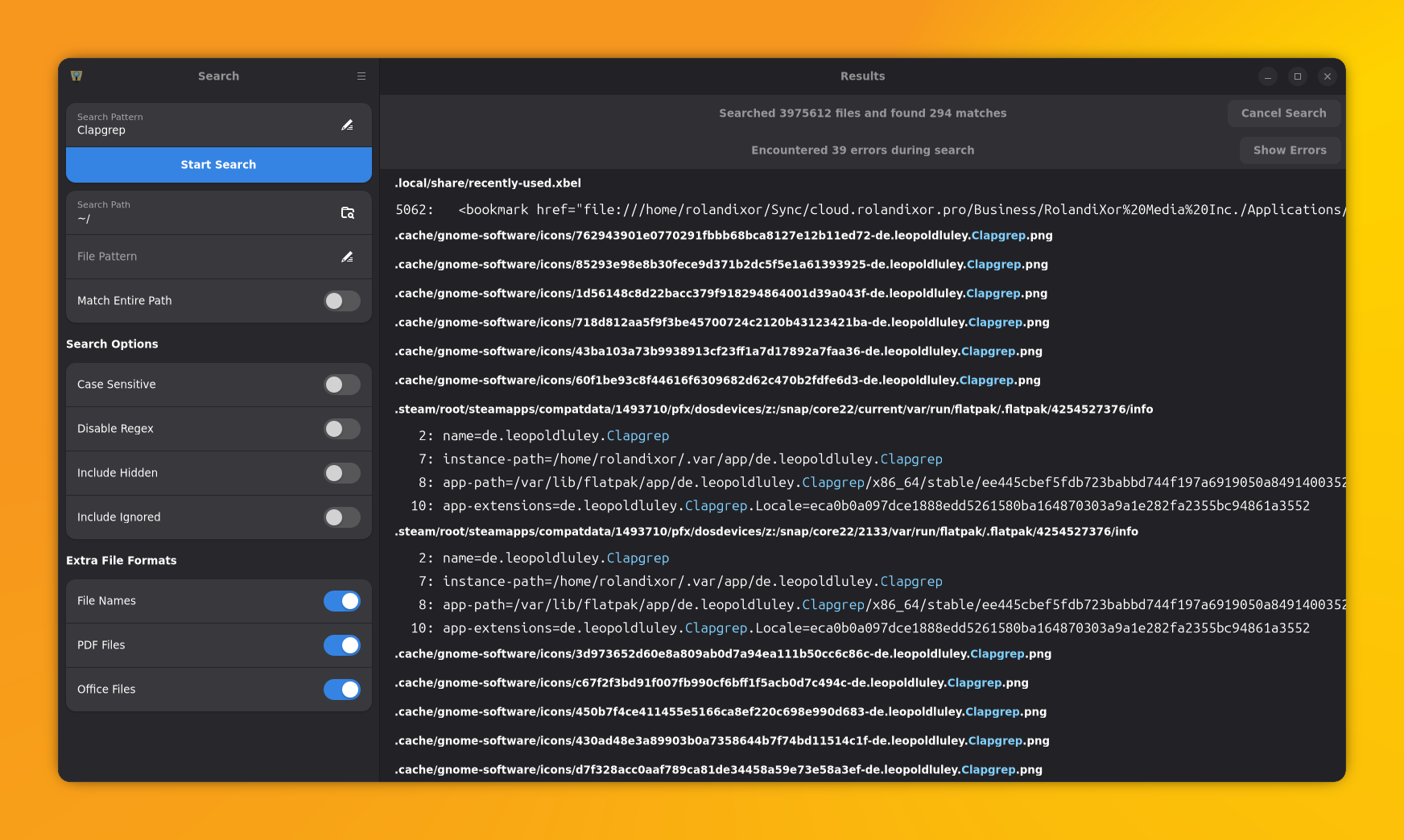
Clapgrep is a sleek GTK 4/libadwaita search tool with full text search and complex filters. It features optional GNOME Files integration, streams results live (you can stop a search at any time), and shows inline previews to ensure accuracy and speed up decision-making. It’s not the fastest raw scanner, but its polish and usability make it a joy to use. Out of all the apps in this list, it's my personal favourite.
Clapgrep is available as Flatpak (via Flathub), or as source code from the project's GitHub releases page.
Most desktop environments and their file managers of choice also come with at least some search functionality. In fact, some are among the most featureful GUI tools you can find. We won't go in depth on these, but here are a couple honourable mentions.
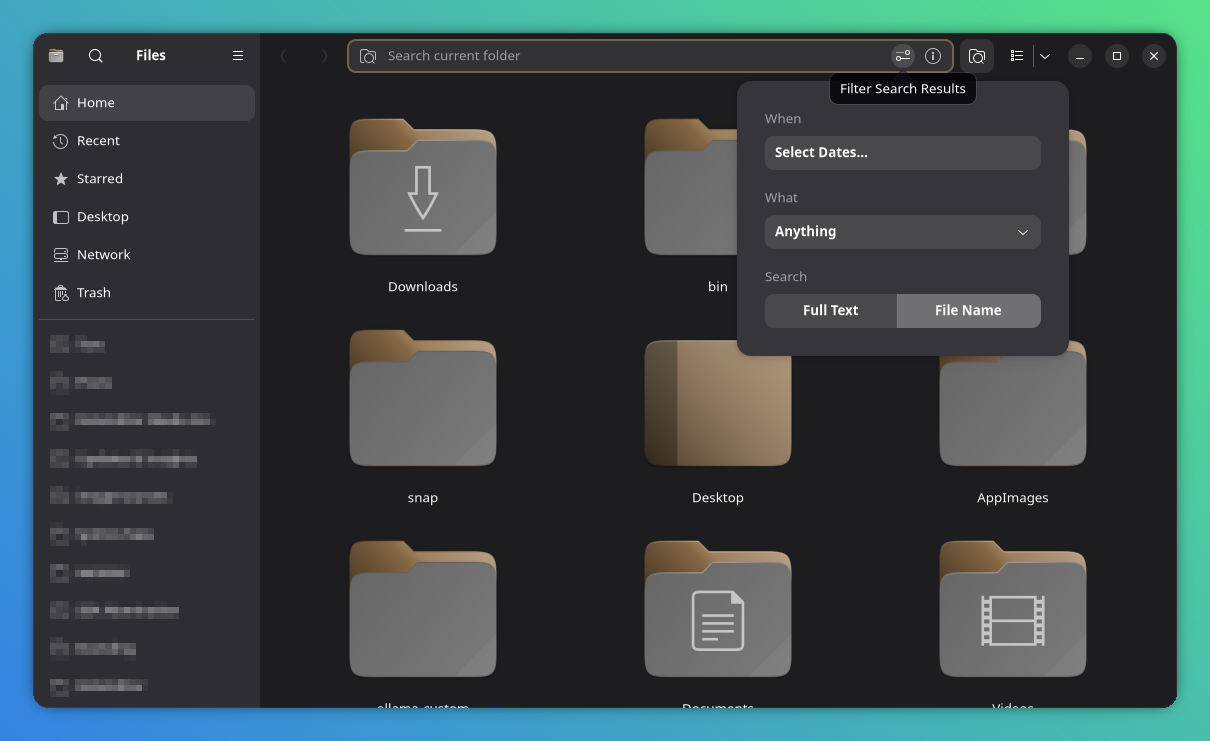
In GNOME, both Files Nautilus and the Shell's Dash utilize Tracker to power their search results, though Files can fall back to a simpler search method if Tracker is not available. Files gives you a more powerful UI, featuring date, file type and search-depth filters. You can also limit your search to just the individual folder, or search across the system with the search button in the sidebar.
The GNOME Shell Dash on the other hand, gives you a basic search based on filenames and meta-data. It can also search for special characters and copy them to the clipboard with a click.
 Sreenath
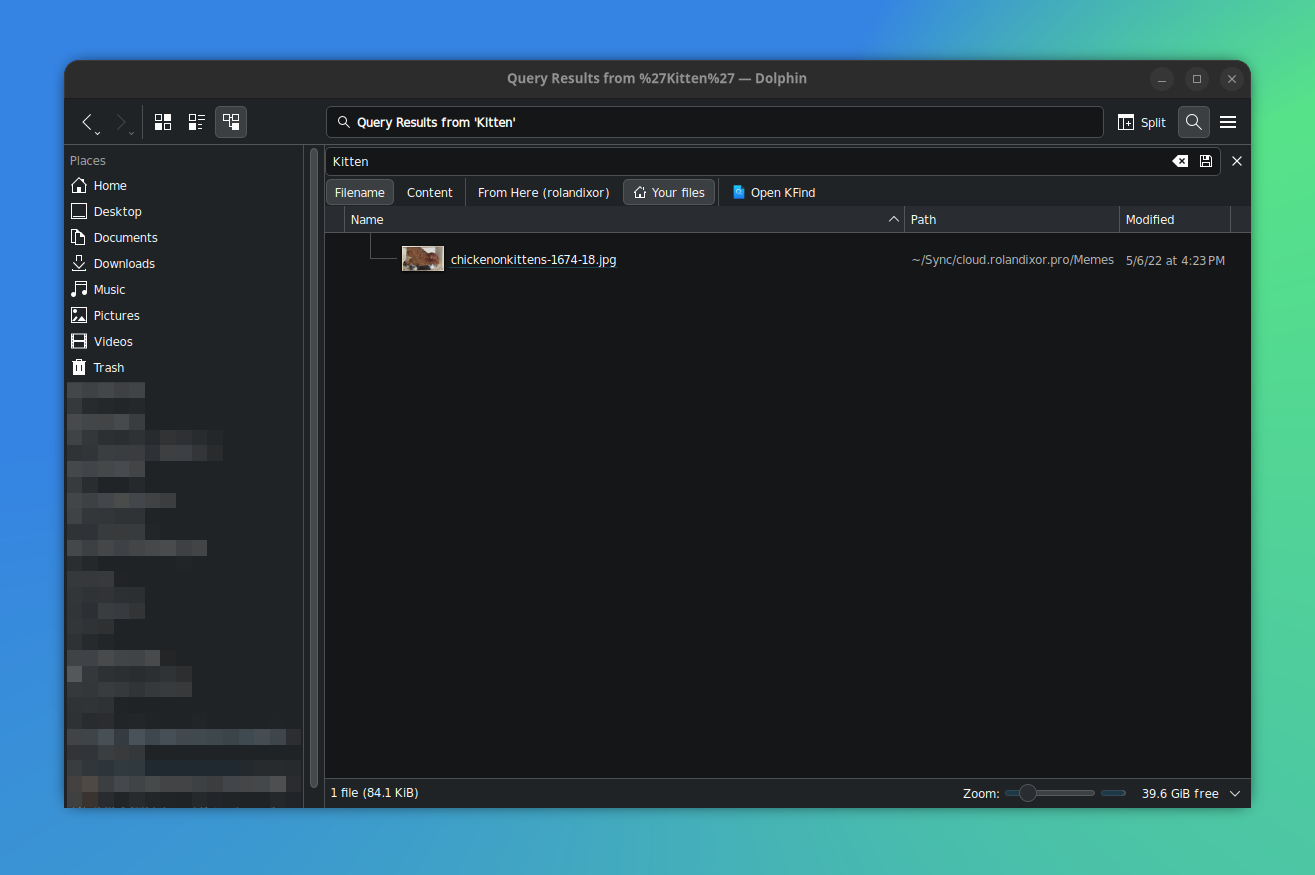
Dolphin is KDE's Plasma's file manager of choice, and it too has a powerful search built in. Contrary to Files, Dolphin uses Baloo as its primary backend, but can fall back to KIO if Baloo is disabled or if you choose "Filter" within the current working directory. Alternatively, you can run powerful searches using KDE's KRunner. Both allow you to perform full text searches of your files' content.
In short, file searching on Linux is no longer a headache. Whether you want lightning-fast filename lookups, true full text search, or deep desktop integration, there is a polished GUI fit to your workflow.
Start with one or two that fit your needs, tweak their indexing (if needed), and you will find what you need in seconds without ever needing to touch the terminal.

Proton has been on a roll lately. The Swiss company keeps expanding its privacy-focused ecosystem with tools that actually work for regular people. Take Lumo AI, for instance, their privacy-respecting AI assistant that doesn't feed your prompts into some data-hungry training pipeline.
And now, they are taking a big swing at Big Tech's productivity services dominance by launching Proton Sheets, an encrypted spreadsheet tool that isn't interested in mining your data.

Launched as a feature of Proton Drive, Sheets is rolling out gradually to all users, even those on the free tier. If you don't see it on your account, you will soon enough. Anant Vijay, Product Lead at Proton, says that with this addition, Proton Drive is now a clear alternative to Google Drive.
Getting started with it is quite easy. Just sign into your Drive and click on the "New" button, then select "New spreadsheet."
In terms of features, you will find all the usual ones you might expect from an online spreadsheet tool. There's real-time collaboration where multiple people can edit the same spreadsheet, built-in support for formulas to handle math problems, import and export of CSV and XLS files, and strong access control to shared sheets.


Proton Sheets collaboration options and screen size too small warning.
Everything is encrypted end-to-end. That means Proton can't see your data. Neither can anyone else unless you explicitly share access with them. Plus, the interface works across devices, so you can access your spreadsheets securely on the go.
And here's something interesting: Proton Sheets warns you when your browser window is too small. It is a thoughtful design choice that prevents you from mangling your spreadsheet on a tiny screen or window.
But this warning can get annoying. Sometimes you just want to quickly check a number or verify a formula on a sheet...
Proton now has a complete productivity suite. Email, calendar, file storage, documents, and spreadsheets. All encrypted. All private.
Add Proton Pass for password management, Proton VPN for secure browsing, and Lumo AI for private AI assistance into the mix, and you will find that the Proton ecosystem is a reliable Big Tech alternative that doesn't treat you as the product.
Suggested Reads 📖
 Sourav Rudra

 Ankush Das

