My homelab runs on 5 machines with around 30 Docker containers. For a long time, the way I reached them was a bookmarks folder full of entries like http://100.101.12.4:8096.
Tailscale took care of getting me into my network from anywhere, but once I was in, I was back to remembering which box ran what on which port.
The usual fixes each have a catch. A reverse proxy with your own domain works, but it's one more thing to maintain, and every new app means touching two config files instead of one. Giving each container its own Tailscale sidecar gets you nice names, but it also turns the Machines page into a list of containers, each with its own auth key and state volume.
When Tailscale released Services, it looked like the thing I had actually wanted: names for apps, not for machines. I've been running my containers that way since, and this is a write-up of how it works, how to set it up by hand, and the two things worth knowing before you start.
What a Tailscale Service actually is
A Service is a name plus a virtual IP on your tailnet, for example jellyfin.your-tailnet.ts.net. It doesn't belong to a device. Instead, one or more of your machines advertise it, and Tailscale routes clients to them.
So your Docker host stays a single machine in the tailnet, and the apps on it become Services. Access rules can point at a Service directly, so you can let someone reach Jellyfin without giving them the whole host.
Here is what a request looks like once it's set up:
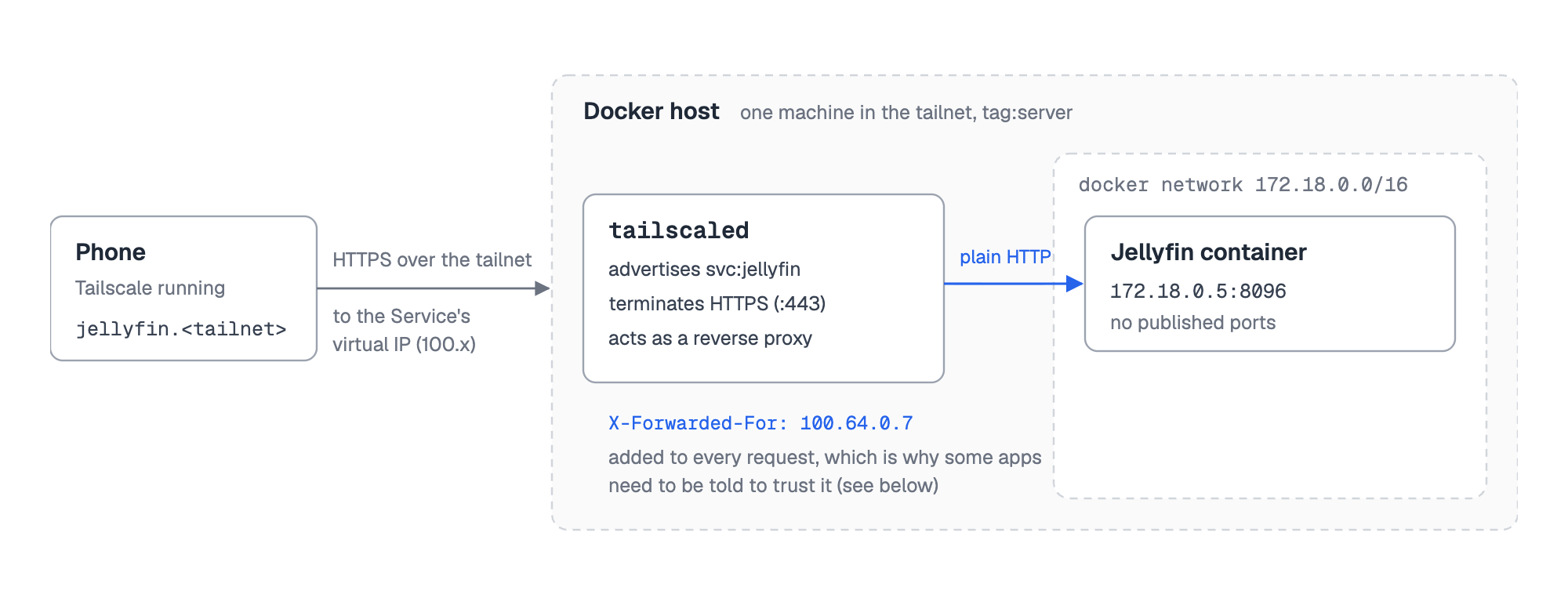
Two details in that picture matter later: tailscaled on the host terminates HTTPS and talks plain HTTP to your app, and it adds an X-Forwarded-For header. To your app, Tailscale behaves like a reverse proxy.
Setting one up by hand
Before automating anything, it's worth doing it manually once for a single container. You need three things.
1. A tagged host. Services are advertised by tagged machines, so give your Docker host a tag:
sudo tailscale up --advertise-tags=tag:server --reset
2. A policy that allows it. In the admin console under Access controls, the tags must exist, and an auto-approver saves you from clicking "Approve" for every Service:
{
  "tagOwners": {
    "tag:server": ["autogroup:admin"],
    "tag:container": ["tag:server"]
  },
  "autoApprovers": {
    "services": {
      "tag:container": ["tag:server"]
    }
  }
}
3. The Service itself. On the Services page of the admin console, choose Advertise, then Define a Service, name it jellyfin and give it the tag:container tag. Then, on the host, point it at the app:
tailscale serve --service=svc:jellyfin --https=443 127.0.0.1:8096
This assumes Jellyfin publishes port 8096 on the host. If HTTPS certificates are enabled for your tailnet (DNS page in the admin console), https://jellyfin.your-tailnet.ts.net now works from every device that runs Tailscale.
For one app, that's fine. For 30, it gets old quickly: one definition in the console and one serve command per app, plus published ports again. And nothing updates by itself when you add, remove or move a container.
Why I ended up scripting it
The part that bothered me most was that the configuration lived in two places. The app was defined in a Compose file, and how to reach it was defined somewhere in the admin console and in tailscaled's state. Remove a container and its Service just stays there.
Traefik solved the same problem for reverse proxies years ago with Docker labels, and I didn't find anything like that for Tailscale Services. So I wrote a small Go program that does it, DockTail. It runs as one container per host, watches Docker events, and turns labels like these into the steps above:
services:
  docktail:
    image: ghcr.io/marvinvr/docktail:latest
    restart: unless-stopped
    volumes:
      - /var/run/docker.sock:/var/run/docker.sock:ro
      - /var/run/tailscale:/var/run/tailscale
    environment:
      - TAILSCALE_OAUTH_CLIENT_ID=${TAILSCALE_OAUTH_CLIENT_ID}
      - TAILSCALE_OAUTH_CLIENT_SECRET=${TAILSCALE_OAUTH_CLIENT_SECRET}

  jellyfin:
    image: jellyfin/jellyfin:latest
    restart: unless-stopped
    volumes:
      - ./config:/config
      - ./cache:/cache
      - /path/to/media:/media:ro
    labels:
      - "docktail.service.enable=true"
      - "docktail.service.name=jellyfin"
      - "docktail.service.port=8096"
      - "docktail.service.service-port=443"
With an OAuth client (Services: Write, Devices Core: Write, scoped to tag:server) it also creates the Service definition, so the manual console step goes away. Note that Jellyfin has no ports: section: the traffic goes straight to the container's IP on its Docker network.
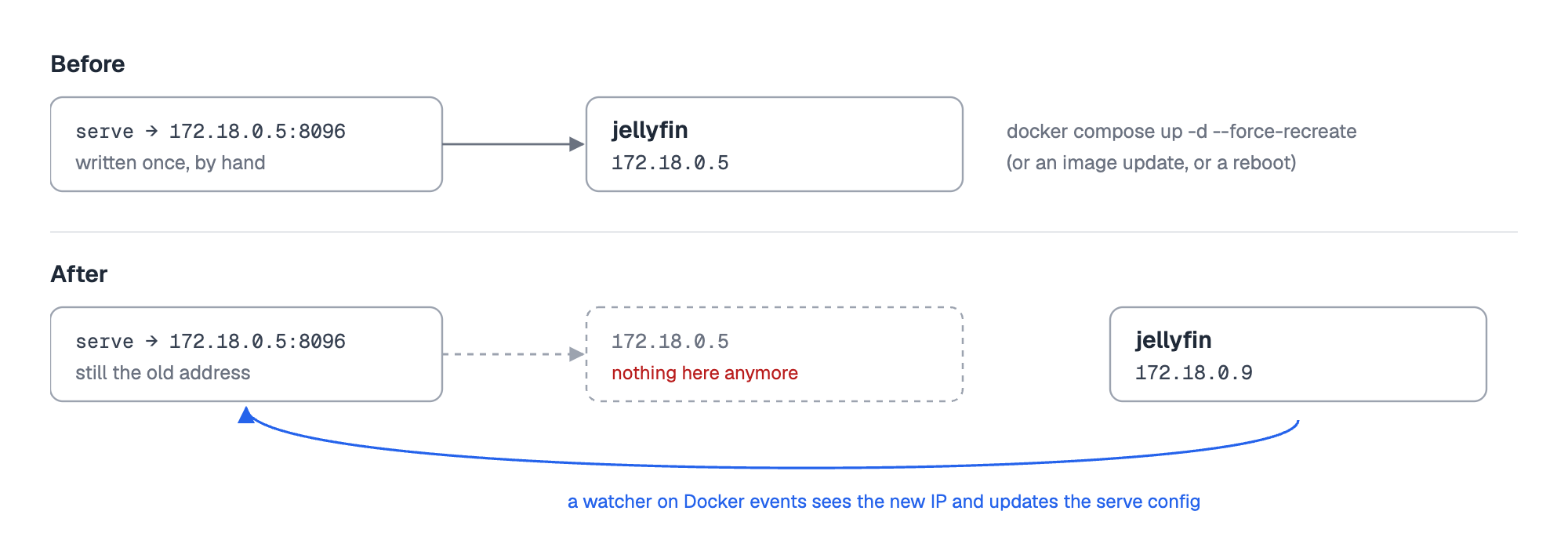
That's also why this needs something that watches Docker. If you skip published ports and point serve at a container IP by hand, it breaks the next time the container is recreated:
DockTail is open source (AGPL-3.0). You don't need it to use Services, though, and everything in the next section applies either way.
Two things worth knowing
If a Service doesn't show up, it's almost always the tag. The host needs to be tagged (check tailscale status), and if you haven't set up an auto-approver, the Service waits for you on the Services page.
Apps that check proxy headers may complain at first, because Tailscale adds an X-Forwarded-For header. Home Assistant answers with "400: Bad Request" until you trust the proxy in configuration.yaml:
http:
  use_x_forwarded_for: true
  trusted_proxies:
    - 127.0.0.1
On a Docker bridge network, use the address Home Assistant names in its log instead of 127.0.0.1. Jellyfin has the same setting under Dashboard → Networking → Known proxies, but it works fine without it.
Was it worth switching?
For me, yes. What I like most is that the network config now sits right next to the app in the same Compose file. Adding an app means adding labels, removing it takes its Service with it, and my Machines page shows machines again.
I'd still use a reverse proxy for anything public with my own domain. Tailscale Funnel is great for a webhook or sharing one thing with a friend, but it's not a replacement for that. And if you run a handful of containers that rarely change, the manual tailscale serve route above is perfectly fine and needs no extra tool.
If you want to try the label approach, the code and docs (including complete guides for Jellyfin and Home Assistant) are at github.com/marvinvr/docktail and docktail.org/docs.
And if you've solved this differently, I'd honestly like to hear how. Leave a comment, I'll read all of them.

from It's FOSS https://ift.tt/LHuyR46
via IFTTT

Tidak ada komentar:
Posting Komentar