Before Microsoft became the company that shipped Windows to corporate desks around the world, it had to start somewhere. That somewhere was a scrappy little operating system written by one guy at Seattle Computer Products.
Tim Paterson built what he initially called QDOS, short for Quick and Dirty Operating System, in 1980. Intel's 8086 chip was out, but CP/M, the dominant OS of the time, had no 8086 support. He wrote something to fill that gap, modeling the CP/M API so existing software would run on it.
Microsoft bought the rights to 86-DOS for just under $100,000, shipped it to IBM as PC DOS 1.0 in August 1981, and retained the rights to sell the same OS to other PC manufacturers as MS-DOS.
That single deal set Microsoft on the path to dominating personal computing for the next two decades.
Fast forward to now
On April 28, the 45th anniversary of 86-DOS 1.00, Microsoft published a blog post announcing that the earliest known DOS source code is now publicly available on GitHub, under the MIT license.
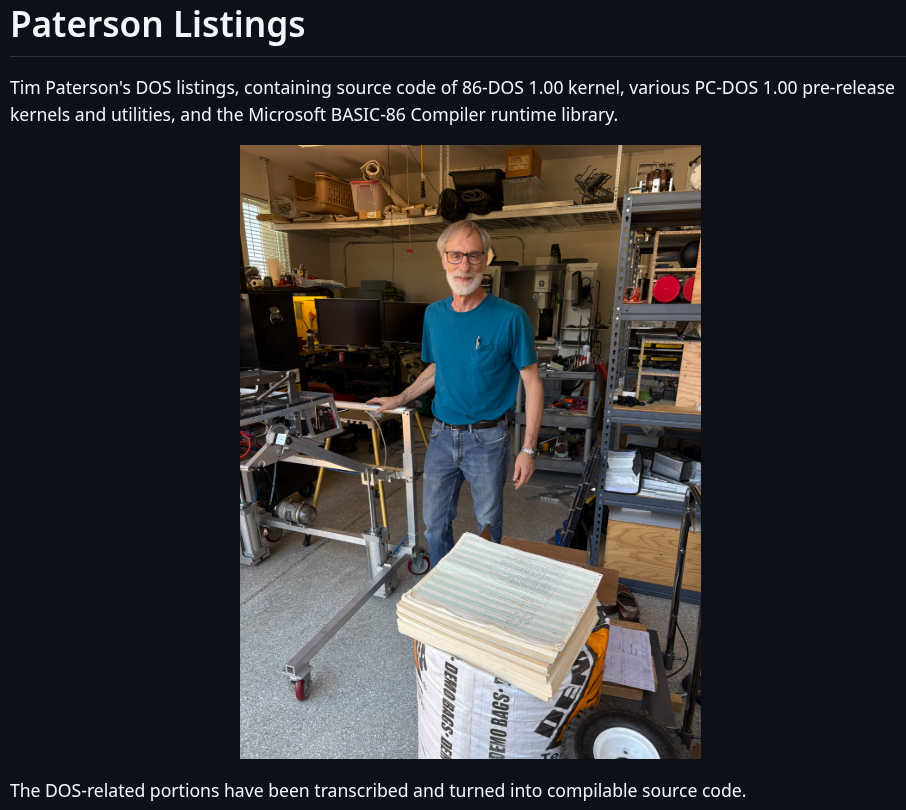
And the story behind it is an interesting one. Tim did not hand over a tidy source archive; instead, what he kept were physical assembler printouts and stacks of continuous-feed paper from 1981 that he had held onto over the decades.
Getting those into usable shape took effort, with historians Yufeng Gao and Rich Cini having to locate, scan, and transcribe the DOS-related portions into compilable code.
What's included are the 86-DOS 1.00 kernel, several development snapshots of the PC-DOS 1.00 kernel, utilities like CHKDSK, and the assembler Paterson used to write the OS itself.
Who's this for?
Honestly, seeing Microsoft open up old code is not that surprising anymore. 6502 BASIC went open source in September 2025. MS-DOS 4.0 in 2024. MS-DOS 1.25 and 2.0 back in 2018. There is a clear pattern at this point.
If you are into retro computing or low-level systems work, this is genuinely worth digging into. The source code is compilable, and you will need a copy of Seattle Computer Products' ASM assembler, which you can pull from any 86-DOS or early MS-DOS release.
The GitHub repository's README has the necessary steps for you to follow.
Ptyxis is a modern terminal emulator built with GTK4 and libadwaita. It provides a cohesive look for the GNOME desktop, making it feel like a natural part of the system.
The application was specifically developed to meet the needs of modern software development workflows. In my opinion, its standout feature is the seamless container support for tools like Podman, Distrobox, and Toolbox.
Ptyxis is rapidly gaining popularity across the Linux community. It has already become the default terminal for many modern distributions, including Fedora and the upcoming Ubuntu releases.
As I have been using it for some months now, let me share some of my favorite features in this new terminal. I hope you like them as much as I do.
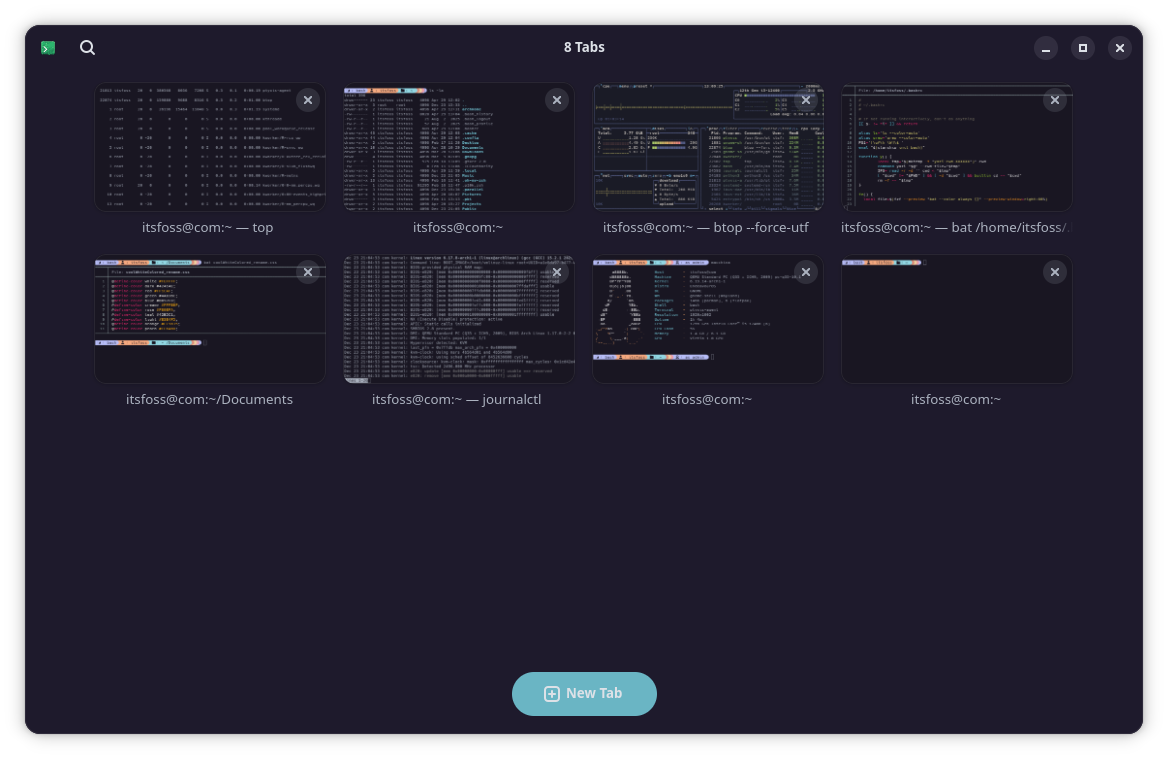
The first thing you notice when opening Ptyxis is the tabs and overview system. While other emulators like GNOME Terminal or Kitty use a standard tab bar, Ptyxis introduces a visual tab selector that feels very similar to the GNOME Activities overview.
Tabs Overview
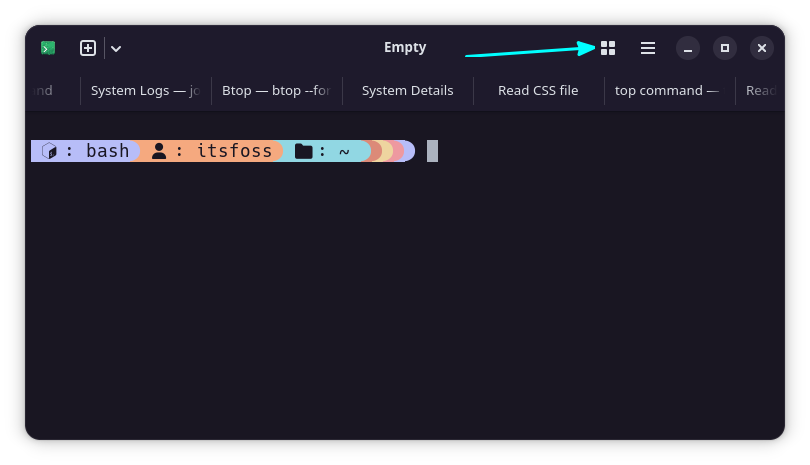
If you have multiple tabs open, you can simply click the Show open tabs button in the top-right of the title bar.
Click on Tab Overview (Show open tabs) button
This opens an interface where each tab displays its title alongside a small preview, making it easy to see exactly what is running before you click back into a full view.
The flexibility here is excellent because you can drag and drop tabs in the overview to rearrange them.
Rearrange tabs by drag and drop
You can also pin important tabs to keep them visible at the top of the list at all times.
Pin tabs in overview
My favorite feature, however, is the ability to easily custom name your tabs and search through them later. By right-clicking a tab in the overview and selecting "Set title," you can choose to either prepend a name to the default process or create a completely custom title.
Renaming a tab in Ptyxis
Once your tabs are named, you can use the search button in the top-left of the title bar to find exactly what you need. This is incredibly helpful when you are managing a large number of active sessions simultaneously.
Search for Tabs in overview
📋
When you have multiple terminal sessions, the tab and overview feature helps a great deal in finding the right tab in the same application interface.
Color Schemes
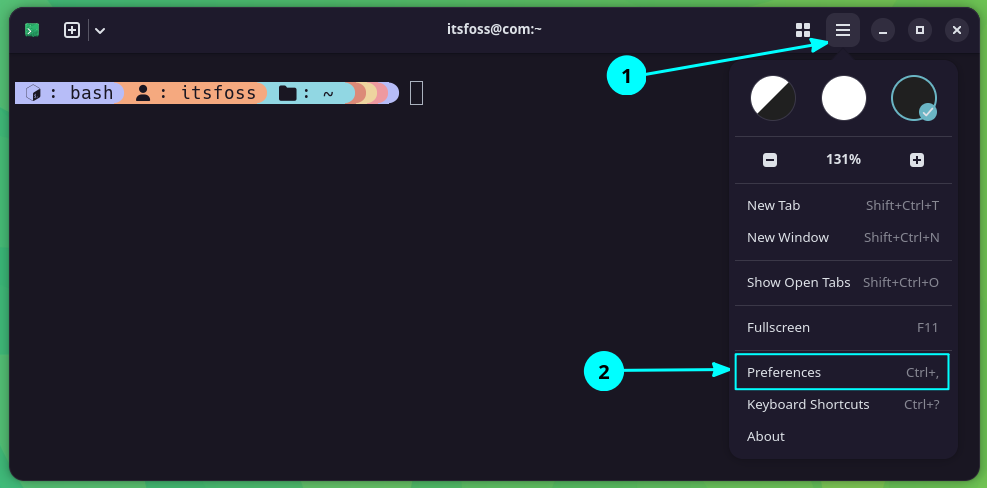
A standout feature of Ptyxis is the support for a wide range of preset color schemes. You can access these options by opening the preferences window through the three-dots menu in the top-right of the title bar.
Open Preferences
Once inside the Appearance tab, click on the "Show all palettes" option to see the full list. The interface provides a neat preview for each selection, and your chosen theme is applied immediately.
All color schemes in Ptyxis terminal.
In my opinion, the way these colors adapt is impressive. The scheme is applied intelligently to the tab bar as well, ensuring the entire terminal maintains a cohesive and professional look.
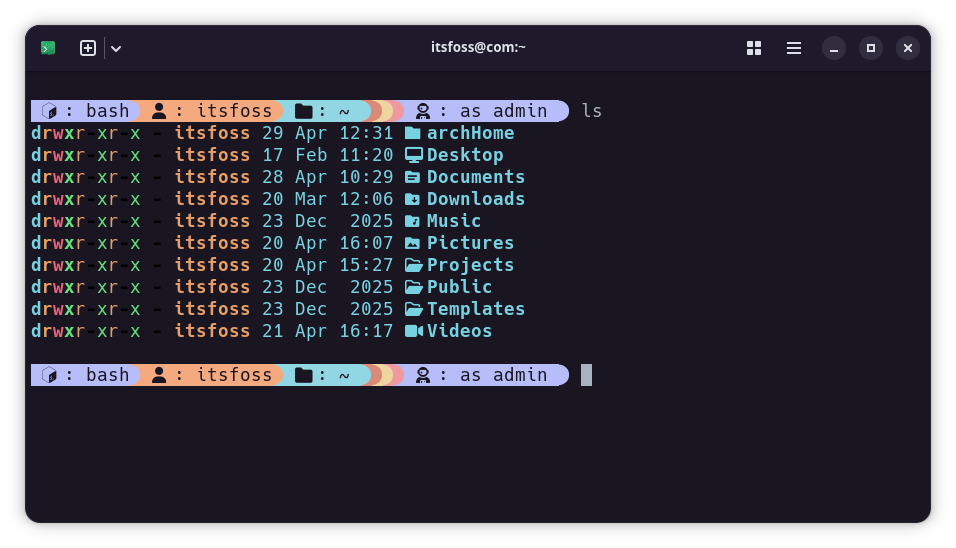
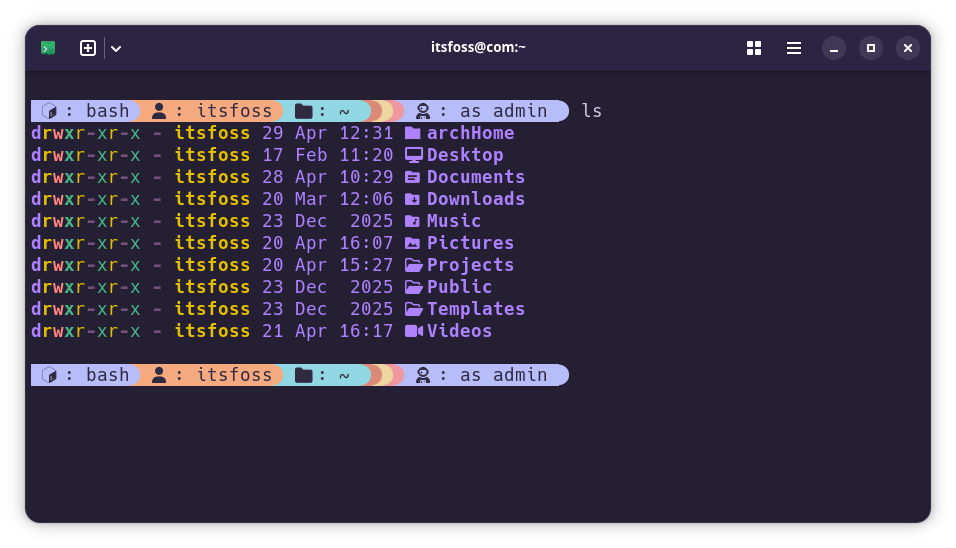
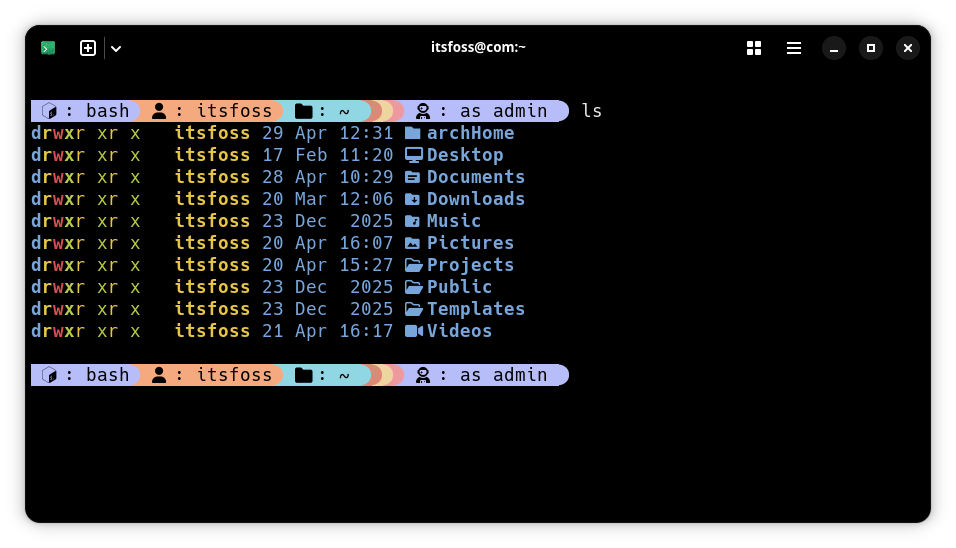
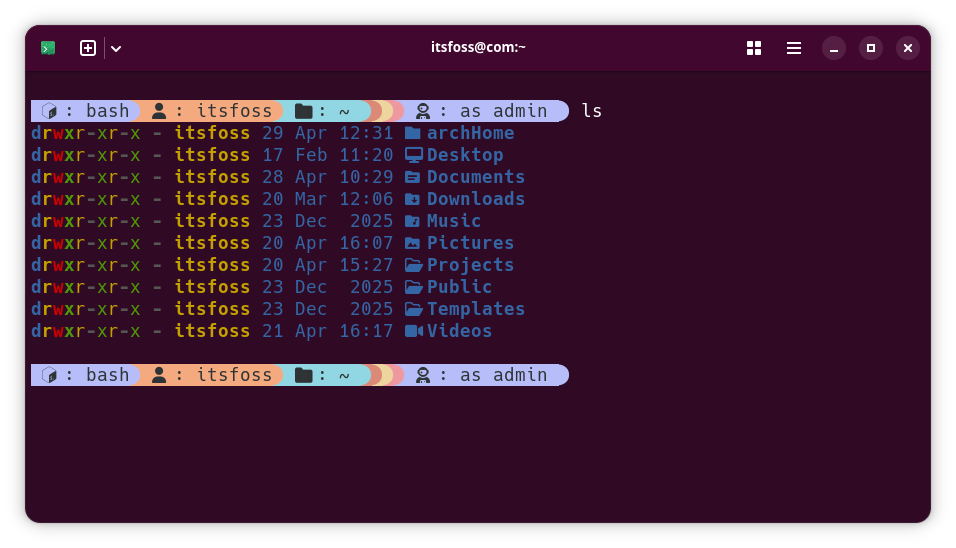
Among the vast list of options, I have a few specific favorites that I think look incredible. Omni, Pixiefloss, and Tomorrow Night, Ubuntu are all excellent choices that provide a very modern feel.
Themes applied in the order: Omni, Pixiefloss, Tomorrow Night, Ubuntu
📋
It's not just the dark and light mode. That's too simplistic. You have plenty of color themes to choose from.
Scrollback Search
The ability to search through what appears on your screen is a massive help during long sessions. While tools like grep are great for text files, you often need to find specific information directly within the shell scrollback.
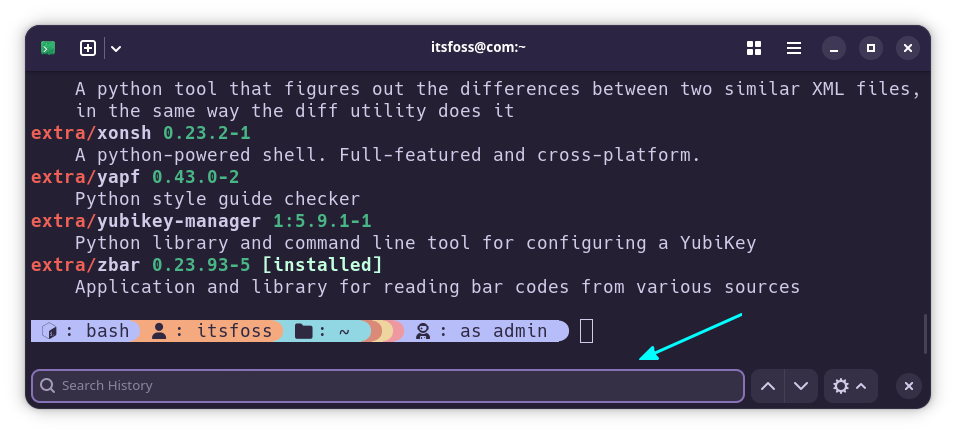
For example, if you have displayed a massive log file using the cat command, you can quickly find what you need without re-running the command. By pressing SHIFT + CTRL + F, a search interface opens at the bottom of the terminal.
Scrollback Search Interface
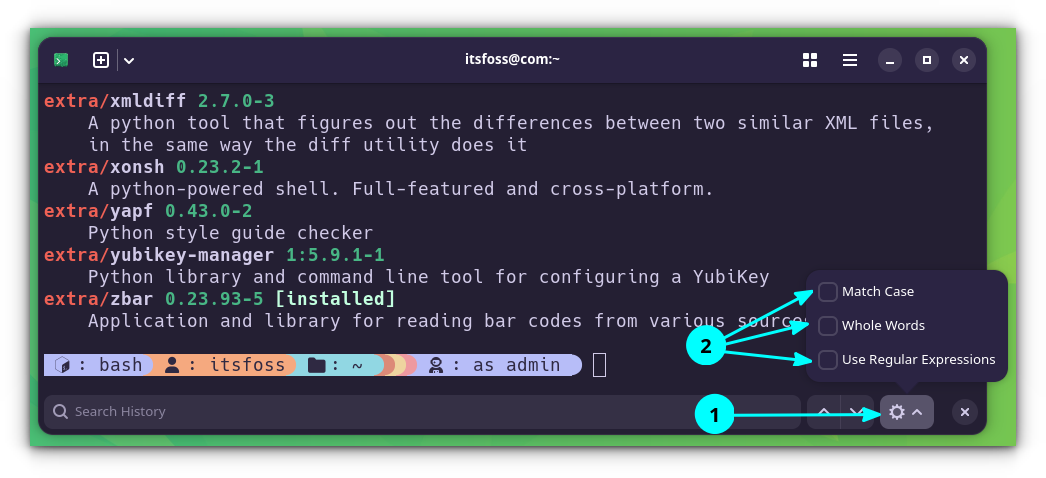
The extra search filters provides better matching. You can choose to match case, match whole words, or even use regular expressions to narrow down your results.
Scrollback Search Criteria
The interface includes simple navigation buttons to move up and down through your search matches. This makes it incredibly easy to jump between different instances of a term within a long output.
Searching in the Scrollback contents
📋
This has been a struggle in standard terminals. Finding text that has been displayed on the screen earlier is a good productivity booster for me.
Container Support
This is the flagship feature of Ptyxis. The terminal works directly with container technologies like Podman, Distrobox, and Toolbox to make your development workflow much smoother.
If your system has containers using these platforms, Ptyxis detects them automatically and provides a dedicated way to access them. You can simply click the dropdown button in the top-left of the title bar and select a specific container from the list to launch it instantly.
Enter a container using Dropdown menu
The ptyxis-agent coordinates with your system to handle the discovery and management of these environments. For example, if you are using Distrobox, Ptyxis will execute the proper run commands for you behind the scenes.
📋
The lack of Docker integration is surely a letdown. While you can still run Docker CLI commands manually, the terminal will not detect them automatically or allow you to enter them through the UI like it does for Podman. No matter how good Podman is, Docker is still omnipresent. I am lowkey disappointed that it cannot detect docker containers.
Profiles
Okay. This is not new. Almost all modern terminals support the profile feature and yet I think that profiles are the most underrated feature that many people often ignore.
How do they help? Let's say you want to try a new shell like ZSH, you can create a specific profile for it instead of changing your entire system shell. You could also create a dedicated profile for a terminal multiplexer like Zellij.
Custom Profiles
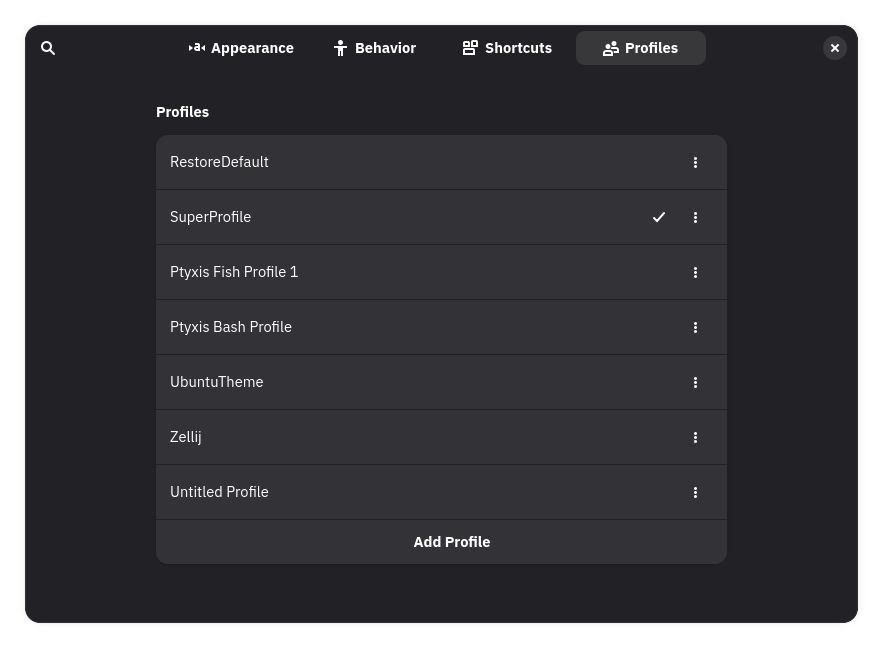
Ptyxis has excellent support for profile creation and management. You can find these options in the Profile section of the Preferences window.
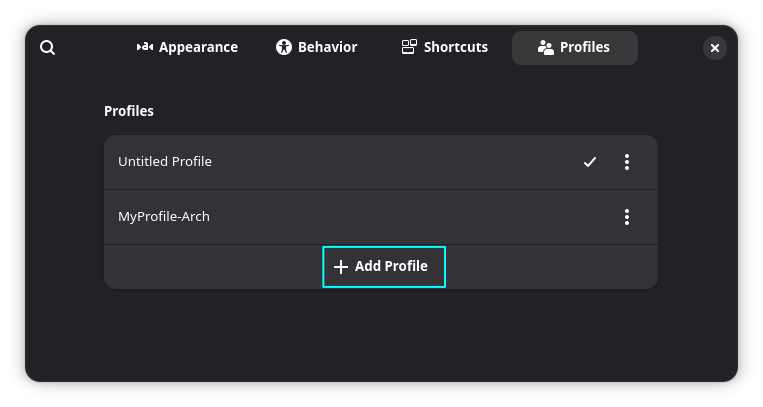
By default, you will only see an Untitled Profile, but you can use the Add Profile button to create something new. The profile creation dialog is vast and offers many different options.
Click on Add Profile button
You can set specific color schemes, choose a custom shell, or even assign a default container to a profile. For example, I can create a profile that automatically opens my Ubuntu Distrobox container every time I launch it.
Once your profiles are set up, you can set one as the default for all future terminals. Alternatively, you can quickly switch between your different profiles using the dropdown menu in the title bar.
💡
I suggest that you do not alter the default profile. This will be very beneficial if you ever mess up a configuration and need to restore the original behavior.
Context Awareness
Ptyxis can intelligently identify your current context, such as active root privileged windows or SSH connections. This provides immediate visual feedback about the environment you are working in.
For example, if you run a command using sudo, the title bar of the terminal turns red to notify you of the changed privilege level. If you log in as the root user, the title bar remains red until you finally log out.
0:00
/0:11
Ptyxis titlebar color change for previlieged windows.
📋
In my opinion, this is an excellent communication method for the user. it provides a clear warning about the caution needed while interacting with the terminal in a high-privilege state.
Some hidden gems
Apart from the major features I mentioned above, Ptyxis also has a few more tiny functions that deserve attention. The Shortcuts option in the Preferences window allows you to alter existing keyboard combinations or add new ones for various terminal actions.
The Shortcuts page in the Preferences window allow you to change the existing shortcuts or add new shortcuts to various terminal actions.
An advanced addition is the Terminal Inspector. This tool allows you to monitor exactly what is running in the terminal at any given moment, which is a massive advantage for developers.
Ptyxis terminal inspector
You can use the inspector to track underlying shell processes, monitor mouse pointer locations, and even peek at OSC (Operating System Command) hyperlinks. It is a specialized feature that makes debugging terminal-based applications much easier than before.
I can see why Ubuntu and Fedora made it default
Ptyxis is a good upgrade from the classic GNOME Terminal. While the container integration might not be for everyone, the app has significantly improved many day-to-day features that improve the overall experience.
What do you think about this new terminal emulator? Will you use it as your main terminal, or are you sticking with your current favorite? Share your opinions in the comments section!
Linux gaming has been on a great trajectory these past few years.
Proton turned a massive chunk of the Steam library into playable Linux titles thanks to Wine as its backbone, and purpose-built Linux gaming consoles are now a product category that actually exists.
We recently covered the Playnix Console, a $1,179 Linux gaming machine from the EmuDeck team that ships with a custom Arch-based OS and boots straight into Steam's gaming mode.
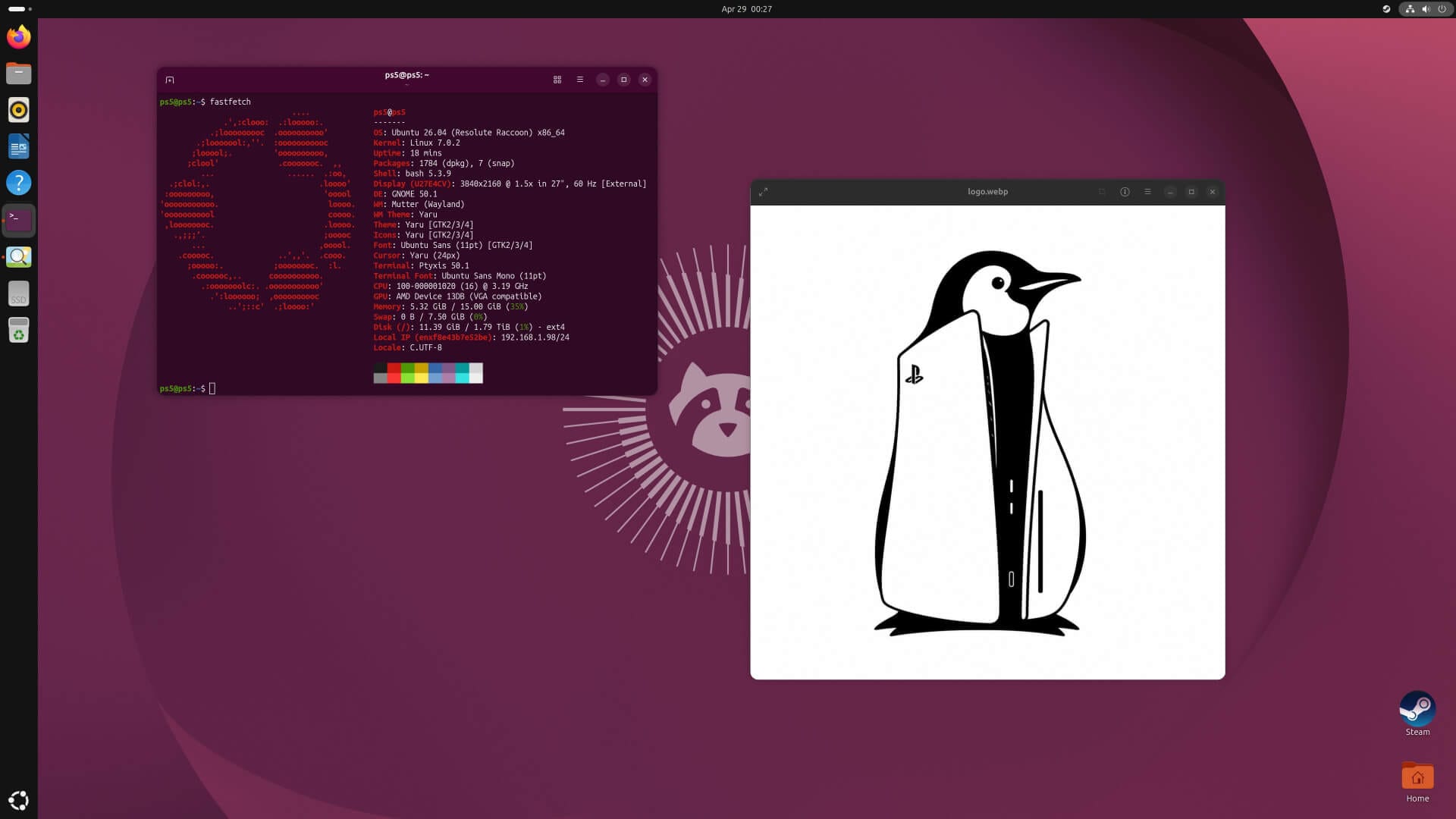
Today, we have a project that lets you run a Linux-powered operating system on Sony's PlayStation 5 console.
Running Linux on a PS5?
Sourced from Andy Nguyen.
Andy Nguyen, the developer behind this, first posted about him running Linux on the PS5 back in March, where he demonstrated playing GTA V Enhanced with Ray Tracing enabled.
More recently, he posted that his project "ps5-linux" was live on GitHub, allowing gamers to turn their PS5 (non-slim) devices into a fully functioning Linux gaming PC.
You see, the PS5 does not run a Linux kernel. Sony's operating system is built on a heavily modified version of FreeBSD, which is a separate Unix-like OS altogether. What ps5-linux delivers is a genuine Linux port, not some tweak on top of what was already there.
In terms of what you actually get, it's a full desktop Linux environment. The PS5's 8-core, 16-thread CPU can be pushed to 3.5 GHz, the GPU to 2.23 GHz, and HDMI video output goes up to 4K at 60Hz. Steam runs on it, providing you with access to PC games and settings that Sony's own OS doesn't offer.
There are some gaps though; the PS5's onboard Bluetooth and networking hardware currently have no Linux driver support. You'll need a USB Ethernet or WLAN adapter for internet access and a Bluetooth dongle if you want to use a DualSense controller wirelessly.
It's also not a persistent install as the console's internal SSD is left completely untouched, so bricking your PS5 isn't really a concern. The trade-off is having to re-run the exploit from scratch on every single reboot.
I ported Linux to the PS5 and turned it into a Steam Machine. Running GTA 5 Enhanced with Ray Tracing. 🤯 pic.twitter.com/aMbT0PQ1dS
It works on PS5 (non-slim) consoles only. Devices running firmware 3.xx (3.00, 3.10, 3.20, 3.21) are supported but without M.2 SSD support. If you are on firmware 4.xx (4.00, 4.02, 4.03, 4.50, 4.51), you get the full package, including the ability to dedicate an M.2 SSD to Linux.
And you can run the following Linux distributions:
Arch Linux (with Sway)
Ubuntu 24.04 LTS
Ubuntu 26.04 LTS
Alpine Linux 3.21
Apart from that, you will have to follow the instructions closely and make use of the PS5 Linux Image Builder to get a Linux OS installed on your PlayStation 5 device. Andy also has a Discord server set up for people who can do a kernel exploit on his project and help him hack drivers.
Some thoughts
Is it practical? Not really. Using the exploit means starting the whole process over, and Sony will almost certainly DMCA the repos or employ some other legal mechanism at some point.
But someone built a full Linux port for a console that was never meant to run it, got Steam working on it, and put it all out for free. The Linux community has always been more interested in proving something is possible than in whether it's convenient, and this project is exactly that.
The Sovereign Tech Agency has launched a new pilot program called Sovereign Tech Standards, and it will be paying open source maintainers to get involved in the processes that actually shape how the internet works.
The problem they are trying to tackle here is of access. Participation in bodies like IETF, W3C, and ISO is relatively open, but the reality is different. Attending meetings, keeping up with working group discussions, and contributing meaningfully takes a lot of investment, both in terms of time and money.
Large tech companies are said to be sending people to these meetings as a routine business investment, but most independent open source maintainers simply do not have the time, resources, or sustained capacity to do the same.
Why is this an issue? Maintainers are the people who actually build software on top of these standards, and they know better than anyone where the specs fall apart in practice.
So, wouldn't it be reasonable to directly involve such talent with the standards themselves?
Sovereign Tech Agency ran a survey among maintainers who had worked with such standards and found that many of them relied on the specifications in their day-to-day work. Yet very few could afford to take part in their development in the long term.
During 2026's pilot run, up to ten maintainers will be selected for a cohort running from mid-June 2026 through June 2027. They will need to put in around ten hours a week on standards work at IETF, W3C, or ISO.
Every one of the selected developers will get a monthly stipend between €4,800 and €5,200, with things like SDO participation fees, travel to in-person meetings, and onboarding covered.
How to apply?
To be eligible, you need to be an active maintainer of an open source project whose work is related to standards at IETF, W3C, or ISO in some way. Prior experience with standards bodies is not required, and there are no geographic restrictions either.
The selection panel scores applications on how foundational the relevant standard is, what you are planning to work on, whether your perspective is missing from that working group, and your background as a maintainer.
You should go for it if you meet those requirements.
Applications are open now and close on May 19, 2026, at 11:59 PM CEST. Review and selection will happen during May 2026, with the applicants being notified in June 2026.
The program itself is set to kick off at the end of June 2026. You can also find some additional information on the program's official page.
Warp has open-sourced its terminal client. The code is now on GitHub, and the company wants the community involved in building it out going forward, but the contribution model looks nothing like you would expect from an open source project.
They say that the main bottleneck in development right now is no longer writing code but the human-led tasks such as deciding on features and verifying the behavior of a piece of software.
They are looking towards agents to handle the implementation, while human contributors focus on ideas, spec work, and review. The developers are now confident enough that Oz-generated code, guided by their own rules and verification processes, puts contributors in a good position to get features right.
If you didn't know, Oz is Warp's cloud agent orchestration platform, announced earlier this year, which lets you run multiple coding agents in parallel in the cloud with full visibility and control over what they're doing.
Announcing this move, Zach Lloyd, the CEO of Warp, added that:
Open-sourcing is fundamentally coming from our desire to build a successful business. We are competing with other highly funded, closed-source competitors, and we think opening and providing the resources for the community to improve Warp is a smart way for us to accelerate product development.
As a refresher, Warp (partner link) is a modern terminal and agentic development environment built in Rust. It runs on Linux, Windows, and macOS, with a block-based command interface and built-in support for AI coding agents like Claude Code, Codex, and Gemini CLI.
Get the sauce
The client codebase is now live at github.com/warpdotdev/warp, and the licensing is split depending on the component. The UI framework, consisting of warpui_core and warpui crates, is under the MIT license, while the rest of the codebase is under AGPLv3.
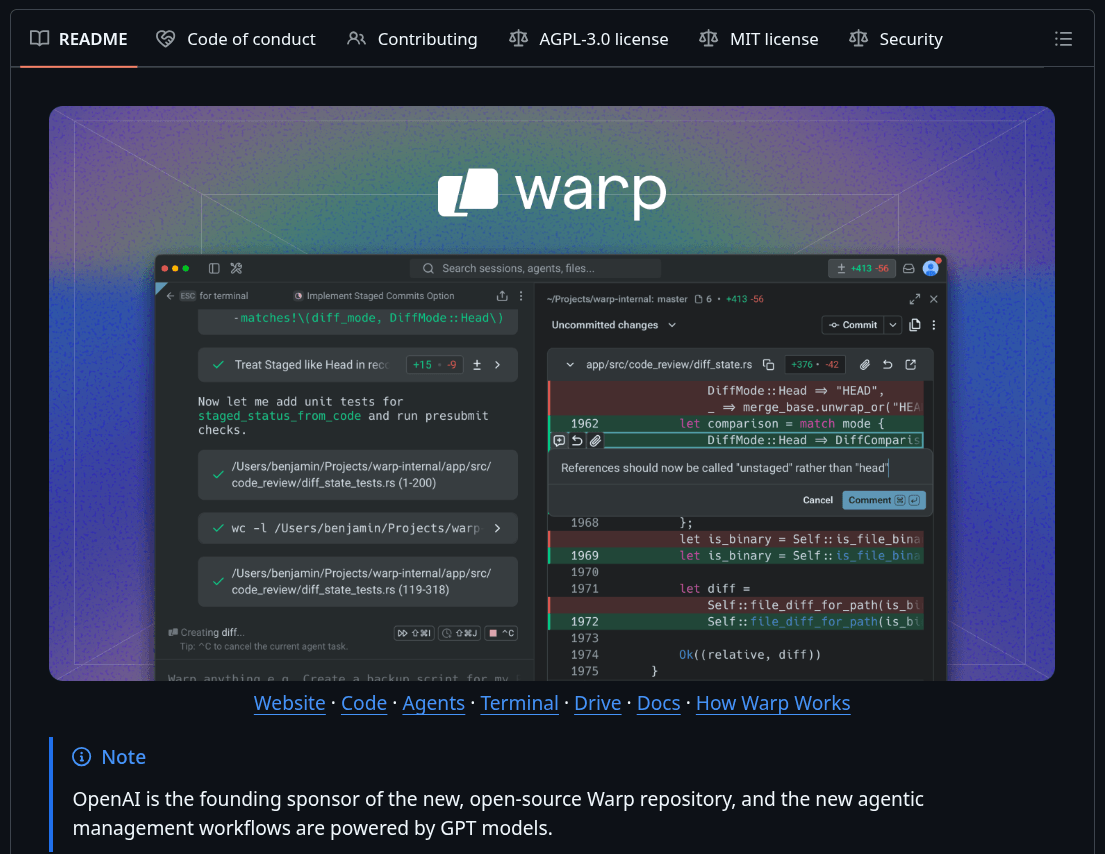
OpenAI is the founding sponsor of the repository, and the agentic contribution workflows are powered by GPT models. Keep in mind that other coding agents are welcome too, but Warp would rather you use Oz, which already has the right context and checks baked in for this workflow.
Warp is also expanding open source model support with this announcement, bringing in Kimi, MiniMax, and Qwen, plus a new "auto (open)" routing option that selects the best open model for a given task. A settings file for programmatic control and easier portability across devices is shipping too.
The Linux Vendor Firmware Service, or LVFS, is what makes firmware updates on Linux not a nightmare. Hardware vendors upload their firmware directly to it, and users get those updates delivered through fwupd and tools like GNOME Software.
But the project is moving towards a dilemma that most open source projects of its scale eventually face. To be a sustainable undertaking in the long term. 🗓📈
They need support
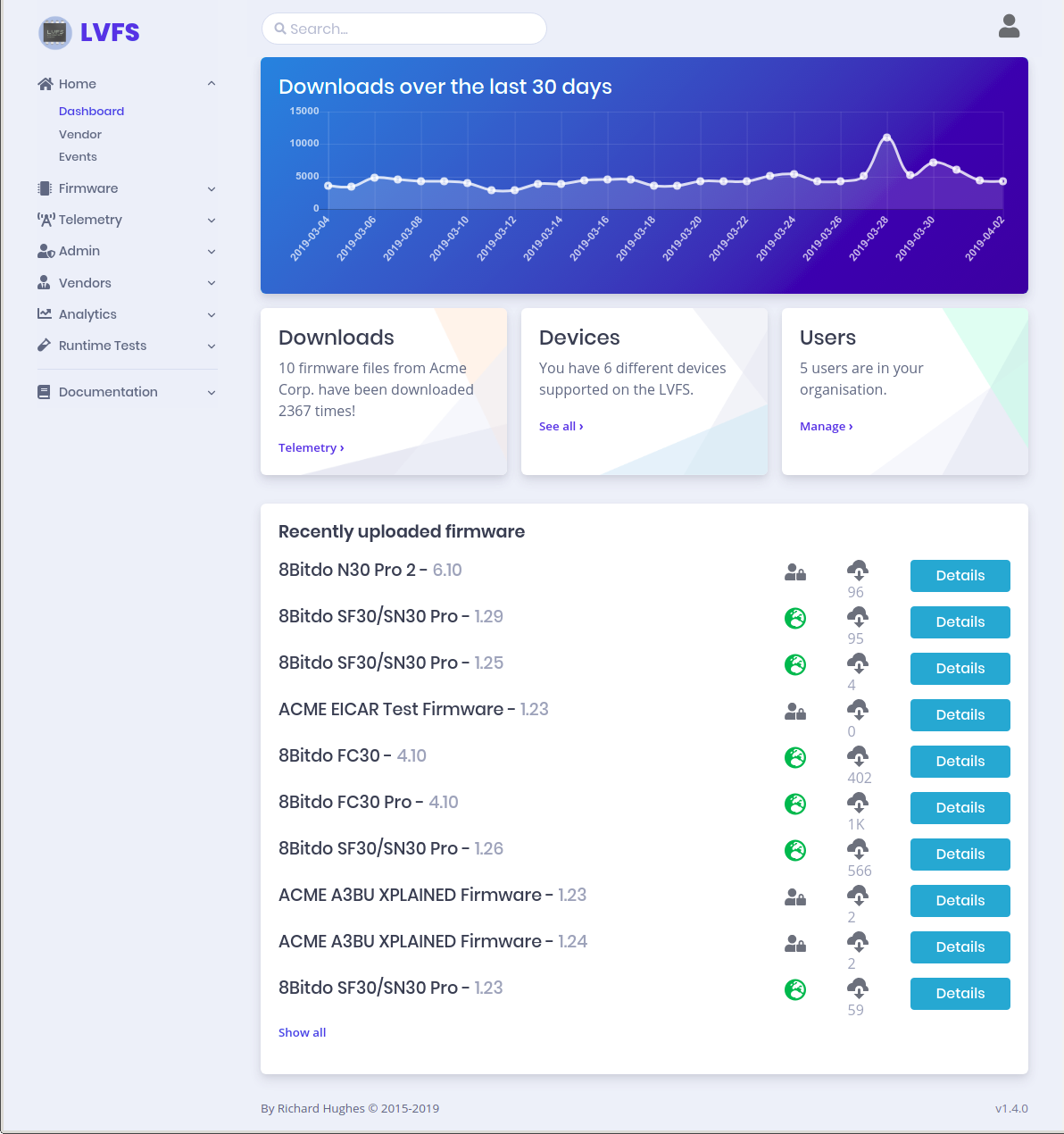
Just a placeholder image of the LVFS dashboard.
Right now, the Linux Foundation covers all of LVFS' hosting costs, and Red Hat funds Richard Hughes, the project's only full-time developer. Richard, along with a bunch of part-time contributors, keep over 20,000 firmware files in circulation.
Their sustainability plan flags some key issues that come with being this understaffed.
The project has no dedicated security response team, its sole maintainer has no backup, and the volume of critical work keeps growing with no one new stepping in to help.
Security vulnerabilities get handled on a best-effort basis (yikes ☠️), and very few companies are supporting fwupd core or the LVFS web service. You could call it a tragedy of the commons where everyone depends on it, but almost no one is paying for it.
The plan was published in August 2025, and LVFS has been rolling out restrictions in phases since then. April 2025 already brought in fair-use download utilization graphs to vendor pages. Fair use upload tracking came in July, and sponsorship tiers opened up in August 2025.
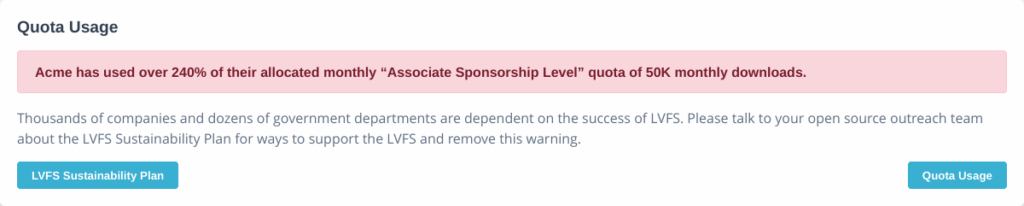
The April 2026 phase kicked in at the start of this month and has been live for nearly four weeks now. Any firmware page where a vendor is crossing 50,000 monthly downloads now shows an overquota warning.
Courtesy of Richard Hughes.
Vendors below the "Startup" sponsorship level have also lost access to detailed per-firmware analytics. In August, custom LVFS API access will be cut for non-Startup vendors, with automated upload limits following in December.
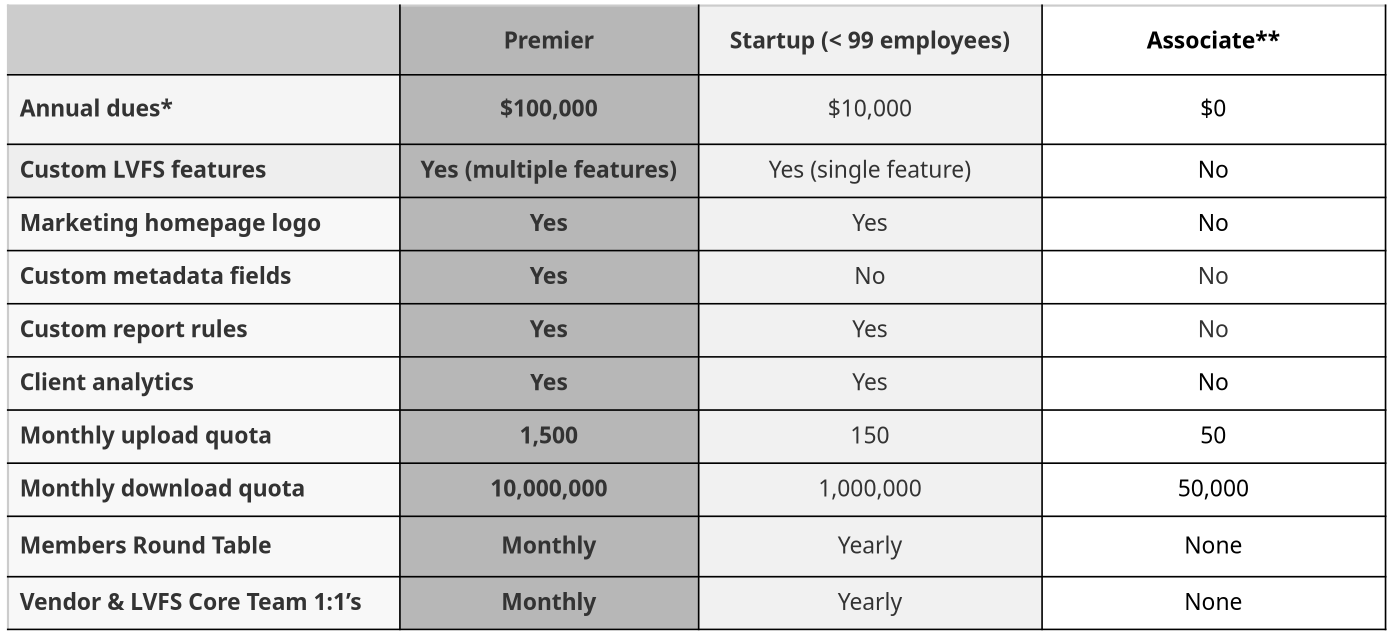
What they actually need is either two full-time software engineers or $400,000 to fund the hires through the Linux Foundation, plus a separate $30,000 for hosting. The sponsorship tiers are as follows:
Premier: $100,000 per year
Startup: $10,000 per year (under 99 employees)
Associate: Free, but only available to registered non-profits, academic institutions, and government entities.
Both Premier and Startup tiers require an LF Silver Membership (page 28) on top of the listed fees. There is no free option for commercial hardware vendors. Alternatively, vendors can contribute a full-time engineer to work on LVFS or fwupd directly.
We have been routinely seeing open source projects getting hit by malicious actors with varying degrees of sophistication. Developers are often left scrambling to push out fixes in such situations.
As to why they get targeted, their attack surface is wide, maintainer bandwidth is limited, and one bad package can quietly reach thousands of users before anyone even notices.
When something slips through, developers have to yank releases, rotate credentials, and piece together what got out.
We now have a similar situation where Elementary Data's OSS Python CLI was compromised. And if you had the affected version installed, then you have some cleanup to do.
How it happened
The attack came down to a flaw in one of Elementary's GitHub Actions workflows. It was set up in a way where text from a PR comment could be passed directly into a shell command, so whatever the comment said, the runner would execute it.
At 22:10 UTC on April 24, the attacker posted a malicious comment on a pull request. The workflow ran it as code, handing over access to the runner's secrets, including the PyPI publish token and the GITHUB_TOKEN.
With those in hand, they created the branches and pull requests needed to stage a release, then kicked off Elementary's release workflow. By 22:20 UTC, elementary-data 0.23.3 was live on PyPI. A malicious Docker image was pushed four minutes later.
Who got hit
Only users who installed elementary-data 0.23.3 (now removed) from PyPI are affected, as well as anyone who pulled the compromised Docker image during the attack window.
However, Elementary Cloud is unaffected, the Elementary dbt package is unaffected, and every other version of the CLI is unaffected. That said, if you were running 0.23.3, the exposure is serious. The malware had access to anything the environment could reach.
The remedy
First check your installed version first:
pip show elementary-data | grep Version
If it shows 0.23.3, get rid of it and install the clean version:
pip uninstall elementary-data
pip install elementary-data==0.23.4
Update your requirements files and lockfiles to reflect that too.
You should also check for a marker file the malware leaves behind. If it's there, the payload ran on that machine:
Linux/macOS:/tmp/.trinny-security-update
Windows:%TEMP%\.trinny-security-update
If you find it, rotate every credential that environment had access to, and get your security team looking for any suspicious activity on those credentials.
On their end, Elementary has already pulled 0.23.3 from PyPI, GitHub, and the Docker registry on April 25.
They also decommissioned the compromised workflow, audited the rest of their GitHub Actions for the same type of vulnerability, regenerated all affected secrets, and moved to OIDC authentication.
They are currently working with an Israelicybersecurity firm to conduct an investigation and step up their protection against such attacks going forward.
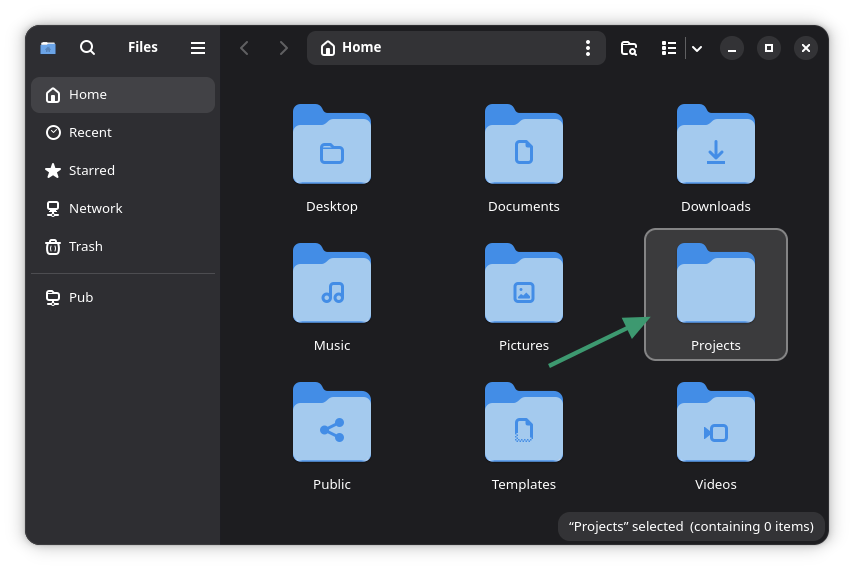
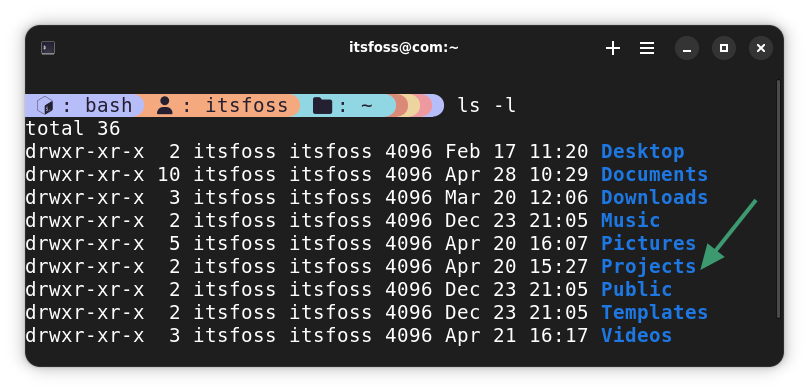
If you are using a rolling release distro like Arch, you might have noticed that your home directory now has a new member, a new folder called "Projects".
For as long as I remember, Linux has always had a set of default folders under the home directory. Usually they are Documents, Music, Pictures, Videos and Downloads. Templates, Desktop and Public folders are also there.
Now we have a new addition in the form of "Projects".
Projects directory for your ...well...projects
The purpose of the Projects directory is simple. It gives you a place to keep your project files, the kind of files that do not necessarily go in Documents, Music, Pictures and Videos. For example, your coding projects, your 3D printing and CAD projects etc.
Why it is more than 'just another directory'
The addition of a standard Projects directory is not just about keeping your home folder organized. It has bigger implications.
For starters, it gives applications a predictable place to store project-related files. Just like image-related apps often default to the Pictures folder and video tools save into Videos, development tools, CAD software, hardware design suites applications could use Projects as their natural default.
This can also improve interoperability between tools. An IDE could offer to create repositories in Projects by default. Build tools could assume a sensible project workspace, and installation guides or README instructions could refer to a common location instead of telling users to create arbitrary folders like ~/dev, ~/code, or ~/projects.
Sandboxed applications such as Flatpak apps may also benefit because a standardized location is easier to recognize and grant permissions for.
Not to forget, backup tools, synchronization services could treat the Projects directory as a meaningful category of data, same as Documents or Pictures.
In other words, this is not 'just another directory'. It provides better desktop workflows. A small standardization like this may quietly improve usability across the Linux desktop over time.
This was an 11-year-old "request"
And interestingly, this isn’t a brand new idea. The concept has existed for over a decade.
Currently XDG user dirs does not specify a directory for environments of projects. For software projects these usually include source code, version control, compiled binaries, test artefacts and downloaded dependencies. As they are much more than downloads and usually kept indefinitely, they do not fit in there. The benefit of defining a projects folder would be that when writing a README or install script for a project, one could automatically download the source to the user defined location, set up the build environment and install from there.
Don't like the new Projects directory? Just delete it. The xdg-user-dirs utility will not try to create it again. The default location for this directory will be moved to your home directory.
Power users, who want more control, can edit the ~/.config/user-dirs.dirs configuration file and modify it to control what goes where.
The road ahead for this change
This new standard directory change came with the release of xdg-user-dirs version 0.20. As I mentioned earlier, people using rolling release distros might already have this change. You can see a screenshot of EndeavorOS:
As GNOME contributor Matthias notes, support for GLib will be added in the coming months so that Flatpak, desktops and applications can make use of the Projects directory.
I am looking forward to it. You?
I have always created a dev directory in my home directory. This is where my coding related project files are located. It's better than keeping them under Documents because technically, these are not documents.
I think that I am not the only one who does this. I guess most of us have a projects or dev directory under Home.
Including a standard Projects directory is a good move. Not only does it remove the guesswork about where to keep such files, various applications can also take advantage of this new directory.
It may look like a small addition, but standardizing something many Linux users already do can improve workflows, application behavior, and even documentation over time. For a simple extra folder, “Projects” could have surprisingly large impact.
AI has been creeping into everything, and the Linux ecosystem is no exception. Over the last couple of years, local AI has gone from a niche curiosity to something people can actually run on their machines.
On the user side, tools like Ollama and LM Studio have made it surprisingly straightforward to pull open-weight models and run them locally without requiring a cloud subscription.
For enterprises, solutions like RHEL AI and SUSE Linux Enterprise Server have been catering to organizations that want AI woven into their infrastructure.
Now, it looks like Canonical is jumping onto the bandwagon, as Ubuntu moves towards AI, and before you start calling it Ubuslop or something along those lines, understand how they are going about this.
What's happening?
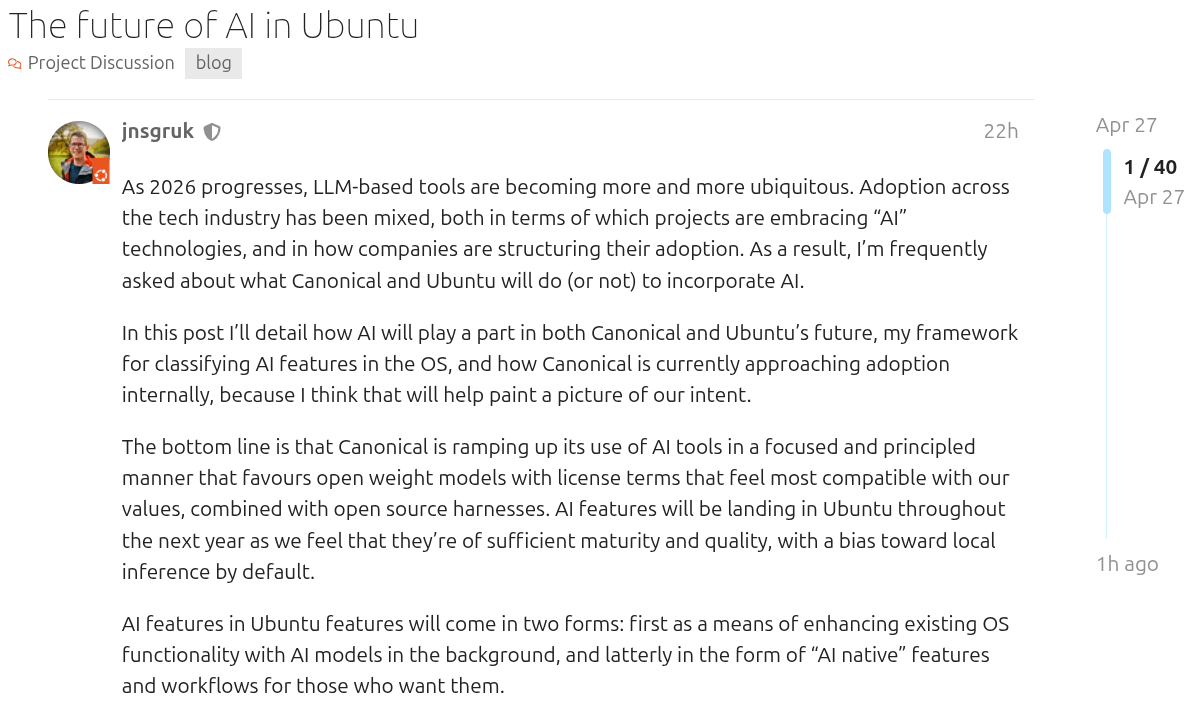
Jon Seager, VP of Engineering at Canonical, has published a post on Ubuntu Discourse laying out the company's AI roadmap. The short version is that AI is coming to Ubuntu; it will be local-first, and it will be built around open-weight models and open source tooling.
He laid out a framework distinguishing between two kinds of AI features, implicit and explicit. Implicit AI is about making existing OS features smarter in the background without requiring users to learn anything new or interact with anything that looks like AI.
He gave the examples of speech-to-text and text-to-speech, both of which can be improved using local inference with open source inference tools and open weight models, running entirely on-device.
Explicit AI features are a different story. These are the more obviously AI-centric, agentic workflows that could automate troubleshooting, create documents or applications, and run scheduled maintenance on a fleet of machines.
Jon also gave everyone a look at what it could look like in practice:
Imagine being able to ask your Linux machine to troubleshoot a Wi-Fi connection issue, or to stand up an open source software forge that’s pre-configured, secured, and reachable over TLS.
One could easily imagine using such a capability as a gateway for controlling your Linux machine from other devices through a variety of mediums - be that a mobile app, text messaging, voice commands or otherwise.
The delivery mechanism for all of this is inference snaps. Rather than asking users to wrangle separate tools, sift through Hugging Face, and figure out which model format works on their hardware, Canonical wants a simple snap install to handle everything, with hardware-optimized builds served based on your silicon.
And since snaps carry the same confinement rules as everything else in the ecosystem, the models are sandboxed and cannot freely reach into your files or data.
Makes sense, I guess?
The local inference approach is what makes this worth paying attention to. The default is not a cloud call to some API that logs your prompts and charges you per token. It runs on your hardware, stays there, and does not require signing up for anything.
Of course, cloud and external services are still an option, but only as a fallback for people who specifically need them, not the assumed path. That is a bigger deal than it sounds, btw.
Most AI integration announcements from Big Tech players start from the opposite assumption—cloud first, local maybe someday.
Should you be worried?
When Linux and AI are mentioned in the same breath, your mind might naturally draw a comparison to Microsoft's infamous Copilot offering, where the default experience is cloud, the model is proprietary, and half the features quietly require a Microsoft account.
What Jon is proposing keeps the user-facing, agentic stuff strictly opt-in. The implicit features would run quietly in the background and improve things you already use. Nobody is bolting a chatbot sidebar into GNOME and calling it a "productivity feature."
But, as things go with roadmaps, decisions shift under pressure and user expectations change over time. I suggest keeping a close watch on how things develop for the rest of the year.
Microsoft's in-house Linux distribution, Azure Linux, may be heading for a significant overhaul. According to a recent report, the Big Tech giant is reportedly exploring the idea of rebasing Azure Linux on Fedora, which would be a notable shift in how the distribution is built and maintained.
Azure Linux, which longtime followers of the Linux space may know better as CBL-Mariner, has been Microsoft's internal Linux OS powering Azure services, WSL, Azure Local, and more since 2020.
It is already RPM-based, so a move toward Fedora would not be a complete departure from its existing foundation, but it would represent a serious overhaul.
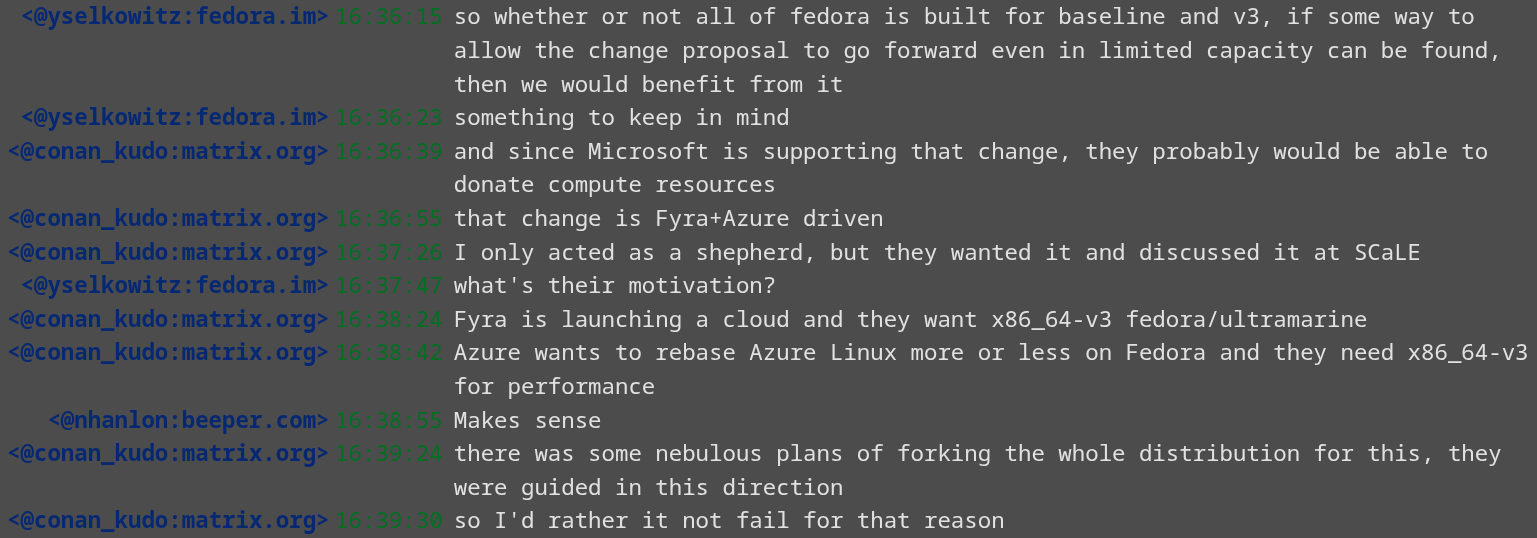
The conversation between Neal Gompa (conan_kudo) and Yaakov Selkowitz (yselkowitz).
It all came to light from the recent Fedora ELN SIG meeting on April 21. During a discussion about a proposed Fedora change to build x86-64-v3 packages for Fedora 45, it was pointed out that Microsoft is one of the driving forces behind this proposal.
The change proposal was put forward jointly by Kyle Gospodnetich, a Linux engineer at Microsoft, alongside Lleyton Gray and Owen Zimmerman of Fyra Labs. Microsoft's interest appears to be tied to Azure Linux's need for x86-64-v3 performance gains, which is part of what is driving the rebase idea.
Fyra Labs, which is reportedly launching its own cloud service and wants x86-64-v3 support for Fedora and Ultramarine Linux, is also co-authoring the proposal.
It is worth noting that the x86-64-v3 change proposal still needs to be approved by the Fedora Engineering Steering Committee (FESCo) before anything moves forward.
There had also been talk of forking the whole distribution to achieve this, but Microsoft was steered toward working within the Fedora ecosystem instead.
That said, Microsoft has a history of open source commitments that lose steam over time. If they can properly follow through here, contribute meaningfully to Fedora, and not treat it as a one-way resource tap, this could genuinely be good for the ecosystem.
All of that is a big if, but it is worth watching closely.
The MinIO GitHub repository was recently archived on April 25, 2026. But the thing is, it had been archived before, back in February, then briefly unarchived, and now it's locked again. Whether MinIO flips the switch again is anyone's guess, but it doesn't really matter at this point.
The message has been clear ever since they put the project in maintenance mode.
MinIO is one of the most widely used self-hosted object storage solutions out there. It is S3-compatible, lightweight, and runs as a single binary, integrating with pretty much everything in the cloud-native stack.
It's the kind of project you deploy once and forget about. Unless something breaks or a massive shift happens, like the move away from open source. Then you're left scrambling for alternatives.
How we got here
This didn't happen overnight. MinIO has been walking away from its open source community for well over a year.
It started in May 2025, when MinIO shipped a breaking release that removed most management features from the community edition's web UI, along with external IDP logins via LDAP and OIDC, moving them to their enterprise product.
Then in October 2025, MinIO stopped publishing Docker images and pre-built binaries for the community edition entirely. Users who needed to patch a CVE that dropped the same month couldn't just pull an updated image and had to build from source instead.
By December 3, 2025, the other shoe dropped when Harshavardhana, the co-founder of MinIO, pushed a commit to the repo's README, declaring maintenance mode (linked earlier).
And then the repo was first archived in February 2026 and again in April 2026.
What replaces it
If you're running MinIO in production today, your existing deployment still works. But you are on software that will get no new features, no compatibility updates, and no guaranteed security patches.
MinIO's official stance is to redirect people towards their proprietary AIStor solution, but that's a hard pass for anyone who prefers to stay open source. You don't need to go down that path.
Here are the three open source alternatives worth looking at. 👇
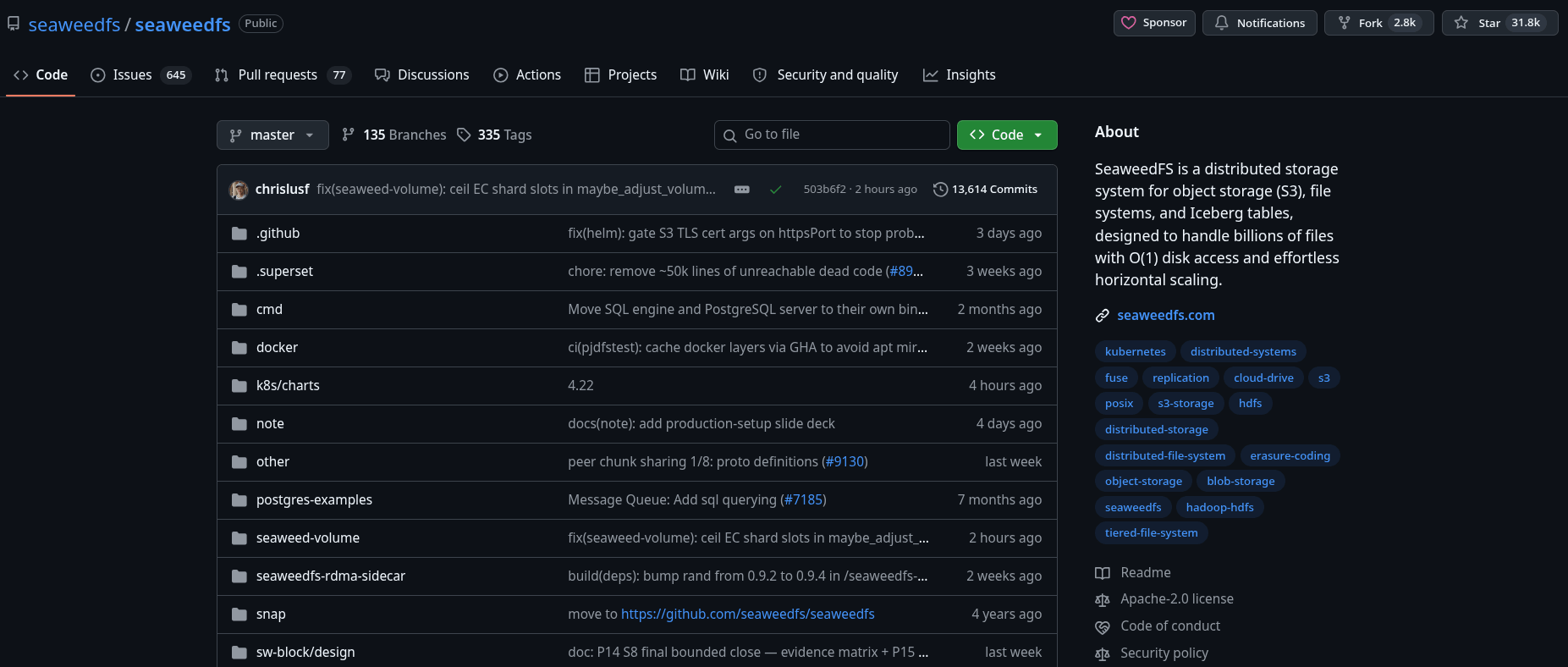
SeaweedFS
SeaweedFS is a distributed storage system written in Go, built around Facebook's Haystack architecture and a few other systems. It handles S3-compatible object storage alongside blobs and files.
Its main advantage is its O(1) disk seek time that performs regardless of how many objects you store, making it particularly strong when dealing with billions of small files.
Before you ask, it is Apache 2.0-licensed, production-ready, and the closest thing to a drop-in MinIO replacement available right now.
Garage is a Rust-based object storage system built by Deuxfleurs, a French small-scale self-hosting service provider. It's designed specifically for geo-distributed deployments on modest hardware; think multiple physical locations rather than a single high-performance data center.
It is small enough to run on various hardware, is simple to operate, and is well-suited for self-hosters and small organizations running storage across multiple physical locations. Not only that, but it is available under the AGPLv3 license.
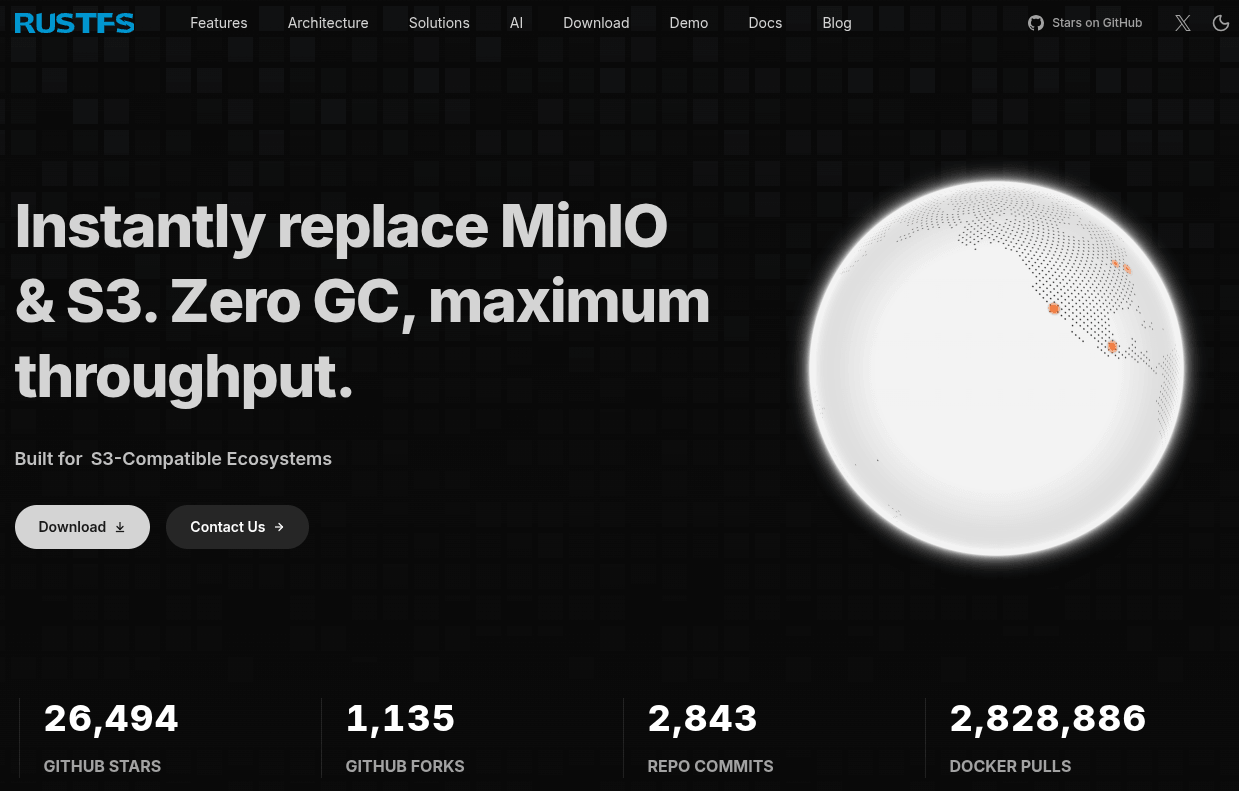
RustFS is the newest player in this space, written in Rust and released under the Apache 2.0 license. It positions itself as a direct MinIO successor, claims 2.3x faster performance than MinIO for small object payloads, includes a management console out of the box, and supports migration from existing MinIO deployments.
The catch here is that it's still in alpha. Still worth keeping on your radar if you are planning a migration over the coming months, but you could also take a gamble on it if you like taking risks.
Kubuntu is one of the longest-running Ubuntu flavors and also one of the more sensible ones to recommend.
It ships the KDE Plasma desktop on top of an Ubuntu base and is maintained by a volunteer team that tracks the KDE release cycle closely and works to get the latest Plasma builds into each release.
If you want the KDE experience without leaving the Ubuntu ecosystem, Kubuntu is the cleanest way to get there.
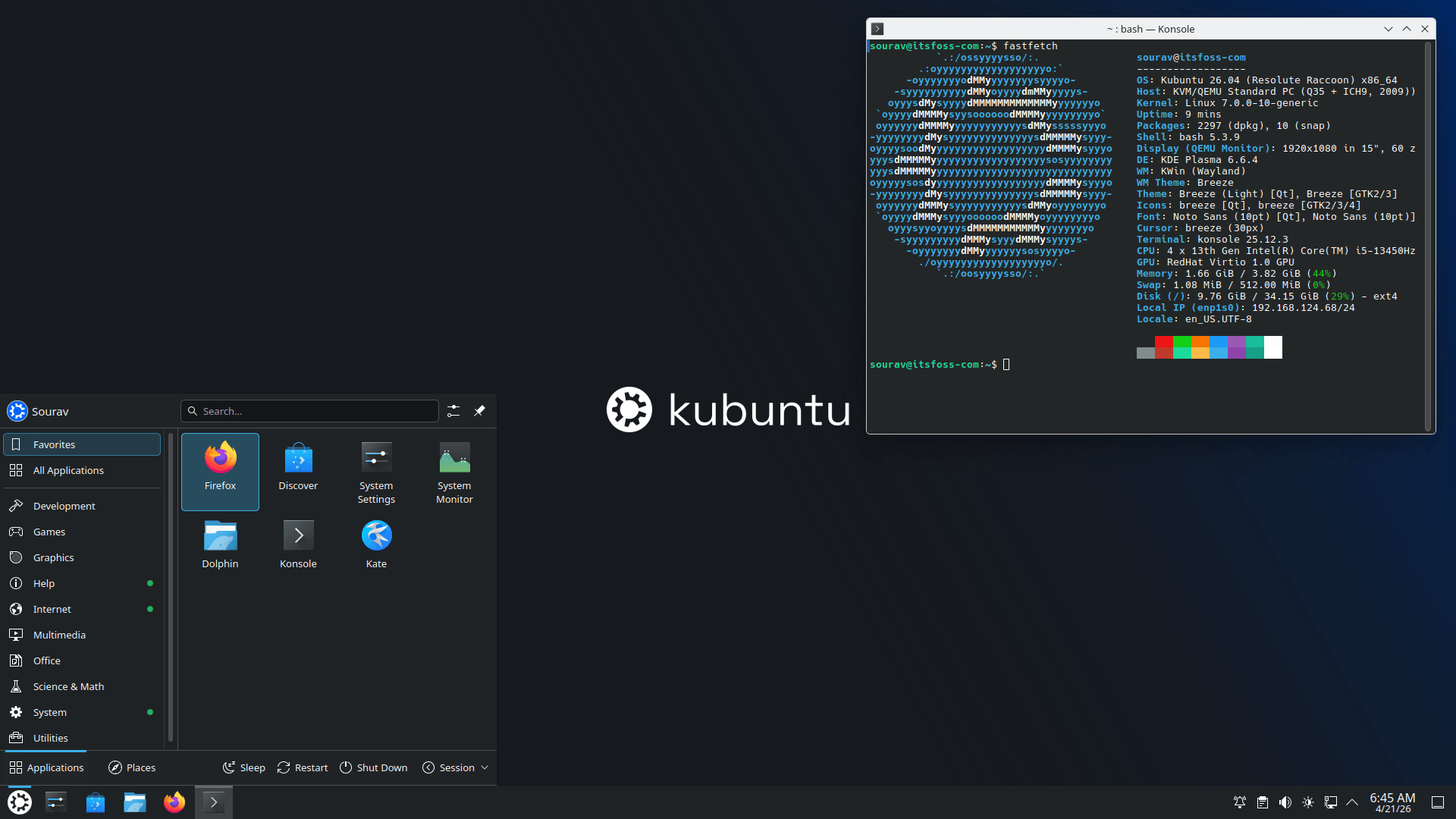
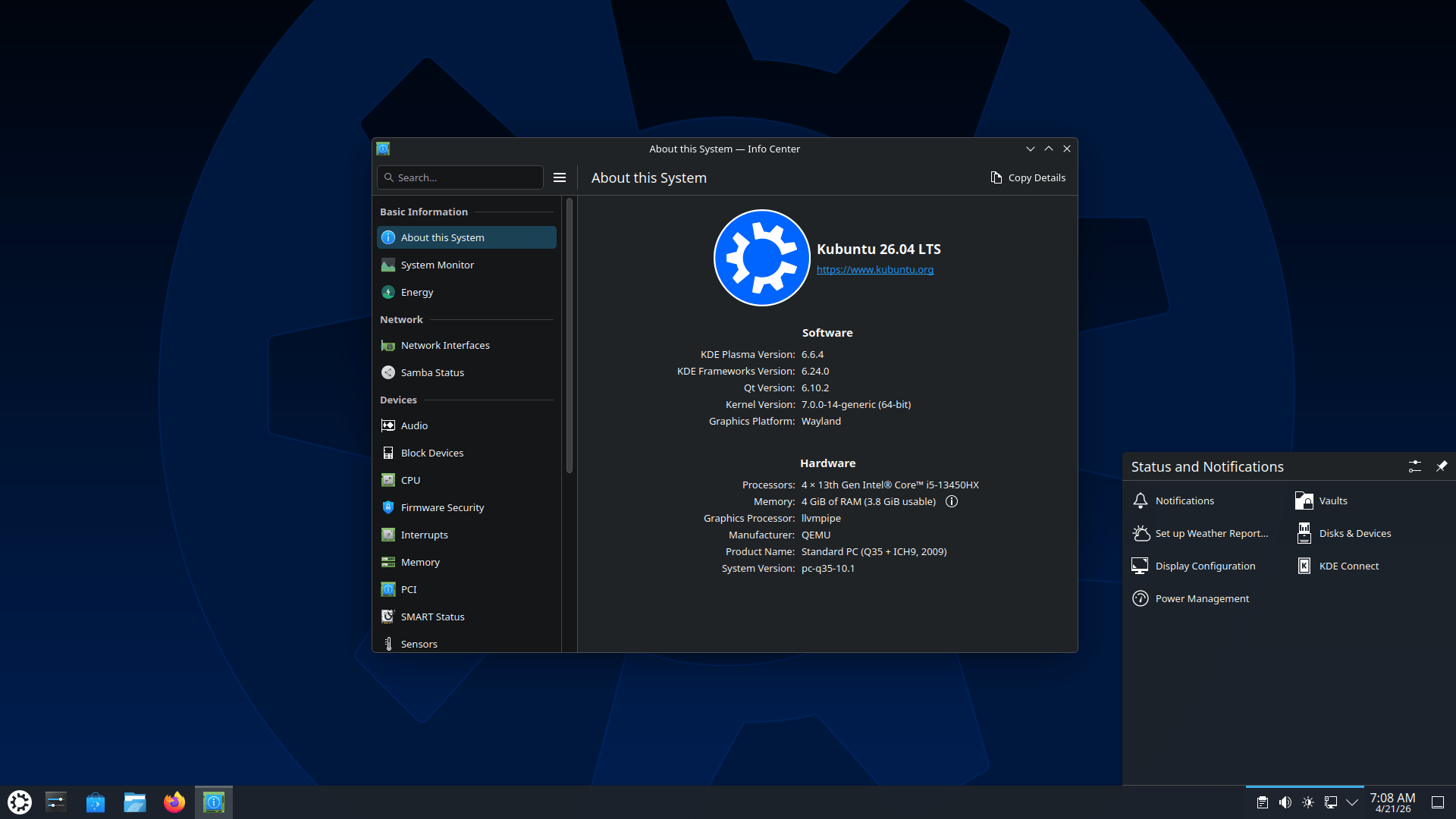
Anyhow, with Ubuntu 26.04 LTS officially out, Kubuntu 26.04 LTS is also here alongside it, and here's what this release has to offer.
Kubuntu 26.04 LTS: What's Fresh?
Same as its Ubuntu base, this Kubuntu release is powered by Linux kernel 7.0, which comes in as a notable hardware support and storage upgrade over the kernel that shipped with Kubuntu 24.04 LTS.
Intel Arc users get considerably more detailed temperature data through the hardware monitoring interface, now covering memory controller, PCIe, and individual VRAM channel readings rather than just a single GPU core temperature.
XFS picks up an autonomous self-healing daemon that watches for metadata failures and I/O errors in real time and kicks off repairs without taking the filesystem offline. Rust support also officially moves from experimental to stable in this kernel.
For the desktop environment, Plasma 6.6 is included, which offers many improvements.
You get OCR functionality in Spectacle, the screenshot tool, Plasma Setup, a first-run wizard that handles user account creation, and virtual desktops can now be set to appear only on your primary screen.
Then there's the removal of the X11 session, which is not installed by default and will not be supported by the Kubuntu team going forward. Wayland is now the only officially supported session, and the plasma-session-x11 package remains available in the Ubuntu archive for anyone who needs it.
A few other changes from the Ubuntu base that are also worth knowing about. sudo-rs, the Rust rewrite of the classic sudo tool, is now the default sudo provider in this release.
The NTSYNC kernel driver is included too. It handles WinNT sync primitive emulation at the kernel level rather than pushing that work into user space, which improves performance for Windows games running through Wine or Proton.
NVIDIA laptop users get Dynamic Boost enabled by default, which shifts power automatically between the CPU and GPU based on what the workload demands.
You also get a set of updated applications and tooling:
Ubuntu doesn't need much of an introduction. It has been a reliable starter distro for people finding their way into Linux for years, and for good reasons as well. It installs without drama, runs on most hardware, and the surrounding community is large enough that almost any problem you run into has already been solved and documented somewhere.
I ran it as my daily driver for a while, a few years ago, and the experience was just what I needed at the time. It was fast, familiar for someone coming from Winslop, and stable enough that I wasn't stuck fixing issues every other day.
My experience with Ubuntu was what made me go further into the world of Linux and open source, and I still recommend it to anyone who asks me for a distro suggestion.
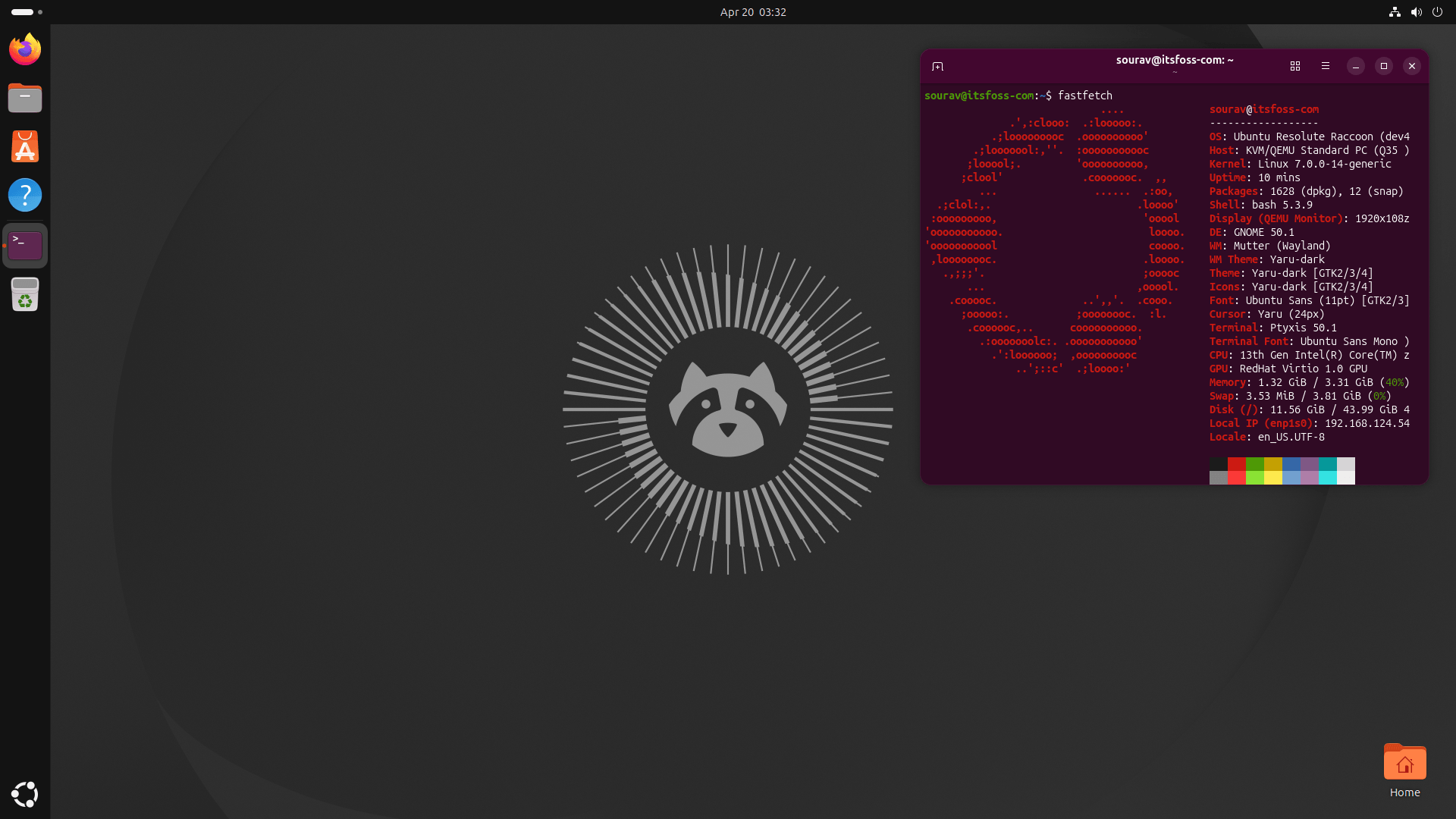
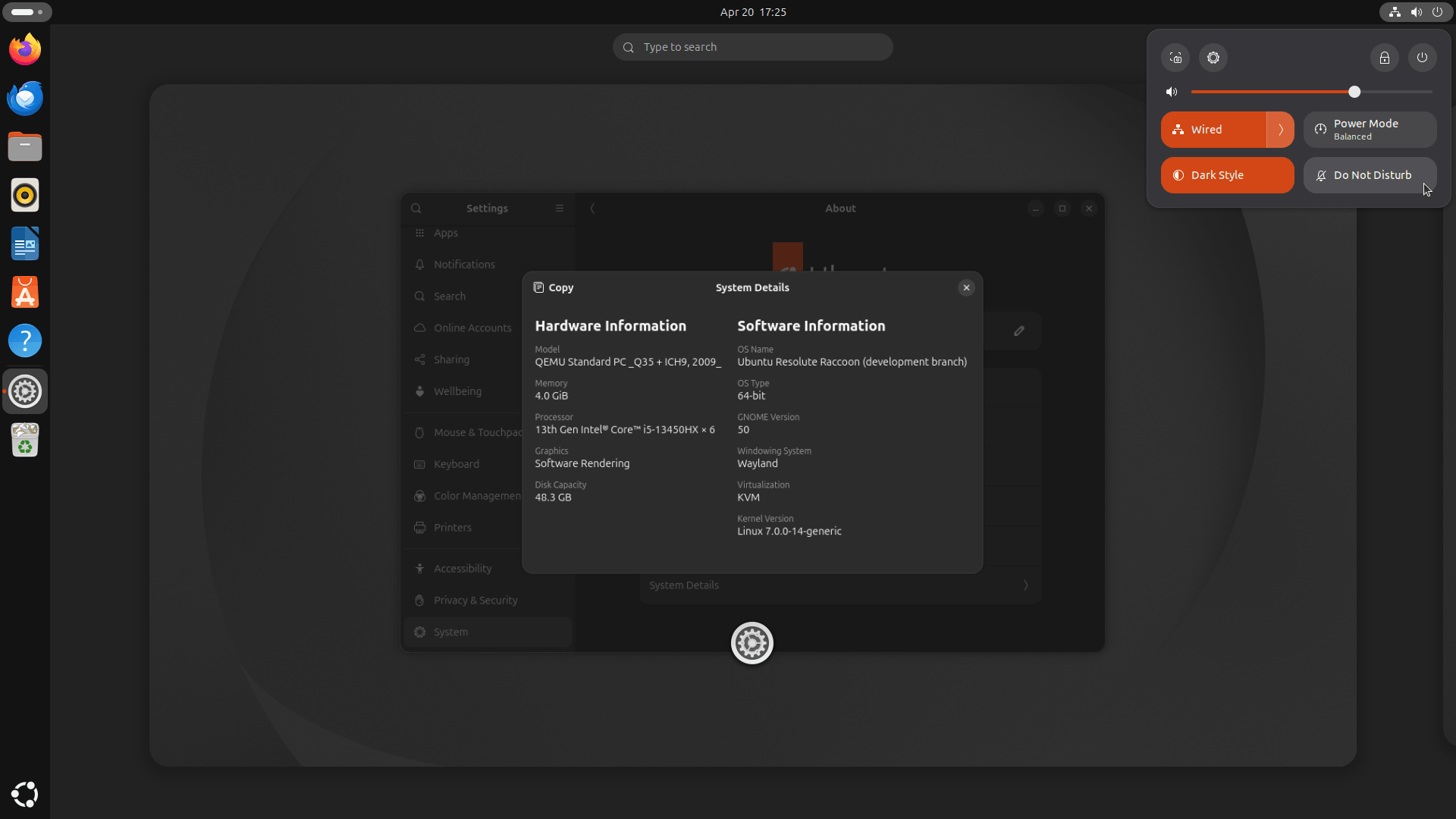
With that said, let's dive into the Ubuntu 26.04 LTS "Resolute Raccoon" release right away! 🚀
Powered by Linux kernel 7.0, Ubuntu 26.04 LTS comes with five years of standard security and maintenance updates from Canonical, keeping it covered through to April 2031.
If that's not enough, Ubuntu Pro stretches that to 10 years of security maintenance across the full Ubuntu archive, taking coverage to April 2036.
New Boot Animation
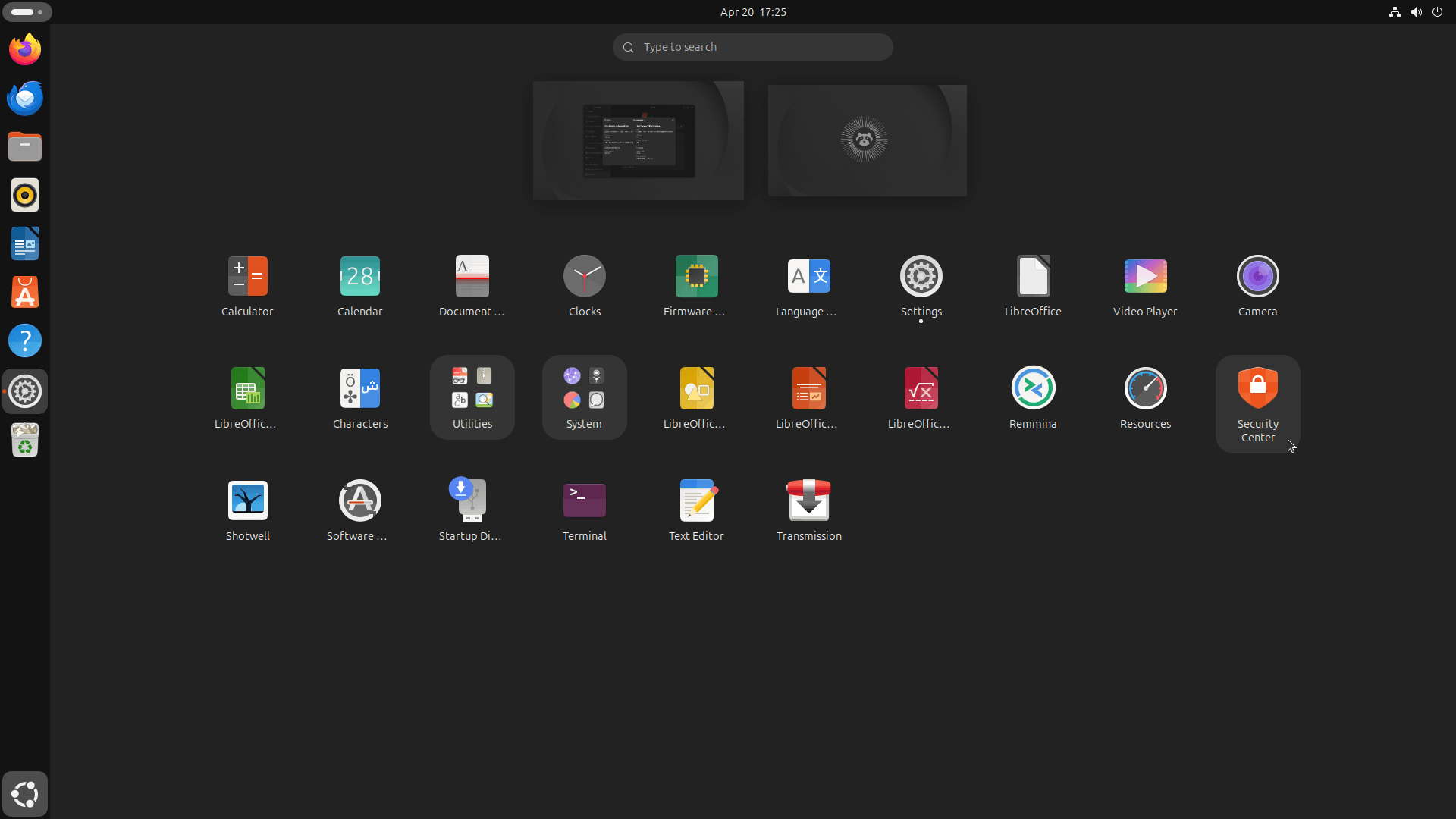
When you boot up, you're greeted by a fresh animation that takes cues from the default raccoon-themed wallpaper, with a circular arrangement of sharp lines fanning out like sun rays as the system loads. It flows smoothly and looks clean, in my opinion.
If you have a decently specced machine with Ubuntu on an SSD, though, you'll most likely miss it entirely. Which is just fine.
GNOME 50
This is how GNOME 50 looks on Ubuntu 26.04 LTS!
Ubuntu 26.04 LTS ships with GNOME 50, making it a four-step jump of major versions from GNOME 46 that came with Ubuntu 24.04 LTS. That is not a small gap, and you will feel it in the day-to-day desktop experience.
Then there's the matter of X11 being gone from GDM. With this release, GNOME now runs exclusively on Wayland, and there's no session option to go back. Similarly, fractional scaling and variable refresh rate have both graduated out of experimental status and are now stable.
The shell also picks up some quality-of-life changes. A power mode indicator shows up in the top bar whenever you're running outside the default profile, so it's visible at a glance, and the volume slider now locks to 100% when over-amplification is on.
A couple of long-standing annoyances are fixed too, including deleted default folders reappearing on reboot and a privacy issue where password text was leaking into IM pre-edit fields.
The new folder icons on Ubuntu 26.04 LTS.
The Yaru icon theme also gets a notable refresh in this release. Folder icons have been redesigned with a wider, shorter shape and a more three-dimensional look, complete with depth shading and styled emblems for special folders like Music and Downloads.
The Desktop folder icon has been brought in line too, dropping its old desktop-styled motif for a design that looks like a folder. And, when you change your system's accent color, you will notice that folders now fully adopt whatever color you pick rather than just taking on a light shade.
Improved App Suite
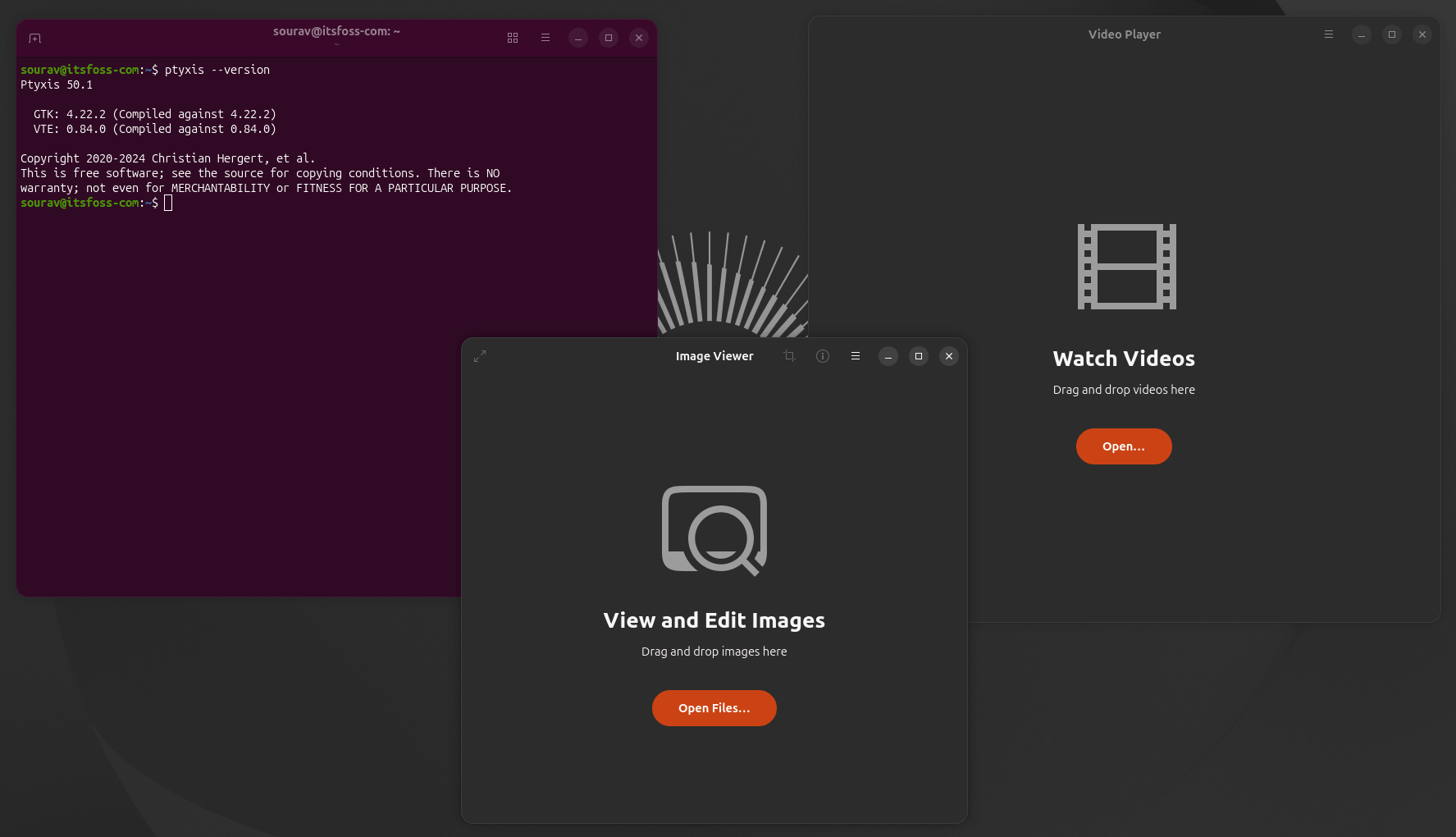
From left to right, we have Ptyxis, Loupe, and Showtime.
Ubuntu 26.04 LTS ships five new default applications, replacing tools that have been part of the Ubuntu desktop for years.
Ptyxis is now the default terminal, taking over from GNOME Terminal. Loupe replaces Eye of GNOME as the image viewer. Papers is the new document viewer in place of Evince, and Showtime now handles video playback in place of Totem.
Finally, we have Resources, which replaces the System Monitor and Power Statistics apps as a one-stop dashboard for all your system metrics needs.
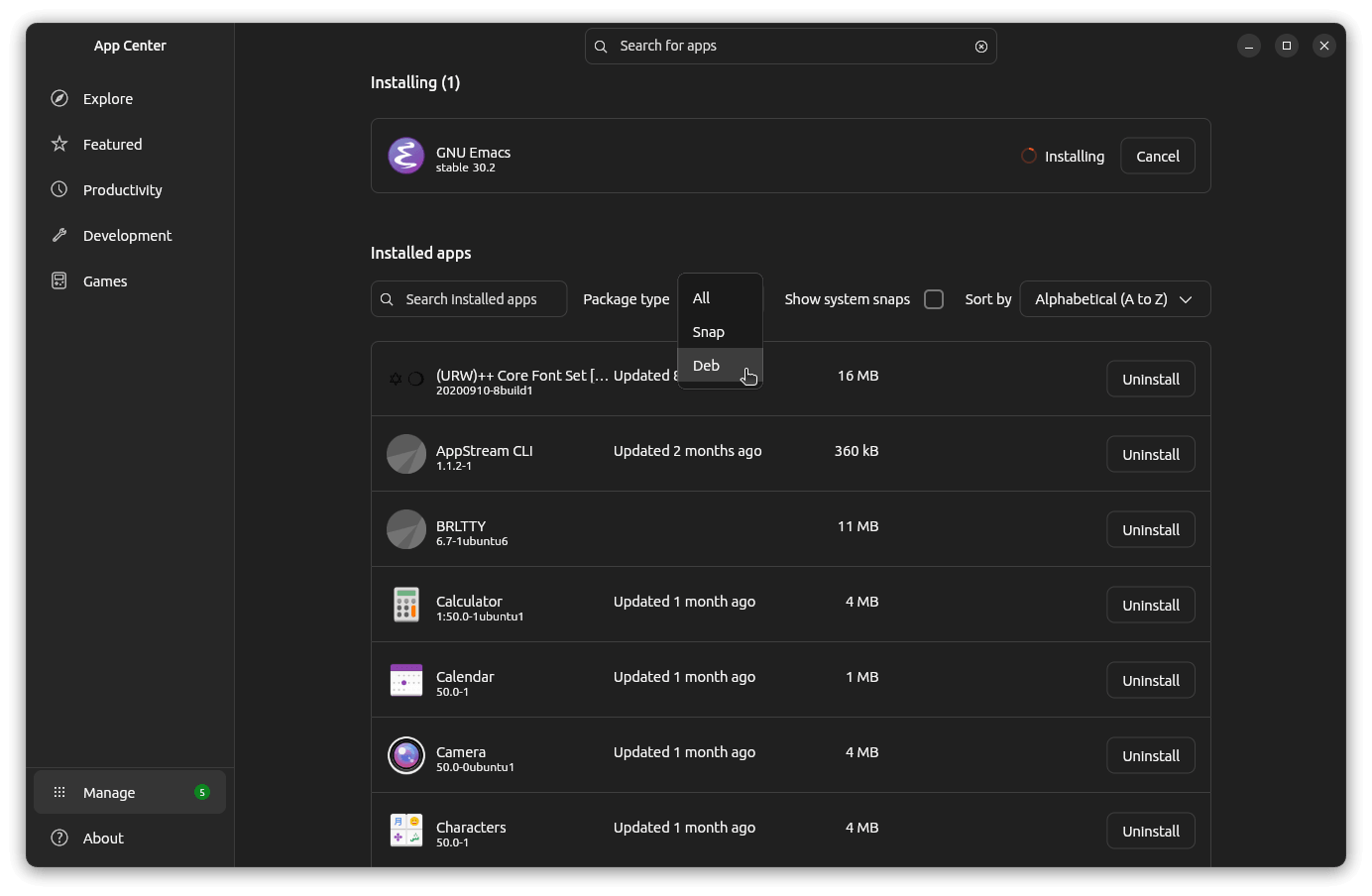
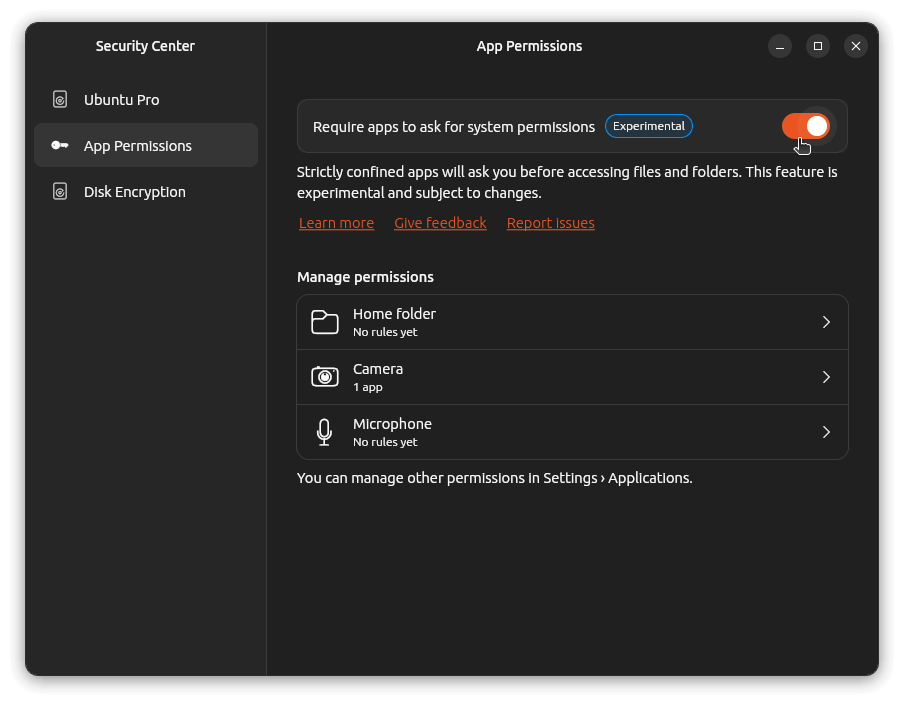
App Center on the left, Security Center on the right.
Then there's the App Center, which was updated with several practical additions. In-progress installs are now visible, snap management has improved across the board, and you can now manage third-party DEB packages directly through it.
The Security Center is growing into a proper control panel for system security. It now has an experimental permissions prompting feature, which was first seen in Ubuntu 24.10, giving you more granular control over how snapped applications access your Home directory.
It's still experimental and not enabled by default, but it's there if you want to try it.
Also, if you remember from earlier this year, the Software & Updates app is no longer pre-installed on fresh installs of Ubuntu 26.04 LTS and later. This was done in a bid to prevent users from getting exposed to features that were deemed too "dangerous or too complex for normal users."
Security Buffs
TPM-backed full disk encryption has moved from experimental to being generally available in Ubuntu 26.04 LTS. Previous releases had this behind a flag, but this time around, Canonical has finally addressed what was holding it back.
These are things like recovery key handling during firmware updates being more predictable, documented hardware incompatibilities being clearly flagged, and storage configuration requirements being spelled out.
Post-quantum cryptography support is also included via OpenSSH 10.2. The hybrid key exchange algorithm mlkem768x25519-sha256 is on by default, and DSA support has been dropped entirely. With this in place, you don't need to configure anything; it works out of the box.
Other Improvements
Wrapping this up, here are some other changes that are worth mentioning:
NVIDIA Dynamic Boost is enabled by default on supported laptops.
JPEG XL is now supported out of the box, with no additional packages needed.
The new NTSYNC driver is included, offering better performance with Windows games running on Wine and Proton.
Full support for Intel Core Ultra Xe2 integrated graphics and Intel Arc B580 and B570 "Battlemage" discrete GPUs.
There is now an official ARM64 desktop ISO that targets VMs, ACPI + EFI platforms, and Snapdragon-based Windows on ARM devices.
Existing users can refer to our Ubuntu upgrade guide for instructions on how to get this release through the upgrade process. While that guide was made for an older Ubuntu LTS release, the steps should still be relevant.