Signal is an end-to-end encrypted messenger that doesn't really need an introduction in this age of authoritarian overreach. Since the beginning, it has required a phone number at signup, even after it gained username support.
It's been quite weird to see, given that other privacy-focused messengers like Session and Matrix have never required a phone number to get started.
The beta release of Signal 8.28 for Android changes that with Signal Login, an optional registration path that skips the phone number requirement entirely. The existing flow remains in place for anyone who wants to stick with the standard registration method.
How numberless logins work
The pricing shown changes according to your device's region.
Instead of asking for your mobile number, Signal will ask you to pay a one-time $2.99 fee via Google Pay, and the exact pricing depends on your device's region.
I say that because even with an active VPN connection that was pointing to the United States, Signal still showed me pricing in INR instead of USD.
And if you are worried about Google's involvement in this, Greyson Parrelli of the Signal team points out that the payment runs through the same zero-knowledge proof setup it uses for donations.
This way, no link is created between the purchase and the new account.
Once payment completes, Signal generates two keys. A 32-character Account ID and a 64-character Recovery Key replace the phone number as the account's identity. Keep in mind that Signal doesn't have a recovery mechanism for these if either is lost.
Two-factor authentication via TOTP can be added after registration as extra protection, and passkey support, including hardware keys, has been confirmed.
If you were looking for the details on iOS support, then know that Signal Login won't be arriving on that platform anytime soon.
The Play Services caveat
The feature currently requires Google Play Services, as payments run through the Play Store, making it such that devices without Play Services cannot access it. If you are running a de-Googled smartphone, then you will have to wait as more payment methods are planned.
While the support documentation for this feature lists Apple Pay alongside Google Pay as a payment option, this contradicts what I saw in the beta app, as well as what Greyson has written in the Signal forum.
You can test it now
The latest packages in the 8.28.x beta series can be downloaded from Signal's GitHub releases page. To sideload it on your Android device, follow these instructions:
Find the latest version in the 8.28.x series and download the universal-release APK file from the "Assets" dropdown.
Install it on your Android device; you might need to allow installs from unknown sources to get this done.
Open Signal, tap "Continue", then select "Register Without Phone Number."
Complete the $2.99 purchase via Google Pay.
Save your Account ID and Recovery Key on a notepad or a password manager before proceeding.
No Starch Press is one of my favorite indie tech publishers. I am a fan of their Linux titles like How Linux Works and System Programming in Linux. This is why I get excited when I see a new book from them.
You can start with 4 books for $11.80 or get all 18 for $47.20. The full tier includes Think Like a Programmer, The Rust Programming Language, 3rd Edition, and How Computers Really Work, along with books on C, ARM assembly, algorithms, and computer architecture.
Part of your purchase automatically goes to the Electronic Frontier Foundation. The books are DRM-free downloads in PDF, EPUB, and MOBI formats.
⏲️ The deal ends on September 28, 2026, at 11:30 PM IST (6:00 PM UTC).
📋
The article contains affiliate links. Please read our affiliate policy.
Tier 1: Pay $11.80 or More for 4 eBooks
The first tier is a compact introduction to programs, software, and the machine underneath.
The title "Think Like a Programmer" starts to make sense here as this tier focuses on problem-solving instead of a single programming language. How Software Works explains common software ideas in plain terms, while The Secret Life of Programs and How Computers Really Work walk through what your code is actually doing on real hardware.
If you want a foundation before picking up a language like C, Rust, or even assembly, this is the small but useful starting point.
Tier 2: Pay $23.60 or More for 10 eBooks
The second tier includes the first 4 books and adds 6 more on top of that.
Effective C, 2nd Edition and Write Great Code, Volume 2, 2nd Edition move you into C and lower-level implementation. Data Structures and Algorithms in JavaScript covers the usual structures and algorithm patterns in a language many people already know.
The math side includes Math for Programming and The Art of Randomness. Computer Graphics from Scratch still fits in this trier if you like seeing algorithms draw something on screen.
Tier 3: Pay $47.20 or More for 18 eBooks
The top tier adds 8 more books and brings the total to 18. This is where Rust, compilers, ARM, and heavier CS material show up.
For languages and compilers, you get the Rust book, Total TypeScript, and Writing a C Compiler. Algorithmic Thinking, 2nd Edition is the extra algorithms title if you want more practice than the JavaScript data structures book.
The hardware group includes Computer Architecture, Introduction to Computer Organization: ARM Edition, and The Art of ARM Assembly, Volume 1. Quantum Computing is the most specialized add-on in this tier.
Paying above $47.20 can increase your contribution, but it doesn't add more books.
Your purchase supports EFF
EFF (Electronic Frontier Foundation) is a nonprofit defending digital rights, i.e., free speech, privacy, security, and innovation online. Founded in 1990, it fights surveillance and censorship in court, lobbies for encryption rights and net neutrality, builds free privacy tools like Privacy Badger, and defends coders and researchers facing legal threats.
Your bundle purchase funds this work directly. The lawyers, policy experts, and technologists keeping the internet open, which lines up closely with FOSS community values.
So you are not just purchasing DRM-free ebooks. You are also contributing to a better digital world.
🛒 Get the Bundle
This bundle gives you DRM-free ebooks in PDF, EPUB, and MOBI files, so you can keep the books and read them on Linux or an e-reader or use the MOBI files on Amazon Kindle device. As mentioned above, part of the purchase goes to EFF.
Garuda Linux has started nudging its userbase toward Nix. The distro's maintainers have just renamed the Garuda Nix Subsystem to Garuda Nix, and you will find that the move is more nuanced than something purely cosmetic.
What used to be a side project for dual-booting NixOS is now also its own bootable installer. The flake ships a dedicated ISO with a Calamares GUI, alongside a command-line install-garuda-nix tool for scripted setups.
This isn't something new. As a subsystem, it has offered a way to run NixOS alongside Garuda on the same drive, keeping both separate through a BTRFS subvolume rather than a dedicated partition.
So what does it offer?
Garuda Nix 'Mokka' and 'Dr460nized' flavors (Source: dr460nf1r3).
Suggested Read 📖: Get started using NixOS with us.
If you set out to install this, you will find that Calamares handles most of it, asking you to select an edition, Dr460nized or Mokka, and letting you opt for extras to gain better gaming and printing support along the way.
The CLI tool is where it gets interesting; it covers the basics of installing a Linux distro such as this one, while also providing presets for desktop, laptop, server, and handheld setups, plus eight partition layouts spanning ext4 and BTRFS, encrypted and unencrypted alike.
Impermanence, though, is the real draw. Switch it on, and the root filesystem gets wiped clean each time the machine restarts, either through a BTRFS rollback to a saved snapshot or by running root out of tmpfs on ext4 systems.
Don't worry, those wipes don't touch login credentials. Both the user and root passwords go through yescrypt hashing before landing in the generated config, which is what lets them persist across a rollback.
Garuda Nix also keeps a handful of essentials persistent by default, so things like your Wi-Fi credentials and per-user config folders stay safe. Anything outside that short list needs to be declared manually, or Impermanence deletes it along with everything else on the next restart.
It's already live
Both editions are available now as daily ISO builds. Anyone already running NixOS can skip the download entirely and pull the installer straight from the published flake with a single nix run command.
That flake reference points at the same stable branch by default, irrespective of the installation method you used to set things up. Keeping a system current from there is nothing exotic, just the usual nixos-rebuild switch command NixOS users already know.
On the other hand, if you are new to NixOS, then you will have to take some time out to learn your way around, since nearly everything here gets configured through text files rather than a settings panel.
Also, this isn't the first time the Garuda Linux team has done something of this magnitude. Their FireDragon offering is a web browser that was rewritten from scratch to deliver an improved browsing experience.
Ubuntu 26.10 is changing what your machine kills when memory runs out. Applications are meant to go first, and the services that hold the session together now sit behind them. Thirty-nine of those services move to an OOM score of -500, with GNOME Shell and two D-Bus services among them.
That makes them a far less likely pick for the kernel's OOM killer. Instead, something like a web browser holding the majority of the memory on your machine becomes the likelier candidate to be pruned.
Canonical has also switched off the systemd-oomd check that could take out your whole session on memory pressure alone. Though that change comes with a caveat where apps can still be terminated when memory runs out.
Under pressure, the kernel draws up a list of every process. It scores each one on the memory it can account for, then adds a user-space number on top. That second number is the one Ubuntu gets to set for you. It runs from -1000 up to 1000, and staying at the bottom of that range means a process is kicked out of the running order.
An earlier report cited by Canonical shows what that list looked like on an Ubuntu 24.10 desktop in 2024. GNOME Shell sat at 100, so did Firefox, and so did every content process it spawned.
The system daemons already sat far lower. dbus-daemon and systemd-oomd were at -900, and systemd-journald at -250. What caused the squeeze was a logic error in the reporter's own code, which set off a run of virtual machines and left the machine starved of memory.
It resulted in the killer picking one small app, gnome-characters, and killing it, leaving the virtual machines untouched.
Scores were only half of it
The kernel is not the only thing on a desktop that kills. systemd-oomd watches memory pressure instead, and it acts earlier than the kernel does without ever looking at those scores.
Ubuntu ships it set to act on the user session at 50% pressure, so the -500 values could not have saved anything on their own. The same ubuntu-settings patch handles the oomd side as well.
ManagedOOMMemoryPressure is now set to auto on user@.service, over systemd-oomd's "kill" setting it had before. In Canonical's own testing, seven out of ten sessions died without the fix, and none died with it.
Want to try it?
If you want to see the new behavior now, the change is already in the development release. Canonical is asking people to put it to the test under workloads that eat memory on a machine short of RAM or swap.
If you face any unexpected behavior, like abrupt terminations or session crashes, then you can report those via Launchpad.
I have been (mostly) happily running Home Assistant in my homelab for a while now. There is a tiny issue, though. While my wife and I can manage most devices through the companion app, kids or guests cannot.
Reaching out for a phone is not always convenient, and of course, I cannot handover my phone to guests. Home Assistant's own Voice Preview device is not a capable device if you are not connected to the cloud.
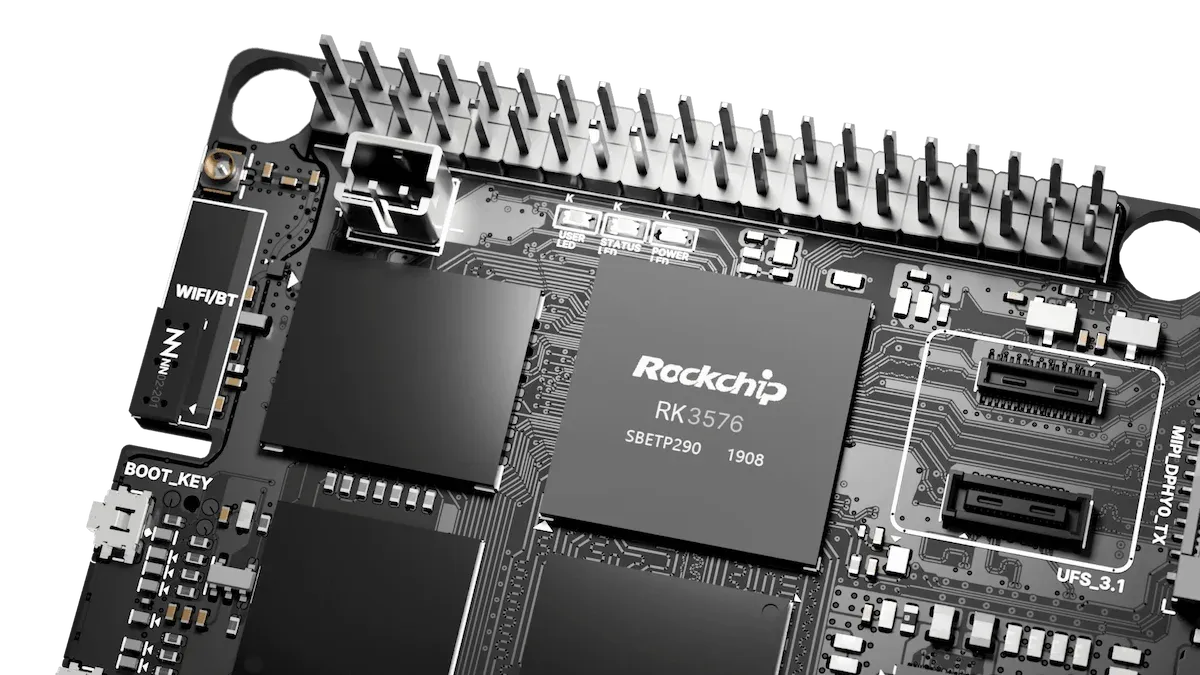
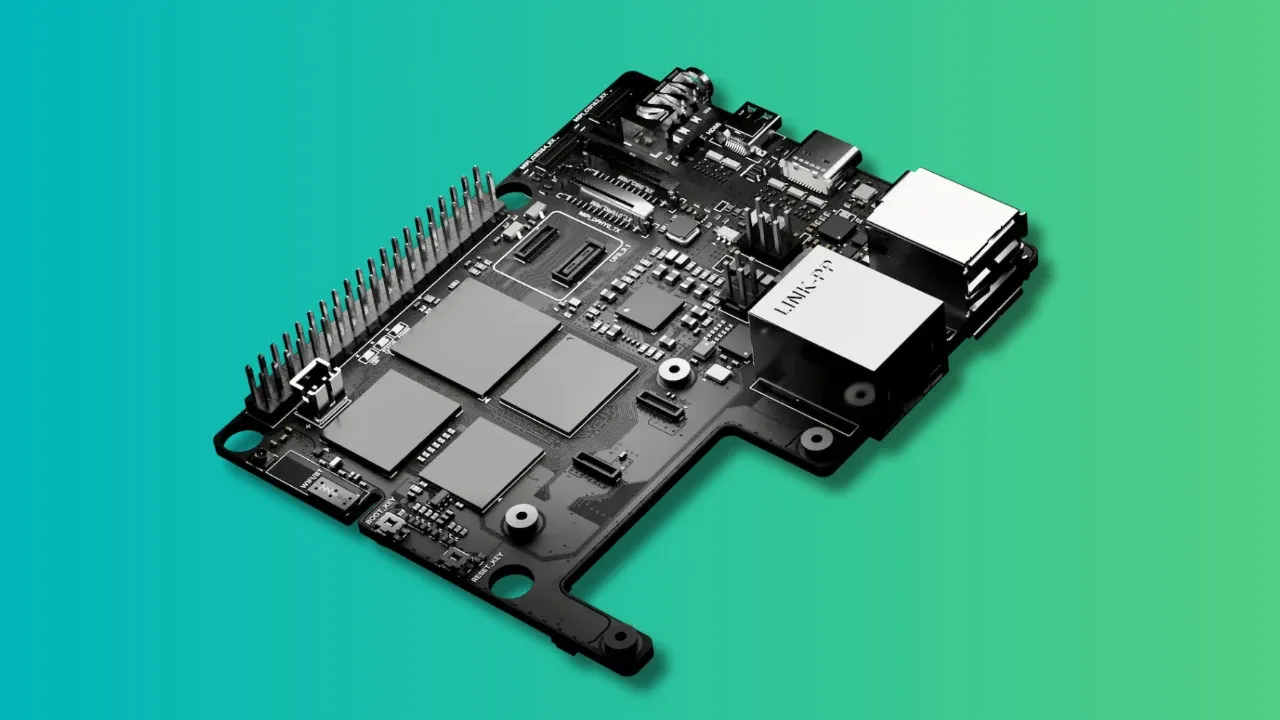
So when I got my hands on the Elecrow CrowPanel Advanced 10.1", a big ESP32-P4 touchscreen, I got some ideas. I could configure this device to allow access to some connected devices and put it in a common area where anyone in the household could use it.
It's an ESP32 device, and I already tinkered a little with ESPHome on my ZimaBoard so it was kind of a natural fit.
Note that this is a developer board with a screen. It's not an out-of-the-box smart home panel you just take out of the box and mount on your wall. If you enjoy tinkering, building things, you will like the device. If you want something that just works, it's not for you.
📋
Elecrow sent me this device for review. The views expressed are my own.
Hardware specification
Here is a quick look at what this device is packing inside it:
Component
Detail
Main SoC
ESP32-P4 (dual-core RISC-V)
Wireless
ESP32-C6 co-processor (WiFi 6, Bluetooth 5)
Display
10.1" IPS, 1024x600, MIPI-DSI
Touch
Capacitive (GT911 controller)
Memory
16MB flash, 32MB PSRAM
Audio
Onboard speaker output (dedicated connector) and microphone
Camera
Camera connector (add-on)
Expansion
Exposed I2C, UART, and GPIO headers
Power
USB-C, plus a battery connector
Model
DHE04310D (hardware revision V1.1)
Price
Around $60
It has interesting hardware, especially since it also offers a camera connector. My package came with a camera as well, not sure if it is included in all the boxes.
And then you also get the options to connect speakers on their own port. Which means that if you connect a LLM to your Home Assistant, and get a reply in audio format. There is a battery connector in case you want to use the device without direct power connection. The I2C, UART, and GPIO pins are accessible, too.
📋
I am using Home Assistant everywhere because this is what I am using this device for. However, this Elcrow display can be configured and used in a number of projects. You just have to put your tinkerer hat on.
Setting up the display with Home Assistant
This is where I spent most of my time, and where you should set your expectations.
Out of the box the board runs Elecrow's demo firmware, which shows off the screen but does nothing useful really. But it is still good enough to test the touchscreen and its connectivity. You would at least know that the device is working.
The demo gives you enough to test its functionality before you build on it
To make it as control panel for the Home Assistant, I flashed it with my own firmware. I went the ESPHome route, since ESPHome talks to Home Assistant over its native API and does not need the Supervisor add-on setup, which matters because I run Home Assistant in a container on Zima OS.
I will be honest, the first flash was not smooth. Getting WiFi up on this board took real work, because the ESP32-P4 has no radio of its own and leans on the ESP32-C6 over an internal SDIO link. On my V1.1 unit, the data line order was reversed compared to the reference configs I was following. Until I sorted that out, the board just kept rebooting. But that's really my fault.
One thing worth mentioning is that the stock demo firmware did not remember my WiFi after a reboot. I had to enter the credentials again. Once I moved to my own ESPHome firmware, it remained connected after reboots. So, if you only ever run the demo, do not expect it to hold settings. Perhaps that's the intentional behavior?
My first test project was really simple. I coded a single button on the screen to work as a switch in Home Assistant for my geyser plug. Tapping it toggled the real device. Also, when I flipped the geyser from the Home Assistant app instead, the button on the screen updated to match. So, things worked as expected.
I am new to LVGL, and thus I tried with a very basic project
Elecrow recommends SquareLine Vision for building the UI visually, which should be easier (more intuitive) than coding in LVGL in Arduino IDE.
📋
The quick test shows that the core promise of the Elecrow CrowPanel works. With ESPHome you can build a touch dashboard that controls real Home Assistant devices and reflects their live state, all running on the board itself with no extra server.
The display in everyday use
The screen itself is fine. It's not top-notch like an iPad. The best way I can describe it is that it feels like an entry-level tablet.
The 1024x600 IPS panel is bright enough and the viewing angles are okay, but it is not going to impress anyone who has looked at a modern premium phone recently. For a control panel stuck on a wall showing buttons, that is completely acceptable.
Touch response was good in my testing. Taps registered reliably and I did not have to poke twice.
Ports, audio, and the room to grow
The CrowPanel display is meant to be more than just a display.
The two small speakers, when paired with the onboard microphone, can work as a voice satellite for Home Assistant Assist. So you get both a screen and a voice endpoint in one device.
Of course, I am limiting it to Home Assistant but you can have more usage in godowns, factories, and even in homelab setups. Your imagination and creativity can be better than me.
Then there is the battery connector. A battery option gives it more flexibility and portability. It may be a good fit where you need the device to survive during a power cut. I did not test battery life as I did not have a spare battery to connect.
The exposed I2C, UART, and GPIO means you can plug in extra sensors, another microcontroller, or your own hardware off this board. For a DIY audience, that flexibility is worth more than a prettier screen.
Elecrow suggests various scenarios where it could be used
The camera and the AI question
Elecrow also mentions "integrated AI vision capabilities" because it has the scope for an add-on camera. The 2 MP camera is optional but it came in the package. I plugged the camera in and it worked.
I have not properly tested the on-device AI feature. The ESP32-C6 is supposed to give edge AI capability to embedded devices. Now this could work with simpler cases like facial recognition for unlocking access, my thinking is that instead of running AI on the display board itself, use it as an interface and let a vision model run on a more capable device.
Is it worth getting?
🚦
Who is it for: Homelab owners and makers who see the setup work as part of the fun. Who is it NOT for: Anyone who wants to mount a panel on the wall in ten minutes and thinks of using Android style apps to control their set up.
This is a decent offering for DIY makers. From homelab to actual industry usage, this device has potential that can be utilized by your requirements and imagination.
If you already tinker with ESPHome or ESP32 projects and you want a large touchscreen to build a project, this board gives you a lot to work with.
Play with LVGL and you can configure the device as per your need. And you don't even need to know coding. LLMs these days can easily help you generate code you want for your project.
I am repeating myself. This is not a plug-and-play smart home panel. You have to build on it. I started with a working control panel, and I plan on expanding that dashboard well beyond one button.
But if you are not comfortable flashing firmware, writing/generating code, it's not for you.
Google's September 2026 Pixel Update Bulletin contains patches beyond what's in that month's regular Android Security Bulletin. According to GrapheneOS, some of those extra patches touch standard Android platform code, the kind that runs on non-Pixel devices, not just Pixel-branded hardware.
None of that platform-level code has reached the regular monthly bulletin or the private preview patches other manufacturers typically draw from to get their own patches ready.
And at this rate, these won't reach non-Pixel OEMs at all until Android 17 QPR2 ships later this year in December.
The project is characterizing this as Google "gatekeeping security patches to the standard Android platform code from Android OEMs."
The complaints
GrapheneOS says Android 17 QPR1 shipped new developer APIs that never made it into AOSP. This is something they claim hasn't happened since Android's Honeycomb days.
Google's API diff report backs this up. Comparing Android 17 to QPR1 shows one new package, android.hardware.hid, plus changes across sixteen others, including android.media, android.os, android.provider, android.telecom, and android.view.
GrapheneOS has ported its code to QPR1 before Google even released it, but still doesn't have permission to ship that work. For now, the project is backporting Pixel firmware, kernel drivers, userspace drivers, and HALs from QPR1 onto Android 17 instead.
On top of all that, there's a compliance issue that seems to be recurring.
Google was slow to comply with a GPL source request. GrapheneOS requested sources for a build (CD1A.260905.001.A1) on September 1, and access only came through more than two weeks later.
Why this is worrying
None of these three issues is catastrophic by itself. A three-month patch delay, a paused API rollout, a two-week wait on source code—each is the kind of thing that could pass as a one-off.
Taken together, however, they point to a recurring theme. Google is holding security fixes back from the wider Android ecosystem, withholding new APIs from AOSP for the first time in over a decade, and slow-walking GPL compliance it's required to meet.
Don't even get me started on what they are doing to the Android app ecosystem.
Google is on track to require every Android app developer, whether on the Play Store, F-Droid, or anywhere else, to register with them. Come 2027, that means handing over legal identification and signing key evidence before an app can run on any certified device.
Sideloading an unverified app following this would mean enabling developer settings, waiting through a mandatory 24-hour cooldown, and clicking past several warning screens (classic scare tactics, btw).
GrapheneOS is one of dozens of organizations that signed onto the Keep Android Open campaign opposing this, alongside F-Droid, the Electronic Frontier Foundation, and the Free Software Foundation.
If you ask me, this Big Tech company is doing what's regrettably natural for it, clamping down open access to things so that its competition cannot benefit.
Yeah, Valve has not bothered putting out a proper announcement for this. I got to know about this thanks to Liam Squires-Hand, who covered it briefly yesterday. The gaming giant has open-sourced the Android compatibility layer it built for the recently launched Steam Frame.
Lepton lets users play games exclusive to Android on Linux by launching them inside a container. Valve says most users will not interact with Lepton directly since the Steam client itself handles that job.
The project is aimed at game developers who want to bring VR-focused Android titles over to Steam Frame, though the repository does note other use cases are possible.
Two licenses, one codebase
The compatibility layer is not released under a single license, as the repository's LICENSE.md file splits the project into two pieces, each governed separately.
The compat tool itself, the part Steam invokes to actually launch a game inside the container, is released under the MIT license. The Android root filesystem that gets built and run inside that container is a different matter. Because it incorporates code from several outside projects, it carries a GPL-3.0 license instead.
What's included?
Lepton's Android image is not built from scratch. It leans on a handful of existing open source projects, each covering a different piece of the puzzle.
Waydroid is the one doing most of the heavy lifting. It already runs a full Android system inside a Linux container using namespaces, and Lepton borrows patches and components from it directly during the build.
LineageOS supplies the actual Android system image that Waydroid, and by extension Lepton, customizes. Waydroid's runtime ships a minimal image based on LineageOS.
AOSP, the Android Open Source Project, sits underneath all of it. It's the base source tree that LineageOS, Waydroid, and, in turn, Lepton all build on top of, and its license terms carry throughout the whole stack.
Boringdroid gets a smaller credit in the same license file, alongside the others, though Valve does not go into detail on what it specifically contributes. You can go through its repo to make an educated guess.
Don't click away yet
This project is not trying to be a general-purpose way to run Android on Linux. It has been trimmed down on purpose.
Every app inside Lepton runs as the same user, with no walls built between them. Each game is instead meant to get its own separate container, and when launching them, Lepton switches off the Android services it does not need.
There's more to it than what I have discussed, so go through the repo if you would like to learn more.
It's good to see that while the Steam Frame has not started shipping yet, parts of its software stack are already being open-sourced. Lepton joins FEX, the x86-to-ARM translation layer Valve relies on for the same headset, as pieces of a stack that developers can now read, inspect, and build against.
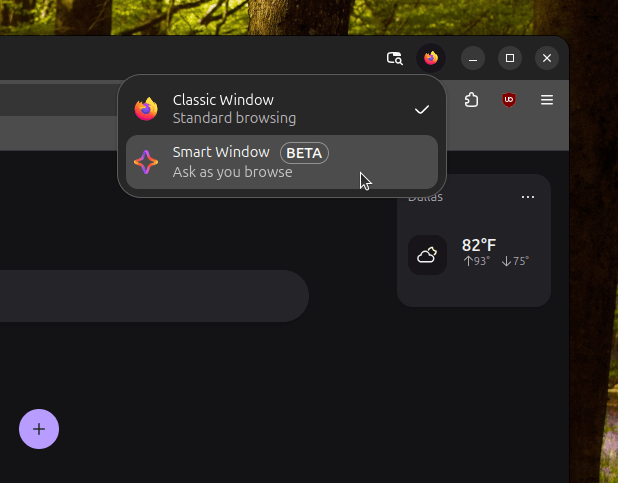
Mozilla and Mistral have announced a partnership that brings the Mistral Small 4 model to Firefox Smart Window, the browser's AI-powered window that lets users chat their way through a web browsing session.
Both companies portray this as pushback against a browser ecosystem increasingly dominated by a few large companies. The concern is that one company could end up running the browser, the search results, and the AI answering your questions.
This is followed by the expansion of beta access to the feature in eligible regions as well as improved French language support.
Why go with Mistral?
Firefox 155 was the release that opened up Smart Window to users based in France, though the beta originally ran with three AI models: Google's Gemini, Alibaba's Qwen, and OpenAI's gpt-oss-120B.
None of those came from a European lab. Mozilla says it evaluated the 119-billion-parameter Mistral Small 4, specifically for its multilingual performance, before adding it to the "Personalized" category, replacing OpenAI's offering.
The other models are still available, of course. The company is just pushing Mistral as an additional pick that gives users more choice rather than settling for a few limited options.
And that language support I talked about earlier isn't some half-baked job where a translated interface was bolted on top of an English-first model. Mistral has tuned the model directly on regional languages and dialects, treating multilingual handling as a core feature.
The company says support for more European countries is coming later this year, without naming any specific ones, while Mistral has already confirmed that the UK and Germany are next.
Should you bother?
When I tried Smart Window, it was a beta release limited to people in the US and Canada that I got into through an early-access portal. I found it useful for summarizing a page, discussing certain choices, and asking it follow-up questions about my queries.
What has changed now is that it has reached France and that one of its models comes from a local AI lab. You can see it in how both of these companies are describing the move.
Mistral is pitching this as sovereign AI reaching consumers, while Mozilla calls it an independent browser working with a frontier European AI company.
Coming back to the question, you should care about this if you are someone who wants an AI-powered sidekick for your research sessions without the headache of setting one up manually.
Zsh has become the default shell for a lot of Linux and macOS users, and for good reason. Between Oh My Zsh, autosuggestions, and smarter tab completion, there's a lot going on under the hood.
But how much do you actually know about it? Take this quiz and find out.
🚧
Some browsers block the JavaScript-based quiz units. Disable your ad blocker to enjoy the quizzes and puzzles.
Few people know that Zsh's roots go back to 1990, when Paul Falstad created it as a student project. That means, Zsh is older than Linux.
I've spent a good amount of time customizing my own zsh setup, and honestly, there's more to it than most users realize. Tab completion itself works very differently (or should I say better) from bash. Then there's spelling correction, smarter globbing, and configuration through .zshrc that can get as simple or as complex as you want.
If you want to learn Zsh, try this resource section on Linux Handbook.
In April this year, we saw Andy Nguyen turning the PS5 into a Linux-powered gaming PC that ran Steam games and emulators, making good use of the hardware on-board.
Sadly, he has now announced that he is walking away from the PS5 hacking scene altogether and is stopping work on porting the project to the PS5 Pro, which would've shipped sometime in 2027.
All due to a single exploit
I am stepping away from the ps5 scene and stopping all my work on ps5 linux. After pouring my heart and months of my life into it, including plans to finish ps5 pro support and release in 2027, it's all down the sink.
You see, running Linux on a PlayStation console is possible because the PS5 Linux project was able to find a way past the hypervisor using exploits Sony had already patched, covering firmware 3.00 through 7.61.
The issue starts with Andy gatekeeping a hypervisor bug that was still open on current firmware, one he says he had found a while earlier. It was prematurely divulged to Sony less than a day after the researchers who found it agreed to wait.
He clarified his position, saying that:
I asked them to at least wait for GTA 6 to come out so that people would have the opportunity to legally purchase the game and also enjoy linux.
Once Sony knows about a bug such as this, it's only a matter of time before it's patched, and that is where PlayStation's bug bounty program on HackerOne comes in.
The ones who found it
To give you an idea of PlayStation's HackerOne program.
While Andy has not named anybody in his post, you will find the reporter after a quick web search. Jordy has put out his side of things, laying out how he handled the bug.
By Jordy's account, the bug was his own discovery, found with what he calls his "trusty ai clanker machine" and no help from anyone else. He had even agreed to Andy's request to not disclose the findings.
Unexpectedly, a third person, still unnamed, found the same bug using AI a few hours later. Anticipating that there would be more people finding the same bug, Jordy decided to post the flaw on HackerOne.
The code is still there
The project's GitHub page and all the related repositories are still there. Nothing has been archived as of today, and if you wanted to, you could start contributing to the PS5 Linux project by taking over any pending work or cooking up new improvements.
You should know that the loader currently supports the original model and the Slim on firmware 3.00 through 7.61, so your test device would need to be on one of those. The PS5 Pro support Andy was building never reached the repository, so you would have to start from scratch.
That's the beauty of open source software. Even if the lead developer and key core maintainers decide to abandon a project, new people can easily take over the work or fork it, and steer it in a direction of their choosing.
While Andy's departure is a blow to the plan for supporting newer PS5 firmware and the PS5 Pro, other contributors have shown that they can deliver work on the loader without him, and I am hopeful more will follow.
In the past, I have shared stories of how real people using Linux in the real world. My favorite is the interview with Stu Keroff, who educates students to make the best use of Linux in school.
When Mišo reached out to me and shared how he helped a local small business move from Windows to Linux, I though of reviving that old series where real people share real stories of how they migrated to Linux and open source.
Mišo Oroz is the founder of Zerolock, an Italian IT company based in Spirano, Bergamo, specialised in migrating small and medium businesses from proprietary systems to Linux and open source.
Here's his story.
I got the call in early 2026. The owner of a small transport and logistics company in Mapello, Bergamo, had five office workstations and a team of drivers who needed to stay in contact throughout the day. He was not looking for a philosophy lesson about open source. He was tired of paying for software that kept causing problems, tired of calling an external technician, and tired of his team losing time to things that had nothing to do with moving goods from one place to another.
What they had before
The office ran on a standard setup that most small Italian businesses would recognise. Five workstations running a proprietary operating system (you know which one), a commercial office suite licensed per user, third-party antivirus renewed annually.
The drivers communicated with the office using WhatsApp on their personal phones, which meant company conversations were happening on a consumer messaging app with no archiving, no administration, and no separation between personal and work messages.
Their data lived partly on local machines and partly on a shared folder. When I asked to see where the most important company documents were stored, it took a few minutes to find the most recent version of a file that should have been immediately accessible.
The owner had paid for eight to ten external IT interventions over two years. Update failures, slowdowns, the occasional scare that turned out to be less serious than it looked but still cost half a day of anxiety and cleanup time.
The assessment
Before touching anything, I spent time understanding what each person actually did on their computers every day. This matters more than any list of installed software, because the real question is not what tools exist but which ones are genuinely in use and how.
The office staff used a word processor, a spreadsheet, email, and a shared filing system. The owner needed occasional remote access when he was out on the road. The drivers needed a reliable way to communicate with the office without using personal phones. No sector-specific proprietary software that would be difficult to replace, which made the project significantly more straightforward than many migrations I have worked on.
The stack
The replacement infrastructure was built entirely on open source components.
Kubuntu 26.04 LTS on all five office workstations. LibreOffice replacing the commercial office suite. Thunderbird for email. Nextcloud deployed on a server hosted in Italy, replacing both the local shared folder and eliminating any dependency on foreign cloud providers. Mattermost for internal communication, installed on the same Italian infrastructure, accessible from both the office workstations and the drivers' phones via the mobile app.
The office used an Epson WorkForce WF-C579R, a networked A4 colour multifunction connected via ethernet. This was the most technically interesting part of the hardware setup.
Kubuntu 26.04 automatically installed a driverless IPP driver, which caused two concrete problems: duplex printing reversed the back page regardless of whether long-side or short-side binding was selected, and print speed was noticeably slower than it had been on the previous system. The driverless path, which works well for many modern printers, does not handle all Epson business devices correctly on 26.04 because the Epson PPA does not yet support the current release.
The solution was to install printer-driver-escpr via apt and force the correct driver using lpadmin. After that, duplex worked correctly and speed returned to normal.
For scanning to a network folder, I set up Samba on each administration workstation, created a Scanner folder in each user's home directory, and configured the scan destination on the Epson web admin panel via IP address using SMB with dedicated credentials set through smbpasswd. This is worth documenting for anyone running Epson business printers on Kubuntu 26.04, because the driverless default will cause the same duplex problem and the fix is not obvious.
pfSense as the network firewall. Encrypted automated backups running nightly. For remote access I deployed RustDesk through my own VPS, which solved a specific challenge with Kubuntu 26: the system runs on Wayland by default, and many remote desktop tools that work reliably on older Linux systems have compatibility issues with Wayland. RustDesk via a self-hosted relay server worked consistently once that configuration was in place, and it has been the standard approach for all my Kubuntu 26 deployments since.
Total recurring licence cost after migration: zero.
The migration
Everything was built and tested on a separate machine before touching any production workstation. I validated every workflow, confirmed that existing documents opened correctly in LibreOffice, tested the Nextcloud connection, and set up Mattermost including the mobile configuration for the drivers.
The actual migration happened over a weekend. Each workstation was rebuilt from scratch with a clean Kubuntu installation. Data was migrated from the existing shared folder to Nextcloud over the local network before the weekend, so that by Monday morning the files were already in the right place on the new system. The drivers received the Mattermost app on their phones with the configuration already set up. From day one they had a dedicated work channel separate from their personal messaging.
Training and the first days on site
The weekend migration was only the beginning. The following Monday I was on site for the first three days of the working week and available by phone for the rest. Each employee received individual training on the tools they actually used, not a generic overview of the new system. I sat next to each person and worked through their specific daily tasks: how to open and save documents in LibreOffice, how to access files on Nextcloud, how to use Mattermost for internal messages.
This part of the project is not glamorous but it is where migrations succeed or fail. The software can be perfect and the migration still falls apart if the people using it feel abandoned on Monday morning. Being on site those first days meant I could answer questions immediately rather than leaving people stuck waiting for an email reply.
What was actually difficult
Two things created friction, as I mentioned earlier. Since this is sort of a case study, I will highlight those two hurdles again.
The first was the printer. The Epson driverless issue was not something I had encountered before on 26.04 and it took a few hours to diagnose and resolve. The duplex problem was intermittent enough that it would have been easy to miss during testing and only surface in daily use. I now test duplex printing explicitly on every Kubuntu 26.04 deployment with a networked Epson.
The second was the Wayland remote access setup. Kubuntu 26 required a different approach to remote desktop than older Linux systems. Testing different configurations took additional time before I arrived at the RustDesk and self-hosted VPS solution that now works reliably. It is a known challenge with Wayland that the ecosystem is actively improving, but at the time it required real problem-solving.
The adjustment period for the office staff was easier than I had anticipated, largely because of the time spent on site. The drivers adapted fastest. For them the change was a new app on their phone that replaced a WhatsApp group, and within a day or two it felt normal.
Six months later
The company has not called me for a single ordinary technical issue since the migration.
The productivity difference showed up in ways that were immediately visible. Before the migration, the workday started with machines that took several minutes to become usable after login, with antivirus scans running in the background competing for resources. Unscheduled updates had a habit of appearing at the worst possible moments, sometimes forcing restarts mid-morning. When something broke, work stopped until the external technician arrived.
After the migration, bootup is fast, background processes do not fight for CPU during working hours, and updates run overnight without touching the working day. The time that had been quietly disappearing into slowdowns, restarts, and waiting is simply not disappearing anymore.
Licence costs for the operating system, office suite, and antivirus are gone. The Nextcloud server costs less per month than their previous storage arrangement. The external technician has not been called.
The drivers now have a proper work communication channel that is administered, archived, and completely separate from their personal phones.
The end result is one hour per day recovered per employee, zero ordinary technical issues after migration, zero recurring licence costs. We have a happy client.
GNOME is still the initial desktop environment for most people who step into the world of Linux, trying their first distribution. I say that because the mainstream picks like Ubuntu and Fedora Workstation both ship it by default, bringing new users directly into the GNOME ecosystem.
While we are seeing a rise in adoption for dynamic tiling window managers like Hyprland, conventional desktop environments like this one are still a daily driver pick for many.
Now, a fresh release, GNOME 51, has arrived, bringing with it many upgrades, such as a better-behaving shell, a new wallpaper that looks chic, and a host of updated pre-installed apps.
Continue reading to get the full details.
A Refined Shell
This is the part of GNOME that you directly interact with without realizing that it even exists. GNOME Shell represents the top bar, the overview, the app grid, notifications, the lock screen, and the way windows move between workspaces.
This release cleans up many of its rough edges, giving you perks like monitor brightness being saved and restored across sessions, and more refined screenshot framing that lets you drag a selection all the way to the edges of your monitor.
Screen reader navigation in the app grid was reworked as well, and two smaller annoyances, a bug with minimized windows on another workspace and broken German date formats, are fixed.
Similarly, the autorun prompt that shows up for connected USB drives was improved.
GDM & Mutter Tweaks
These two are also an important part of the GNOME stack. GDM is the display manager behind your login screen, and it starts a session once you authenticate. Mutter is the compositor that draws the windows, decides where they sit, and handles the input.
GDM picks up a setting for the fallback session. That is the session used when a user has no preferred one or when their preferred one will not start. Administrators can point accounts that have never logged in at a session of their choosing.
The autologin bypass is closed as well. Earlier, a compromised greeter could request autologin for any local account; fortunately, this no longer works.
In Mutter, support for legacy NVIDIA drivers is gone, and on HDR displays, SDR content doesn't look desaturated (discolored) anymore. Window handling gets a few repairs of its own. Edge tiled windows fullscreen properly now, and a maximized window can be moved to another monitor from the keyboard without issues.
It has also stopped reporting several monitors as primary at once, and the mouse cursor hides itself while an input capture session is running—the kind a remote desktop tool opens.
The App Upgrades
GNOME 51 Settings, Software, Files.
The bundled apps see their share of major upgrades. We first start with the Settings app, which has added DNS domain search options to the Network page, gets various translation updates, and handles Wi-Fi sharing through the GNOME QR code widget.
The About page was cleaned up, with the "Windowing System" field removed and the software and hardware info groups expanded to give users quick access to important system details.
Thanks to that, the dedicated "System Details" button is a thing of the past.
Software now warns you before installing an app that has reached end-of-life status, its Flatpak permission list has been expanded, and app ratings use a different measurement approach for showing you the average rating.
Files (Nautilus), the file manager, shows a count badge while you drag several items, and copied files stay selected once a copy operation finishes. Locations opened from another app are displayed in a new tab, while the previewer now supports rename and trash operations.
📋
Quick tip: You can access the previewer function by selecting a file or folder and pressing the "Space" key. It shows you a preview of the selected item, as well as some key details.
GNOME 51 Calendar, Maps, and Web.
The Calendar app's internals were heavily reworked, and it is now based on GListModel.
The week, month, and agenda views run on that same model, and so do the objects behind its event timelines. Locations now open in Maps through the maps URI, and the "About" dialog shows a status indicator when the app is not running sandboxed inside Flatpak.
Similarly, users of Maps can now download maps for offline use by using the new download tool. To use it, first go to a specific region, then open the hamburger menu on the top-right and go into "Preferences." In the "Downloads" section, click on "Add" to get started.
Then there's Web (Epiphany), the default web browser, which comes with fixes for cases where deleting your default search engine or opening the preferences menu would cause a crash.
Other Changes
I skipped out on mentioning a few changes earlier, but these are still worth knowing:
Roundhex is the new default wallpaper, with three more; Curvaturingster, Glass Stripes, and Tubes being the other additions.
The gnome-desktop component ships with an API for generating QR codes; the Wi-Fi sharing widget we talked about earlier uses it.
GNOME Bluetooth 47.2 adds mnemonics to a few buttons and fixes a couple of memory leaks.
The pre-installed image viewer, Loupe, now shows the creator, copyright, camera lens, and software data stored in a photo's metadata.
Settings gains a new fingerprint manager in the "Users" panel.
For more details, you can give the release notes a read.
Getting Started with GNOME 51
People who are on a rolling release distro like Arch Linux, CachyOS, or EndeavourOS will be the first ones to get this GNOME release as soon as the maintainers push it to the repositories.
If you are on a mainstream distro like Ubuntu or Fedora, then you will also get GNOME 51 via the Ubuntu 26.10 and Fedora 45 (error 404 for now) releases.
Of course there's also GNOME OS, which is the project's testbed for new software. You can install it on a spare machine or virtual machine to see what GNOME 51 has to offer.