When it comes to grammar checking, Grammarly is the premium tool for it. It's a proprietary tool and it was among the first one to make a mark as a web-based Grammar checking tool.
Then there is LanguageTool (partner link). This is the tool that we use here in our team. It is/was open source, made in Germany and offers hosted service for free or for a price (you get additional features). LanguageTool was acquired a couple of years back and since then it's privacy policy has changed as it processes data on US servers, instead of European ones.
Recently, I came across a new grammar checker tool, Harper, and I am sharing my experience and my views on this new open source tool.
Meet Harper, a local first open source grammar checker
Harper is a new project coming from Automattic developer, Elijah Potter. Automattic is the company behind WordPress, world's most popular Content Management System (CMS).
The idea is to have a local first tool that doesn't depend on the cloud for any processing or stores away the data. That's a W right there.
Harper is currently available as browser extension and plugin for Obsidian and VS Code. It is a new project and I hope they release more extensions, specially for LibreOffice, in the future.
I tried the Firefox add-on and tested it while writing this review itself.
Features that I like
Now, Firefox already has a built-in spell checker and I believe Chrome and other browsers may also have it. So, do we need a third-party browser extension for this purpose? The short answer is yes.
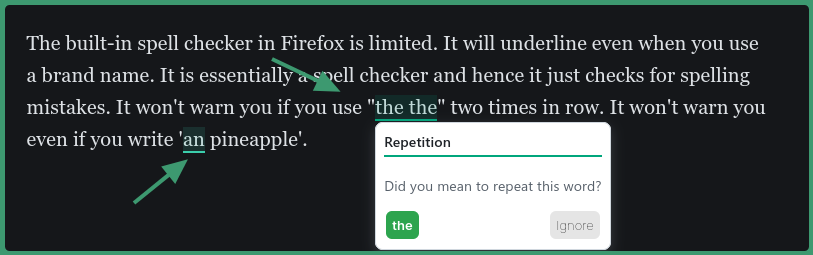
The built-in spell checker in Firefox is limited. It will underline even when you use a brand name. It is essentially a spell checker and hence it just checks for spelling mistakes. It won't warn you if you use "the the" two times in row. It won't warn you even if you write 'an pineapple'.
Harper is definitely msarter than the default spellchecker of your web browser
Harper does these things and it does that without interacting with a central server. Everything is processed locally.
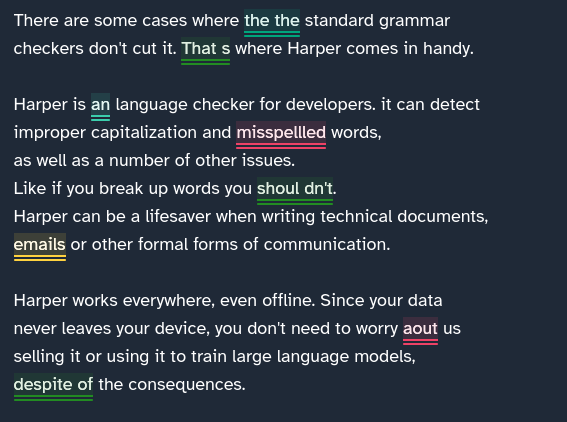
Here's what Harper is capable of:
Spell checking (obvious)
Spotting repetition (example, double the the)
Spotting multiple simultaneous spaces in a sentence
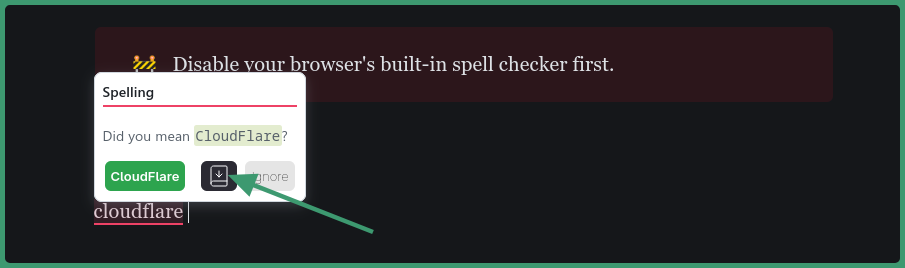
Save words to dictionary (excellent)
Correcting the use of a/an
Common misused words like "despite of" which should be "in spite of" or "despite" or "its/it's"
Styling issue with comma usage
Another interesting feature is that Harper uses different colors for different type of mistakes. This way it is easier to visualize the mistakes and their types.
The option to add strangely spelled words into the local dictionary is an excellent feature.
Save special words in your local dictionary
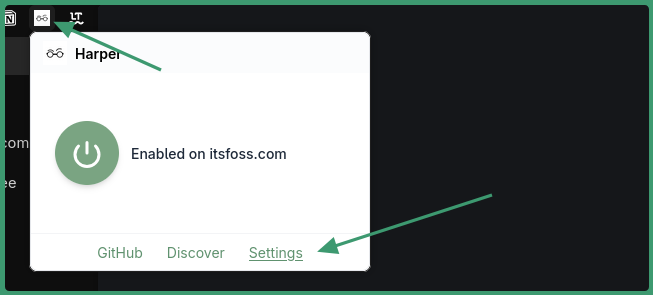
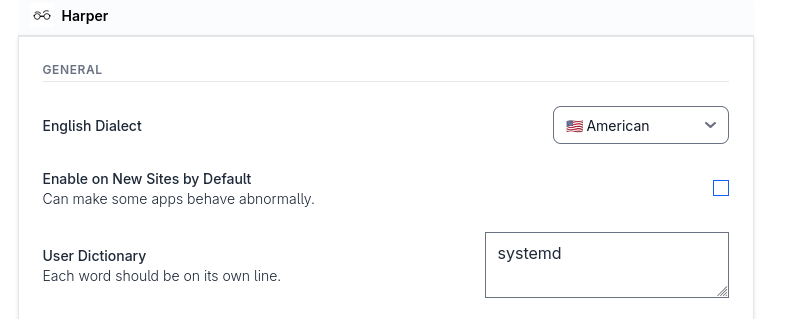
You can access this local dictionary by accessing the extension settings.
And this is where you'll see various settings that you can change. You can even bring your custom dictionary as long as the words are in their own line.
You can also choose between American, British, Canadian, and Australian English dialect.
Harper extension settings
📋
As you can see, it seems Harper only supports English language at the time of writing this article.
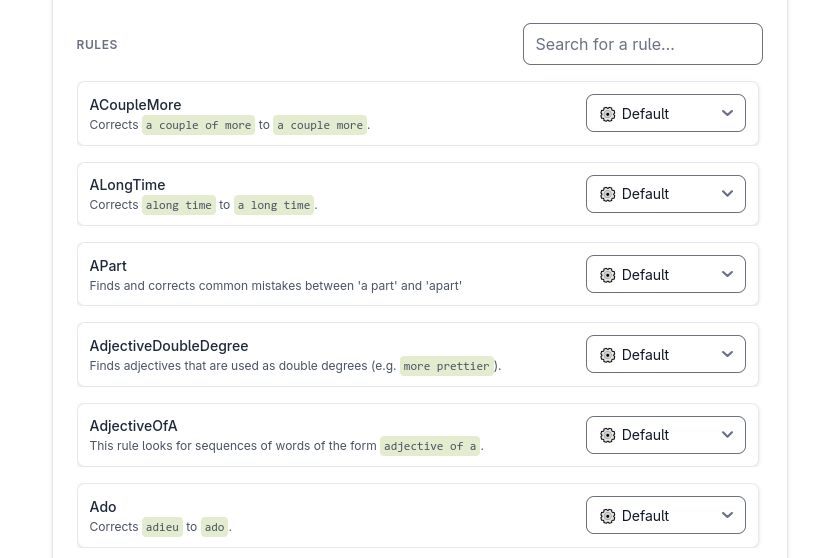
There are also a huge list of rules that detects errors like "along time" and suggest "a long time" as the alternative. The list is huge and that's why there is the option to search for a rule.
There is no option to add your own rules though.
Fast but how fast, rally?
Harper claims to be faster than both Grammarly and LanguageTool. I don't have data to prove it. But I cal show you this video in which I show how quickly Harper gets into action as I type.
0:00
/0:28
Since the processing is local, the suggestions are pretty fast actually.
Harper is not perfect, of course
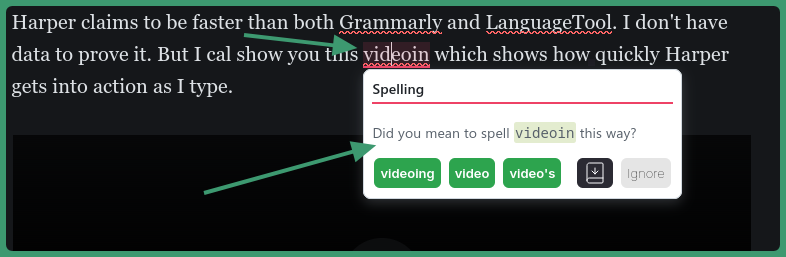
For example, here I deliberately mistyped "video in" as "videoin" and Harper didn't suggest it as one of the possible correct options.
And I think it limits itself to suggest maximum three suggestions or the most it can fit in a line.
Harper offers limited suggestions
Another thing is that Harper is not as intelligent as I would want it to be. I am an excellent tester for grammar tools. I make so many mistakes and on so many levels that even the best grammar checkers throw in the towel.
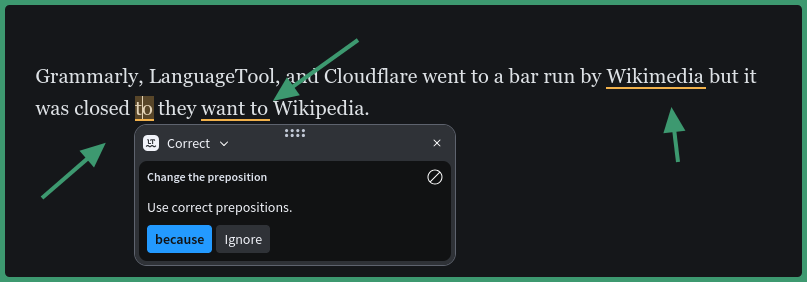
That's why I tested Harper against LanguageTool with a sentence with multiple grammatical issues.
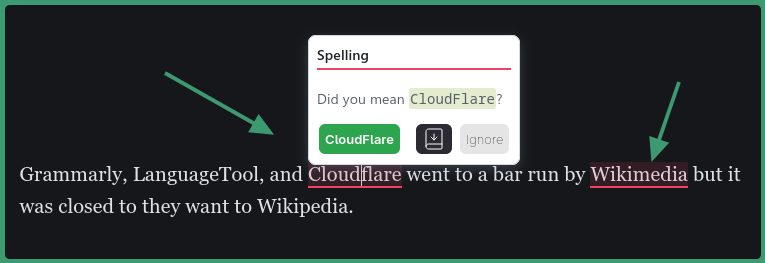
Harper was primarily so focused on the spelling of Wikimedia and Cloudflare that it forgot to point out other grammatical mistakes.
The weird thing is that both Cloudflare and Wikimedia were correctly spelled. Usually, Harper is good at recognizing brand names, except in this case where it made two false positives in a single sentence.
On the other hand, LanguageTool did indicate that there are some grammatical mistakes worth looking for.
Neither could correct the sentence entirely, as the correct sentence I was aiming for was:
Grammarly, LanguageTool, and Cloudflare went to a bar run by Wikimedia but it was closed, so they went to Wikipedia.
Yeah! I know. No AI can guess what goes in my mind when I make these typos. It takes real intelligence to deal with such stupidity 😜
At least in Ghost, the CMS I use to publish content on It's FOSS, sometime the suggestions tooltip wouldn't close until I start typing something. It's minor but annoying.
Conclusion
Both Grammarly and LanguageTool have evolved to writing assistant with AI features.
But here's the thing. Sometime simplicity is the best feature you look for. Not everyone is a professional writer looking for additional features to improve their work.
For a casual user, a no-fluff, simple grammar checker is more than sufficient to save them from embarrassing typos and grammatical mistakes in their emails.
And Harper is an excellent choice at that. It is definitely better than your browser's built-in spell checker, it is an open source software and it processes your data locally.
If you are not dependent on a more professional tool like LanguageTool or Grammarly, you should definitely 'upgrade' to Harper.
It offers image support, ligatures, animated cursors, and a whole lot of productivity tweaks. I could write a mini-book if I had to explain each one in full detail.
I am not going to do that. Instead, I'll share some of my favorite features and tweaks I use with Kitty.
Installing Kitty
Since Kitty is a pretty popular terminal emulator, it is available in the default repository of most of the Linux distributions.
In Ubuntu, you can install a slightly older version of Kitty by using the APT command:
sudo apt install kitty
Arch Linux users can install it from the Extra repo:
sudo pacman -S kitty
For Fedora,
sudo dnf install kitty
If you are any other distro user, or your system repo provides an older version of Kitty, use the official pre-built binary from the Kitty team.
curl -L https://sw.kovidgoyal.net/kitty/installer.sh | sh /dev/stdin
Or, download binary from the GitHub releases page.
Kitty offers a huge configuration possibility, but through its config file. This config file should be kitty.conf located in ~/.config/kitty directory.
It is always good to use the default config file and make changes to it rather than creating a config from scratch.
Open Kitty and use the keyboard shortcut CTRL+SHIFT+F2. This will open the Kitty config in a new window. If not present already, it will create one for you and open it.
For me, it opened in the Vi editor. If this is not needed, you can quit the config using the Vi shortcut :q (without any changes).
0:00
/0:11
Open Kitty config file using the shortcut in Kitty. This will open the config file in Vi editor.
Then open it in your favorite command line editor or GUI-based text editors.
nano ~/.config/kitty/kitty.conf
2. Setting a different font
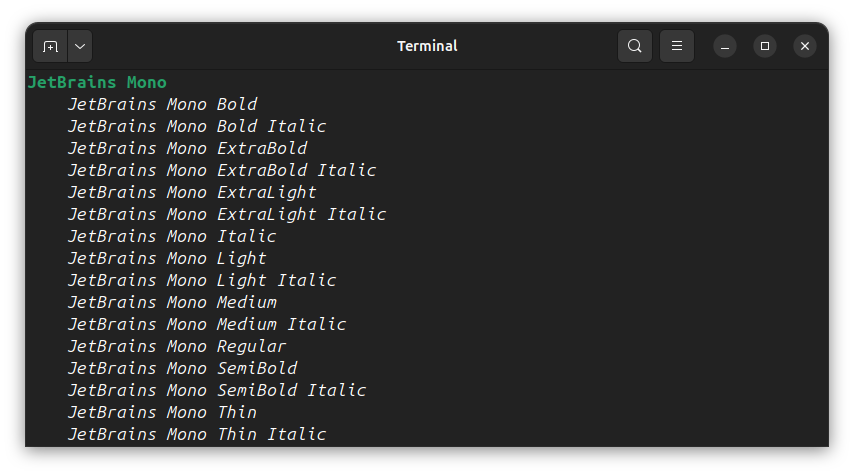
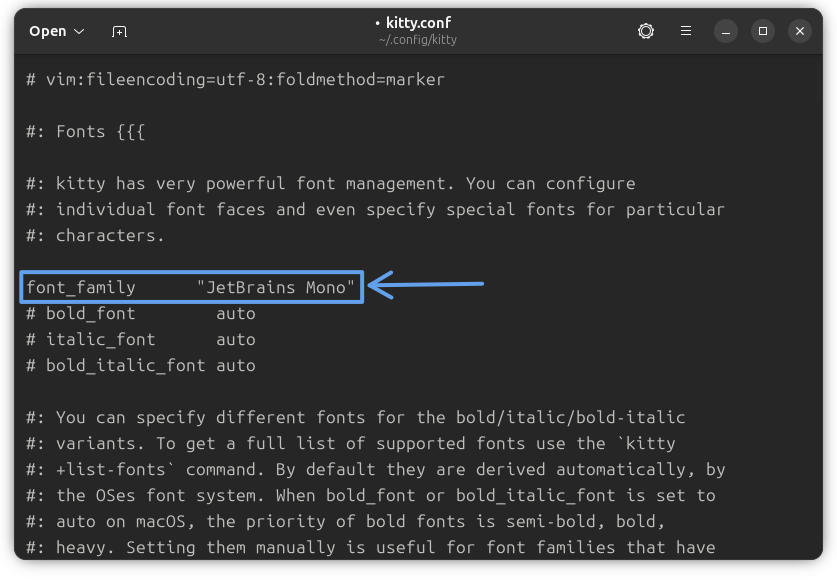
A proper monospace font can increase the terminal aesthetics. Here, we will set the terminal font as JetBrains Mono font.
First, list the set of supported fonts using the command:
kitty +list-fonts
From the list, note the exact name of the font you want to use:
List Fonts
Now, open Kitty config and scroll down to the line that says font-family. Here, remove the comment in front of the item and change the name as follows:
font-family "JetBrains Mono"
Set a Font
💡
Kitty supports setting individual font as well, like Bold, Italics, etc.
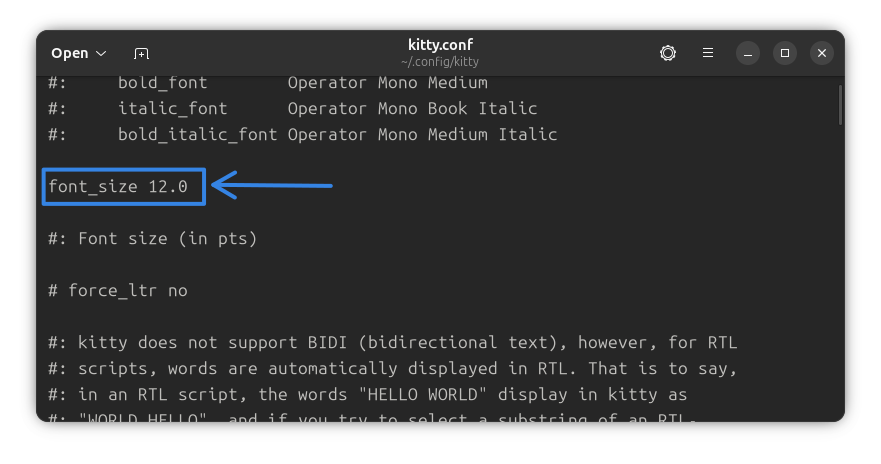
Setting font alone is not sufficient; you should be able to change the font size as well. Fret not! Kitty has an option here.
Search for font-size. Uncomment the line and change the value to sufficiently large.
Font Size
3. Re-setting scrollback
One of the most essential features in a terminal is a sufficiently long scrollback lines.
Many commands like cat, do not use a pager like less to print text. So, if a text has a huge number of lines, more than your scrollback, then the beginning parts of the text will be unreachable.
At the same time, setting a huge scrollback line is also not advised. Since the scrollback lines are stored in RAM, more scrollback lines means more hit on the RAM usage.
A value of 10000 will be good for most users, and a 2000 is also fine for a GUI-only user.
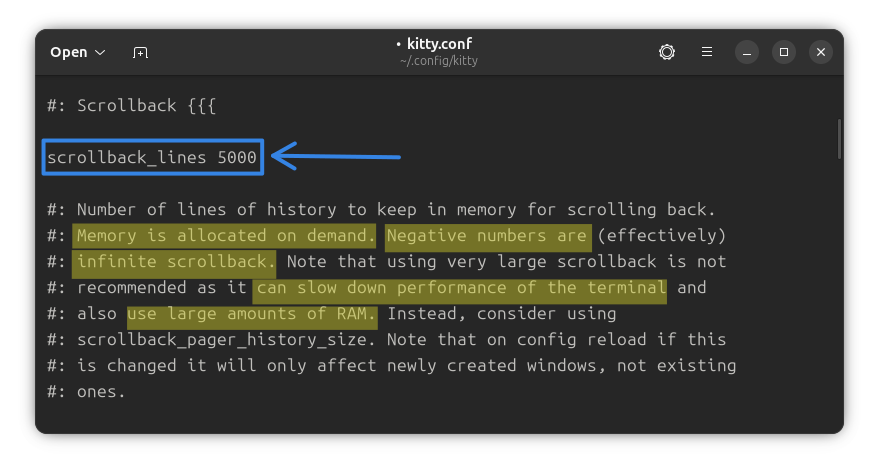
On the Kitty config file, find the line scrollback_lines. By default, the value is 2000.
To change, uncomment the line and add a value, say 5000.
scrollback_lines 5000
Scrollback Lines
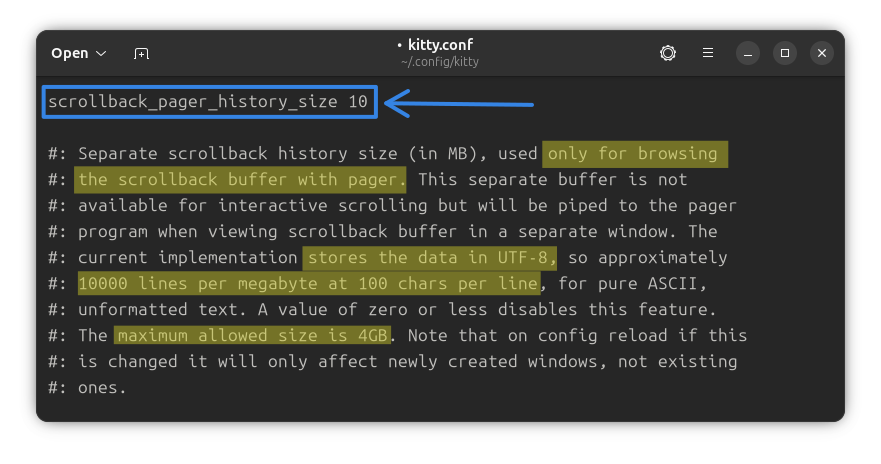
The scrollback pager feature in Kitty allows you to open your terminal’s scrollback history in a full-featured pager program (like less or nvim) for easier navigation, search, and copying.
By default, this is disabled. You need to enable it by specifying the value in MB.
Scrollback Pager History
💡
Use most instead of less and add colors to your pager system.
4. Hiding mouse on typing (for keyboard addicts)
For terminal power users, the mouse may feel like a distraction. In Kitty, you can play with the mouse presence in several ways. Hiding the mouse immediately when you start typing is my preference.
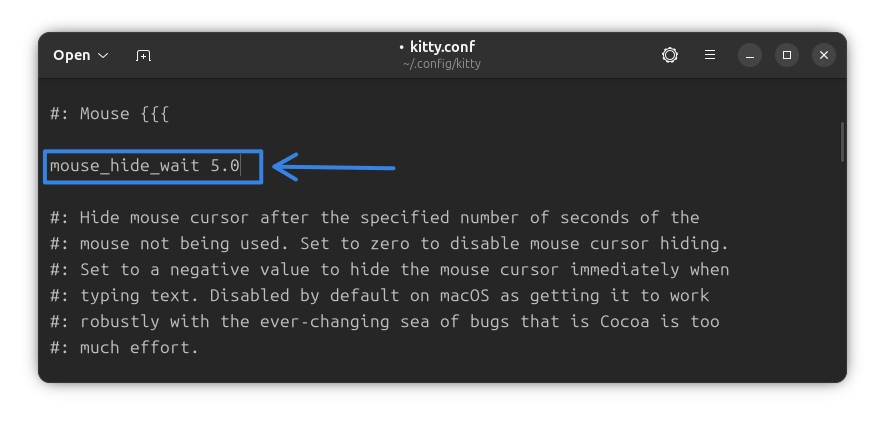
To get this action, set the mouse_hide_wait variable to a negative value.
mouse_hide_wait -3.0
If you make this value any positive number, the terminal will wait for that many seconds and then disable the mouse if no mouse action occurred within that time range.
Hide Mouse Cursor
In the screenshot above, I set the value to 5.0 seconds. So now, no matter you type or not, the mouse will be disabled if you don't touch your mouse for more than 5 seconds.
Set it to 0 and the mouse won't hide at all.
5. Setting window size
Kitty remembers the window size from the last session by default, so you don't need to resize it every time.
Still, you can set the default window width in Kitty.
Window Size
The remember_window_size yes is self-explanatory. The window size will be remembered with Kitty instances.
You can set the initial_window_width/height key to a required size and then disable the remember_window_size so that the new instances always open in the specified size.
This is specifically useful in the next section, where we disable the window decoration and thus you can't resize the terminal with mouse anymore.
6. Hiding window decorations
If you are using tiling window managers like Hyprland, it is good to avoid the title in Kitty. You won't find any serious use for it, because window resizing is done differently in tiling window managers.
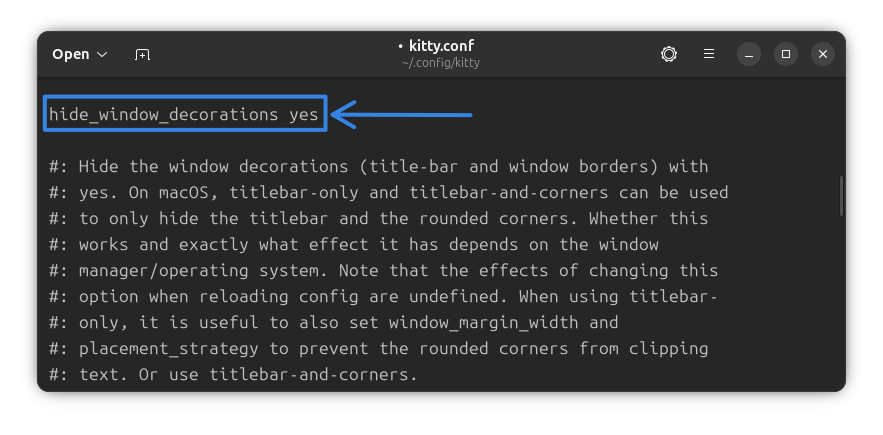
Search and locate the hide_window_decorations option. Uncomment the line and change its value to yes from the default no.
Hide Window Decorations
7. Customizing the tabs
Like most of the terminal, Kitty offers tabs as well. The difference is that Kitty offers some ways to make the tabs look unique.
Tab bar position
You can use the tab_bar_edge key to specify whether you want the tab list at top or bottom. The default is bottom, and that is fine.
Tab bar style
There are several cool styles available for the tab bar, like fade, slant, separator, powerline, and custom.
We will be going with the powerline, which is pleasing and can be quickly made work. Uncomment the line and change the value.
tab_bar_style powerline
Now, the powerline offers another key called the tab_powerline_style. This can be set to angled, slanted, round.
All these looks cool, but I will be going with round which along with the Catppuccin Starship prompt will look aligned.
tab_powerline_style round
0:00
/0:32
Tabs in Kitty
8. Changing the shell
Most of the Linux distributions come with Bash as the default shell. Many users, on the other hand, love the ZSH shell.
The most common way people follow is to change the system shell. But that applies to all the terminals.
Here comes the use of shell key. You can set a shell for only the Kitty terminal and the rest of the system will use the default bash shell.
For this, first find the command location of your desired shell using the which command:
which zsh
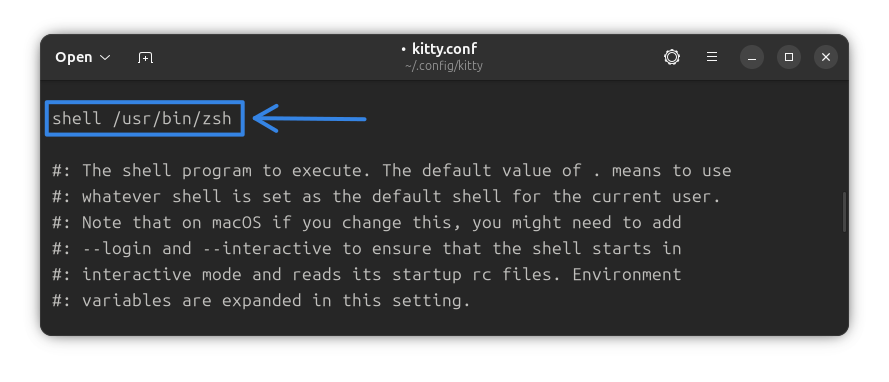
For me, it is /usr/bin/zsh.
Now, search for the shell key in Kitty config.
💡
If you are searching for the shell using the editor's find tool, search for shell ., so that you reach the result directly.
The default value is . which means the user's default shell is used as Kitty shell.
Remove this . and paste the location of your desired shell.
shell /usr/bin/zsh
Change Shell
💡
You can set a default editor as well using the editor key in Kitty configuration file. The procedure is the same as changing shell.
9. Notifying on command finish
With Kitty, you can get a desktop notification when a long-running command finishes up.
For this, uncomment the notify_on_cmd_finish key and set its value to invisible or unfocussed.
I am going with invisible, since, as per manual, it will:
Only send a notification when the window both is unfocused and not visible to the user, for example, because it is in an inactive tab or its OS window is not currently active.
notify_on_cmd_finish invisible
If you are more into detail, set a time limit for the long command.
I am going to set 20 seconds as the duration of a long command.
notify_on_cmd_finish invisible 20
Notify on Command Finish
There is more to explore in this section for you!
10. Changing themes
Kitty offers a huge number of themes. Run this command:
kitten themes
This will download the themes from the repo and display it to you.
Scroll down to see them all. Once you find the perfect one for you, press the ENTER key to apply the theme!
Also, use the / button to start a search.
In the small video below, you can see that I apply Catppuccin theme to Kitty.
Applying theme to Kitty Terminal
Once you have selected the theme, press enter and it asks whether you want to modify the config or add the theme to ~/.config/kitty/themes.
I will press the M key so that the Kitty Config is modified and the theme is set.
11. Animating cursor tail
Latest versions of Kitty support setting a cool cursor animation.
📋
The values for the keys in this section need to be fine tuned as needed for your satisfaction.
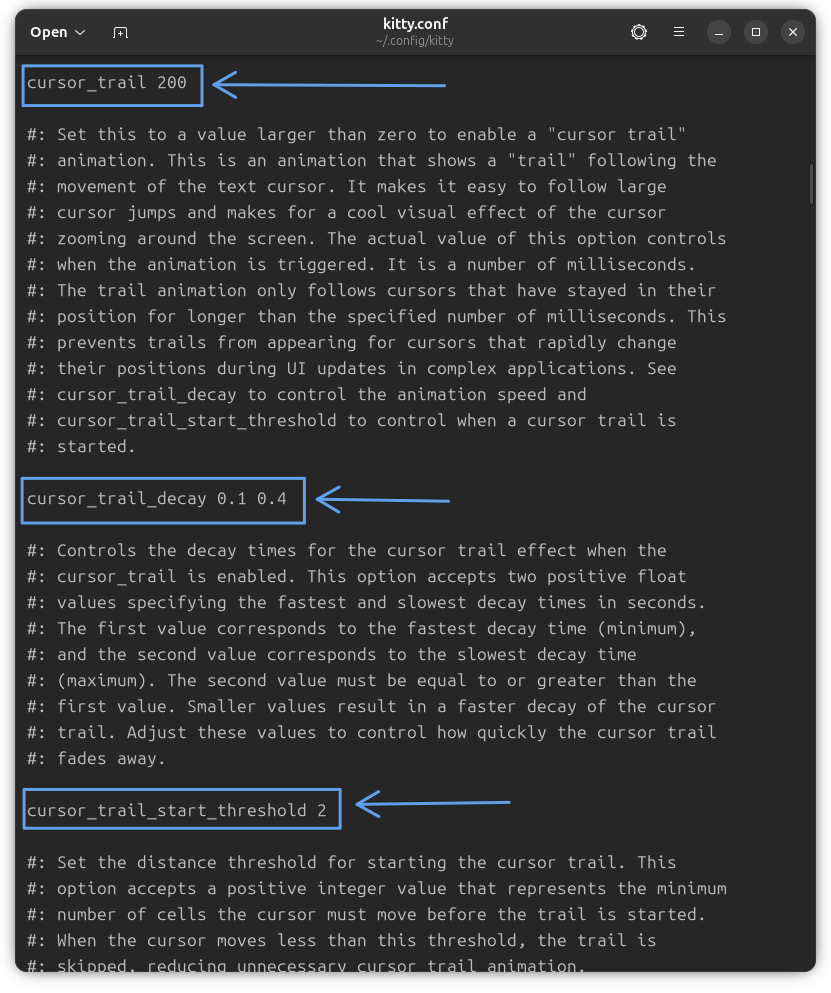
To enable it, first search for the key cursor_trail. Uncomment it. I have set a value of 200 for it.
Now, set a value for cursor_trail_decay and cursor_trail_start_threshold as shown in the screenshot below.
Cursor Trail Values
Now, reopen Kitty. You can see a cool cursor trail animation when the cursor is moved significantly.
0:00
/0:19
Showing Cursor Trail Animation
12. Automatic dark and light theme change
Kitty supports automatically changing themes according to the system dark and light mode.
🚧
This is supported in Kitty version 0.38+. So, if you are using Ubuntu 24.04 or related system, the default package repo version of Kitty doesn't support this.
For this, first open Kitty and run:
kitten themes
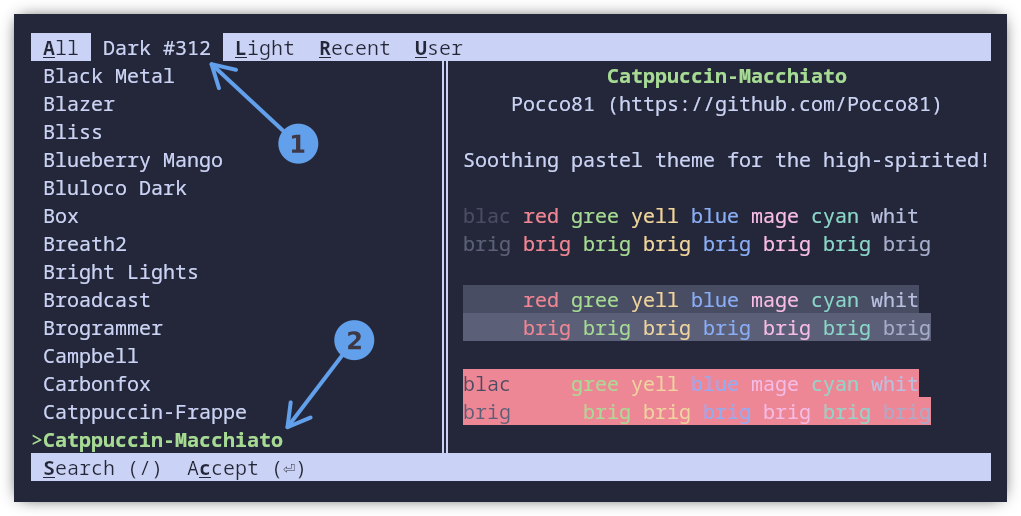
Now, from the list of dark theme, select a dark theme and press enter.
Select a dark theme
In the next page, press the D key so that this theme is the default theme for the dark mode.
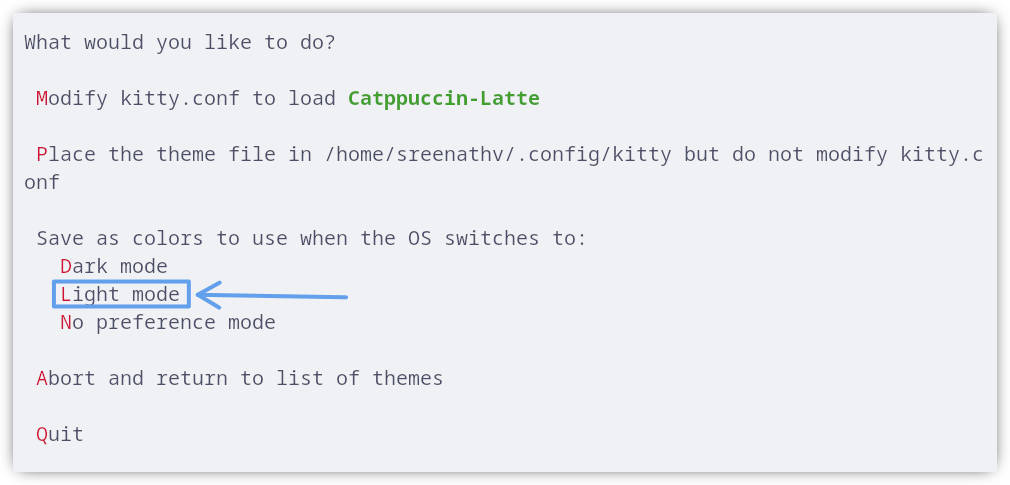
Now, run the kitten themes command again. This time, select a light theme from the list and press enter. In the next screen, press the L key, to make the selected light theme default for light mode.
Set light mode theme
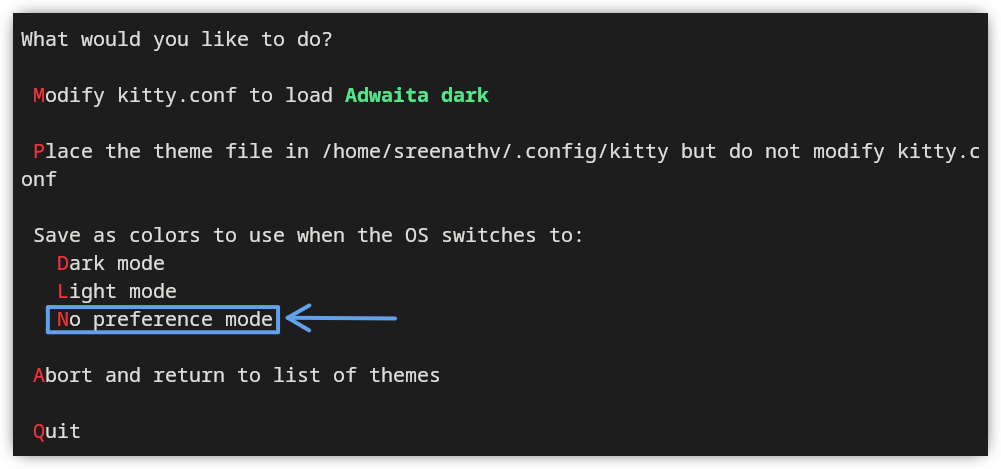
Run kitten themes one more time and select a theme at random, and in the settings screen, press the N key to make it the default in case of no preference.
No preference mode theme
That's it. Now, the Kitty will show the theme based on the current system mode.
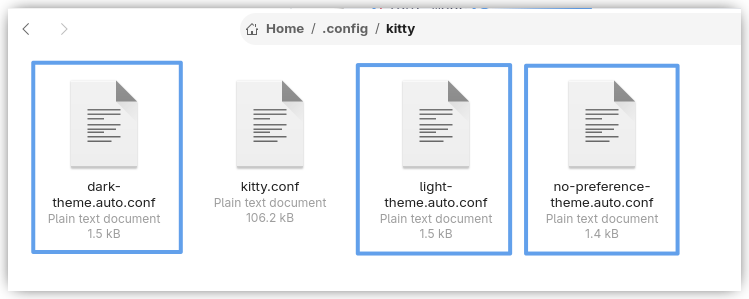
You can take a look at the ~/.config/kitty folder to make sure that the dark, light, and no-pref mode themes are present as config file.
Theme files saved for different modes.
13. Setting a background image
Take the customization to the next level by adding an image as the background for Kitty terminal.
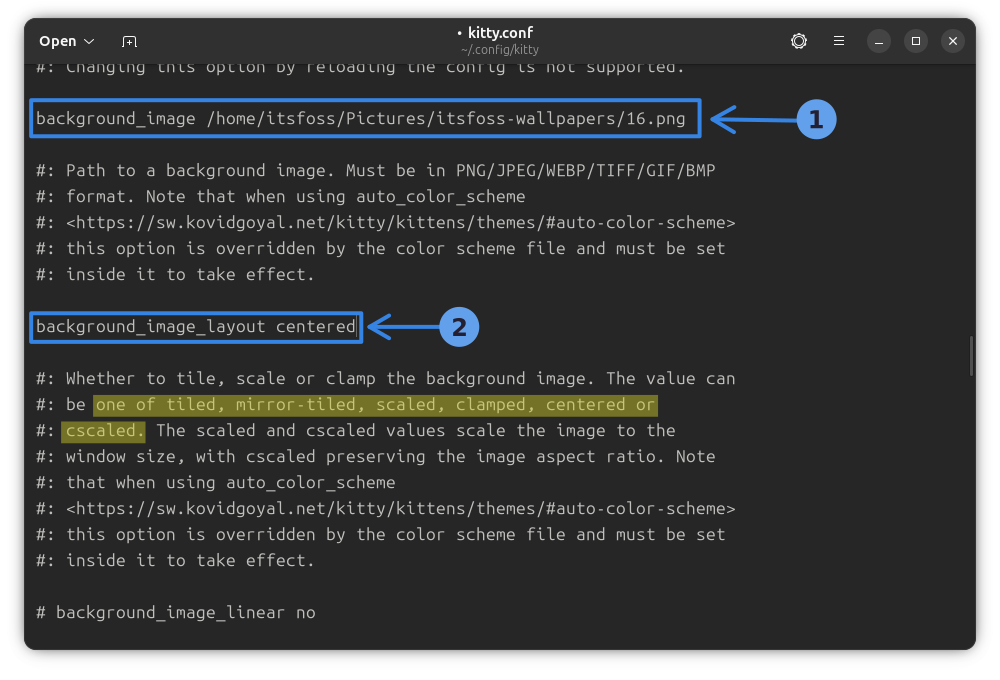
Locate the key background_image in the kitty config file.
Background Image and Layout
Set its value as path to the image file. Also, change background_image_layout to a required value, as shown in the screenshot above.
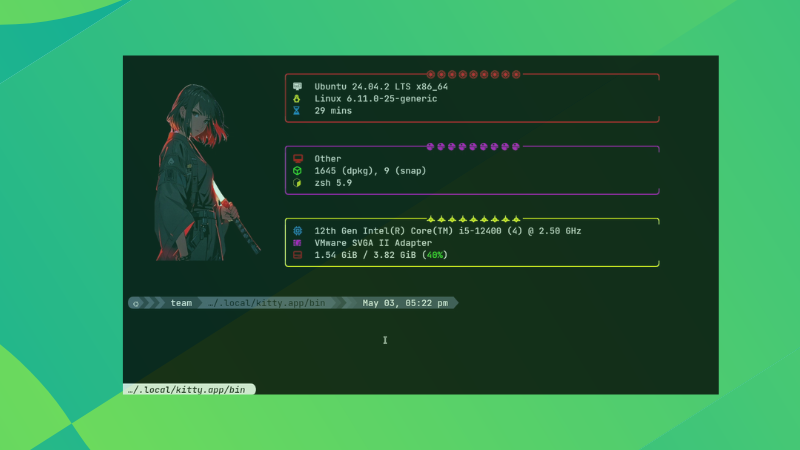
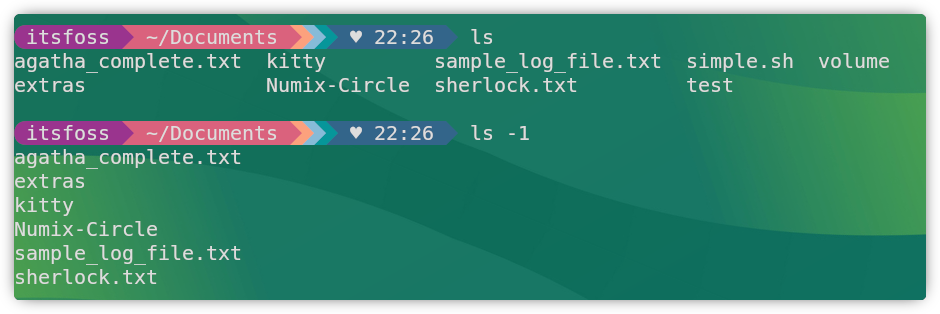
And you can see that my kitty terminal now has an entirely different look that matches the theme of It's FOSS. Good for the social media videos.
Set background image
14. Adding a watermark/logo
Want to spice up the terminal even more? Let's add a small logo as well!
Make sure you have a small image, say 50x50 sized images. This will make things easy. There is a scale option window_logo_scale, but that may require some trial and error.
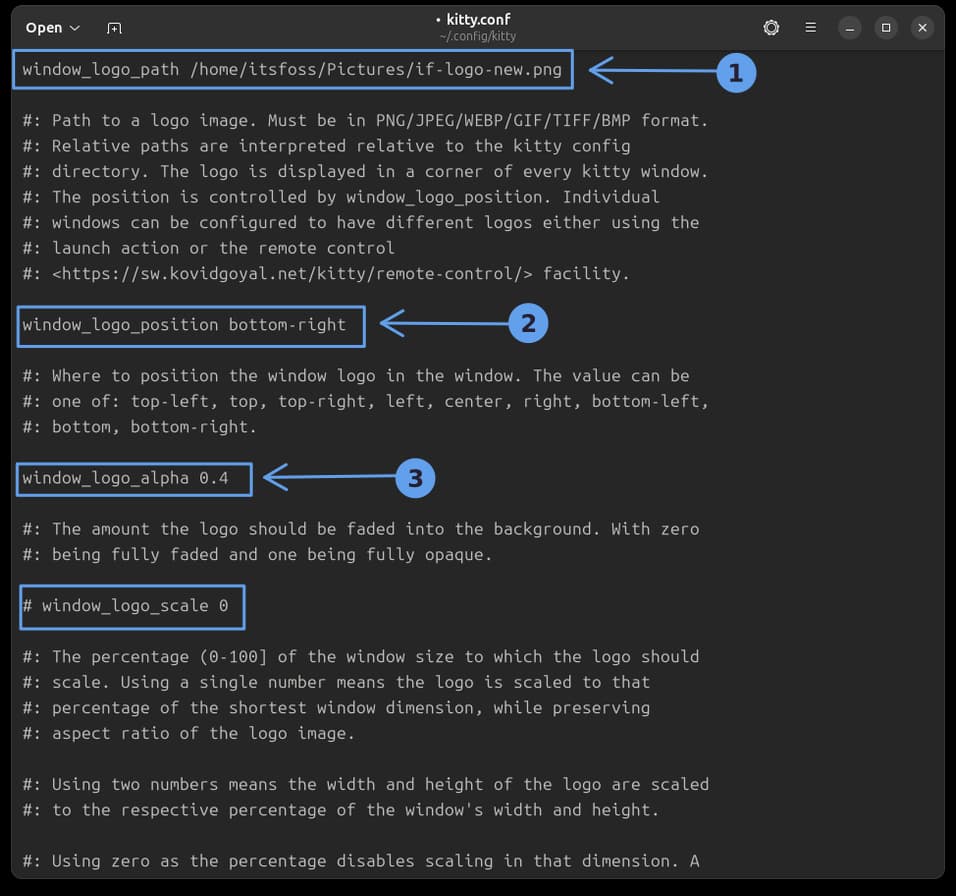
Now, in the Kitty config, locate the key window_logo_path. Uncomment it and change its value to the path of the logo file.
Also, fix the position of the logo using the window_logo_position key.
Use the window_logo_alpha key to set a fade to the logo.
Set Window Logo
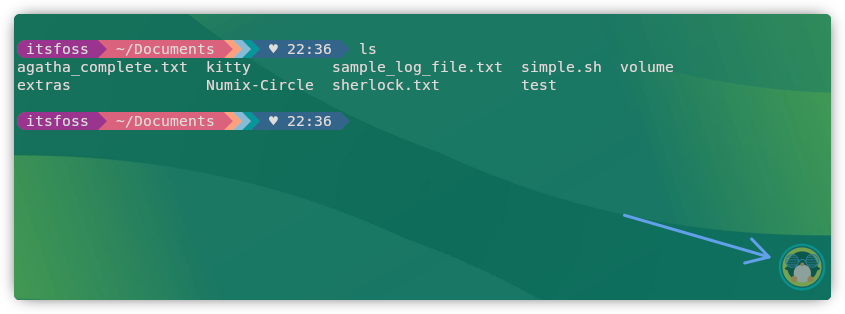
That's it! Save the config file and reopen Kitty to view the result.
It's FOSS Logo Applied
15. Setting mouse actions
You can define what the mouse buttons do in Kitty using the mouse_map option in the Mouse Actions section.
The general syntax is:
mouse_map button-name event-type modes action
For example, the default middle-click to paste from selection action is set in Kitty using:
We discussed internally and decided to do a dedicated tutorial on customizing Kitty. And hence this article.
I understand that customizing the terminal is not everyone's preference but I like changing things to make them look asthetically pleasing. Kitty is my current favorite, even though I am thinking of using Ghostty.
Please let me know in the comments if you like this article or if you notice any issues with the config changes.
Desktop Linux is mostly neglected by the industry but loved by the community. For the past 13 years, It's FOSS has been helping people use Linux on their personal computers. And we are now facing the existential threat from AI models stealing our content.
If you like what we do and would love to support our work, please become It's FOSS Plus member. It costs $24 a year (less than the cost of a burger meal each month) and you get an ad-free reading experience with the satisfaction of helping the desktop Linux community.
Are you good with Git? Prove it, or Git good (pun intended).
💡 Quick Handy Tip
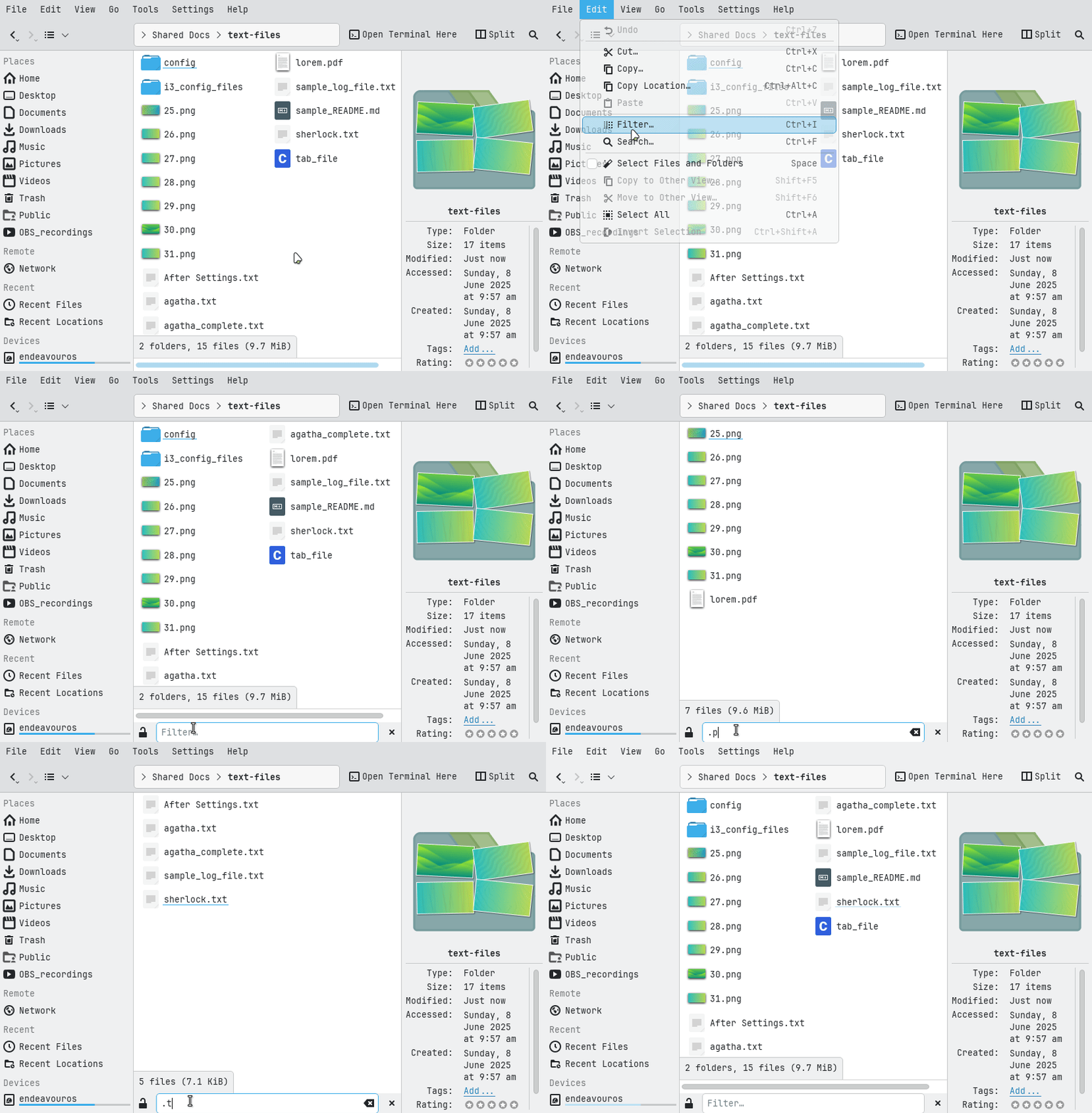
On Dolphin file manager, you can quickly find specific files by enabling the filter bar with Ctrl+I or via Edit → Filter. Type text like .mp3 to show only matching files. Press Esc to hide the filter when done.
🤣 Meme of the Week
🗓️ Tech Trivia
The German Army began using the Enigma machine on July 15, 1928, to send secret messages. It looked like a typewriter but scrambled letters into code. Years later, Alan Turing helped figure out how to break it.