Kamis, 21 Agustus 2025

VPNs With "No Logging Policy" You Can Use on Linux

VPNs With "No Logging Policy" You Can Use on Linux

Privacy-focused services like encrypted email, secure messaging, and VPNs are growing in importance with each passing day. We live in an era where dissent is crushed and corporations treat user data like chips on a poker table. Your browsing habits, location data, and online communications have become valuable commodities to be traded without your consent.

VPNs have emerged as essential tools for reclaiming digital sovereignty, but not all VPN services actually protect your privacy. Many providers claim to offer security while secretly logging user activity and storing connection records. This creates a false sense of security that can be more dangerous than having no protection at all.

This list differs from our other VPN list, as we are focusing exclusively on services that either have independently audited no-logging policies or make no-logs claims backed by their practices.

🚧
I am just listing VPN services that can work on Linux and have 'no log policy'. Verifying their no-logging policy is not in my technical capability. I have included links to third-party security reports if they are available.

1. Mullvad VPN

VPNs With "No Logging Policy" You Can Use on Linux

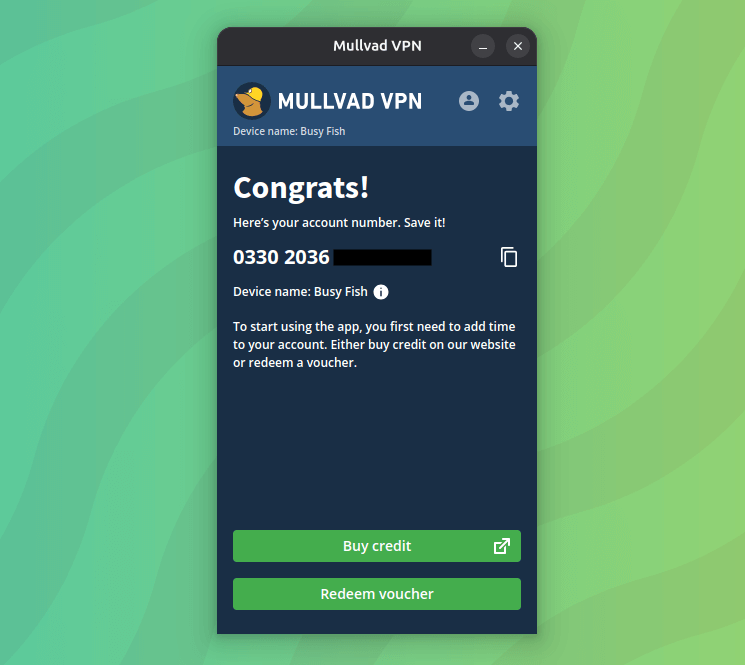
Mullvad VPN is one of the very few VPN services that allow you to generate a random account number instead of asking you for your email ID and other personal details. Their Swedish jurisdiction provides strong privacy protections, and they've actually removed servers when governments demanded access.

The service operates with complete transparency about their infrastructure and regularly publishes independent security audit results. Plus, their WireGuard implementation performs exceptionally well on Linux systems compared to traditional OpenVPN protocols. You can even pay anonymously by mailing cash to their office.

⭐ Key Features

  • Anonymous account creation.
  • Native Linux apps with GUI and CLI options.
  • WireGuard protocol optimized for Linux performance.

2. Proton VPN
VPNs With "No Logging Policy" You Can Use on Linux

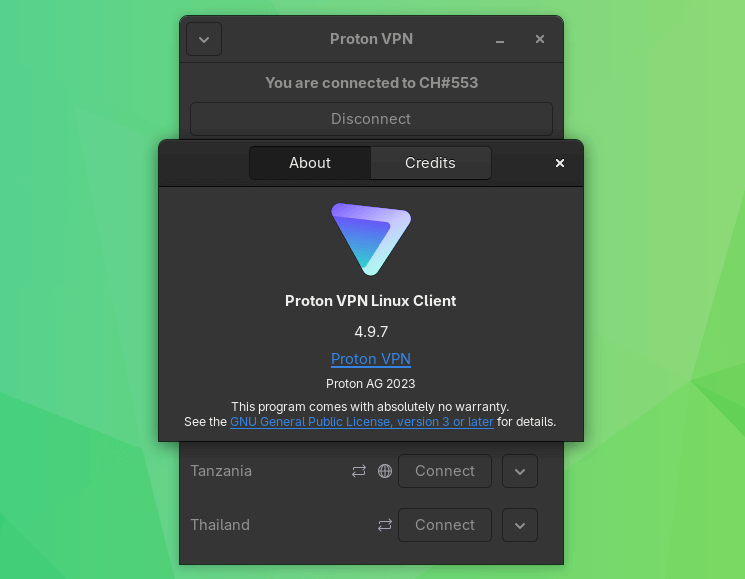
Proton VPN (partner link) comes from the team behind Proton Mail and leverages Switzerland's strict privacy laws for protection. Their no-logs policy has been independently verified multiple times, and they publish regular transparency reports.

I have been using ProtonVPN for quite some time now, and it's one of the first things I launch when booting into my Fedora-powered workstation. While the connection quality, download speeds, and server availability have been excellent, the ancient user interface for the Linux client can be frustrating sometimes.

I Switched to Proton VPN and Here’s What I Honestly Think About It
Proton VPN is an impressive solution. Here’s my experience with it.
VPNs With "No Logging Policy" You Can Use on Linux

⭐ Key Features

  • VPN Accelerator for faster connection speeds.
  • Secure Core routing through privacy-friendly countries.
  • NetShield ad, tracker, and malware blocking at DNS level.

3. Internxt VPN
VPNs With "No Logging Policy" You Can Use on Linux

Internxt VPN (partner links) hides and encrypts your internet traffic, protecting you from invasive tracking, targeted ads, and online surveillance. It has servers in five countries: France, Germany, Poland, Canada, and the UK.

Their premium VPN comes as a bundle alongside their secure cloud storage services, which is the main product they are known for. I have their 1 TB lifetime plan that provides access to their VPN server located in France. The VPN can only be used via Chrome-based browser extension.

While the server network is smaller, it provides stable connections and essential location coverage for European and North American users.

Basically, if you opt for their encrypted cloud storage service, you are getting a VPN for free.

Internxt clearly mentions a no log policy on its website. There are no independent security audits on VPN that I could find. The cloud storage service has been audited by Securitum.

Internxt is celebrating their 5th anniversary, and their services are currently at 87% off using our exclusive code "it'sfoss".

⭐ Key Features

  • Blocks ISP tracking and ads.
  • Chrome-based browser extension only.
  • Integrates with Internxt ecosystem that includes cloud storage and antivirus.

4. IVPN

VPNs With "No Logging Policy" You Can Use on Linux

IVPN focuses on practical privacy features without unnecessary bloat or marketing gimmicks. They collect minimal data and allocate randomly generated accounts to users instead of asking for PII.

Their server network prioritizes quality over quantity, with all hardware under IVPN's direct control to prevent third-party interference. Multi-hop connections route traffic through multiple servers for enhanced anonymity, and anti-surveillance features include advanced obfuscation to bypass network restrictions and deep packet inspection.

⭐ Key Features

  • Multi-hop connections for enhanced anonymity.
  • Firewall integration with WebRTS leak protection.
  • Regular independent security audits with public results.

5. AirVPN
VPNs With "No Logging Policy" You Can Use on Linux

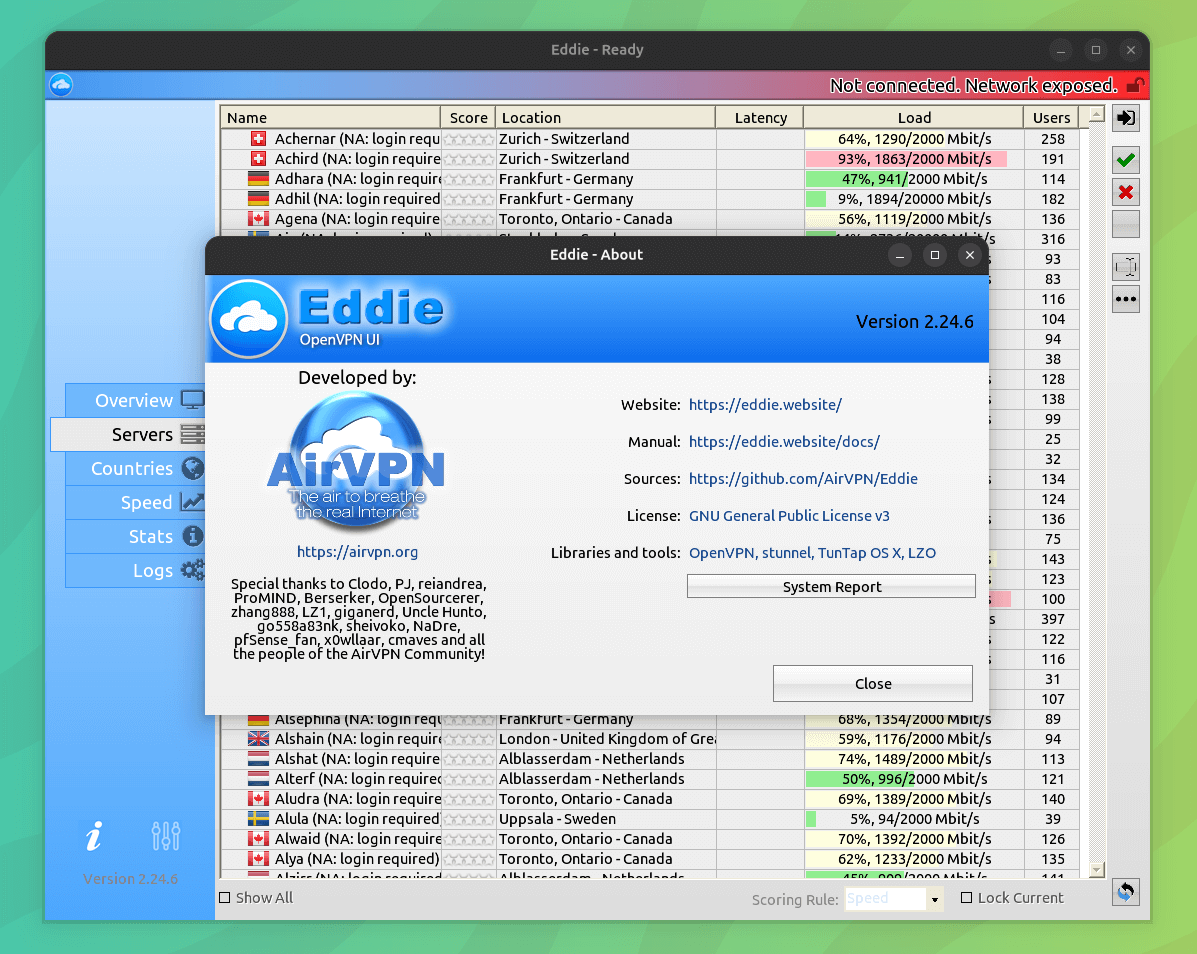
AirVPN caters to power users who want complete control over their VPN experience without handholding or simplified interfaces. The Italian service maintains detailed technical documentation and has an active community where users share configurations and troubleshooting tips.

Port forwarding works great for torrenting and gaming, while unlimited server switches let you hop between locations freely. OpenVPN over SSH and SSL bypasses censorship in restrictive countries, and you can have up to five simultaneous connections per account.

I could not find any security audits or third-party sources on their no-logging policy though.

⭐ Key Features

  • OpenVPN over SSH, SSL, and Tor tunneling.
  • Port forwarding and unlimited server switches.
  • Adding an email address during signup is optional.

6. Surfshark
VPNs With "No Logging Policy" You Can Use on Linux

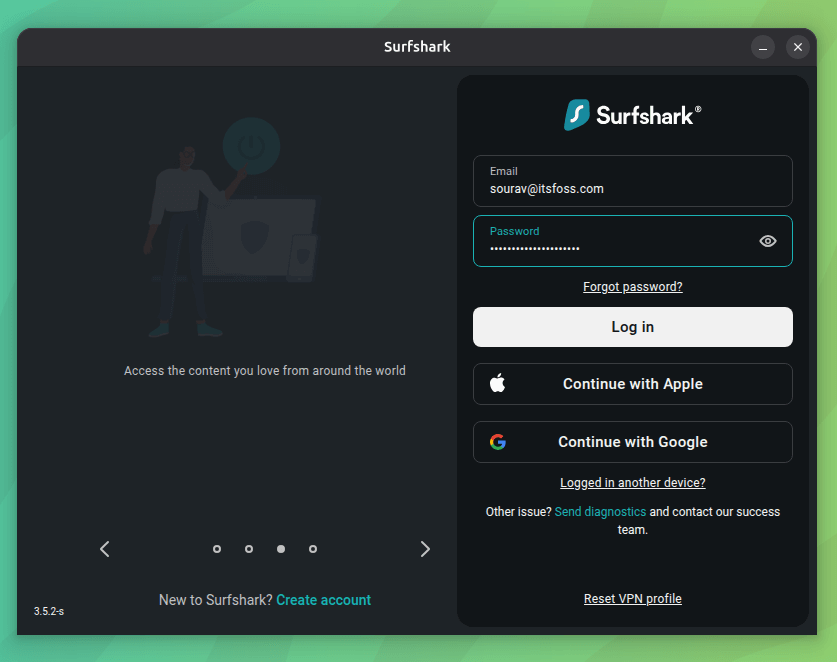
Surfshark gained popularity by offering unlimited device connections at prices that won't break your budget. This makes it practical for households with multiple laptops, phones, and other devices needing protection.

It packs several practical features beyond basic VPN functionality, including CleanWeb ad blocking, Bypasser split tunneling, and Cookie Pop-up Blocker for cleaner browsing.

We have reviewed Surfshark's Linux app in the past and it is quite a good service.

Testing the Surfshark VPN App on Linux
Europe-based VPN service Surfshark provides a native GUI client for desktop Linux. Let me share my experience with it.
VPNs With "No Logging Policy" You Can Use on Linux

⭐ Key Features

  • CleanWeb ad and malware blocking.
  • Unlimited simultaneous device connections.
  • RAM-only servers with automatic data wiping.

7. NordVPN
VPNs With "No Logging Policy" You Can Use on Linux

NordVPN runs one of the largest server networks with thousands of access points across 60+ countries for reliable global coverage. Their specialty servers include P2P-optimized nodes, obfuscated servers for restrictive networks, and dedicated IP options for users who require a consistent IP address.

Multiple independent audits have verified their no-logs claims aren't just marketing promises, and their Double VPN routes traffic through multiple servers located in different countries for added privacy.

There are native GUI and CLI apps that work seamlessly across major Linux distributions without requiring manual OpenVPN configuration files or third-party clients.

⭐ Key Features

  • Malware and ad blocking.
  • NordLynx WireGuard implementation.
  • Double VPN and Onion Over VPN connections.

8. ExpressVPN
VPNs With "No Logging Policy" You Can Use on Linux

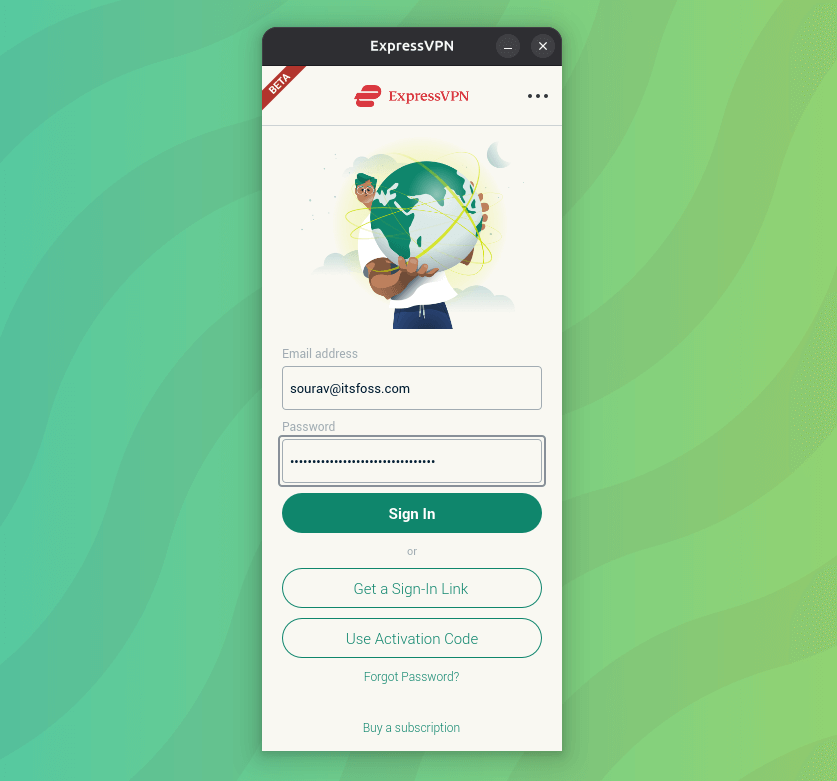
ExpressVPN costs a bit more than the others on this list, but it makes up for the premium pricing with solid infrastructure and consistent performance. Their servers maintain advertised speeds during peak hours instead of crawling to a halt, and the service reliably unblocks region-locked streaming content.

It's TrustedServer tech ensures all servers run on RAM-only infrastructure, automatically wiping data with each restart for enhanced security, and the Lightway protocol provides quick download speeds for big files.

While the desktop app for Linux is currently in beta, it should work reliably across major distributions like Ubuntu, Fedora, and Debian.

Their no-log policy has been independently audited.

⭐ Key Features

  • Best-in-class AES-256 encryption.
  • Network Lock kill switch for when your connection drops.
  • Access to ExpressVPN's Private DNS for more secure connections.

In the end...

As I mentioned earlier, I am not a security expert, so I cannot vouch for how good their no-log policies are. Many of these services have to battle court orders to resist logging in different geographical regions and those are murky stuff.

My team and I have used the VPNs listed here in our personal capacity as end users. Currently, I use ProtonVPN as It's FOSS has a visionary plan for ProtonMail and all the Proton services.

Choosing a good VPN from the list I provided here is really up to you. If you want full anonymity, Mullvad VPN seems a good bet if you can afford it. If you want something inexpensive that could protect your privacy from targeted advertising, unblock some georestricted contents, Internxt VPN could be worth a look, especially when it is bundled with encrypted cloud storage.


from It's FOSS https://ift.tt/KYTIVzQ
via IFTTT

Rabu, 20 Agustus 2025

TerraMaster D1 SSD Plus Review: Experience a Faster External SSD

TerraMaster D1 SSD Plus Review: Experience a Faster External SSD

Transferring large files via typical USB thumb drives is a pain. Try it with a 20 GB file and it will take an hour just for copying the files.

That's why external, portable SSDs are the new normal these days, especially when we have to deal with 4K video files that go in multiple GBs.

Another player in this domain is an external SSD enclosure that allows you to use your typical, internal NVMe SSD like a portable, external SSD.

One of the latest such devices is TerraMaster's D1 SSD Plus. If you did not know already, TerraMaster manufactures NAS, DAS and other storage equipment. D1 SSD Plus is their latest offering.

📋
TerraMaster sent me this device for review. The views expressed are my own and come from experience with time spent on it.

TerraMaster D1 SSD Plus Enclosure

The TerraMaster D1 SSD Plus is a high-speed, portable M.2 NVMe SSD enclosure that supports up to 8 TB drives and connects via USB4 (40 Gbps), delivering near-desktop performance with read/write speeds close to 4 GB/s (or so it claims).

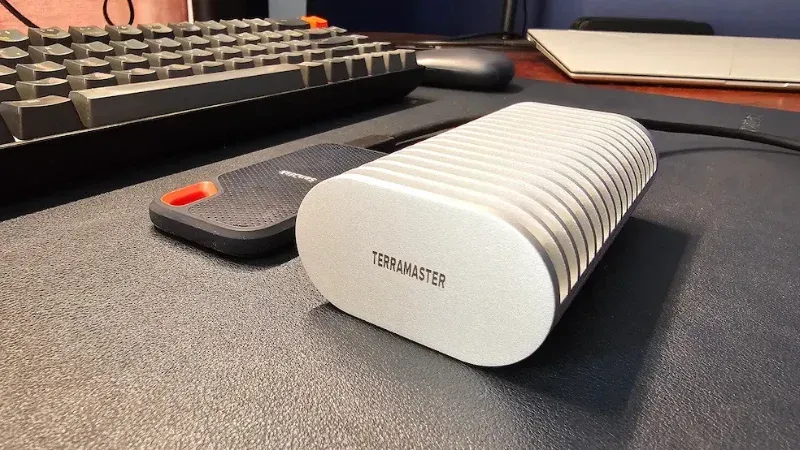
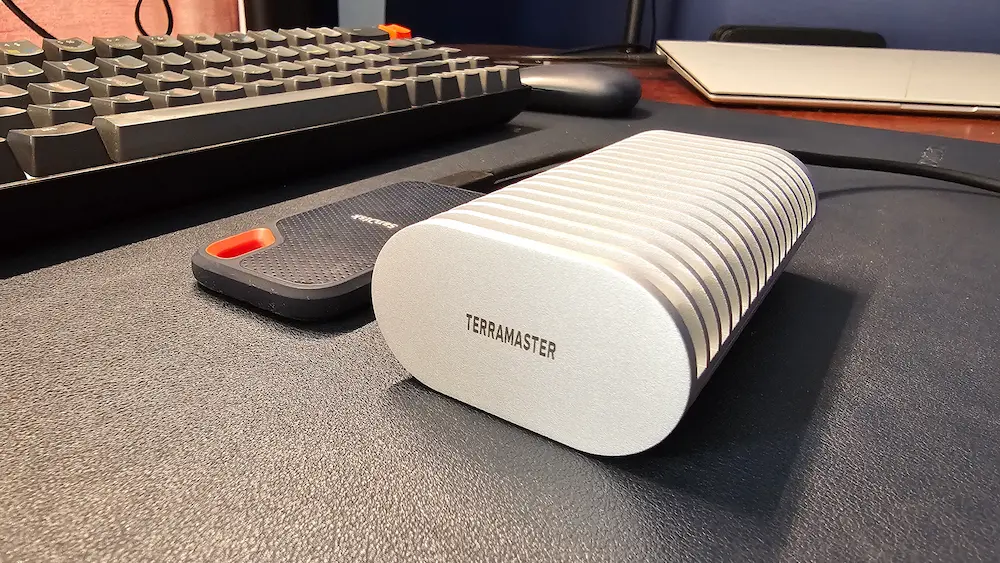
Weighing at 250 grams, TerraMaster D1 SSD Plus is a heavy device for a portable SSD. But that's by choice and by design. The enclosure is made of aerospace-grade aluminum, and it is certainly a lot bulkier than your usual external SSD. Although it keeps the SSD safe and also adds the passive cooling features thanks to the dual-sided fins.

TerraMaster D1 SSD Plus Review: Experience a Faster External SSD

It looks like the white colored aluminum casing is getting popular. ZimaBoard 2 and some other gadgets in the homelab niche also use this styling these days. I prefer dark, black looks, but let the color not be a judge of this device.

🚧
TerraMaster D1 SSD Plus is just an enclosure. It does NOT include NVMe SSD.

Set up

TerraMaster D1 SSD Plus Review: Experience a Faster External SSD

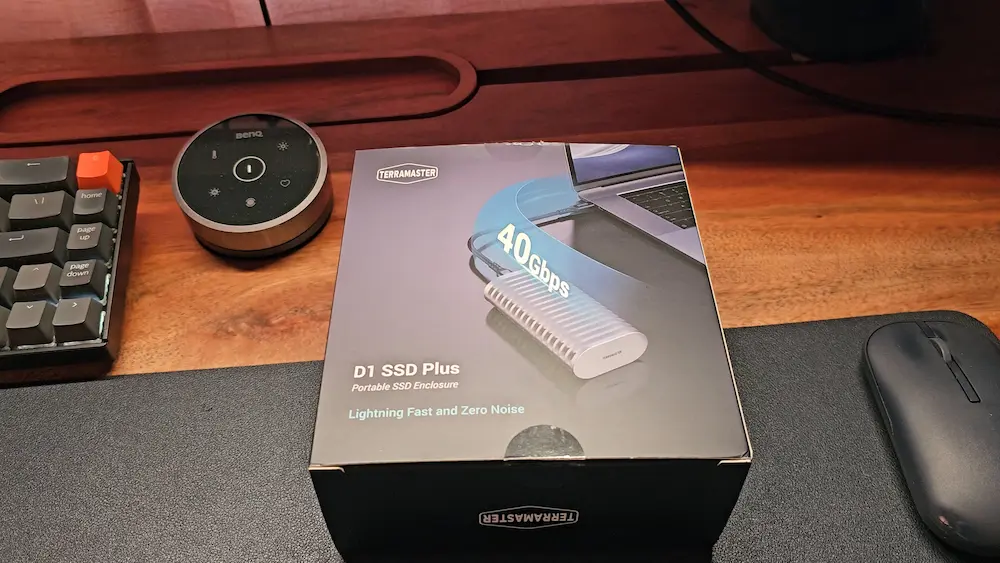
Please note that the enclosure does NOT come with an NVMe SSD. You have to use your own NVMe SSD and it cannot be SATA SSD.

The box contains the enclosure, a high-speed cable, a screwdriver, manual, and a pouch for the device.

There is a tiny screw at the bottom of the device. You have to use the provided screwdriver to unscrew it and open the enclosure. The screw doesn't come out entirely but stays fixed on it. This is good thinking, as you don't want to lose the tiny screw. At the same time, you wouldn't want to use an unsuitable device on the screw because if the screw loses its shape, you may have a hard time with it.

TerraMaster D1 SSD Plus Review: Experience a Faster External SSD

Once the enclosure is opened, you'll see the option to add the NVMe SSD on one part. The other part has a thermal pad with a sticker on it that should be removed before the first use.

The entire setup doesn't take long and is certainly not complicated.

Data safety and SSD supports

D1 SSD Plus is compatible with double sided SSDs too. This is another plus.

Another plus point is the data safety. TerraMaster claims that D1 SSD Plus incorporates additional protective components to ensure stable data transmission, safeguarding against short circuits, voltage surges, and electrostatic discharge (ESD).

As noted by Gizmochina, the large amount of SMD capacitors used here are the same as you see with enterprise SSDs to stabilize the voltage, provide power failure protection, and thus ensure data safety.

Technical specifications

Specification Details
Interface USB4 (40 Gbps), TB5/4/3, USB 3.x/2.0
Max Speeds Read up to ~3,853 MB/s, Write up to ~3,707 MB/s
SSD Slot M.2 NVMe 2280
Max Capacity 8 TB
Enclosure Aluminum, fanless, heat-dissipating
Dimensions (mm) 112.5 × 60 × 33
Weight 246 g (without SSD)
Power Consumption ~7.5 W active, ~5.5 W hibernation
File Systems Supported NTFS, APFS, HFS+, exFAT, FAT32, EXT4
Extras Backup apps (TDAS & TPC), screwdriver, pouch
Price (enclosure) Approximately $110

Speed matters

Since one of the main points of having a TerraMaster external SSD enclosure is to use it as a better alternative of regular external SSDs, I tested it against my SanDisk Extreme Portable Disk (model SDSSDE60-1T00).

This SanDisk SSD has been with me for the past few years. In fact, I have three of them. One of them stores important data and is not used much and the other two are more portable in nature. I have almost stopped using USB drives even for data transfer after these SSDs.

Let me share how the TerraMaster SSD enclosure compares with my SanDisk Extreme portable disk.

TerraMaster D1 SSD Plus Review: Experience a Faster External SSD

To summarize, this is my test kit:

📋
My tests are more from a casual, end-user's perspective. I am sure these tests can be performed at a more expert level with dedicated speed testing software but I wanted to test it the way I use them in my day-to-day activities.

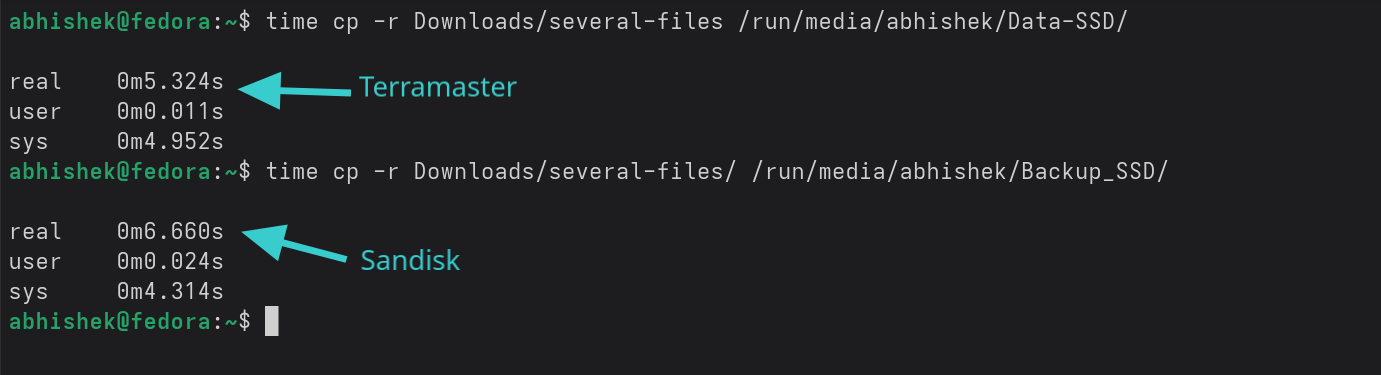
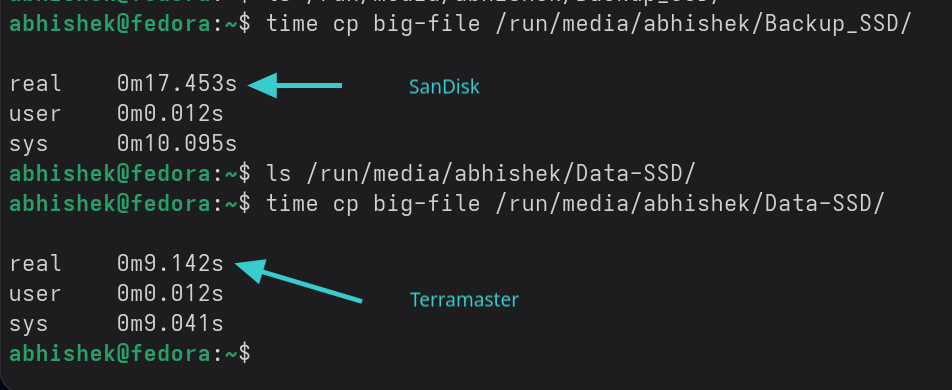
In the test screenshots, Data-SSD is TerraMaster and Backup-SSD is SanDisk.

The first test I did was with a folder containing photos of around 5.5 GB in size. Surprisingly, SanDisk nearly took the same time (6.6 sec) as TerraMaster (5.32 sec).

TerraMaster D1 SSD Plus Review: Experience a Faster External SSD

I was not expecting this, to be honest. Then I created a file of 10 GB in size with fallocate and used it to test the two external disks. This time TerraMaster was around two times faster than SanDisk.

TerraMaster D1 SSD Plus Review: Experience a Faster External SSD

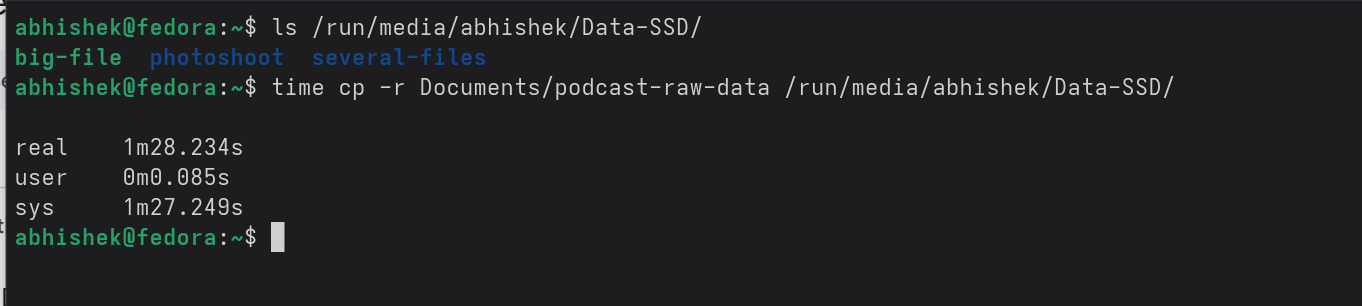
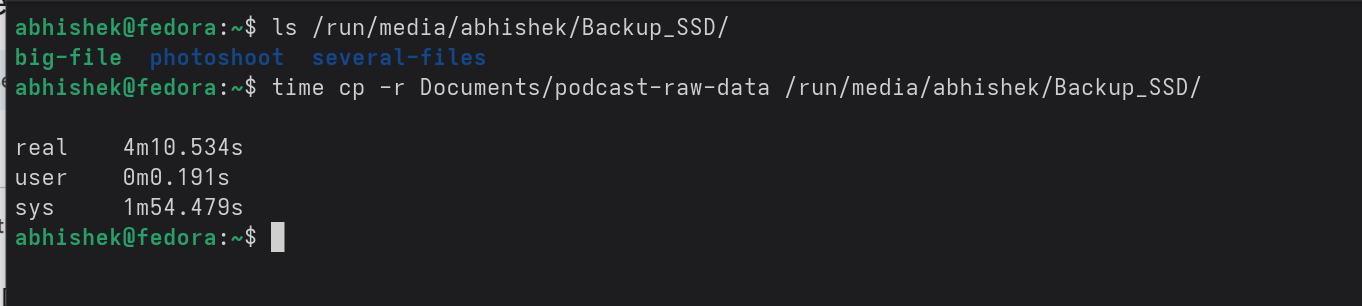
Next, I copied a folder with some huge video files. The folder was around 96 GB in size. And as expected, TerraMaster finished copying under one third of the time than SanDisk.

TerraMaster took 1 minute, 28 seconds for 96 GB of file transfer. Which should be roughly around 1.1 GB/s.

TerraMaster D1 SSD Plus Review: Experience a Faster External SSD
TerraMaster D1 SSD Plus

SanDisk took 4 minutes and 10 seconds, which should amount to a speed of 380 MB/s.

TerraMaster D1 SSD Plus Review: Experience a Faster External SSD
SanDisk

Basically, the larger the file size, the better it performs.

Of course, the SanDisk uses USB 3.2 interface and is a few years older, but most of the external SSDs use the same interface and have a similar performance range. In my opinion, it is only fair to keep the comparison with these external disks as the external SSD enclosure is supposed to replace them in your setup.

Backup your PC and smartphone data easily

TerraMaster D1 SSD Plus Review: Experience a Faster External SSD
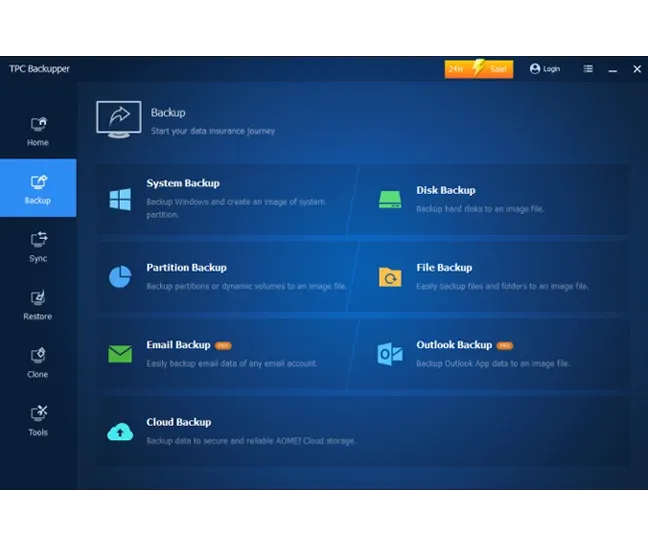
TerraMaster has dedicated software to backup Windows PC

TerraMaster also provides dedicated software to backup your Windows PC easily to your external SSD. I don't use Windows and there is no such application for Linux so I didn't test it.

There are also dedicated mobile apps for iOS and Android. I was actually excited about the idea of automatically backing up smartphone data to the SSD.

I have a Galaxy S23 Ultra with 1 TB storage and 2 children. Which means that I have tons of photos and videos of my children. I keep an automatic backup on pCloud as I have their 2 TB lifetime storage. Having data locally is a plus as I prefer keeping multiple copies of the data.

Unfortunately, at present, my Galaxy S23 is suffering from 'foreign particle and moisture' in the charging port and thus I could not test it on my phone. I'll update this section when this problem goes away and the USB port is functional again.

I used my wife's iPhone,but the WD Blue SN5000 probably required more power because I saw a 'Cannot use accessory. This accessory uses too much power' error.

I am sure these apps have been created to add more versatility to the overall offering of TerraMaster devices. I wish I could test them but it didn't happen.

Advantages of an external SSD enclosure

I learned a thing or two about using an external SSD enclosure.

  • Speed: By using the Thunderbolt port, these SSD enclosures are equal or faster than your regular external SSDs.
  • Reusability: If you have internal NVMe SSDs that are not being used, you can put them in the enclosure and use them as external SSDs. You are not fixed to a single brand of SSD as well.
  • Cost-effective in long run: You have the option to 'upgrade' your external SSD by changing the NVMe SSD.
  • Robust: In some unfortunate case if the USB connector breaks on the external SSD, your data is pretty much lost. In case of SSD enclosure, your SSD can be taken out anytime and put into another device.

A device worth having

I was skeptical at first, unsure of the usability of such a device. But when I looked closely and tested it, I could see its potential and why external SSD enclosures are gaining popularity specially among homelab users who have multiple NVMe SSDs in their setup. It gives the option to reuse your internal SSDs into a portable, external SSD.

TerraMaster D1 SSD Plus is a robust device. It is bulky, but it ensures safe SSD operation. The all almunium chassis gives it a rugged look and at the same time, it provides passive cooling.

With 4K being the new normal, it's not uncommon to have video files in 100s of GBs. USB 3 is certainly not adequate for data transfer of such large files. External SSDs are the way to go. Even there, the speed matters, and as you saw, TerraMaster D1 SSD Plus was easily more than 3 times faster than portable SSD.

The ability to transfer photos and videos directly from your smartphones into the SSD is another plus for TerraMaster D1 SSD Plus, given that you use the correct SSD.

My biggest gripe is perhaps its bulky outfit. Now, I understand that it is important to secure the SSD against jerks and falls for a longer and smoother operation and hence it makes sense to have a military grade enclosure. Plus, it handles the heat pretty well so I should not complain about the size.


from It's FOSS https://ift.tt/r7SzhGe
via IFTTT

Minggu, 17 Agustus 2025

Access Root Directory in Nautilus File Manager

Access Root Directory in Nautilus File Manager

Once upon a time, Nautilus allowed accessing the root directory from 'Other locations' option in the sidebar.

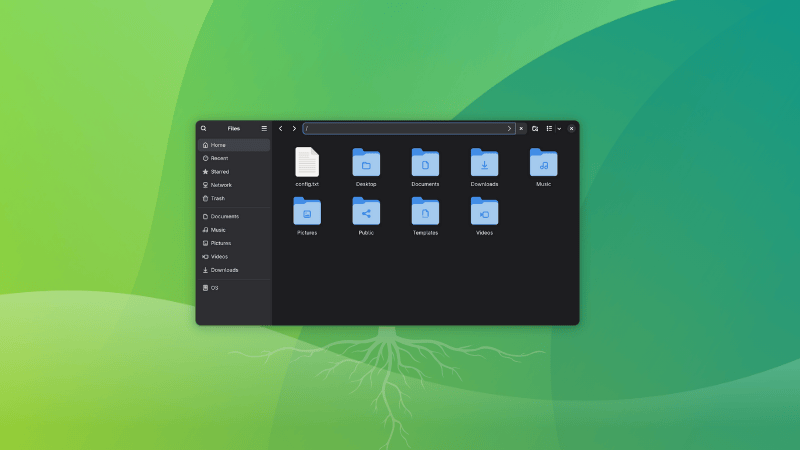
This tiny but useful option has disappeared in the recent versions. But you can still access root folder in Nautilus by typing / in the address bar.

Let's see it in a bit more detail in this quick tutorial for Linux beginners.

Nautilus is the default file explorer in GNOME desktop environment and thus it should be applicable for Ubuntu, Fedora and many other distributions that use GNOME.

Access root directory from Nautilus

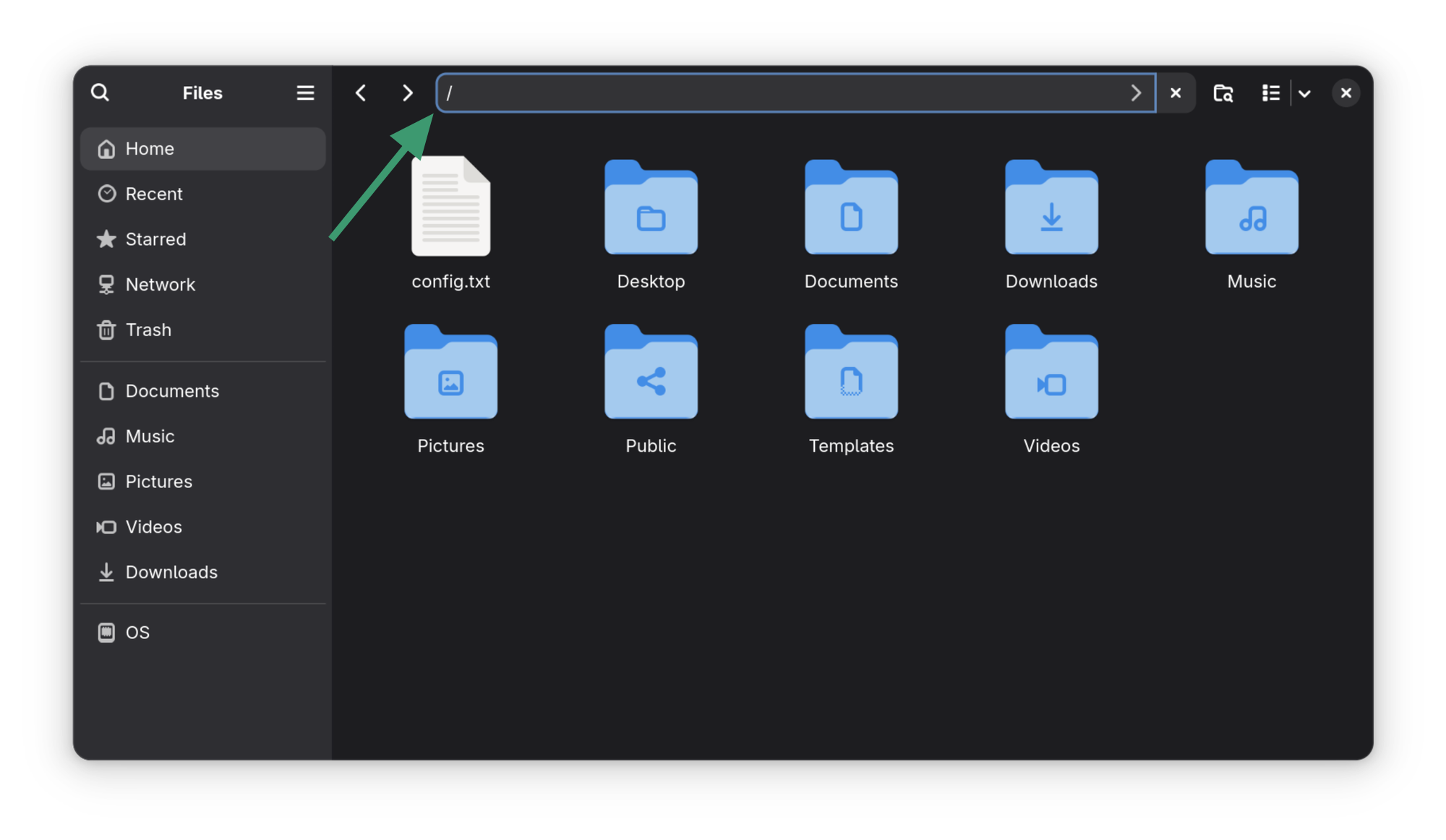
Open the Nautilus file manager. You'll notice that there is an address bar on the top that displays like Home or the current location. Click on it and you'll see that you can enter text here.

All you have to do is to enter / here. That's it.

Access Root Directory in Nautilus File Manager
Click on the address bar and enter /

If it helps, here's a video of the entire process to show things better.

0:00
/0:13

Access root directory as a normal user

There is one tiny thing to note here. You'll be accessing the root directory as a normal user. So while you can read most files, you won't be able to create new or modify existing ones.

If you want that, you can easily do that. Let me show that in the next section.

Access root directory as a root user

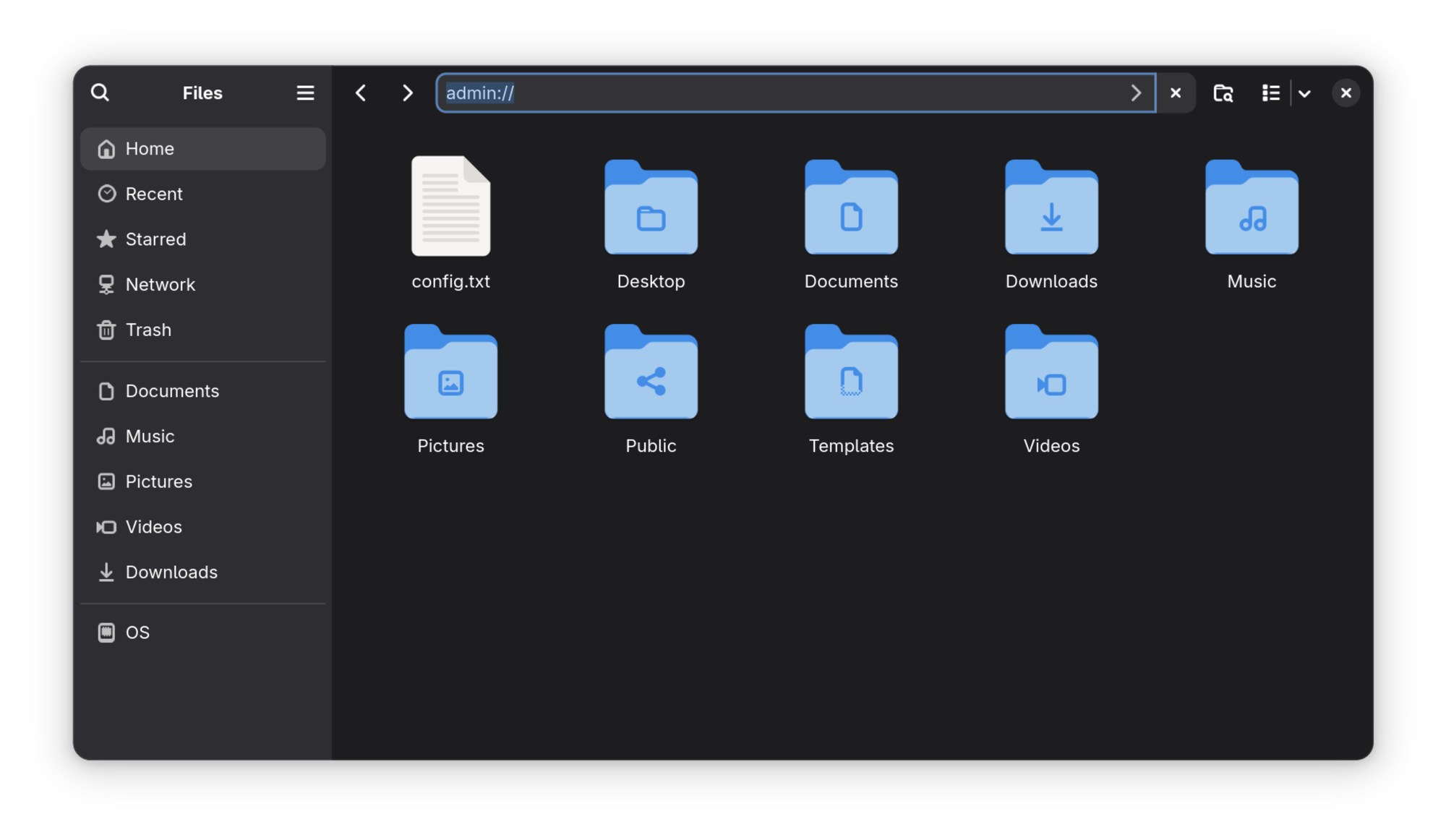
Open the Nautilus file explorer and type the following in the address bar:

admin://
Access Root Directory in Nautilus File Manager

You'll be asked to enter the password. That will be your own user account password.

Here's a video to show things in a better way.

0:00
/0:15

When you access the root directory as an admin (sudo), you can make changes here, create new files etc. This comes handy in situations where you have to make changes to config files and you want to avoid the terminal. Files opened from here will be opened in graphical text editor, easier to modify.

This is different from opening any file as root trick I shared earlier.

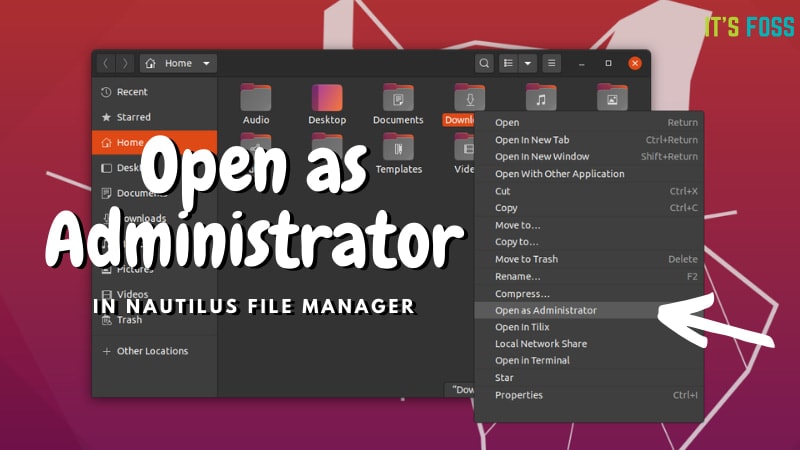
Open Files and Folders as Admin in Nautilus File Manager
Learn to add an “Open as Administrator” option in the right click context menu in Nautilus file manager in Ubuntu and other Linux distributions.
Access Root Directory in Nautilus File Manager

Conclusion

This is one of the many Nautilus tweaks that you can use to get more out of it.

15 Ways to Tweak Nautilus File Manager in Linux
Nautilus, aka GNOME Files, is a good file manager with plenty of features. You can further enhance your experience by using these extensions, tweaks and tips.
Access Root Directory in Nautilus File Manager

It's quite powerful and it is always good to explore the less obvious features of your regular tools. In that regard, you may also want to learn a thing or two about utilizing the search feature in Nautilus.

Mastering Nautilus File Search in Linux Desktop
Become a pro finder with these handy tips to improve your file search experience with GNOME’s Nautilus file search.
Access Root Directory in Nautilus File Manager

As I mentioned initially, the option to access root files used to be under the 'Other locations' in the left sidebar. It is removed and replaced by a clandestine method. I think the rational behind this decision was to avoid accidental changes to root files. That's just my guess. I let you enjoy this quick Nautilus tip.


from It's FOSS https://ift.tt/oON0zuf
via IFTTT

Rabu, 13 Agustus 2025

FOSS Weekly #25.33: Debian 13 Released, Torvalds vs RISC-V, Arch's New Tool, GNOME Perfection and More Linux Stuff

FOSS Weekly #25.33: Debian 13 Released, Torvalds vs RISC-V, Arch's New Tool, GNOME Perfection and More Linux Stuff

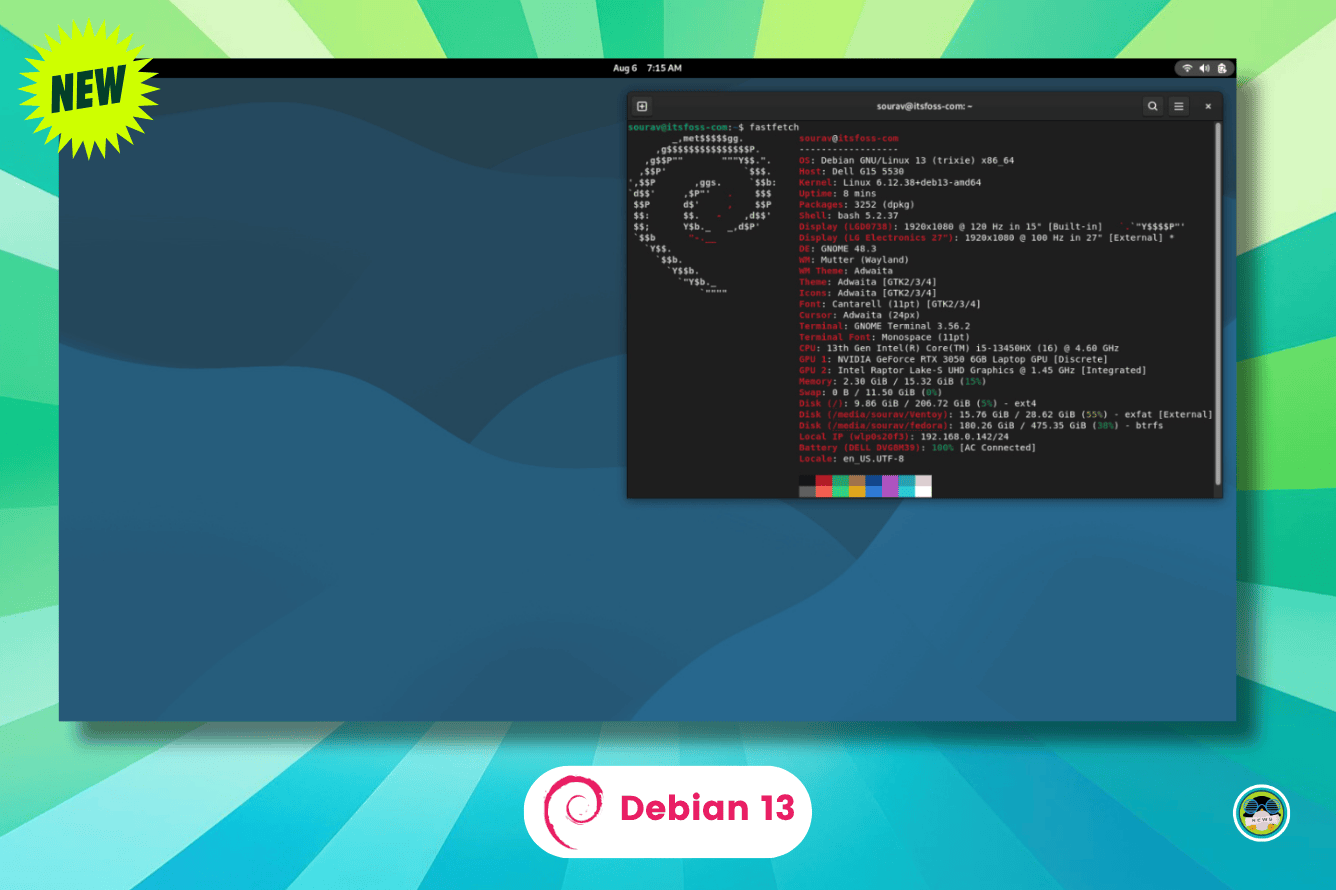
Debian 13, codenamed Trixie, is finally available now. It features GNOME 48 among other changes. The next big release should be Linux Mint 22.2 followed by Fedora 43 and Ubuntu 25.10 in October.

Debian 13 “Trixie” Released: What’s New in the Latest Version?
A packed release you can’t miss!
FOSS Weekly #25.33: Debian 13 Released, Torvalds vs RISC-V, Arch's New Tool, GNOME Perfection and More Linux Stuff

I'll see if I can do a video review of the new Debian release.

💬 Let's see what else you get in this edition

  • A new Linux kernel drama.
  • Microsoft Recall exposing sensitive data.
  • Over $1M being stolen via fake Firefox extensions.
  • And other Linux news, tips, and, of course, memes!

📰 Linux and Open Source News

A massive cyberattack campaign sees people losing over $1 million.

Over $1M Stolen via Fake Firefox Extensions in GreedyBear Campaign
Firefox users need to take note of this.
FOSS Weekly #25.33: Debian 13 Released, Torvalds vs RISC-V, Arch's New Tool, GNOME Perfection and More Linux Stuff

🧠 What We’re Thinking About

Microsoft Recall has failed spectacularly, exposing passwords and banking data.

Microsoft Recall Exposes Passwords and Banking Data!
New tests reveal Microsoft Recall still screenshots sensitive data.
FOSS Weekly #25.33: Debian 13 Released, Torvalds vs RISC-V, Arch's New Tool, GNOME Perfection and More Linux Stuff

🛍️ Don't Miss: Linux ebooks and videos bundle

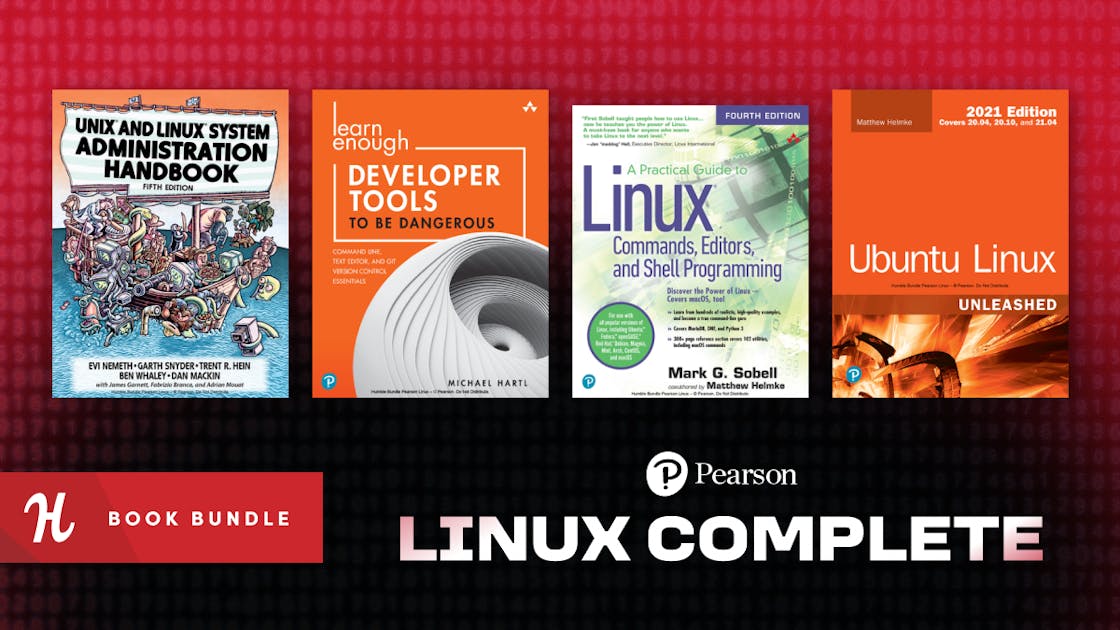
Level up your Linux skills with the latest Humble Tech Book Bundle with courses by Pearson. Get professional-quality lessons like UNIX® and Linux® System Administration Handbook, Fifth Edition, Linux performance optimization, and more. Pay what you want for a whole new user experience on your favorite machine—and help support The BINC Foundation with your purchase!

Humble Tech Book Bundle: Linux Complete by Pearson
Unleash your machine’s potential with our latest Humble Tech Book Bundle: Linux Complete—customize, design, and help support The BINC Foundation today!
FOSS Weekly #25.33: Debian 13 Released, Torvalds vs RISC-V, Arch's New Tool, GNOME Perfection and More Linux Stuff

🧮 Linux Tips, Tutorials, and Learnings

15 Co-Op Games for Linux Steam Gamers in 2025
Squad up with your friends in these awesome co-op games!
FOSS Weekly #25.33: Debian 13 Released, Torvalds vs RISC-V, Arch's New Tool, GNOME Perfection and More Linux Stuff

👷 AI, Homelab and Hardware Corner

Elecrow is a company that supports makers, startups, and educators with electronics and prototyping tools. They are organizing a contest for DIY homelab, IoT enthusiasts to show off their projects. Every successful submission gets a free LoRA module. Winners get cash prizes of $1,000 in total.

Elecrow IoT Contest - Free Lora Module for Every Contestant
Join Elecrow IoT Hardware Contest! Submit your IoT project, get a free Lora module, and win $1,000 in cash. Build innovative IoT solutions and compete today!
FOSS Weekly #25.33: Debian 13 Released, Torvalds vs RISC-V, Arch's New Tool, GNOME Perfection and More Linux Stuff

✨ Project Highlight

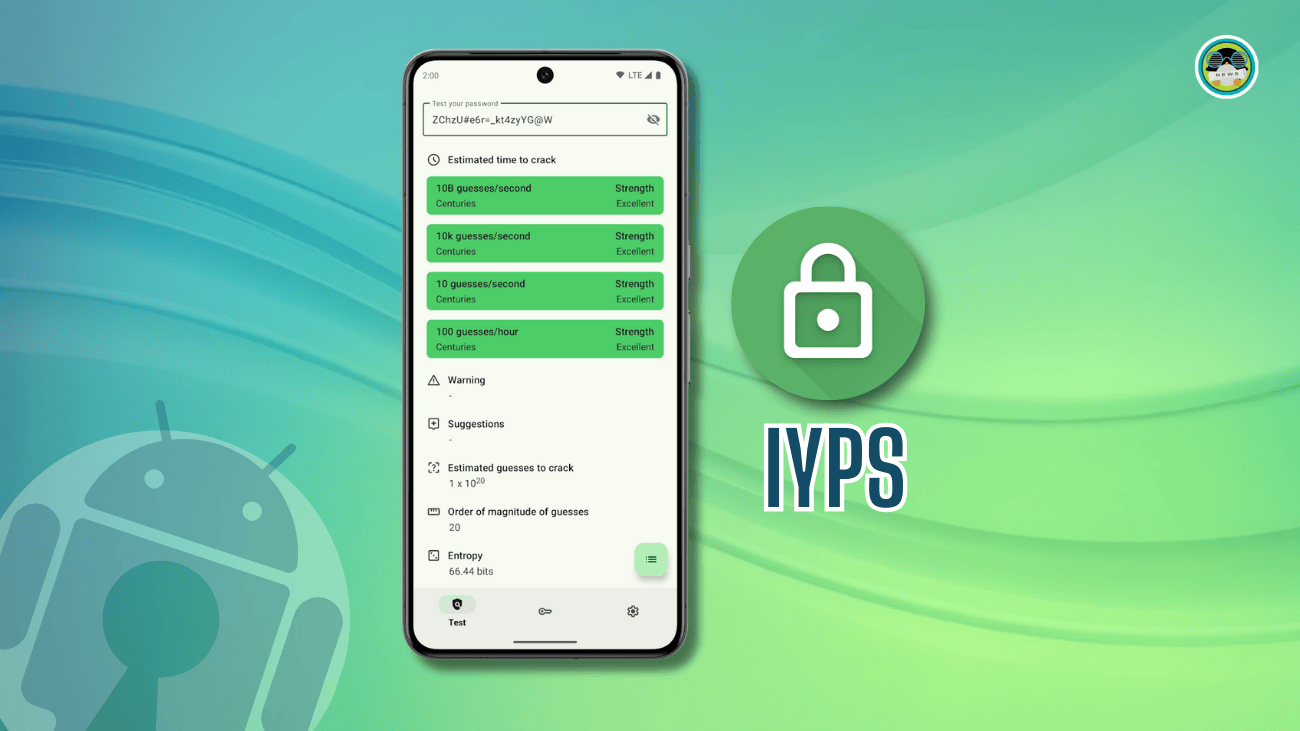
IYPS is a handy tool for checking password strength.

IYPS: An Open Source Password Strength Checker App You Didn’t Know You Needed
If you have been curious to know how secure your passwords are, try this app.
FOSS Weekly #25.33: Debian 13 Released, Torvalds vs RISC-V, Arch's New Tool, GNOME Perfection and More Linux Stuff

Why should you opt for It's FOSS Plus membership:

✅ Ad-free reading experience
✅ Badges in the comment section and forum
✅ Supporting creation of educational Linux materials
✅ Free Linux eBook

Join It's FOSS Plus

📽️ Videos I am Creating for You

Getting started with Hyprland is difficult. There is a new Arch-based distro that makes Hyprland easier.

🧩 Quiz Time

A fun personality quiz. Take the quiz and find out what kind of Linux user you are.

What Type of Linux User Are You? [Fun Quiz]
Discover your Linux personality with this fun quiz.
FOSS Weekly #25.33: Debian 13 Released, Torvalds vs RISC-V, Arch's New Tool, GNOME Perfection and More Linux Stuff

Can you save Tux? He has been kidnapped and is being kept in a closed-source fort.

Save The Tux With Linux Command Knowledge Quiz
If you know the Linux commands, you can save tux!
FOSS Weekly #25.33: Debian 13 Released, Torvalds vs RISC-V, Arch's New Tool, GNOME Perfection and More Linux Stuff

💡 Quick Handy Tip

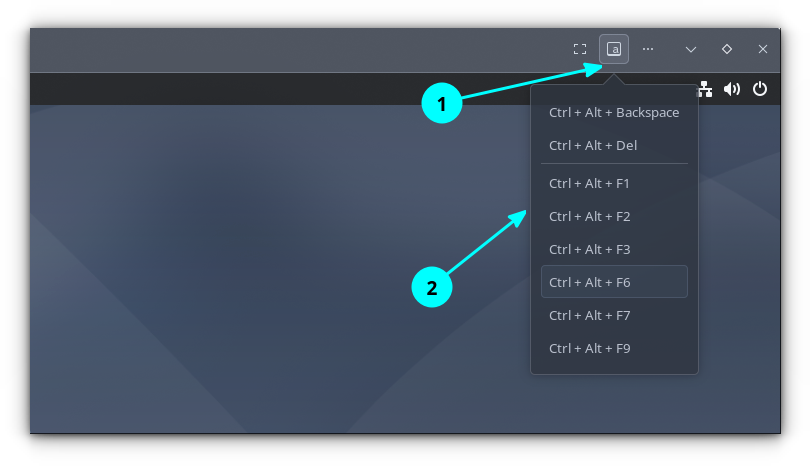
If you are using GNOME Boxes, you can send keyboard shortcuts like CTRL+ALT+F6, CTRL+ALT+DEL, etc. without affecting the host system.

FOSS Weekly #25.33: Debian 13 Released, Torvalds vs RISC-V, Arch's New Tool, GNOME Perfection and More Linux Stuff

Click on the "Keyboard" button on the top-right of the GNOME Boxes Guest window. Here, select the required signal from the drop-down menu. This is useful in cases where you want to access TTY as a guest.

🤣 Meme of the Week

When will this wait be over? 🥲

FOSS Weekly #25.33: Debian 13 Released, Torvalds vs RISC-V, Arch's New Tool, GNOME Perfection and More Linux Stuff

🗓️ Tech Trivia

On August 12, 1981, IBM introduced the Model 5150 Personal Computer with a 4.77 MHz Intel 8088 chip and MS-DOS, sparking a wave of PC clones that made x86 processors the standard for desktops.

🧑‍🤝‍🧑 FOSSverse Corner

One of our FOSSers is looking for an Arch-based distro with minimal Rust components. Can you suggest any?

Looking for Arch-based Distros with Minimal Rust Packages
I’m mostly just putting out feelers for what’s available at the moment. I’m looking for something that meets the following criteria: Arch-based Beginner/intermediate friendly (I.e. won’t require constant work to fix bugs) Doesn’t incorporate Rust beyond what’s already in the kernal. I really like CachyOS. It’s super fast even on limited hardware thanks to the BORE scheduler, has been fairly reliable (especially for a rolling release), is relatively easy to use, and the theming looks…
FOSS Weekly #25.33: Debian 13 Released, Torvalds vs RISC-V, Arch's New Tool, GNOME Perfection and More Linux Stuff

❤️ With love

Please share it with your Linux-using friends and encourage them to subscribe (hint: it's here).

Share the articles in Linux Subreddits and community forums.

Follow us on Google News and stay updated in your News feed.

Opt for It's FOSS Plus membership and support us 🙏

Enjoy FOSS 😄


from It's FOSS https://ift.tt/SyHnoMf
via IFTTT