Jumat, 20 Januari 2023

Capítulo 2: Comprendiendo las Variables de Bash Shell

Capítulo 2: Comprendiendo las Variables de Bash Shell

El tiempo cambia, y las variables también.

Debes haber jugado bastante con las variables si hiciste algún tipo de programación.

Si nunca has trabajado con variables, puedes pensar en ellas como un contenedor que almacena una información y que además puede variar con el tiempo.

Las variables siempre son útiles al escribir un script de bash y en este tutorial, aprenderas cómo utilizar las variables en tus scripts de bash.

Uso de variables en scripts de shell bash

En el último capítulo de este curso, aprendiste a escribir un programa hello world en bash.

#! /bin/bash

echo '¡Hola, mundo!'

Ese era un simple script de Hola Mundo, ahora hagamos un mejor Hola Mundo.

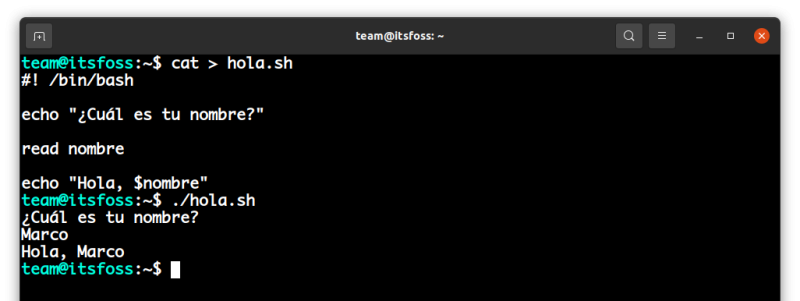
Mejoremos este script usando variables de shell para que salude a los usuarios con sus nombres. Edita tu script hello.sh y utiliza el comando read para obtener la entrada del usuario:

#! /bin/bash

echo "¿Cuál es tu nombre?"

read nombre

echo "Hola, $nombre"

Ahora si ejecutas tu script hello.sh; te pedirá tu nombre y luego te saludará con el nombre que le proporciones:

team@itsfoss:~/scripts$ hola.sh 
¿Cuál es tu nombre?
Marco
Hola, Marco

En el ejemplo anterior, introduje Marco como mi nombre y entonces el script me saludó con “Hola, Marco”. Eso es definitivamente mucho mejor que un programa genérico “Hola, Mundo”. ¿No estás de acuerdo?
Capítulo 2: Comprendiendo las Variables de Bash Shell

Explicación paso a paso del script de shell anterior

Ahora vamos a repasar el script línea por línea para asegurarnos de que lo entiendes todo.

Primero incluí la línea shebang para indicar explícitamente que vamos a usar el shell bash para ejecutar este script.

#!/bin/bash

A continuación, pido al usuario que introduzca su nombre:

echo "¿Cuál es tu nombre?"

Se trata de un simple comando echo para imprimir una línea en el terminal; bastante autoexplicativo.

Ahora es la línea donde ocurre toda la magia:

read nombre

Aquí, utilicé el comando read para transferir el control de la ejecución del script al usuario, para que el usuario pueda ingresar un nombre y luego almacenar lo que el usuario ingresó, en la variable ‘name’.

Por último, el script saluda al usuario con su nombre:

echo "Hola, $nombre"

Fíjate que aquí tienes que preceder el nombre de la variable con un signo de dólar para obtener el valor almacenado en el nombre de la variable. Si omite el signo de dólar, se mostraría “Hola, nombre” en su lugar.

💡
Este signo de dólar se conoce como el operador de referencia en los scripts de bash.

¿Enteros, cadenas o caracteres? ¿Cómo crear diferentes tipos de datos variables en el shell bash?

Vamos a trastear un poco más con las variables.

Puedes usar el signo igual para crear y establecer el valor de una variable. Por ejemplo, la siguiente línea creará una variable llamada edad y establecerá su valor en 27.

edad = 21

Después de haber creado la variable edad, puedes cambiar su valor tanto como quieras.

edad = 3

El comando anterior cambia el valor de la variable edad de 27 a 3. ¡Si los tiempos pudieran volver atrás, te escucho decir!

Las variables pueden contener diferentes tipos de datos; las variables pueden almacenar enteros, cadenas y caracteres.

letra = 'c'
color = 'azul'
año = 2021

Variables constantes en el shell bash

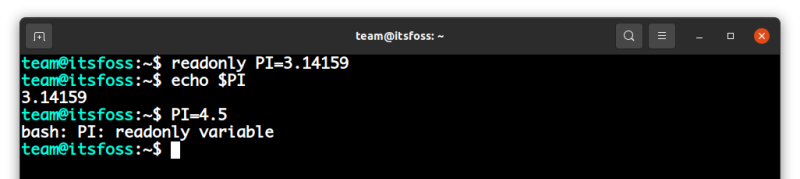
También puedes crear una variable constante, es decir, una variable cuyo valor no cambiará nunca. Esto puede hacerse precediendo el nombre de su variable con el comando readonly:

readonly PI=3.14159

El comando anterior creará una variable constante PI y establecerá su valor de 3.14159. Ahora, no puedes cambiar el valor de la variable constante, si lo intentas, obtendrás un error:

bash: PI: readonly variable

Como puedes ver, sólo puedes leer el valor de una variable constante, pero nunca puedes cambiar su valor después de haberla creado.
Capítulo 2: Comprendiendo las Variables de Bash Shell

Sustituciones de comandos

La capacidad de almacenar la salida de un comando en una variable se llama sustitución de comandos y es, con mucho, una de las características más sorprendentes de bash.

El comando date es un ejemplo clásico para demostrar la sustitución de comandos:

HOY=$(date)

El comando anterior almacenará la salida del comando date en la variable HOY. Fíjate en que tienes que encerrar el comando date entre un par de paréntesis y un signo de dólar (a la izquierda).

Capítulo 2: Comprendiendo las Variables de Bash Shell

También puede encerrar el comando entre un par de comillas:

HOY=`date`

El método de la cita posterior es la forma antigua de hacer la sustitución de comandos, por lo que recomiendo encarecidamente que lo evites y te quedes con el enfoque moderno:

variable=$(comando)

Antes de irte, intenta convertir el script Hola Mundo en un script Hola Mundo inteligente

Ahora que acabas de aprender a hacer la sustitución de comandos, tendría sentido visitar el script Hola Mundo una última vez para perfeccionarlo.

La última vez, pediste al usuario que introdujera su nombre para que el script lo saludara; esta vez, no vas a preguntar, ¡tu script ya lo sabe!

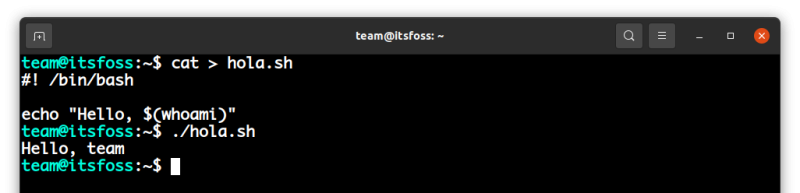
Utiliza el comando whoami junto con la sustitución de comandos para saludar a quien ejecute el script:

#! /bin/bash           

echo "Hello, $(whoami)"

Como puedes ver, ¡sólo has necesitado dos líneas! Ahora ejecute el script:

./hola.sh

¡Funciona de maravilla!

Capítulo 2: Comprendiendo las Variables de Bash Shell

Muy bien, esto nos lleva al final de este tutorial. Espero que hayas disfrutado trabajar con las variables del shell tanto como yo. En el próximo capítulo, voy a discutir cómo puedes pasar argumentos a tus scripts de la shell.


from It's FOSS https://ift.tt/GJki4Xg
via IFTTT

Rabu, 18 Januari 2023

Beyond Bash: 9 Lesser-Known Linux Shells and Their Capabilities

Beyond Bash: 9 Lesser-Known Linux Shells and Their Capabilities

A Shell provides an interface to Linux and Unix-like systems by interpreting commands and acts as an intermediary between the user and the core workings of the operating system.

Undoubtedly, the bash shell is the most popular one, and some users prefer other shells like ZSH, which is the default shell in macOS. But many shells exist other than these popular ones, with different features and use cases.

In this article, we will take a look at some less popular shells that are actively maintained and provide a different user experience.

Learn Linux Quickly - Linux Commands for Beginners
Learn Linux Quickly doesn’t assume any prior Linux knowledge, which makes it a perfect fit for beginners. Nevertheless, intermediate and advanced Linux users will still find this book very useful as it goes through a wide range of topics. Learn Linux Quickly will teach you the following topics:Insta…
Beyond Bash: 9 Lesser-Known Linux Shells and Their Capabilities
Recommended E-book

1. Fish Shell

When talking about shells other than bash/zsh, the first name coming to our mind is the fish shell.

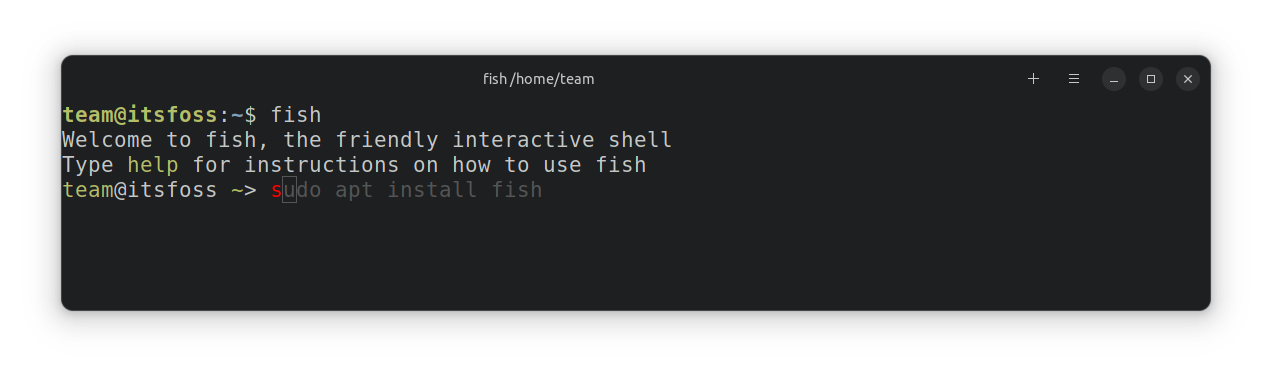
Fish is a smart, user-friendly command line shell primarily for UNIX-like operating systems.

Beyond Bash: 9 Lesser-Known Linux Shells and Their Capabilities
Fish Shell

Features of Fish Shell

  • Autosuggestion of commands based on history and completions.
  • Supports 24-bit color.
  • It supports syntax highlighting, and all features work out of the box.

Install Fish

Fish is available in the official repos of almost all Linux distributions. In Ubuntu, you can install it by:

sudo apt install fish

The version in the Ubuntu repos is a bit old. If you want to install the latest version, you can use the official PPA provided by the team.

sudo apt-add-repository ppa:fish-shell/release-3
sudo apt update
sudo apt install fish

Suggested Read 📖

How to Find Which Shell am I Using in Linux [4 Methods]
Here are four simple commands to find out which shell are you using in Linux.
Beyond Bash: 9 Lesser-Known Linux Shells and Their Capabilities

2. Nushell

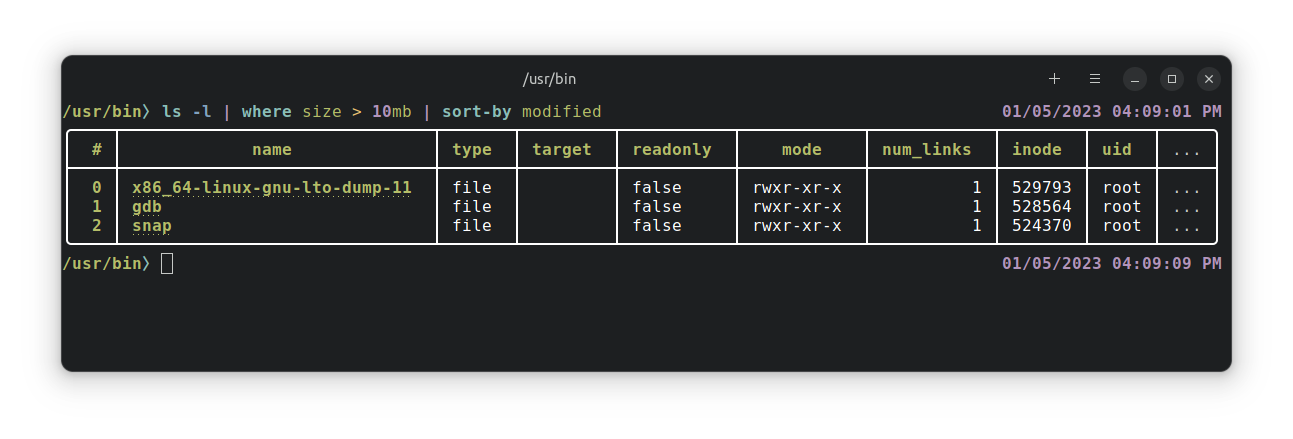
Nushell is a new type of shell that works in Linux, macOS, Windows, BSD, etc. Nu, as it’s also called, it takes its philosophy and inspiration from projects like PowerShell, functional programming languages, and modern CLI tools.

Beyond Bash: 9 Lesser-Known Linux Shells and Their Capabilities
Nushell

Features of Nushell

  • Everything is data: Nu pipelines use structured data so you can safely select, filter, and sort the same way every time.
  • Powerful plugins: It's easy to extend Nu using a powerful plugin system.
  • Easy to read error messages. Nu operates on typed data, so it catches bugs that other shells don’t. And when things break, Nu tells you exactly where and why.
  • Clean IDE support.

Install Nushell

If you’re on Ubuntu, you won’t find an apt repository to install Nushell. But you can build it by installing the required dependencies, as per its instructions on GitHub.

Fortunately, there is a way to install it on any distro using Homebrew. You can refer to our tutorial on installing and using Homebrew Package Manager on Linux.

Once you successfully set it up on Linux, you need to type in the following command to install Nushell:

brew install nushell

Head to its official website to explore more installation options.

3. Dune

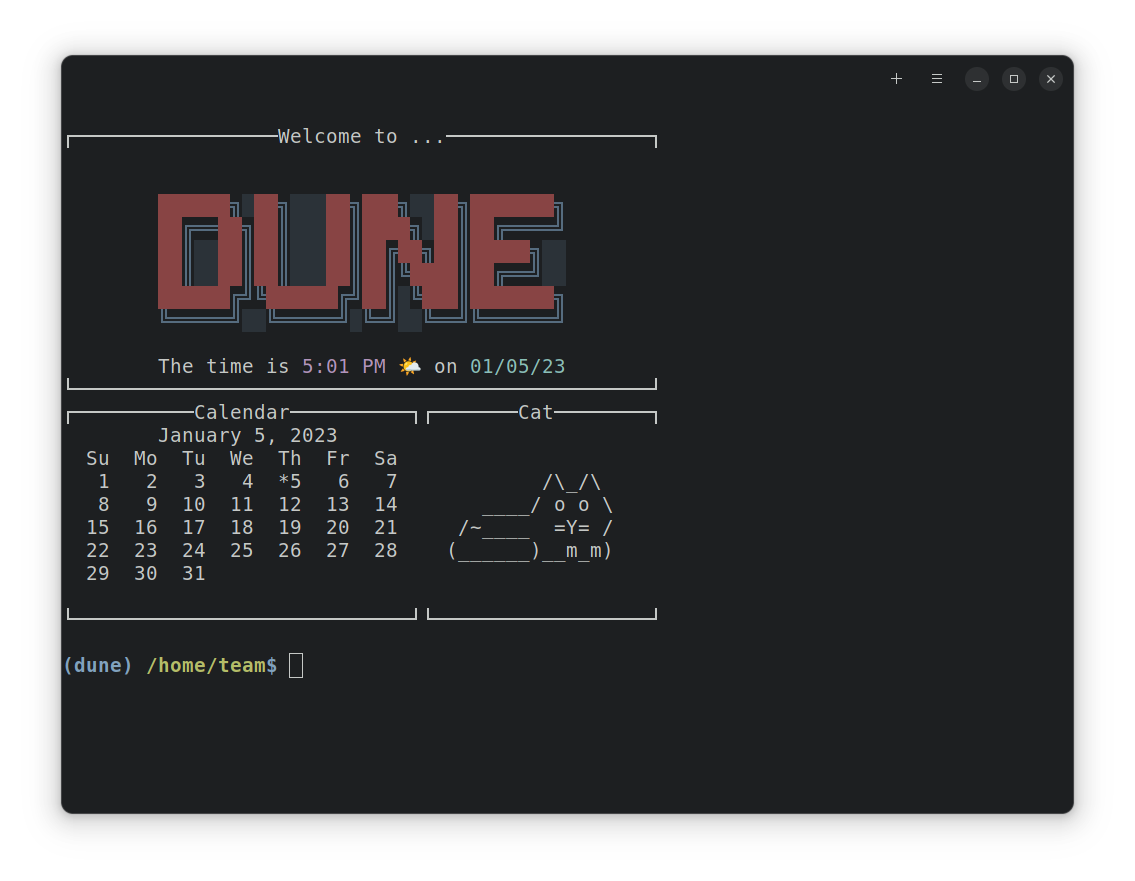
The project's creator describes Dune as a shell by the beach. Dune is a fast, useful and pretty shell, offering a few niche metaprogramming features such as quoting.

Beyond Bash: 9 Lesser-Known Linux Shells and Their Capabilities
Dune Shell

Features of Dune Shell

  • Before entering the interactive mode, Dune executes the prelude, a startup file stored in the home directory.
  • Dune's REPL is entirely customizable
  • You can define aliases by assigning a variable to a program's name
  • Use a macro to write functions that modify your shell's environment and act like commands or programs
  • Dune offers an extensive standard library and also provides a pretty interface to see all the functions available in each module.

Install Dune Shell

Dune shell is available in the Arch Linux repository as dunesh.

For all other users, the Dune shell can be installed with cargo. So first, you need to install the latest version of rust. If you already have rust installed, ensure you have the latest version and then proceed to install Dune.

cargo install -f dune

Once installed, you can access the shell by entering the following:

dunesh

Suggested Read 📖

How to Change Shell in Linux
This quick tutorial shows how to check the running shell, available shell in the system and how to change the default shell in Linux.
Beyond Bash: 9 Lesser-Known Linux Shells and Their Capabilities

4. Xonsh

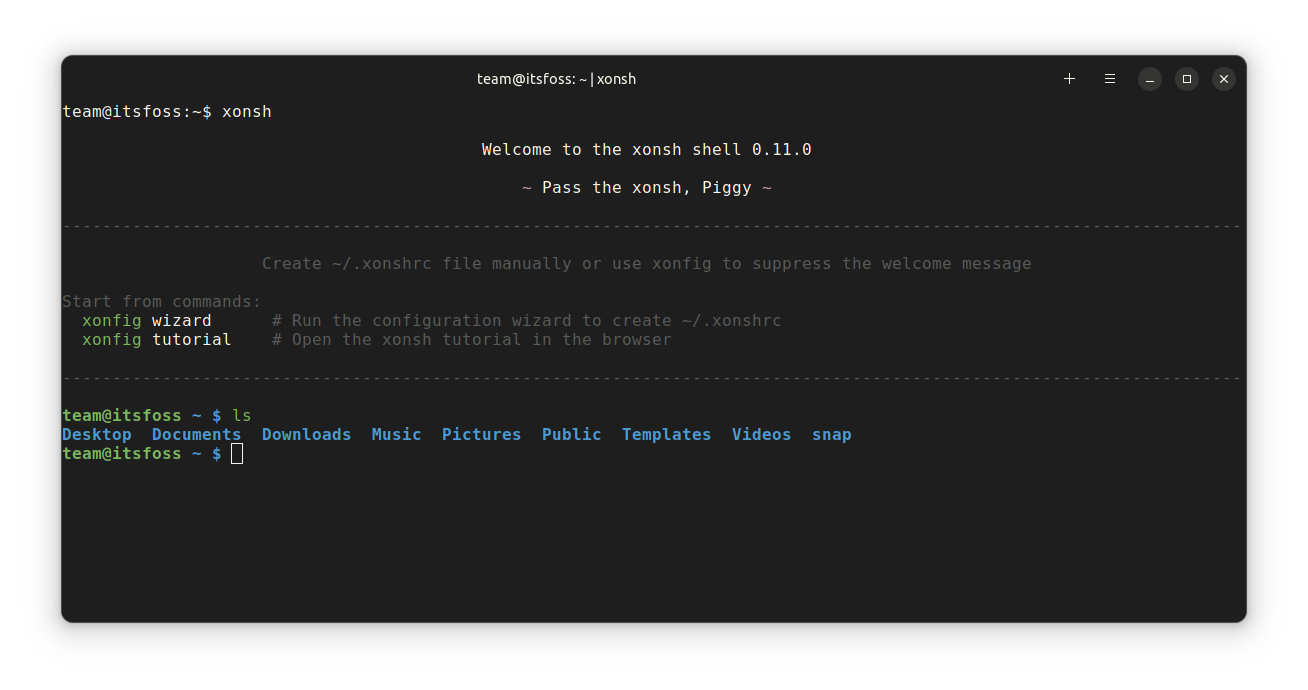
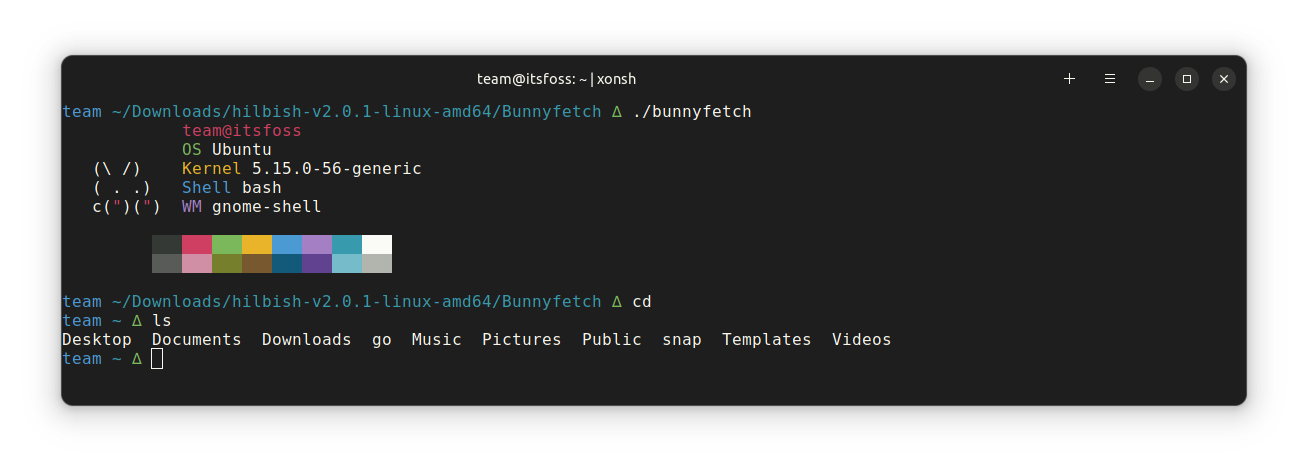
Xonsh is a Python-powered, cross-platform shell and command prompt. It combines Python and bash shell so that you can run Python commands directly in the shell. You can even combine Python and shell commands.

Beyond Bash: 9 Lesser-Known Linux Shells and Their Capabilities
Xonsh Shell

We had a separate article on Xonsh if you are curious to learn more:

Xonsh Shell Combines the Best of Bash Shell and Python in Linux Terminal
Which is the most popular shell? I guess you’ll say bash or perhaps zsh and you are right about that. There are several shells available for UNIX and Linux systems. bash, ksh, zsh, fish and more. Recently, I came across another shell which offers a unique twist of combining
Beyond Bash: 9 Lesser-Known Linux Shells and Their Capabilities

Features of Xonsh Shell

  • The Xonsh language has shell primitives that you are used to from Bash
  • Prepare environment variables and arguments in Python and use them in shell commands
  • Xontribs is a 3rd-party extension system
  • Customizable tab completion, key bindings, color styles
  • Rich interface to discover history

Installing Xonsh Shell

Xonsh is available in the repos of many Linux distributions like Ubuntu, Fedora, etc. So, to install it on Ubuntu, run:

sudo apt install xonsh

Xonsh also provides an AppImage package, which can be downloaded from their download page. You may refer to our AppImage guide if you are new to the file format.

5. Hilbish

Hilbish is an extensible shell that is very customizable via the Lua programming language. The shell is aimed at both casual users and power users.

Beyond Bash: 9 Lesser-Known Linux Shells and Their Capabilities
Hilbish

Features of Hilbish

  • Simple and Easy Scripting
  • History and Completion Menus: Provides the user with proper menus for completions and history searching
  • Syntax highlighting and hinting are available via the Lua API
  • It works on Unix systems and Windows, but on Windows, there may encounter issues.

Installing Hilbish

Hilbish is not available in the package repositories of Ubuntu. So, you will be building it from the source.

To install it, you need Go and task installed.

sudo apt install golang-go
sudo snap install task --classic

Once the dependencies are installed, run the following commands to install Hilbish shell:

git clone --recursive https://github.com/Rosettea/Hilbish
cd Hilbish
go get -d ./...

If you want a stable branch, run these commands:

git checkout $(git describe --tags `git rev-list --tags --max-count=1`)
task build
sudo task install

6. Elvish

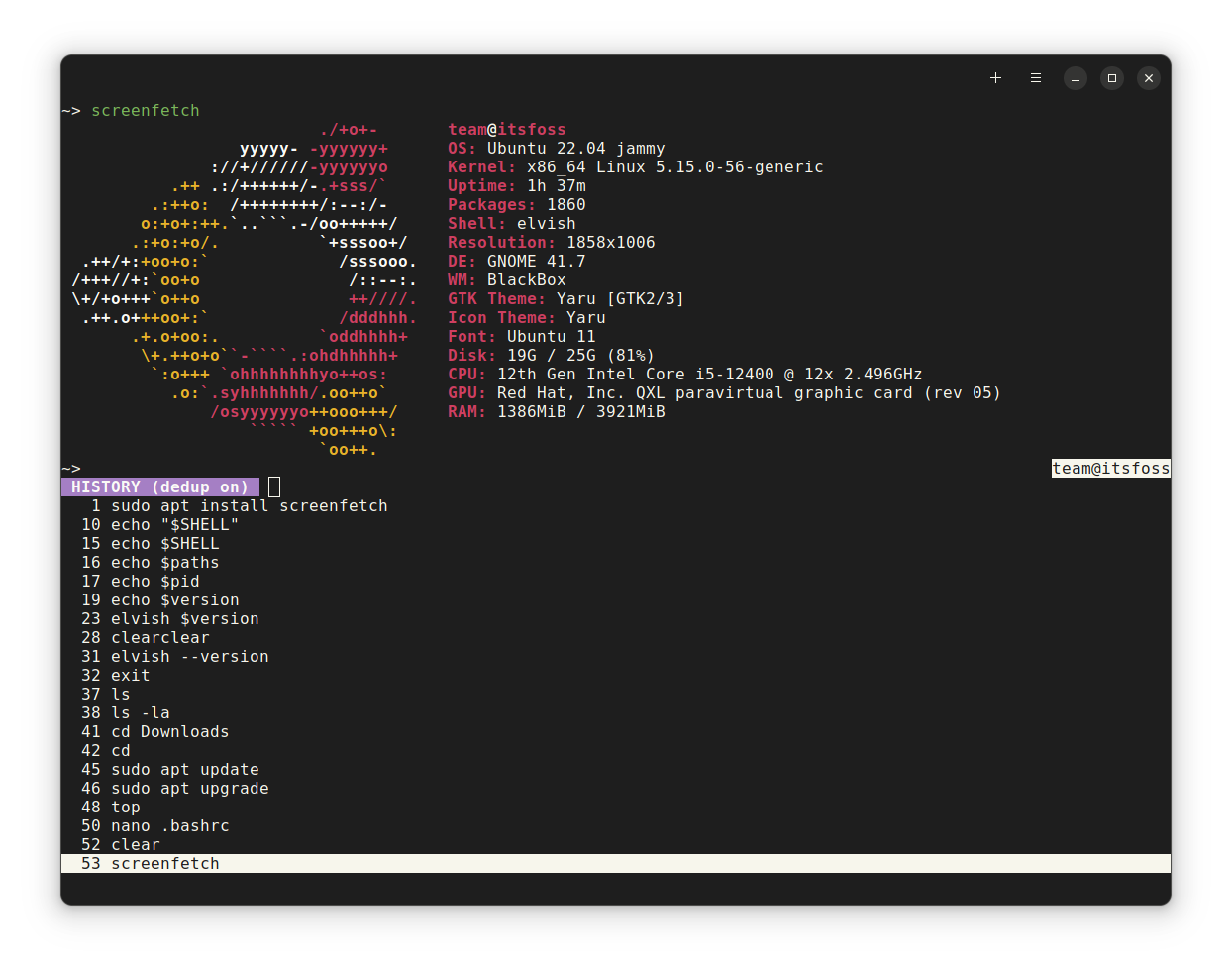
Elvish is an expressive programming language and a versatile interactive shell. It runs on Linux, Mac, and Windows. Even if v1.0 has not been released, it is already suitable for most daily interactive use.

Beyond Bash: 9 Lesser-Known Linux Shells and Their Capabilities
Elvish

Features of Elvish

  • Powerful Pipelines: Pipelines in Elvish can carry structured data, not just text. You can stream lists, maps, and even functions through the pipeline.
  • Intuitive Control Structures
  • Directory History: Elvish remembers all the directories you have been to. You can access it by pressing CTRL+L.
  • Command History
  • Built-in File Manager: Accessible by pressing CTRL + N

Install Elvish

Elvish shell is available in Ubuntu and Arch Linux package managers. So to install it, open a terminal and run:

sudo apt install elvish

7. Oh

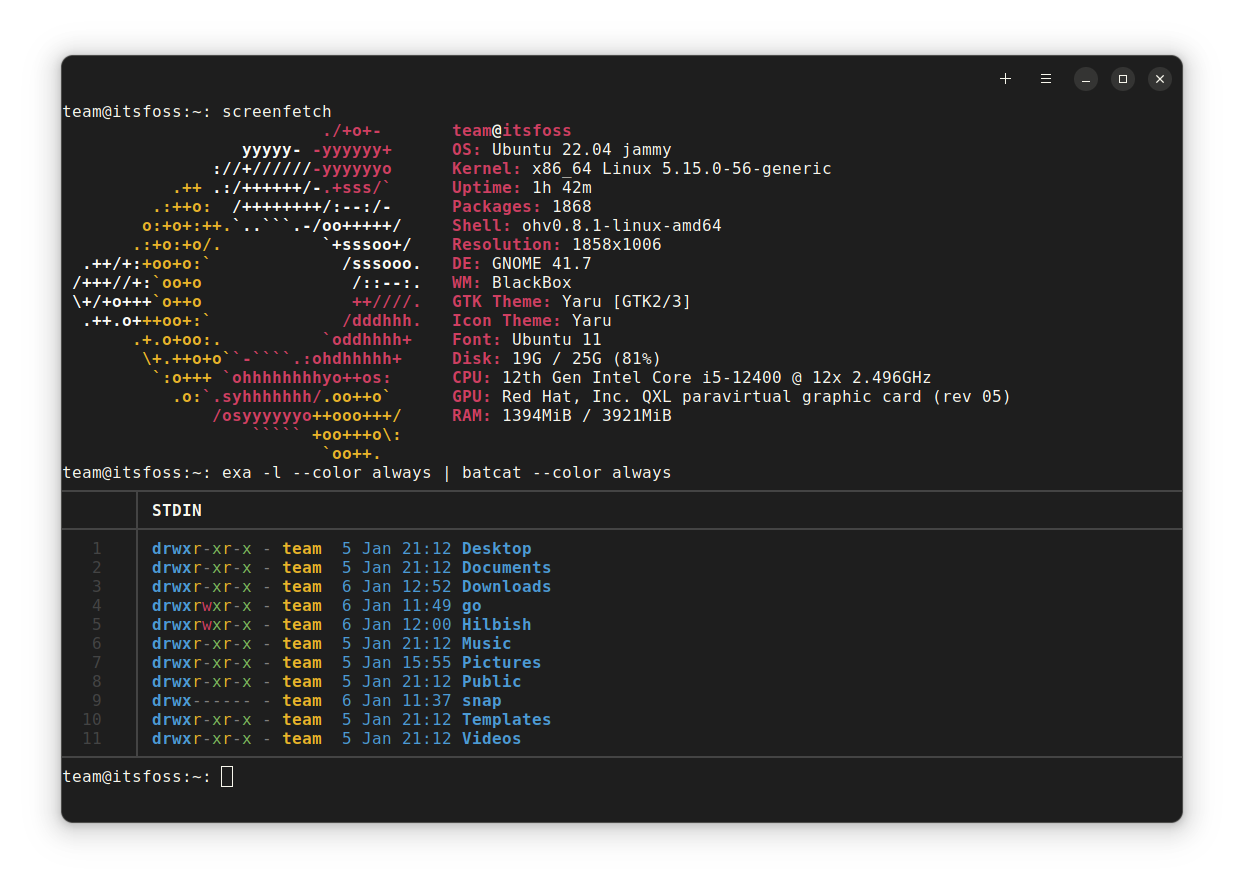
According to its developers, Oh is a reimagining of the Unix shell.

It aims to become a more powerful and robust replacement to modern options while respecting the conventions established by the Unix shell over the last half-century.

Beyond Bash: 9 Lesser-Known Linux Shells and Their Capabilities
Oh Shell

Features of Oh Shell

  • First-class channels, pipes, environments, and functions
  • Rich return values that work with standard shell constructs
  • Support for modularity.
  • A simplified set of evaluation and quoting rules.
  • A syntax that deviates as little as possible from established conventions;

Installing Oh

Oh provides a pre-compiled binary. You need to download it from their official GitHub page.

You need to give execution permission to the file using the command:

chmod +x filename

Now, you can run it by :

./<name of binary file>

Suggested Read 📖

How to Run a Shell Script in Linux [Essentials Explained for Beginners]
There are two ways to run a shell script in Linux. You can use: bash script.sh Or you can execute the shell script like this: ./script.sh That maybe simple, but it doesn’t explain a lot. Don’t worry, I’ll do the necessary explaining with examples so
Beyond Bash: 9 Lesser-Known Linux Shells and Their Capabilities

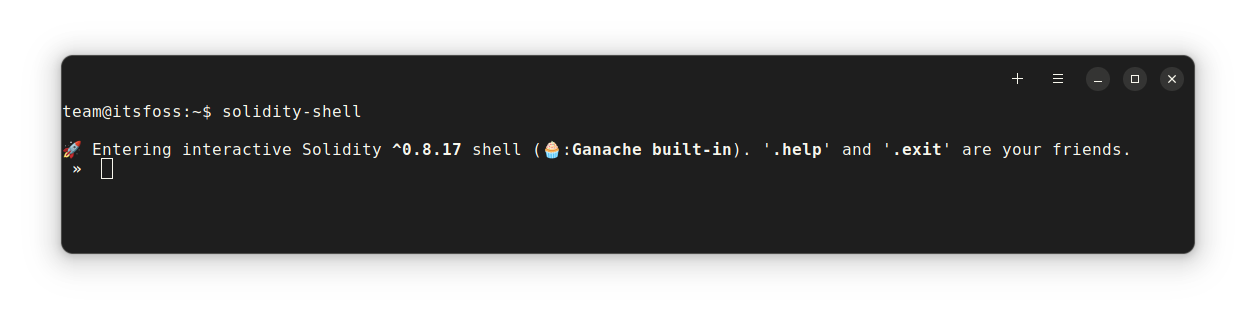
8. Solidity

Solidity is an interactive shell with lightweight session recording and remote compiler support. When you change the solidity pragma/language, it automatically fetches a matching remote compiler.

Beyond Bash: 9 Lesser-Known Linux Shells and Their Capabilities
Solidity Shell

Features of Solidity

  • pragma solidity <version> attempts to dynamically load the selected compiler version
  • Sessions can be saved and restored using the .session  command.
  • Settings are saved on exit (not safe when running concurrent shells).
  • $_ is a placeholder for the last known result.
  • Special commands are dot-prefixed. Everything else is evaluated as Solidity code.

Install Solidity

You can install solidity shell through npm.

Ensure you have the latest version of nodejs and npm installed, then type the following command:

npm install -g solidity-shell

Once installed, run solidity-shell to start the session.

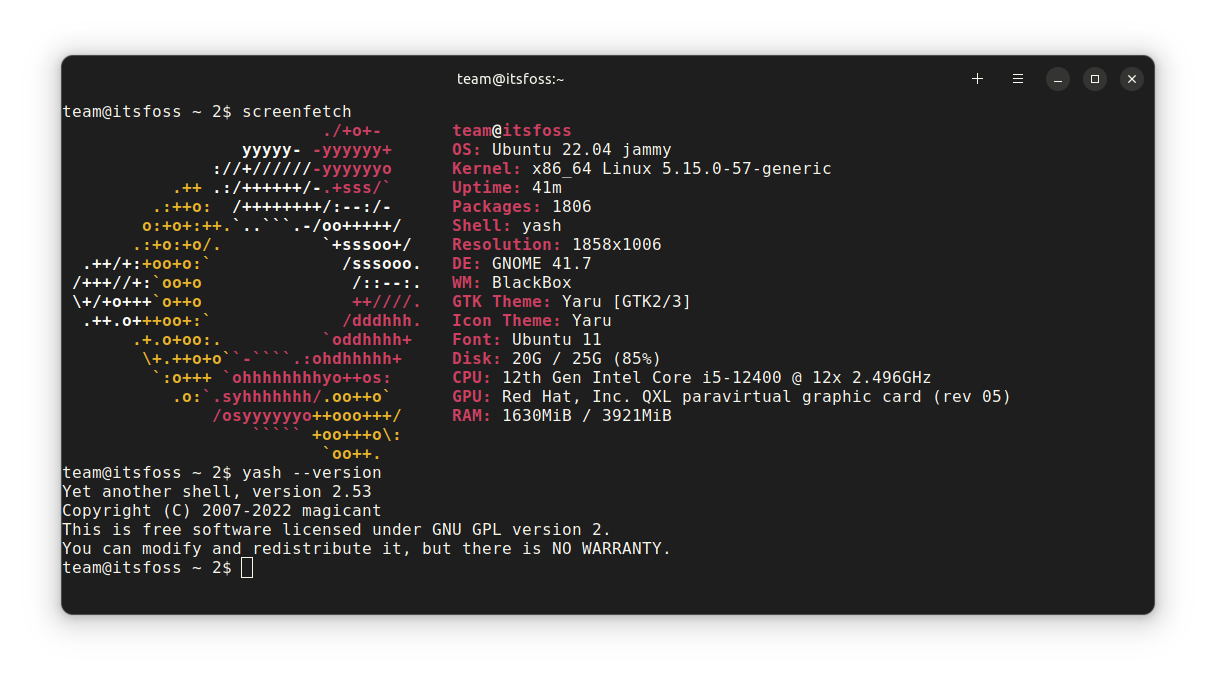
9. Yash

Yash, or yet another shell is a POSIX-compliant command line shell written in C99 (ISO/IEC 9899:1999). It has features for daily interactive and scripting use.

Beyond Bash: 9 Lesser-Known Linux Shells and Their Capabilities
Yash Shell

Features of Yash Shell

  • Global aliases
  • Socket redirection, pipeline redirection, and process redirection
  • Prompt command and command-not-found handler
  • Command line completion with predefined completion scripts for more than 100 commands
  • Command line prediction based on command history

Installing Yash Shell

To install the shell, you need to go to their GitHub releases page and download the tar file. Now extract the tar file; inside it, you will find an INSTALL file with instructions to install it.

Typically, you should execute the below command inside the extracted folder.

./configure && make && sudo make install

Honorable Mentions

  1. Ion: Ion Shell is a modern system shell written in Rust, primarily for RedoxOS. It is still a work in progress, and users should expect syntax changes.
  2. Closh: Closh is a bash-like shell that combines the best of traditional UNIX shells with the power of Clojure. It aims to be a modern alternative to bash. This, too, is in the early stages of development.

💬 What do you think about these shells listed? Would you experiment by changing the default shell to some of the options here? What's your favorite one? Share your thoughts in the comments box below.


from It's FOSS https://ift.tt/UsRy4w3
via IFTTT

Sabtu, 14 Januari 2023

How to Install Go Language on Ubuntu

How to Install Go Language on Ubuntu

Google developed the Go programing language to create a language that is as powerful as C++ but follows simple syntax like Python.

And because of its efficiency, platforms such as Docker, Kubernetes, and Terraform are written in the Go language.

If you are writing code in Go or compiling a Go-based application, you must install it first.

In this tutorial, I'll show the following ways of installing Go on Ubuntu:

  • Using apt from Ubuntu repositories: Simplest option but not the latest version.
  • Using snap: Simple and often newer version.
  • Using source code: Complex method that gives you the latest version.

Let's start with the simplest and most recommended method.

If you don't care about having the most recent version, it can be installed with the following command:

sudo apt install golang

You can check if it has been installed, using the following command:

go version

While writing, you get Go version 1.18.1 which is one point release behind the most recent version:

How to Install Go Language on Ubuntu

Great! So you have checked that Go is installed on your Ubuntu system. But is it working correctly? Let's check that by running a simple Go program.

Run the Simple Go program

Here, I am going to create a simple Hello world program to cross-check the installation.

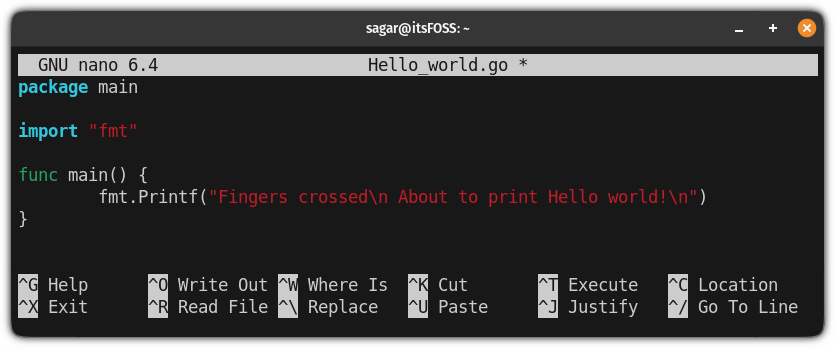
I am going to use nano to create and open the file named Hello_world.go:

nano Hello_world.go

And my file contents are the following (don't judge me, I'm pro okay):

package main

import "fmt"

func main() {
        fmt.Printf("Fingers crossed\n About to print Hello world!\n")
}
How to Install Go Language on Ubuntu

Save the file contents and exit Nano by pressing Ctrl + X.

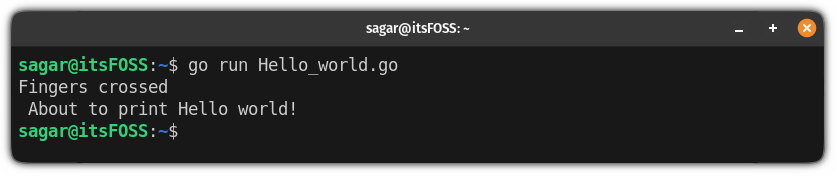
Now, you will have to append the run flag and filename to the command to run the program:

go run Hello_world.go
How to Install Go Language on Ubuntu

Running as expected!

You could also build an executable Go file like this:

go build Hello_world.go

That was simple. You have Go language installed properly. Let's quickly see the removal steps.

Remove Go from Ubuntu

Since you installed it from Ubuntu's repositories using the apt command, the removal is pretty simple.

sudo apt remove golang

You can also run the autoremove afterward.

sudo apt autoremove

Method 2:  Using snap to install a newer version of Go

This is the easiest way to get the most recent version of any package as you don't have to go through any complex rather than executing one command.

And Ubuntu comes pre-configured with snaps so why not to benefit from this? Snap can be easily installed on other distributions as well.

How to Install and Use Snap in Various Linux Distributions
Snaps are Canonical’s way of providing a cross-distribution package management system. In this article, we will see how to install and use snaps in various Linux distributions.
How to Install Go Language on Ubuntu

To install the recent version of Go with snap, use the following command :

sudo snap install go --classic
How to Install Go Language on Ubuntu

And as you can see, it installed Go language version 1.19.5 which is the most recent stable release while writing.

Remove the snap Go

If you no longer need Go language installed on your system or you are just not into using snaps anymore and want to remove it, follow the given command:

sudo snap remove go

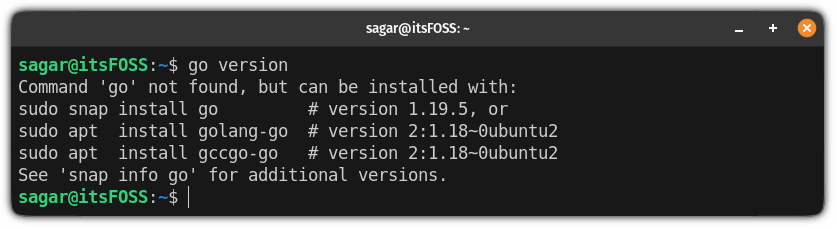
To crosscheck whether it is removed successfully, check the installed version:

go version
How to Install Go Language on Ubuntu

And if you get the same error, Go has been removed successfully.

🚧
This is the most complicated method and I do not recommend this. I included it for informational purposes.

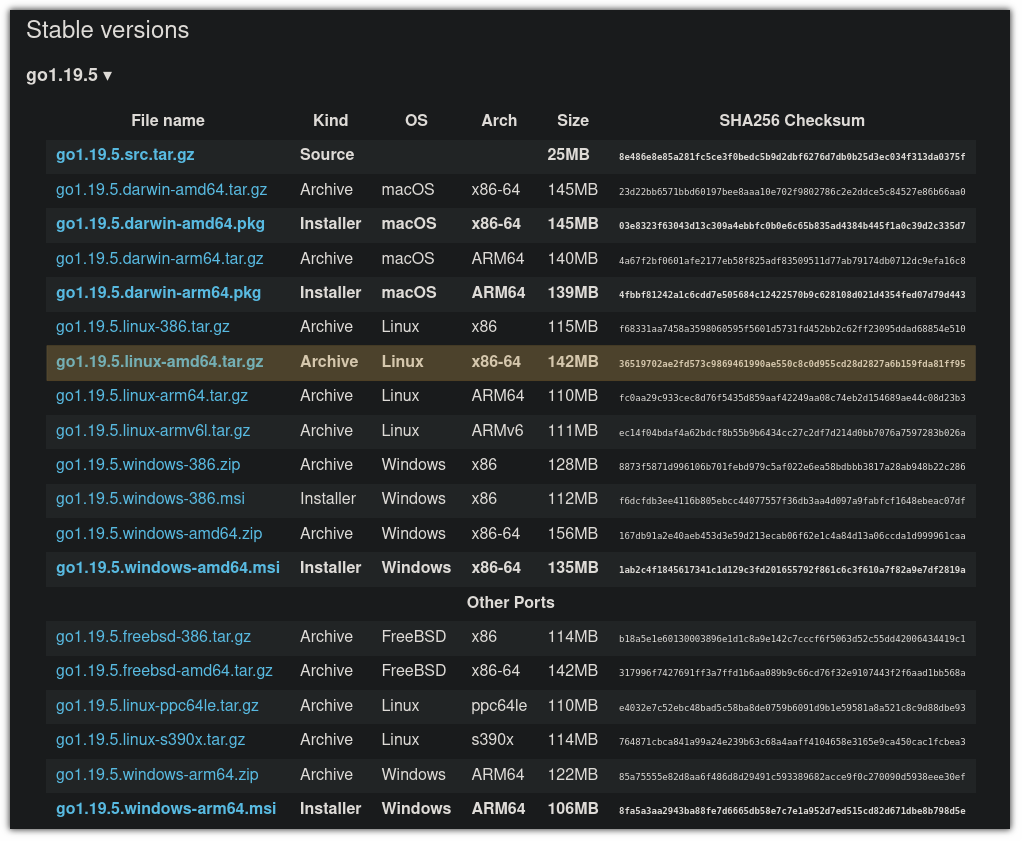
To build Go from source, visit its official download page and choose the package for your system accordingly.

How to Install Go Language on Ubuntu

Next, extract the binaries to the /usr/local directory using the tar command:

sudo tar -xzf go1.19.5.linux-amd64.tar.gz -C /usr/local/

Next, you are required to set the environment variable so that system can figure out where to look for the Go executable.

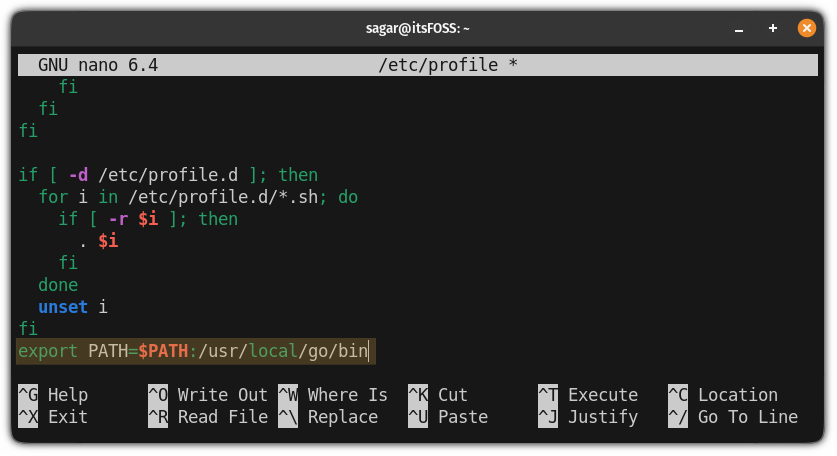
So first open the /etc/profile using the following command:

sudo nano /etc/profile

And press Alt + / to jump to the end of a line in the nano text editor and paste the following line:

export PATH=$PATH:/usr/local/go/bin
How to Install Go Language on Ubuntu

Now, save changes and exit from the nano text editor.

To take effect from the environment path you have just added, you will have to source the file:

source /etc/profile

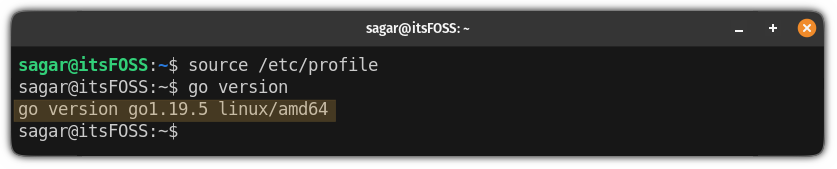
Go has successfully been installed on your system. You can check the installed version:

go version
How to Install Go Language on Ubuntu

How to uninstall

Removing packages installed from the source code is even more complicated. But you can remove the Go from your system by following three easy steps.

First, remove the Go binaries that you extracted while installing:

sudo rm -rf /usr/local/go

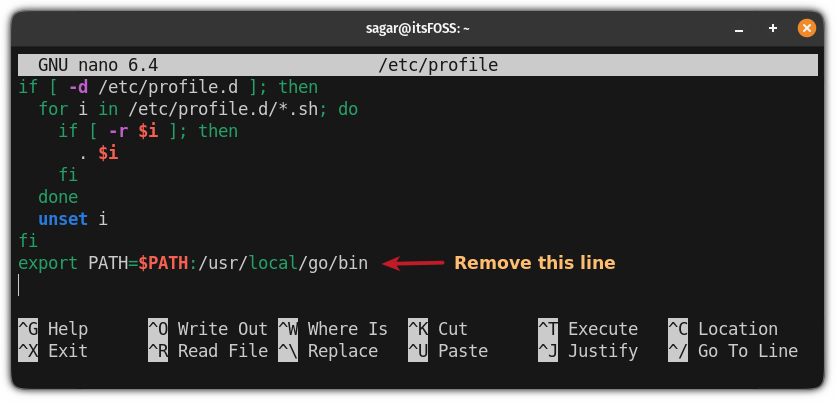
Second, remove the environment path variable form /etc/profile:

sudo nano /etc/profile
How to Install Go Language on Ubuntu

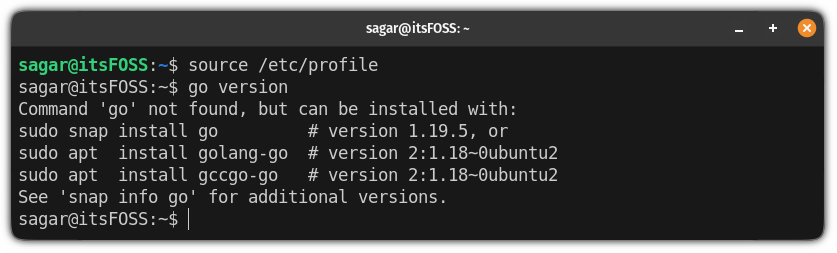
And third, source the file to apply the changes:

source /etc/profile
How to Install Go Language on Ubuntu

Looking for an open-source IDE to run Go programs?

So you learned to install Go on Ubuntu Linux. You also ran a simple Go program. But if you have to write programs in Go, you'll be better off with a proper code editor.

I use VSCode for my daily coding tasks but this can't be the same for you.

So we have compiled a list of modern open-source IDEs on which you can run your Go programs efficiently:

7 Best Modern Open Source Text Editors For Coding in Linux
Looking for the best text editors in Linux for coding? Here’s a list of the best code editors for Linux. The best part is that all of them are free and open-source software. If you ask experienced Linux users, their answers would probably include Vim, Emacs, Nano, etc. No
How to Install Go Language on Ubuntu

And if you are a VSCode user like me and looking for an alternative, you can use the VSCodium 100% open-source version of Microsoft VSCode.

Please use the comment section for any queries related to this guide or suggestions on what I should cover next.


from It's FOSS https://ift.tt/sbOVjB1
via IFTTT
Kamis, 12 Januari 2023

How to Enable Tabbed Ribbon Interface in LibreOffice

How to Enable Tabbed Ribbon Interface in LibreOffice

The ribbon interface in Microsoft Office is a sweet spot for many users. The tabbed ribbon interface groups specific options inside a single tab.

How to Enable Tabbed Ribbon Interface in LibreOffice
Ribbon interface in Microsoft Office

It is so popular that almost every Microsoft application has it.

Missing the good old ribbon interface of Microsoft Office in LibreOffice?

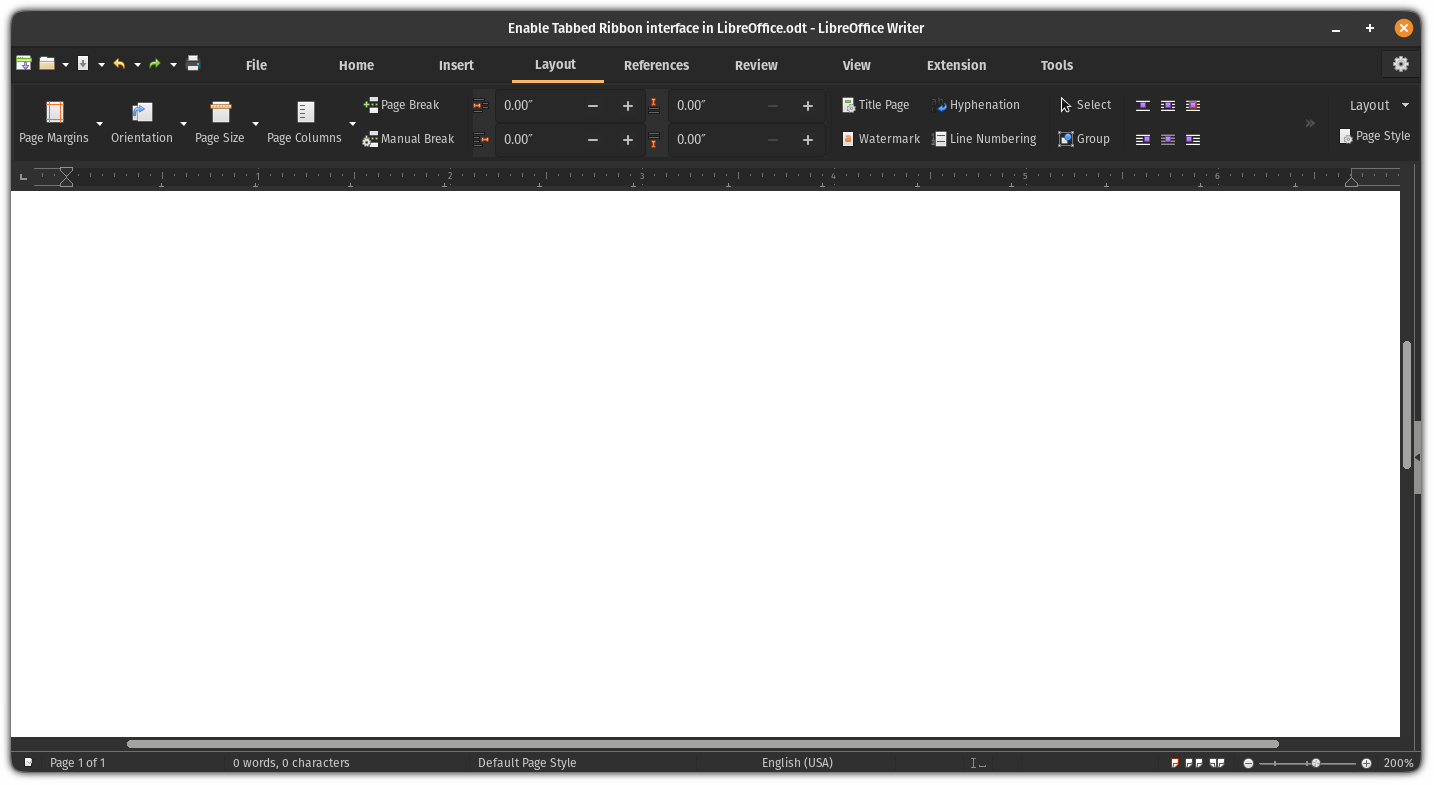
You can achieve similar results in LibreOffice which looks even better (in my opinion):

How to Enable Tabbed Ribbon Interface in LibreOffice
Ribbon interface in LibreOffice

So let's jump to the how-to part!

Enable tabbed ribbon interface in LibreOffice

You'll have to activate experimental features to enable the tabbed ribbon interface in LibreOffice.

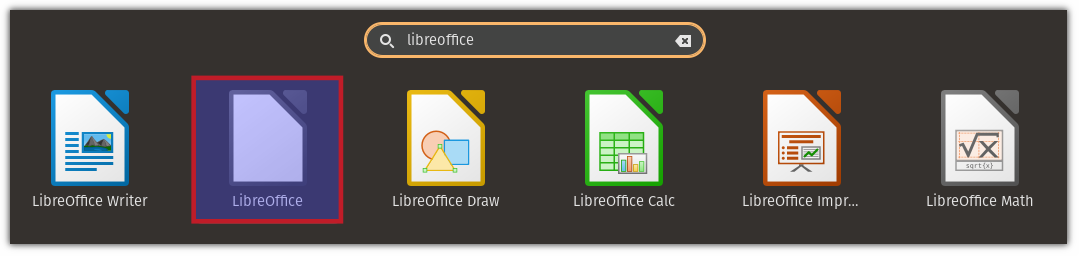
Open LibreOffice from your system menu:

How to Enable Tabbed Ribbon Interface in LibreOffice

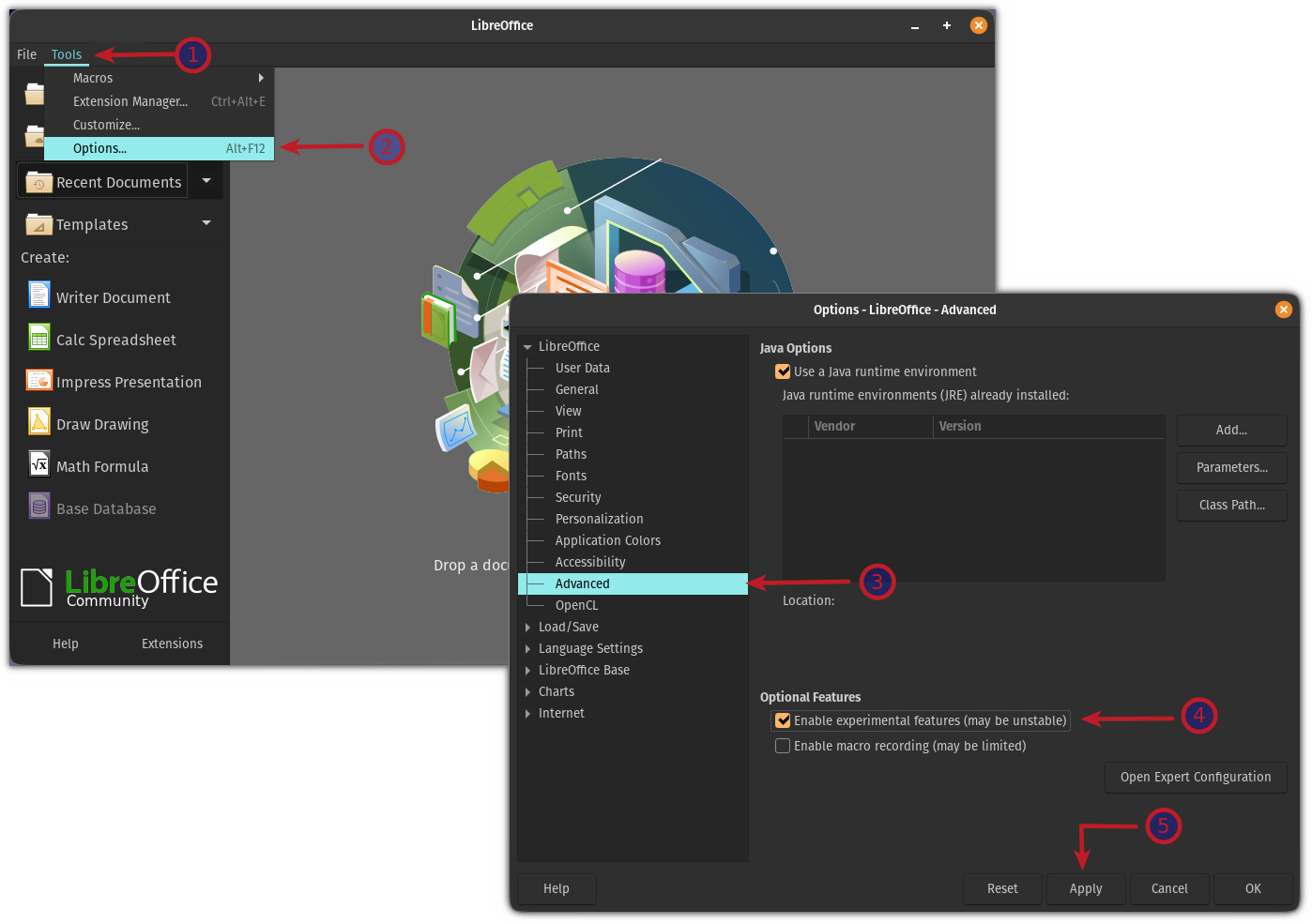
Once you open it, click on Tools and select options from there, select advanced options and under optional features, you will find an option to enable experimental features:

How to Enable Tabbed Ribbon Interface in LibreOffice

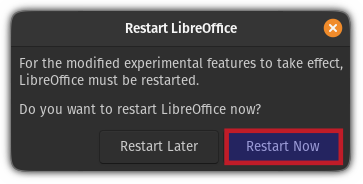
Now, it will ask whether you want to restart LibreOffice now or later. Restart LibreOffice and it will enable experimental features for you:

How to Enable Tabbed Ribbon Interface in LibreOffice

Using the tabbed ribbon interface

Open LibreOffice writer or other tools from your system menu:

How to Enable Tabbed Ribbon Interface in LibreOffice

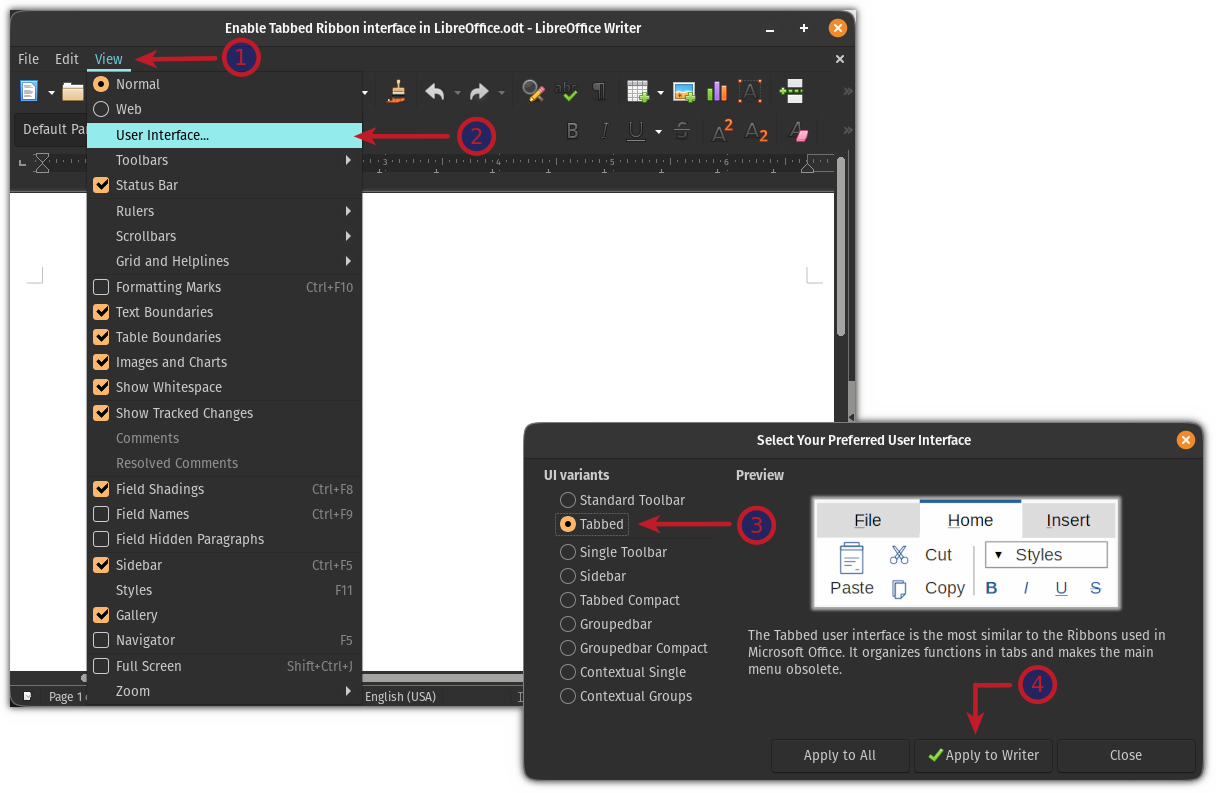
Click on the View menu and select User Interface & select the Tabbed option and apply changes:

How to Enable Tabbed Ribbon Interface in LibreOffice

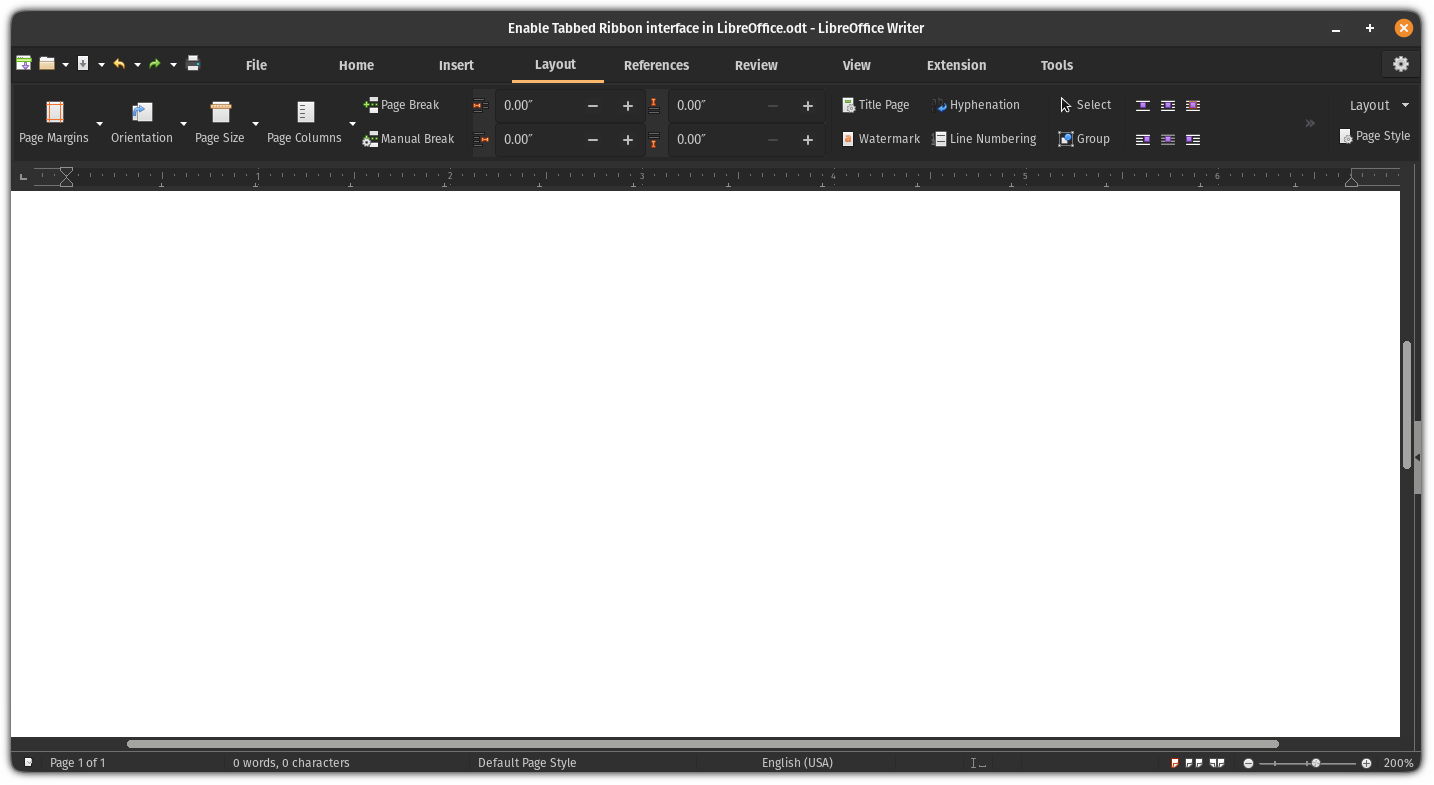
And here's the final result:

How to Enable Tabbed Ribbon Interface in LibreOffice

That was cool. If you don't like the tabbed interface, you can go back to the default view.

Revert to the default view in LibreOffice

The issue in reverting to the default view is there is no user interface option in the tabbed view.

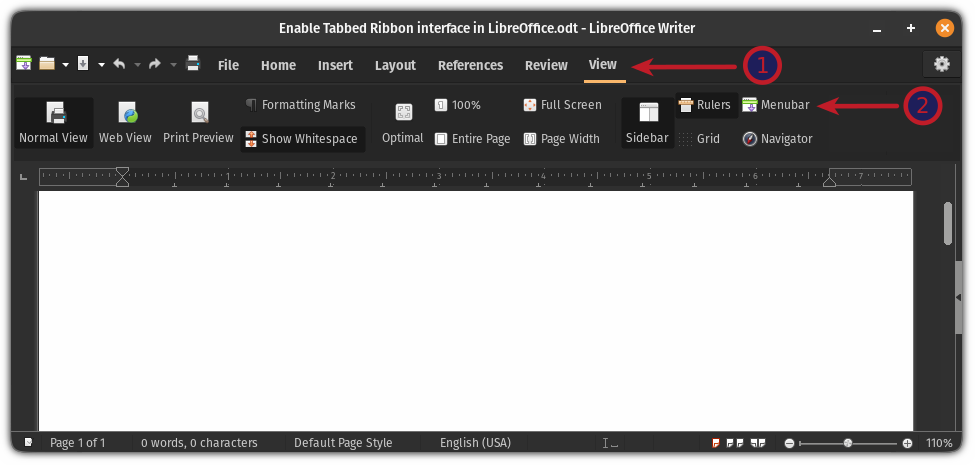
So the first step is to enable the menu bar.

The option to enable menubar is situated inside the View tab:

How to Enable Tabbed Ribbon Interface in LibreOffice

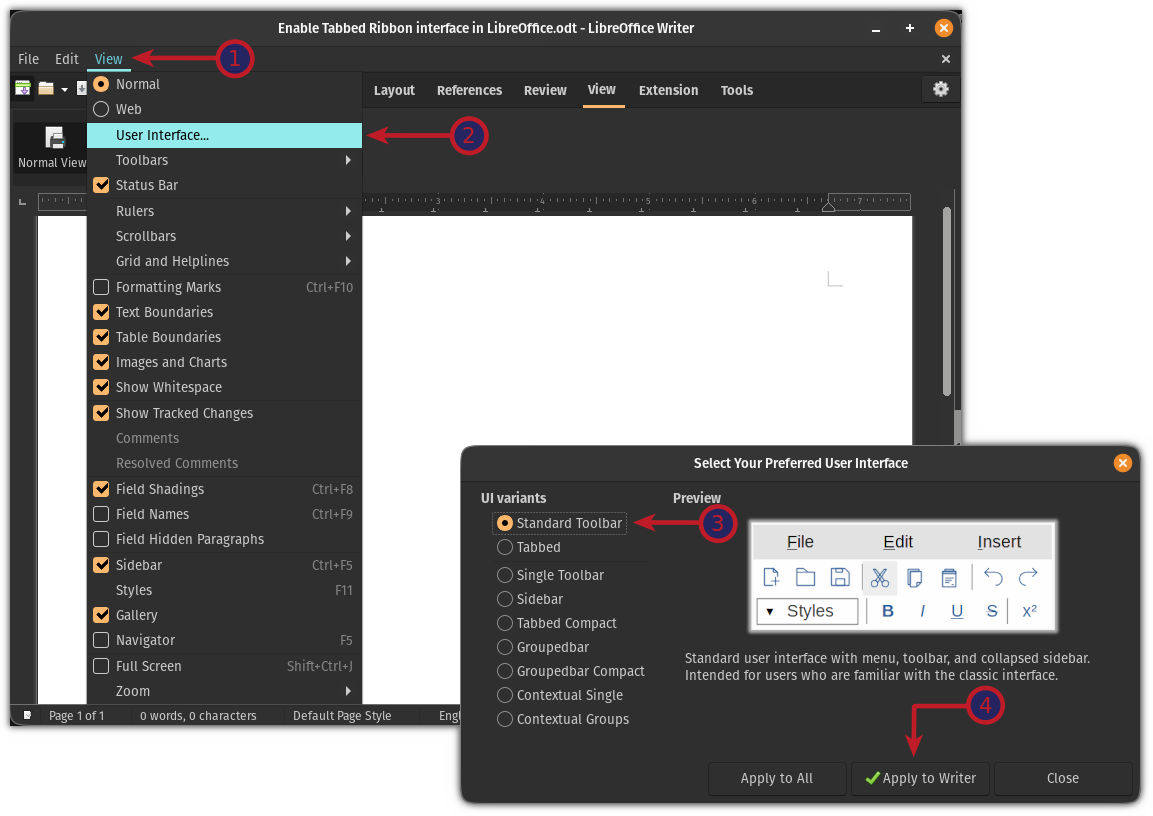
Once you enable the menu bar, click on the View menu and select the User interface option. From there, select the Standard Toolbar option and apply the changes:

How to Enable Tabbed Ribbon Interface in LibreOffice

And it will get you the default look of LibreOffice:

How to Enable Tabbed Ribbon Interface in LibreOffice

Yep, it's that simple to switch between user interfaces on LibreOffice!

7 LibreOffice Tips To Get More Out of It
Brief: LibreOffice is an excellent office suite. These LibreOffice tips will enable you to use it more effectively. There is little doubt that LibreOffice is the best open source office product out there. While you might use it for writing documents, creating spreadsheets or making present…
How to Enable Tabbed Ribbon Interface in LibreOffice

What's Next?

If you are using LibreOffice and want to get the most out of it, we have a dedicated video tutorial for that matter:

I hope you will find this quick tip helpful. Please let me know in the comments if you have any queries or suggestions!


from It's FOSS https://ift.tt/Y2ruJzQ
via IFTTT