An open source, speech-to-text tool for Linux called Vocalinux has just introduced its 0.14 beta release, bringing about a mix of refinements that touch keyboard shortcuts, remote transcription, and Wayland reliability.
We kick things off with the most important usability addition. Earlier, users were stuck with the default toggle or push-to-talk bindings for recording audio during transcriptions.
Now, it is possible to set keyboard shortcuts via the Settings menu, allowing you to create a diverse range of keybind combinations using the Ctrl, Alt, Shift, and Super keys paired with any letter or number key.
Likewise, on GNOME's Wayland session, text injection is possible again when a bare XKB engine is configured, and whisper.cpp no longer defaults to using every CPU core on hybrid Intel and AMD laptops.
Remote API users get something too, where the Remote API engine now supports FunASR and SenseVoice models through OpenAI-compatible endpoints.
What is Vocalinux?
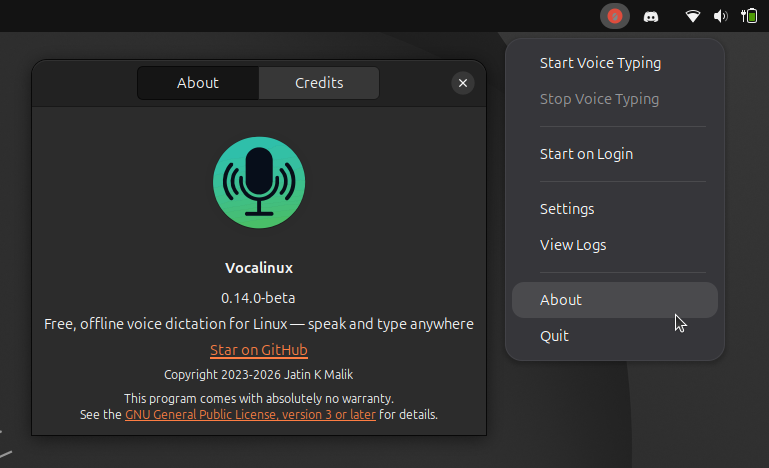
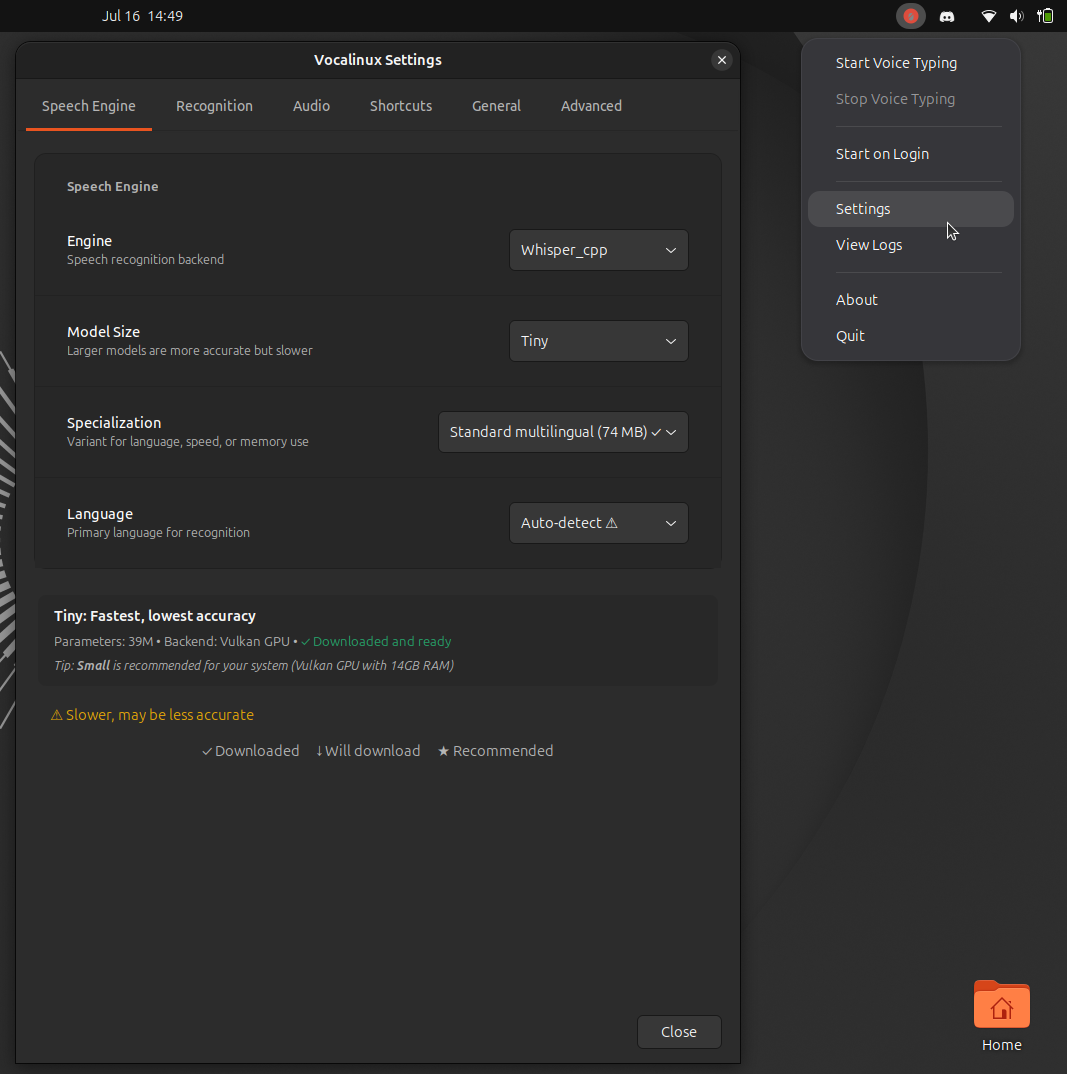
The about dialog and settings menu of Vocalinux.
I talked about the new Vocalinux release, but I never fully explained what it was.
It is a free and open source voice dictation app for Linux, released under the GPL-3.0 license. It lives in your system tray and lets you dictate into almost any text field on your desktop, terminals, browsers, IDEs, office apps, wherever your cursor happens to be.
And everything runs locally, so your voice data stays on your machine the whole time.
The choice of speech recognition engine isn't locked either, as you get whisper.cpp as the default choice, followed by Whisper for PyTorch and NVIDIA configs, VOSK for lightweight setups, and Remote API for offloading to a network server.
I tried testing this beta release to see what it offered. I tried running it on two separate distros, Fedora Workstation and Ubuntu; the result for both runs was an app refusing to launch via the app launcher or the terminal.
It eventually did launch on Ubuntu after I followed some troubleshooting steps, but the app was unresponsive and had to be terminated. Even so, I am not too bummed out by this, as such are the risks associated with pre-release software.
Get started
You can get a quick start by trying out the demo on the Vocalinux website, which runs SpeechRecognition on your web browser. Naturally, that's for testing purposes only.
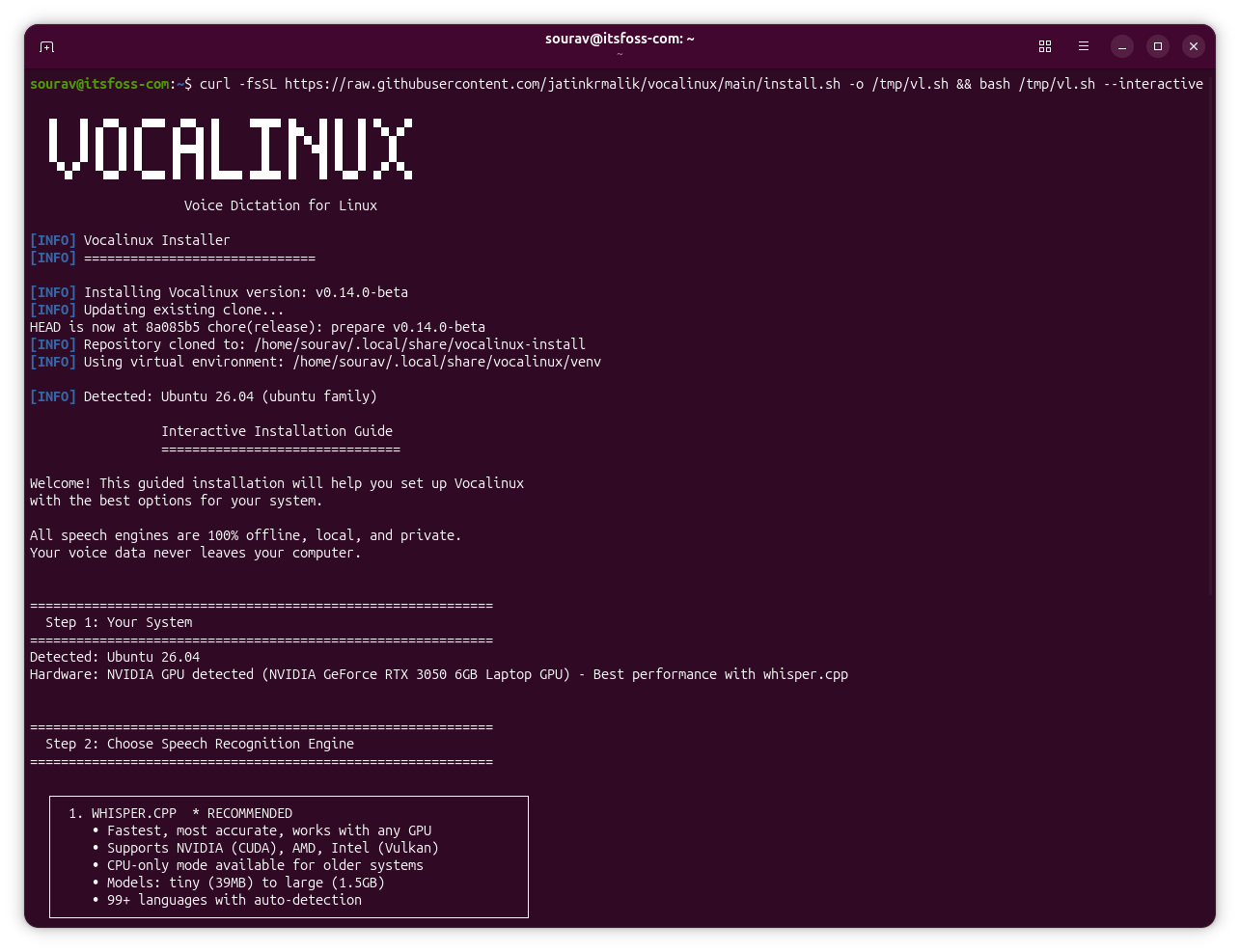
If you want to locally run speech-to-text on your Linux computer, then you can install Vocalinux by running this script:
curl -fsSL https://raw.githubusercontent.com/jatinkrmalik/vocalinux/main/install.sh -o /tmp/vl.sh && bash /tmp/vl.sh --interactiveAfter the installation finishes, either run vocalinux or find the app icon in the application launcher. If you get caught up choosing between the engines, there's a comparo that should make your decision easier.
If you were looking for it, the source code for Vocalinux lives on GitHub.
Also, running the installer on a non-Debian-based distro like Fedora, will make it throw a warning or two about needing to install dependencies manually, take a note of that before proceeding.
My thanks to Phoronix for bringing this tool to my attention. 😄

from It's FOSS https://ift.tt/g1CEkVD
via IFTTT

Tidak ada komentar:
Posting Komentar