Kamis, 25 April 2024

Ubuntu 24.04 LTS Review: Big Changes & Sleek User Experience

Ubuntu 24.04 LTS Review: Big Changes & Sleek User Experience

When it comes to Ubuntu, most of the users wait for the LTS versions. It is because a lot of quality of life improvements come along with the stability it offers.

Ubuntu 24.04 LTS is no different. It comes packed with visual changes, refinements, and new features. You can check out all the Ubuntu 24.04 LTS features if you're curious.

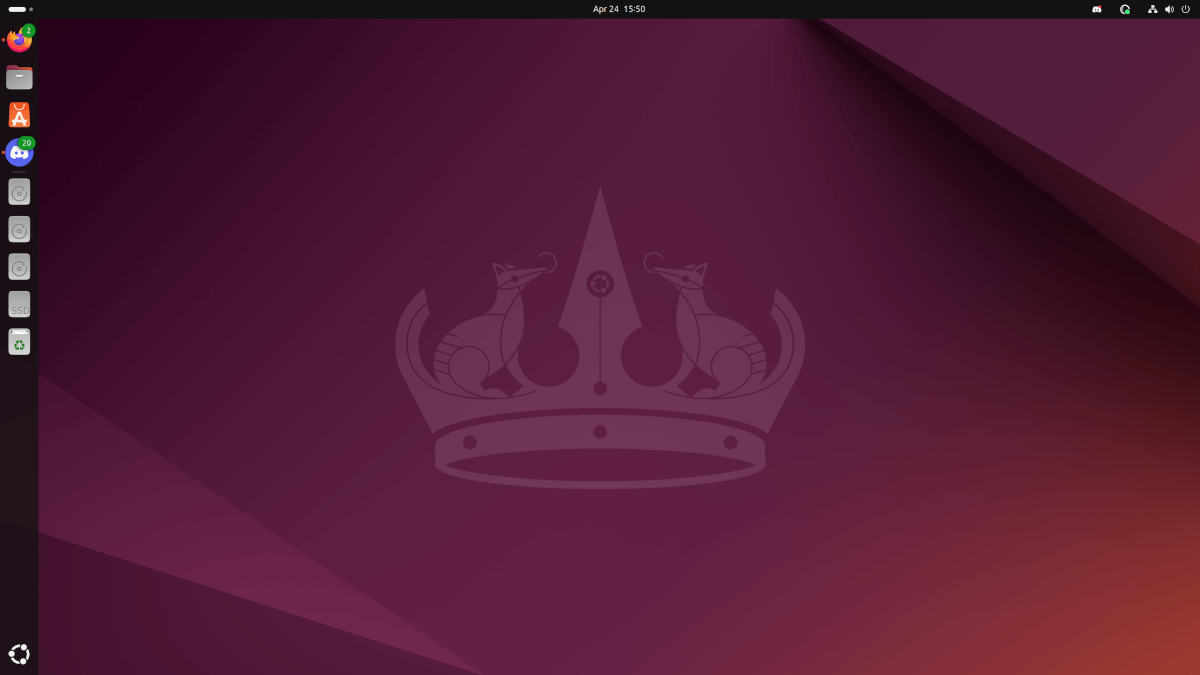
I have been using it for a while before the stable release hit. Let me tell you about my experience with it. There's a video about it as a desktop tour, you can choose to watch that as well.

A Hassle-free On-boarding Experience

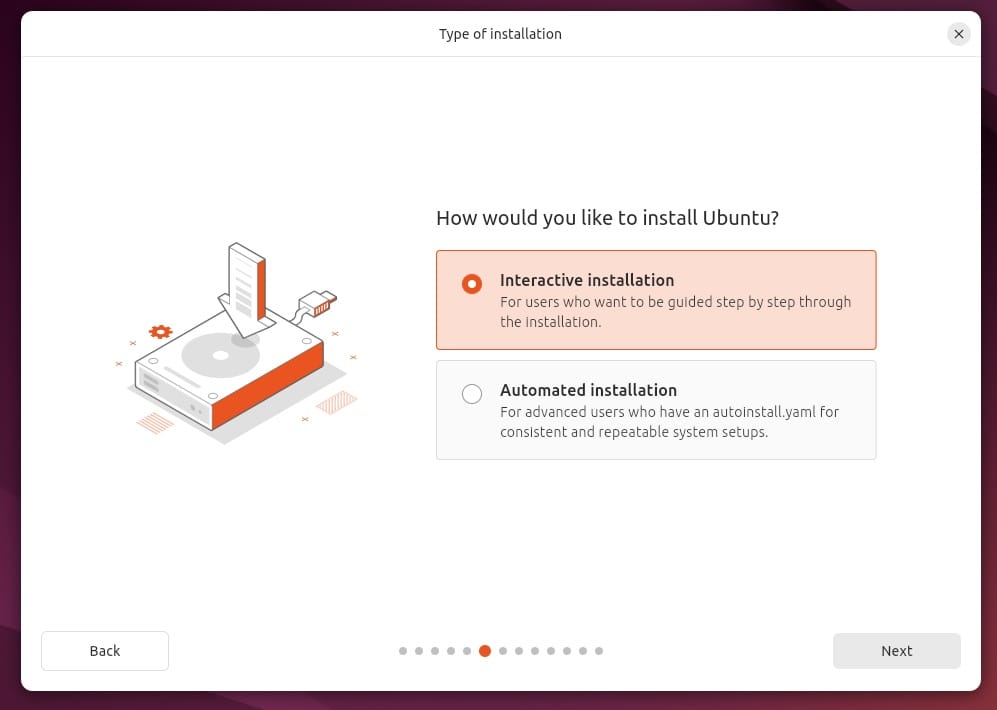
Ubuntu 24.04 LTS features a Flutter-based installer, with descriptive visuals, and concise information.
Ubuntu 24.04 LTS Review: Big Changes & Sleek User Experience

The improvements are not just for a modern aesthetic change. It makes it easier to understand, and minimizes the interaction needed to get started with the Ubuntu desktop experience.
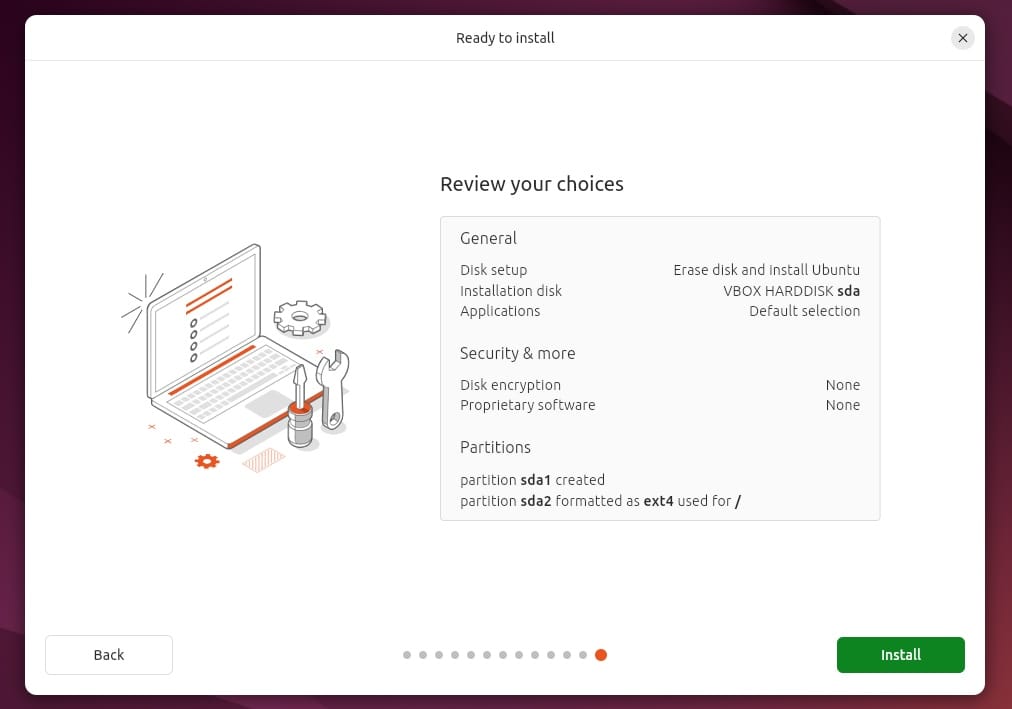
Ubuntu 24.04 LTS Review: Big Changes & Sleek User Experience

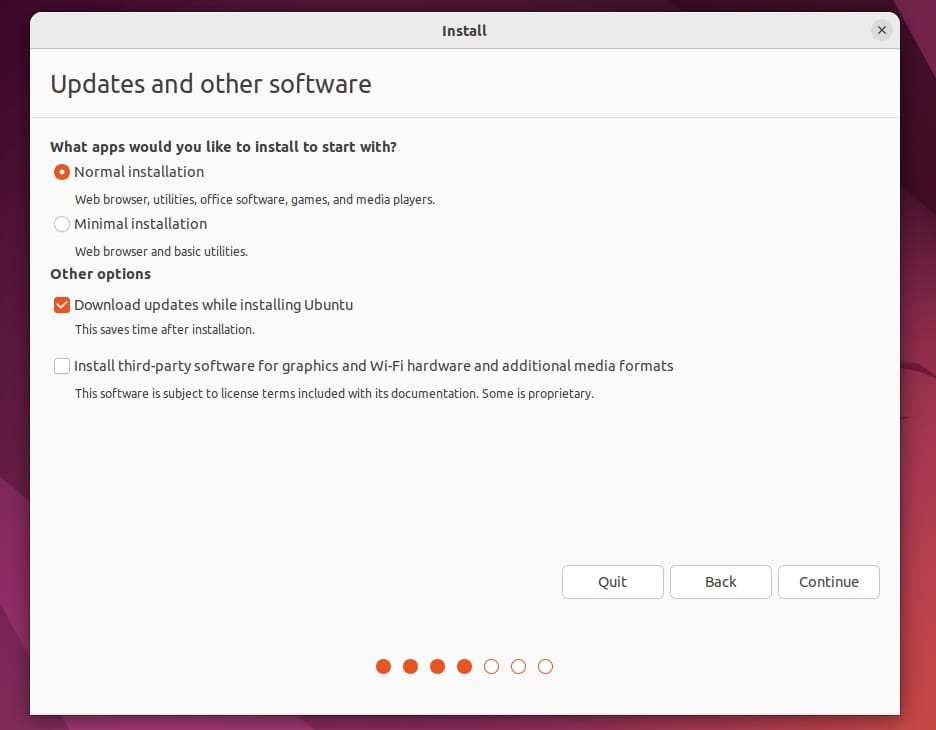
The installer also prompts if an update is available for it, and you can choose to do that or skip that.

The default installation mode was minimal, but you can opt for the extended selection mode with more pre-installed utilities.

I had a quick installation experience, along with a proprietary graphics driver being installed for my NVIDIA graphics card. No complaints there.

In case you are upgrading from Ubuntu 23.10, you can follow our Ubuntu 24.04 LTS upgrade guide:

How to Upgrade to Ubuntu 24.04 LTS Right Now
Ubuntu 24.04 LTS ‘Noble Numbat’ is here. If you are using Ubuntu 22.04 or 23.10, here’s how you can upgrade to Ubuntu 24.04 LTS right away.
Ubuntu 24.04 LTS Review: Big Changes & Sleek User Experience

And, if you are using Ubuntu 22.04 LTS, you can follow our Ubuntu LTS upgrade guide:

How to Upgrade to Ubuntu 22.04 LTS
This tutorial demonstrates the steps for upgrading to Ubuntu 22.04 from 20.04. You can use the same steps to upgrade from any other supported Ubuntu version.
Ubuntu 24.04 LTS Review: Big Changes & Sleek User Experience
📋
If you are using Ubuntu 20.04 LTS, a fresh installation is recommended after you back up your important data. If not, you will have to upgrade twice, once to 22.04, and then to 24.04 LTS.

A Prettier Experience

Ubuntu 24.04 LTS Review: Big Changes & Sleek User Experience

Ubuntu 24.04 LTS goes big on usability improvements.

While Ubuntu is already known as a beginner-friendly distro, Ubuntu 24.04 LTS brings in a collection of refinements that makes it a more modern computing experience.

If someone is upgrading from Ubuntu 22.04 LTS, they will feel right at home and yet realize the benefits.

And, if someone is trying Ubuntu 24.04 LTS as a new user, their initial impressions would be positive even for a first-time Linux desktop experience.

All thanks to the newer desktop environment GNOME 46, and the perks that come along with it. Things like:

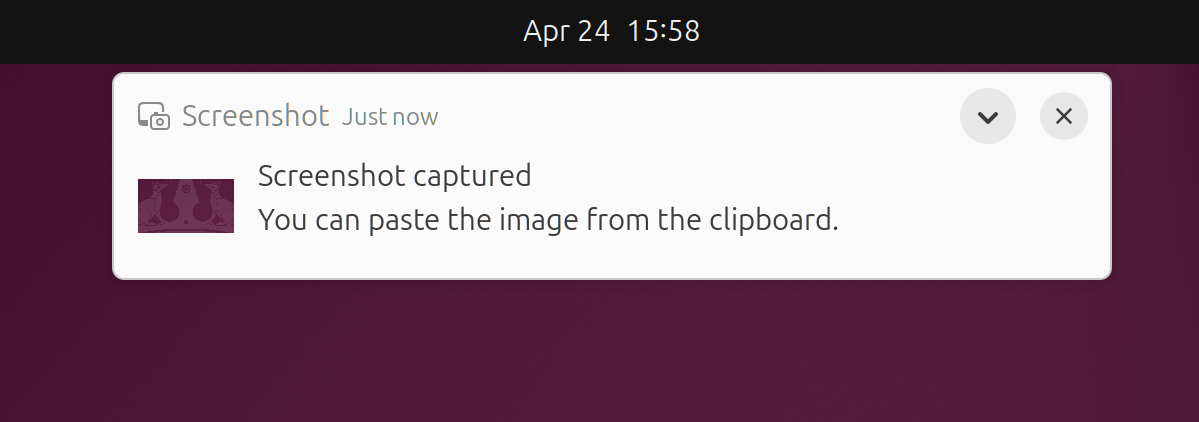
1. Improved Notifications
Ubuntu 24.04 LTS Review: Big Changes & Sleek User Experience

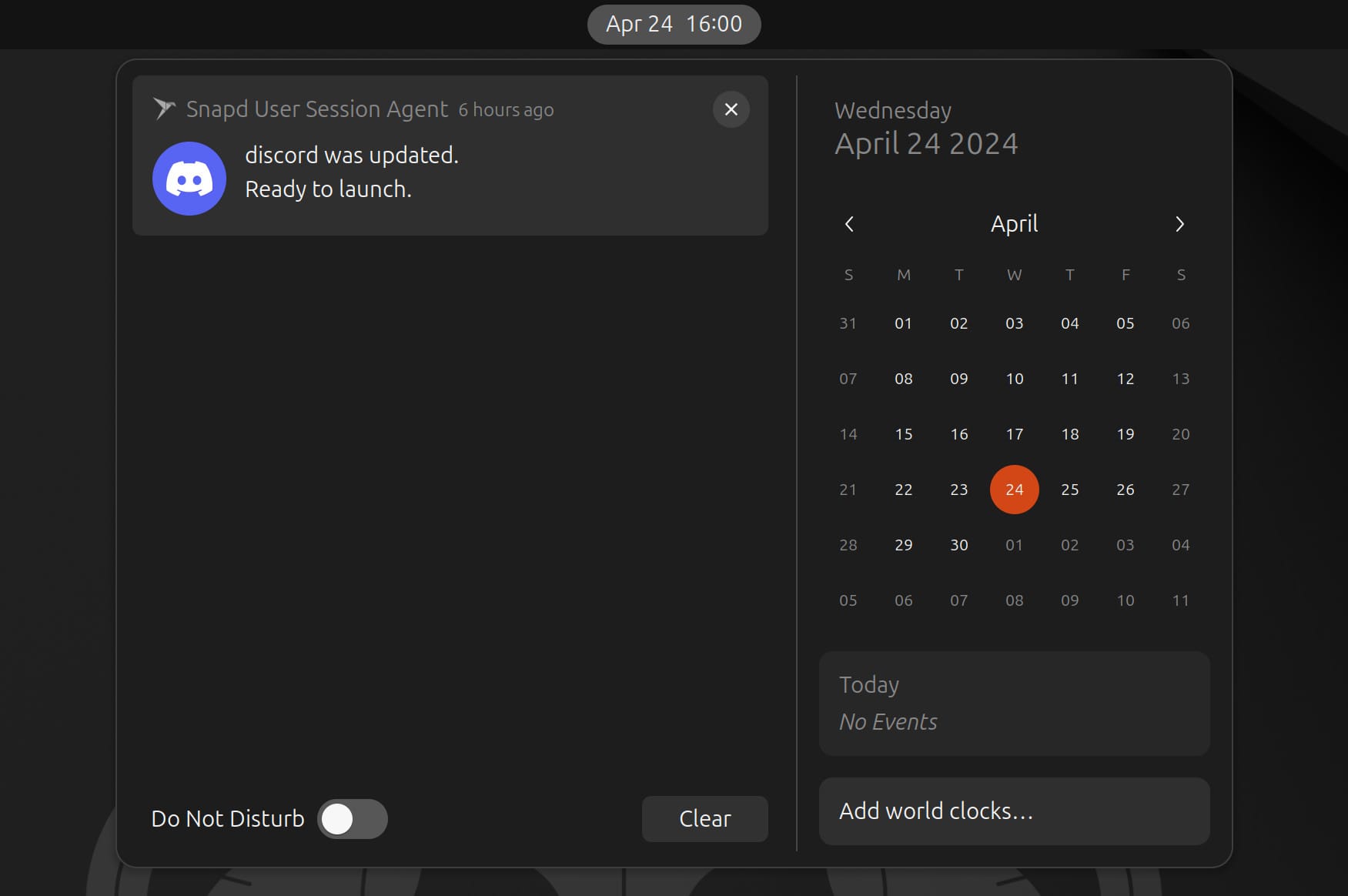
With the newer notification design, you get informed of the app sending you the notification, and interactive buttons to expand/close the notification.

As a byproduct, you get an informative notification area:
Ubuntu 24.04 LTS Review: Big Changes & Sleek User Experience

2. App Center

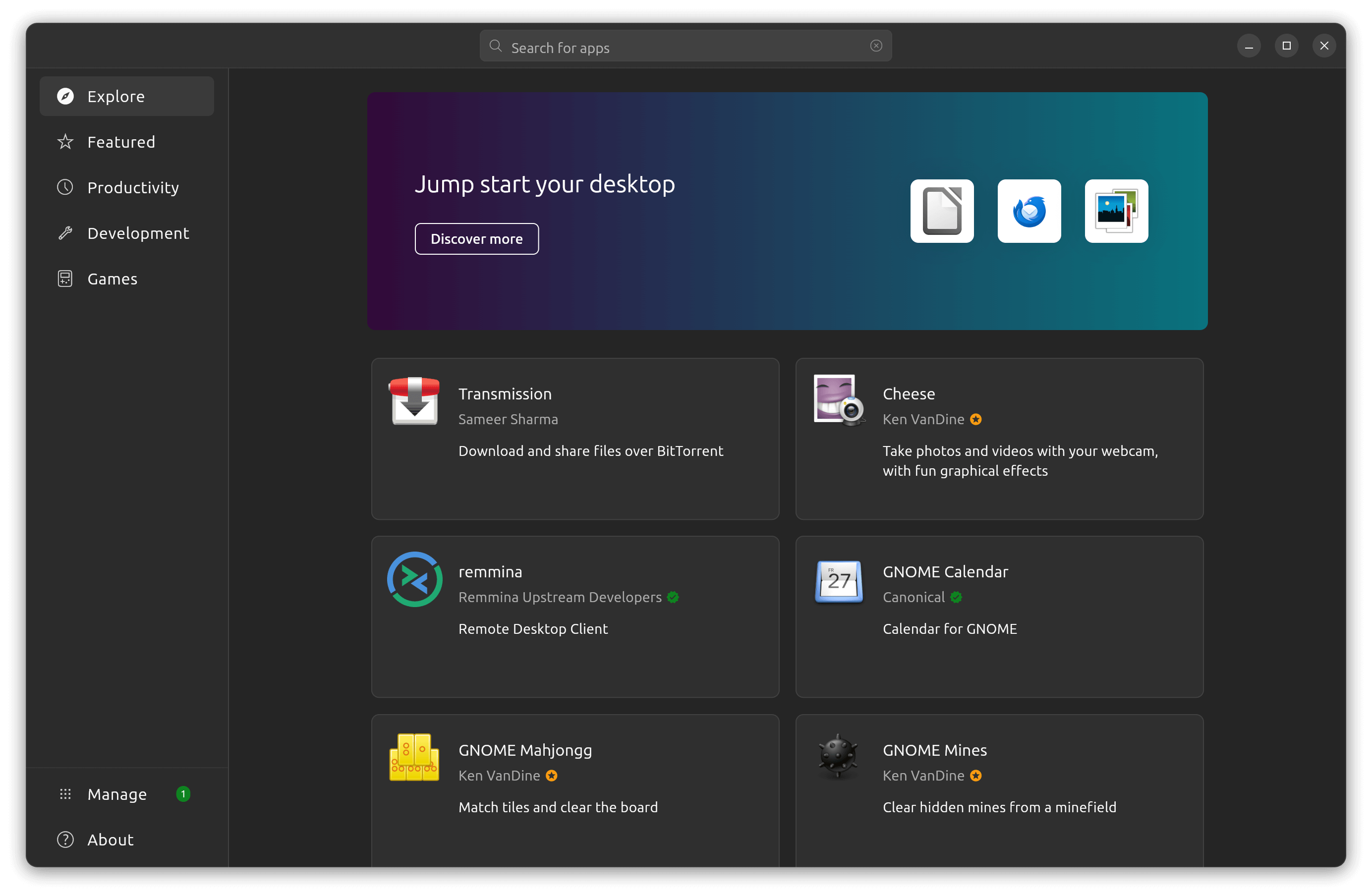
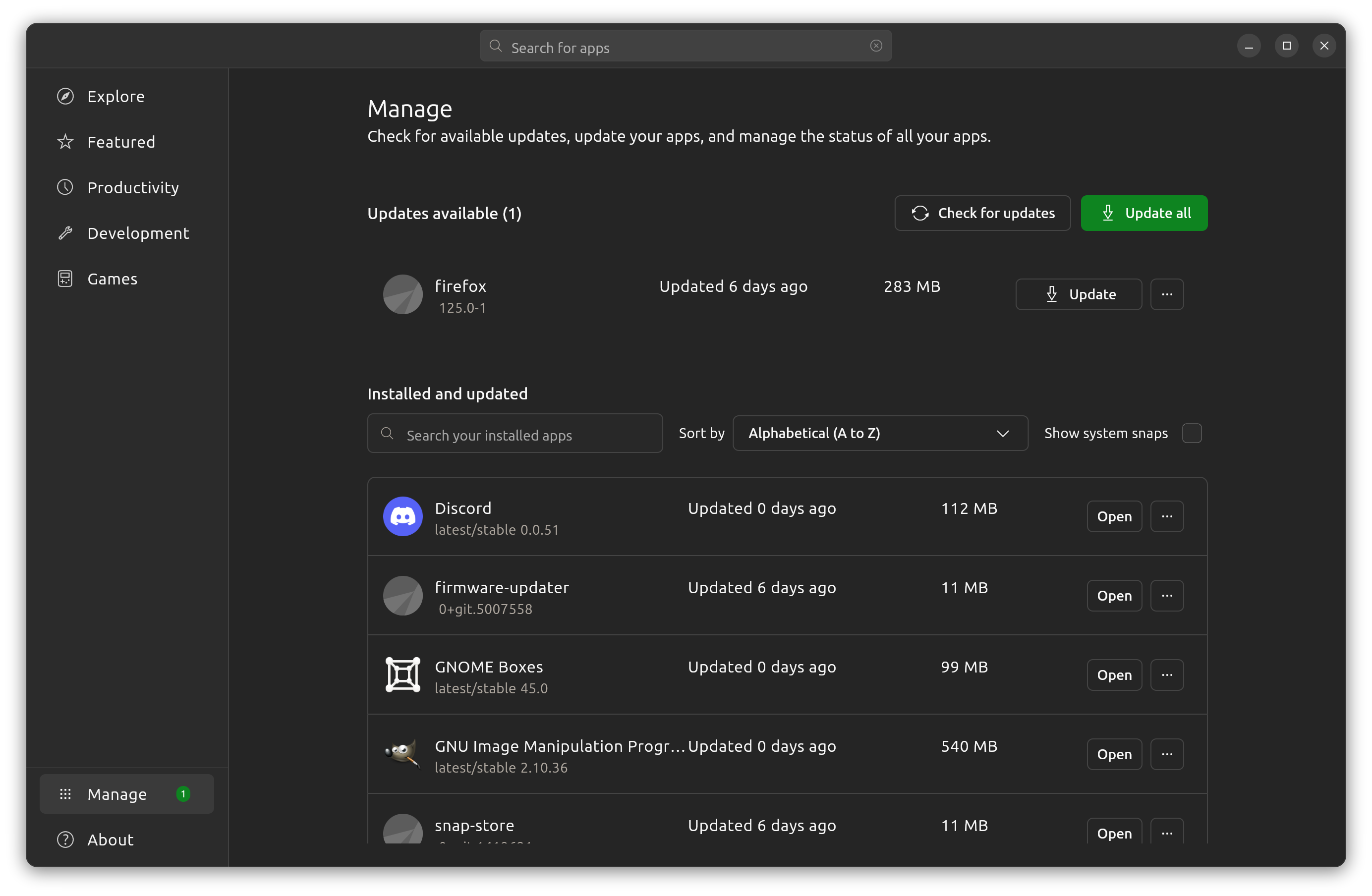
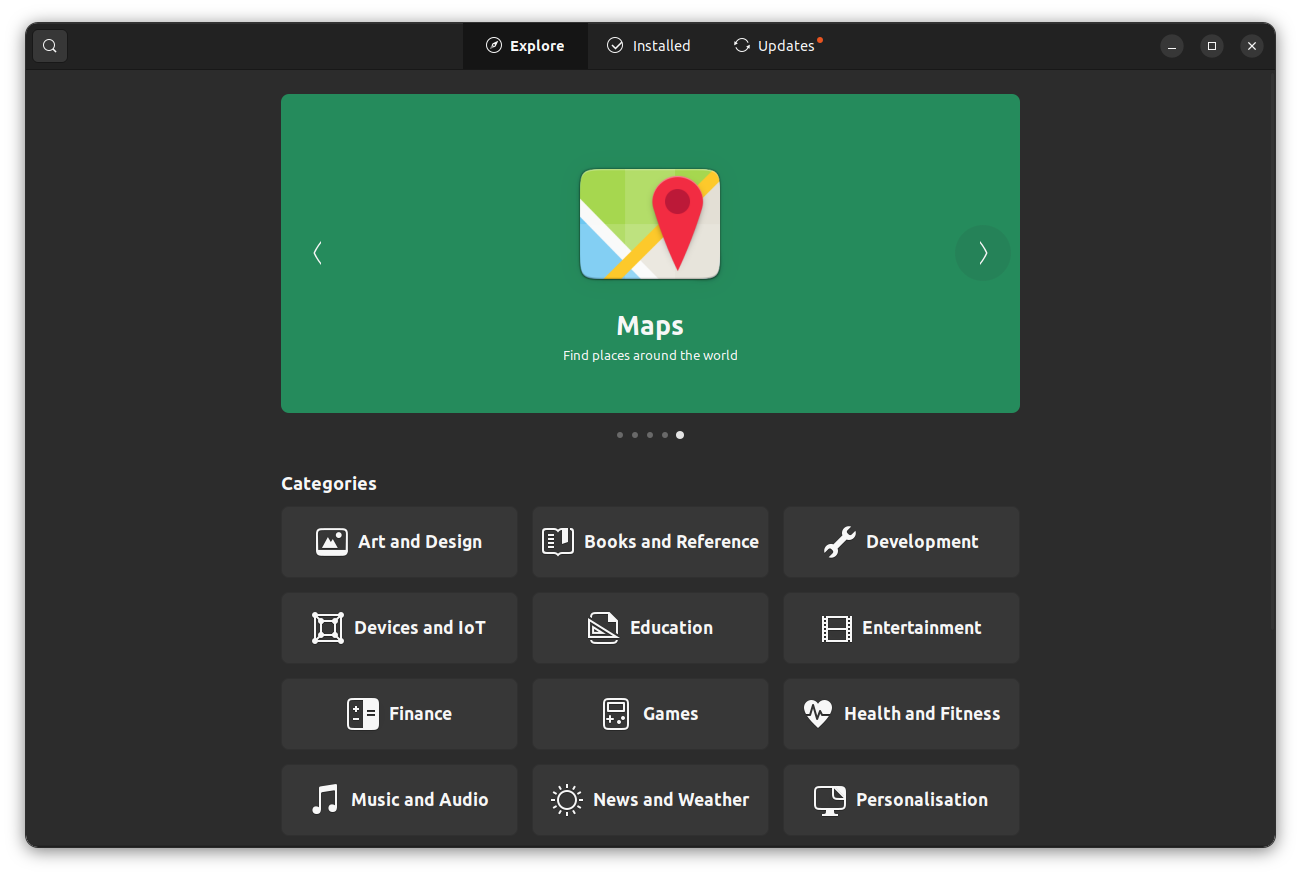
Finally, I feel better with a cleaner and more intuitive software center (now known as the “App Center”. You can notice that it also has a new app icon (or logo).
Ubuntu 24.04 LTS Review: Big Changes & Sleek User Experience

It works fast, and I haven't encountered any failures or the progress getting stuck in the middle of it, which was something I had with Ubuntu 22.04 LTS.

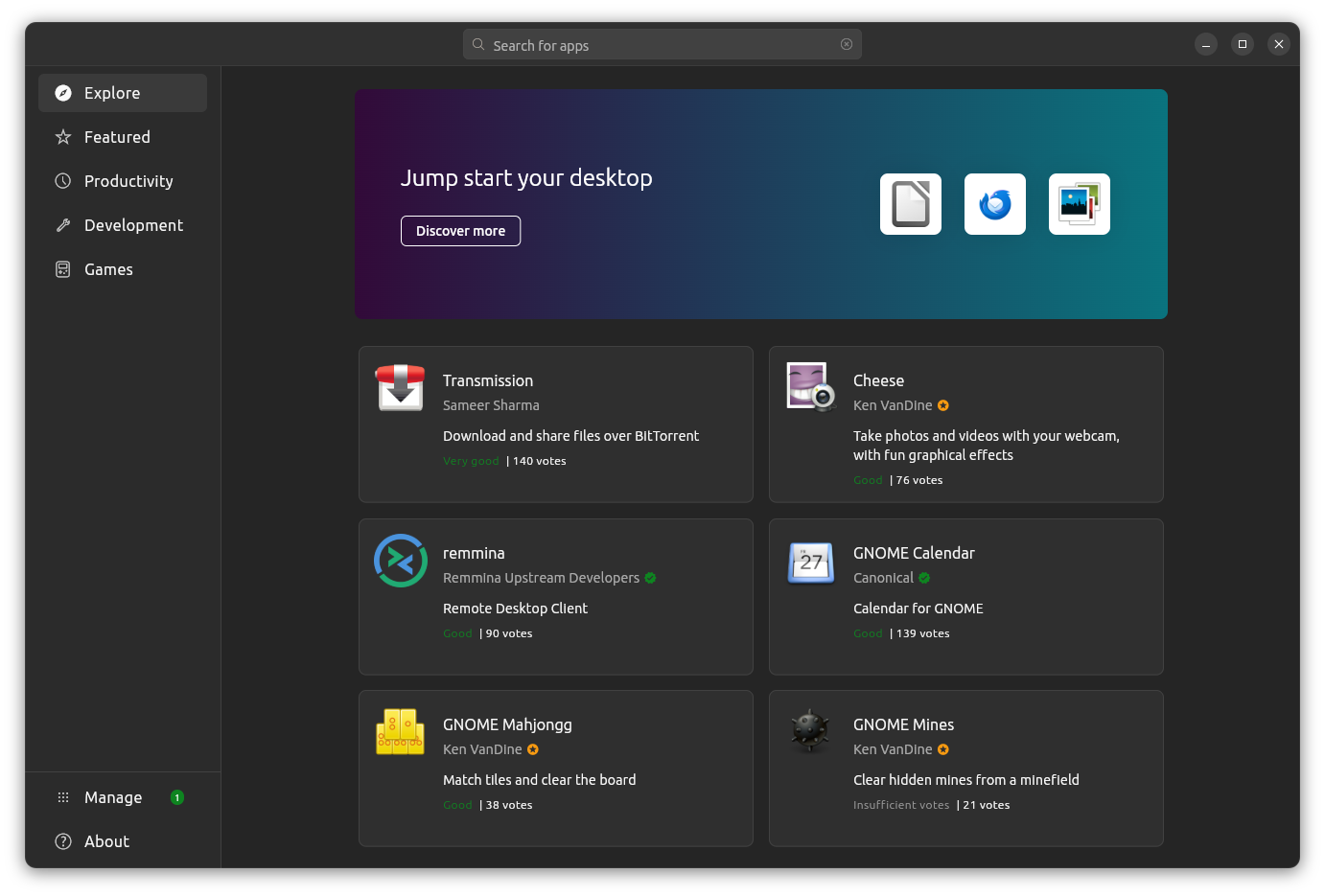
It lets you explore the latest available software, displays information in a nicer way, and takes you through recommended selections as well. Not to forget, a better way to manage installed apps:
Ubuntu 24.04 LTS Review: Big Changes & Sleek User Experience

3. Settings Revamped

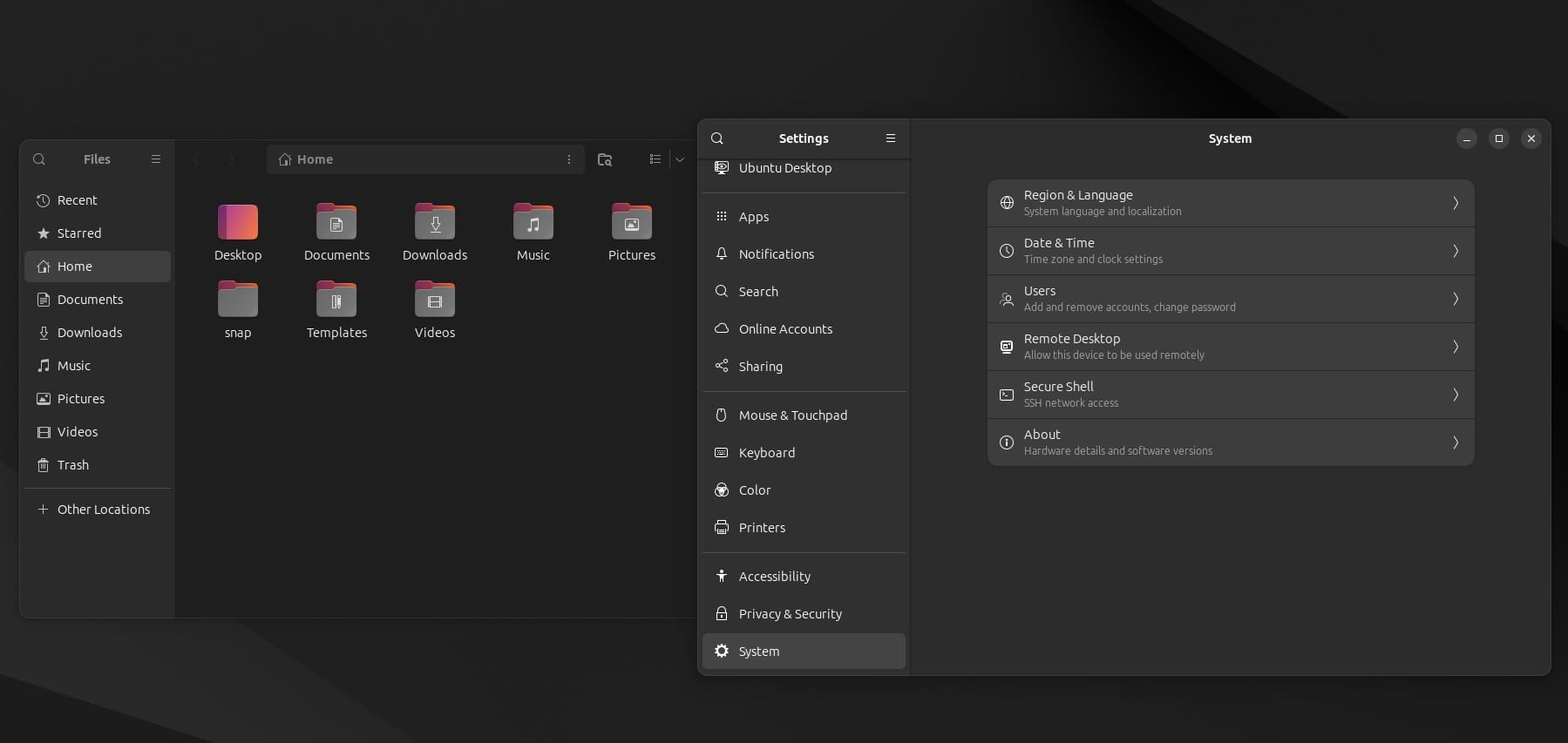
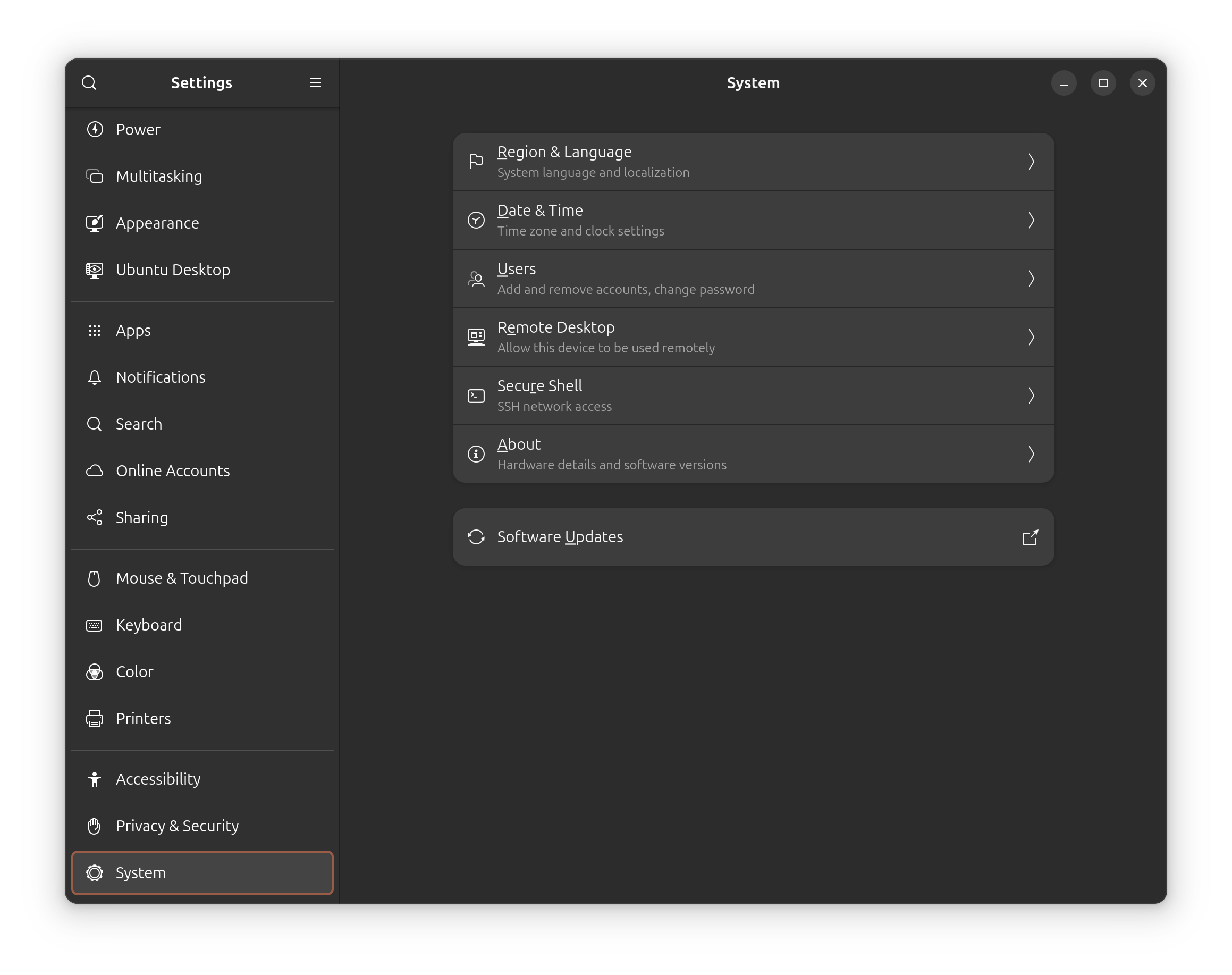
The settings menu with GNOME 46 is a clutter-free experience, where many entries have been put under a new “System” and a “Privacy & Security” menu:
Ubuntu 24.04 LTS Review: Big Changes & Sleek User Experience

This makes it easy to access things and less confusing.

4. Nautilus File Manager Refinements

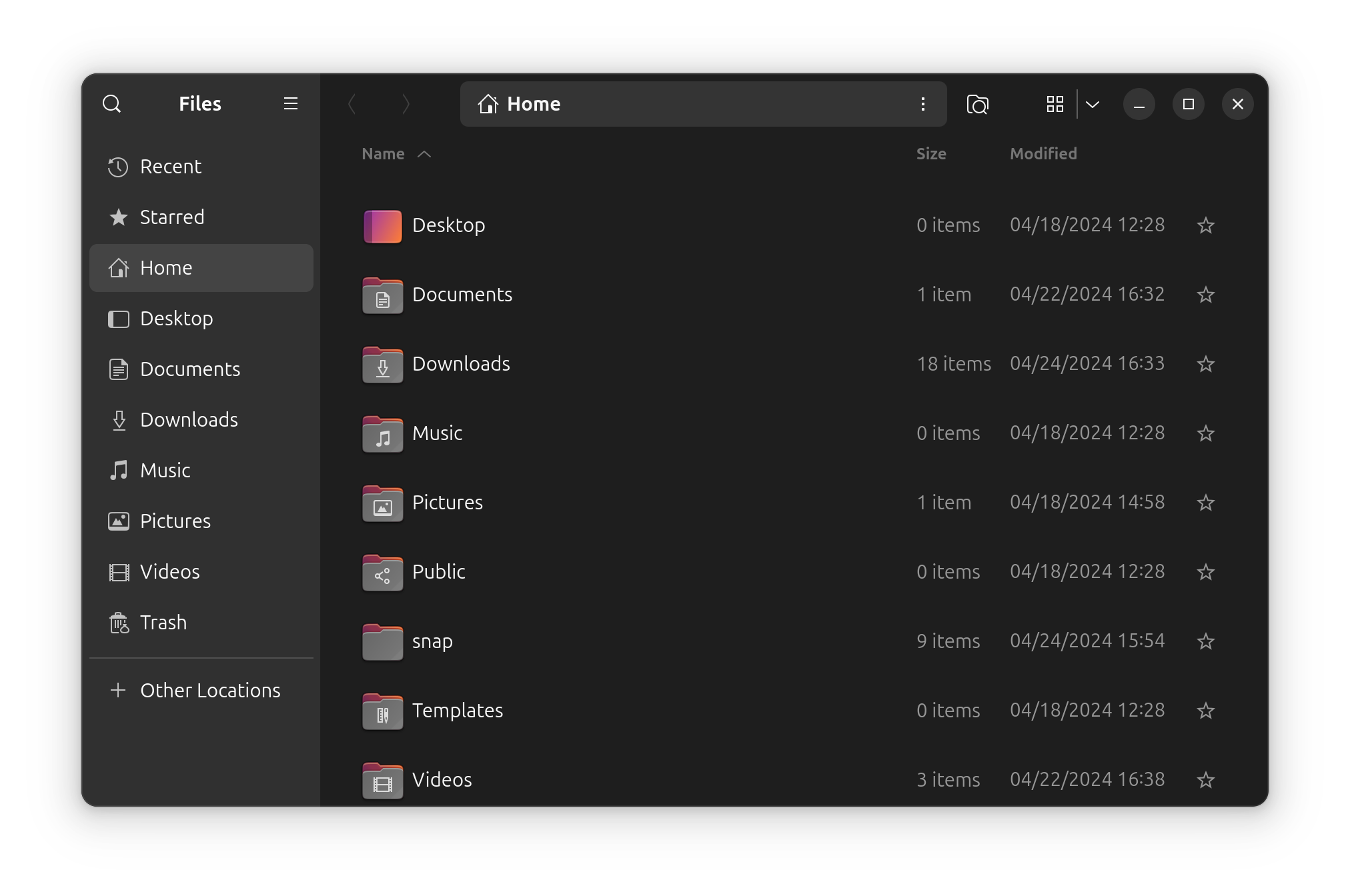
Again, thanks to the GNOME 46 update, the Nautilus file manager now features a new global search button at the top-left of the screen, and an updated search icon for the older one.
Ubuntu 24.04 LTS Review: Big Changes & Sleek User Experience

You can also find some granular controls to show more details in the column via the preferences' menu.

5. Accessible Quick Toggle
Ubuntu 24.04 LTS Review: Big Changes & Sleek User Experience

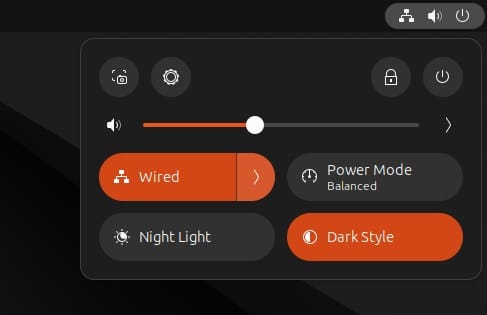
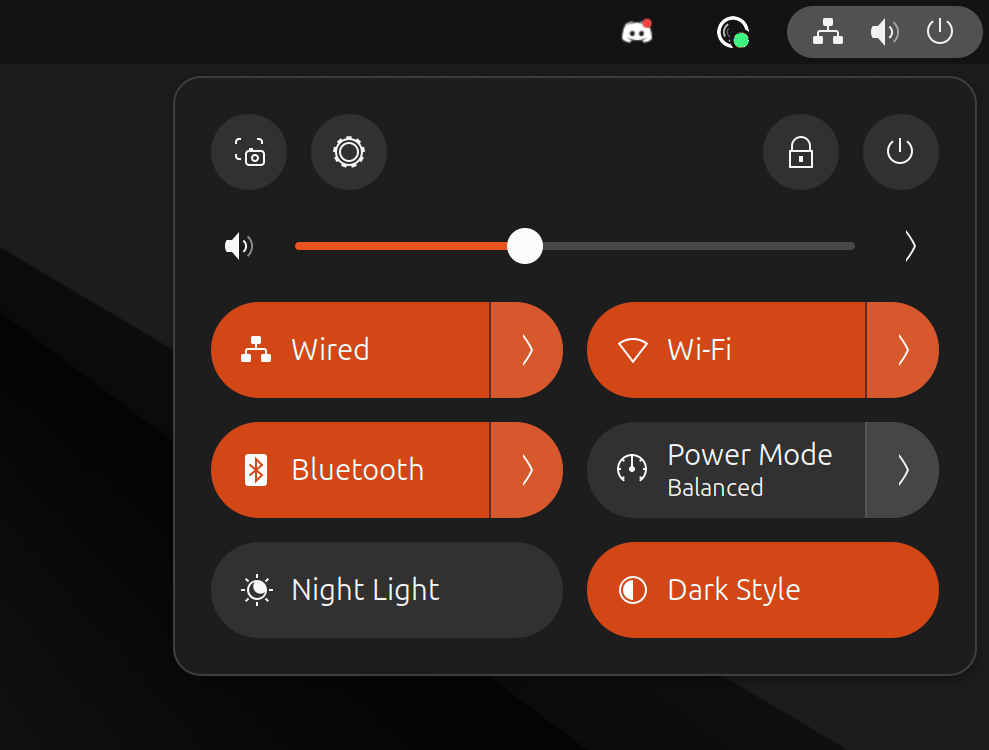
If you are using Ubuntu 22.04 LTS, you will find the quick toggle menu to be more effective, and reducing the clicks you need to get things done. Particularly, with Wi-Fi, and Bluetooth connections.

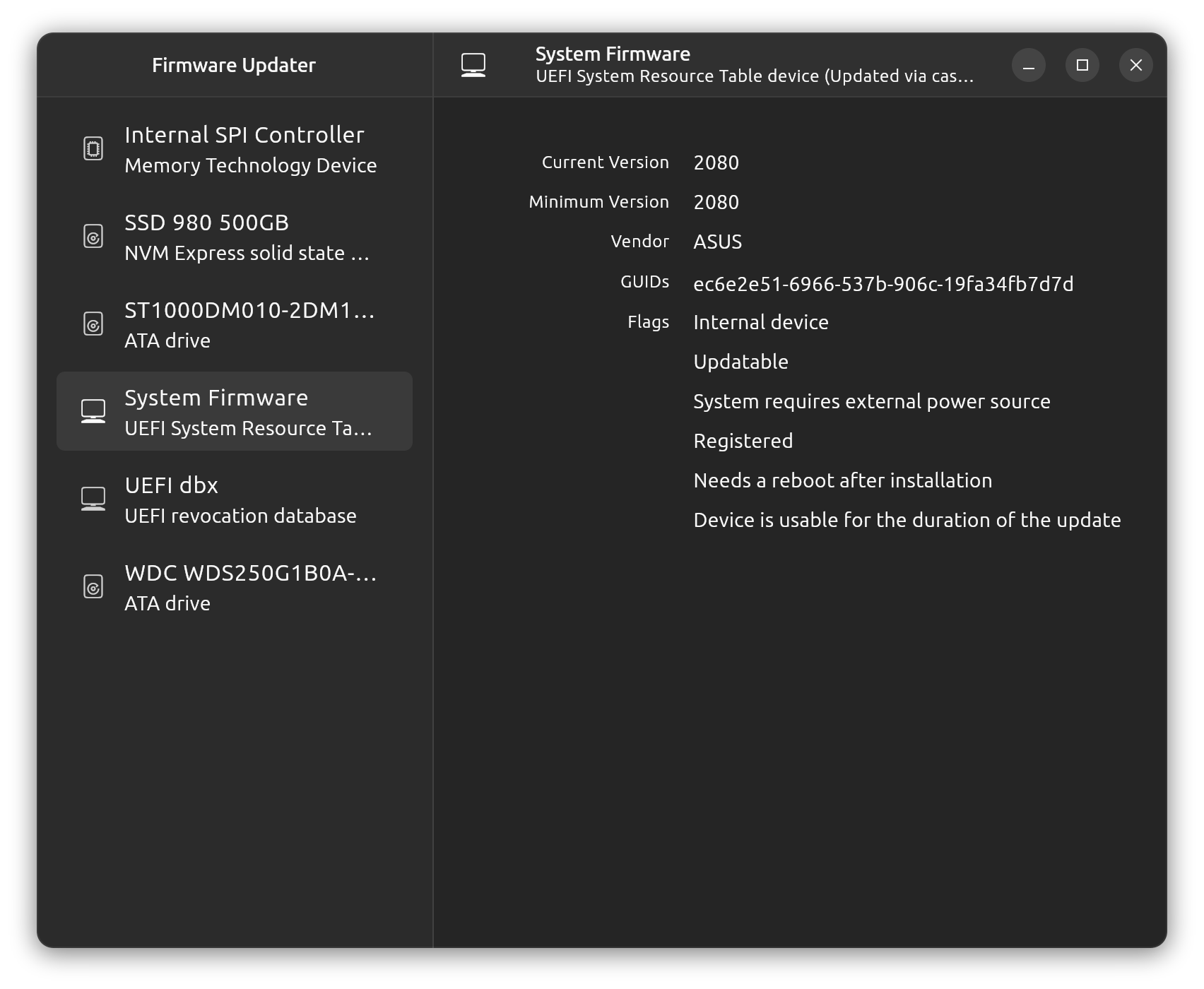
6. New Firmware Updater Tool
Ubuntu 24.04 LTS Review: Big Changes & Sleek User Experience

With Ubuntu 24.04 LTS, you get a firmware update tool, which you did not have in Ubuntu 22.04 LTS. It is convenient to have a GUI tool.

Of course, it is recommended to check thoroughly what an update could do — and for you to have a backup of data when you proceed with an available update.

Snappy and Comfortable, But...

Considering I was using the development builds, and then the beta build while writing this article, there were some hiccups for me initially.

However, with the latest updates applied, I do not have any other issues, except sometimes, the login process gets stuck on X11 session, which is my default (maybe blame it on NVIDIA?), and I have to restart to get that fixed.

And, a few other inconvenient pointers:
Ubuntu 24.04 LTS Review: Big Changes & Sleek User Experience
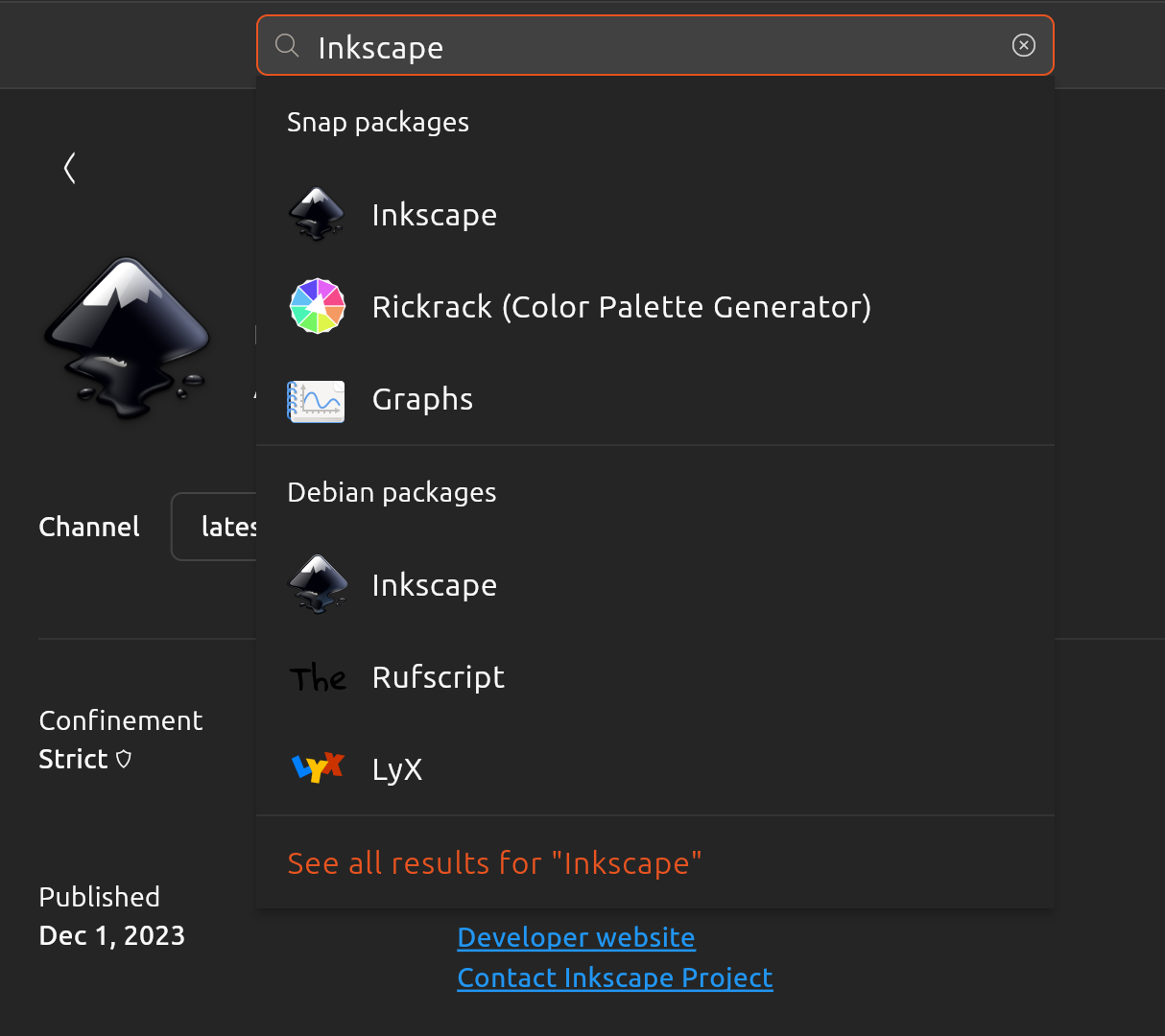
  • You cannot switch between a Debian package source/Snap in the app page. Instead, you will have to rely on performing a search, to select the correct source that you want to utilize.
  • The app center does not list deb packages. So, you may install a separate package manager like Synaptic or manage .deb packages via the terminal.
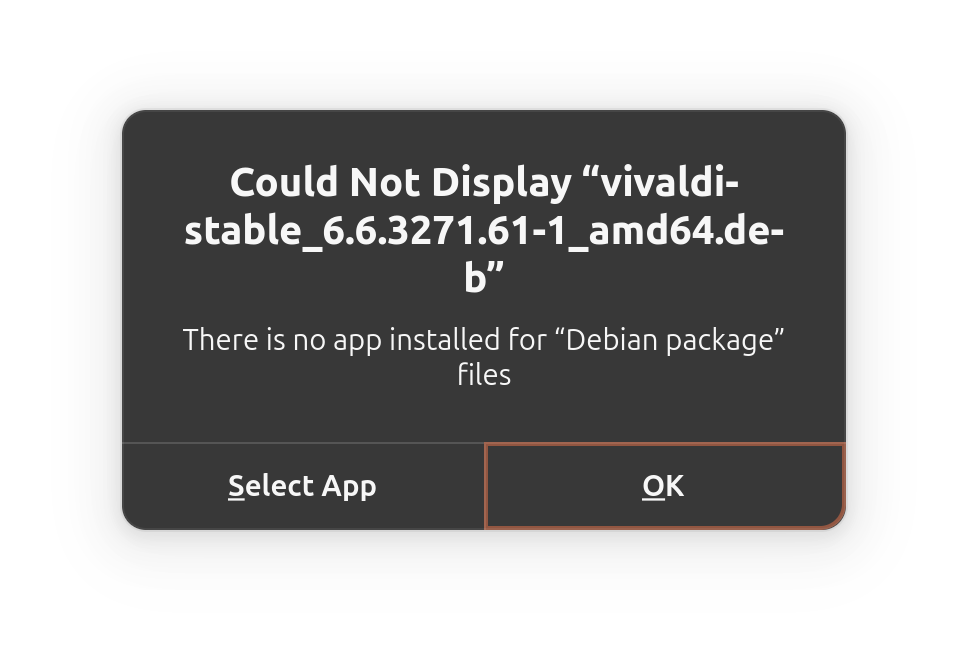
  • You cannot install .deb file using the GUI, unless you use a tool like GDebi for quick installation.
Ubuntu 24.04 LTS Review: Big Changes & Sleek User Experience
Cannot install .deb files on Ubuntu 24.04 LTS

Maybe, these issues are a part of the aggressive focus/push towards Snap packages?

If you are not okay with it, you can install Flatpak and use apps from Flathub. And, if you are a new user, you might want to learn the difference between Flatpak and Snap:

Flatpak vs. Snap: 10 Differences You Should Know
Flatpak vs Snap, know the differences and gain insights as a Linux user to pick the best.
Ubuntu 24.04 LTS Review: Big Changes & Sleek User Experience

Except these issues, it has been a comfortable and snappy experience all over.

Whether it was me interacting with applications, watching videos on YouTube, connecting to a Bluetooth speaker, and so on. Everything else worked like a charm.

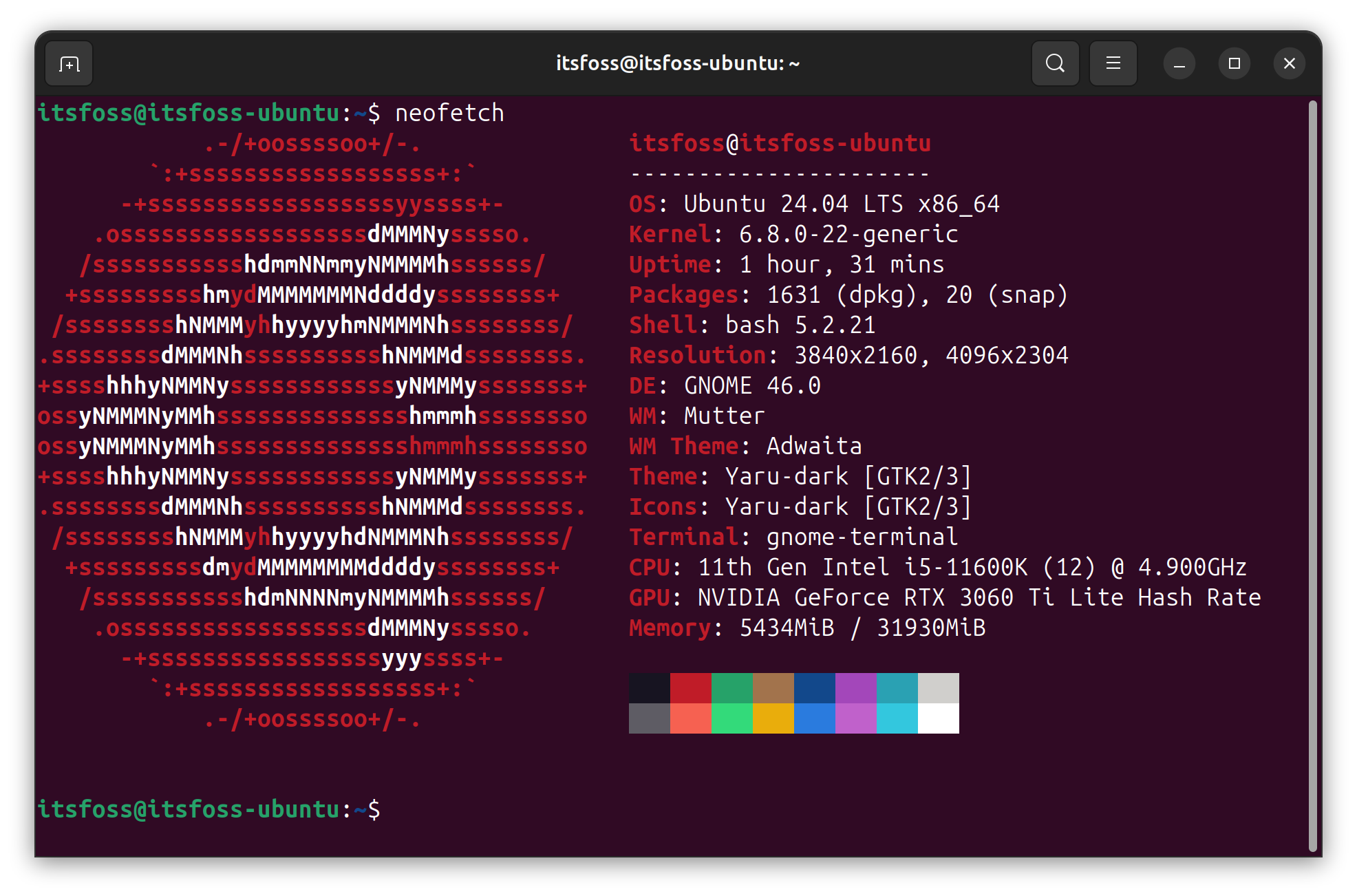
Some credits for hardware compatibility would go to the latest Linux kernel 6.8 included.
Ubuntu 24.04 LTS Review: Big Changes & Sleek User Experience

Should You Upgrade?

If you really like the visual makeover, and the workflow that comes along with the GNOME 46 update, Ubuntu 24.04 LTS is a great choice.

But, if you do not want any changes to your workflow, not even the slightest, and do not any time to troubleshoot any kind of issues, I recommend sticking with Ubuntu 22.04 LTS as long as you can (until 2027 without a pro subscription).

💬 Have you upgraded already? What are your impressions on Ubuntu 24.04 LTS? Let me know your thoughts in the comments below.


from It's FOSS https://ift.tt/BUGet4N
via IFTTT

Rabu, 24 April 2024

Fixing update-grub command not found Error in Arch Linux

Fixing update-grub command not found Error in Arch Linux

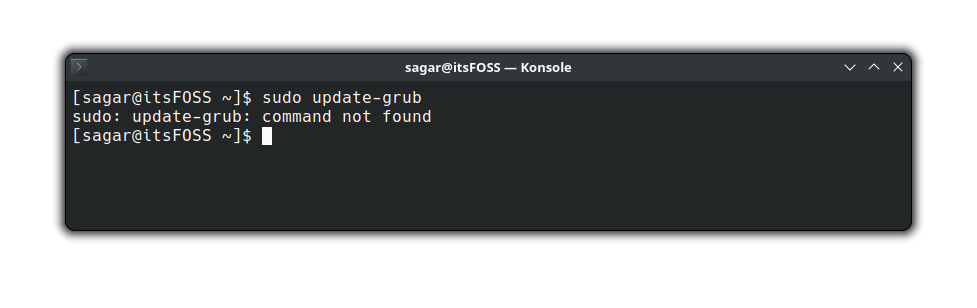
In Ubuntu, I use the update-grub command to update grub. Recently, I made a switch to Arch Linux for new adventures and there I encountered the error saying "sudo: update-grub: command not found":

Fixing update-grub command not found Error in Arch Linux

I remember choosing GRUB while installing Arch and the GRUB screen appeared too while booting the system. This is why I got confused when I saw the above error.

If you are in the same situation, let me share my findings with you.

Why do you see 'update-grub' command not found error?

You see the error because update-grub is not a standard command like ls, cd etc. It's not even a standard command that is installed with grub.

In Ubuntu, the command is just an alias and when you run the update-grub command, it runs the following command instead:

sudo grub-mkconfig -o /boot/grub/grub.cfg

The grub-mkconfig is the command for managing grub. But the above command is difficult to remember so the aliased shortcut update-grub was created.

📋
You can either run the above grub-mkconfig command or create a custom update-grub command to run the same.

How to fix the update-grub command not found error

You can put some effort and create a custom update-grub command the same way it is implemented on Ubuntu and Debian.

It is a four-step process and I will assist you with every step.

Step 1: Create a new file

To create the update-grub command, the first step is to create a new file.

So open your terminal and use the following command:

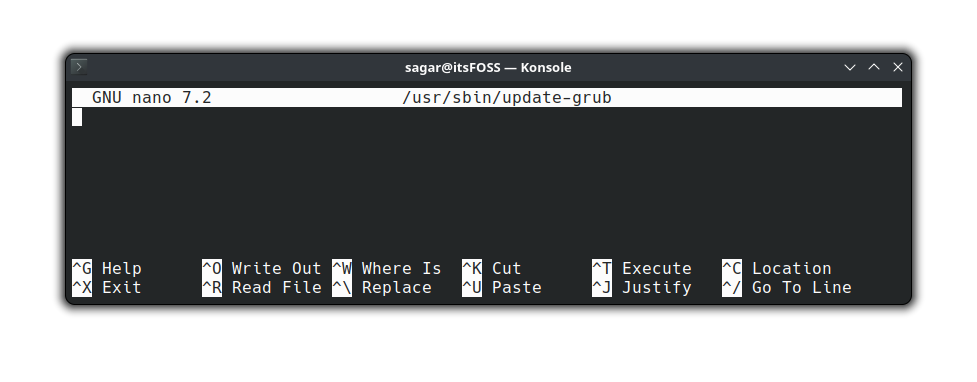
sudo nano /usr/sbin/update-grub

What the above command will do is create a new file named update-grub in the /usr/sbin/ directory.

If you notice, there's a nano command used which is a text editor which is responsible for creating an opening the file just after executing the command.

It will open an empty file looking like this:

Fixing update-grub command not found Error in Arch Linux

Step 2: Write new lines to the file

(secret: you don't have to write but paste those lines 😉)

Once you execute the previous command, it will open the file where you have to add lines.

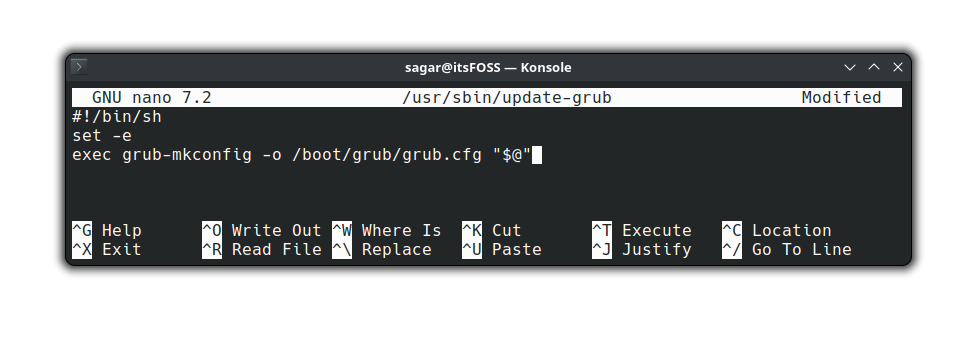
Simply select the following lines and paste them into the terminal using Ctrl + Shift + V:

#!/bin/sh 
set -e 
exec grub-mkconfig -o /boot/grub/grub.cfg "$@"
Fixing update-grub command not found Error in Arch Linux

Now, save changes and exit from the nano editor using Ctrl + O, press the Enter key and then Ctrl + X.

Step 3: Change ownership of the file

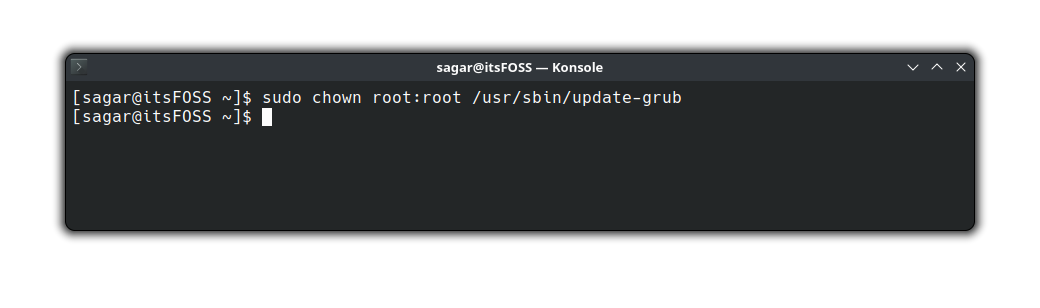
Once you are done creating the file, you have to assign the ownership to the root user of that file.

For that purpose, you'd have to use the chown command in the following manner:

sudo chown root:root /usr/sbin/update-grub
Fixing update-grub command not found Error in Arch Linux

Step 4: Change file permissions

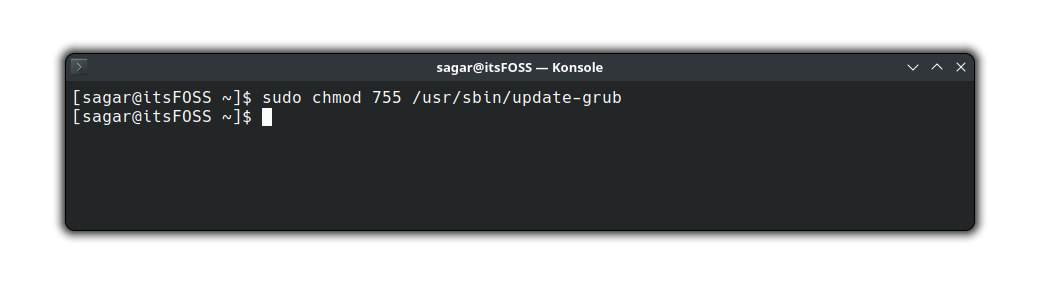
In the last step, you have to change the read-write permissions using the chmod command as shown here:

sudo chmod 755 /usr/sbin/update-grub
Fixing update-grub command not found Error in Arch Linux

What the above command will do is only the file owner can read, write, and execute the file whereas others can only read and execute.

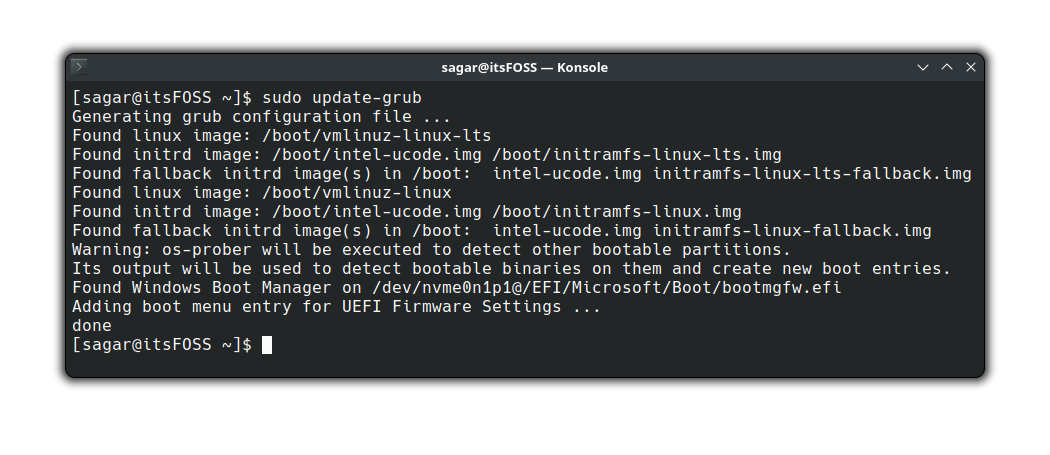
Once done, use the update-grub command it should work like you expect:

sudo update-grub
Fixing update-grub command not found Error in Arch Linux

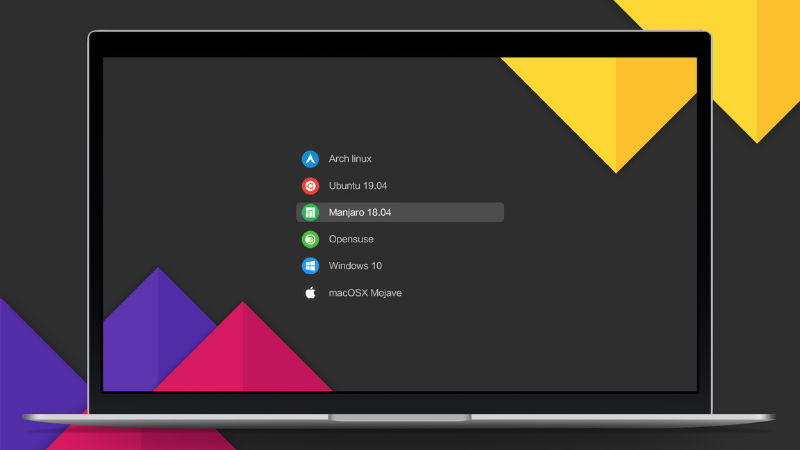
What's next? How about customizing GRUB?

Well, there's a perception that everything related to GRUB is difficult but it is not and customize the GRUB bootloader as per your liking without any complex steps.

For that purpose, you'd have to install grub customizer, a GUI utility to customize grub easily.

Sounds interesting? Here's a detailed guide on how to install and use grub customizer on Linux:

Customize Grub to Get a Better Experience With Linux
Couple of Grub configuration tweaks to get better experience with multi-boot Linux system using Grub Customizer GUI tool.
Fixing update-grub command not found Error in Arch Linux

I hope you will find this guide helpful.


from It's FOSS https://ift.tt/M3ip0vr
via IFTTT
Senin, 22 April 2024

How to Make Bash Function Return Value

How to Make Bash Function Return Value

If you have prior experience of programming and you are just getting started with bash, there's one thing that you may find a little odd.

Unlike other programming languages, functions in bash do not return any value. Instead, it returns exit status or a numeric value indicating the success or failure of execution.

But the question here is how you make the function return value in bash.

Sure, if I'm writing this tutorial, I must have a solution (read workaround) to tackle this issue but before that, let's understand the problem first.

The problem we're dealing with

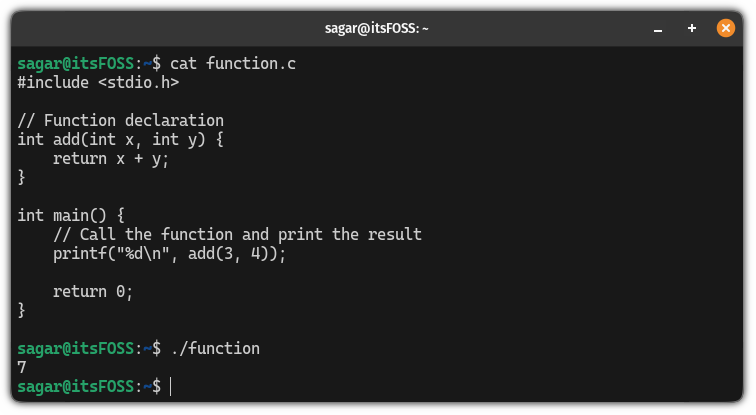
First, let me share a simple C program to explain how programming languages return value through a bash function:

#include <stdio.h>

// Function declaration with return type int
int add(int x, int y) {
    return x + y;
}

int main() {
    // Call the function and store the result in a variable
    int result = add(3, 4);

    // Print the result
    printf("%d\n", result);

    return 0;
}

If you run the above C program, it will return 7 as shown here:

How to Make Bash Function Return Value

In the above C program, I created a function named add that takes two values and uses the return statement to add two values.

Sadly, functions in bash do not work that way and what they give you is the exit status of the last command used in the function and the exit status can be 0 (success) or non-zero (failure).

To know the exit bash, there's a special variable in the bash $? to know the exit status. So let me quickly share how you can use it:

#!/bin/bash

# Defining the function
function test {
  echo "A demo function created to check the exit status"
}

# Calling function
test

# Checking the status
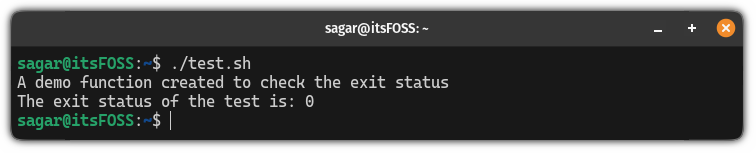
echo "The exit status of the test is: $?"
How to Make Bash Function Return Value

As you can see, it returned 0 indicating the function was executed successfully!

Now, let's have a look at how you can make the bash function return value.

How to make bash functions return a value

There are two ways in which you can make the bash functions return a value:

  • Using the standard output data stream (involves usage of echo or print command)
  • Using global variable

Of course, it's not the same as returning values in C or other programming languages but it may help you in many cases.

So let's start with the first one.

Method 1: Using the standard output data stream

If you are unaware of data streams, there are 3 data streams in Linux: input, output, and error. Each is meant for a different task.

As the title suggests, I will use the standard output data stream using the echo or the printf command in this method.

Still confused? In simple words, I will be sending the output of the function to the standard output data stream to print the output (there's where the usage of the printf or echo command).

First, let me share a bash script:

#!/bin/bash

# Function definition
function demo {
  local namaste="Namaste from Bash!"
  echo "${namaste}"
}

# Call the function and capture its output
output=$(demo)

# Print the captured output
echo "${output}"  

When executed, it will give you the following output:

How to Make Bash Function Return Value

Now, let's have a look at the explanation part.

First, I created a function demo in which there was a local variable namaste containing the string that I wanted to print.

Later, I used the echo command to print the data inside of the namaste variable.

In the next part, I called the function inside of the $() notion which will execute the demo function in the subshell and the output is captured by the output variable.

Finally, the echo command was used to print the captured output of the ouptut variable.

Pretty easy. Right?

Method 2: Using a global variable

By default, every variable in the bash is global and to use the local variable, you have to use the term local before assigning any value to it.

But the question is how you use a global variable to return value in the bash function. Well, let me show a simple bash script that uses a global variable for that purpose:

#!/bin/bash

# Global variable to store the result
output=""

# Function definition
function generate_greeting {
  local name=$1  # Function parameter

  # Assign the greeting to the global variable
  output="Hello, ${name}!"
}

# Call the function with a name as an argument
generate_greeting "$USER"

# Access the global variable
echo "${output}"

The above script simply greets the currently logged-in user and when you execute the above script, you can expect the following output:

How to Make Bash Function Return Value

Now, let's break down the script.

First, the empty global variable output was declared.

Then, the function named generate_greeting was created that takes one parameter name and in the next line, the greeting text with username was assigned to the output variable.

Next, the script will call the function generate_meeting with the $USER argument to get the name of the currently logged-in user.

Finally, using the echo command the value of the global variable output was printed.

Yep, that's all it takes you to use a global variable to make a function return value in bash.

Which method to use? (in my opinion)

I personally don't like the idea of using a global variable to make the bash functions return a value and there's a simple reason why.

Global variables by their nature can be accessed and modified anywhere in the script which may cause trouble, especially if the script is complex and it may be changed by the user in between.

So what I'd recommend is to use the first method, which utilizes the standard output data stream.

I hope you will find this guide helpful.

New to bash scripting? Start here 👇

Learn Bash Scripting [Free Hands-on Tutorial Series]
Get the basics of Bash shell scripting in this tutorial series. Follow the examples and solve scripting challenges to enhance your knowledge.
How to Make Bash Function Return Value


from It's FOSS https://ift.tt/Yw60MzH
via IFTTT
Minggu, 21 April 2024

Ubuntu 22.04 vs 24.04: What Has Changed?

Ubuntu 22.04 vs 24.04: What Has Changed?

Every LTS release brings in a good bunch of upgrades. And, like Ubuntu 22.04 LTS (released in April 2022) was an appealing upgrade over Ubuntu 20.04 LTS, the same goes for Ubuntu 24.04 LTS (releasing in April 2024).

As a Linux user, you might be curious what the new version brings and how it is different from the current 22.04 LTS version.

If you are using Ubuntu 22.04 currently, you may even wonder if you should upgrade to the new LTS version.

Of course, considering these are long-term support releases, not everyone needs the immediate upgrade.

So, how do you decide? Only when you compare the changes, right?

Here, I shall review the feature offerings for both the Ubuntu desktop Long-term support versions to help you decide.

1. Installation Experience

To some users, the installation steps are significant for a comfortable onboarding experience.

Ubuntu 22.04 vs 24.04: What Has Changed?
Ubuntu 24.04 LTS installation screen

And, Ubuntu 24.04 LTS has made it way simpler, and descriptive with new screens, and graphics in the installation process.

Ubuntu 22.04 vs 24.04: What Has Changed?

If you want a modern installation experience with maximum clarity, Ubuntu 24.04 LTS will not disappoint you:

Ubuntu 22.04 LTS installation experience user-friendly as well. However, it is a bit more traditional if you look at it and compare it to Ubuntu 24.04 LTS.

Ubuntu 22.04 vs 24.04: What Has Changed?

Suggested Read 📖

How to Install Ubuntu Linux in the Simplest Possible Way
The easiest way to install Ubuntu. Want to save time and need no hassle? This is the way.
Ubuntu 22.04 vs 24.04: What Has Changed?

2. Wallpapers

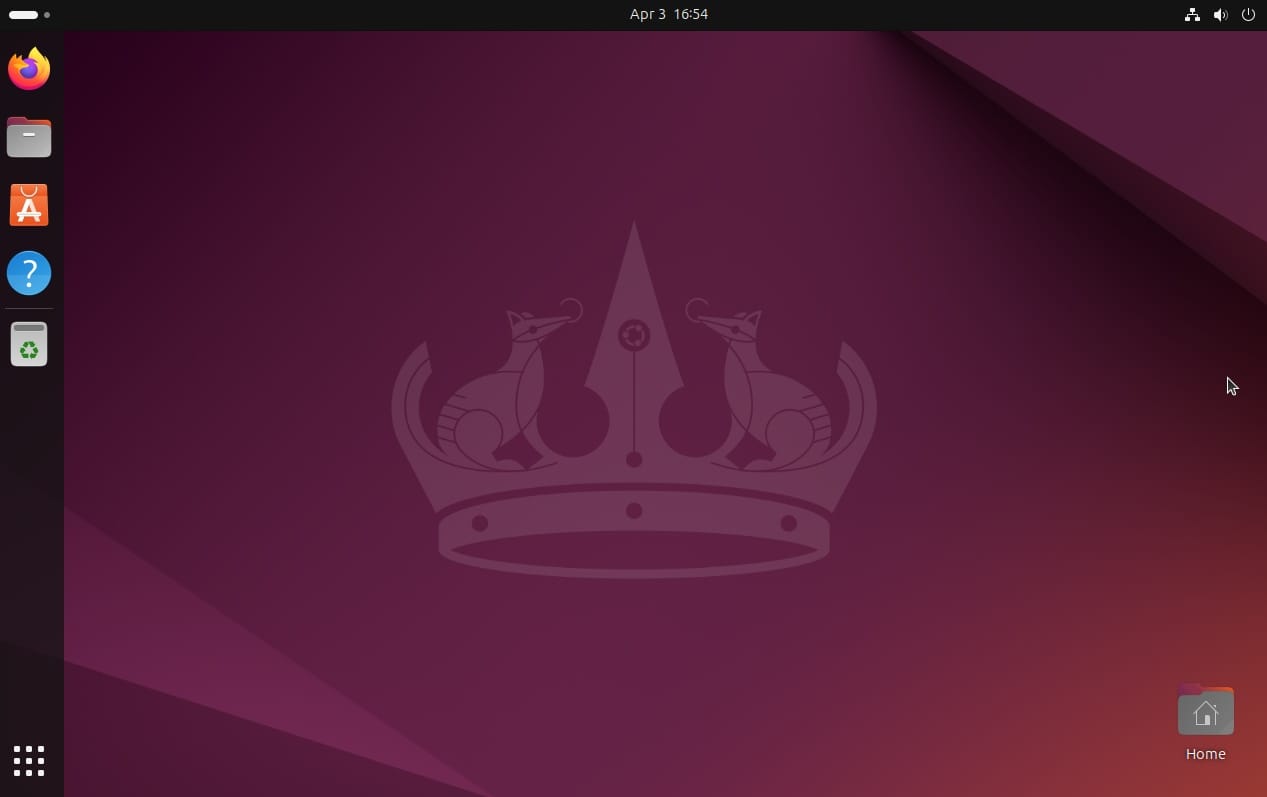
It is a tradition to get new wallpapers that match the codename of the Ubuntu release.

Ubuntu 24.04 is code named as "Noble Numbat" and it includes the new artwork for the mascot with a similar color scheme and effect.

Ubuntu 22.04 vs 24.04: What Has Changed?

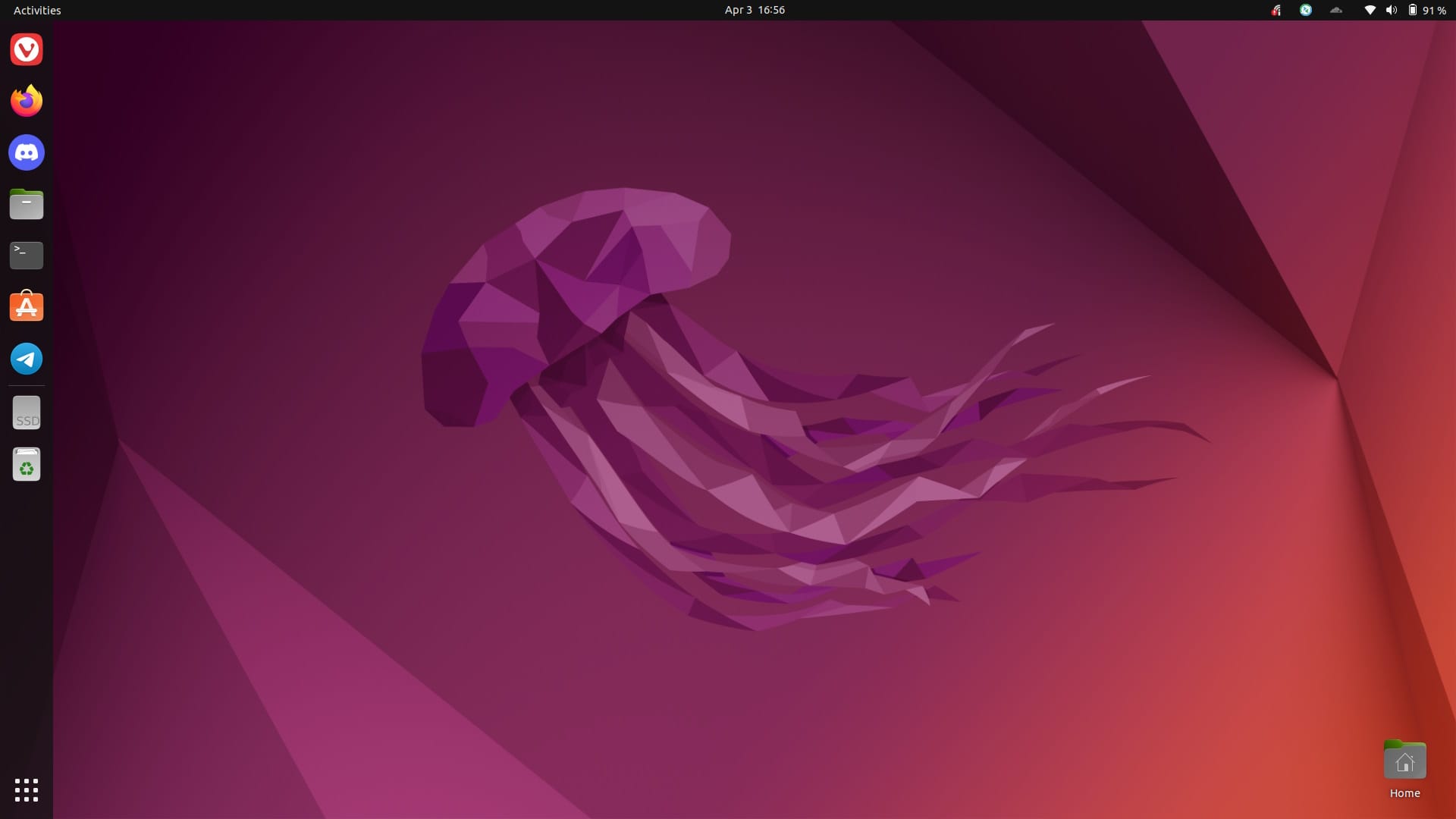
Ubuntu 22.04 is code named as “Jammy Jellyfish“, and the wallpaper illustrates the same with a similar color scheme, brighter effect, but with a different texture to the mascot:

Ubuntu 22.04 vs 24.04: What Has Changed?

I liked the older one, but the new is subtle, and some might like it more.

Of course, you also have community wallpapers that look great, you can change the wallpaper and tweak what you see.

Icedrive - Next-Generation Cloud Storage - Get 10GB Free
Next-Generation cloud storage with Icedrive. Get started right away with a massive 10GB of free storage space.
Ubuntu 22.04 vs 24.04: What Has Changed?

Partner Link

3. Log in Screen and Lockscreen

Ubuntu 22.04 vs 24.04: What Has Changed?
Ubuntu 24.04 LTS lockscreen

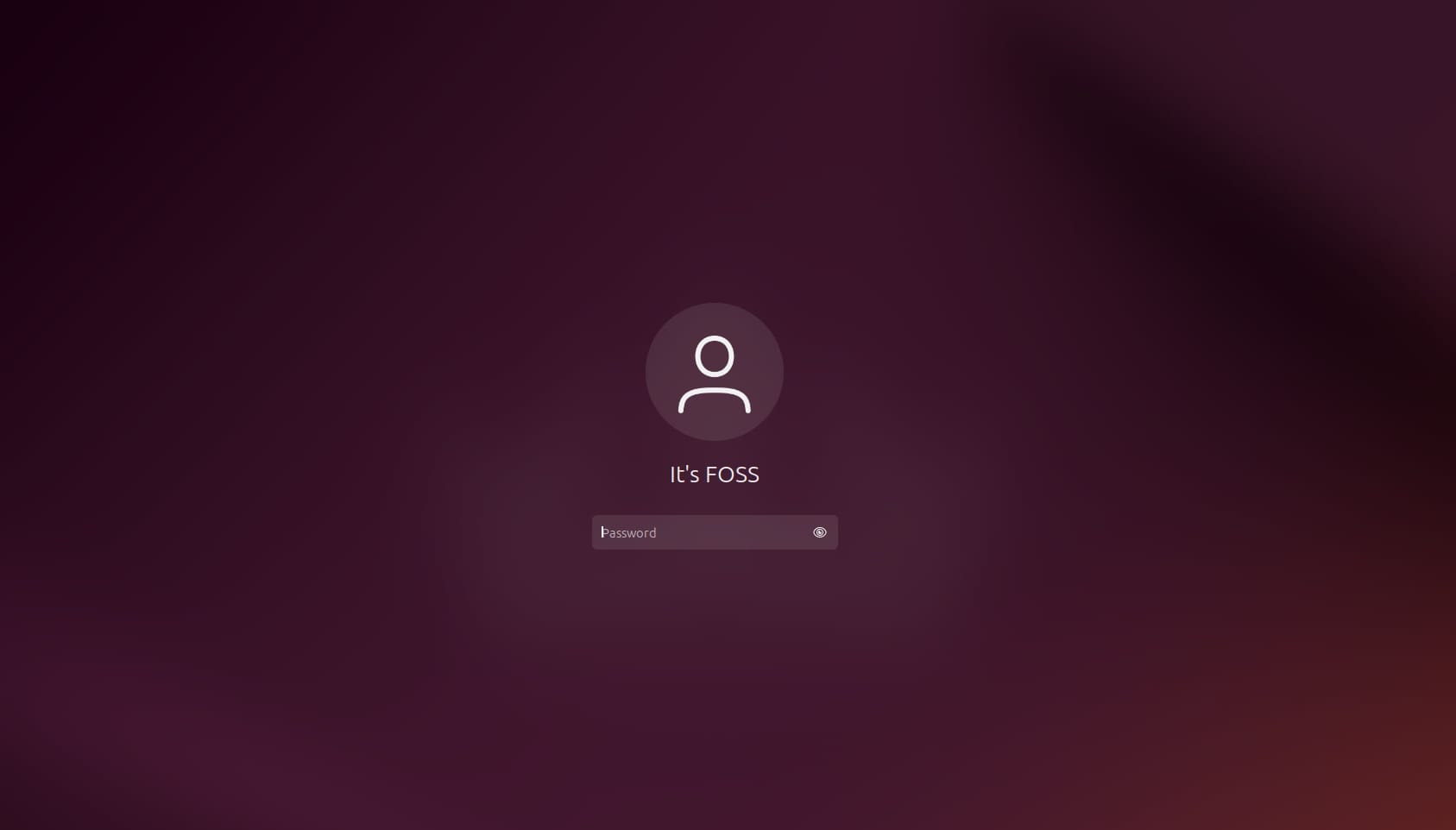
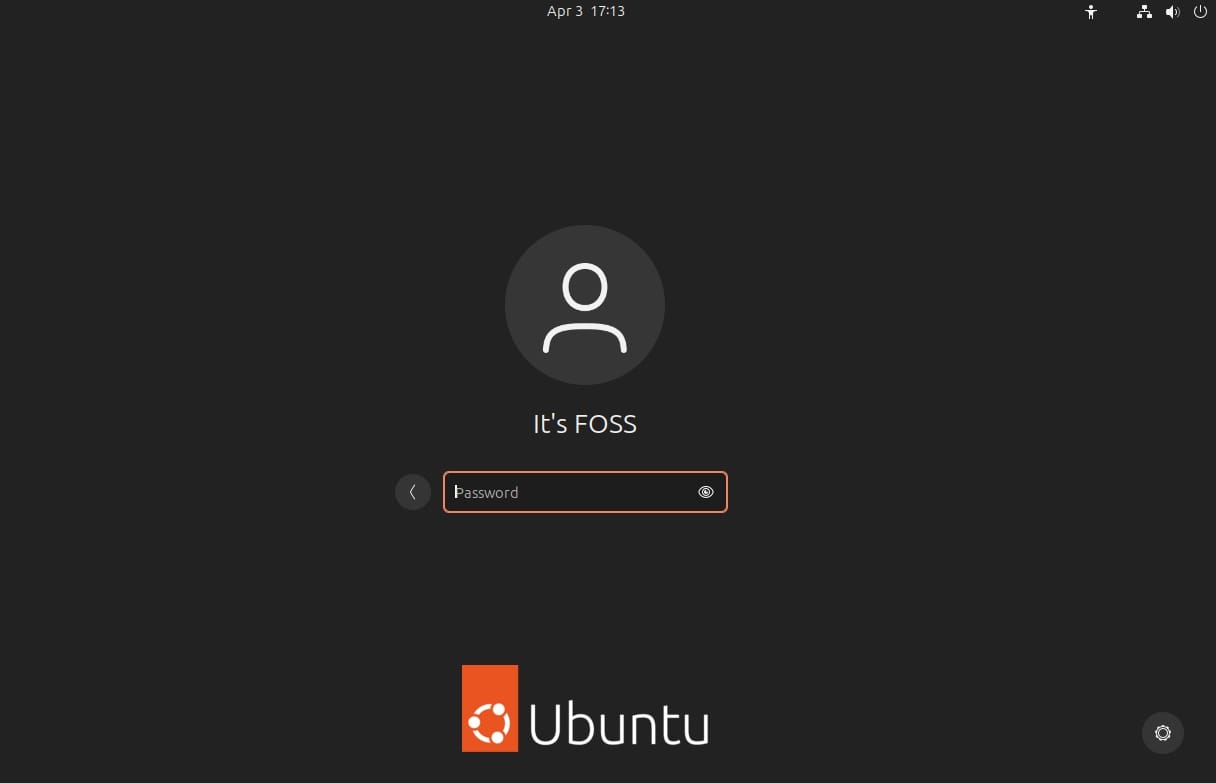
The lock screen and the log-in screens are largely the same, where the background gets blurred out for the lock screen, and it's a gray background for the log-in screen.

If you notice closer differences, you will observe that the icons/texts for the username/profile is a tad bit bigger for Ubuntu 24.04 LTS.

Ubuntu 22.04 vs 24.04: What Has Changed?
Ubuntu 24.04 LTS login screen

4. Desktop Environment

It's GNOME 46 on Ubuntu 24.04 LTS vs. GNOME 42 on Ubuntu 22.04 LTS.

Of course, there are plenty of improvements across the board with the desktop environment, including performance refinements.

Long story short: GNOME 46 includes changes everywhere to make options easily accessible and provides a more modern user experience.

There are plenty of upgrades, including new search buttons in the file manager, a brand-new system menu in the settings app, and more things organized in the settings menu.

Ubuntu 22.04 vs 24.04: What Has Changed?
Ubuntu 24.04 LTS

Furthermore, if you are coming from GNOME 42, you will no longer find the “Activities” button, it is just a pill-shaped indicator showing the number of workspaces.

Overall, you will find meaningful visual difference between the two. Of course, I prefer GNOME 46 over GNOME 42 for the refinements. But, it depends on what you like.

Ubuntu 22.04 vs 24.04: What Has Changed?
Ubuntu 22.04 LTS

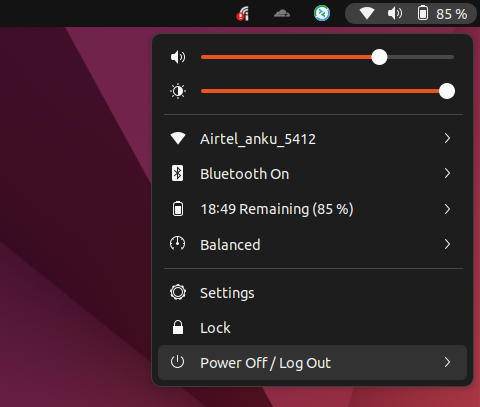
The toggle menu houses buttons, and organizes the options in the form of icons, rather than multiple texts with Ubuntu 24.04 LTS.

You also get the ability to quickly switch to the dark mode.

Ubuntu 22.04 vs 24.04: What Has Changed?

You will also find a screenshot button on the quick toggle menu, giving you a quick screenshot ability.

When compared, here's how the Ubuntu 22.04 LTS toggle menu looks like:

Ubuntu 22.04 vs 24.04: What Has Changed?

Suggested Read 📖

Best Tools For Taking and Editing Screenshots in Linux
Here are several ways you can take screenshots and edit the screenshots by adding text, arrows etc. Instructions and mentioned screenshot tools are valid for Ubuntu and other major Linux distributions.
Ubuntu 22.04 vs 24.04: What Has Changed?

5. Software Center & Apps

Ubuntu 22.04 LTS features the good-old software center we all love (and hate at the same time).

Ubuntu 22.04 vs 24.04: What Has Changed?
Ubuntu 22.04 LTS software center

Technically, it is not the fastest experience to manage/install software but it worked for the most part.

With Ubuntu 24.04 LTS, it is an entirely different experience.

The software center is called "App Center" instead of "Ubuntu Software" and it is based on Flutter, providing a snappy and modern user experience.

Ubuntu 22.04 vs 24.04: What Has Changed?
Ubuntu 24.04 LTS App Center

It looks and feels new, and improved in every way. Whether it is about exploring new/updated software, managing installed apps, and reliably installing software, every inch of it is a good experience in my opinion.

In addition to the software manager, considering you did not opt for a minimal install, Ubuntu 24.04 includes Snapshot as the webcam app, replacing Cheese on Ubuntu 22.04.

6. Ubuntu Desktop Settings & Accent Color

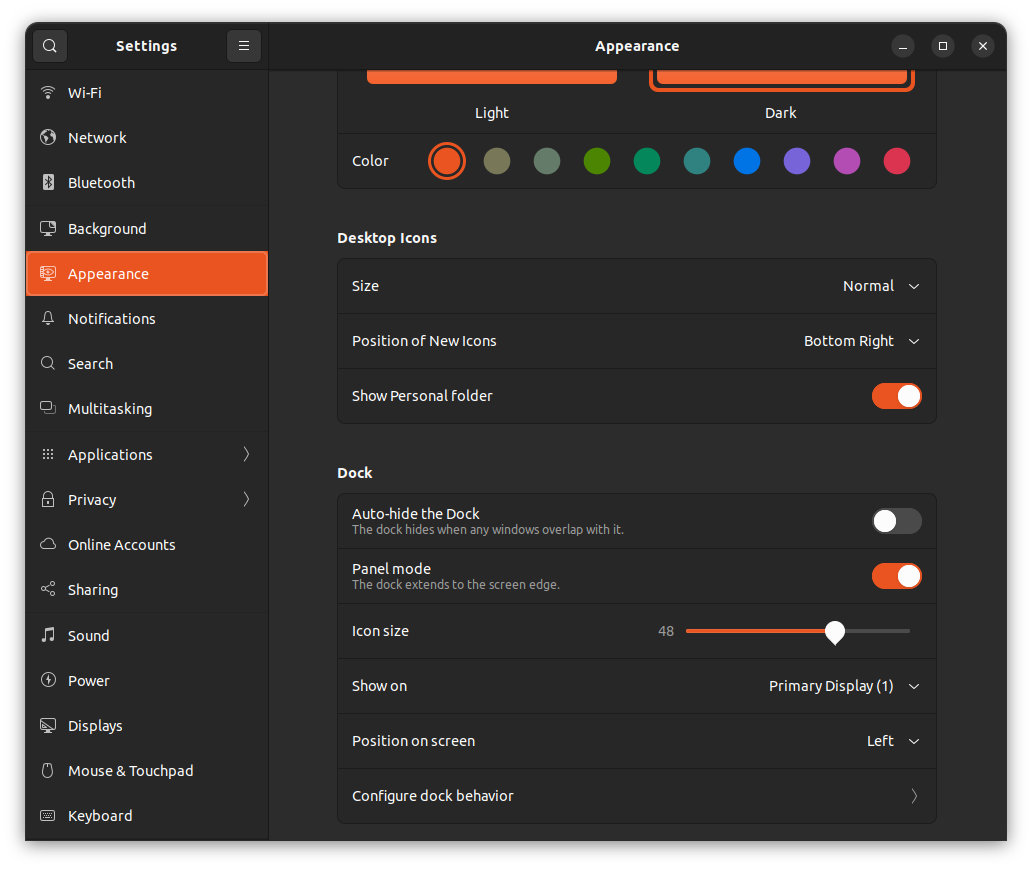
With Ubuntu 22.04, you had the option to tweak the dock, its behavior, and the desktop icons from Appearance settings.

Ubuntu 22.04 vs 24.04: What Has Changed?
Ubuntu 22.04 LTS Appearance settings

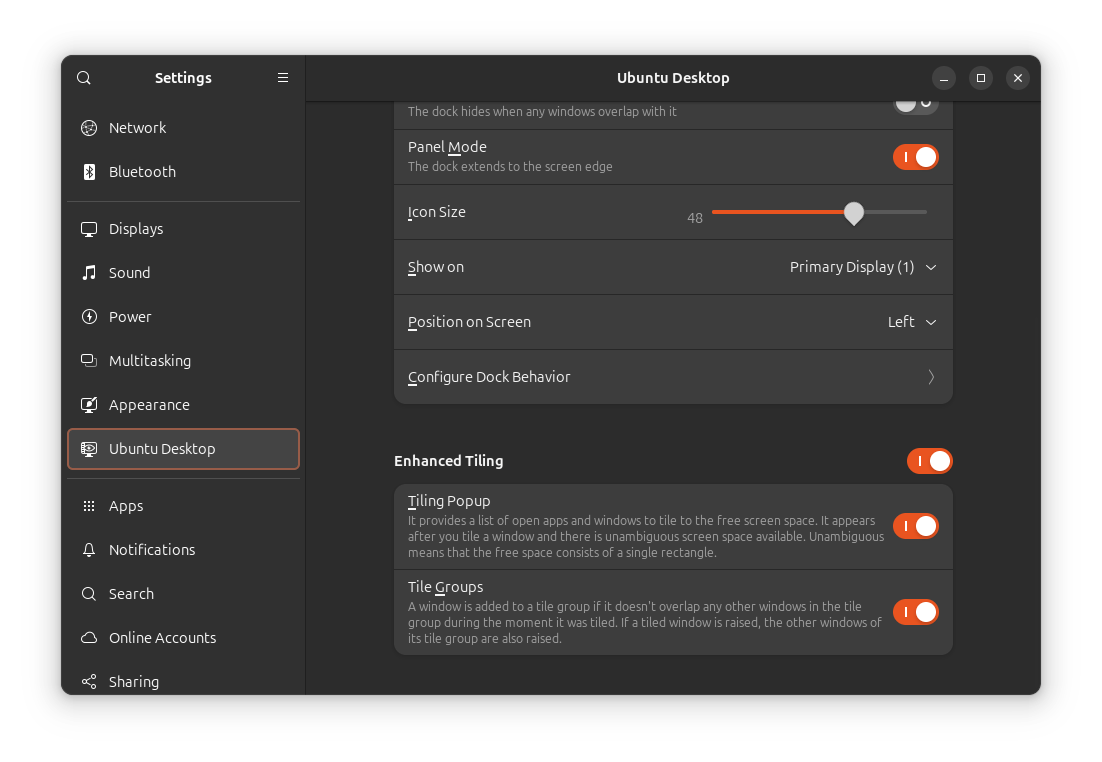
Now, with Ubuntu 24.04, you get a separate “Ubuntu Desktop” settings menu, which also includes newer options to enhance your window tiling experience.

Ubuntu 22.04 vs 24.04: What Has Changed?
Ubuntu 24.04 LTS Desktop settings

Did you notice something else here in the above screens?

Both Ubuntu 22.04 and Ubuntu 24.04 have the ability to set different accent colors. But, the way it is applied is different.

The screen for Ubuntu 22.04 LTS converts the entire menu selection and displays it with the accent color as its background. However, Ubuntu 24.04 limits the accent color to the outlines, and button toggles.

Of course, this goes in more in line with the differences in look and feel because of the desktop environment, but I thought I should mention it separately.

Working With Linux Bundle 2nd Edition | eBook Bundle | Fanatical
Linux is the world’s most widely used open-source operating…
Ubuntu 22.04 vs 24.04: What Has Changed?

7. Linux Kernel version

Unlike Pop!_OS, you are not going to get the latest kernel upgrade with Ubuntu.

However, with every point release to an LTS edition, you should notice a version bump to the Linux kernel. And, if you want the latest possible kernel with Ubuntu, you need to opt for the latest LTS version, i.e. Ubuntu 24.04 LTS.

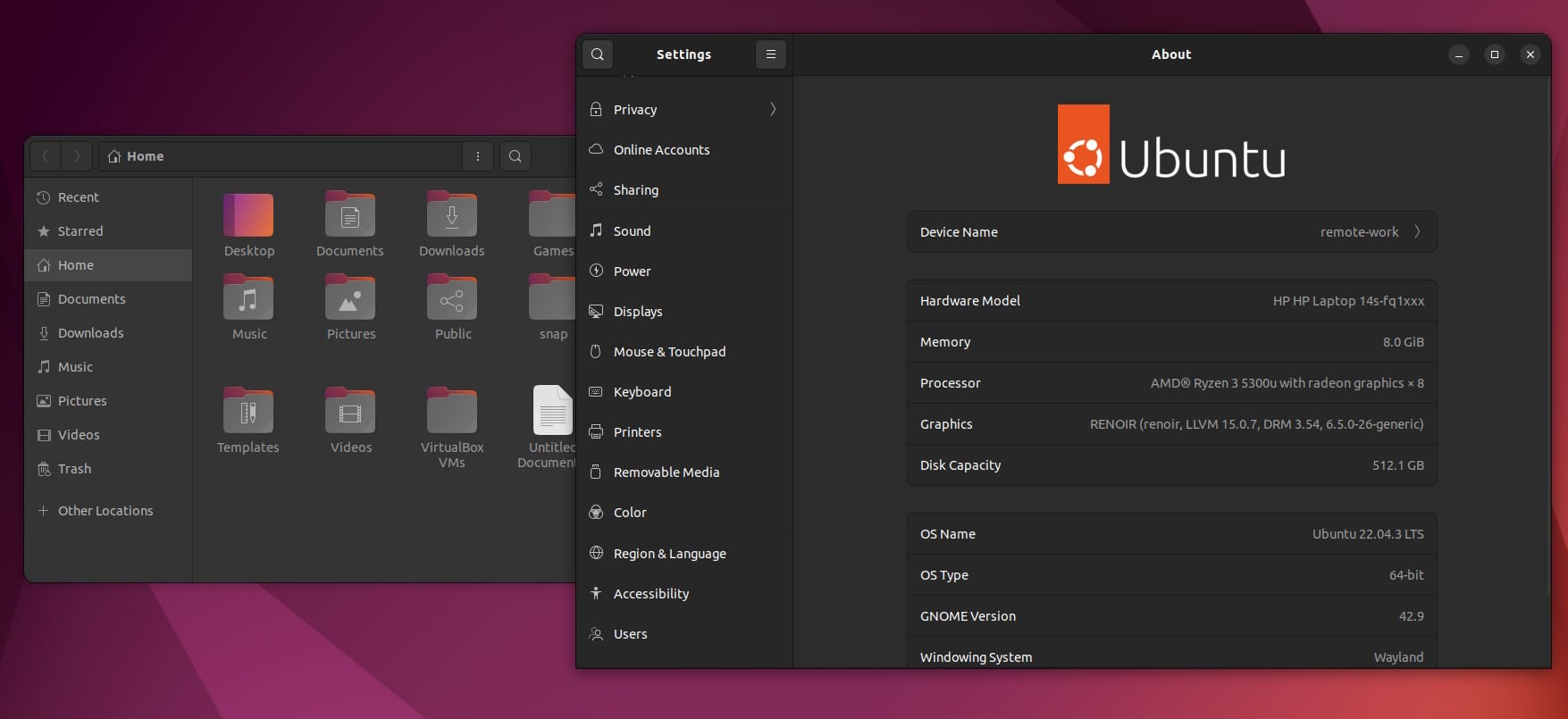
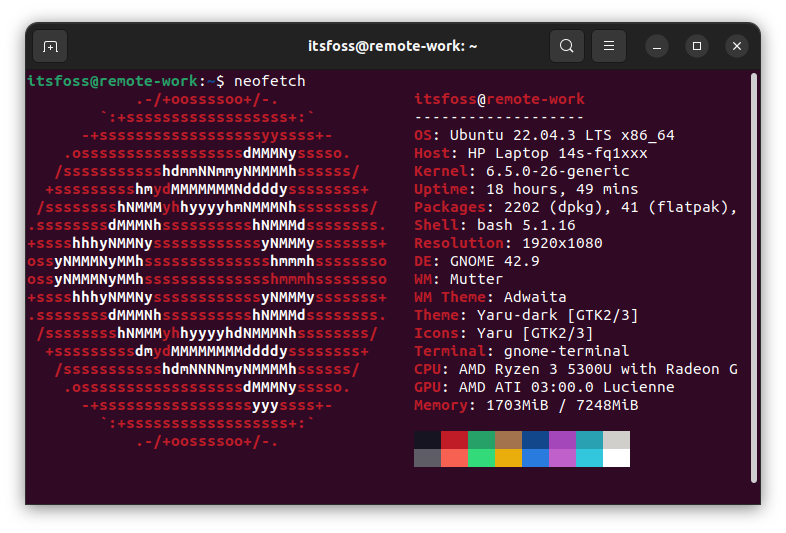
At the time of writing this, Ubuntu 22.04.3 LTS features Linux kernel 6.5.

Ubuntu 22.04 vs 24.04: What Has Changed?

On the other hand, Ubuntu 24.04 LTS comes packed with Linux kernel 6.8.

Ubuntu 22.04 vs 24.04: What Has Changed?

Sure, if you do not need the newer hardware compatibility improvements from the latest kernel version, you can choose to stay with Ubuntu 22.04 LTS.

And, if you are looking to fix certain hardware issues, try using the latest Ubuntu with a newer kernel and see if it does the trick for you.

8. Support Lifespan

Both the Ubuntu editions are LTS (Long-Term Release) versions, you can pick any of them and use them for a couple of years without much worry.

To be accurate, Ubuntu 22.04 will be supported with maintenance updates for five years until April 2027.

And, Ubuntu 20.04 LTS will be supported until 2025, meaning, you have three more years of software update support.

Of course, if you opt for Ubuntu Pro subscription (free for personal users), you can extend the software updates.

As of now, Ubuntu 24.04 LTS promises 12 years of updates with the Pro subscription. And, Ubuntu 22.04 LTS will get 10 years of support (it could change to 12 years when you are reading it).

If you are curious about the 12-year term, you can refer to our relevant coverage:

Ubuntu 24.04 LTS To Get 12 Years of Updates
Canonical revealed the extension of software updates for Ubuntu LTS. And, we didn’t know that until now…
Ubuntu 22.04 vs 24.04: What Has Changed?

What Would You Pick?

Ubuntu 24.04 LTS is a modern pick with essential improvements.

Of course, there are no reasons for me to not recommend Ubuntu 24.04 LTS.

However, if you consider upgrading or install it fresh, you need to be careful about the data you back up/restore. If you are ready for troubleshooting if something goes wrong with the upgrade process or new installation, only then proceed with it.

If your work is too important at the time, and you do not want any kind of downtime on your production machine, you should make a specific schedule to upgrade the system to get the latest Ubuntu benefits.

Furthermore, if you do not interact with the desktop elements much, and focus on using office suits and web browsers, you will be fine with Ubuntu 22.04 LTS which should be good for three more years. No need to hassle your way through an upgrade.

💭 What would you prefer? Ubuntu 22.04 or Ubuntu 24.04? Let me know in the comments below.


from It's FOSS https://ift.tt/fP4utIE
via IFTTT