Have you ever watched a video and wished you could slow it down or speed it up? Maybe the speaker is too fast, or you just want to skip through some parts. You can do that with VLC media player!
In this article, we’ll explore how to control video playback speed using VLC.
Increase or decrease speed with keyboard
Not a fan of mouse clicks? VLC provides some simple keyboard shortcuts to control the speed of the playback.
When you are playing a video, use the following keys, for the mentioned purposes.
Function
Key
Increase playback speed
+
Increase playback speed fine control
]
Decrease playback speed
-
Decrease playback speed fine control
[
Make playback speed back to normal
=
Fine control means increasing/decreasing the speed only at a small fraction.
Speed up a video using the menu bar
While playing a video, click on the Playback option on the top menu bar. When hovering over the speed entry, you will get some preset speed options.
Control playback speed
You can use the option multiple times to increase and decrease the speed. Anytime, select Normal Speed to come back to the normal video speed, that is 1.0x.
Speed up a video using right-click
This is almost the same as the above one, except you won't be clicking on the menubar anymore.
While playing a video, right-click on the play area. From the resulting context menu, select Playback → Speed. From the resulting options, select the speed you want.
Change playback speed with right-click
You can repeat the process to get more/less speed.
Control the speed using the status bar
In VLC, you can enable a small status bar below the control icons. For that, first click on View in the top menu bar. From there, enable the Status bar, by checking the box.
Enable the status bar in VLC
Now, on the status bar, you can see a small field on the right side, that indicates the current playback speed. Click on it to get a slider.
Current playback speed
Scroll this slider to the right to increase the speed, and scroll left to decrease the speed. Use the forward and backward button to do it in steps.
Here's positive news that should delight most Linux and open-source supporters. German state Schleswig-Holstein has decided to replace Microsoft Office with LibreOffice on over 30,000 employees' PCs.
By the way, it appears that some of you did not receive the previous newsletter due to some technical difficulties. No worries. You can still read the Homelab special edition here.
💬 Let's see what else you get in this edition:
Using alias in Linux terminal.
Open source Android keyboard app.
Yet another German state trying to move away from Microsoft.
And other Linux news, videos and, of course, memes!
Warp is a modern terminal emulator built with Rust. It has AI assistant integrated along with IDE like features. Consider it the VS Code of terminal. Although not open source and initially developed for macOS, Warp is now also available for Linux.
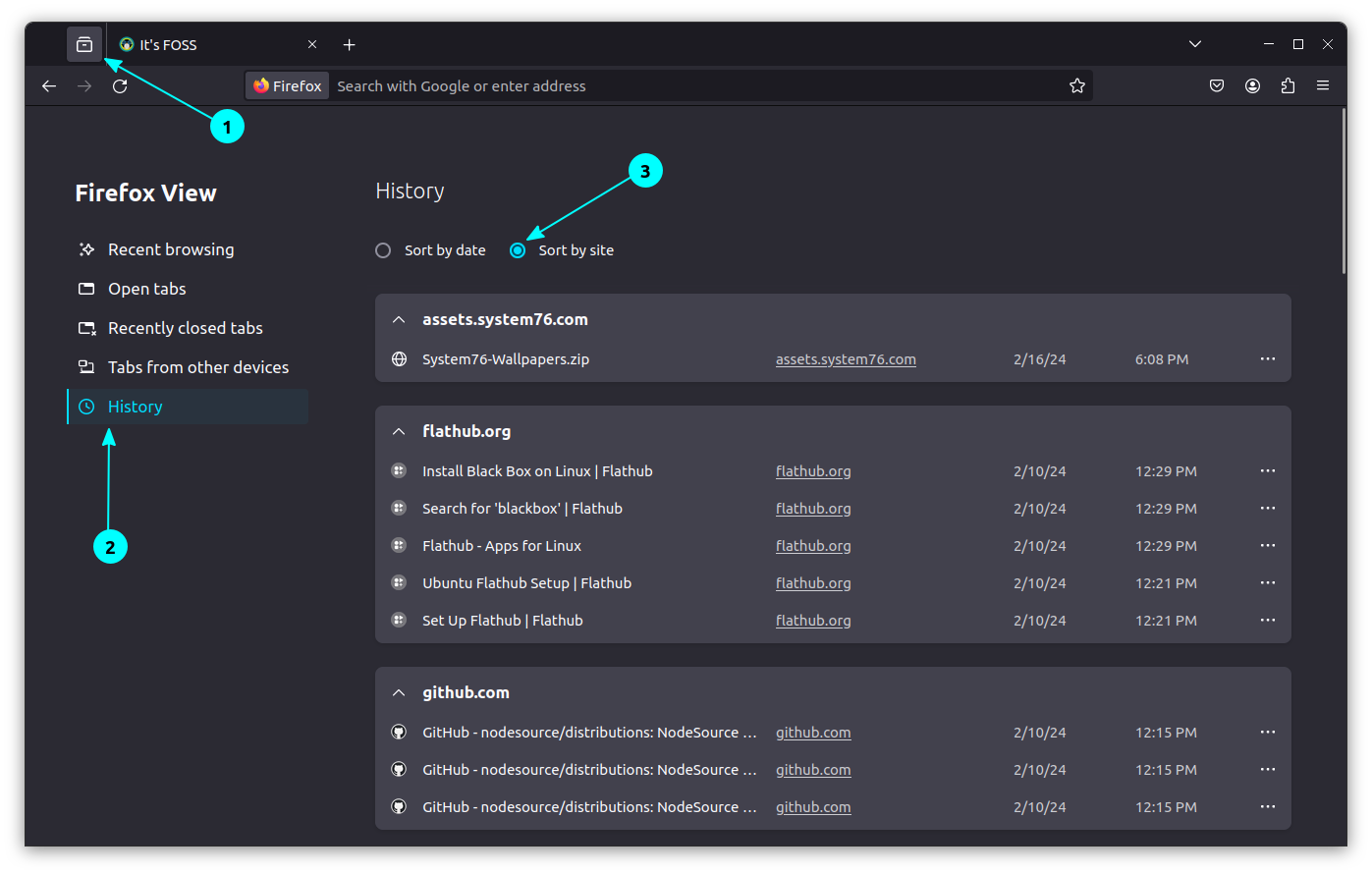
View Firefox browsing history neatly by sorting sites. Follow the arrows shown below.
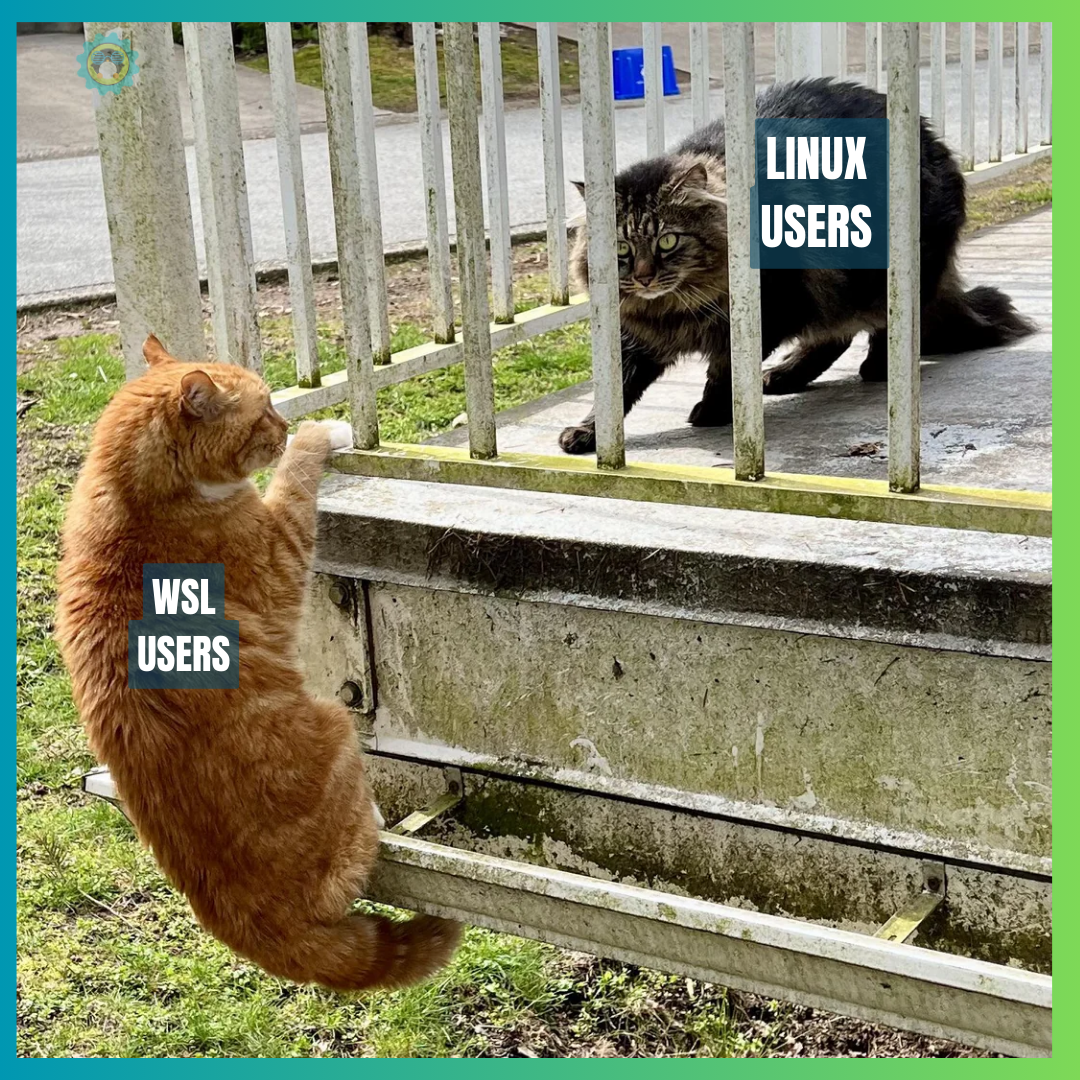
🤣 Meme of the week
Can they ever get to terms?
🗓️ Tech Trivia
The popular version control system Git was released 19 years ago on 7th April 2005. It was created by none other than Linus Torvalds. He was frustrated because the proprietary source control system BitKeeper revoked the free license for Linux kernel development.
Interesting, isn't it? Torvalds created Linux because he could not afford to purchase UNIX and then he created Git in a somewhat similar situation. That's why he is a legend.
🧑🤝🧑 FOSSverse corner
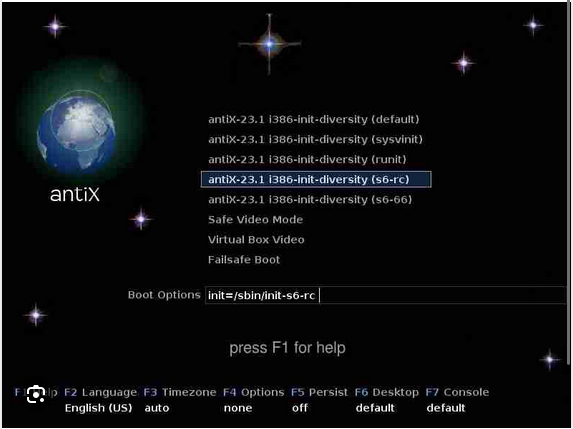
FOSSers discuss the recently released unofficial version of Antix.
In a systemd-equipped distro, there is a command that could make your life easy. It is the systemctl command, used to interact with the systemd init service. System administrators always use this command, but it is also useful for end-users wishing to take control via the terminal.
So in this tutorial, I will walk you through all the essentials you need to learn to use the systemctl command:
The basic syntax and common flags.
Practical examples of the command.
Practice questions to get better at using the systemctl command.
Here's How to Use The Systemctl Command
To use the systemctl command, it is important to learn the syntax and available options.
Here's how the syntax looks like:
systemctl <command> <service_name>
Here,
<command>: this is where you specify the action you want to execute over the service such as stop, start, etc.
<service_name>: this is where you specify the name of the service that you would like to work with.
To manage services, you have various commands to use with the systemctl command, here's a list of one of the most useful ones:
Command
Description
systemctl start [service]
Start a service and run it in the background.
systemctl stop [service]
Stop a currently running service.
systemctl enable [service]
Configure a service to start automatically at system boot.
systemctl disable [service]
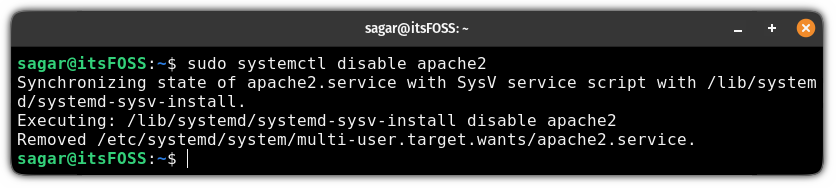
Configure a service to not start automatically at system boot.
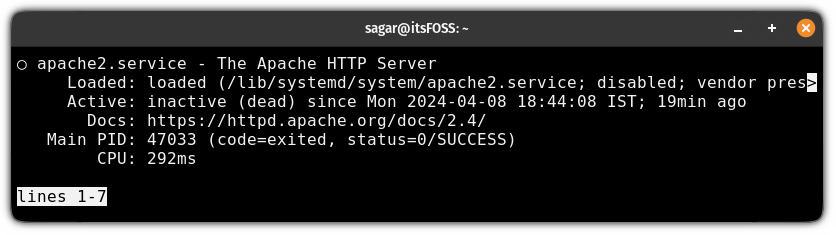
systemctl status [service]
Display the current status (running, stopped, etc.) of a service.
systemctl restart [service]
Stop a running service and then start it again.
systemctl reload [service]
Reload the configuration of a service without stopping it.
systemctl mask [service]
Prevent a service from being started, even manually.
systemctl unmask [service]
Allow a previously masked service to be started.
systemctl set-default [target]
Change the default system target (runlevel) for the next boot.
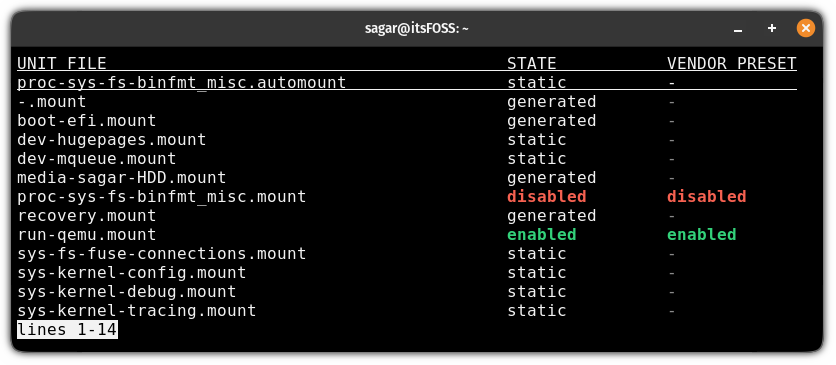
systemctl list-unit-files
List all installed unit files and their current state (enabled/disabled).
systemctl list-dependencies [unit]
Show the dependencies (other units) required for a specific unit.
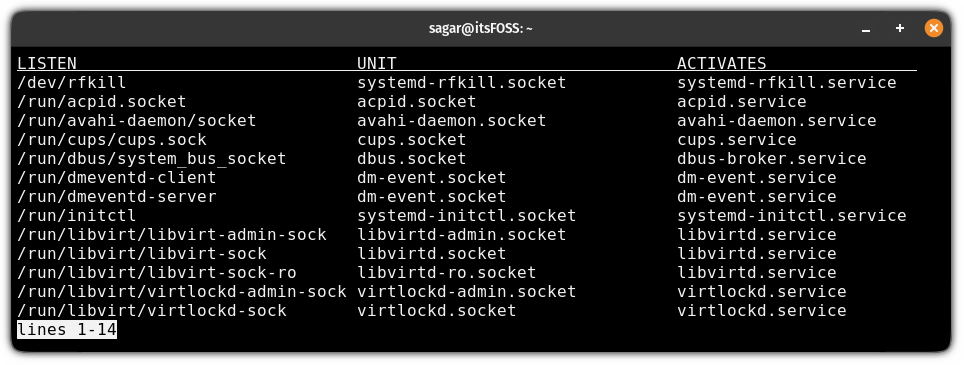
systemctl list-sockets
List all active sockets (for inter-process communication).
systemctl list-jobs
Show all currently active systemd jobs (ongoing operations).
systemctl list-units
List all loaded and active systemd units (services, sockets, etc.).
Now, let's take a look at some practical examples of the systemctl command.
Practical examples of the systemctl command
In this section, I share some practical examples of the systemctl command, ranging from the basics to the advanced ones.
Let's start with how you can start your service.
1. Start a service
In most cases, the installed service gets activated by default, but there are times when you are required to do that manually.
To start a service, you need to use the start flag with the systemctl command and append the name of the service, as shown here:
sudo systemctl start <service_name>
Let's say I want to start the Apache server, I'll be using the following:
sudo systemctl start apache2
2. Enable a service
When you start a service, it will only be effective until the next boot. This means the service will be turned off when you reboot your system.
To tackle this situation, you want a service to start automatically when you boot your system and for that purpose, you can use the enable flag as shown here:
sudo systemctl enable <service_name>
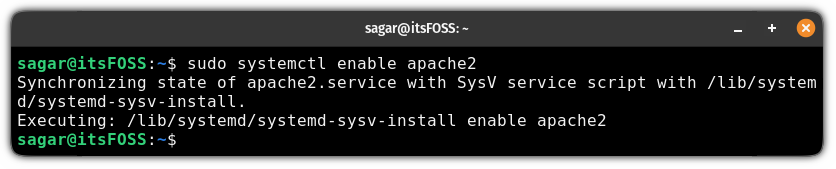
For example, if I want to enable Apache service, then I'll use the following:
sudo systemctl enable apache2
3. Stop a service
When you intend to modify an active service, the first step you have to perform is to stop the service and for that purpose, you use the stop flag as shown here:
sudo systemctl stop <service_name>
For example, here's how you stop the Apache service:
You reload a service when you make changes to the service configuration, and you want to apply changes without restarting the entire service.
sudo systemctl unmask <service_name>
To reload a service, you use the reload flag as shown here:
sudo systemctl reload <service_name>
For example, I made a few changes to the Apache service and now if I were to reload the Apache service, here is what I type in the terminal:
sudo systemctl reload apache2
8. Mask a service
Masking a service is the most efficient way to prevent that service from being started, either manually or automatically, during system boot.
Think of it as a more robust version of stopping the service 😉.
To mask a service, you use the mask flag as shown here:
sudo systemctl mask <service_name>
Here's how the command would look for the Apache service:
sudo systemctl mask apache2
Whenever you mask the service, you see a symlink created which redirects the service's configuration file to the null device (/dev/null). This means you cannot start the service by any means until it is unmasked.
9. Unmask a service
If you want to start the masked service, it needs to be unmasked first!
To unmask a service, you use the unmask flag as shown here:
sudo systemctl unmask <service_name>
Just type in the command like this:
sudo systemctl unmask apache2
As you can see, it removed the symlink pointing to /dev/null.
10. Set the default target
Setting a default target refers to changing the default operational mode or runlevel that the system will enter after booting up.
One good example of setting a default target is to choose the user interface to boot, such as you can either boot to CLI mode or GUI.
To set a default target, you use the set-default flag as shown here:
sudo systemctl set-default <target-name>
For example, if you want to boot into the GUI, then I will set the default target to graphical.target as shown here:
sudo systemctl set-default graphical.target
Apart from the GUI target, you have other options as well:
Target
Description
multi-user.target
This target starts the system with networking enabled, suitable for servers or non-graphical workstations.
rescue.target
This target is useful for system recovery or troubleshooting when the system cannot boot into the regular multi-user mode.
emergency.target
This target provides an emergency environment for system maintenance or repair when the system is in a critically broken state.
reboot.target
This is typically used for one-time reboots or in automated scripts.
poweroff.target
This is typically used for one-time shutdowns or in automated scripts.
hibernate.target
Sets the system to hibernate (save system state to disk and power off) as the default target, Only available if the system supports hibernation.
hybrid-sleep.target
Sets the system to enter a hybrid sleep mode (a combination of hibernation and sleep) as the default target, Only available if the system supports hybrid sleep.
Unit files are plain text configuration files that are used to define and manage system services and units.
You can list all the unit files by executing the following command:
systemctl list-unit-files
12. List of all active sockets
When you list all the active sockets, you get insight into the inter-process communication channels established on a systemd-based system.
To list all the active sockets, use the given command:
systemctl list-sockets
And there you have a list of all the sockets which are listening for the incoming requests.
Practice questions 📓
Once you know the basics of the systemctl command, it is important to practice getting better at using the command.
Here are some practice questions for the systemctl command:
How would you check the status of the httpd service using systemctl?
Write the command to start the sshd service if it's not already running.
You want to enable the mysqld service to start automatically at system boot. What command would you use to do this?
Suppose you need to reload the configuration of the nginx service without interrupting its operation. What systemctl command would you use?
Your system is currently set to boot into the multi-user.target by default. You want to change the default target to graphical.target for the next boot. How would you use to accomplish this?
If you encounter any difficulty solving the above questions, you can post your queries in our community forum or drop a comment below.
Wrapping Up
Now that you know the essentials of systemctl command, what next?
![Change Video Playback Speed in VLC [Quick Tip]](https://itsfoss.com/content/images/2024/04/vlc-video-increase-decrease-speed.png)
![Change Video Playback Speed in VLC [Quick Tip]](https://itsfoss.com/content/images/2024/04/playback-speed-faster.png)
![Change Video Playback Speed in VLC [Quick Tip]](https://itsfoss.com/content/images/2024/04/right-click-playback-speed-faster.png)
![Change Video Playback Speed in VLC [Quick Tip]](https://itsfoss.com/content/images/2024/04/enable-status-bar-view-status-bar.png)
![Change Video Playback Speed in VLC [Quick Tip]](https://itsfoss.com/content/images/2024/04/status-bar-adjust-speed-slider.png)
![Change Video Playback Speed in VLC [Quick Tip]](https://itsfoss.com/content/images/2024/04/status-bar-custom-speed-setting-fast.png)