Rabu, 03 Januari 2024

FOSS Weekly #24.01: Linux in 2024, GDM Customization, Distros You Missed Last Year

FOSS Weekly #24.01: Linux in 2024, GDM Customization, Distros You Missed Last Year

New year, new same old me ๐Ÿ˜„

What do we have in the first edition of FOSS Weekly in 2024? Some year end special articles.

But an important and surprising development came from Gentoo just before 2023 ended. That could take away the pain of compiling each and every package.

Other than that, I have noted down suggestions from readers like you on topics It's FOSS should cover in 2024. You shall notice the work on those topics this year.

๐Ÿ’ฌ Let's see what else you get in this edition of FOSS Weekly:

  • Starting off 2024 with new app/distro releases.
  • GDM login screen customization
  • Year end round ups
  • And other Linux news, videos and, of course, memes!

๐Ÿ“ฐ Linux news

  • Scribus 1.6 has arrived with plenty of improvements across the board.
  • Rhino Linux 2023.4 was one of the last distro releases of 2023, adds an Auto-Tiling feature.

Gentoo is embracing binary packages, software installations will be a whole lot quicker now.

Big News! Gentoo Linux is Now Providing Binary Packages for Quick Software Installation
Gentoo has the year end gift for users with slow hardware.
FOSS Weekly #24.01: Linux in 2024, GDM Customization, Distros You Missed Last Year

๐Ÿ›’Linux book deals

FOSS Weekly #24.01: Linux in 2024, GDM Customization, Distros You Missed Last Year

Start the new year by learning new Linux skills with this Humble Book Bundle.


๐ŸŒ Follow us on Google News

By the way, if you use Google, follow It's FOSS on Google News to get trusted It's FOSS content before other websites in Google search.


It’s FOSS - Google News
Read full articles from It’s FOSS and explore endless topics, magazines and more on your phone or tablet with Google News.
FOSS Weekly #24.01: Linux in 2024, GDM Customization, Distros You Missed Last Year

๐Ÿง  What we’re thinking about

Linux comes to the rescue of your old computer

How Linux rescues slow computers (and the planet)

๐ŸŽˆ Year end specials

Just a glance back at 2023 before it is forgotten for good:

And it's time to look forward to the year 2024 with some 'fortune telling':

6 Predictions for Linux and Open Source in 2024
Let’s try our hands on fortune-telling!
FOSS Weekly #24.01: Linux in 2024, GDM Customization, Distros You Missed Last Year

๐Ÿงฎ Linux Tips, Tutorials and More

Did you know you could modify the login screen in GNOME?

Using GDM Settings to Customize Login Screen in GNOME
Yes, even the GNOME login screen can be customized. Here’s a handy utility that makes things easier.
FOSS Weekly #24.01: Linux in 2024, GDM Customization, Distros You Missed Last Year

Or how about ways to check whether you are running systemd?

How to Check if Your Linux System Uses systemd
Wondering which init service your Linux system uses? Here’s how to find it out.
FOSS Weekly #24.01: Linux in 2024, GDM Customization, Distros You Missed Last Year

๐Ÿ“น What we are watching

Ever wondered what goes on behind the scenes when you fire up a Linux system?


✨ Project highlights

We started off 2024 with an interesting Arch-based distro that is lightweight in nature.

Archcraft: A Customized Lightweight Linux Distro Experience
Archcraft is an impressive distro with a customized out-of-the-box experience.
FOSS Weekly #24.01: Linux in 2024, GDM Customization, Distros You Missed Last Year

๐Ÿงฉ New quiz unit

Time to solve some riddles.

Guess the Linux Command from the Riddles
Can you guess the Linux commands from the riddles correctly?
FOSS Weekly #24.01: Linux in 2024, GDM Customization, Distros You Missed Last Year

๐Ÿ’ก Quick handy tip

Usage of Super Key in Ubuntu (and other distros with GNOME):

  • Press Super and use the Mouse Scroll Wheel to switch workspaces.
  • Press Super and Right-click anywhere on a window to open the window menu, you can then take screenshots, hide the window, change window behavior and more.
  • Press Super and drag anywhere on any window to move it. (No need to grab the top bar to move)

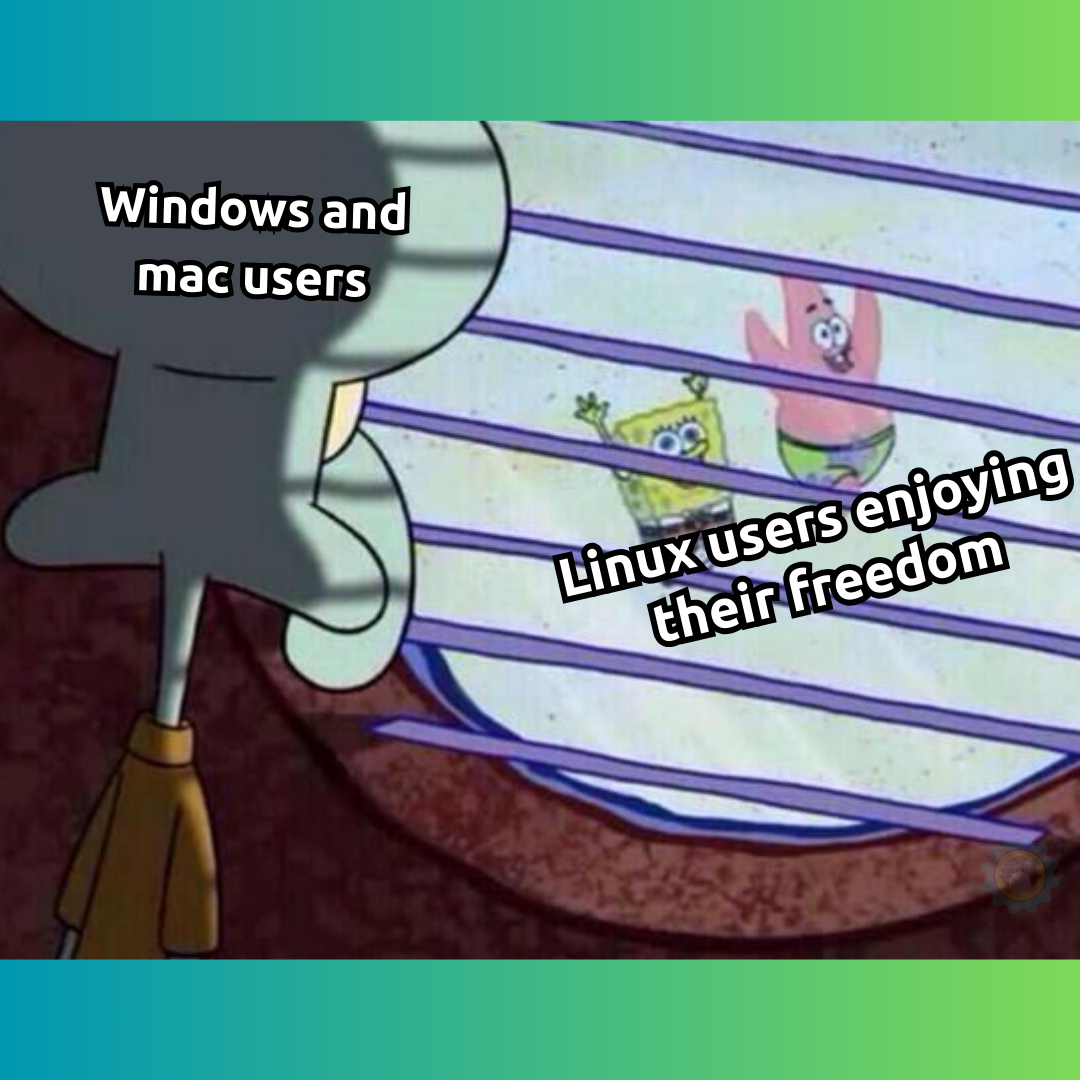
๐Ÿคฃ Meme of the week

Windows and macOS users, come join us! Don't lurk in the dark.
FOSS Weekly #24.01: Linux in 2024, GDM Customization, Distros You Missed Last Year

๐Ÿ—“️ Tech Trivia

Will you believe that people bought personal computers just to run a spreadsheet software? Back in 1979, a spreadsheet software, VisiCalc was released for Apple II. People could use personal computer for business thanks to the spreadsheet software. The software sold over 100,000 copies and also boosted the sale of Apple II and forced bigger players like IBM to enter the personal computing market. The company behind VisiCalc, Software Arts, was formed on 2nd January 1979.

By the way, Blender turned 30 on 2nd January. The first release was in 1994.


๐Ÿง‘‍๐Ÿค‍๐Ÿง‘ FOSSverse corner

Here's what FOSSers can expect from It's FOSS in 2024. I am excited to see how it goes.

Happy New Year, 2024! Here’s What Will be ‘New’ on It’s FOSS
Happy new year to all the FOSSome community members ๐Ÿ™‚ If you read the last FOSS Weekly, I had asked for suggestions on what It’s FOSS should write and do more in 2024. Here are a few thing that I’ll try to do with It’s FOSS in 2024: Organize more content into tutorial series formats (so that it is easy to follow a certain topic). A redesign for such pages in works. Create ‘getting started guides’ for more distros (we have Ubuntu, Fedora, Arch, Manjaro and Nix so far) Cover some…
FOSS Weekly #24.01: Linux in 2024, GDM Customization, Distros You Missed Last Year

❤️ With love

Share it with your Linux-using friends and encourage them to subscribe (hint: it's here).

Share the articles in Linux Subreddits and community forums.

Opt for It's FOSS Plus membership and support us ๐Ÿ™

Enjoy 2024 with Linux ๐Ÿ˜„


from It's FOSS https://ift.tt/wrWvyKI
via IFTTT

Selasa, 02 Januari 2024

How to Check if Your Linux System Uses systemd

How to Check if Your Linux System Uses systemd

Every mainstream Linux distro including Ubuntu, Fedora, openSUSE, and Arch uses systemd by default.

But there are many non-systemd distros like Alpine Linux that uses lightweight runit for better performance or Devuan that uses sysvinit on principal basis.

The problem comes when you are trying to follow some tutorial or documentation and it has commands specific to systemd or some other init service.

And this is where you have to check if your Linux system uses systemd or something else.

One way would to be check the process with PID 1 (after all, an init system is the first process to run on a Linux system).

ps 1

But its output could be misleading as often it shows /sbin/init which is just a soft link to actual init process.

If you follow that symbolic link, you can get the init system information. There are two ways of doing that:

  • Using the stat command
  • Using the readlink command

So let's start with the first one.

๐Ÿ“‹
These methods were tested with 6 init systems: Systemd, OpenRC, SysVnint, Busybox, runit, and s6.

Method 1: Check if systemd is in use with the stat command

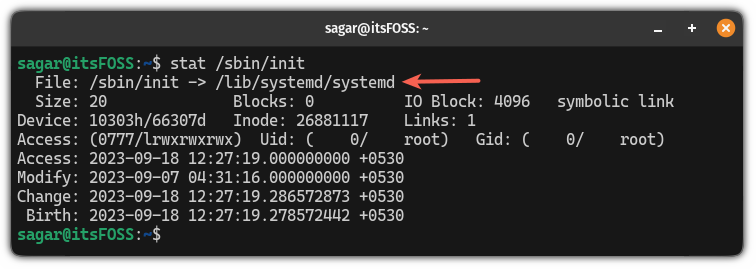
Here's how you can use the stat command to find out what init system you are using:

stat /sbin/init

If you are using a systemd-powered distro, then it will show you the following output:

How to Check if Your Linux System Uses systemd

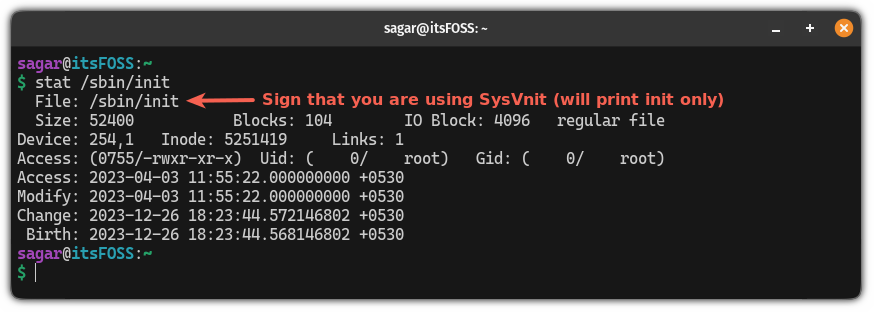
But if you are using anything else than systemd, it will show the init name unless you are using SysVnit which will only show you init instead of sysvnit:

How to Check if Your Linux System Uses systemd
SysVnit only displays "init" instead of sysvnit

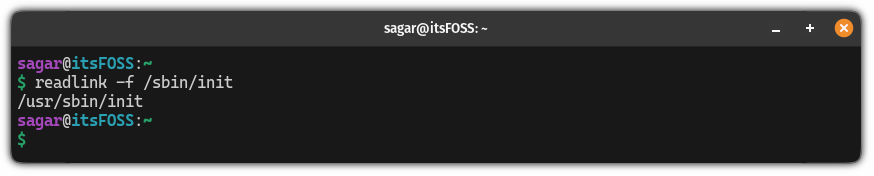
Unlike the previous method, when you use the readlink command, it will only print the name of the init system.

So if you want to know if you are using Systemd or not, simply use the following command:

readlink /sbin/init
How to Check if Your Linux System Uses systemd

If you are using the OpenRC init service, then it will show the following output:

How to Check if Your Linux System Uses systemd

But if you are using SysVnit, then, it will show you the following output:

How to Check if Your Linux System Uses systemd

Tiny 'script' I wrote for you

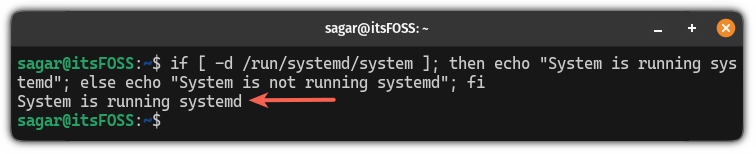
Another way is to check if the /run/systemd/system directory exists or not.

Well, the easiest way to find out is to use an if-else bash command in your terminal which will check if you are running a systemd-powered distro or not:

if [ -d /run/systemd/system ]; then echo "System is running systemd"; else echo "System is not running systemd"; fi
How to Check if Your Linux System Uses systemd

More on systemd

Once you know you are using the systemd-powered distro, here's how you can manage services using the systemctl command:

Using systemctl Command [15 Examples]
The systemctl command is a must know for Linux systems with systemd init system. Here are some practical examples.
How to Check if Your Linux System Uses systemd

Want to create a systemd service from scratch? You can do that too:

How to create a systemd service in Linux
Learn the steps for creating systemd services in Linux with the practical example demonstrated in this tutorial.
How to Check if Your Linux System Uses systemd

I hope you will find this guide helpful.


from It's FOSS https://ift.tt/Wbkjdpl
via IFTTT

Using GDM Settings to Customize Login Screen in GNOME

Using GDM Settings to Customize Login Screen in GNOME

From the dock to grub screen, GNOME can be customized to your liking.

Add the login screen to this list as a new tool called GDM Settings allows you to change the looks and tweak functionalities of the login screen in GNOME.

You can change the wallpaper, theme, icon, time format, top panel items etc. You can also enable tap to click on the login screen (I love this one) among other things.

In this tutorial, you'll see the steps for installing this tool and how you can use it to change various aspects of the GDM login screen.

Needless to say, you must be using GNOME desktop environment and GDM display manager in order to follow the instructions here.

๐Ÿšง
Playing with settings in such ways may create issues. Make a backup of system settings with Timeshift. And avoid it completely if you are easily overwhelmed and don't like troubleshooting.

Tweaks using GDM Settings tool

Let's first see the kind of changes you can make with this awesome utility.

1. Change shell theme, icon, and wallpaper

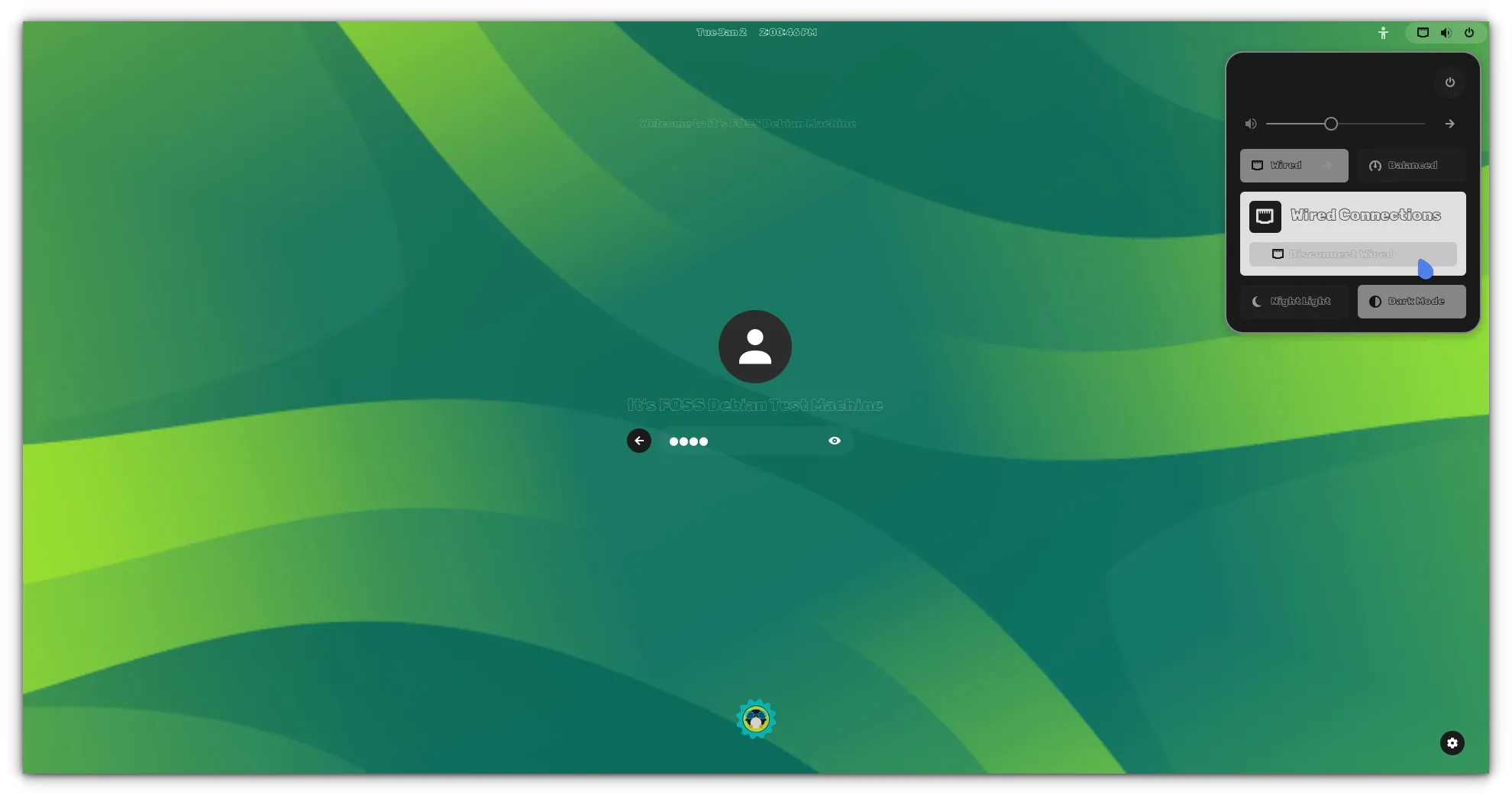
You can change the theme, icon and wallpaper of the login screen. Here's an example.

Using GDM Settings to Customize Login Screen in GNOME

To change the theme, you should download it first. Get one from the GNOME Look website.

Next, ensure that the theme is in /usr/share/themes. Themes stored in ~/.themes are not visible to the GDM settings app.

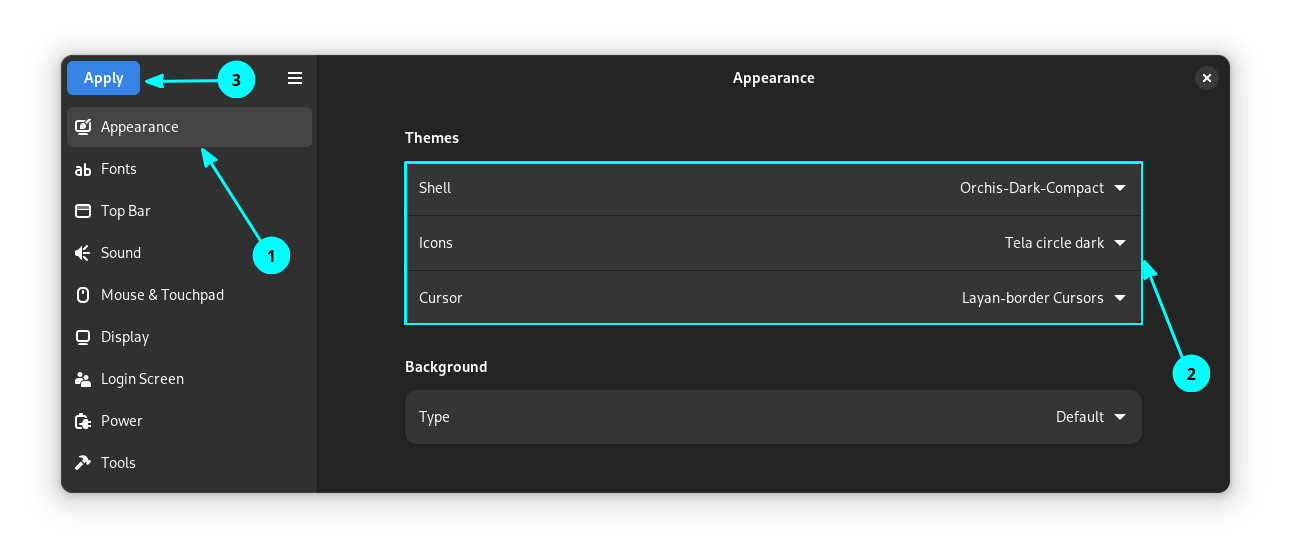
In the GDM Settings tool, go to the Appearance tab and select the themes/icons/cursors.

Using GDM Settings to Customize Login Screen in GNOME
GDM Theme Settings

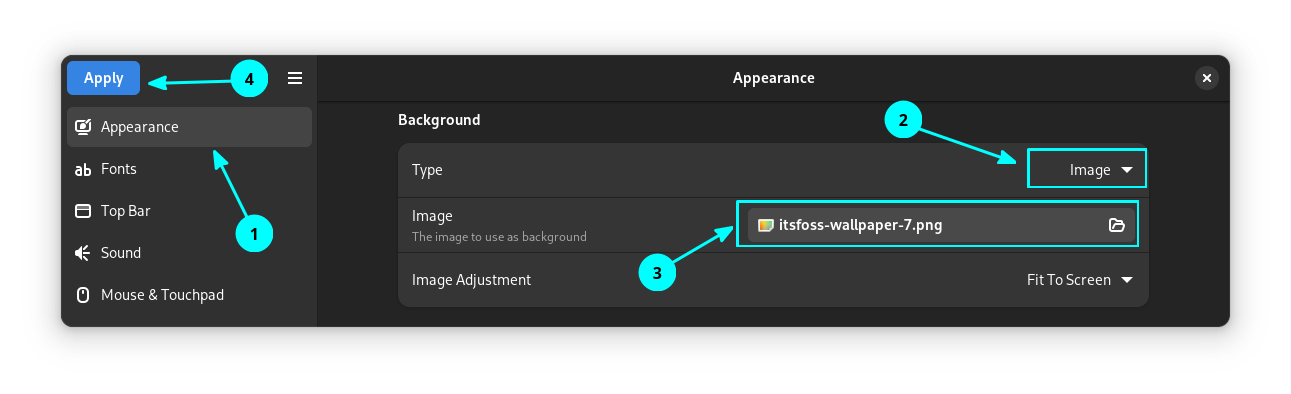
If you want to set a wallpaper, change the Backgrounds to “Image” and then browse a picture from the file browser.

Using GDM Settings to Customize Login Screen in GNOME
Change Wallpaper

Once finished, click Apply. This will ask for the password. Give it when prompted.

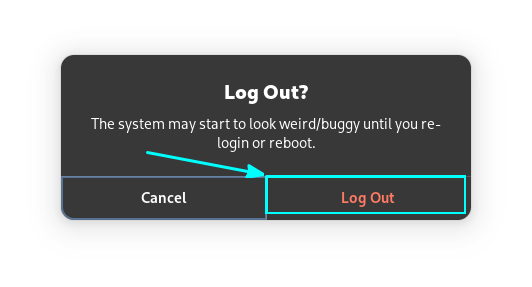
You will be notified to log out to apply changes. When logged out, the changes will be visible.

Using GDM Settings to Customize Login Screen in GNOME
Log Out Prompt
๐Ÿ’ก
You can change all the settings and then click apply, or click apply each time after a setting. If you press Apply, it will prompt you to log out, and you need to log back in and open the settings app again each time.

2. Change fonts

Before you change the font, you need to have that fonts installed on your system for all users.

To ensure that, paste the downloaded custom font file to /usr/local/share/fonts and then make a font cache using:

fc-cache -f -v

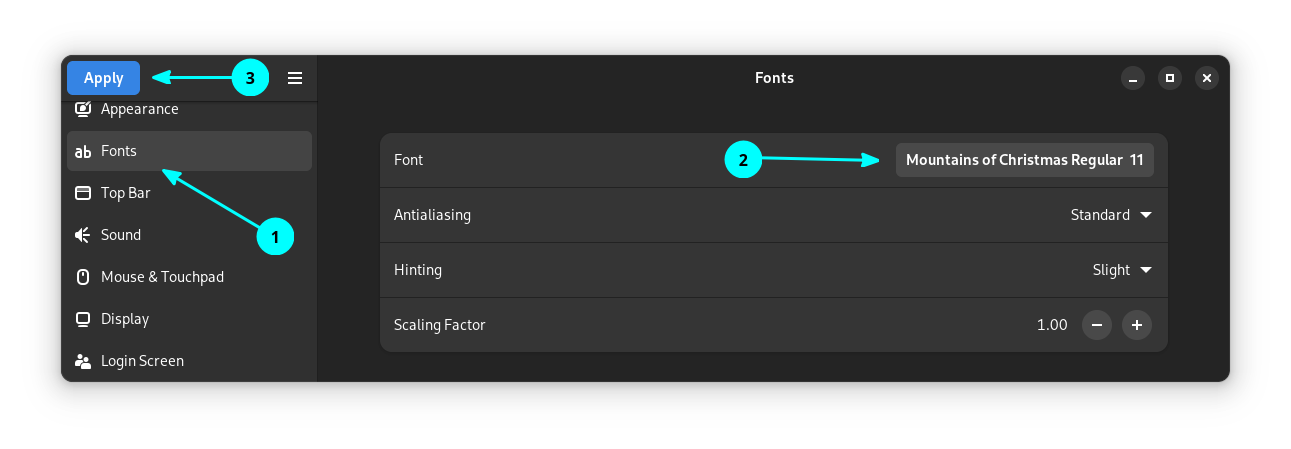
Now, open GDM Settings and go to the Fonts tab. There, you can set the fonts, anti-alias settings etc.

Using GDM Settings to Customize Login Screen in GNOME
Change Font Settings

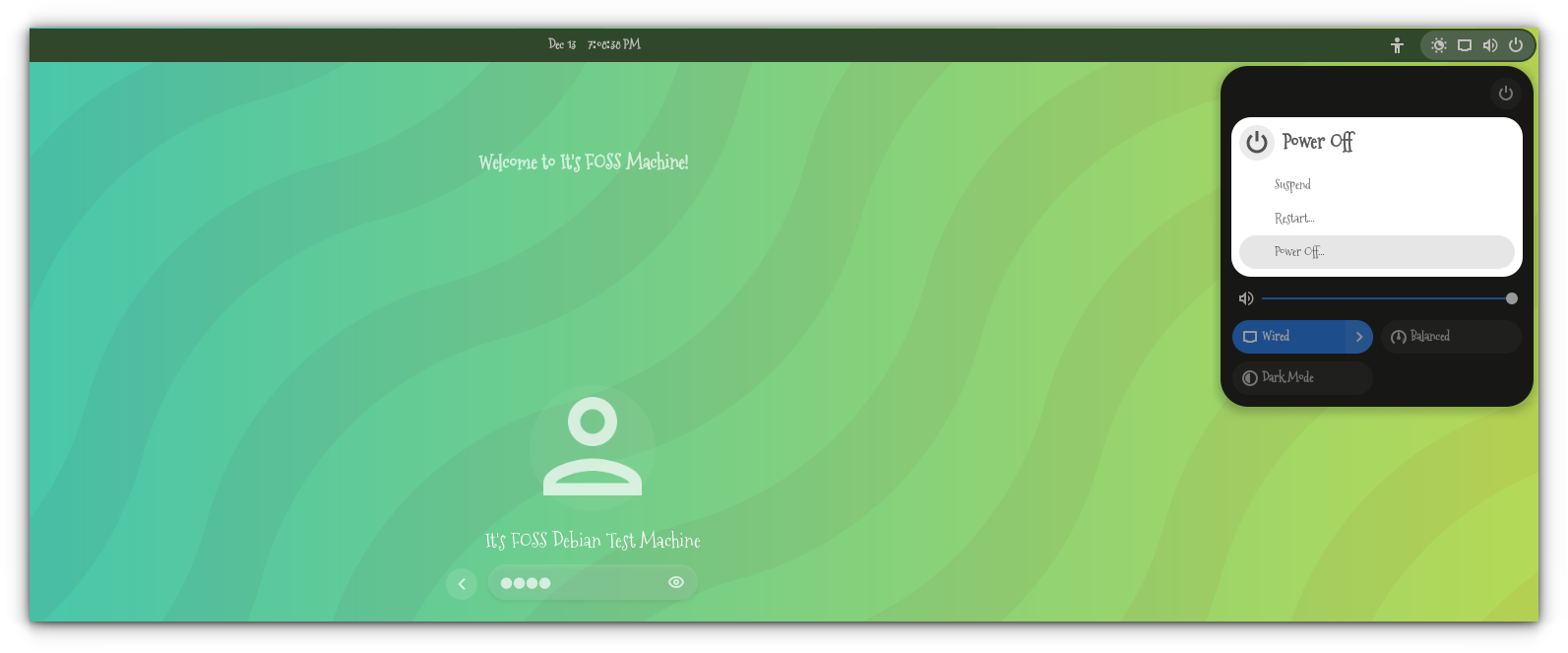
You can see that the new font is now set to your log in screen.

Using GDM Settings to Customize Login Screen in GNOME
Custom Font

3. Change color of top panel

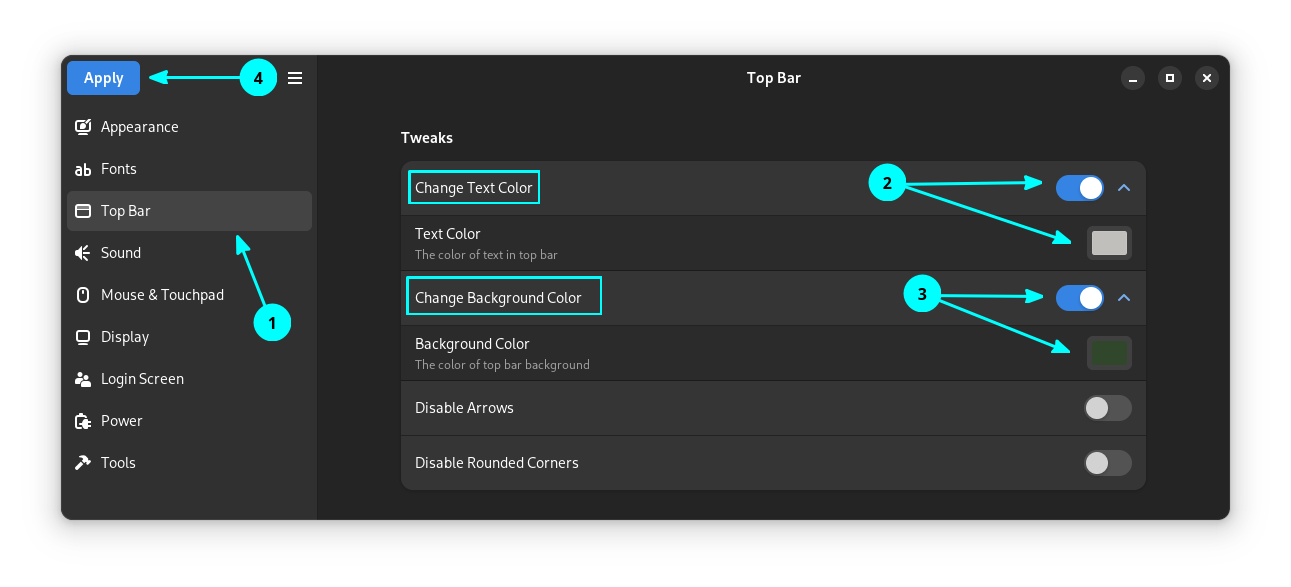
To change the top panel color, go to Top Bar option in the sidebar. Under Tweaks, enable the "Change Background Color" button and then set a color you want.

Using GDM Settings to Customize Login Screen in GNOME
Change Top panel color setting

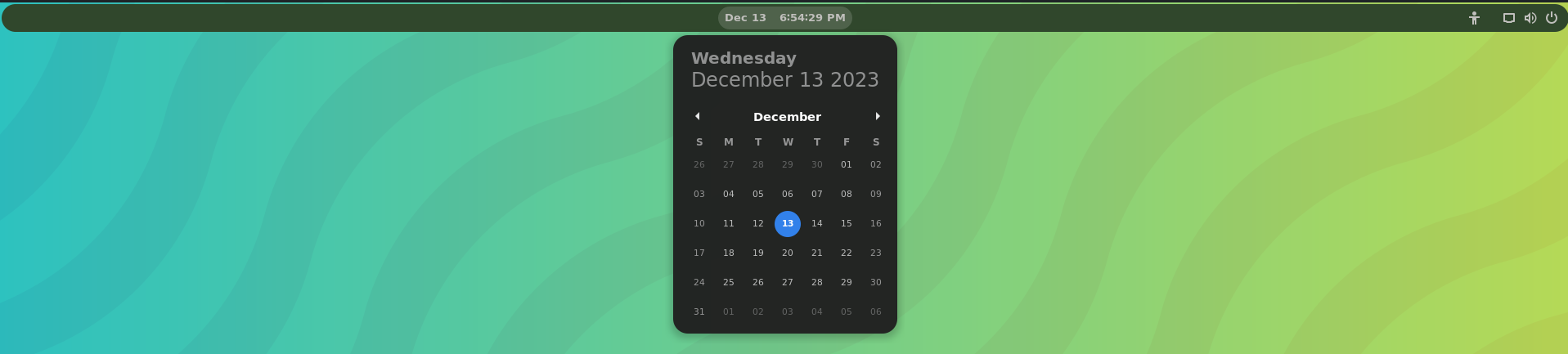
It is equally important to change the text color of the top bar to a convenient color to the background you have selected.

Using GDM Settings to Customize Login Screen in GNOME
Changed Top bar Color

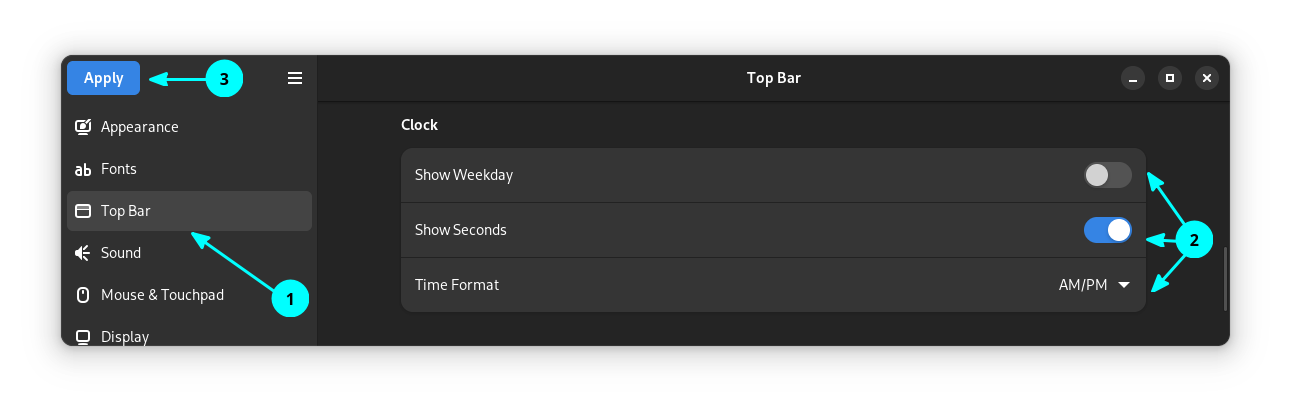
4. Change the time display format

Change the clock to 24 hr or 12hr format using the dropdown menu.

Using GDM Settings to Customize Login Screen in GNOME
Change time Display Format Setting

Furthermore, you can make seconds visible on the top bar, by toggling the corresponding button.

Using GDM Settings to Customize Login Screen in GNOME
Top bar shows seconds

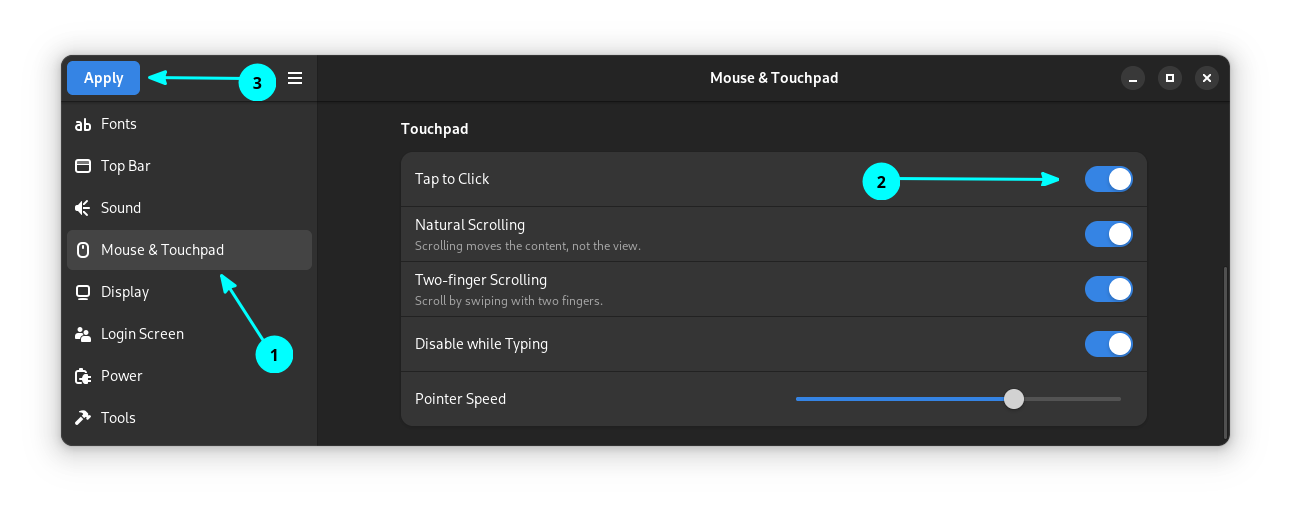
5. Enable tap to click on login screen

On most distros, this is the default behavior. Even if you have tap to click enabled in the system, the GNOME login screen need you to use left mouse click.

To change that, go to the Mouse and Touchpad section and enable the Tap to Click button.

Using GDM Settings to Customize Login Screen in GNOME
Enable Tap to Click

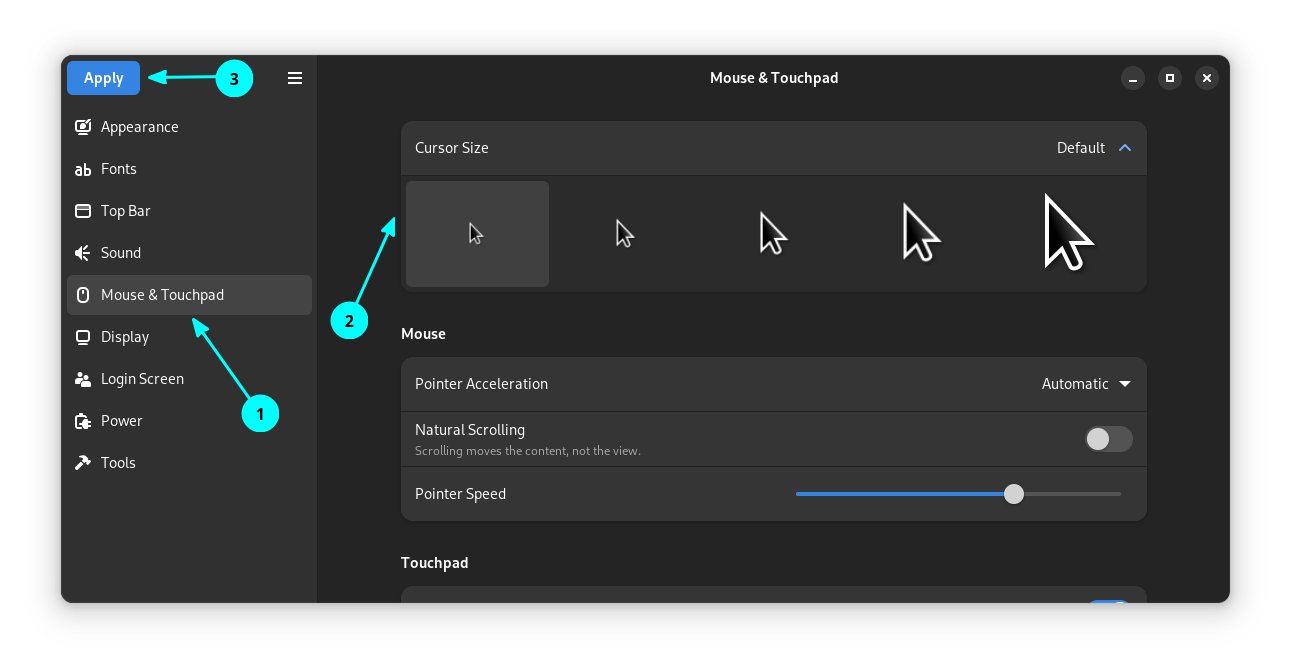
On the same menu, you have an option to tweak the mouse cursor size, if it looks small to you.

Using GDM Settings to Customize Login Screen in GNOME
Change Mouse Cursor Size

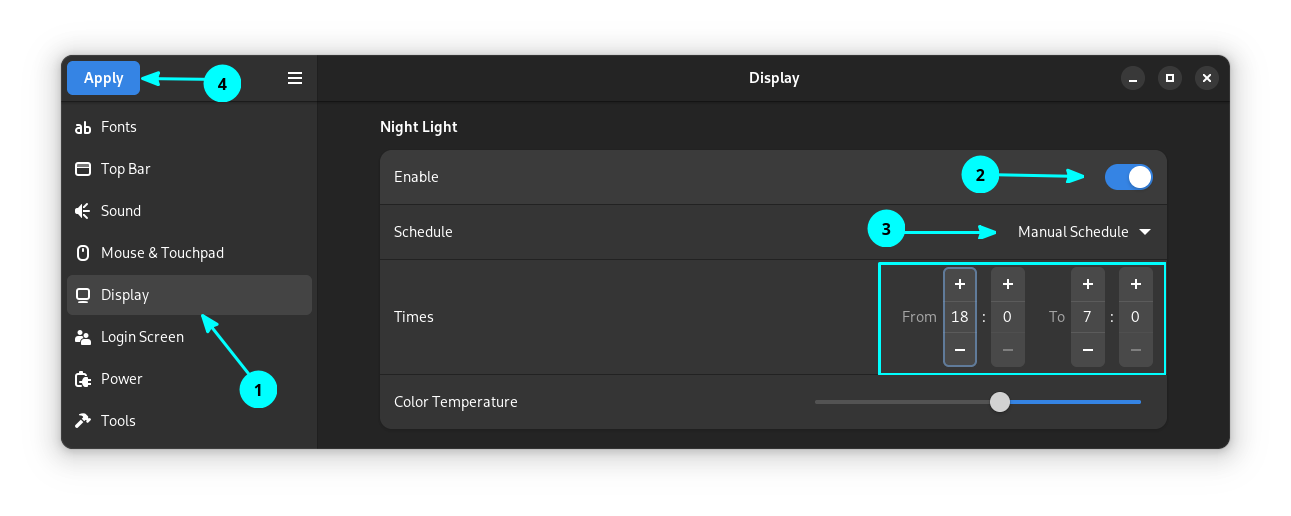
6. Enable night light

You can enable a scheduled night light to the GDM.

Go to Display, toggle the Night Light button on. Now, Schedule either sunset to sunrise or to a convenient time of your choice.

Using GDM Settings to Customize Login Screen in GNOME
Enable Night Light

7. Add a logo and welcome Message

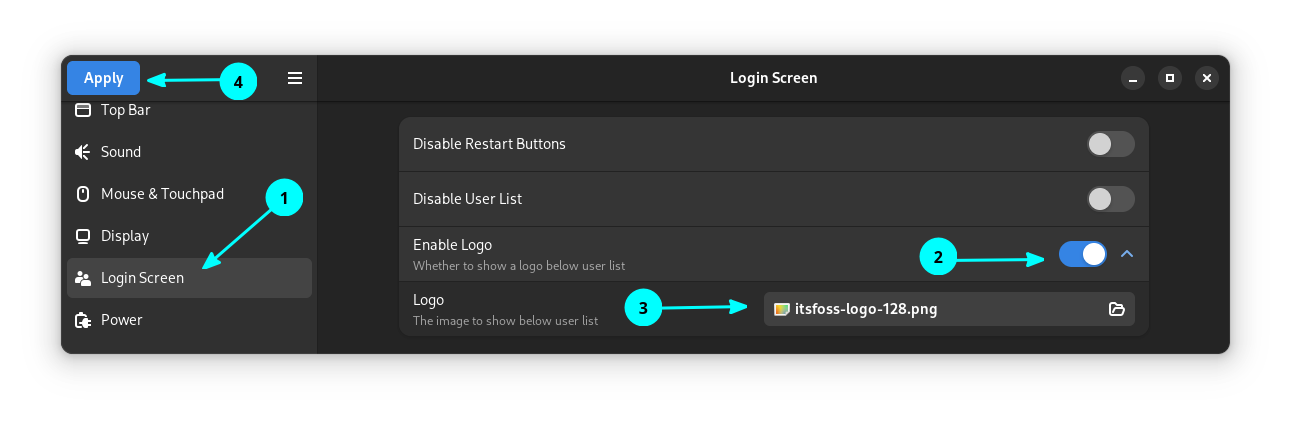
Go to the Login screen tab and then enable the "Enable Logo" button. This will give you a button to browse for the image.

Using GDM Settings to Customize Login Screen in GNOME
Add a Logo

Select the Image and press Apply.

๐Ÿ“‹
On my system's monitor, an image of the size up to 128×128 pixel looked acceptable, and beyond that look huge for me. So, select the size accordingly.

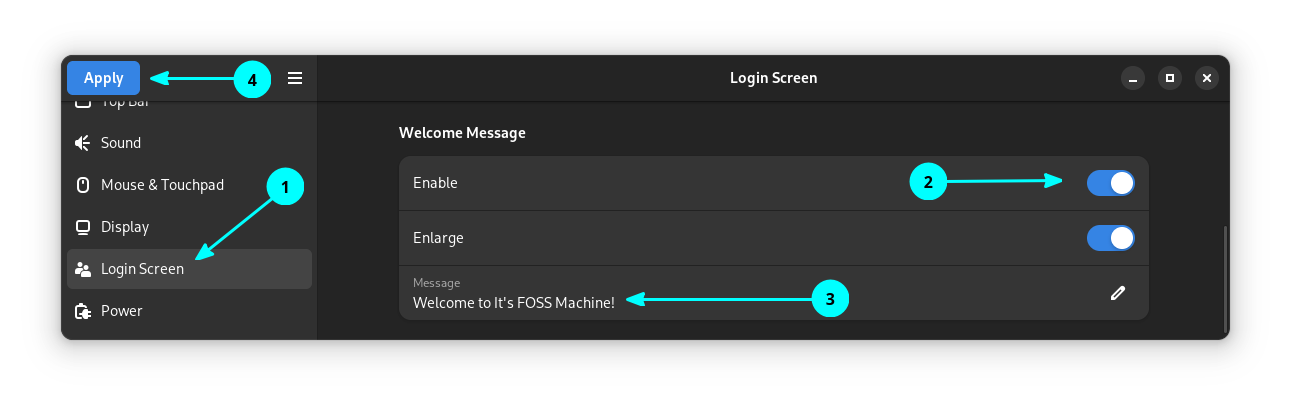
After the image is applied, to set a welcome message, enable the Welcome Message button and then add the text you wanted to show.

Using GDM Settings to Customize Login Screen in GNOME
Add a Welcome Message

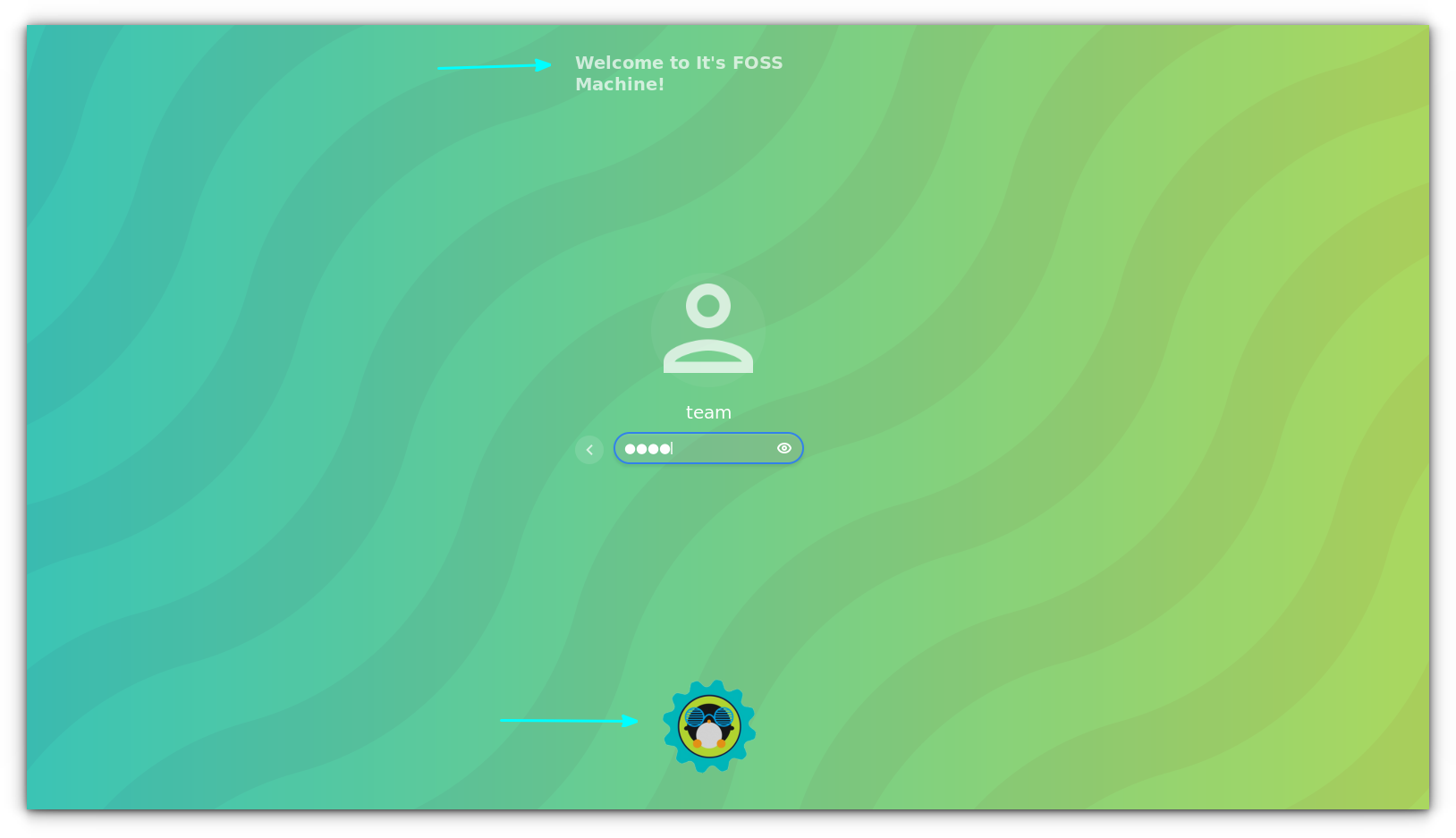
This will display the message, when you selected a user to enter the password.

Using GDM Settings to Customize Login Screen in GNOME
Log in screen Welcome Message

8. Export and import settings

If you want to apply the same settings on some other system, you can export the settings and import it on the other system running GDM Settings tool.

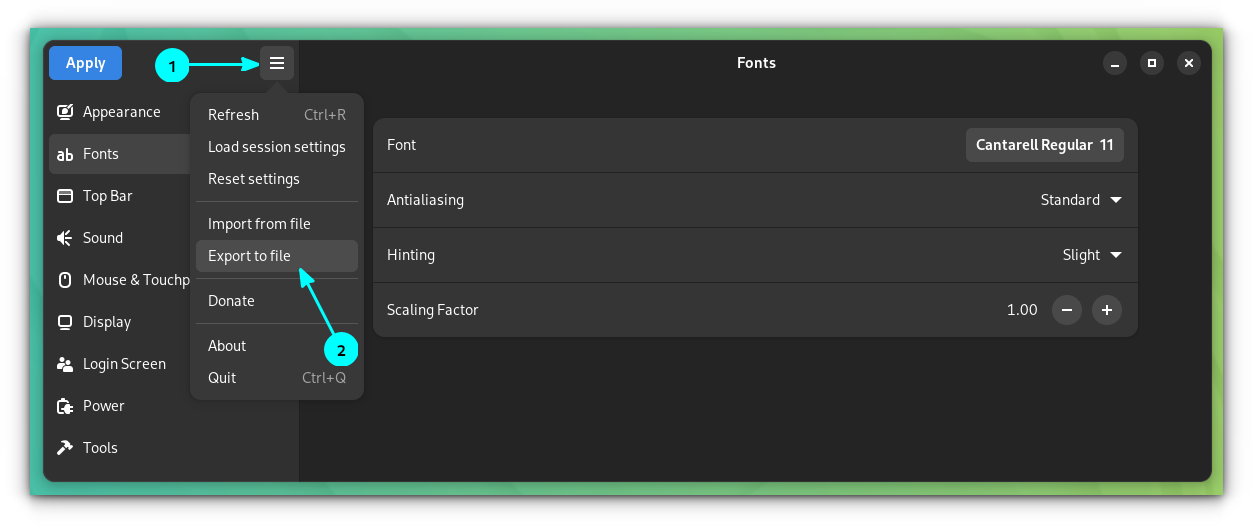
Click on the top-left hamburger menu, and select Export to file.

Using GDM Settings to Customize Login Screen in GNOME
Export to file

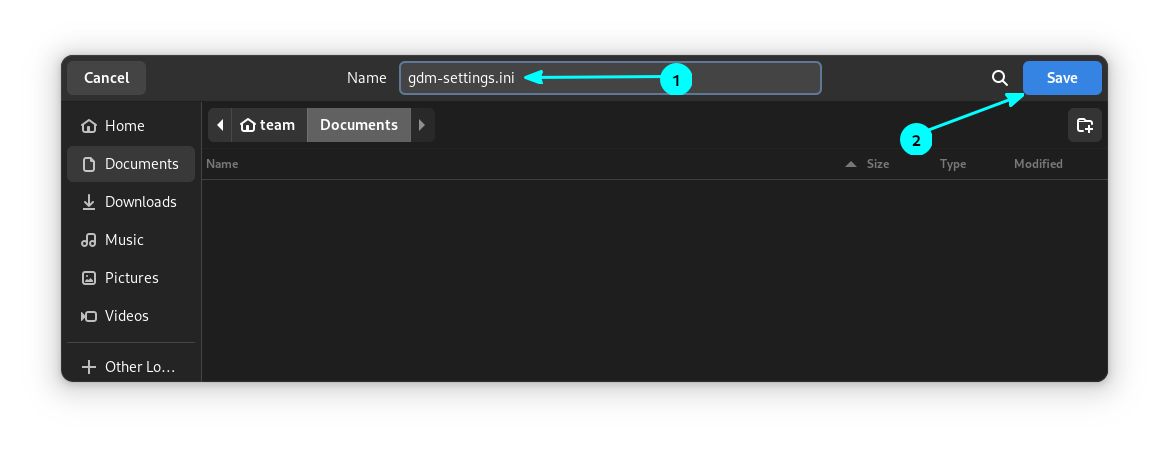
Name the .ini file and save it somewhere safe. You can import it later.

Using GDM Settings to Customize Login Screen in GNOME
Name the File

9. Reset all settings

Don't like the changes you made? There is an easy way to revert to default.

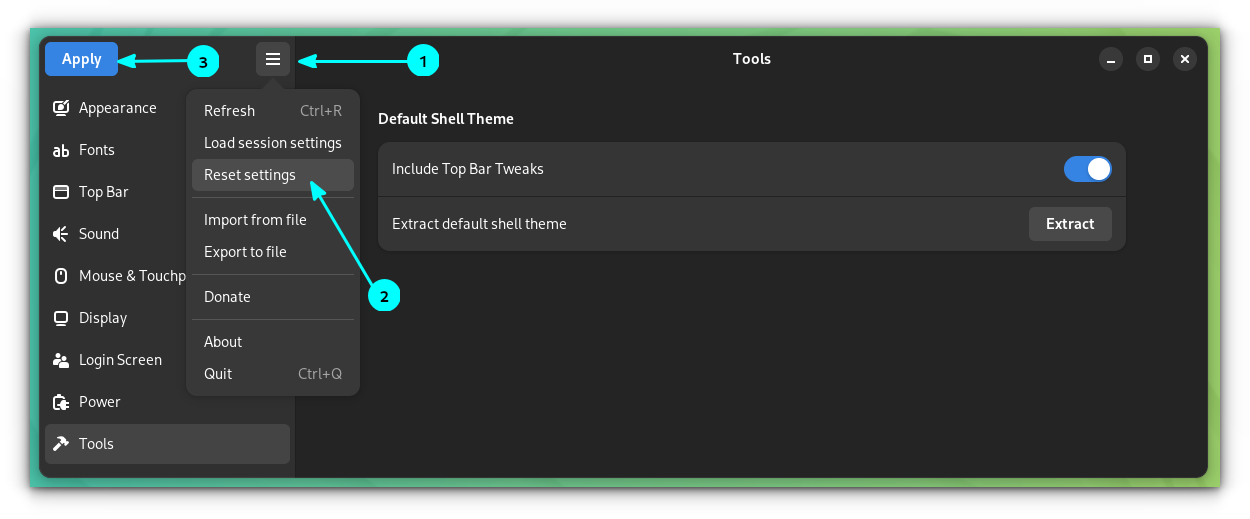
To reset the tweaks, click on the top-left hamburger menu and select Reset.

Using GDM Settings to Customize Login Screen in GNOME
Reset Settings

Now, press Apply. It will ask for your password. Once provided, you will be prompted to log out.

You can see that, all the changes have been reverted.

10. More settings

There are other tweaks available too, like:

  1. Show battery percentage on the top bar, through Top Bar ⇾ Power ⇾ Show Battery Percentage.
  2. Disable or enable the user list on the login screen through Login Screen ⇾ Disable User List.
  3. Change the screen off time, suspend time and other power settings through the Power tab.

Installing GDM Settings Tool

Now that you know what tweaks this tool can do, you may want to try it on your own. Let's see about installing it.

๐Ÿ“‹
The GDM Settings tool didn't work for me on Ubuntu/Pop!_OS. I am using it as a Flatpak App on Debian 12 Bookworm.

GDM Settings Tool can be installed as a Flatpak.

flatpak install flathub io.github.realmazharhussain.GdmSettings

Or, It is available as an AppImage.

For Arch Linux users, install using any AUR Helper from AUR.

yay -S gdm-settings

Conclusion

Login screen is not something that everyone customizes. Other than the "tap to click" change, most other changes are just cosmetic changes.

Overall, it is good to have such options available for people who love to customize every nook and corner of their settings.

๐Ÿ—จ️ Are you one of those Linux users who are obsessed with customization? Will you be trying GDM Settings?


from It's FOSS https://ift.tt/9OheDaE
via IFTTT