Senin, 13 Februari 2023

Changing Directories in Linux Terminal

Changing Directories in Linux Terminal

The cd command in Linux allows you to change directories. You just have to give the path to the directory.

cd path_to_directory

And here comes the first challenge if you are new to Linux. You are probably not sure about the path.

Let's tackle that first.

Understanding paths in Linux

The path traces the location in the Linux directory structure. Everything starts at the root and then goes from there.

You can check your current location with the following:

pwd

It should show an output like /home/username. Of course, it will be your username.

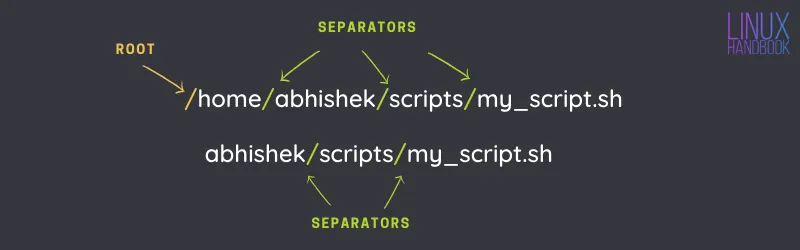
As you can see, paths are composed of / and directory names. Path /home/abhishek/scripts means the folder scripts is inside the folder abhishek, which is inside the folder home. The first / is for root (from where the filesystem starts), the trailing / are separators for the directories.
Changing Directories in Linux Terminal
πŸ–₯️
Type ls / in the terminal and press enter. It will show you the content of the root directory. Try it.

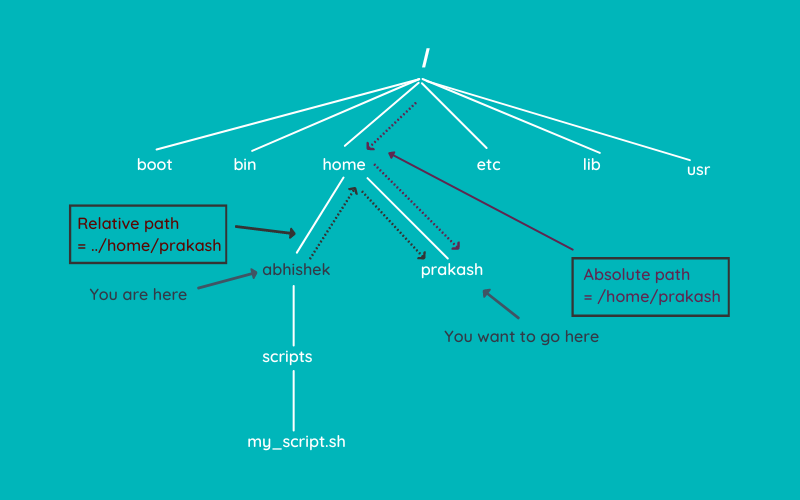
Now, there are two ways to specify a path: absolute and relative.

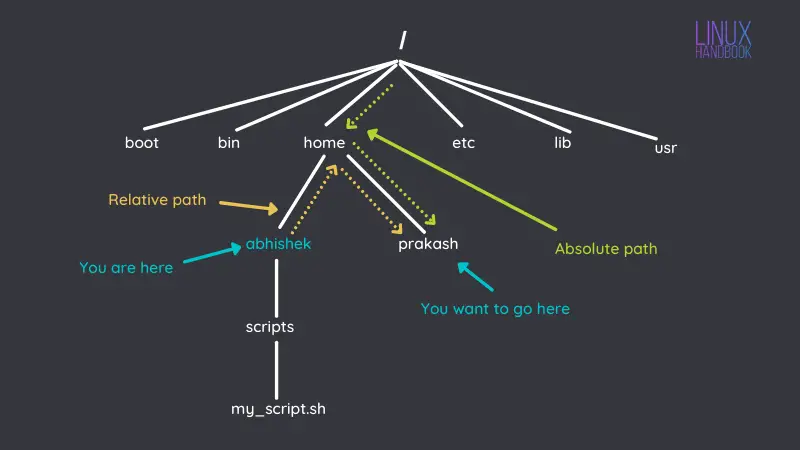
Absolute path: It starts with the root and then traces the location from there. If a path starts with /, it is an absolute path.

Relative path: This path originates from your current location in the filesystem. If I am in the location /home/abhishek and I have to go to /home/abhishek/Documents, I can simply go to Documents instead of specifying the absolute path /home/abhishek/Documents.

Before I show you the difference between the two, you should get familiar with two special directory notations:

  • . (single dot) denotes the current directory.
  • .. (two dots) denote the parent directory taking you one directory above the current one.

Here's a pictorial representation.
Changing Directories in Linux Terminal

Want more on paths in Linux? This article will help you.

Absolute vs Relative Path in Linux: What’s the Difference?
In this essential Linux learning chapter, know about the relative and absolute paths in Linux. What’s the difference between them and which one should you use.
Changing Directories in Linux Terminal

Changing directory with cd command

Now that you are familiar with the concept of path, let's see how you can change the directory.

πŸ–₯️
If you just type cd and press enter, it will take you to your home directory from any location. Go on, try it.

Enter the following command to see the directories inside your home directories:

ls

This is what it shows to me:

abhishek@ituxedo:~$ ls
Desktop    Downloads  Pictures  Templates  VirtualBoxVMs
Documents  Music      Public    Videos

Yours may be similar but not exactly the same.

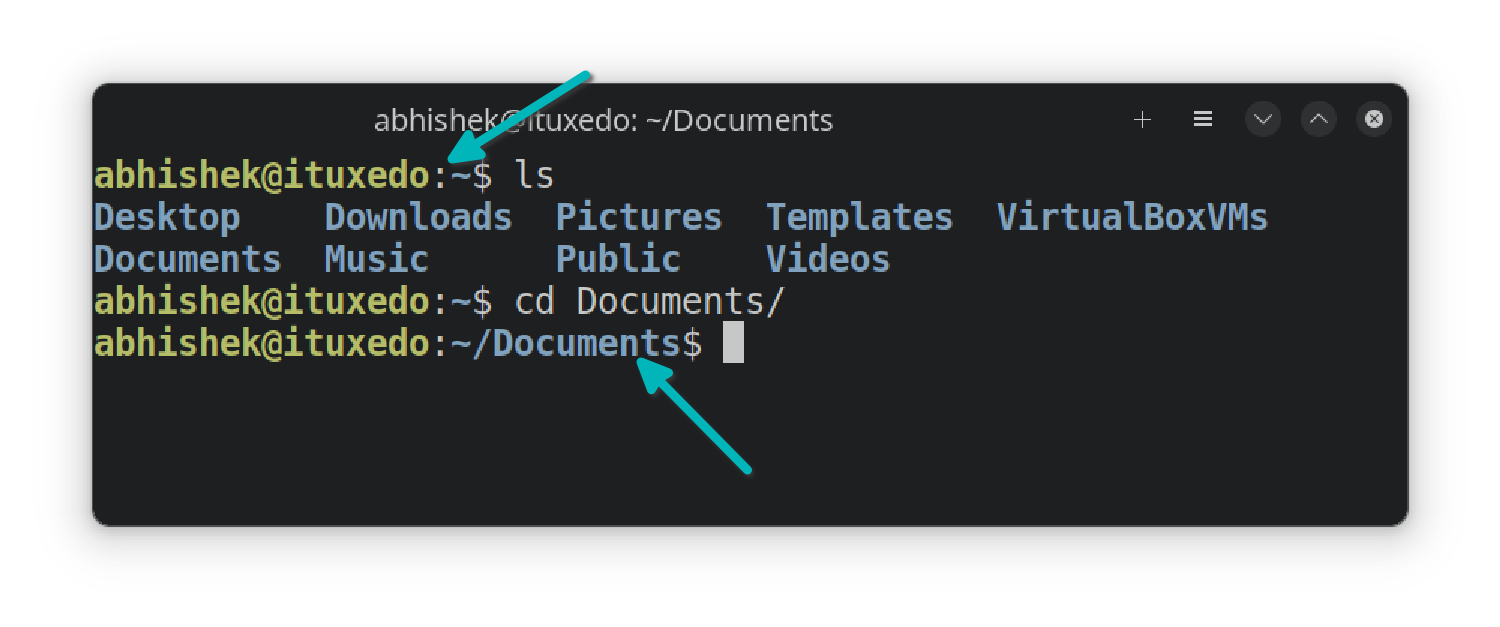
Let's say you want to go to the Documents directory. Since it is available under the current directory, it will be easier to use the relative path here:

cd Documents
πŸ’‘
The default terminal emulators of most Linux distributions show you the current location in the prompt itself. You don't have to use pwd all the time just to know where you are.
Changing Directories in Linux Terminal
Most Linux terminal prompts show the current location

Now, let's say you want to switch to the Templates directory that was located in your home directory.

You can use the relative path ../Templates (.. takes you to the one directory above Documents to /home/username and from there you go to Templates).

But let's go for the absolute path instead. Please change 'abhishek' with your username.

cd /home/abhishek/Templates

Now you are in the Templates directory. How about going to the Downloads directory? Use the relative path this time:

cd ../Templates

Here's a replay of all the above directory change examples you just read.
Changing Directories in Linux Terminal
Watch a replay of the above cd command examples
πŸ’‘
Utilize the tab completion in the terminal. Start typing a few letters of the command and directory and hit the tab key. It will try to autocomplete or show you the possible options. 

Troubleshooting

You may encounter a few common errors while changing the directories in Linux terminal.

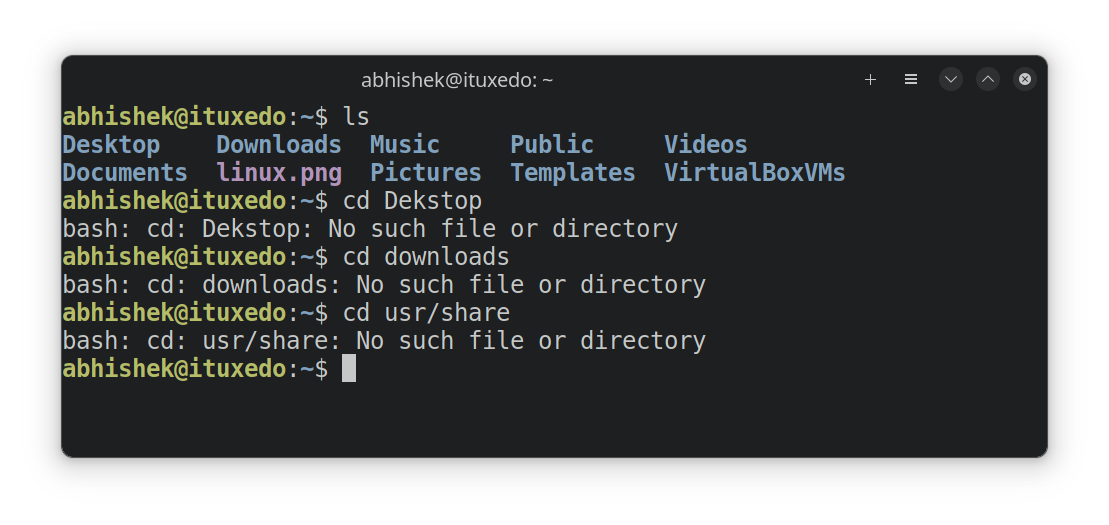
No such file or directory

If you see an error like this while changing the directories:

bash: cd: directory_name: No such file or directory

Then you made mistake with the path or name of the directories. Here are a few things to note.

  • Make sure there is no typo in the directory name.
  • Linux is case sensitive. Downloads and downloads are not the same.
  • You are not specifying the correct path. Perhaps you are in some other location? Or did you miss the first / in the absolute path?
Changing Directories in Linux Terminal
Common examples of "no such file or directory" error

Not a directory

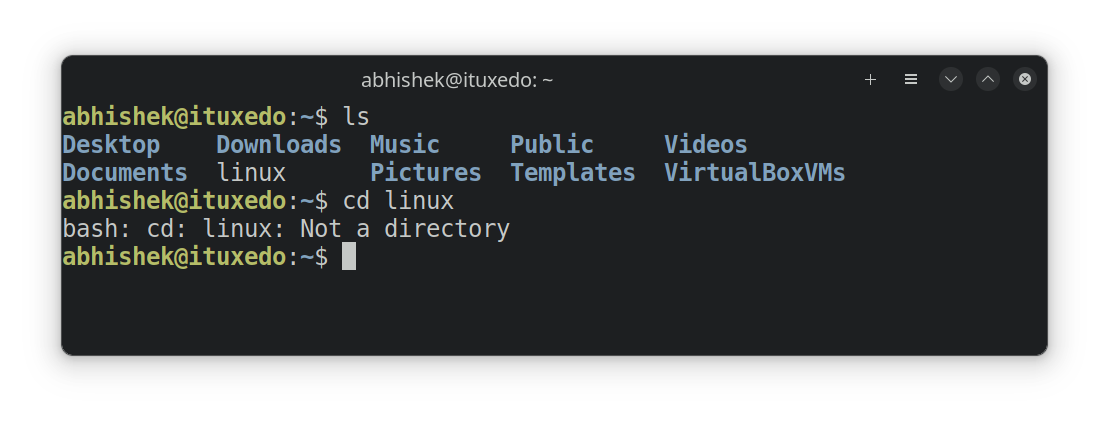
If you see an error like this:

bash: cd: filename: Not a directory

It means that you are trying to use the cd command with a file, not a directory (folder). Clearly, you cannot enter a file the same way you enter a folder and hence this error.
Changing Directories in Linux Terminal
Not a directory error with the cd command

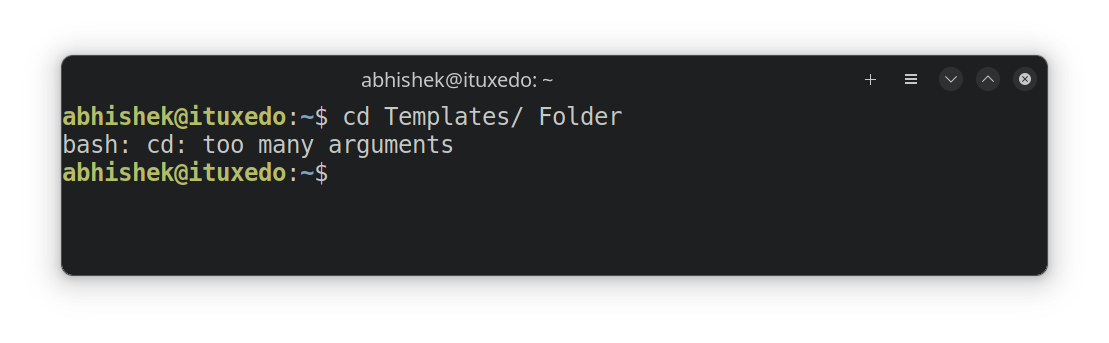
Too many arguments

Another common rookie Linux mistake:

bash: cd: too many arguments

The cd commands take only one argument. That means that you can only specify one directory to the command.

If you specify more than one or mistyped a path by adding a space to the path, you'll see this error.
Changing Directories in Linux Terminal
cd commands accepts only one argument
πŸ‹πŸ»
If you press cd -, it will take you to your previous directory. It's quite handy when you are switching between two distant locations. You don't have to type the long paths again.

Special directory notations

Before ending this tutorial, let me quickly tell you about the special notation ~. In Linux, ~ is a shortcut for the user's home directory.

If user abhi is running it, ~ would mean /home/abhi and if user prakash was running it, it would mean /home/prakash.

To summarize all the special directory notations you learned in this chapter of the terminal basics series:

Notation Description
. Current directory
.. Parent directory
~ Home directory
- Previous directory

Test your knowledge

Here are a few simple exercises to test your newly learned knowledge of the path and the cd command.

Move to your home directory and create a nested directory structure with this command:

mkdir -p sample/dir1/dir2/dir3

Now, try this one by one:

  • Go to the dir3 using either absolute or relative path
  • Move to dir1 using relative path
  • Now go to dir2 using the shortest path you can imagine
  • Change to the sample directory using absolute path
  • Go back to your home directory

Want to know if you got all of them right or not? Feel free to share your answers in the It's FOSS Community.

I highly recommend reading this article to know small but useful things about the terminals and the commands.

19 Basic But Essential Linux Terminal Tips You Must Know
Learn some small, basic but often ignored things about the terminal. With the small tips, you should be able to use the terminal with slightly more efficiency.
Changing Directories in Linux Terminal

Stay tuned for more chapters in the Linux Terminal Basics series if you want to learn the essentials of the Linux command line.

And, of course, your feedback on this new series is welcome. What can I do to improve it?


from It's FOSS https://ift.tt/uPSFOlY
via IFTTT

Kamis, 09 Februari 2023

FOSS Weekly #23.06: Endless OS 5, Rookie Linux Mistakes, Grub Tutorials and More

FOSS Weekly #23.06: Endless OS 5, Rookie Linux Mistakes, Grub Tutorials and More

Valentine week is here. Now, don't go professing your love for Linux by trying a new distro till 14th Feb ;)

Jokes apart, let's see what you have in this edition of FOSS Weekly.

πŸ’¬ In this week's issue:

  • All about Grub bootloader
  • Common mistakes most new Linux users make
  • New releases of Endless OS and Escuelas Linux
  • And more Linux news, open source applications, videos and memes

πŸ“° Linux News Round-up

Here is the selected news from the Linux world:

GNOME is (kind of) Bringing Back a Feature It Had Removed a Few Years Ago
GNOME design changes makes sense, as it brings back (sort of) a similar functionality that it removed earlier.
FOSS Weekly #23.06: Endless OS 5, Rookie Linux Mistakes, Grub Tutorials and More

🧠 What we’re thinking about

Thunderbird is getting ready for the big revamp.

Why We’re Rebuilding The Thunderbird Interface From Scratch
“Why does Thunderbird look so old, and why does it take so long to change?” Let’s answer that burning question with some important history.
FOSS Weekly #23.06: Endless OS 5, Rookie Linux Mistakes, Grub Tutorials and More

Mistakes turn into experience.

Top 10 Mistakes New Linux Users Make
Every Linux user makes these rookie mistakes. Get to know them before you do, or have you already got into trouble?
FOSS Weekly #23.06: Endless OS 5, Rookie Linux Mistakes, Grub Tutorials and More
πŸ—“️
Second Monday of February is observed as National Clean Your Computer Day. It falls on 13th Feb this year.

🎫 Event Alert: SCALE

The 20th edition of South California Linux Expo is scheduled for March 9-12 in Pasadena, CA (USA). It's FOSS is official media partner of the event. If you are near California and would like to attend the event, shoot me an email and I might get you a free pass.

| 20x
FOSS Weekly #23.06: Endless OS 5, Rookie Linux Mistakes, Grub Tutorials and More

πŸͺGrab the Grub

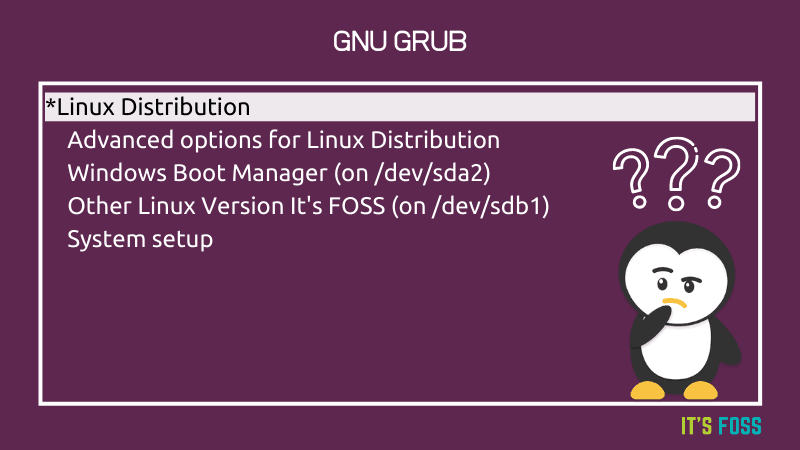
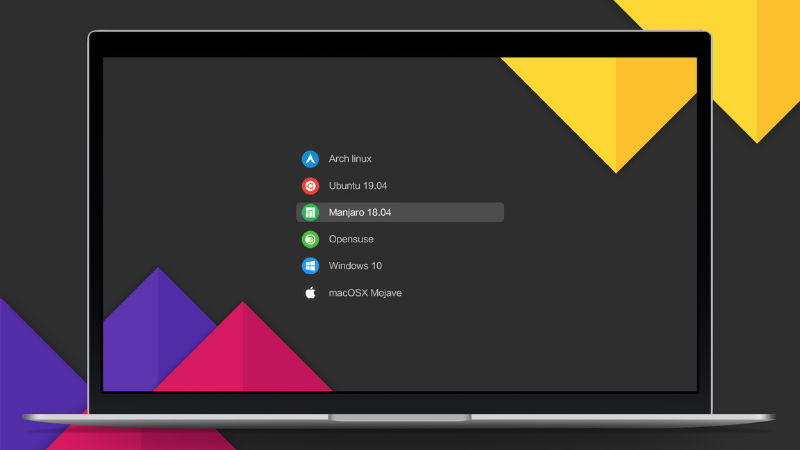
Grub is one of the first screen you see when you start your Linux system. That's the case for most Linux distros. It is time you know more about Grub.

Linux Jargon Buster: What is Grub in Linux? What is it Used for?
If you ever used a desktop Linux system, you must have seen this screen. This is called the GRUB screen. Yes, it is written in all capital letters. In this chapter of the Linux Jargon Buster series, I’ll tell you what Grub is and what is it used for.
FOSS Weekly #23.06: Endless OS 5, Rookie Linux Mistakes, Grub Tutorials and More

Grub doesn't follow the usual Linux commands. It has its own set of commands. Perhaps I'll create a tutorial on Grub commands later.

You can change the kernel parameters from grub before you even boot into the kernel. At time, it helps troubleshoot a Linux system frozen due to graphics drivers.

Grub looks boring, no? Just a couple of lines against a dark background. But you can customize several aspects of grub. While you can always do that by modifying the configuration files, Grub Customizer tool lets you do all that with the comfort of a GUI.

One of the most common usage is to change boot order in dual boot system. But there are more ways to customize it. Read about them in this tutorial.

Customize Grub to Get a Better Experience With Linux
Couple of Grub configuration tweaks to get better experience with multi-boot Linux system using Grub Customizer GUI tool.
FOSS Weekly #23.06: Endless OS 5, Rookie Linux Mistakes, Grub Tutorials and More

🐧Linux learning resources

Don't understand a long Linux command expression? This website helps you understand it. Not 100% accurate but helps nonetheless.

explainshell.com - match command-line arguments to their help text
match command-line arguments to their help text

πŸ“Ή What we are watching

If you use Linux Mint or any other distribution with Cinnamon, you may find this video interesting.


πŸ“±Application highlights

Raven is a open source desktop news reader with flexible settings to optimize your experience. No login is required, and no personal data is collected. Just select the websites you want to curate articles from and enjoy!

GitHub - hello-efficiency-inc/raven-reader: πŸ“– All your articles in one place. Beautiful.
πŸ“– All your articles in one place. Beautiful. Contribute to hello-efficiency-inc/raven-reader development by creating an account on GitHub.
FOSS Weekly #23.06: Endless OS 5, Rookie Linux Mistakes, Grub Tutorials and More

A remote desktop software, the open source TeamViewer alternative, works out of the box, no configuration required.

RustDesk | Open source remote desktop software | The Open Source TeamViewer Alternative
Discover RustDesk, open source remote desktop software, open source TeamViewer alternative, control your desktop remotely. You have full control of your data, no concerns about security.
FOSS Weekly #23.06: Endless OS 5, Rookie Linux Mistakes, Grub Tutorials and More

🀣 Linux Humor

The reality the big tech doesn't accept

FOSS Weekly #23.06: Endless OS 5, Rookie Linux Mistakes, Grub Tutorials and More

❤️ Enjoying FOSS Weekly?

Forward it to Linux-using friends and encourage them to subscribe (hint: it's here).

Become a Pro member and show your support πŸ™

Join our community forum.

Something else? Share it with me by pressing the reply button.

Enjoy :)


from It's FOSS https://ift.tt/sXOLTx9
via IFTTT
Selasa, 07 Februari 2023

Top 10 Mistakes New Linux Users Make

Top 10 Mistakes New Linux Users Make

Linux is an interesting choice for your operating system instead of Windows or macOS.

You might have heard many good things, so you decided to try them. However, new Linux users make some mistakes that end up giving you an unpleasant user experience or making them think that using Linux is tough.

And I do not blame you. When I started, I made some of those mistakes too, and it is simply inevitable for most users. πŸ˜…

But, if you get to know what you are doing wrong, problem solved, right?

In this article, I aim to do precisely that.

1. Picking the Wrong Hardware

Top 10 Mistakes New Linux Users Make

If you already have a computer or laptop and want to try Linux, you probably know this.

But getting the hardware configuration right when you want to use Linux is essential.

The usual pain points include:

  • You have the latest and most superb hardware.
  • You purchased something specially tailored to run Windows (especially with laptops).
  • The hardware components you chose have the worst compatibility with Linux.

While Linux supports varieties of hardware, certain manufacturers, brands, and components may not work the same way it does with Windows.

For instance, a laptop from ASUS (usually tailored for Windows) may not work seamlessly with Linux to make the most of its abilities. However, laptops from HP or Lenovo have better chances of compatibility.

Another example would include NVIDIA graphics cards not working perfectly fine with all Linux distros out of the box, while AMD graphics may provide better support.

Don't get me wrong. Linux can run on anything, literally. 🍞

But you need to check for compatibility with your hardware components before deciding to give Linux a try.

2. Not Knowing What Linux Is

Top 10 Mistakes New Linux Users Make

You may have been suggested to use a Linux distribution like Ubuntu.

So, is that Linux? Yes and no.

I recommend reading our resource on What Linux is to explore the unexplored thought.

It will be helpful for the next point.

3. Picking the Wrong Distribution

Top 10 Mistakes New Linux Users Make

I hope you read through our resource on What Linux is and understood the concept.

If you do, the next thing you want to know is picking the correct Linux distribution for your system and use case.

Most new Linux users pick something unsuitable for their requirements and get frustrated ❌

For most users, distributions fit for beginners should do the trick ✅

Your best options include the following:

There are more options, for instance, a list of beautiful Linux distros.

If you are feeling adventurous and want a good challenge for your experience, you can choose Fedora or Arch Linux.

You should not pick any of the distributions tailored for advanced users.

4. Jumping Without Conclusions

As with everything, you need to research a bit and spend a little time getting to know what you will use and how to get things done.

Things like how to install apps, how to remove apps, and how to back up your data are essential.

πŸ’‘ You can explore our website and search for resources like:

The point is, if you do not have clarity on something, find out about it before you get to use Linux for a seamless experience.

5. Realizing It is Not Windows

Top 10 Mistakes New Linux Users Make

This is me stating the obvious.

But, some users expect the same applications or things to work the same way.

If you are already comfortable using another platform and do not want to break your workflow or productivity streak, you should stick to it and not switch to Linux.

Sure, Linux is better than Windows and does a few things better than macOS.

But, it is not a replacement for everyone. So, once you keep it in mind, start exploring things that work on Linux and potential alternatives to what you did with Windows.

6. Afraid to Use the Terminal

Top 10 Mistakes New Linux Users Make

I was one of them, always hesitating to use any command through the terminal. But prepare to use it occasionally (you do not need to use it every day).

I tried to do everything using the Graphical User Interface (GUI). However, some tasks are faster and easier on the terminal than on GUI programs.

Don't believe me? Read through the benefits of using a Linux terminal, and you will be surprised to learn its utility 😱

Using the terminal does not mean you need to do everything on it. Also, you need to ensure you do not run as the root user in Linux all the time.

Sometimes you might need to install an application using a couple of commands; sometimes, you need to remove a package or update the system.

🚧
Check what a command does before typing it in the terminal. A list of destructive Linux commands can be an excellent place to know what to avoid.

Suggested Read πŸ“–

31 Basic Yet Essential Ubuntu Commands
An extensive list of essential Linux commands that every Ubuntu user will find helpful in their Linux journey.
Top 10 Mistakes New Linux Users Make

7. Not Able to Find the Right Apps

Top 10 Mistakes New Linux Users Make

Applications available for Linux distributions are a bit different than what's available for Windows and macOS.

You can explore our list of essential applications for desktop Linux users to get a head start.

Either way, check out the ones available in your software center, Flathub, or Snap store.

8. Take Care of File Compatibility

You cannot run .EXE files on a Linux system.

Similarly, the file formats for documents, archives, and text files differ πŸ“„

You may end up sharing a file with your friend using Windows, which they cannot access.

For personal use, this should not be a big deal. However, if you collaborate with people using other platforms, use file formats supported everywhere.

9. Not Asking the Community for Help

Top 10 Mistakes New Linux Users Make

One of the key reasons people like Linux is because of the community πŸ€—

Unlike other platforms, no single tech giant controls what you use. So, whenever you encounter a problem or have a doubt, the community of Linux users is always available to help you.

Simply pop a question in our It's FOSS Community forum (or look for existing discussions that might help you).

It’s FOSS Community
A place for desktop Linux users and It’s FOSS readers
Top 10 Mistakes New Linux Users Make

Similarly, there are other forums and platforms where you can reach out and ask for help.

10. Giving Up Quickly

Top 10 Mistakes New Linux Users Make

As I mentioned above, you need to put some effort into learning and using Linux.

So, whenever you end up misconfiguring something or lose data and fail to boot, those are some experiences every Linux user has gone through.

Also, it isn't just limited to Linux; even Windows/macOS systems fail when doing something you do not know.

Hence, you must be patient and try to troubleshoot or resolve a few issues before you decide to use or ditch it 😌

Wrapping Up

Linux is not a complicated operating system. Like any other OS, you will have to learn about it before starting.

Since Windows and macOS are more popular than Linux for personal computers, users know more about them than Linux.

As long as you know what you are doing wrong, Linux should feel at home for most new users.

πŸ’¬What mistakes did you make as a newbie Linux user? Is there anything else you would like to add to the list of common mistakes we listed?

Feel free to share your thoughts in the comments.


from It's FOSS https://ift.tt/gPS24od
via IFTTT
Kamis, 02 Februari 2023

7 Best Gentoo-Based Linux Distributions

7 Best Gentoo-Based Linux Distributions

Gentoo Linux is one of the best Linux distributions for advanced users. Want something similar but maybe easier? Gentoo-based distros are your solution.

Gentoo Linux is famous for its package manager, Portage, which allows you to customize every package per your requirements and build/configure things from the ground up. This way, you get to optimize your system experience in the best possible way.

However, it is understandable that not everyone prefers using Gentoo Linux because of its learning curve or the effort required to set it up😫

So, in that case, you can try Gentoo-based Linux distributions that make things easier.

Let me highlight some options that do a few things better than having Gentoo Linux barebones.

πŸ“‹
The list is in no particular order of ranking.

Also, like Gentoo Linux, the distros based on it are not tailored for new users. So, you might want to read the documentation of each project thoroughly before trying them out.

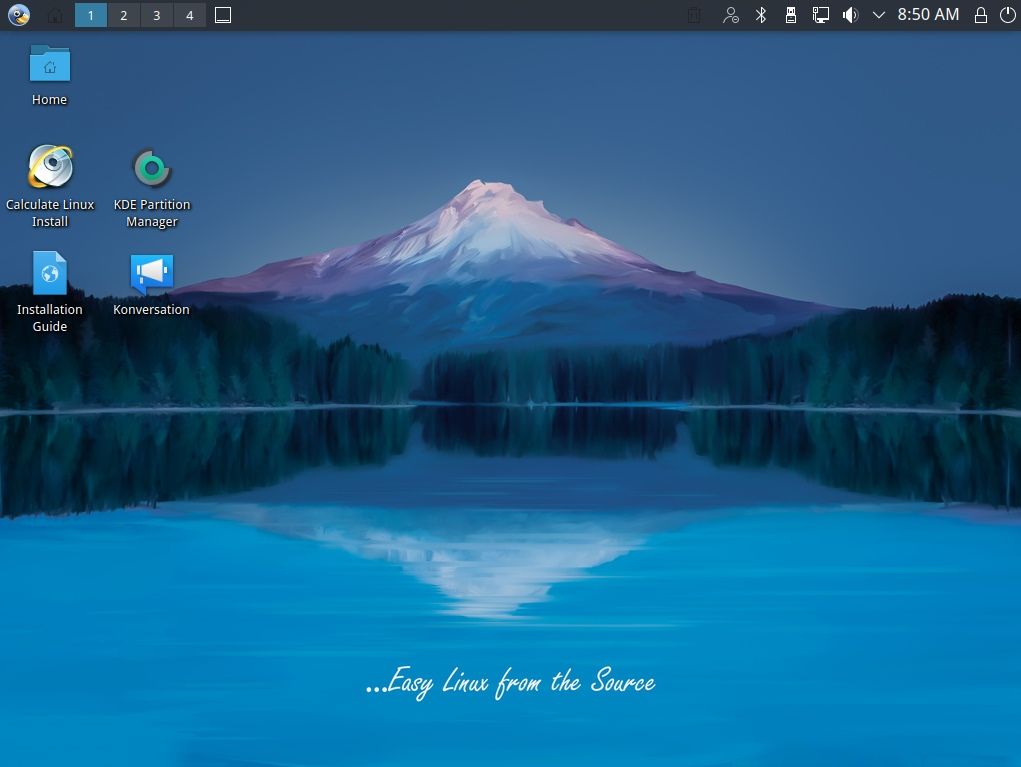
1. Calculate Linux

7 Best Gentoo-Based Linux Distributions

Calculate Linux focuses on providing a user-friendly experience out-of-the-box.

It is based on Gentoo and still backward compatible with it. You get a rolling-release distribution with Calculate Linux, but you can also choose between testing or stable updates per your requirements.

There are different editions of desktop, server, cloud, and testing. Pick the one you need.

2. CLIP OS

7 Best Gentoo-Based Linux Distributions
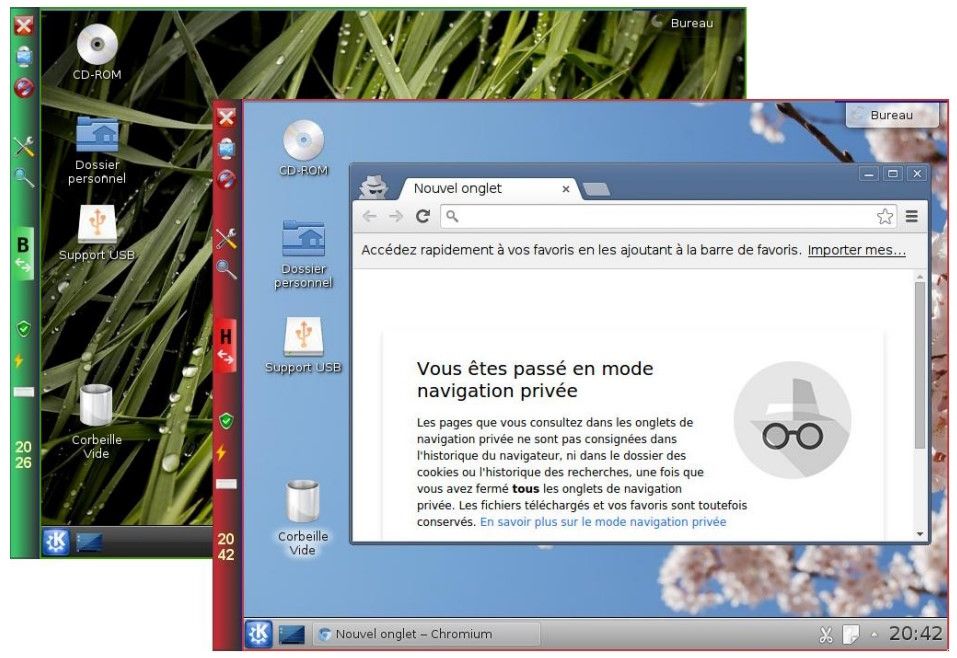
Clip OS v4

CLIP OS is an interesting Gentoo-based distribution that aims to provide a secure experience built by the National Cybersecurity Agency of France (ANSSI).

There are two versions of the project where v4.0 is a non-working reference where you can explore the source code and use it however you like for building your Gentoo-powered experience.

And v5.0 is an actively developed project in the beta phase when writing this. It may sound similar to Qubes OS, but it differs in various ways.

You will have to build an image CLIP OS before you want to try it.

Suggested Read πŸ“–

13 Independent Linux Distros That are Built From Scratch
There are hundreds of Linux distributions available. But most of them fall into these three categories: Debian, Red Hat (Fedora) and Arch Linux. Using a distribution based on Debian/Ubuntu, Red Hat/SUSE or Arch Linux has its advantages. They are popular and hence their package manager offe…
7 Best Gentoo-Based Linux Distributions

3. Funtoo

7 Best Gentoo-Based Linux Distributions

Funtoo is a Gentoo-based distro by the creator (former lead) of Gentoo Linux.

The philosophy that powers Funtoo is a bit different than Gentoo. Hence, the community approach differs.

You can download its "next" edition release to get the latest experience or opt for its 1.4-release for long-term stability.

Both the editions are rolling-release distros, one offering newer packages.

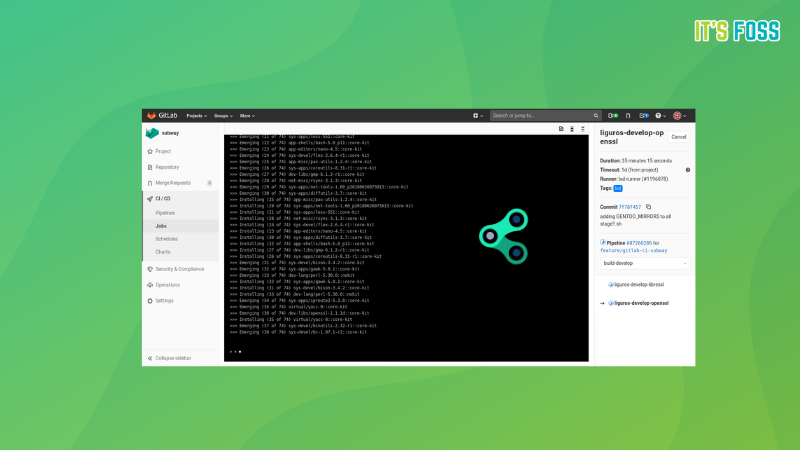
4. LiGurOS

7 Best Gentoo-Based Linux Distributions

LiGurOS is yet another option in the Gentoo family of operating systems. It aims to provide a fast and secure experience while ensuring the latest features of AMD and Intel processors work well.

You will find two different releases, one stable and a rolling. It also gives you the choice of your favorite services manager, supporting openRC as one of them. However, you will have to build the install image to use it.

Explore more about the project on its GitLab page.

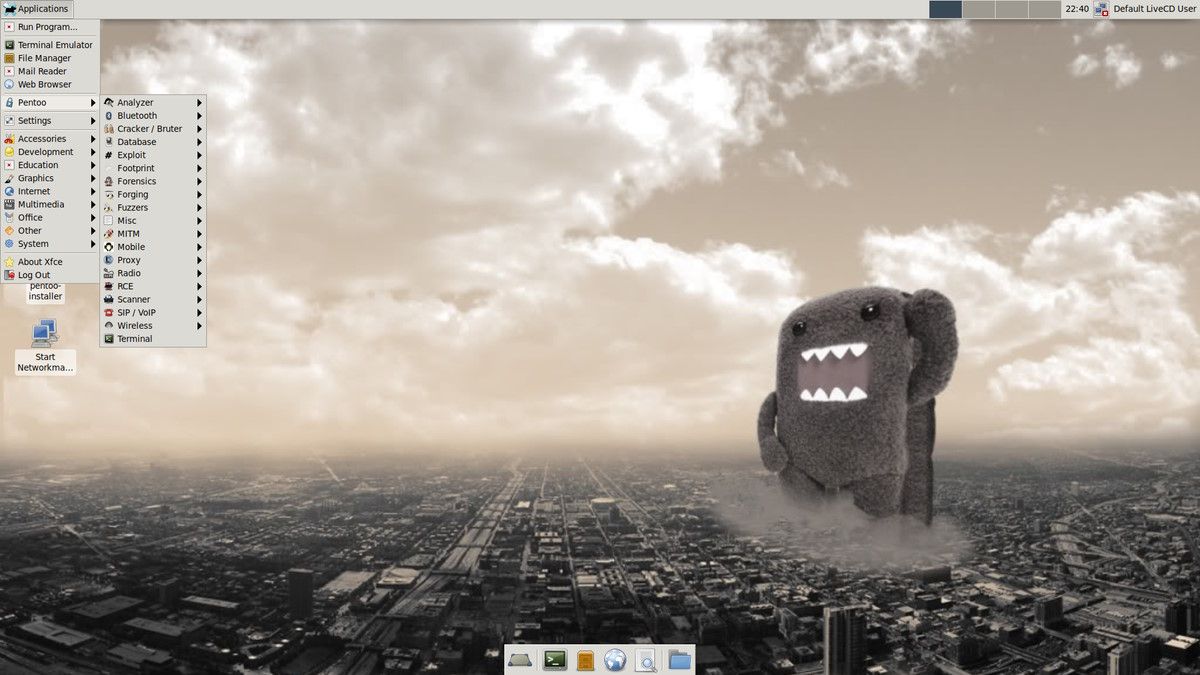
5. Pentoo

7 Best Gentoo-Based Linux Distributions
Image Credits: Distrowatch

Pentoo Linux is one of the best Linux distributions for penetration testing.

You can find installable images for both 32-bit and 64-bit systems. Out of the box, you get customized tools, a customized kernel, XFCE 4 window manager, and more.

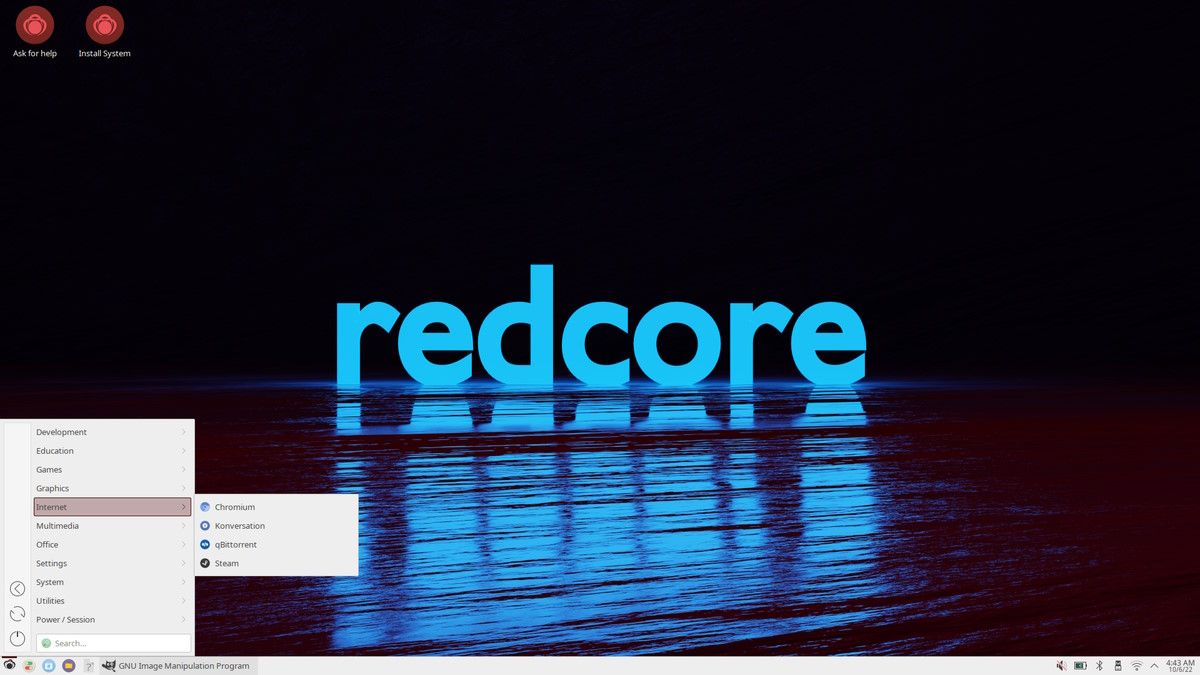
6. Redcore Linux

7 Best Gentoo-Based Linux Distributions
Image Credits: Distrowatch

Redcore Linux is a distribution based on the Gentoo Linux testing branch, with a hardened profile for better security.

It is a successor of Kogaion Linux (which was initially based on Sabayon Linux), none of which is maintained anymore. One of the members of the original development group responsible for it decided to continue the idea with Redcore.

This distribution aims to make it easy to install Gentoo Linux on a compatible system easily.

7. Gentoo Studio

7 Best Gentoo-Based Linux Distributions

Gentoo Studio is a tailored offering for real-time Linux audio production systems based on Gentoo Linux.

It packs in various audio applications and allows you different customization options by default.

Unlike some studio-focused distributions, you may want to check the packages/utilities it supports out of the box for your production requirements.

πŸ’¬What is your favorite on the list? Did we miss any of your favorites? Let us know in the comments section below.

Suggested Read πŸ“–

Secure Your Online Privacy With These Linux Distributions
Brief: This article shows you the list of best privacy-focused Linux distributions. This article is intended for readers who are extremely concerned about their only privacy. Privacy is a serious and much-debated issue. In this age of cyber espionage and electronic surveillance, privacy becomes…
7 Best Gentoo-Based Linux Distributions


from It's FOSS https://ift.tt/R4lTSEe
via IFTTT