Minggu, 25 Februari 2024

Bluesky vs. Mastodon: Which Twitter Alternative Should You Choose?

Bluesky vs. Mastodon: Which Twitter Alternative Should You Choose?

Bluesky and Mastodon are two social media networks with an aim to provide a decentralized platform for users.

As microblogging platforms, they also wanted to pitch themselves as a Twitter alternative (primarily) when they started.

But, have they succeeded in their goals? What do they offer differently? What more do they have in common? And, should you consider using them?

Here, I shall compare Bluesky and Mastodon to give you all those answers.

Origins

Bluesky started as a team to build an open and decentralized standard for social media in 2019. And, Jack Dorsey (Co-founder of Twitter) at the time wanted their platform to be the first client utilizing the protocol.

Of course, we all know what happened after that — Elon Musk took over Twitter, and now it's called X.

The plan for an open standard for X (formerly known as Twitter) vanished into thin air.
Bluesky vs. Mastodon: Which Twitter Alternative Should You Choose?

Since 2021, Bluesky is an independent company backed by Jack Dorsey.

💡
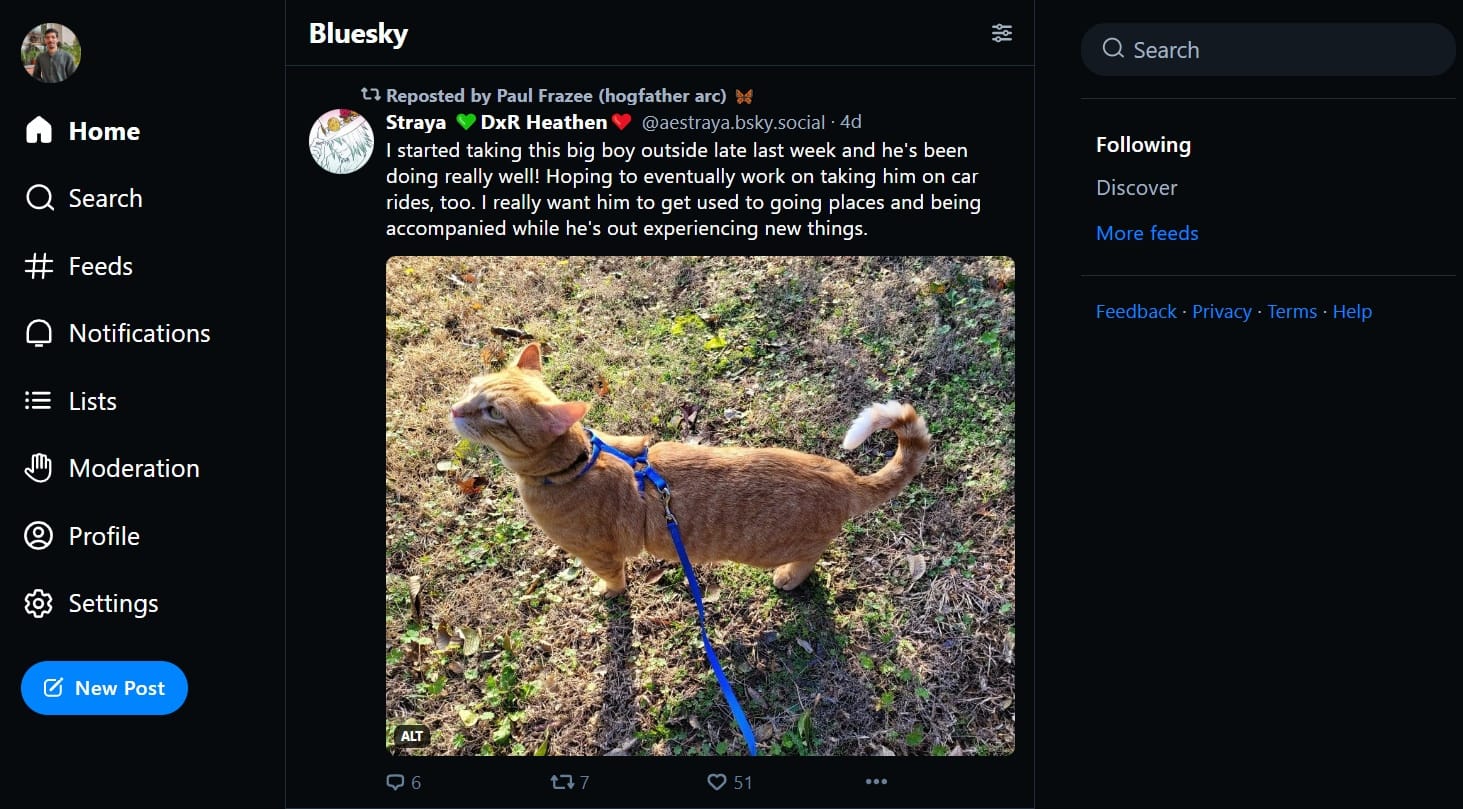
Bluesky open-sourced the client code for their platform back in 2023 with an invite-only system for the website. Fast-forward to 2024, it is now open for all.
Bluesky vs. Mastodon: Which Twitter Alternative Should You Choose?

Mastodon launched as a decentralized microblogging platform by Eugen Rochko, back in 2016. Initially, it was more of a hit-and-miss, trying to mimic Twitter in some form (like posts were called "Toots").

Later in 2022, amidst the Twitter chaos, it got the spotlight to help the platform grow, and evolve faster than ever before.

The Technology
Bluesky vs. Mastodon: Which Twitter Alternative Should You Choose?

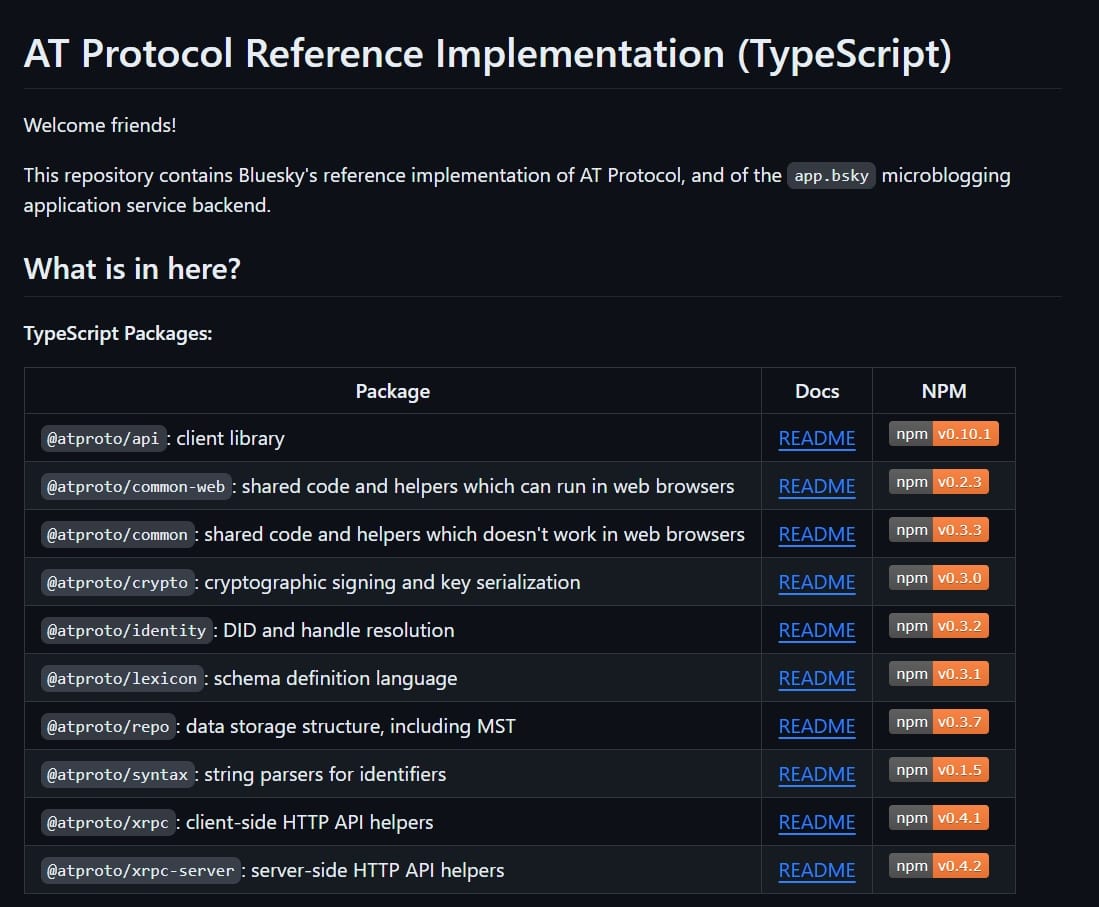
Bluesky is an open-source client app built on top of an open, AT Protocol — a federated protocol to help anyone build an open social media network.

The client and the protocol are built by the same Bluesky team.

The protocol wants social media networks built on top of it to behave like the traditional times, where anyone could use RSS to subscribe to blogs.

However, unlike having a traditional centralized authority, the AT protocol provides you with a federated network where you can easily port your accounts.

Yes, you heard that right 🤯

One of the unique traits of Bluesky's protocol is to give you the ability to migrate your social account to any other social media network utilizing the same protocol.

Bluesky vs. Mastodon: Which Twitter Alternative Should You Choose?

They also want the standard to be compatible with Mastodon's ActivityPub protocol, which would allow them to interconnect. To get all the technical bits of the protocol, you can refer to the documentation.

📋
The federation functionality in Bluesky in its early access stage, with some limitations for self-hosters.

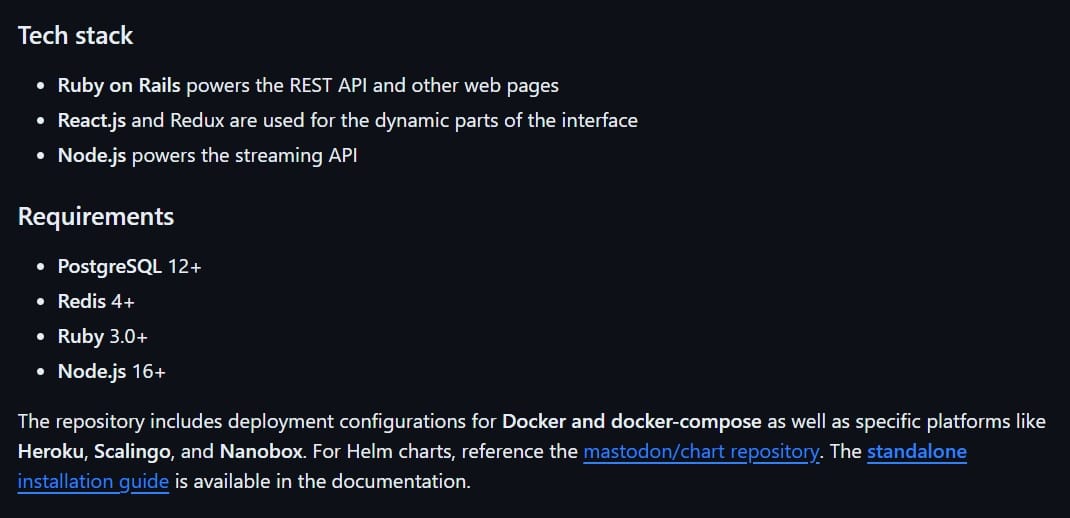
Mastodon is a free and open-source software based on the federated ActivityPub protocol.
Bluesky vs. Mastodon: Which Twitter Alternative Should You Choose?

Unlike Bluesky, you can self-host it without any restrictions, and spin up a new Mastodon instance as per your requirements. Follow its documentation to know more.

Even though ActivityPub protocol does not feature "account portability", more types of social media platforms support it. And, any site who uses it, will be available in the federated network.

Corporate vs Non-Profit

Bluesky vs. Mastodon: Which Twitter Alternative Should You Choose?

Unfortunately, Bluesky is a corporate-backed product. And, we know what happened to Twitter 🤦‍♂️

Sure, they have made it open-source, and could soon let you host your Bluesky instance like Mastodon seamlessly. Until that happens, Bluesky is a controlled entity with Jack Dorsey as one of the board members.

Even if they complete their federation network and let you self-host an instance easily, Bluesky as the primary platform can have advertisements and other monetization strategies.

The Mastodon project is a non-profit German-based company. Unlike Bluesky, the development is crowdfunded, and does not rely on a couple of investors.

Numerous companies donate to Mastodon, along with users through Patreon.

The official Mastodon platform does not need to entertain any kind of monetization strategy with advertisements.

The Target Users

While they both set out to provide a decentralized platform, not everyone is a fan.

Some people do not like Mastodon, and some do not like the idea of Bluesky. It is only fair, everyone has their preferences. For some, it could be the user experience, and for others it could be the demographics of users they interact with.

Bluesky gives a Twitter-like layout, and it does not feel fundamentally different.

So, anyone who is comfortable with the idea of a similar UI, and confident about a platform backed by Jack Dorsey, can give Bluesky a try.

However, if you want a change, and a community-powered platform, Mastodon is the better choice for you.

User Experience

Bluesky vs. Mastodon: Which Twitter Alternative Should You Choose?

It is no surprise that Mastodon offers a mature user experience.

Mastodon has been around for longer, and has been evolving with the community requirements pretty well.

No special algorithm dictates what you see in the feed meant for the public. If a post has a higher engagement (likes+reshares), you will be more likely to see it first.

Of course, for your feed, posts by the people you follow should show up chronologically. Not to forget, the social media experience will vary depending on the Mastodon instance you signed up on.

Some instances (servers) have more active users, with posts that you might like better.

The user interface presents similar interaction buttons to X, yet feels different, which is a good thing. Not to forget, you get dark/light modes to tweak from the settings.

Moreover, the moderation is managed by the humans responsible for a particular instance. So, like every human being, you can choose to stay with the ones who agree with your thoughts and idealogies.

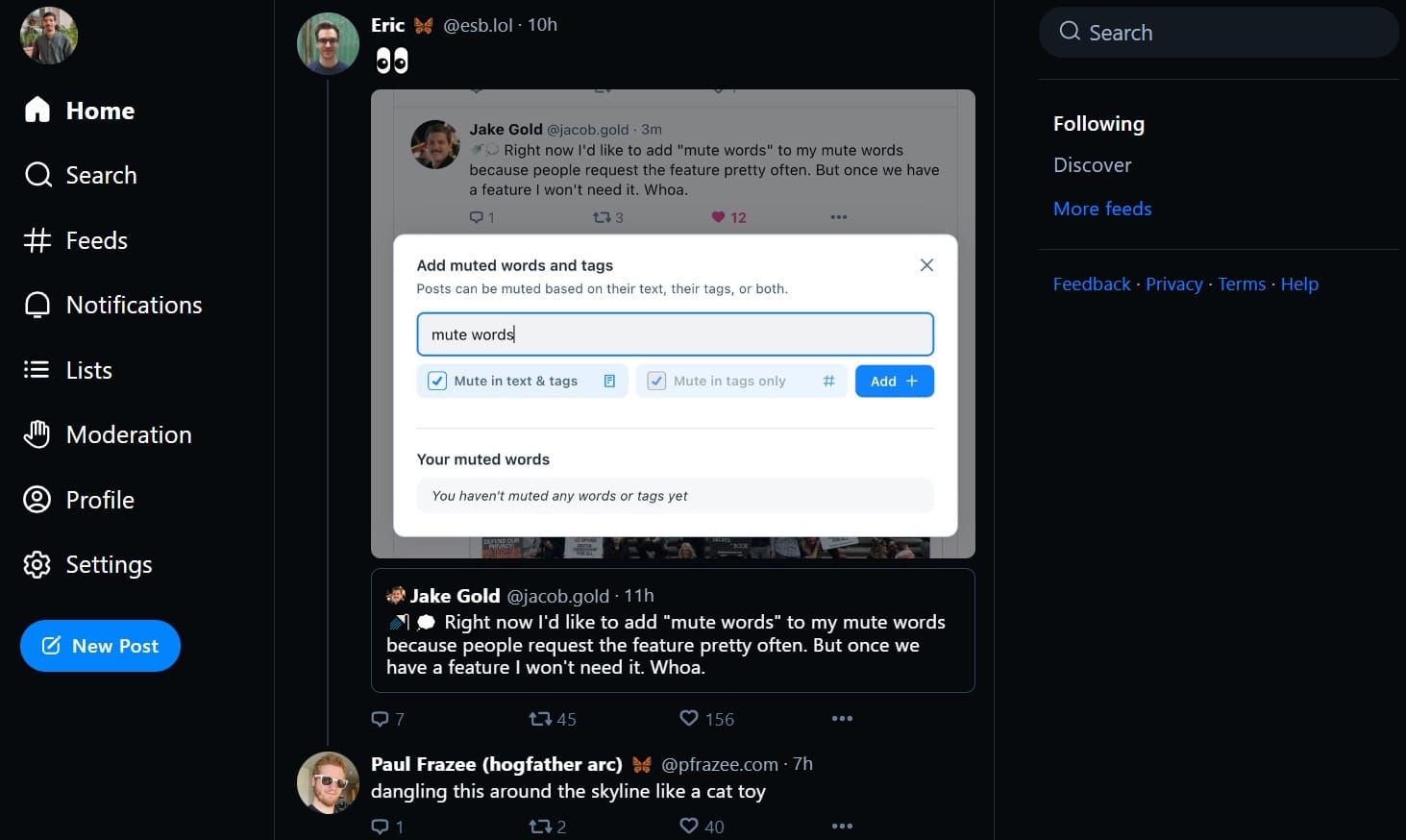
Bluesky tries to mimic the Twitter experience as closely as possible.
Bluesky vs. Mastodon: Which Twitter Alternative Should You Choose?

The user interface, the layout, everything should make you feel right at home as a Twitter user.

It gives you the option to choose an algorithm (feed) to follow as per your requirements. You can limit your feed to the people you follow (seeing every interaction with them) or pick a custom feed that learns what you like.

If you are looking for the federated network, and hosting your data, it is possible with Bluesky, but it's a work-in-progress at the moment. So, you need to explore their documentation to make it happen.

The moderation is automated, which is not the best way to go.

Privacy

You can sign up on both the platforms without needing to share your phone number. So, that's an edge over any other social media network that requires it.

What about how they handle your data and the way you share/control information access?

Let me highlight more about them, starting with Mastodon's privacy features:

You can push public posts or posts limited to your followers, and interact with a particular follower using private mentions.

Bluesky vs. Mastodon: Which Twitter Alternative Should You Choose?

For your data, you can request an archive and export it in an ActivityPub compatible format. You can also easily move your data to another instance or migrate the account to another handle (with some limitations).

The privacy policy for Mastodon as a software is simple and easy-to-understand.

Bluesky vs. Mastodon: Which Twitter Alternative Should You Choose?

Mastodon also offers 2FA. So, you can secure your account in any instance. While you cannot make your account private, you can set up posts to automatically delete, and get the ability to approve followers.

With Bluesky, you get a feature to make your account private for users who aren't logged in. However, the data will remain public to any other server connected to the network.

The data export option is in its beta phase. So, it is tricky to get all your data downloaded at once.

Moreover, no two-factor authentication method is available with Bluesky, and this could be a bummer for most.

When it comes to the privacy policy, Bluesky does clarify it that they may use your personal information for marketing/research and with third-party services. That being said, it is not a good privacy policy for web service in 2024.

💬 What are your thoughts on Bluesky versus Mastodon? Let me know in the comments below.


from It's FOSS https://ift.tt/98A1ExY
via IFTTT

Jumat, 23 Februari 2024

Pipewire vs PulseAudio: What's the Difference?

Pipewire vs PulseAudio: What's the Difference?

If you are active in the Linux community, you will often come across the debate on what's better: PipeWire or PulseAudio?

Some users prefer going back to PulseAudio, while others find solving their decade-old audio problems much better. So the question here is: what is the difference between PipeWire and PulseAudio? 🤔

Sure, PipeWire is a relatively new technology, it must have a purpose and which is why it is replacing PulseAudio for many Linux distributions. This does not mean PulseAudio doesn't work whatsoever. It has served very well to its users, but surely has its pros and cons.

Fret not, I shall highlight everything essential regarding the multimedia framework PipeWire and the sound server program, PulseAudio.

The basics of audio on Linux

Pipewire vs PulseAudio: What's the Difference?

Nowadays, every motherboard (PC/laptop) has an internal sound card, a hardware component that is used to convert analog audio signals to digital signals for recording and streaming purposes.

Sure, some can have an external sound card for audio, but that is a rare sight to see.

So, we need some sort of driver (or middleware) to interact with the hardware and work with applications like audio editors on Linux, right?

And that's where the role of ALSA (Advanced Linux Sound Architecture) comes into play.

ALSA (baked into the Linux kernel) provides necessary device drives to read and write from the sound card. You will find multiple applications that directly use the ALSA such as VLC for output, and Audacity, which can directly record audio through ALSA.

The point here is many applications use ALSA API directly without the need for an audio server like PulseAudio or PipeWire.

But you can't rely on ALSA as it will take control of the entire sound device, so you can only use it to handle one application at a time. So no hardware multiplexing.

Due to this reason, we require an audio server like PulseAudio or PipeWire.

The arrival of PulseAudio solved three major problems that we had with the ALSA:

  • Play audio from multiple applications at the same time.
  • It came with advanced features like mixing multiple audio streams, audio streaming, per application volume control, etc.
  • Ease of use.

So here's what the basic audio structure looks like based on prior explanation:

Pipewire vs PulseAudio: What's the Difference?

Now that we have an idea of how the audio works on Linux. Let us dive in deeper to know the difference between the two audio servers that make our Linux experience better.

Suggested Read 📖

How to Record Streaming Audio in Ubuntu Linux
Learn to record voice-over or audio from any streaming music source in Ubuntu using these nifty tools.
Pipewire vs PulseAudio: What's the Difference?

Comparing audio servers: PipeWire vs PulseAudio

We need to know what they are, how they work, and the feature-set to understand how they differ.

Sure, the easy part is — one is newer tech and the other one is an older tech.

Let me highlight the rest of the details below, including a piece of interesting information related to audio servers.

💡
JACK (JACK Audio Connection Kit), an audio server made for professional audio artists that solved one problem with PulseAudio: redirecting output to any input. In simple terms, it worked like a physical patch panel.

An older tech to PulseAudio. The reason it didn't gain popularity is it was complex to use and was incompatible with PulseAudio.

PulseAudio: The old guardian of Linux audio experience

Pipewire vs PulseAudio: What's the Difference?

PulseAudio is a super simple audio server designed for Linux systems. It was initially known as "Polypaudio", and then later renamed.

It was created as a modern alternative to ESD (Enlightened Sound Daemon). ESD was the sound server maintained as part of the GNOME project, as a tech to unify sound drivers for all kinds of architectures.

If it is a POSIX-compliant operating system (distro), PulseAudio can be a sound server system for it.

Furthermore, PulseAudio comes with various plugin modules, which makes it very capable for a lot of use-cases. Not just limited to desktops, PulseAudio is also used in various mobile devices.

PipeWire: Getting the best of PulseAudio and JACK

Pipewire vs PulseAudio: What's the Difference?

PipeWire is a multimedia framework (and an audio server program) that managed to provide advanced features to work with modern audio devices while being a simple utility for end-users.

Remember, what I highlighted about JACK above?

It offered great features, but had compatibility issues with the existing PulseAudio setup. If that was not enough, using it was complex, making it difficult to recommend unless you were an audio professional. On the other hand, PulseAudio was user-friendly and had legacy support, but it had its issues.

So we needed a simple utility, compatible with other audio servers like PulseAudio, addressing all the PulseAudio issues, and offering a better feature set.

That's where PipeWire came to the rescue.

PipeWire is also designed in a way to provide better security when interacting with audio/video devices through containerized applications, supporting Flatpak primarily.

Not just providing better compatibility with newer packages, it also supports Wayland.

How Do They Work?

Pipewire vs PulseAudio: What's the Difference?

PulseAudio utilizes a client/server architecture to function. There can be different clients with various APIs, and local/remote PulseAudio servers.

And, all of it should work flawlessly with the help of modules. Yes, PulseAudio functions through its modules, it is not much by itself but just a daemon for API and hosting modules.

By default, PulseAudio uses the configuration available system-wide. However, you can provide a custom configuration file in the home directory, and the next time you boot up, it will utilize that.

PipeWire works differently without primarily relying on a module system. The daemon is responsible for processing, and a session manager uses the media graph (info on devices, port, and nodes) to decide how to link them all.

Unlike PulseAudio tailored only for consumer audio, PipeWire fulfills all kinds of low-latency requirements for everyday users and professionals (as an alternative to JACK).

I went through hundreds of community posts where users have praised PipeWire for fixing the crackling sound, or they found the perfect fit for their JACK replacement with ease of use and better reliability.

So, it works like it should. And, technically, a superior choice for many.

Key Features

PulseAudio is still in use, even if it is being replaced by PipeWire.

Some of the best features that make PulseAudio a usable tech include:

  • Ability to adjust the volume for each software independently
  • Support for audio multiplexing, letting users play audio from multiple applications at the same time
  • Audio streaming over the TCP server
  • The zero-copy memory architecture of PulseAudio lets you transfer audio data between applications and audio devices without unnecessary copying or buffering for lower latency and better resource management
  • Provides compatibility layers for existing applications to work with it without any modifications
  • Variety of modules to provide all kinds of essential functionalities

PipeWire wins in the feature-set game, which is why it is being preferred over PulseAudio.

So, what are the things that make it stand out? Here, they are:

  • A unified solution that aims to replace PulseAudio and JACK to provide a solution for both basic and professional users
  • Better support for low latency
  • Compatible with PulseAudio and JACK APIs.
  • Virtual support for all the Bluetooth codecs by default
  • Efficient at merging devices and resampling
  • It can dynamically switch between different buffer sizes to adapt to the different latency requirements of different audio applications
  • Flatpak application support
  • Wayland desktop support

Suggested Read 📖

Top 5 Best Audio Editors for Linux [2023]
These awesome free and open source audio editors let you create amazing music in Linux.
Pipewire vs PulseAudio: What's the Difference?

What's my take on PulseAudio vs. PipeWire?

I'll start with "If it ain't broke, don't fix it".😎

Not every Linux distribution has switched to the PipeWire yet, and some users are enjoying audio like they used to do with PulseAudio. I use PulseAudio as it works just fine with my 5.1 surround setup. So, I don't have any reason to make a switch.

For users with modern Bluetooth headphones or if you have a poor audio experience with PulseAudio, you can switch to PipeWire.

The easiest way to do that is to pick a Linux distribution that offers PipeWire out of the box.

If you want to try PipeWire out of curiosity, make sure to create a snapshot of your working system before manually installing it:

Guide to Backup and Restore Linux Systems with Timeshift
This beginner’s guide shows you how to back up and restore Linux systems easily with the Timeshift application.
Pipewire vs PulseAudio: What's the Difference?


from It's FOSS https://ift.tt/gmYbNjL
via IFTTT

Rabu, 21 Februari 2024

FOSS Weekly #24.08: Ubuntu 24.04 Features, Arkane Linux, grep, Fedora COSMIC and More

FOSS Weekly #24.08: Ubuntu 24.04 Features, Arkane Linux, grep, Fedora COSMIC and More

It seems that Fedora is gearing up for more novel variants. Last week, I shared the news about Fedora Atomic spin and now they are considering a COSMIC spin. COSMIC is a new, Rust-based desktop environment by Pop!_OS.

The more, the merrier?

💬 Let's see what else you get in this edition of FOSS Weekly:

  • Arcane Linux brings a unique touch to immutability.
  • A neat to-do app that doesn't get in the way.
  • The beginnings of a COSMIC-flavored Fedora spin.
  • Features that make Ubuntu 24.04 LTS worth the wait.
  • And other Linux news, videos and, of course, memes!

📰 Linux news

Ubuntu 24.04 LTS is just a few months out. Here are 7 features that make it a contender for the cool distros club.

7 Features That Make Ubuntu 24.04 LTS Cool
Curious what Ubuntu’s next big LTS release brings? We tell you all about it here.
FOSS Weekly #24.08: Ubuntu 24.04 Features, Arkane Linux, grep, Fedora COSMIC and More

🌐 Follow us on Google News

By the way, if you use Google, follow It's FOSS on Google News to get trusted It's FOSS content before other websites in Google search.

It’s FOSS - Google News
Read full articles from It’s FOSS and explore endless topics, magazines and more on your phone or tablet with Google News.
FOSS Weekly #24.08: Ubuntu 24.04 Features, Arkane Linux, grep, Fedora COSMIC and More

🧠 What we’re thinking about

More indie publishers are realizing that Google is favoring big media publications in the search results. And this threatens the existence of independent websites like It's FOSS.

Bigger publications are using AI generated substandard content on Linux (and other topics) and yet, you'll get to see them first in the search results. All the more reasons to support your favorite blogs and websites before they are obliterated by the media giants and big tech.

How Google is killing independent sites like ours - HouseFresh
And why you shouldn’t trust product reviews from big media publishers ranking at the top of Google.
FOSS Weekly #24.08: Ubuntu 24.04 Features, Arkane Linux, grep, Fedora COSMIC and More

🧮 Linux Tips, Tutorials and More

Unlock PDFs on Linux like a pro! Discover the quick steps to remove passwords effortlessly.

How to Remove Password from PDF Files in Linux
A neat trick to get rid of the annoyance of entering the password each time you open a password protected file.
FOSS Weekly #24.08: Ubuntu 24.04 Features, Arkane Linux, grep, Fedora COSMIC and More

The “Grep” command is handy for searching for and matching patterns within text files. Learn how to use it:

grep Command Examples in Linux
Grep is a useful command to help you quickly search and find through file contents.
FOSS Weekly #24.08: Ubuntu 24.04 Features, Arkane Linux, grep, Fedora COSMIC and More

I wrote this tutorial more than 9 years ago. Recently, a reader notified in the comments that the steps still work. Arch is indeed a timeless distro ;)

How to Connect iPhone to Arch Linux
Not able to connect your iPhone with your Arch Linux. This troubleshooter may help you with that.
FOSS Weekly #24.08: Ubuntu 24.04 Features, Arkane Linux, grep, Fedora COSMIC and More

📹 What we are watching


✨ Project highlights

This is an interesting new distro with the 'immutability' touch. Apparently, you can even change the base distro (from Arch to Debian). Yet to experiment with the base distro change but the first impressions look nice.

Arkane Linux: This ‘Nix-worthy’ Arch-based Immutable Distro Shows Potential
A GNOME-centered take on immutability with Arch Linux.
FOSS Weekly #24.08: Ubuntu 24.04 Features, Arkane Linux, grep, Fedora COSMIC and More

In the market for a minimal to-do app that doesn't get in the way? Errands might just be the one for you.

Errands: A Simple and Elegant To-Do Companion for Linux
Ready to take charge of your errands with a desktop Linux app? Here you go!
FOSS Weekly #24.08: Ubuntu 24.04 Features, Arkane Linux, grep, Fedora COSMIC and More

🧩 New quiz unit

Like solving crosswords? How about this one?

Crossword: Popular Linux Apps
The classic crossword puzzle with the Linux twist for you.
FOSS Weekly #24.08: Ubuntu 24.04 Features, Arkane Linux, grep, Fedora COSMIC and More

💡 Quick handy tip

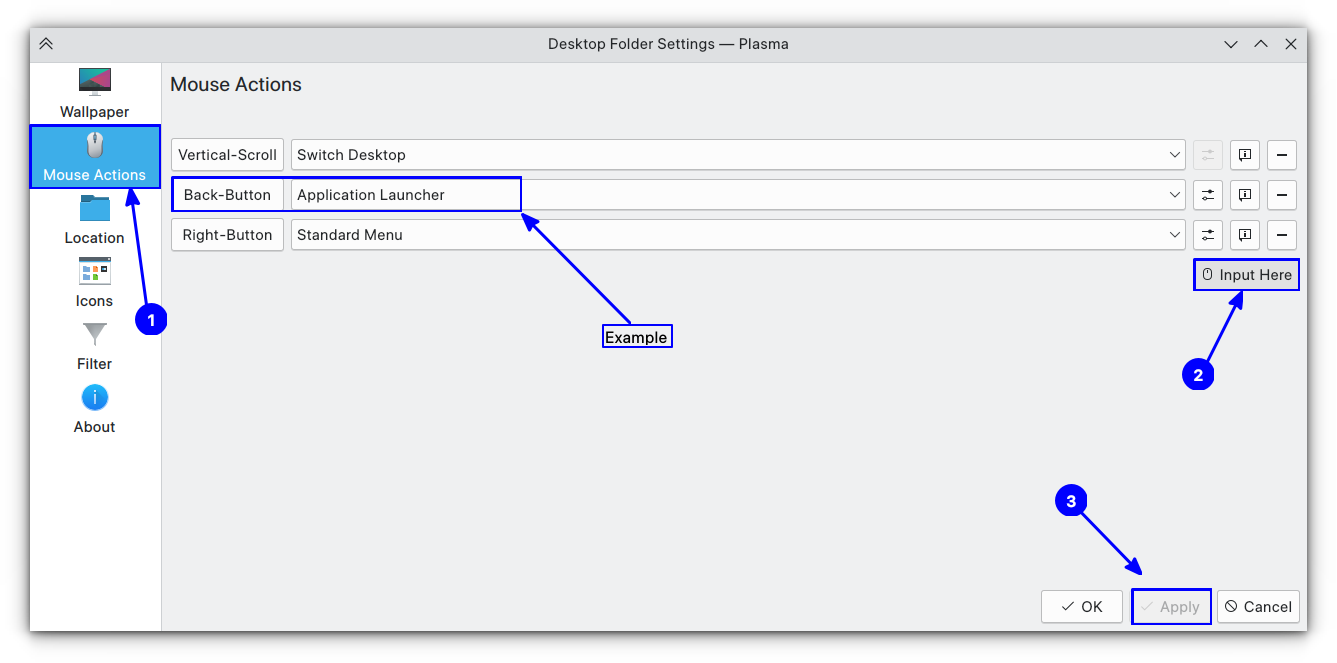
Here's a quick KDE Plasma tip. If you have a mouse with additional buttons, you can assign buttons for desktop tasks like Application Launcher, Switch Desktop etc.

For this, right-click on the desktop and select “Configure Desktop and Wallpaper”. Now, go into “Mouse Actions”.

FOSS Weekly #24.08: Ubuntu 24.04 Features, Arkane Linux, grep, Fedora COSMIC and More

Here, click on the “Add Action” button and inside the “Input Here” button, click the additional button on your mouse that you want to use. Now, select the desired action from the dropdown menu and click “Apply”.


🤣 Meme of the week

The wait is always worth it. You can ask one of our FOSSers!

FOSS Weekly #24.08: Ubuntu 24.04 Features, Arkane Linux, grep, Fedora COSMIC and More

🗓️ Tech Trivia

On February 22, 1997, in Roslin, Scotland, scientists announced that they successfully cloned an adult sheep they named Dolly.


🧑‍🤝‍🧑 FOSSverse corner

A FOSSer shares how they ended up with Linux Mint.

I’ve ended up on Linux Mint, of all places
I never expected to end up on Linux Mint, but it ticks all the IMPORTANT boxes for me. it’s stable, so I don’t have to worry about my system. It delivers the performance I need. It’s point’n clicky, so no mucking about on the CLI when I don’t want to. It’s.deb , so when something is not in the repositories, odds are I can grab it from the web and install it without any problems. No updates which take forever. So, how did I end up here? After all, for a long time I preferred “rolling release”…
FOSS Weekly #24.08: Ubuntu 24.04 Features, Arkane Linux, grep, Fedora COSMIC and More

❤️ With love

Share it with your Linux-using friends and encourage them to subscribe (hint: it's here).

Share the articles in Linux Subreddits and community forums.

Opt for It's FOSS Plus membership and support us 🙏

Enjoy using Linux 😄


from It's FOSS https://ift.tt/IcLB0h8
via IFTTT
Senin, 19 Februari 2024

Grep Command Examples

Grep Command Examples

"Everything is a file in Linux" and that is the reason most Linux users spend a large chunk of time tinkering the file contents.

This is where the importance of the grep command plays a crucial role by letting you search and match patterns within text files or get an output.

So in this tutorial, I will walk you through all the essentials required to learn the grep command:

  • The basic syntax and popular flags of the command
  • Practical examples of the command
  • Practice questions for grep command

Here's How to Use the grep command

To use the grep command, it is important to know the syntax.

So here's the basic syntax of the grep command:

grep [OPTIONS] PATTERN <Filename>

Here,

  • [OPTIONS]: using the given set of options, you can change the default behavior of the grep command such as using the -i enables case-insensitive search.
  • PATTERN: Here's where you specify the text you are looking for from the file or the command output. It can also be a regular expression for more complex patterns.
  • <Filename>: Here you specify the file you want to search within and if you don't specify any file then it will search from the standard input.

Now, let's take a look at some commonly used options with the grep command:

Option Description
-i Ignores case sensitivity in the search.
-v Prints lines that don't match the pattern.
-n Displays the line number of each matching line.
-w Matches only whole words, not parts of words.
-c Counts the number of matching lines, doesn't print the lines.
-r Searches through directories recursively.
-A n Prints n lines after each matching line.
-B n Prints n lines before each matching line.
-C n Prints n lines before and after each matching line.
-f Filename Reads search patterns from a file, one per line.
-o Prints only the matched part of the line.

You might be wondering — what happens when you use the grep command without any options? Well, it simply prints the lines containing the pattern.

For example, here, I want to search for the error keyword within the file named error.log , and without any additional options, it gave me this output:

Grep Command Examples

Did you see that? It highlights the found pattern and also prints the lines containing the pattern.

To make this tutorial easy to follow, I will use a sample file named error.log which includes the following lines:

This is a log file with various messages.
An error occurred at 10:00 AM.
The system encountered an unexpected issue.
Everything is working normally now.
Another error message at 11:30 AM.
Warning: Please check disk usage.
Log closed at 12:00 PM

Practical examples of the grep command

In this section, I cover various examples of the grep command so you can have a better idea of how you can use the grep command.

By default, the grep command patterns are case-sensitive, and for the most part, it works well, but you may want to turn off the case sensitivity.

To do so, you can use the -i flag as shown here:

grep -i PATTERN Filename

To demonstrate this, I will use ERROR as a search pattern, and it will show matching patterns irrespective of case sensitivity:

grep -i ERROR error.log
Grep Command Examples

2. Show n lines before and after the matching lines

By default, the grep command only prints the matching lines, but sometimes you want the context of the matched lines. So you print the lines before and after the matching lines.

To print n number of lines before matching lines, you use the -B flag and specify the number of lines to print as shown here:

grep -B <number_of_lines> PATTERN Filename

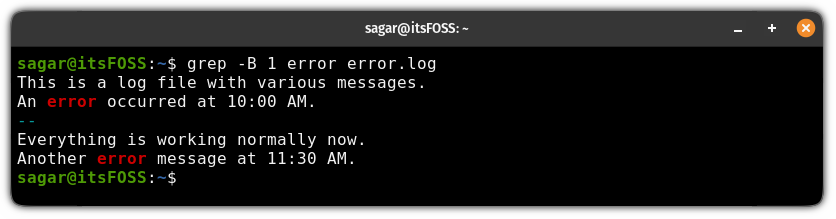
For example, here, I printed the one line before every matching line:

grep -B 1 error error.log 
Grep Command Examples

To print the n number of lines after the matching lines, you use the -A flag and specify the number of lines as shown here:

grep -A <number_of_lines> PATTERN Filename

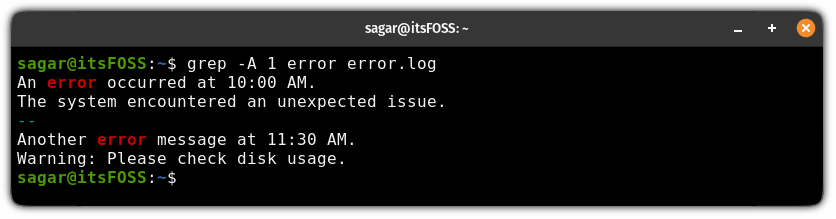
If I want to print one line after the matching lines, then I will use the following:

grep -A 1 error error.log
Grep Command Examples

If you want to print lines before and after altogether, then you use the -C flag and specify the number of lines to print as shown here:

grep -C <number_of_lines> PATTERN Filename

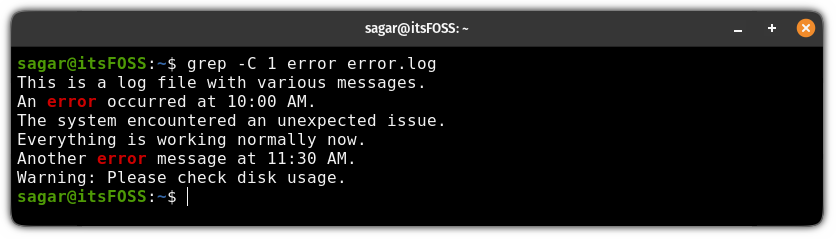
Let's say I want to display 1 line before and 1 line after the matching pattern line, then I will be using the following:

grep -C 1 error error.log
Grep Command Examples

3. Show lines that do not match the pattern

For the most part, you'll be using the grep command to match patterns, but it also allows you to invert the search results.

In simple terms, you specify the search term, and it will print lines that do not match the given pattern and for that purpose, you use the -v flag as shown here:

grep -v PATTERN Filename

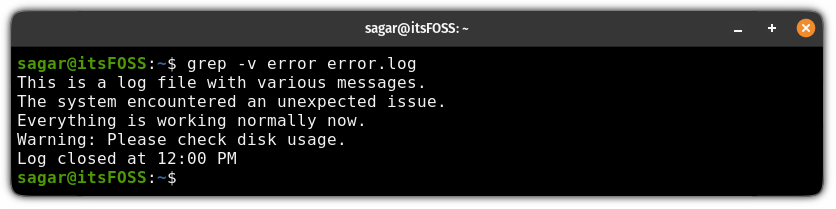
For example, if I want to print every line that does not contain the error term, then I will use the following:

grep -v error error.log
Grep Command Examples

4. Display the number of matched lines

To display the number of matched lines, all you have to do is use the -n flag as shown:

grep -n PATTERN Filename
Grep Command Examples

5. Display the total number of matched results

If you want to know the number of matched results, then you can use the -c flag as shown:

grep -c PATTERN Filename

For example, here, I wanted to find how many times the term error is mentioned in the error.log file, so I used the following command:

grep -c error error.log
Grep Command Examples

6. Search for a pattern in multiple files

If you wish to search for a pattern from multiple files, then all you have to do is append multiple files to search, as shown here:

grep PATTERN File1 File2

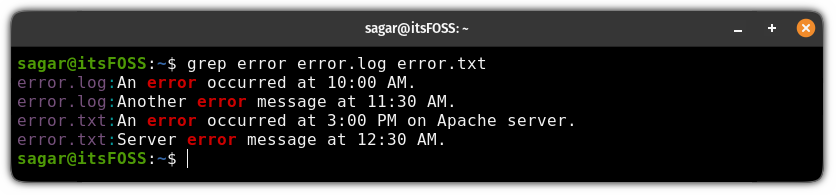
For example, here, I searched for the error string from two files: error.log and error.txt and it gave me the following output:

grep error error.log error.txt
Grep Command Examples

7. Search pattern from every file in the directory

If you want to search for a specific pattern from every file present in the directory, then you can use the grep command recursively, and it will search the given pattern from every file present in that specific directory.

To enable recursive search, use the -r flag as shown:

grep -r PATTERN <Directory or path to directory>

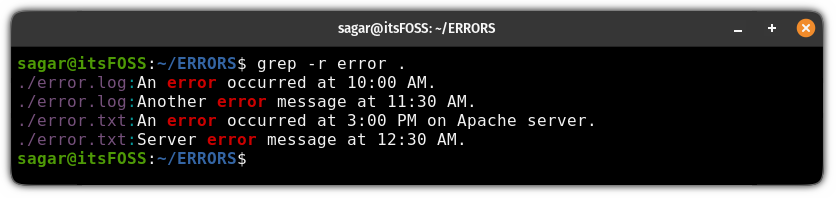
For example, here, I have searched for the error string in the current directory:

grep -r error .
Grep Command Examples

8. Search for the exact word

By default, the grep command will print all the matching patterns, which is not what you always want. Sounds strange? Allow me to explain.

Suppose you want to search for the term Orange but if the specific file also contains the term Oranges then the line containing the term Oranges will also be shown as an output.

To overcome this problem, you can use the -w option and specify the pattern:

grep -w PATTERN Filename

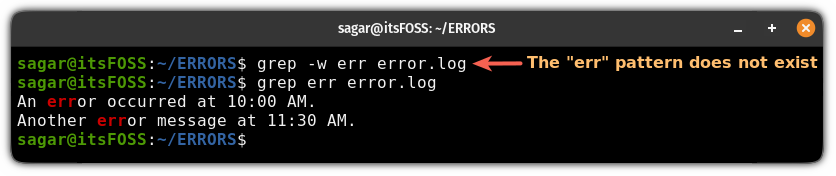
For example, here, I intend to find the term err so I will use the -w flag and will also show you the difference between what happens when you don't use it.

grep -w err error.log
Grep Command Examples

When I used the -w flag to find the err string, it returned no results, as it does not exist.

But in the second attempt where I removed the -w flag, it returned two results displaying content where the string pattern is a part of another string (not separate).

If the normal search is not doing justice, then you can use the regex pattern (sequence of characters) to have better control over your search. You can use the -e flag to use the regex pattern, whereas -E let you use the extended regex:

grep -e/-E PATTERN Filename

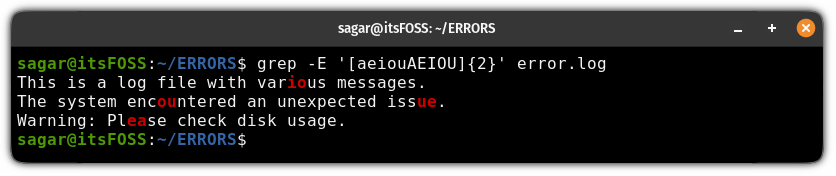
For example, here I have used the extended regex to find two vowels used together in the file:

grep -e '[aeiouAEIOU]{2}' error.log
Grep Command Examples

Suggested Read 📖

Find Command in Linux With Regex [5 Examples]
Enable the beast mode of the find command by using regex for your search.
Grep Command Examples

10. Specify multiple patterns using the OR operator

You can use the OR operator to specify multiple patterns, which is quite helpful when you want to search for multiple patterns efficiently.

To specify multiple patterns, use the OR operator (|) in the following manner:

grep 'PATTERN_1\|PATTERN_2' Filename
💡
You can press Shift + Backslash key to get the OR operator.

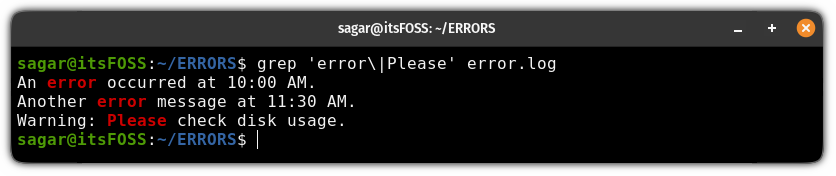
Let's say I wish to look for two patterns: error and Please then I will be using the following:

grep 'error\|Please' error.log
Grep Command Examples

Practice questions 📓

Practicing is the best way you can learn, and that's why I'm about to share some practice questions for the grep command.

You can use the error.log file which I mentioned at the beginning of this guide to solve the following questions:

  1. Find the error string from every file present in your working directory.
  2. Find lines that do not contain the term success.
  3. Search for lines in a file that contain either error or issue.
  4. Find the term log by disabling case-sensitive search and redirecting the output to a file.
  5. How do you print only the last 2 results ignoring everything else? (Hint: use the tail command)

If you discover any difficulties solving the above problems, reach out to us through the comments or post your query in our community forum.

You can download a grep command cheat sheet for more examples and info:

Grep Command Cheat Sheet With Examples [Free PDF Download]
Here are some practical and common use cases of the grep command. You can also download the cheat sheet for quick reference.
Grep Command Examples

Are You An Advanced User? Try ripgrep

The ripgrep command does everything the grep command does but has some additional benefits like performance and features including the ability to search within the zip file.

Sounds cool? Here's how to install and use ripgrep in Linux:

Using ripgrep Command in Linux
Rust based ripgrep may not be an exact replacement for the classic grep command, it provides plenty of useful search features like the grep command.
Grep Command Examples

Moreover, if you are new to Linux, I suggest you to also go through our command tutorial for beginners.

Linux Command Tutorials for Absolute Beginners
Never used Linux commands before? No worries. This tutorial series is for absolute beginners to the Linux terminal.
Grep Command Examples

💬Share your thoughts on the command, your experience with it, and what do you prefer as an alternative to grep?


from It's FOSS https://ift.tt/RYn9OSH
via IFTTT