Not sure if you have noticed it already, we are doing more Linux book reviews this year. It's a way to introduce you to interesting new Linux books that you may want to explore.
Take Linux Kernel Programming book, for example. It's an excellent resource with hands-on approach to get into kernel development.
💬 Let's see what else you get in this edition of FOSS Weekly:
Check out second brain apps.
A new project that combines the power of Nix and BSD.
New Linux apps that took us by surprise.
And other Linux news, videos and, of course, memes!
This edition of FOSS Weekly is supported by PikaPods.
PikaPods: Instant Open Source App Hosting
PikaPods is on a mission to make great open source apps more accessible. Choose to run 60+ popular apps from their app store with setup, updates and backups all taken care of. Part of the revenue is shared with the developer.
For a more sustainable ecosystem that respects your privacy and leaves you in control of your data.
I have been seeing a flood of AI-generated articles since last year. It is really concerning to see a such a big name like CNET being caught serving low-quality content to their readers.
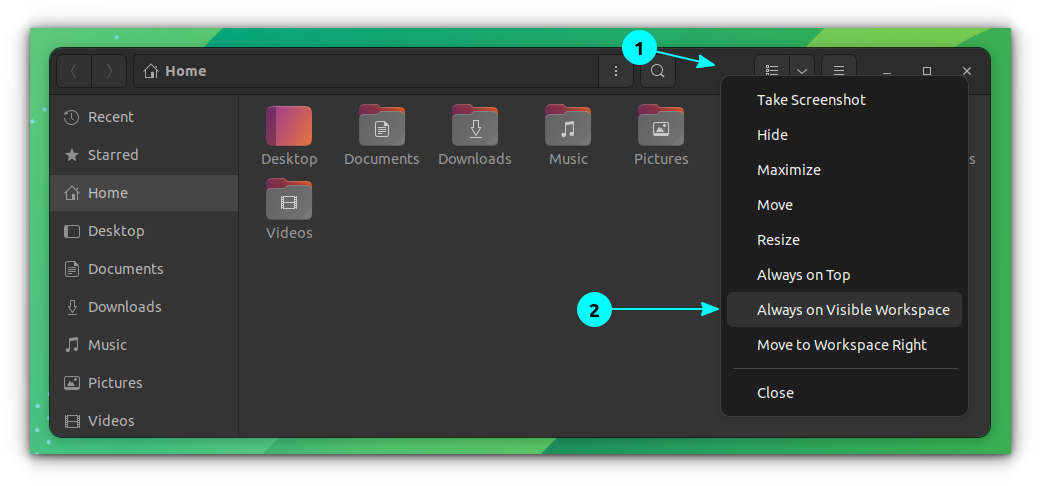
Move a specific window to the currently visible workspace in GNOME.
When using GNOME Apps, you can right-click on an empty space in the title and then select the “Always on Visible Workspace” option.
Now, whenever you change to a new workspace, that specific app will be moved to that workspace.
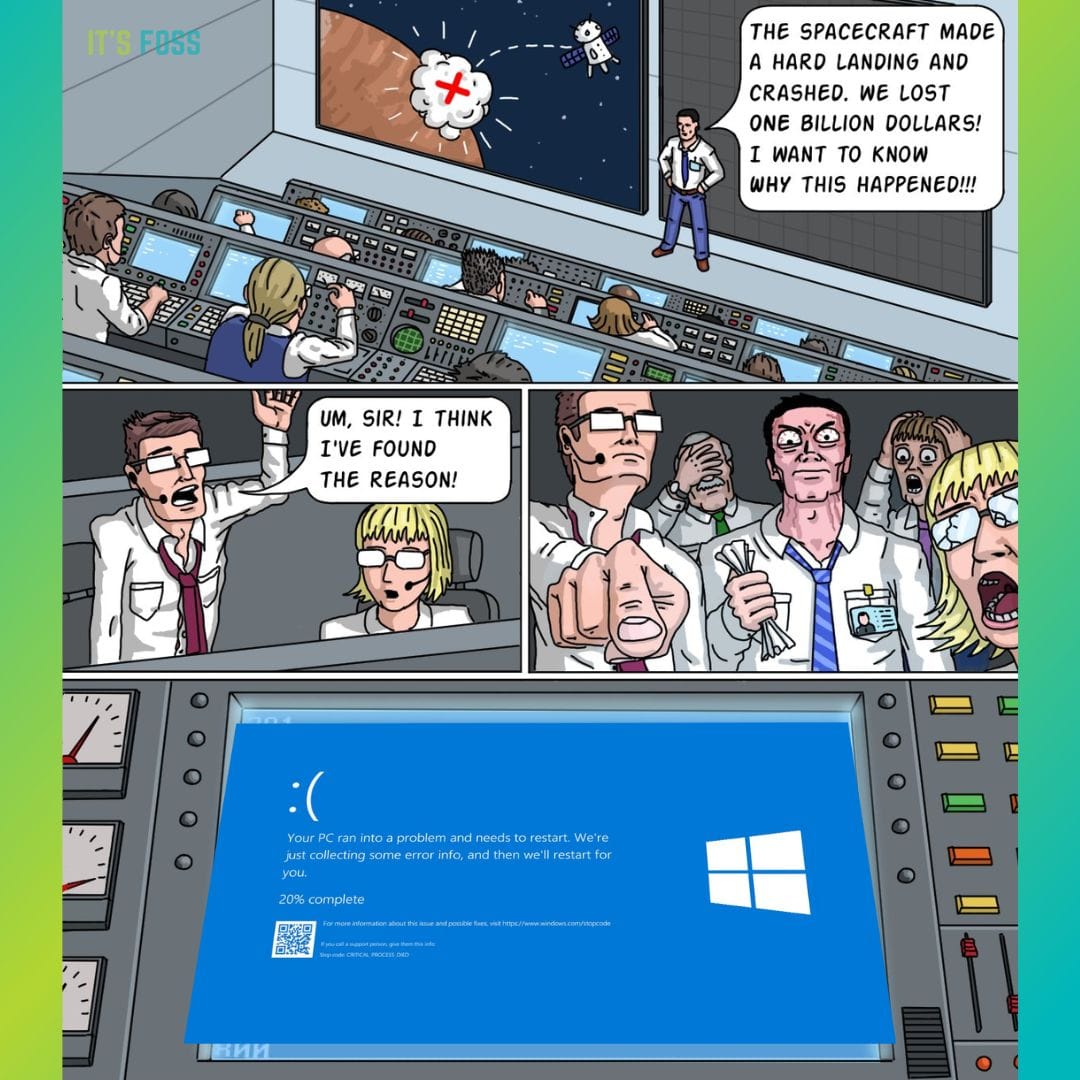
🤣 Meme of the week
I am glad that I don't have Windows in my workspace.
🗓️ Tech Trivia
March 1, 2008, marked the day that America Online discontinued the Netscape web browser. Many of you may remember using this popular web browser from the past.
🧑🤝🧑 FOSSverse corner
One of our Pro FOSSers has stumbled upon an interesting command for systemd.
While we usually go for any note-taking app for our convenience, there are some apps that stand out in letting us organize the data better.
Such apps may be categorized as a second brain app or a knowledge base management tool.
Here, I highlight the best open-source second brain knowledge base tools.
What Is A Second Brain App?
An app that helps you untangle all the complex thoughts running throughout the day can be considered a second brain. And, this involves allowing you to organize, structure, visualize, and recap all your ideas/thoughts that you took notes of.
Technically, not a lot of second brain apps exist. There's only a handful.
However, some feature-rich note-taking apps that give you the option to organize things using folders/tags/wiki, and you can utilize them as close as a knowledge management app. Here, I have listed some of them to help you out as well.
Why Do You Need Second Brain Apps?
Any note-taking app is a second brain to you. Mostly because you jot down your thoughts, ideas, tasks, and more in the app that lets you organize all of that.
That being said, some apps are tailored for knowledge management. And, we need them. Why?
To prevent information from overloading, and to remember what we think throughout the day 🤔
Yes, there are multiple apps for everything else we do online. And, to some extent, they help. For instance, RSS feed readers, and open-source password managers. They make some overwhelming tasks go away.
However, our thoughts require a separate solution, and not everyone realizes it.
When you get to organize your thoughts and access them in a structured manner, you might find it to be a priceless experience 🤩
Initially, I thought I would be fine with one of the popular note-taking apps, but I was blown away with the knowledge base focused tools.
Let me highlight the best open-source options for you to use as second brain apps:
📋
Numerous users must be aware of Obsidian as a note-taking app with knowledge graph. However, it is not open-source. So, here, we look at open-source options offering transparency, and potentially better privacy.
Logseq is an impressive open-source alternative to Obsidian.
It could be a bit challenging to get used to Logseq as a user trying knowledge/second-brain apps for the first time, but it is a satisfying experience.
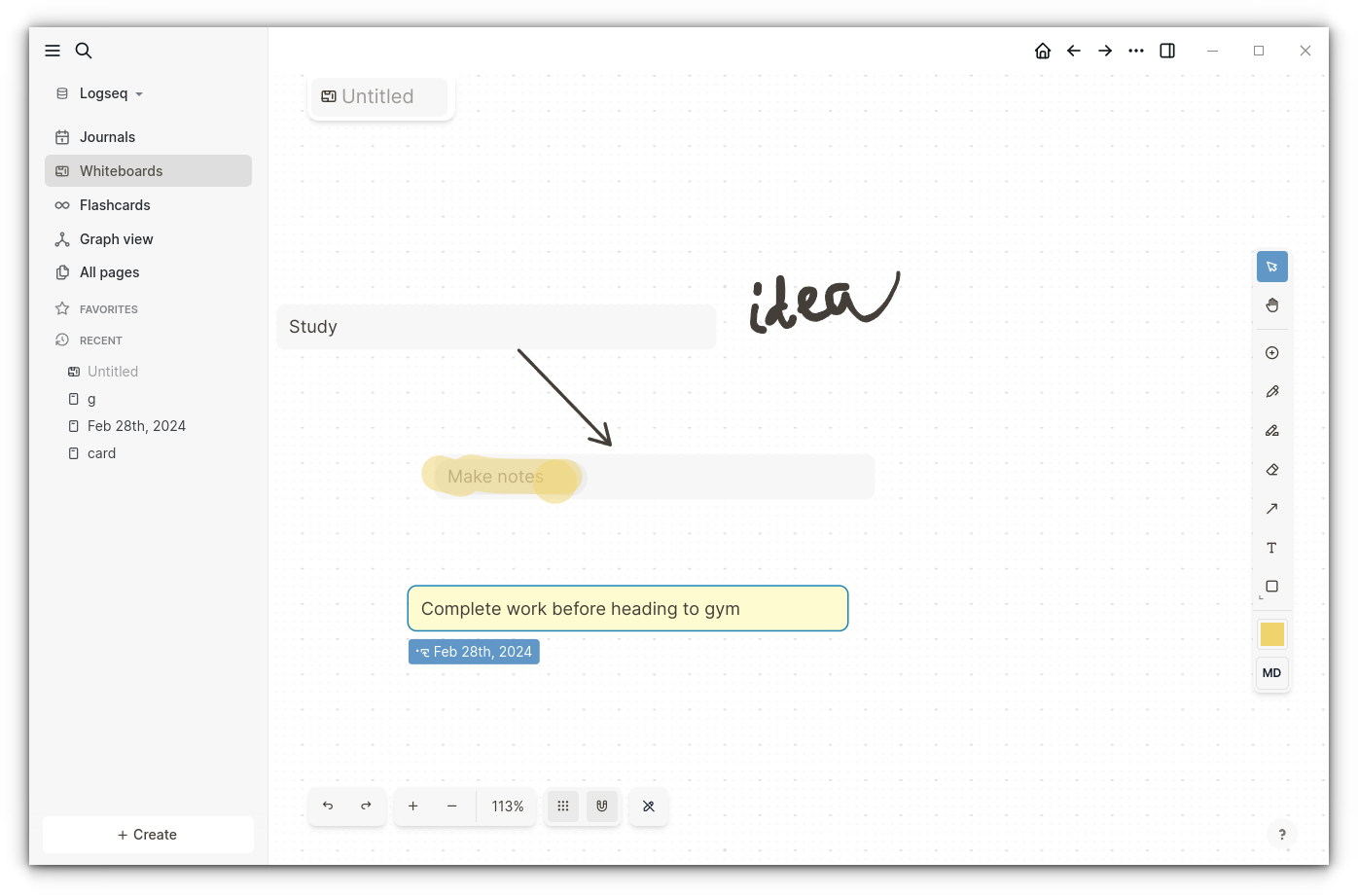
You get to manage tasks, jot down ideas, use flashcards to remind yourself of things, see a graph view of data, and make a personal wiki of your thoughts. If that wasn't enough, you also get a whiteboard to arrange all your journal/notes/ideas visually.
Logseq is available for Linux (AppImage), macOS, Windows, iOS, and Android. Unfortunately, it is not available through the Play Store for Android but directly as an APK. Considering it offers cross-platform support, it allows you to securely sync your data across the devices.
If you want a privacy-first, journal-focused knowledge base app, Logseq is the best open-source solution.
2. Joplin
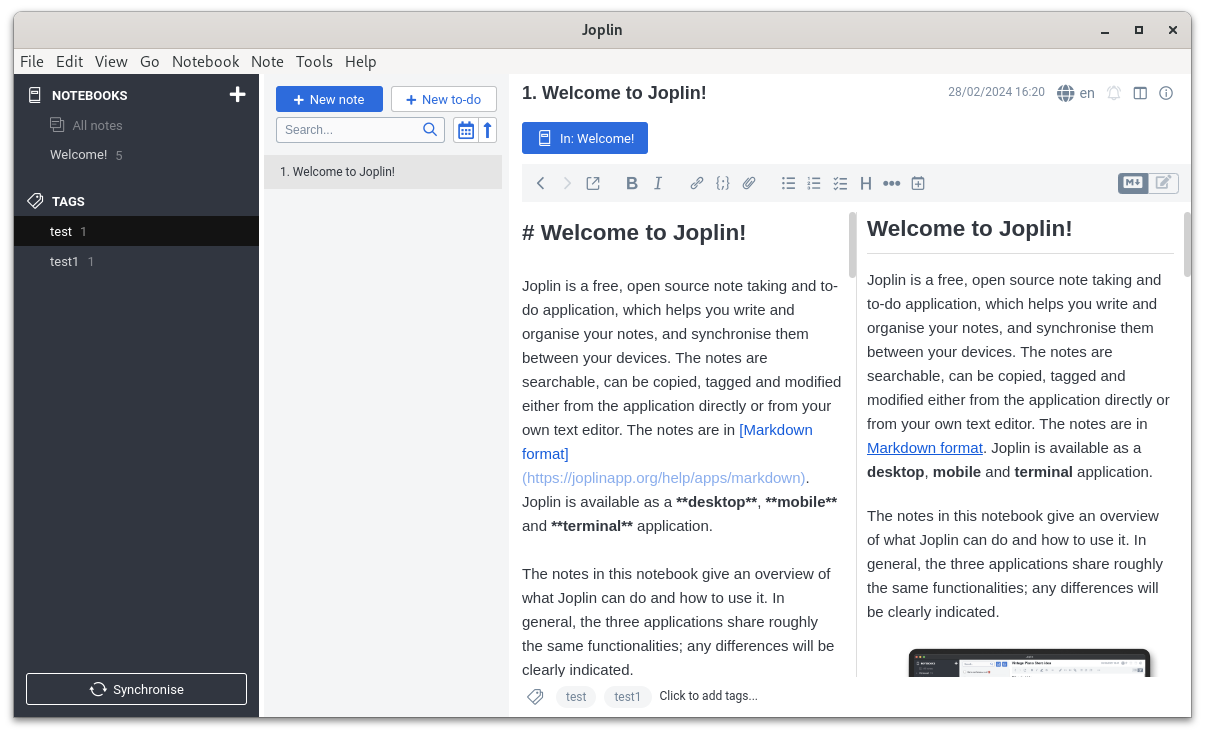
Joplin is a feature-rich note-taking app. You can use it to track tasks, make study notes, or choose to write a daily journal with it.
You get a simple user interface with support for various plugins to expand functionality. It also supports end-to-end encryption if you need it.
Additional functionalities like clipping a web page to save as a note and syncing your data with various cloud providers make it an exciting option for everyday use.
While you do not get the mind graph here, you do get the ability to add hashtags, and organize the notebooks.
Don't want the learning curve but want lots of features to organize your thoughts? Joplin is the way to go.
3. Trilium Notes
Trilium Notes is a straightforward note-taking app with a focus on building a personal knowledge base.
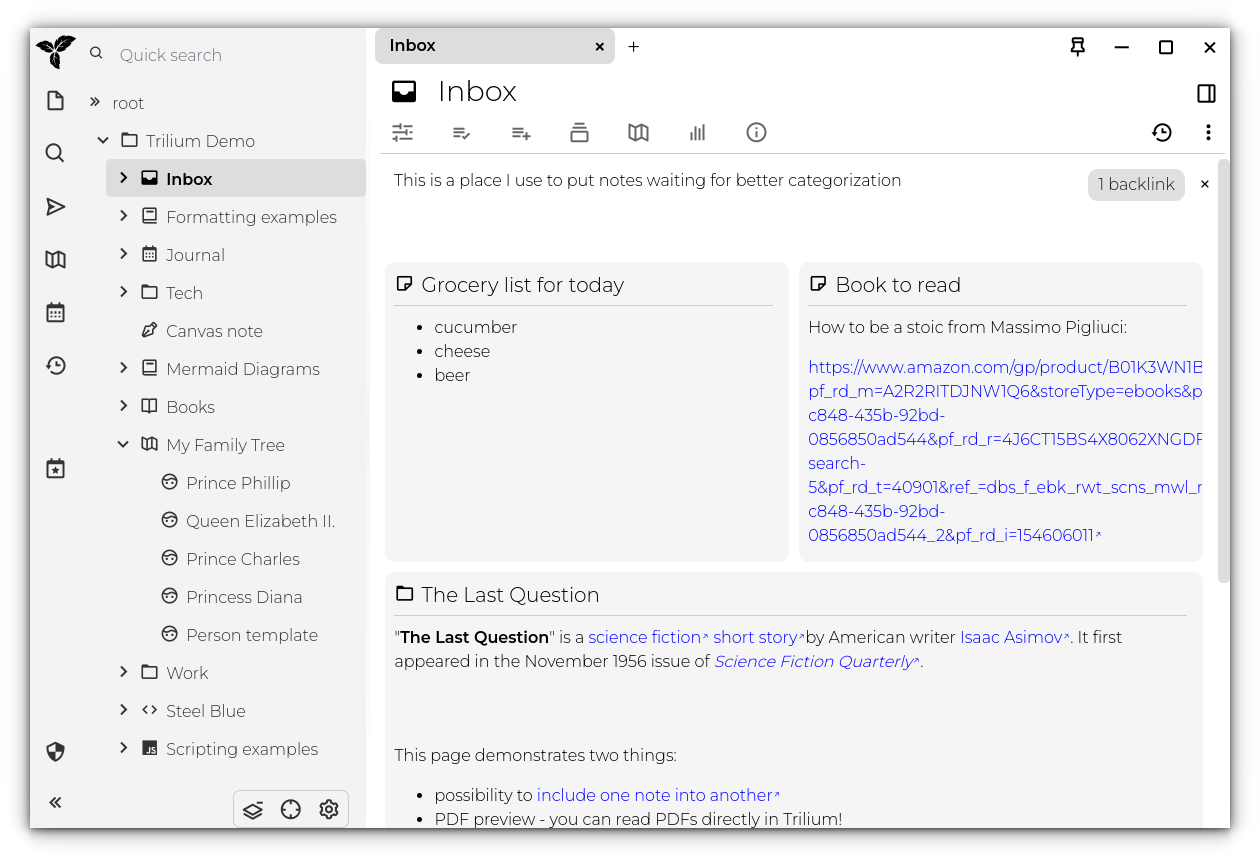
You can structure the notes similar to Logseq, like writing a journal, and linking to associated thoughts. Not just the knowledge tree visually highlighting the relation/links, you can publish notes to the public as well.
For privacy-conscious users, it lets you individually encrypt the notes. Additionally, it also provides a canvas-like drawing experience.
While it gives you all the essentials, cross-platform support is a bit of a bummer. It is only available for Linux, and Windows. A macOS build is available, but it may or may not work as expected. And, no mobile support.
You need to have a self-hosted sync server for syncing your data across devices.
Want something simple and powerful to build a knowledge tree? Trilium Notes is a wonderful option.
4. AppFlowy
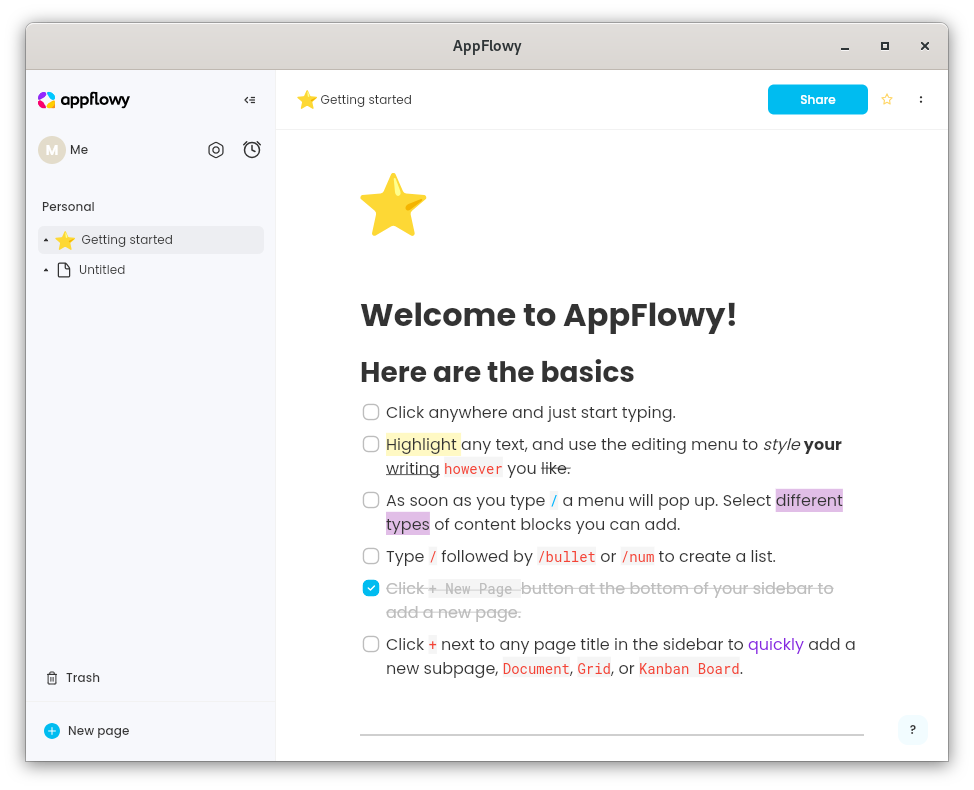
AppFlowy is an interesting Rust-based option as a second brain app. It does not feature the knowledge map like Logseq or Trilium notes, but it gives you a workspace platform.
You can use it to build your personal and professional wiki. Whether it is about managing tasks, or notes, AppFlowy can do it, kind of like what Notion lets you do.
The best part — it lets you use it anonymously (offline) or through a social account, where you get to store your data on the cloud. By default, AppFlowy hosts the data. You can choose to continue using that for free currently or opt for a self-hosted server for sync.
It is available for Linux, Windows, and macOS. You can decide to get the deb, rpm, AppImage, Flatpak, or the Snap package for Linux systems.
You can explore its GitHub page for more information.
⭐
Used for a workspace-like platform where you can add thoughts and tasks? Or maybe switching from Notion to an open-source alternative? AppFlowy is your answer.
5. Documize
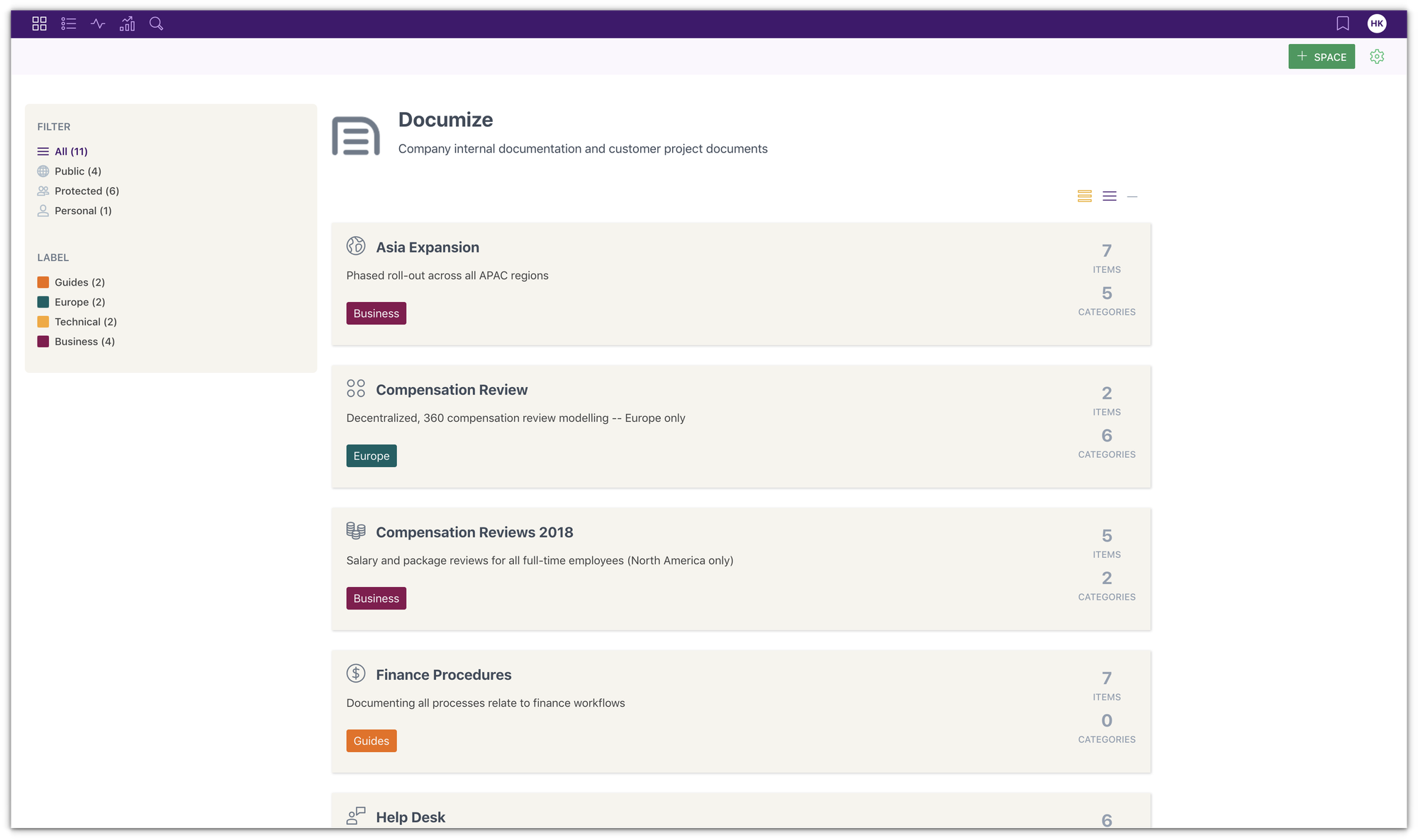
Looking for a knowledge management solution, but in the form of documentation?
This could be useful for your personal/professional work and an enterprise as well. Of course, a bit tricky for personal use, but why not try something different if you were thinking of that?
Primarily an enterprise offering, but the community edition is open-source, and offers all the same features.
And, if you are an organization, you can self-host a powerful knowledge management tool with features like content version management, content lifecycle management, audit logs, and more.
⭐
It is easy to manage knowledge and thoughts in the form of documentation, especially for teams. So, if you are looking for a team-focused knowledge management app, this can be a suitable candidate.
6. QOwnNotes
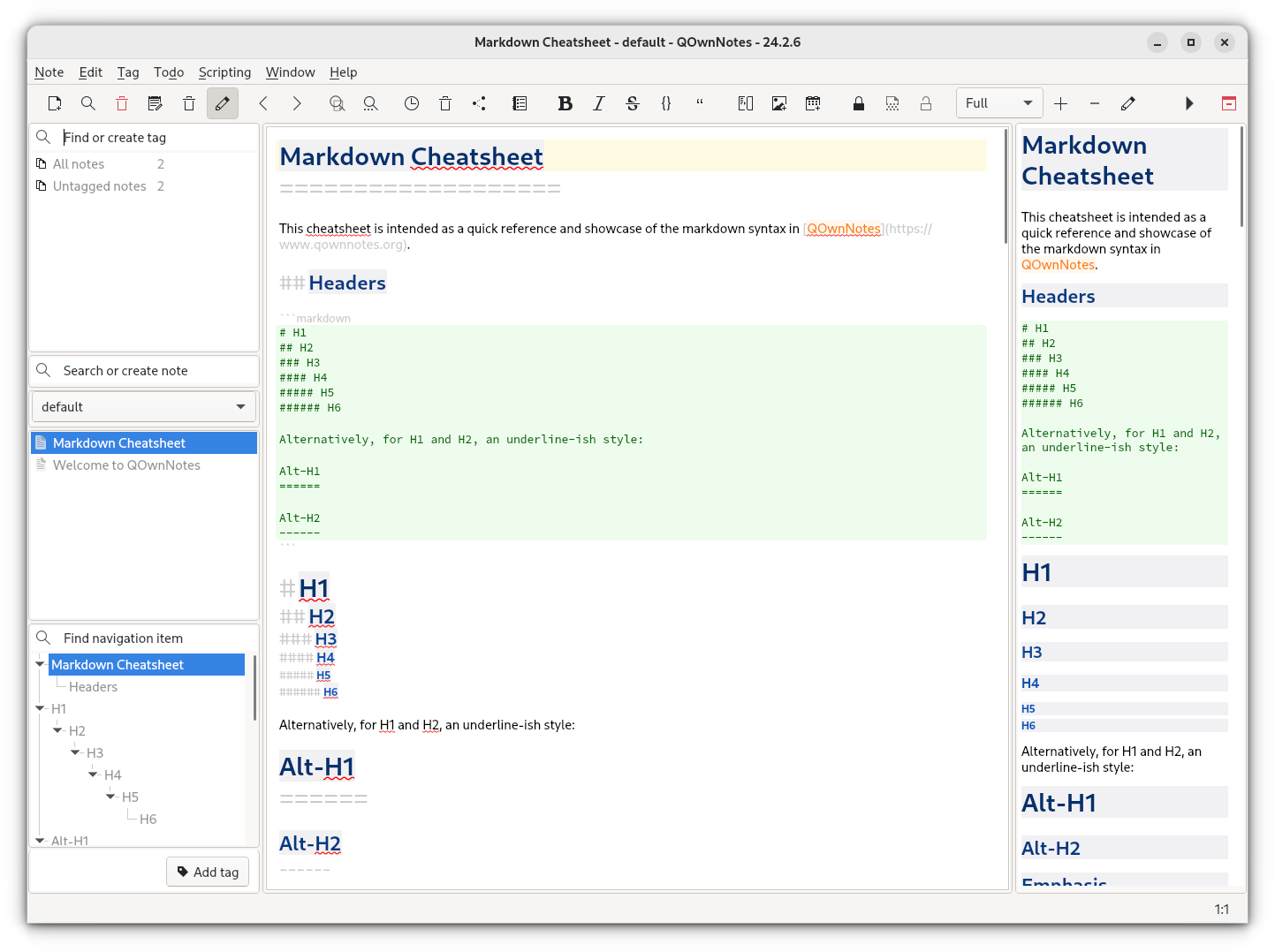
QOwnNotes is a simple (yet feature-rich) note-taking application with Nextcloud/ownCloud integration.
Similar to Joplin, you get the ability to organize your notes into folders, and add tags to them. The extensibility is a bit different from Joplin, where you get plugins.
With QOwnNotes, you can install scripts from the repository to add functionality. It may not be as seamless as Joplin Notes. So, you need to explore the app to know if you would like it.
⭐
Markdown-focused note-taking app to organize your ideas and thoughts? QOwnNotes could be the perfect fit!
7. Anytype (Source Available)
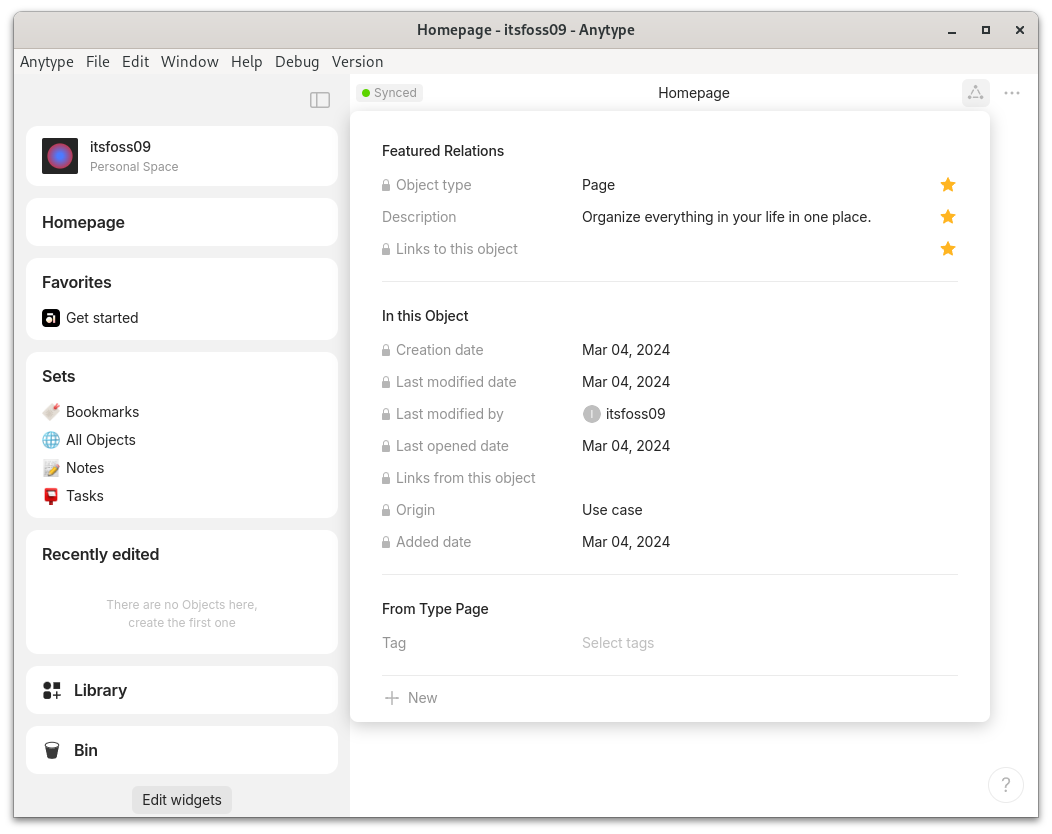
Anytype is a decentralized cross-platform note-taking app for journaling, manage team tasks, and all kinds of different activities where you keep track of things.
Considering it is a peer-to-peer based tech, you do not need to share any personal information to join/sign in. You just need to create a unique username, and that's it.
It is a source-available app, meaning, the source-code is only available to see with a license that is incompatible with the open-source philosophy.
If you do not have a problem with a source-available license, you can use it to jot down your thoughts, and get a graph/database like view.
⭐
Need a privacy-focused decentralized alternative? Anytype is a source-available option, but a good one.
8. Outline (Source Available)
Outline is a team-focused knowledge base app with the support for Markdown.
Similar to Anytype, you can check the source code, and even deploy it yourself. However, the license is not open-source compatible.
Outline looks more like a markdown tailored note-taking app, and it does a good job at it. You get the essentials to organize the collection of your notes, even though you do not have a visual graph functionality.
⭐
Need the support of Markdown, a simple user interface, and a knowledge base for teams? Outline is a good pick.
Wrapping Up
The knowledge management or the second-brain apps offer a bit more to let you organize your notes, and view them to get a better look at it.
Sure, the graph view, the mind map, the tree view, all sound cool. However, you will encounter a learning curve to use all those features with the note-taking experience.
So, if you are going to try any of the apps for the first time, give them some time before you try another.
💬 What is your favorite second brain app? Please let me know your thoughts in the comments.
The ps command on Linux is used to monitor the active processes on Linux, and it is one of the most crucial command line utilities, especially for sysadmins and advanced users.
So in this tutorial, I will walk you through all the essentials you need to learn to use the ps command:
The basic syntax and common flags of the ps command.
Practical examples of the command.
Practice questions to get better at using the ps command.
Here's how to use the ps command
Every command in Linux requires you to follow a specific syntax, and so does the ps command. This is why I always recommend to start with the syntax.
So here's the syntax of the ps command:
ps [options]
Here,
[options]: it is used to fine-tune the output of the ps command as per your needs such as you can use the -u flag and append a username to it and display processes specific to that user.
Yes, the ps command only accepts one argument. So, it is not as confusing as some other commands.
Now, allow me to share some popular options of the ps command:
Option
Description
-e
Show all processes, including those not associated with a terminal.
-f
Show full process information, including arguments.
-u <username
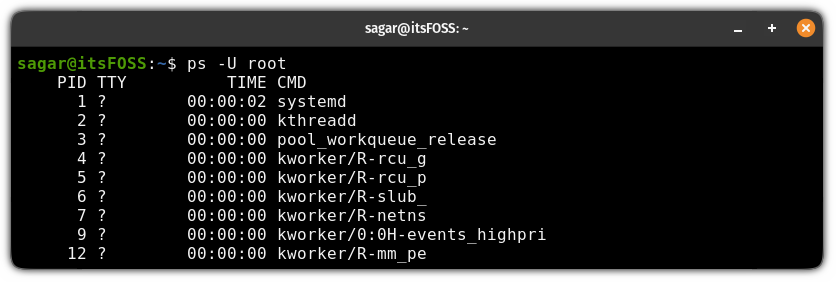
Show processes owned by a specific user.
-t <terminal_name>
Show processes running on a specific terminal.
-x
Show processes without a controlling terminal.
-o <PID/USER/CMD/%CPU/%MEM>
Specify output format (PID, user, command, CPU usage, memory usage).
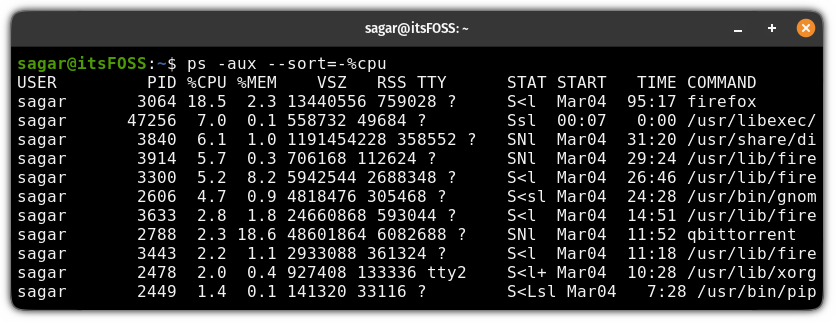
--sort=<parameter>
Sort output by different parameters.
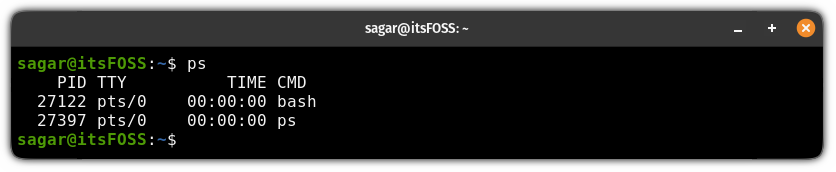
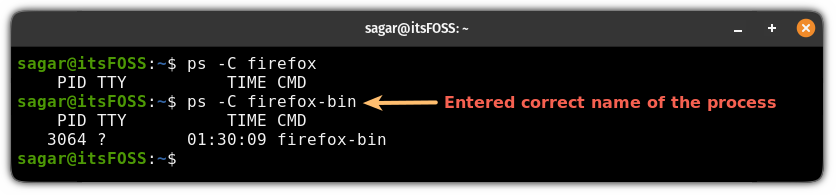
When the ps command is used without any options, it will only show the processes attached to the current terminal:
ps
Practical examples of the ps command
In this section, I will walk you through practical examples of using the ps command to give you an idea of how versatile it is.
1. Display active processes of the current user
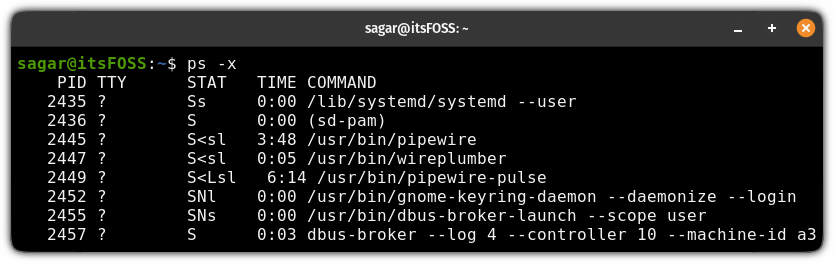
To show every active process by the currently logged-in user, you use the -x flag with the ps command as shown here:
ps -x
Here,
PID: it indicates the process ID of the process.
STAT: shows process state code indicating the current status of the process.
TTY: shows the controlling terminal behind the process.
TIME: shows how much CPU time a process has utilized.
COMMAND: displays the executable that initiated the process.
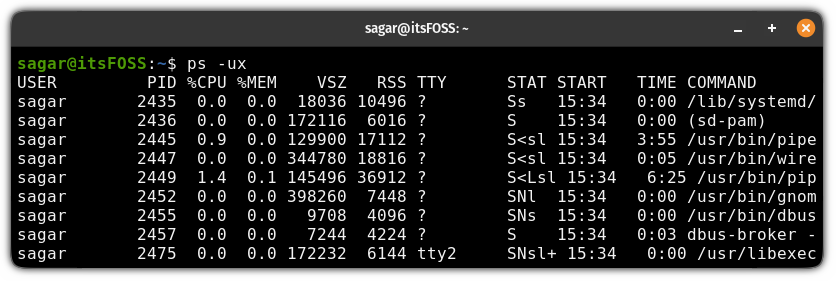
But when you dwell more into the ps command, you will know that the -x flag is often paired with the -u flag to get detailed information about each process:
ps -ux
Here you will see more columns, so let me break it down for you:
%CPU: the amount of CPU time the process has used (in %).
%MEM: memory utilization by the process in %.
VSZ: the total amount of virtual memory allocated to a process.
RSS: the amount of physical memory (RAM) currently being used by a process.
TIME: time when the process was started.
2. Show the running processes of every user
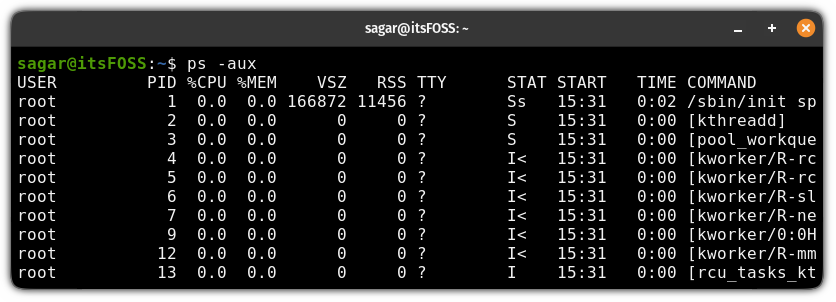
To show the active processes of every user, all you have to do is use the -a flag with -ux for detailed output:
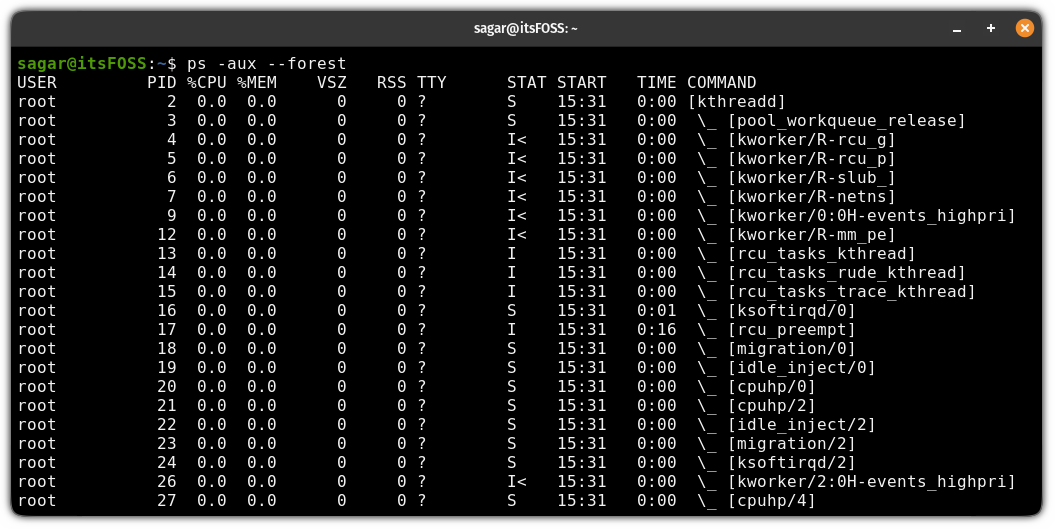
ps -aux
While the output looks mostly the same as the previous example, you will see processes from the other users as well thanks to the -a flag.
Alternatively, you can also use the ps -ef command to list all the active processes with additional information. Here's a detailed guide on the topic:
I had always scoured the internet searching for a book that was in equivalence to books like the 'Linux Kernel Development' by Robert Love and 'Understanding the Linux Kernel' by Marco Cesati.
Both are amazing books, but are now sadly outdated by the fact that the Linux kernel's codebase moves fast.
I have had the fortune of receiving the second edition of Linux Kernel Programming early, while also owning my own copy of the first edition. Let's get to the review!
📋
I have met the book of this author in real life and have had a tiny, non-influential discussion about this book. But, this review, in no way tries to be in the "good grace" of the author, nor the publisher, who provided an early review copy. Every single word written here is my original thought and feedback on this book.
If you find me sympathising with the author, it is because I understand that the Linux kernel is an unfathomably large project and has complexities unheard of.
Linux Kernel Programming (Second Edition)
As the title mentions, this review is for the second edition of Linux Kernel Programming book, written by Kaiwan N. Billimoria. In this section, I will give you an overview of the second edition. The primary difference between the first and second edition is the upgrade from the 5.4 to the 6.1 version of the Linux kernel.
This is a hands-on book and as such, you are expected to perform the exercises. That is how you will learn. All the necessary code is provided in this GitHub repository. Fork at will!
The book is available on Amazon and Packt website.
This book comes with assignments that you can solve to challenge your understanding and revisit topics that you find tough.
It starts with a gentle introduction to the Linux kernel, its source code and origins. It has 13 chapters in total, each chapter covering more detail than the previous one and filling the gaps about questions you might have had.
While I won't copy-paste the book's index here, I will lay out the general flow that the author takes, to introduce you to the Linux kernel.
✋
The following sections are not how the author has structured his book. These are my interpretation of the author's intention of the learning flow from this book.
Basic introduction to the Linux kernel
To introduce you to the Linux kernel, the author covers the following topics:
Creating a dedicated virtual machine for Linux Kernel development and setting up the environment. You wouldn't want a bad kernel or kernel module crashing your main PC now, would you?
Getting familiar with the Linux version nomenclature, including all the various trees that exist.
Creating a simple custom menu entry in the Linux Kernel Kconfig (kernel configuration) file.
Building the Linux kernel and installing it. This is done for native x86_64 targets as well as cross compilation for the 64-bit ARM targets like the Raspberry Pi 4.
Understanding concepts like the kernel image, kernel modules. Also learning about initramfs and even how to manually generate the initramfs for your particular kernel.
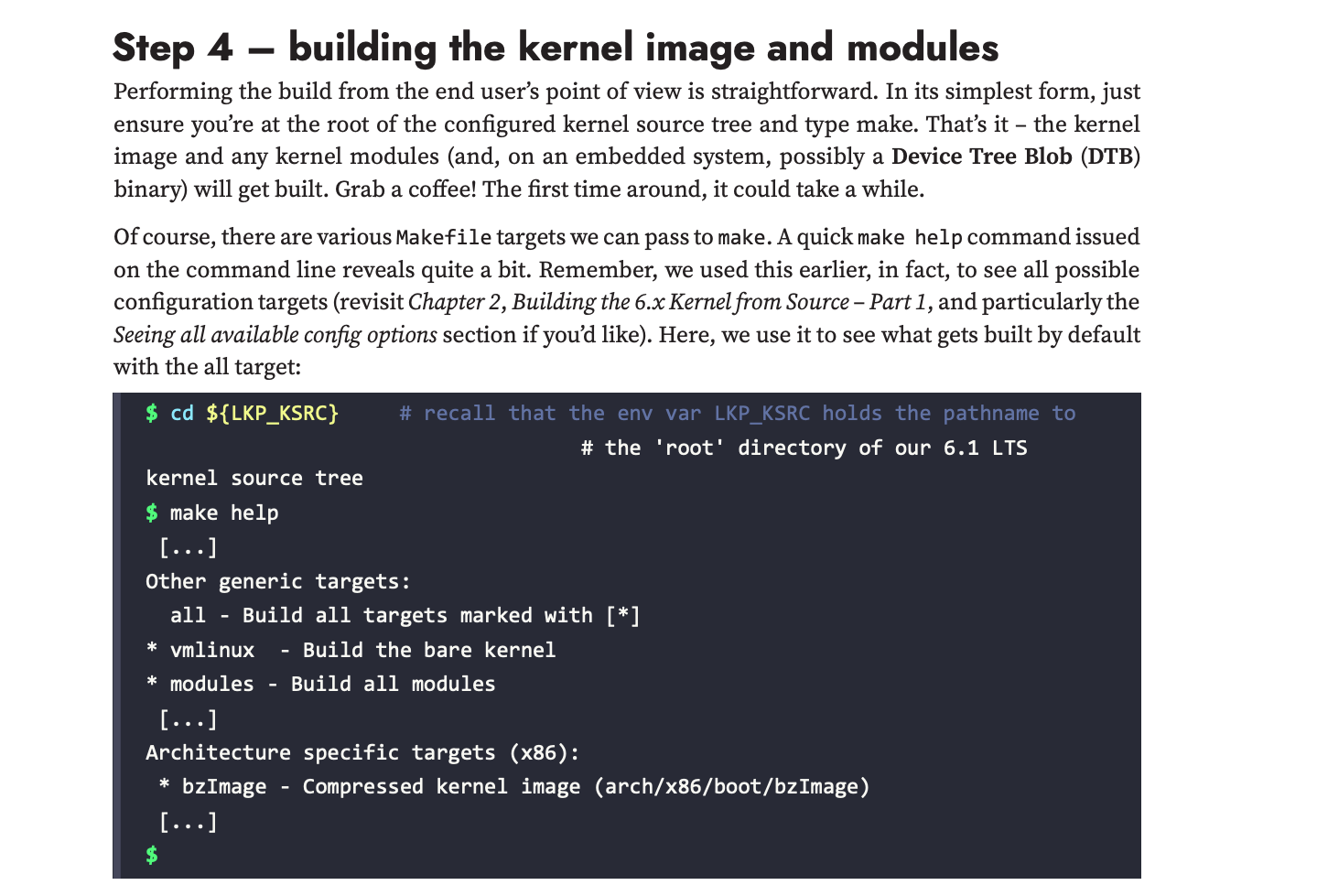
A section from the book that takes you through compiling the Linux kernel and modules
As expected, the author does a good job of explaining these concepts to someone who might be new to kernel programming. Some topics like the Linux kernel modules are specific only to the Linux kernel. He covers them in a satisfactory manner, building up for the next chapter.
Writing code for the Linux kernel
Once you have a brief idea about the Linux kernel source tree and build process, the author then dives into writing code for the Linux kernel. You are highly encouraged to follow along on your physical/virtual machine in building and running this "out-of-tree" code.
To get you writing code for the Linux kernel, the author starts by making you familiar with the Linux kernel's module system. Topics like the following are covered:
Understanding all the elements of writing a simple Linux kernel module. "Equivalents" of userspace programming conventions like the main() function in the kernel code (init() and exit() functions).
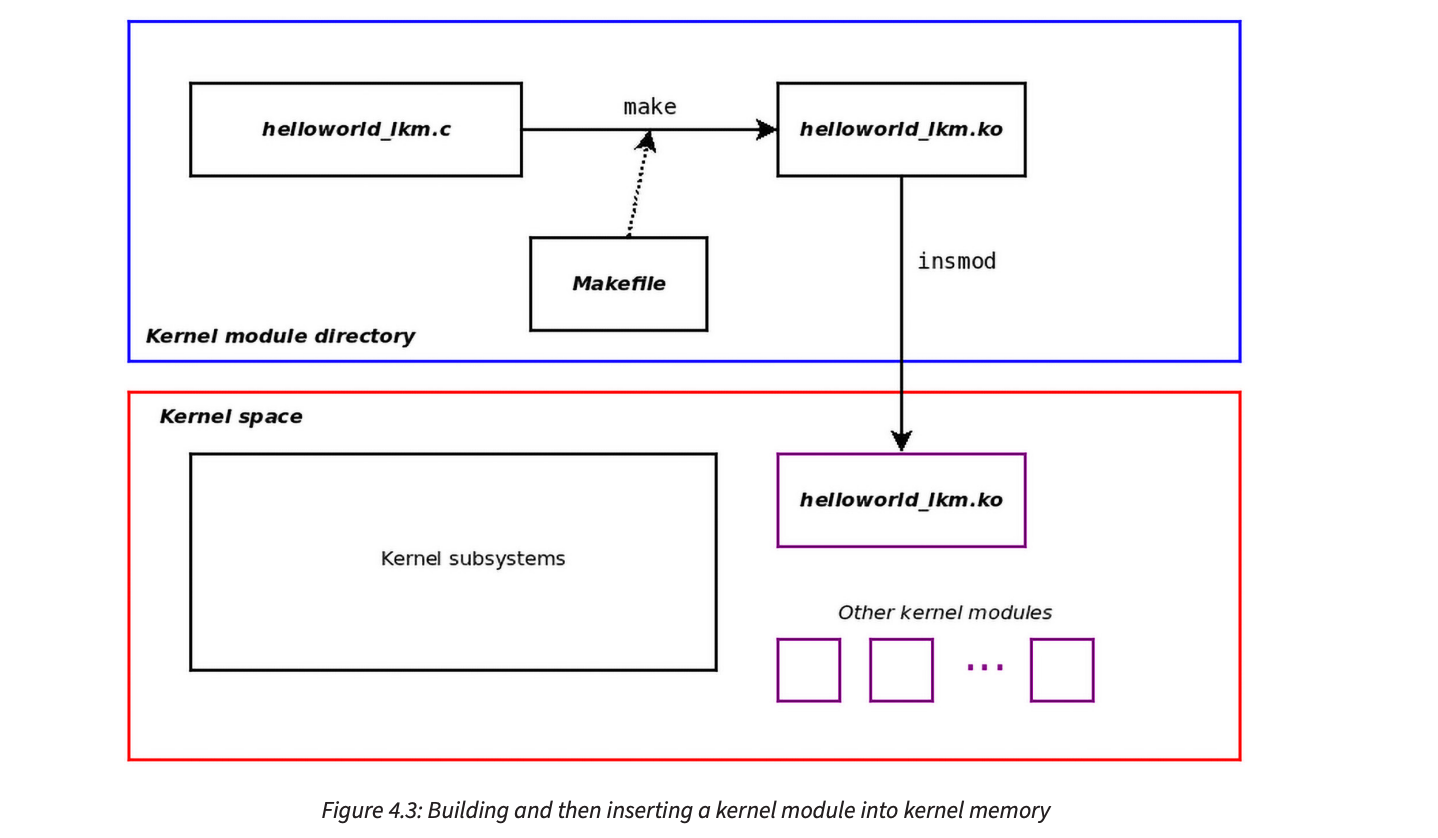
Building these kernel modules. Loading and unloading them. Where to see their output.
Experiments and approaches when you have multiple kernel modules and source files. How to make one source file "depend" on another?
A figure showing how the simple kernel module works
I will repeat this again. Please follow along with the code examples. They are for you to understand and are quite nice in explaining each topic at hand.
Linux kernel internals: overview
As the next step, the author then gives you an overview of Linux kernel internals. Foundational blocks that a kernel developer must know, like the following, are covered:
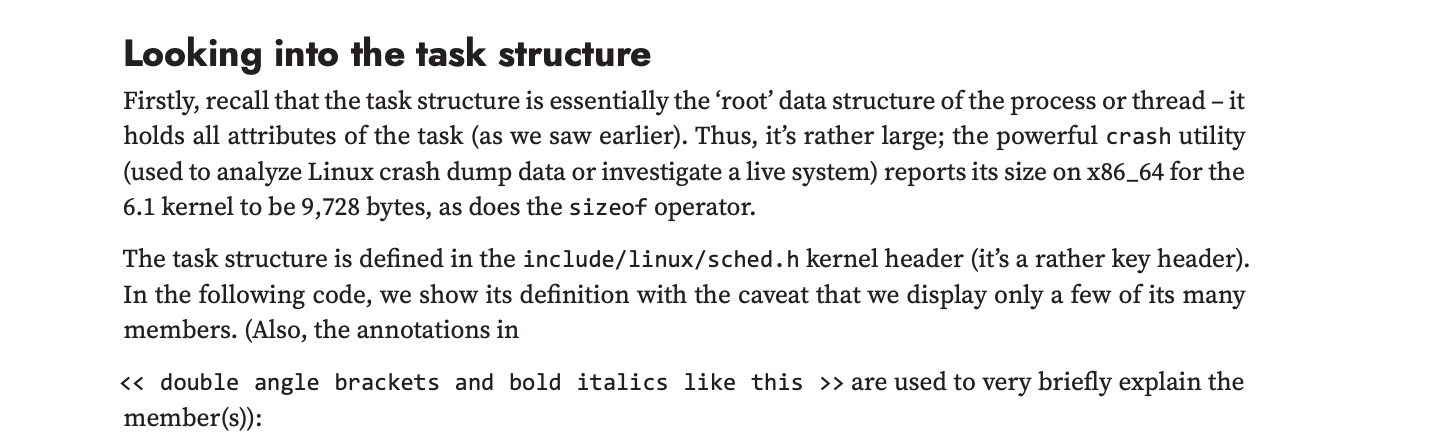
Processes and threads. Diving into the task_struct data structure of the Linux for tracking the processes.
Internals of the Linux kernel memory management.
Memory allocation for kernel module(s).
Creating a custom slab cache.
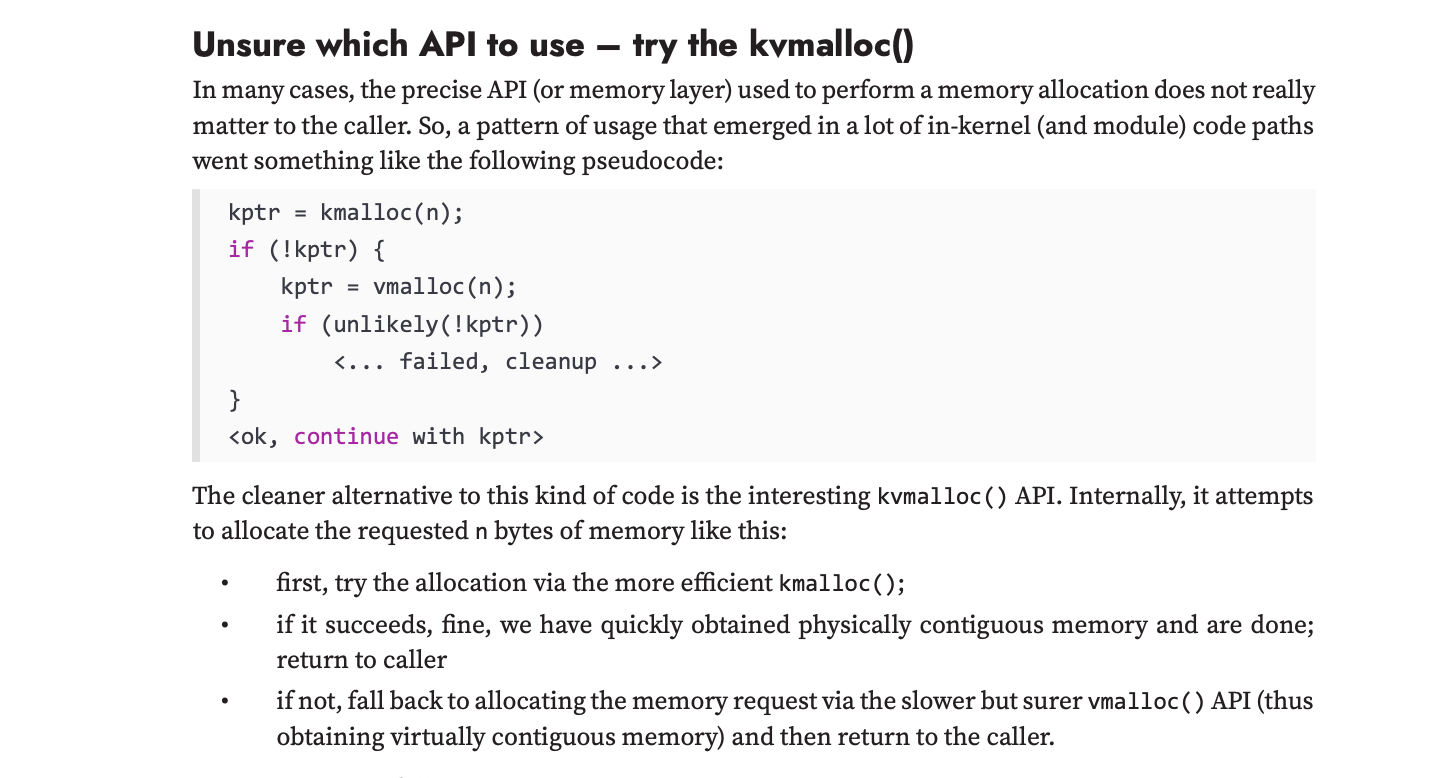
Kernel's "internal" APIs like kmalloc(), kzalloc(), kfree(), vmalloc() etc.
The author also goes above and beyond (in my opinion) by covering a necessary, but often ignored feature: KASLR (Kernel Address Space Layout Randomisation).
Author explaining thetask_structstructure of Linux kerne's scheduler.
This section is finally concluded by learning about the Linux kernel out-of-memory (OOM) killer.
Linux kernel internals: scheduler
Once the topics that you might have encountered in the Operating Systems class are covered, the author then covers the final, most important task that all the kernels of every operating system in existence covers: the task scheduler.
Topics like the following are covered in this section:
KSE and its purpose in scheduling tasks in the Linux kernel.
CFS task scheduler that is part of the Linux kernel's v6.1.y release, that this book targets.
Kernel synchronisation and techniques: spinlocks, locking, etc.
Understanding Cgroups (v2).
The author clarifies on which memory allocation API of the Linux kernel to use.
By covering a majority of aspects of the Linux kernel's scheduler, the author concludes the end of this book.
💡
Though I did not yet mention it explicitly in any section so far, the author has obviously covered methods of debugging a given problem. :)
Things I liked in the book
This book comes with a strong recommendation from me for being an excellent resource that is up-to-date with the Linux kernel's source code.
Following are some aspects of this book that I personally liked:
Hands-on approach: This book focuses a lot of code and a majority of the text (non-code) in this book is mostly about explaining the code, what it does, what can be done instead and some other ideas for you to explore.
Assignments: This is in addition to the first point about a hands-on approach. The author has some fun assignments that you should at least try!
In-depth explanation: Almost all of the topics covered have good, in-depth explanation. Those that don't, encourage you to explore further.
Highly technical content: This book focuses very little on generic OS fundamentals--unlike your typical CS course book on OS. Instead, it dives straight into how stuff works in the Linux kernel. (I personally prefer this over generic fundamentals because you apply on a known base (Linux) and see the results immediately.)
Software licensing: While many software developers don't have to bother with a software license, it is important to know about software licensing as a kernel developer due to various restrictions (discussed in the book). This is a tiny, but important topic.
Things I wish the book had covered
While this is a great resource, nothing is perfect and as such, I have a teeny tiny list of things that I would have loved to see included.
Coverage of VFS, for a better understanding of file-system included in the Linux kernel codebase.
A tiny section on driver development. Letting readers branch out other than "core" kernel development.
Inclusion of some Rust code, but that would only come with a later kernel version, so I'm willing to let go of this.
Who knows? If you like it and end up purchasing this book, the author might be incentivised for a third edition! ;)
Conclusion
The second edition of the 'Linux Kernel Programming' book, written by Kaiwan N. Billimoria is an excellent resource for someone seeking a book that helps you get started with Linux kernel programming. It has a lot of hand-holding and rightfully so because the Linux kernel is a huge codebase.
I know that many people these days prefer online and video content for programming and other tech related learnings but nothing beats the handiness of a good book. Not only you learn at your pace, revisiting a topic is much easier with books than videos. This is coming from someone who is in early 20s, so that says a lot.

 Pratham Patel


 Sourav Rudra
 Benj Edwards




 Sheila_Flanagan