Rabu, 09 Juli 2025

FOSS Weekly #25.28: Xfce Customization, CoMaps, Disk Space Clean-up, Deprecated Commands and More

FOSS Weekly #25.28: Xfce Customization, CoMaps, Disk Space Clean-up, Deprecated Commands and More

After Denmark, now the news is that French city Lyon is ditching Microsoft to set up a collaborative office with a few open source software. Now that calls for a 'fest for the luminieries' 😉

French City of Lyon Kicks Out Microsoft
Microsoft faces growing rejection in Europe whereas open source software sees growing adaption.
FOSS Weekly #25.28: Xfce Customization, CoMaps, Disk Space Clean-up, Deprecated Commands and More

💬 Let's see what else you get in this edition

  • A new Google Maps alternative.
  • LibreOffice working on a long-requested feature.
  • Twitter's original co-founder launching an open source project.
  • A new app for transferring files between your Linux system and Android device.
  • And other Linux news, tips, and, of course, memes!

📰 Linux and Open Source News

Weeks after weeks, Fedora comes up with its plan to drop support for aging technologies. This time, Fedora wants to drop UEFI boot support on MBR.

Another Radical Move as Fedora Now Wants to Drop UEFI Boot Support on MBR
UEFI boot support for MBR could be removed in Fedora 43.
FOSS Weekly #25.28: Xfce Customization, CoMaps, Disk Space Clean-up, Deprecated Commands and More

🧠 What We’re Thinking About

AI has reduced the cost of adding new software to almost zero but the price of understanding, testing, and trusting that code is higher than ever.

Writing Code Was Never The Bottleneck
LLMs make it easier to write code, but understanding, reviewing, and maintaining it still takes time, trust, and good judgment.
FOSS Weekly #25.28: Xfce Customization, CoMaps, Disk Space Clean-up, Deprecated Commands and More

🧮 Linux Tips, Tutorials, and More

A few tips on freeing up disk space on Ubuntu and Linux Mint distros.

7 Simple Ways to Free Up Space on Ubuntu and Linux Mint
Running out of space on your Linux system? Here are several ways you can clean up your system to free up space on Ubuntu and other Ubuntu based Linux distributions.
FOSS Weekly #25.28: Xfce Customization, CoMaps, Disk Space Clean-up, Deprecated Commands and More

Desktop Linux is mostly neglected by the industry but loved by the community. For the past 13 years, It's FOSS has been helping people use Linux on their personal computers. And we are now facing the existential threat from AI models stealing our content.

If you like what we do and would love to support our work, please become It's FOSS Plus member. It costs $24 a year (less than the cost of a burger meal each month) and you get an ad-free reading experience with the satisfaction of helping the desktop Linux community.

Join It's FOSS Plus

👷 Homelab and Hardware Corner

It is important to keep a tab on the CPU temperature on your Raspberry Pi.

Monitor CPU & GPU Temperature in Raspberry Pi [CLI and GUI]
Here’s how to keep an eye on the CPU and GPU temperature of your Raspberry Pi in both GUI and command line.
FOSS Weekly #25.28: Xfce Customization, CoMaps, Disk Space Clean-up, Deprecated Commands and More


Spotted this new GaN charging station on Kickstarter. The real time visuals on power output is excellent for people who like to keep track of data on all things possible.
FOSS Weekly #25.28: Xfce Customization, CoMaps, Disk Space Clean-up, Deprecated Commands and More

✨ Project Highlight

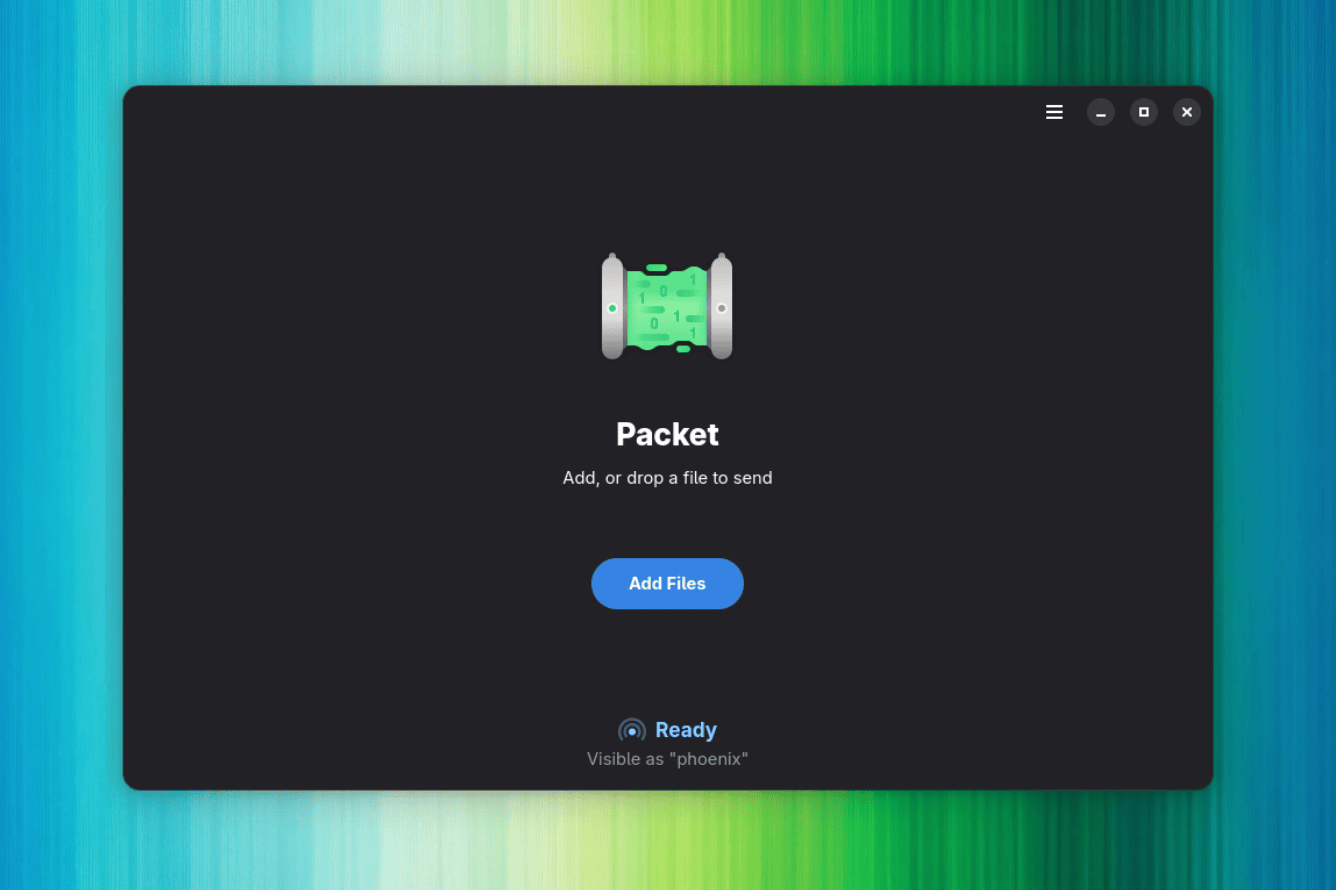
Packet offers a convenient method for wirelessly transferring files between Linux and Android and vice versa.

Packet is the Linux App You Didn’t Know You Needed for Fast Android File Transfers
Simple, fast file sharing between Linux and Android.
FOSS Weekly #25.28: Xfce Customization, CoMaps, Disk Space Clean-up, Deprecated Commands and More

📽️ Videos I am Creating for You

You won't believe Xfce can look this beautiful. Detailed Xfce customization video is the latest on our YouTube channel.

🧩 Quiz Time

Can you beat this command-themed memory challenge?

Memory Match Commands and Their Categories
An enjoyable way to test your memory by matching the Linux command with their respective categories.
FOSS Weekly #25.28: Xfce Customization, CoMaps, Disk Space Clean-up, Deprecated Commands and More

💡 Quick Handy Tip

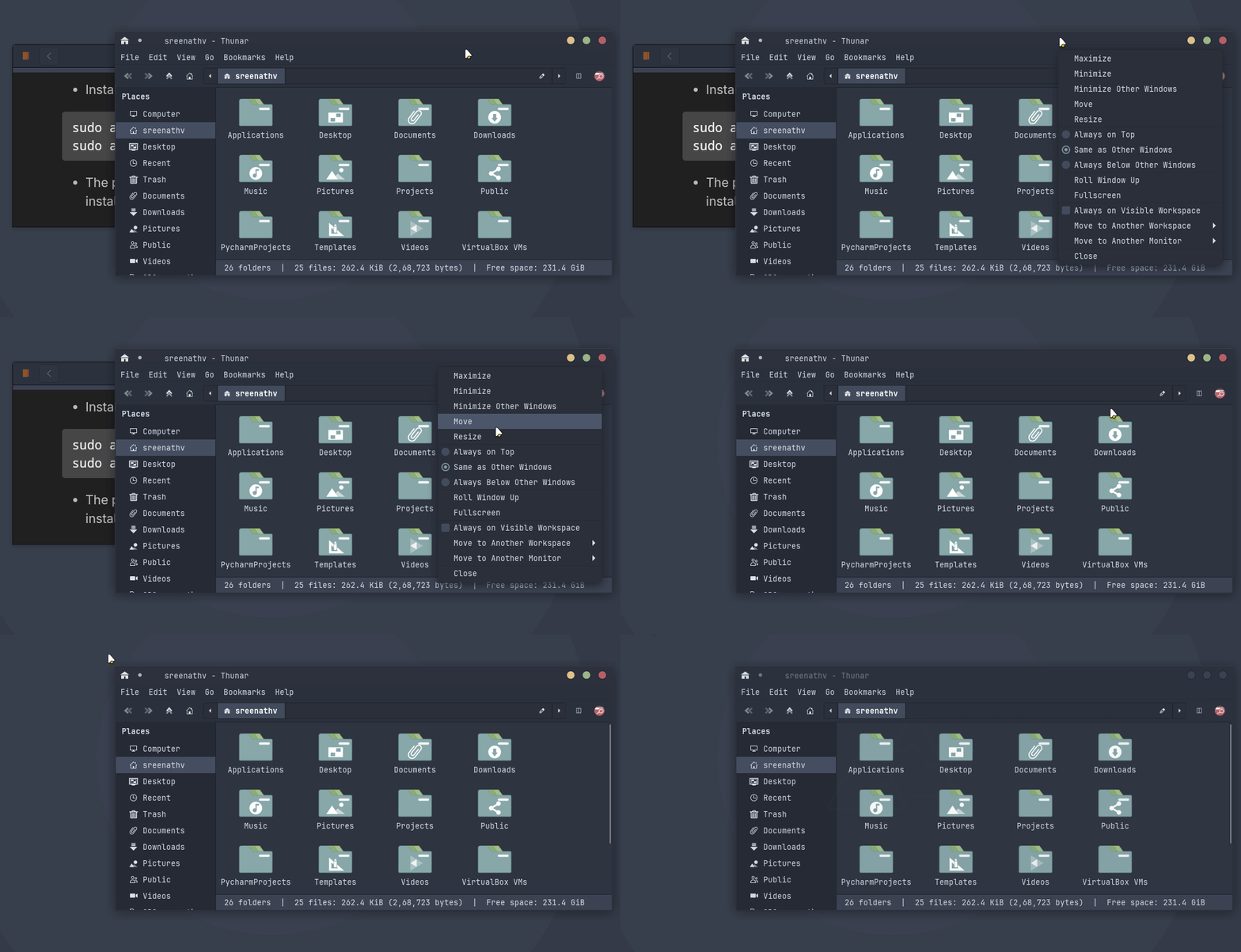
In Xfce, you can minimize all other windows except the current one. For doing this, right-click on the titlebar and then select "Minimize Other Windows".
FOSS Weekly #25.28: Xfce Customization, CoMaps, Disk Space Clean-up, Deprecated Commands and More

🤣 Meme of the Week

FOSS Weekly #25.28: Xfce Customization, CoMaps, Disk Space Clean-up, Deprecated Commands and More

🗓️ Tech Trivia

On July 8, 1946, the Moore School of Electrical Engineering at the University of Pennsylvania hosted the first-ever formal lecture series on electronic digital computers. These influential lectures on computer design directly inspired the development of some of the world’s earliest stored-program computers, including the groundbreaking EDSAC.

🧑‍🤝‍🧑 FOSSverse Corner

Can you help this FOSSer pick a GPU that works well with Kubuntu 24.04?

Graphic cards that work on Kubuntu 24.04
Hi, I have on my system Kubutu 24.04. Would like to get a new graphic card, as the one currently using is very old. Any suggestions ? Currently using Kubuntu 24.04 on a MSI B550 Gaming mb, Gen3. 32 gigs of ram, 12 × AMD Ryzen 5 5500 CPU. System: Kernel: 6.8.0-62-generic arch: x86_64 bits: 64 compiler: gcc v: 13.3.0 Desktop: KDE Plasma v: 5.27.12 Distro: Kubuntu 24.04.2 LTS (Noble Numbat) base: Ubuntu Machine: Type: Desktop Mobo: Micro-Star model: B550 GAMING GEN3 (MS-7B86) v: 5.0 serial:…
FOSS Weekly #25.28: Xfce Customization, CoMaps, Disk Space Clean-up, Deprecated Commands and More

❤️ With love

Please share it with your Linux-using friends and encourage them to subscribe (hint: it's here).

Share the articles in Linux Subreddits and community forums.

Follow us on Google News and stay updated in your News feed.

Opt for It's FOSS Plus membership and support us 🙏

Enjoy FOSS 😄


from It's FOSS https://ift.tt/cmNBsTi
via IFTTT

Senin, 07 Juli 2025

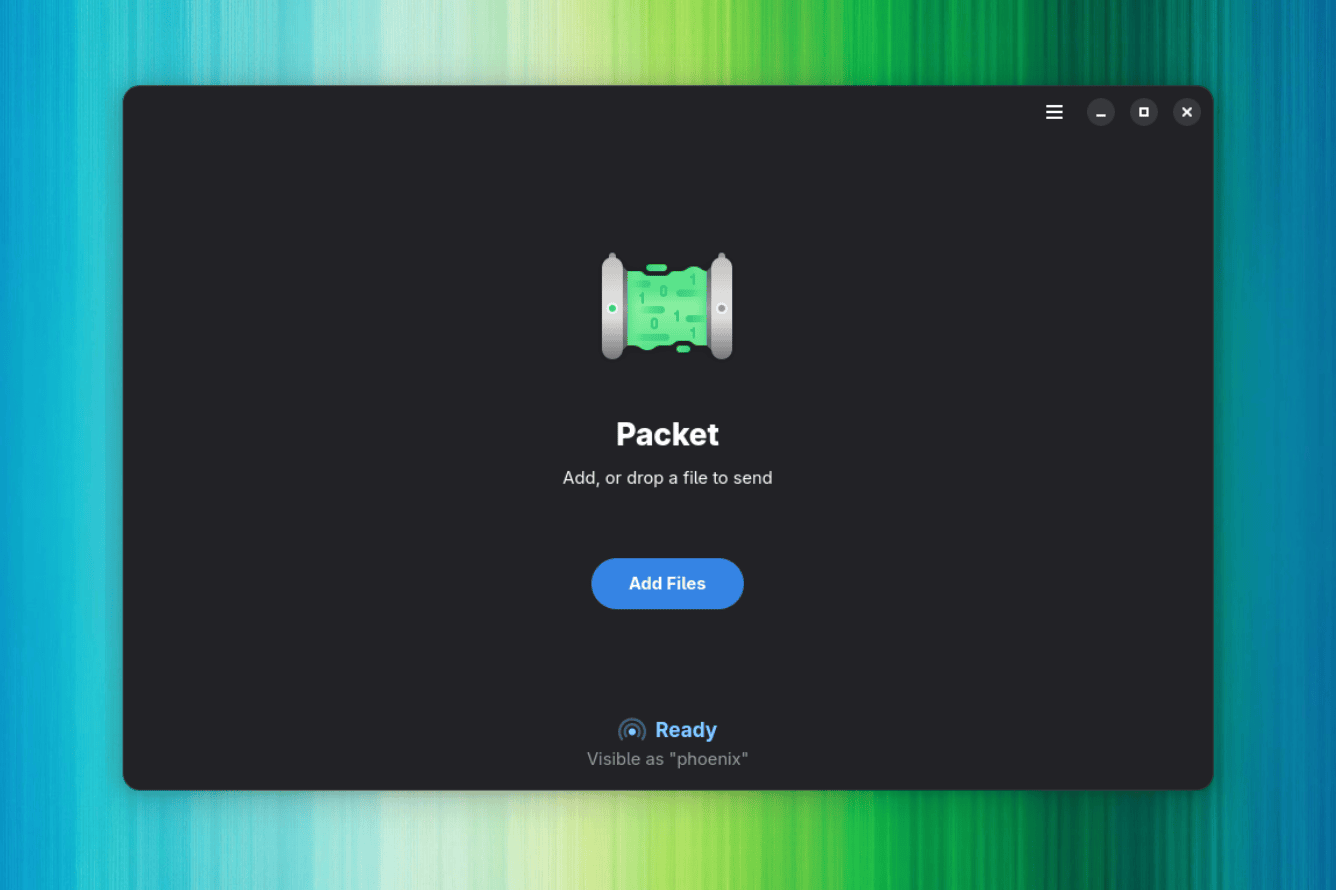
Packet is the Linux App You Didn’t Know You Needed for Fast Android File Transfers

Packet is the Linux App You Didn’t Know You Needed for Fast Android File Transfers

Most file sharing today takes place through cloud services, but that's not always necessary. Local file transfers are still relevant, letting people send files directly between devices on the same network without involving a nosy middleman (a server, in this case).

Instead of uploading confidential documents on WhatsApp and calling it a day, people could share them directly over their local network. This approach is faster, more private, and more reliable than relying on a third-party server.

Remember, if you value your data, so does Meta. 🕵️‍♂️

That’s where Packet comes in, offering an easy, secure way to transfer files directly between Linux and Android devices.

Wireless File Transfers via Quick Share

It is a lightweight, open source app for Linux that makes transferring files effortless. It leverages a partial implementation of Google's Quick Share protocol (proprietary) to enable easy wireless transfers over your local Wi-Fi network (via mDNS) without needing any cables or cloud servers.

In addition to that, Packet supports device discovery via Bluetooth, making it easy to find nearby devices without manual setup. It can also be integrated with GNOME’s Nautilus file manager (Files), allowing you to send files directly from your desktop with a simple right-click (requires additional configuration).

⭐ Key Features

  • Quick Share Support
  • Local, Private Transfers
  • File Transfer Notifications
  • Nautilus Integration for GNOME

How to Send Files Using Packet?

Packet is the Linux App You Didn’t Know You Needed for Fast Android File Transfers

First things first, you have to download and install the latest release of Packet from Flathub by running this command in your terminal:

flatpak install flathub io.github.nozwock.Packet

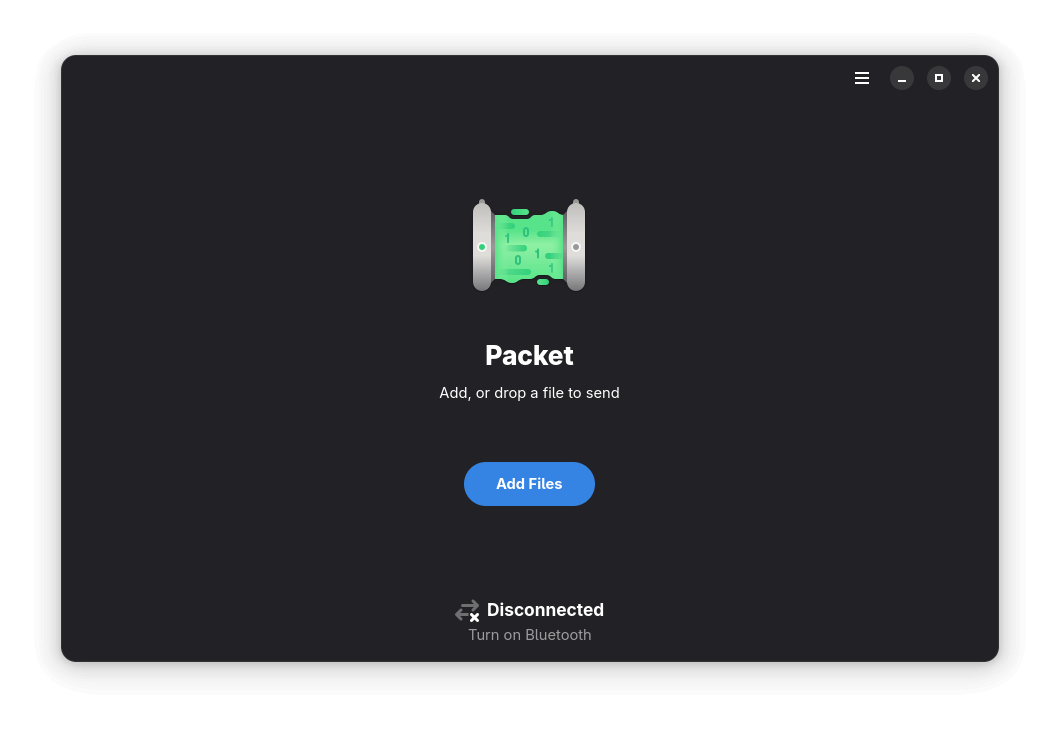
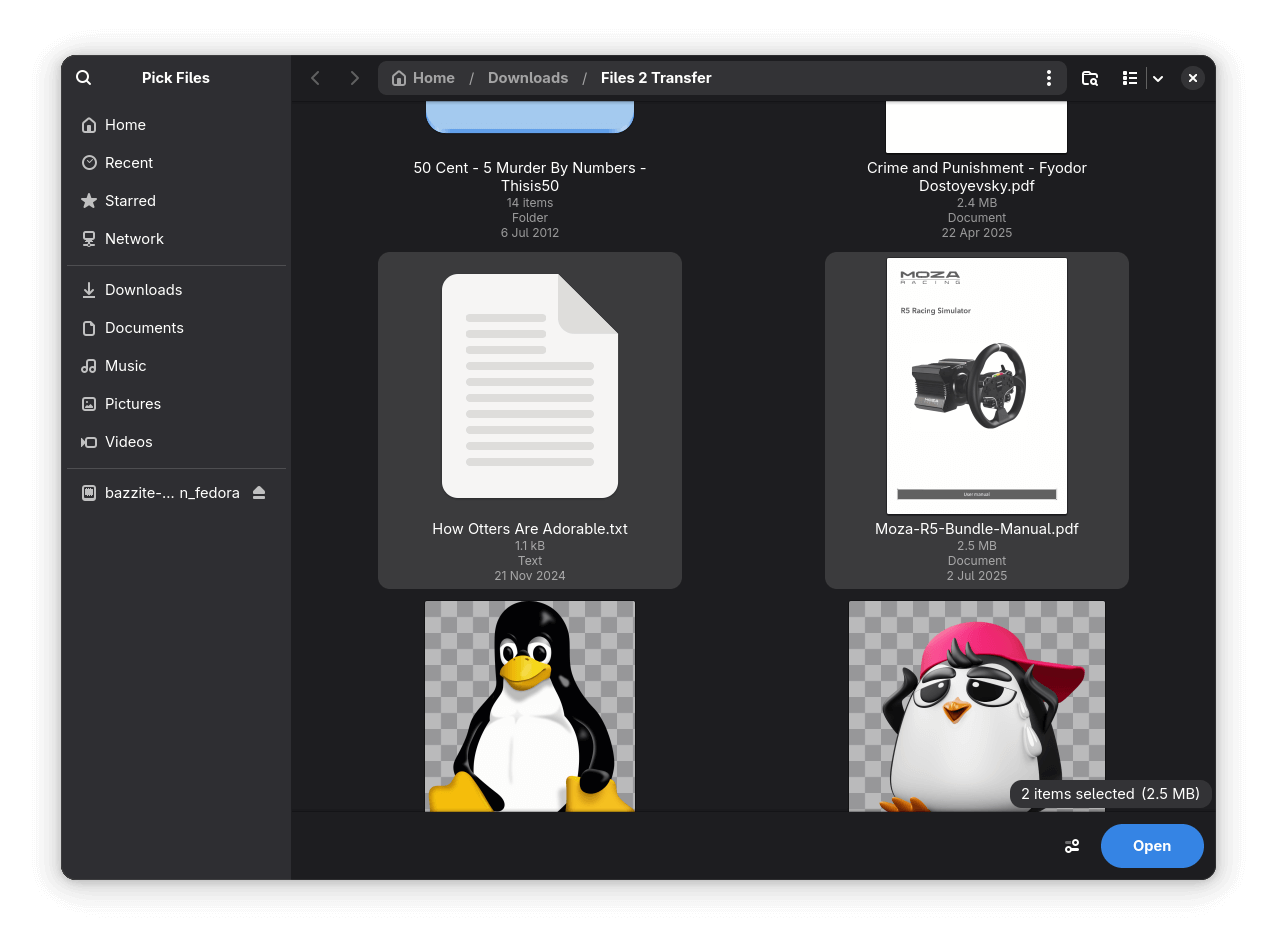
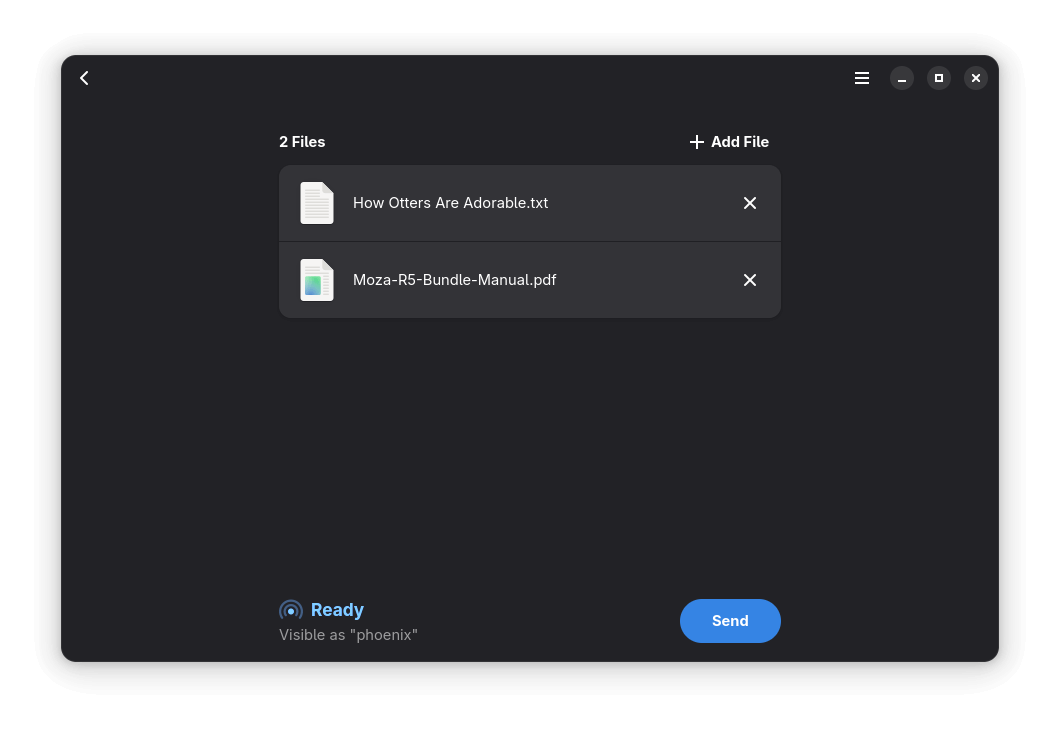
Once launched, sending files from your Linux computer to your Android smartphone is straightforward. Enable Bluetooth on your laptop/computer, then click on the big blue "Add Files" button and select the files you want to send.

You can also drag and drop files directly into Packet for a quicker sharing experience. If you are looking to transfer a whole folder, it’s best to first compress it into an archive like a TAR or ZIP, then send it through Packet for transmission.

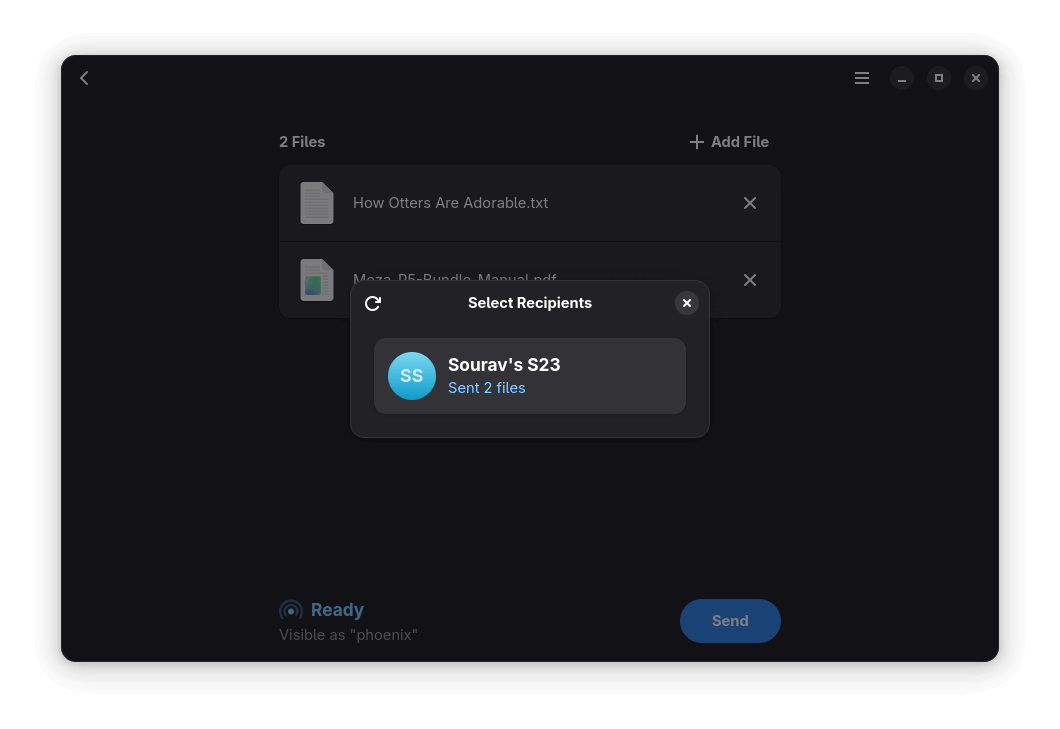
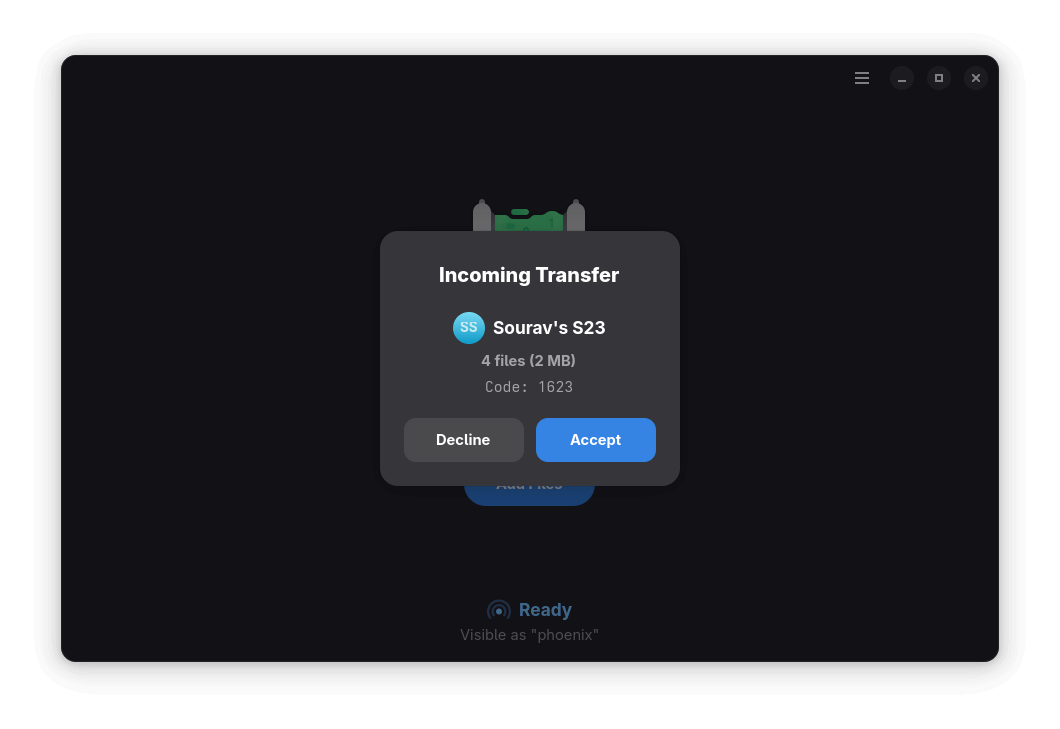
Once you are done choosing files, choose your Android phone from the recipients list and verify the code shown on screen.

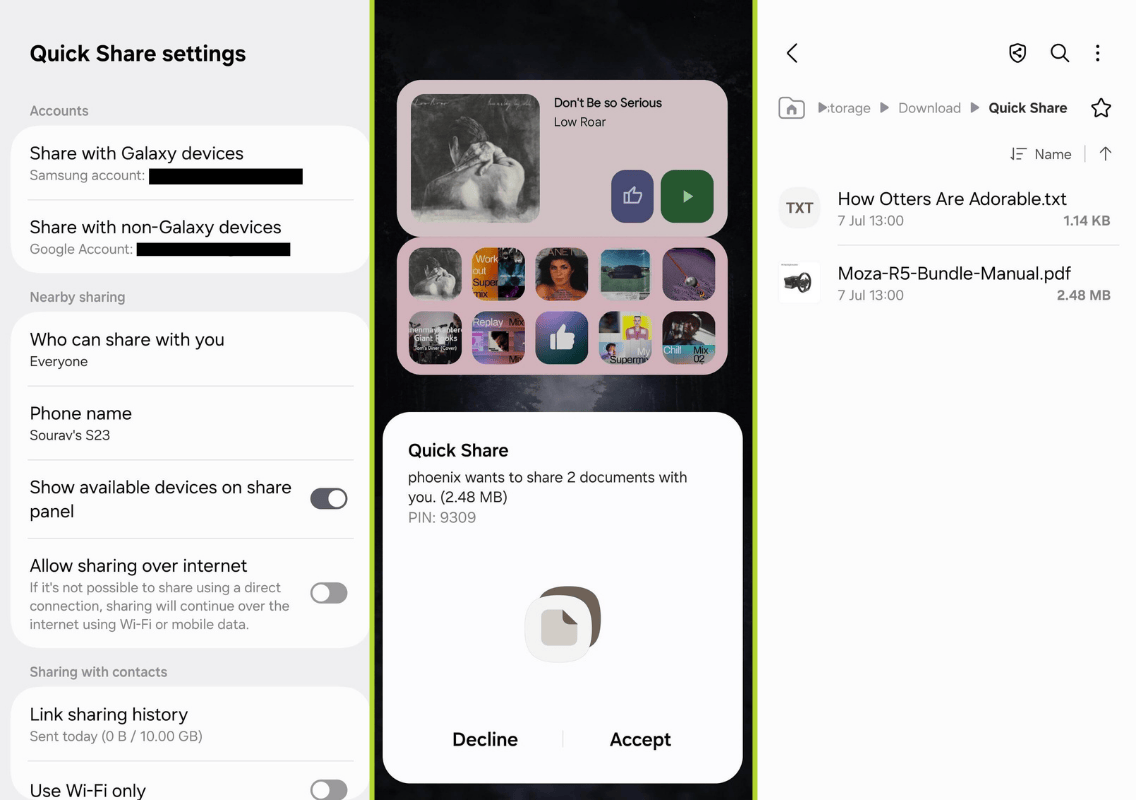
Though, before you do all that, ensure that Quick Share is set up on your smartphone to allow Nearby sharing with everyone. Additionally, take note of your device’s name; this is how it will appear on your Linux machine when sending/receiving files.

When you start the transfer, your smartphone will prompt you to "Accept" or "Decline" the Quick Share request. Only proceed if the PIN or code shown on both devices matches to ensure a secure transfer.

Packet is the Linux App You Didn’t Know You Needed for Fast Android File Transfers

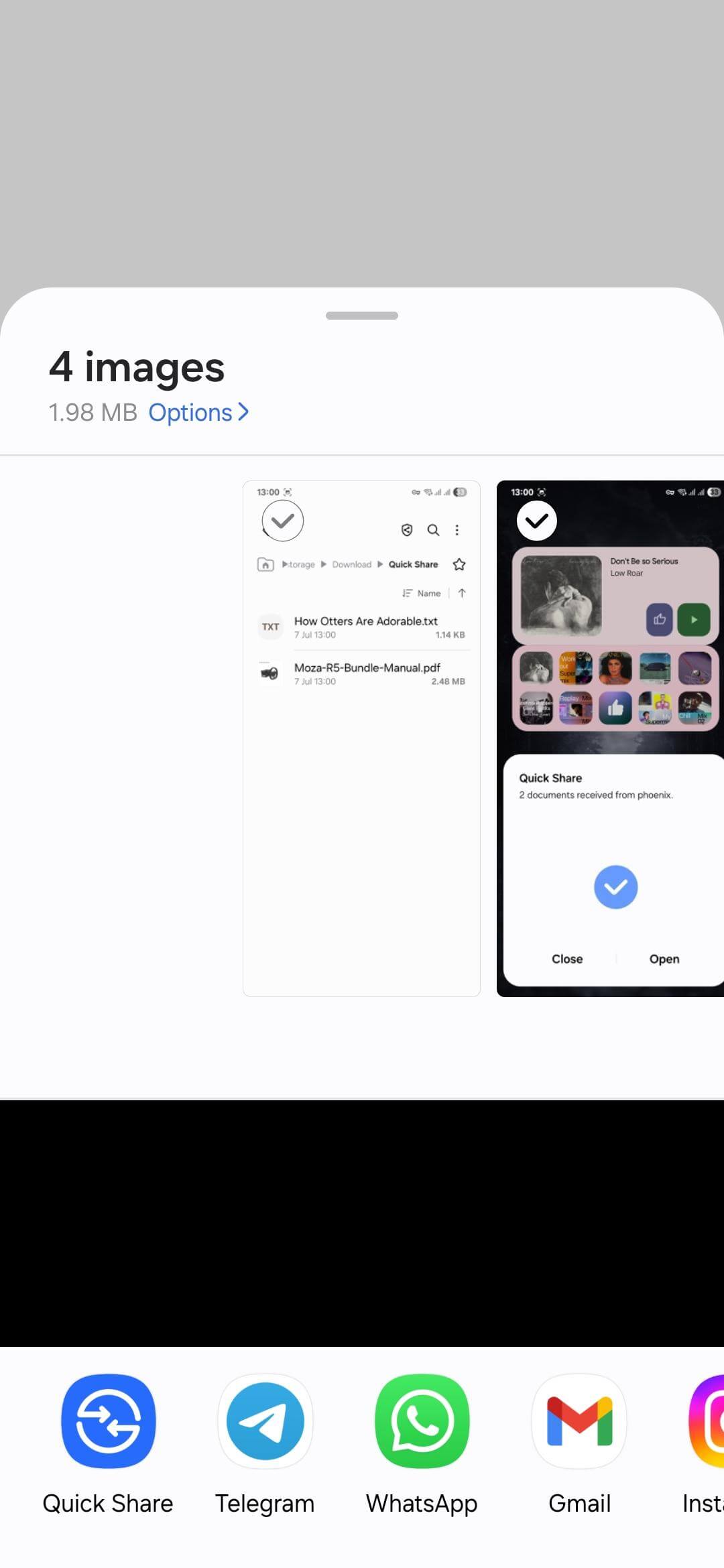
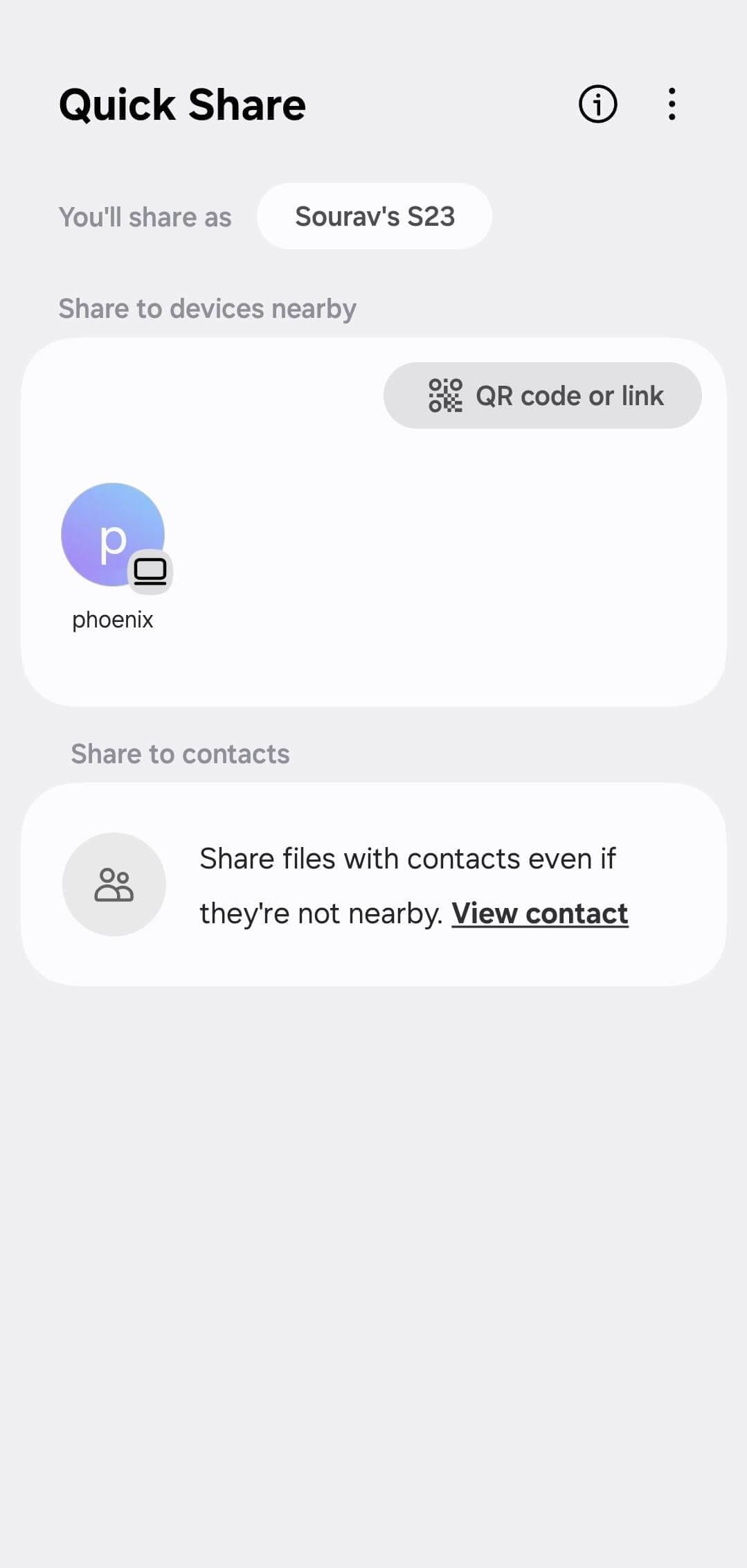
Transferring files the other way around, from Android to Linux, is just as simple. On your Android device, select the files you want to share, tap the "Share" button, and choose "Quick Share". Your Linux computer should appear in the list if Packet is running and your device is discoverable.

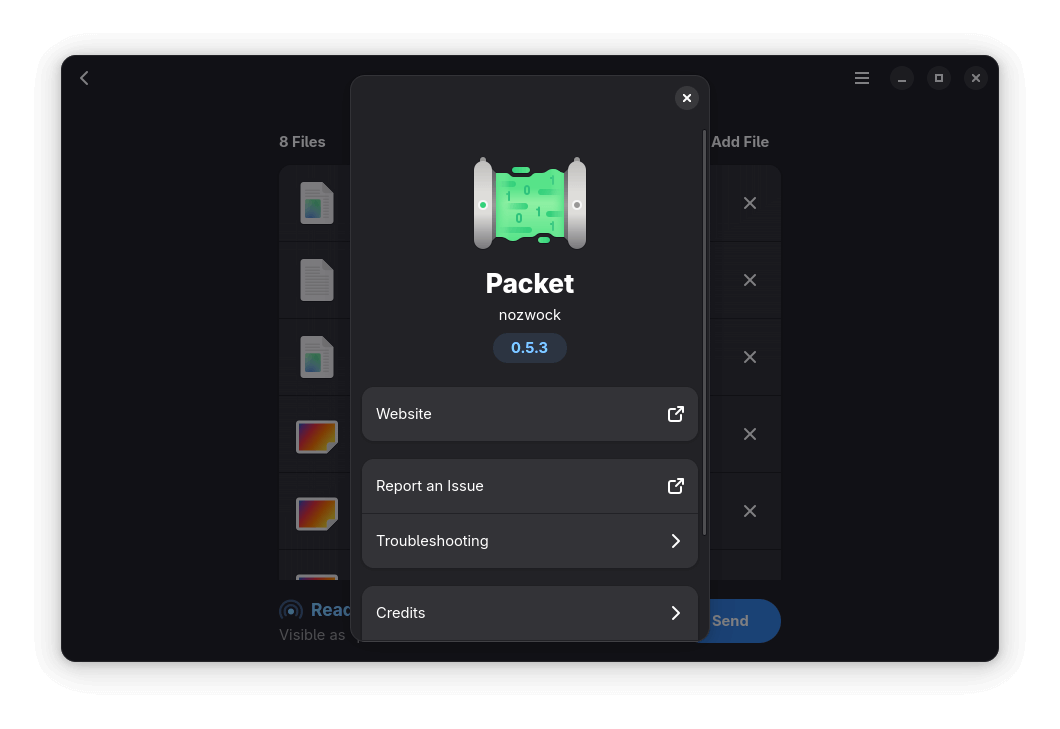
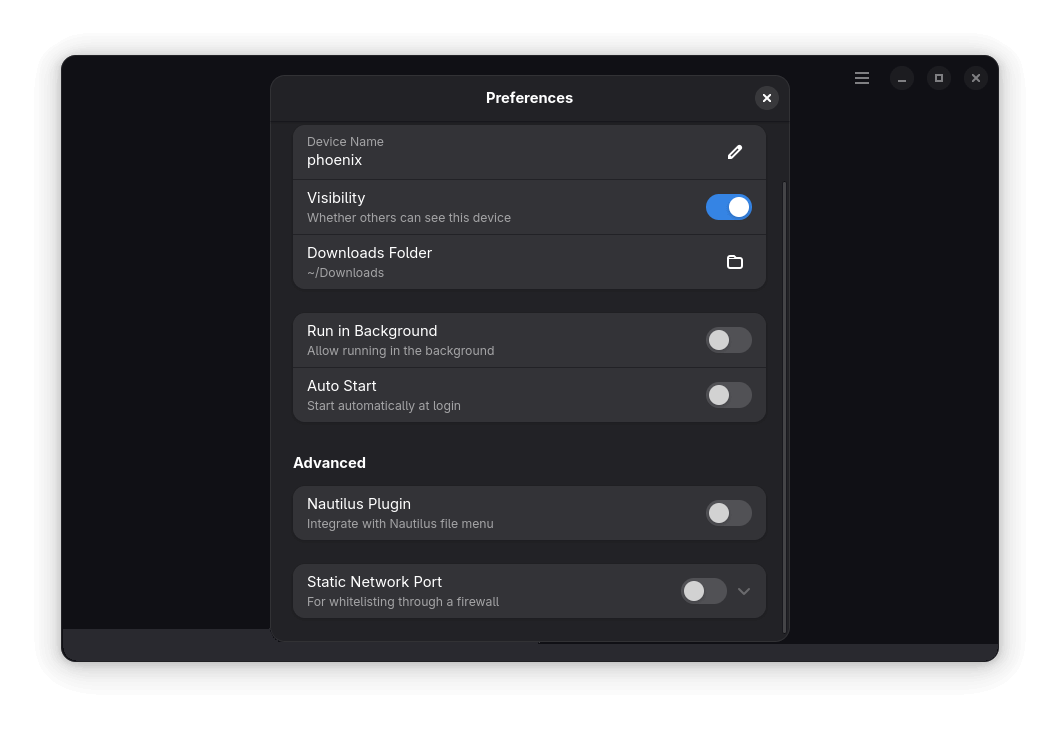
You can change your Linux device’s name from the "Preferences" menu in Packet (accessible via the hamburger menu). This is the name that will show up on your Android device when sharing files.

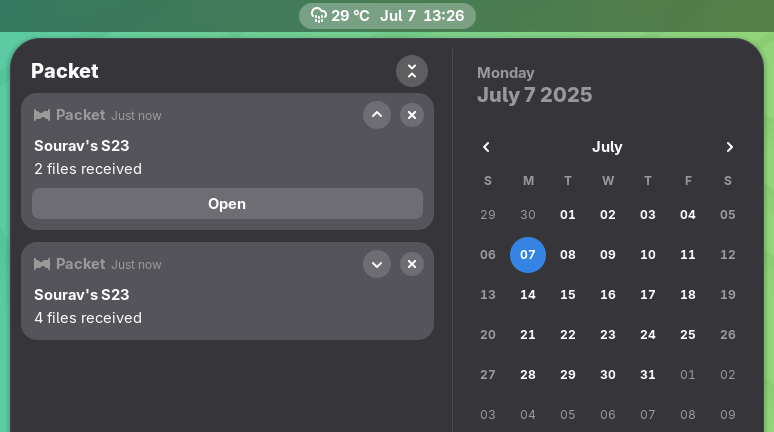
Packet also shows handy system notifications for file transfers, so you don’t miss a thing.

If you use the GNOME Files app (Nautilus), then there’s an optional plugin that adds a "Send with Packet" option to the right-click menu, making it even easier to share files without opening the app manually.

Overall, Packet feels like a practical tool for local file sharing between devices. It works well across Android and Linux devices, and can do the same for two Linux devices on the same network.

And, I must say, it gives tough competition to LocalSend, another file transfer tool that’s an AirDrop alternative for Linux users!

Suggested Read 📖

LocalSend: An Open-Source AirDrop Alternative For Everyone!
It’s time to ditch platform-specific solutions like AirDrop!
Packet is the Linux App You Didn’t Know You Needed for Fast Android File Transfers


from It's FOSS https://ift.tt/q5IuSBe
via IFTTT
Sabtu, 05 Juli 2025

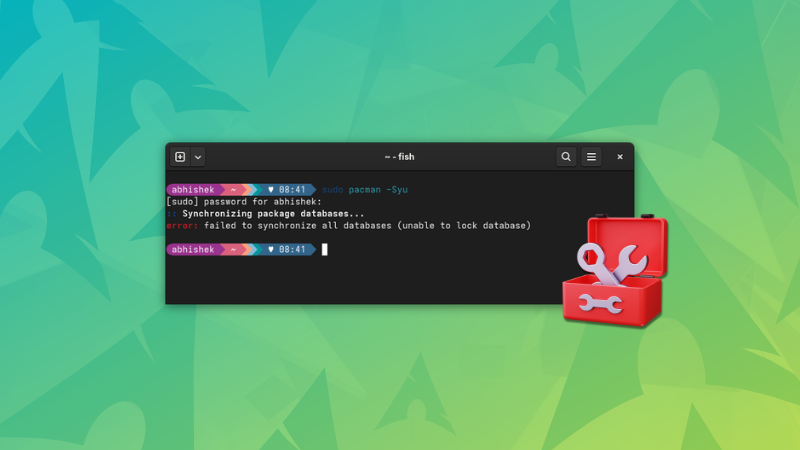
Fixing 'failed to synchronize all databases' Pacman Error in Arch Linux

Fixing 'failed to synchronize all databases' Pacman Error in Arch Linux

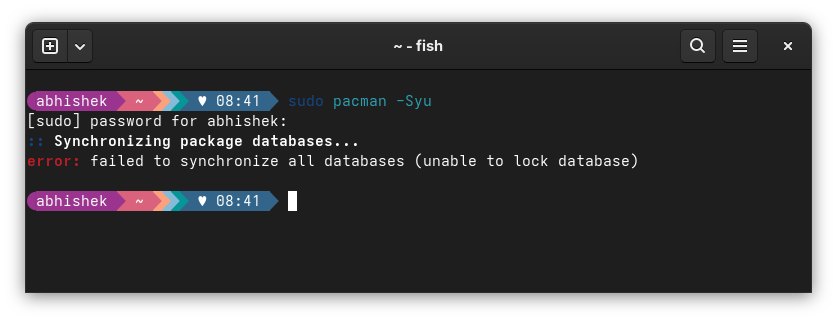
I was trying to update my CachyOS system with in the usual Arch way when I encountered this 'failed to synchronize all databases' error.

sudo pacman -Syu
[sudo] password for abhishek: 
:: Synchronizing package databases...
error: failed to synchronize all databases (unable to lock database)

The fix was rather simple. It worked effortlessly for me and I hope it does for you, too.

Handling failed to synchronize all databases error

Check that no other program is using the pacman command:

ps -aux | grep -i pacman

If you see a single line output with grep --color=auto -i pacman at the end, it means that no program other than the grep command you just ran is using pacman.

If you see some other programs, use their process ID to kill them first and then use this command to remove the lock from the database:

sudo rm /var/lib/pacman/db.lck

Once done, you can run the pacman update again to see if things are working smooth or not.

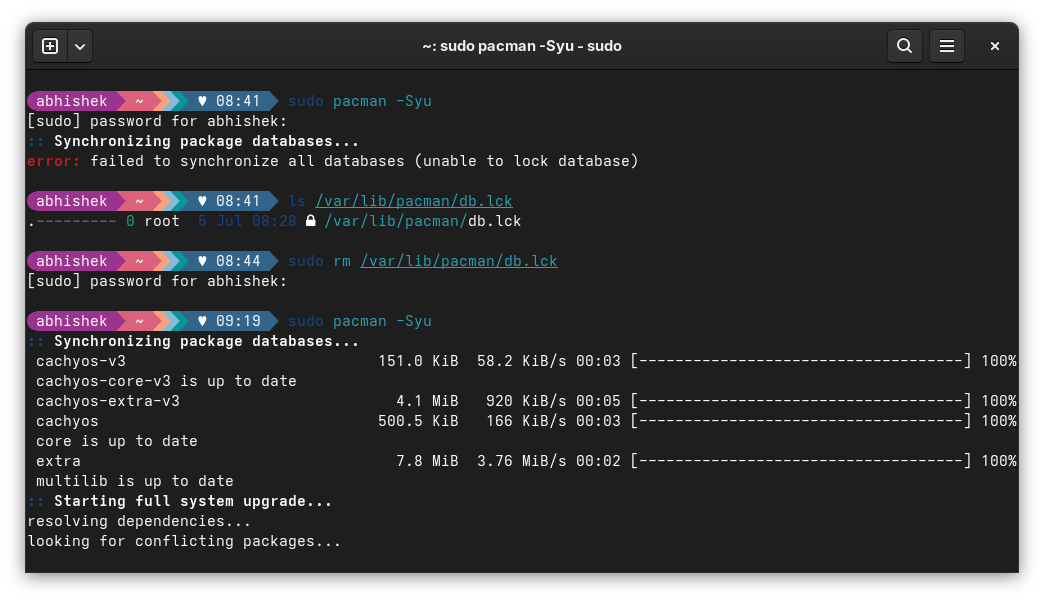
Here's a screenshot of the entire scenario on my CachyOS linux:

Fixing 'failed to synchronize all databases' Pacman Error in Arch Linux

That didn't work? Try this

In some rare cases, just removing the database lock might not fix the issue. What you could try is to delete the entire database of the local cache. The next pacman update will take longer as it will download plenty, but it may fix your issue.

sudo rm /var/lib/pacman/sync/*.*

Reason why you see this 'unable to lock databases' error

Fixing 'failed to synchronize all databases' Pacman Error in Arch Linux

For the curious few who would like to know why they encountered this failed to synchronize all databases (unable to lock database) error, let me explain.

Pacman commands are just one way to install or update packages on an Arch-based system. There could be Pamac or some other tool like KDE Discover with their respective PackageKit plugins or some other instances of pacman running in another terminal.

Two processes trying to modify the system package database at the same time could be problematic. This is why the built-in security mechanism in Arch locks the database by creating the /var/lib/pacman/db.lck.

This is an indication to let pacman know that some program is using the package database. Once the program finishes up successfully, this lock file is deleted automatically.

In some cases, this lock file might not be deleted. For instance, when you turn off your system when pacman command was already running in a terminal. This is what happened in my case. I ran the pacman -Syu command and it was waiting for my Y to start installing the updates. I got distracted and forced turn the system off. On the next boot, I encountered this error when I tried updating the system.

This is also the reason why you should check if some other program might be using pacman underneath. Force removing the lock file when there is an active program using the database is not a good idea.

In some rare cases, the lock file removal alone won't fix the issue. You may have to delete the local database cache. This happens when the local database of package is corrupted. This is what I mentioned in the earlier section.

Did it fix the issue for you?

Now that you know the root cause of the issue and the ways of fixing it, let me know if the fix I shared with you here worked for you or not.

If it did, drop a quick “Thank You”. That is a motivation booster.

And if it didn't, I might try helping you further.

The comment section is all yours.


from It's FOSS https://ift.tt/DEvZzMR
via IFTTT
Rabu, 02 Juli 2025

FOSS Weekly #25.27: System Info, Retro Tools, Fedora 32-bit Update, Torvalds vs Bcachefs and More Linux Stuff

FOSS Weekly #25.27: System Info, Retro Tools, Fedora 32-bit Update, Torvalds vs Bcachefs and More Linux Stuff

And we achieved the goal of 75 new lifetime members. Thank you for that 🙏🙏

I think I have activated it for everyone, even for members who didn't explicitly notify me after the payment. But if anyone is still left out, just send me an email.

By the way, all the logged-in Plus members can download the 'Linux for DevOps' eBook from this page. I'll be adding a couple of more ebooks (created and extended from existing content) for the Plus members.

💬 Let's see what else you get in this edition

  • Bcachefs running into trouble.
  • A new Rust-based GPU driver.
  • Google giving the Linux Foundation a gift.
  • And other Linux news, tips, and, of course, memes!

📰 Linux and Open Source News

🧠 What We’re Thinking About

A new Linux kernel drama has unfolded, this time, it's Bcachefs.

New Linux Kernel Drama: Torvalds Drops Bcachefs Support After Clash
Things have taken a bad turn for Bcachefs as Linux supremo Linus Torvalds is not happy with their objections.
FOSS Weekly #25.27: System Info, Retro Tools, Fedora 32-bit Update, Torvalds vs Bcachefs and More Linux Stuff

When you are done with that, you can go through LibreOffice's technical dive of the ODF file format.

🧮 Linux Tips, Tutorials and More

Relive the nostalgia with these tools to get a retro vibe on Linux.

Relive the Golden Era: 5 Tools to Get Retro Feel on Linux
Get retro vibe on Linux with these tools.
FOSS Weekly #25.27: System Info, Retro Tools, Fedora 32-bit Update, Torvalds vs Bcachefs and More Linux Stuff

Desktop Linux is mostly neglected by the industry but loved by the community. For the past 13 years, It's FOSS has been helping people use Linux on their personal computers. And we are now facing the existential threat from AI models stealing our content.

If you like what we do and would love to support our work, please become It's FOSS Plus member. It costs $24 a year (less than the cost of a burger meal each month) and you get an ad-free reading experience with the satisfaction of helping the desktop Linux community.

Join It's FOSS Plus

👷 Homelab and Hardware Corner

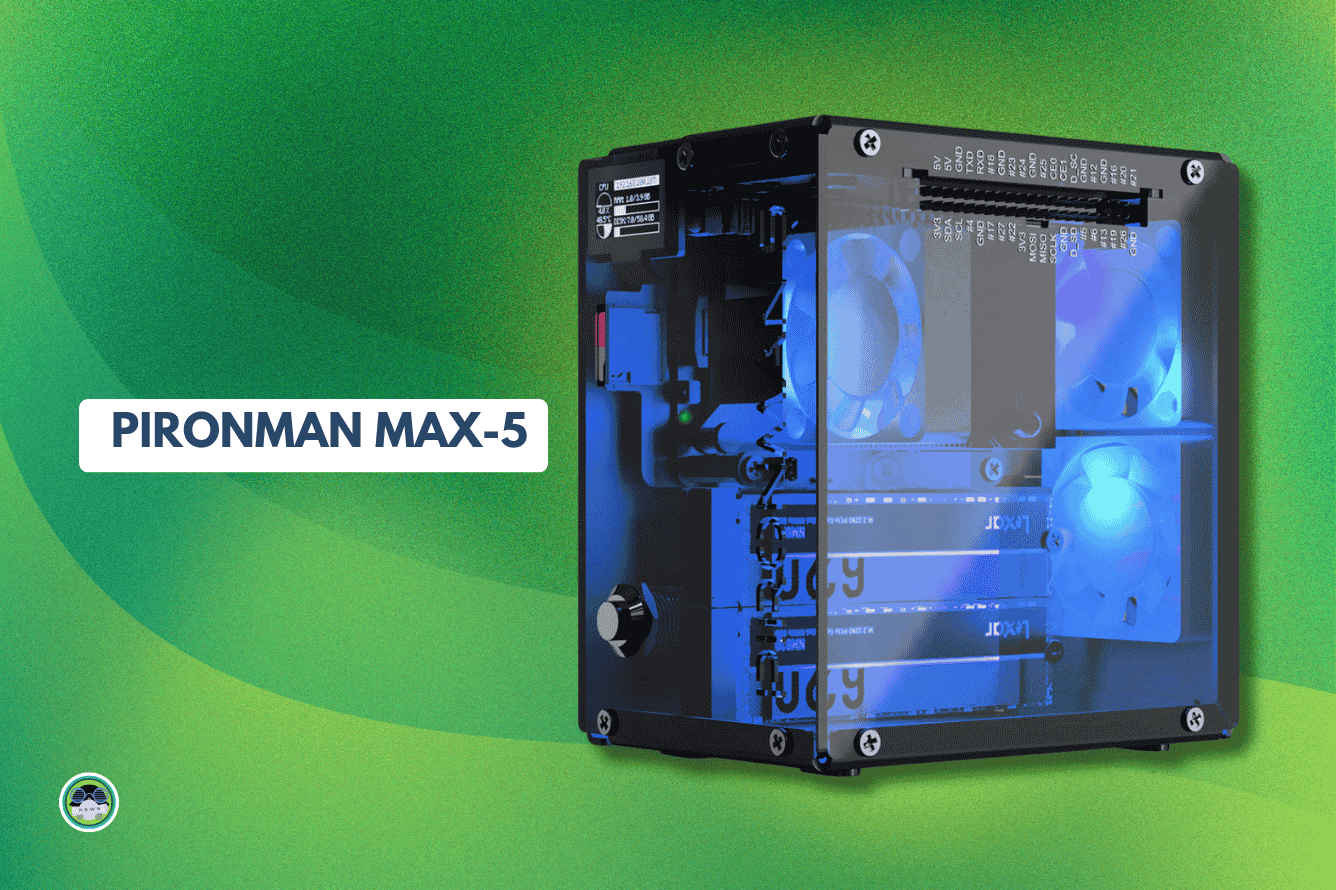
I have received the Pironman Max case for review and have assembled it too. I am looking forward to having a RAID setup for fun on it. I'll keep you posted if I made it or not 😄

Pironman 5-Max: The Best Raspberry Pi 5 Case Just Got Upgraded
And the first 500 get a 25% pre-order discount offer. So hurry up with the purchase.
FOSS Weekly #25.27: System Info, Retro Tools, Fedora 32-bit Update, Torvalds vs Bcachefs and More Linux Stuff

✨ Project Highlight

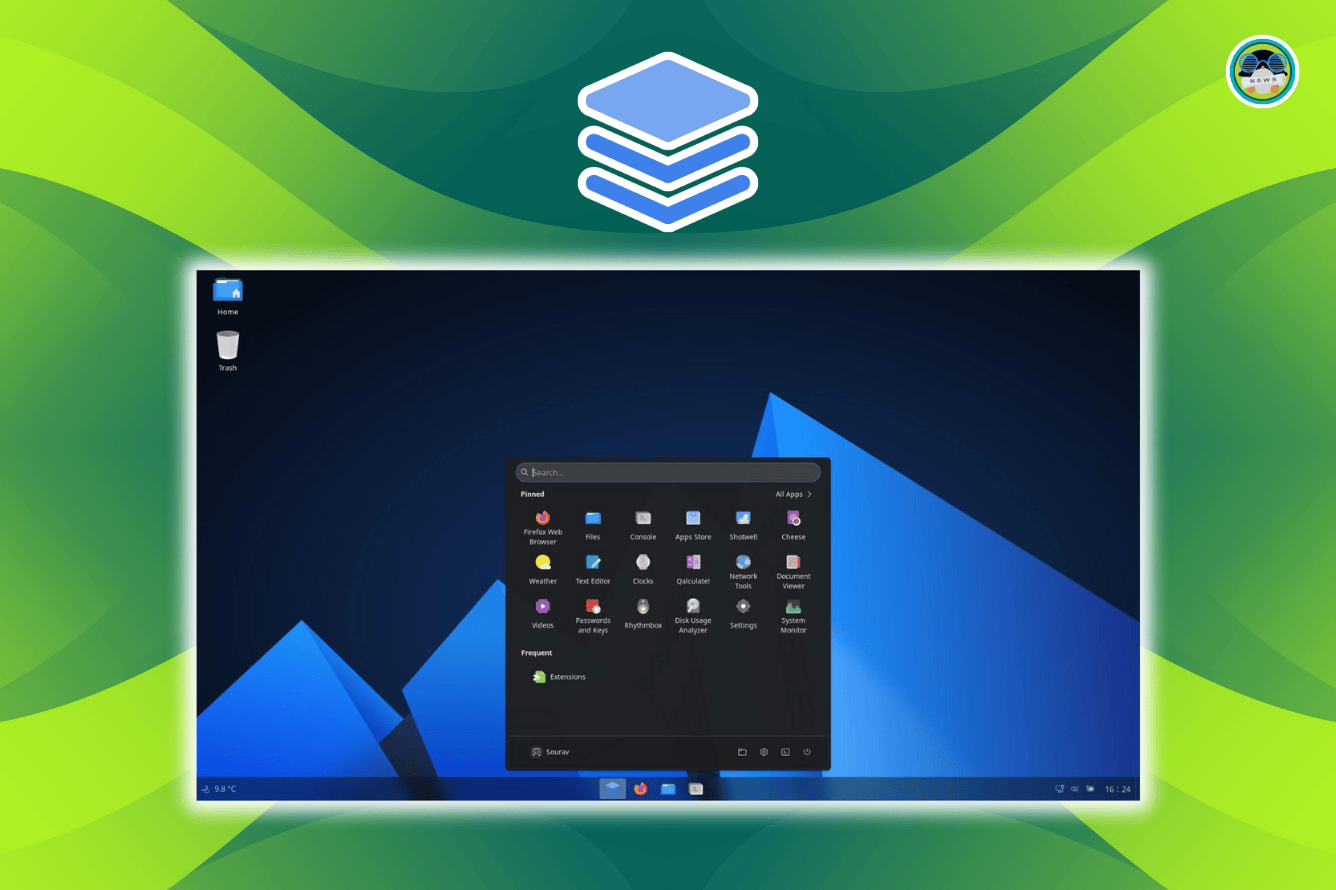
AnduinOS is in the spotlight lately, have you checked it out?

A New Linux Distro Has Set Out To Look Like Windows 11: I Try AnduinOS!
We take a brief look at AnduinOS, trying to mimic the Windows 11 look. Is it worth it?
FOSS Weekly #25.27: System Info, Retro Tools, Fedora 32-bit Update, Torvalds vs Bcachefs and More Linux Stuff

📽️ Videos I am Creating for You

See a better top in action in the latest video.

🧩 Quiz Time

This quiz will test your knowledge of Apt.

Apt Command Quiz
Debian or Ubuntu user? This is the apt quiz for you. Pun intended, of course :)
FOSS Weekly #25.27: System Info, Retro Tools, Fedora 32-bit Update, Torvalds vs Bcachefs and More Linux Stuff

💡 Quick Handy Tip

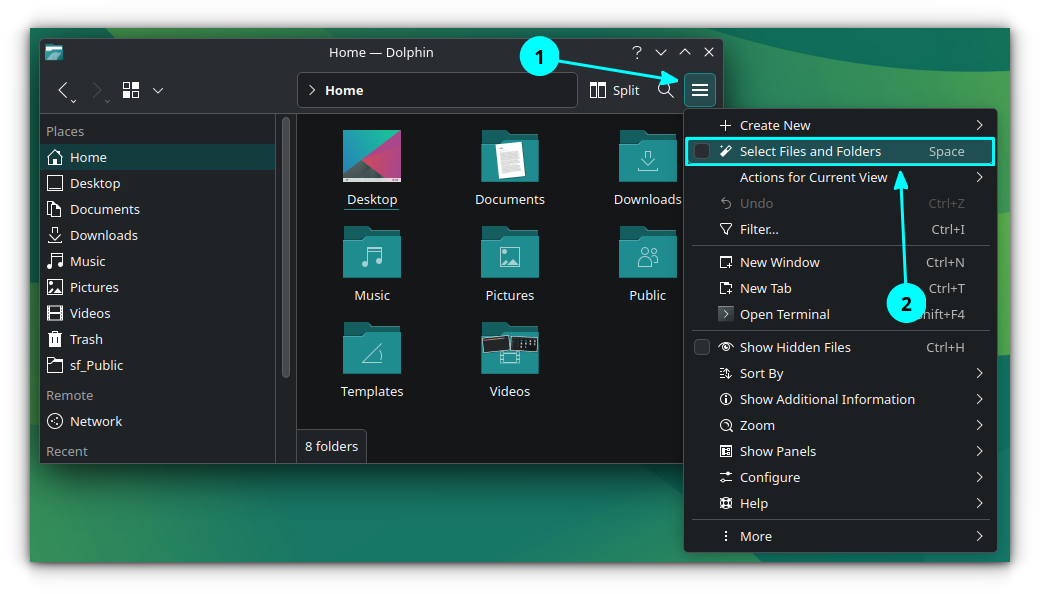
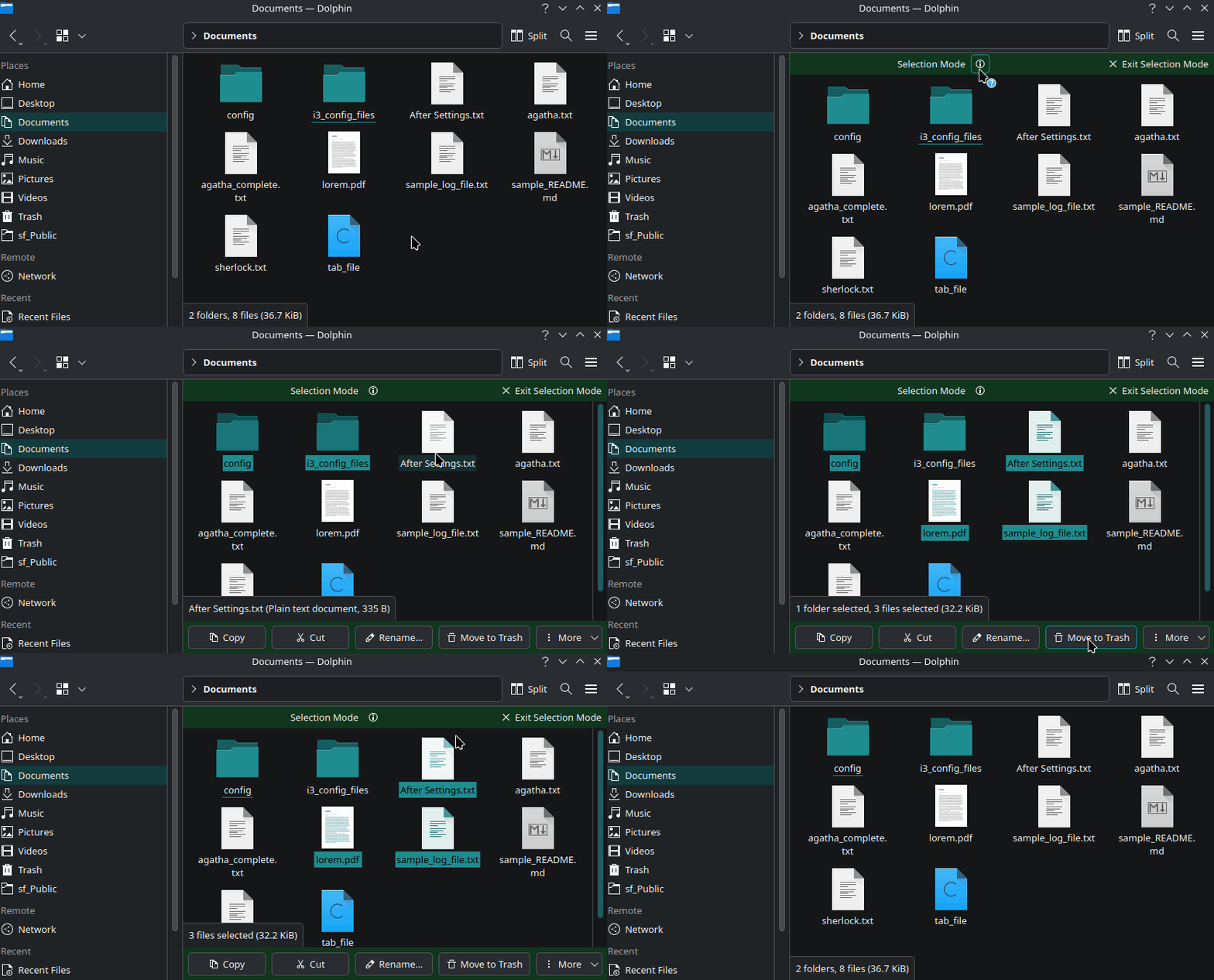
The Dolphin file manager offers you a selection mode. To activate it, press the Space bar.

In this view, you can single click on a file/folder to select them. Here, you will notice that a quick access bar appears at the bottom when you select items, offering actions like Copy, Cut, Rename, Move to Trash, etc.

🤣 Meme of the Week

FOSS Weekly #25.27: System Info, Retro Tools, Fedora 32-bit Update, Torvalds vs Bcachefs and More Linux Stuff

🗓️ Tech Trivia

The IBM 650, introduced on July 2, 1953, was one of the first widely used computers, featuring a magnetic drum for storage and using punch cards for programming. With a memory capacity of 20,000 decimal digits, it became a workhorse for businesses and universities throughout the 1950s.

🧑‍🤝‍🧑 FOSSverse Corner

Canonical is making some serious bank, and our FOSSers have noticed.

Ubuntu Maker Canonical Generated Nearly $300M In Revenue Last Year
How do they do this sum, its not from the desktop free version, can only guess its server technology
FOSS Weekly #25.27: System Info, Retro Tools, Fedora 32-bit Update, Torvalds vs Bcachefs and More Linux Stuff

❤️ With love

Please share it with your Linux-using friends and encourage them to subscribe (hint: it's here).

Share the articles in Linux Subreddits and community forums.

Follow us on Google News and stay updated in your News feed.

Opt for It's FOSS Plus membership and support us 🙏

Enjoy FOSS 😄


from It's FOSS https://ift.tt/hZlPsDN
via IFTTT

Senin, 30 Juni 2025

Relive the Golden Era: 5 Tools to Get Retro Feel on Linux

Relive the Golden Era: 5 Tools to Get Retro Feel on Linux

Retro techs are no longer stranger things. Just like vinyl records and vintage fashion, retro computing has captured our collective imagination, irrespective of the age group.

I mean, there's something deeply satisfying about amber-on-black terminals and chunky pixel fonts that modern UIs can't replicate.

The good thing here is that us Linux users are perfectly positioned to embrace this nostalgia wave.

No, I am not talking about those ultra-lightweight distros that involuntarily give retro vibes of late 90s and early 2000s. I am going to share a few interesting software that will help you get the retro feel on your modern Linux system.

1. Cool Retro Term

I'll start with my favorite, that is also a functional tool.

cool-retro-term is a terminal emulator which mimics the look and feel of the old cathode tube screens. That's just about it. You do not get any special abilities, just the good-old look.

But here's the thing. You can use it like your regular terminal, it have vintage looks but the modern features still work the same.

There are more than one presets of colors and style available.

Cool Retro Term

Installing Cool Retro Term

You can install it on Ubuntu, Fedora, and Arch Linux using the commands respectively:

sudo apt install cool-retro-term #For Debian/Ubuntu
sudo dnf install cool-retro-term #For Fedora
sudo pacman -Syu cool-retro-term #For Arch based distros

2. RSC8

RSC8 is a CHIP-8 virtual machine/emulator written in Rust with no_std core. It is yet another makeover for your terminal. So, if you like to use a retro terminal but built with Rust, give this a try.

RSC8 Chip-8 Virtual machine/emulator

Install it using cargo.

cargo install --locked --git https://github.com/jerryshell/rsc8

To use rsc8, you'll have to download ROMs of your choice from this GitHub repo and then use the following command:

rsc8_tui <your_rom.ch8>

3. Retro Pie

RetroPie transforms your Raspberry Pi, ODroid C1/C2, or PC into a nostalgic gaming powerhouse.

It leverages platforms like Raspbian, EmulationStation, RetroArch, and other innovative projects, allowing you to enjoy classic Arcade, home-console, and vintage PC games with minimal hassle.

RetroPie Walkthrough

Since there were multiple kinds of platforms/consoles in the past, there are different emulators for them.

But that's only half of the story. You also need to download ROMs that consist of games of that platform.

For example, if you want to play games that were available Nintendo's NES console, you download the ROM with NES games and then use the NES emulator in RetroPi to load this ROM. It's like inserting a virtual disk.

The problem here is that these ROMs are often deemed illegal to distribute, and hence the websites that host them are often removed.

Playing Super Mario World in RetroPie

Installing RetroPi

Please ensure that you have git installed on your system as you'll have to clone the Git repo here.

cd
git clone --depth=1 https://github.com/RetroPie/RetroPie-Setup.git

Run the setup script:

cd RetroPie-Setup
sudo ./retropie_setup.sh

Follow the onscreen instructions for a basic installation.

4. Hot Dog Linux

Hot Dog Linux is an X11 Window Manager with Windows 3.1 Hot Dog Stand, Amiga Workbench, Atari ST GEM, Mac Classic and Aqua UI pre-installed.

HOTDOG is an acronym that stands for Horrible Obsolete Typeface and Dreadful Onscreen Graphics.

HOTDOG Linux

It is built using Objective-C and uses bitmapped graphics, low DPI displays. There are no unicode support here.

Installing Hot Dog Linux:

Download the ISO and install in VirtualBox. Make sure 3D acceleration is enabled.

🚧
It only worked in GNOME Boxes for me.

5. DOSBox or DOSBox Staging

DOSBox is free and open-source software that allows you to emulate the MS-DOS operating systems from the previous century.

It allows you to play the 8-bit games.

Playing Doom2 in DOSBox

DOSBox also emulates CPU:286/386 realmode/protected mode, Directory FileSystem/XMS/EMS, Tandy/Hercules/CGA/EGA/VGA/VESA graphics, a SoundBlaster/Gravis Ultra Sound card for excellent sound compatibility with older games.

Installing DOSBox

On Ubuntu, and Arch, you can use the following commands respectively:

sudo apt install dosbox #For Ubuntu/Debina
sudo pacman -Syu dosbox #For Arch

DOSBox Staging

Fedora ships with DOSBox Staging, a modern continuation of DOSBox. DOSBox Staging is also available in Flathub.

For Arch, it is in AUR. And, for Ubuntu and Mint, add the following PPA to get it installed:

sudo add-apt-repository ppa:feignint/dosbox-staging
sudo apt-get update
sudo apt install dosbox-staging

Wrapping Up

Linux enables users to have a godly amount of customization options. Whether you want your desktop to look clean, and contemporary, or you want to give it a retro look, there are certainly a few tools for that.

Come to think of, I should do a tutorial on how to give a retro makeover to your Linux distro, somewhat like the modern makeover video of Linux Mint.

Linux makes it easy to bring the retro vibe back to life. Whether it’s an old-school terminal, a full-blown vintage desktop, or classic games from the 90s, there’s a tool for every kind of nostalgia.

What is your favorite tool that we missed listing here? Let me know in the comments below.


from It's FOSS https://ift.tt/UAkhvR9
via IFTTT