Selasa, 05 September 2023

How to Create Persistent Live USB of Ubuntu

How to Create Persistent Live USB of Ubuntu

What if I tell you you can carry a complete Ubuntu system in a removable disk drive?

Installing Ubuntu on an external USB is a complicated process. The simpler option is to make a live USB but with persistent storage that will save all the changes you make to it.

And trust me; the process is similar to using BalenaEtcher or any flashing tool to make a bootable drive.

But before that, let's have a look at what persistent live USB means.

What is a persistent live USB?

When you use a live Linux USB, any changes you made in the live session are lost. If you boot from it again, you'll have to connect to WiFi again, your downloaded files and installed apps won't be there. A persistent live USB will save all those changes.

This way, you can keep using that USB drive as an external operating system that saves all the changes you've made like creating a user account, installing packages, and all sorts of things that you generally do with a normal computer.

Of course, the number of files would depend on the size of the disk you use!

But you got the point. Right? Let's see about creating a live Ubuntu USB with persistence.

How to create a persistent Ubuntu drive

In this tutorial, I will walk you through the process of creating a persistent Ubuntu USB:

  • On Windows using Rufus tool
  • On Linux using mkusb tool

You can follow the appropriate section of the tutorial.

📋
In the tutorials, you'll be creating a persistent USB of Ubuntu. Not all Linux distros support persistence and hence the method may or may not work for creating persistent USB of other distributions.

Method 1: Create a persistent Ubuntu drive on Windows

To create a persistent Ubuntu drive on Windows, I will be using Rufus, a free and open-source tool to flash ISO files on USB drives.

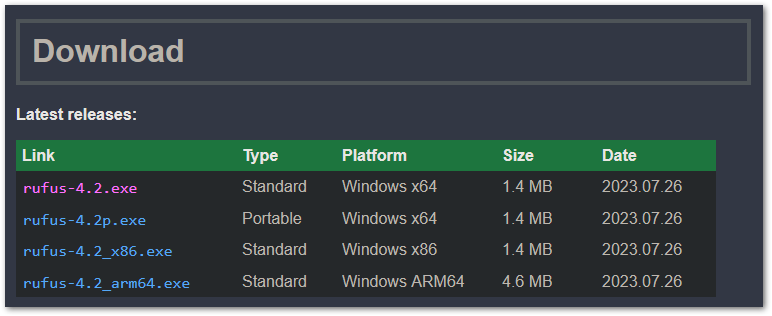
Visit the official download page of Rufus to get the executable file for Windows:
How to Create Persistent Live USB of Ubuntu

Now, open the Rufus and it will ask you to run as an administrator; grant the permissions as you're about to make changes in the external drive and permissions are necessary for that.

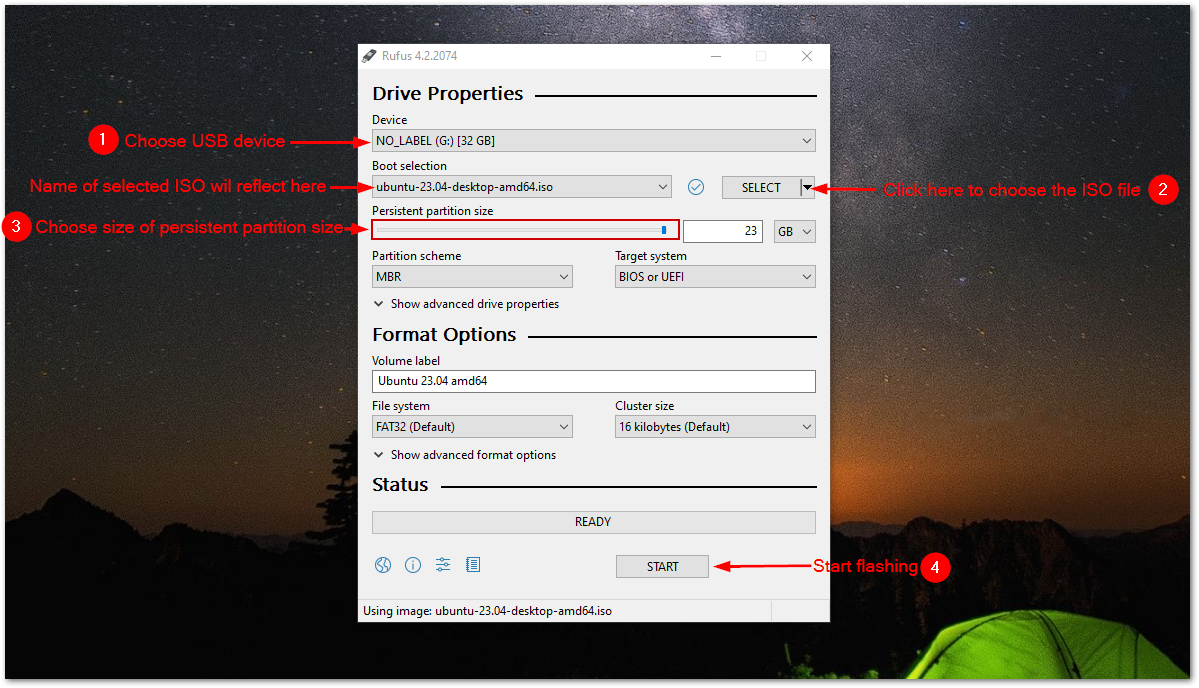
Next, follow the given steps to use Rufus to make a persistent USB drive:

  • Select the USB device (if there's only one USB stick, it will be selected by default).
  • Hit the Select button to select the ISO file from the file manager.
  • You can either use the slider or specify the size of the persistent drive directly (you can go to the max, no worries).
  • Leave the other options to default (unless you know what you are up to).
  • Hit the Start button to start the flashing.
How to Create Persistent Live USB of Ubuntu

It will show you warnings that the data on the selected drive will be removed, so you can easily ignore them.

Once done, let's have a look at how you can directly boot to the UEFI settings in Windows.

Boot from the USB drive (the easy way)

This method should work for most users and if not, you can always use the traditional way by rebooting the system and pressing Esc, Delete, F1, F2, F10, F11, or F12 keys.

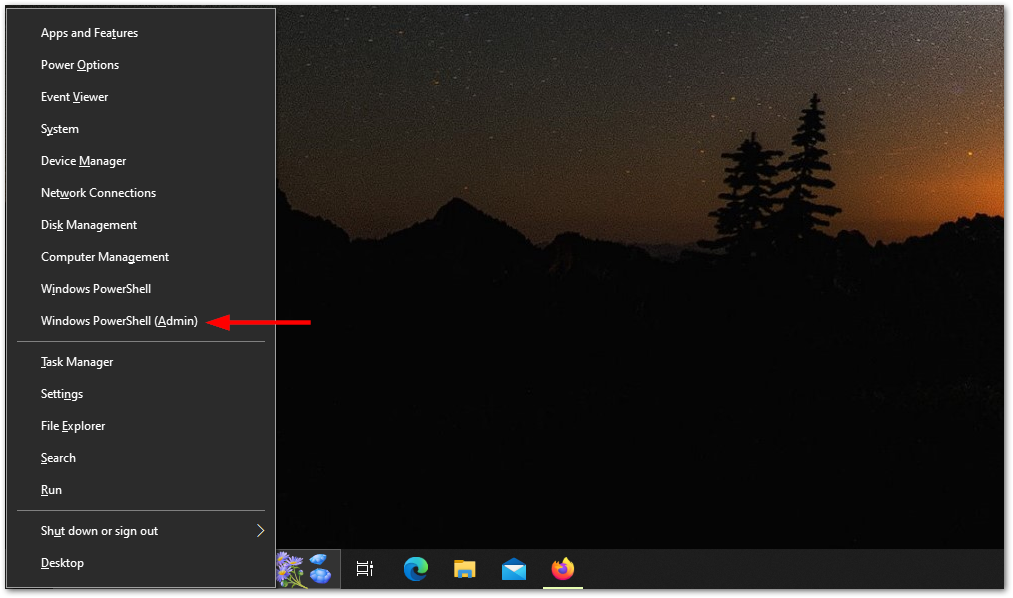
To follow the easy method, press Win + X and start Windows PowerShell as an admin:
How to Create Persistent Live USB of Ubuntu

Once you see the prompt, simply execute the following command:

shutdown.exe /r /fw

It will schedule the shutdown and in a moment, you'll be booted into the UEFI firmware setup.

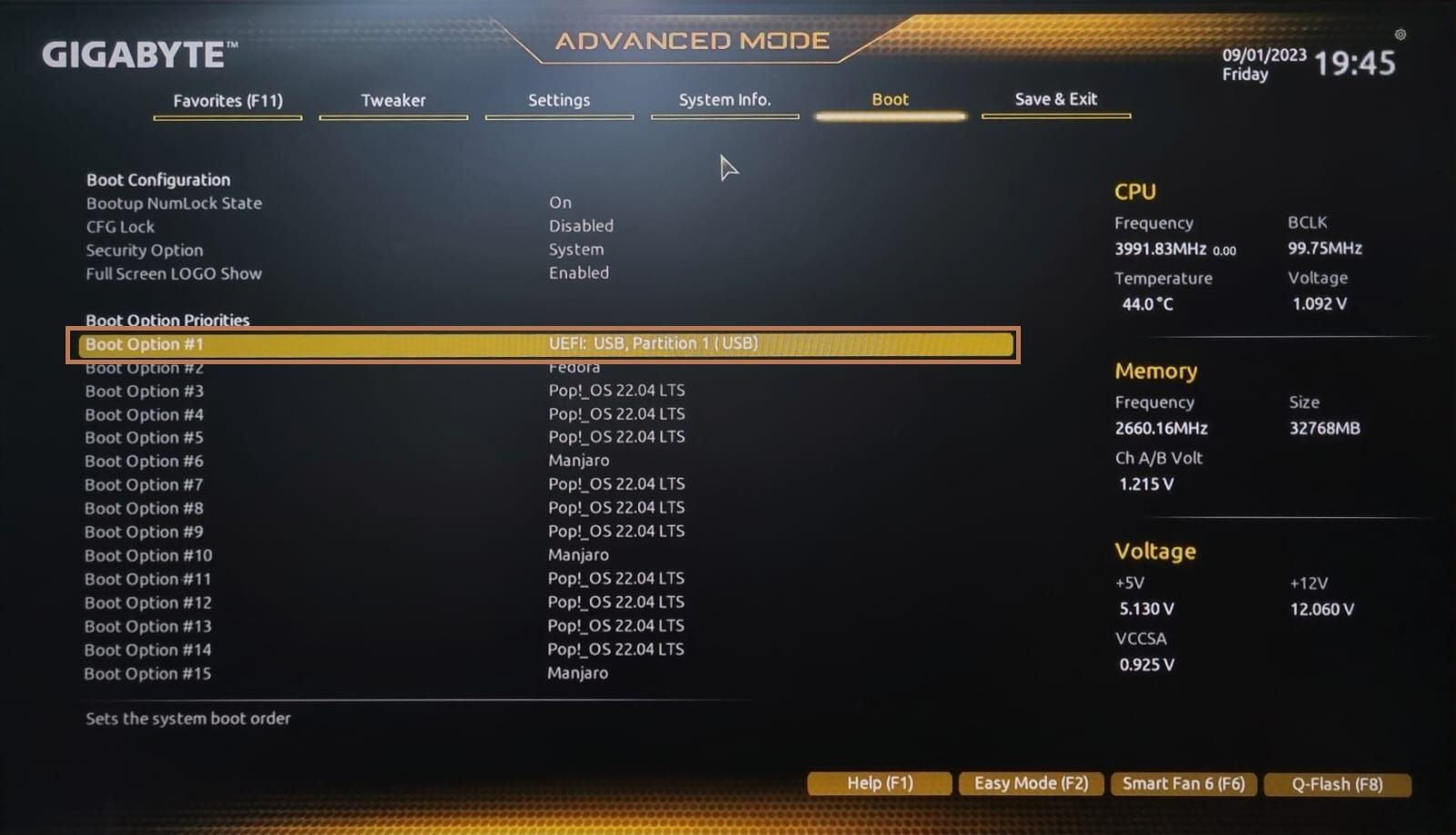
From there, choose the USB as a first preference to boot from and save changes:
How to Create Persistent Live USB of Ubuntu

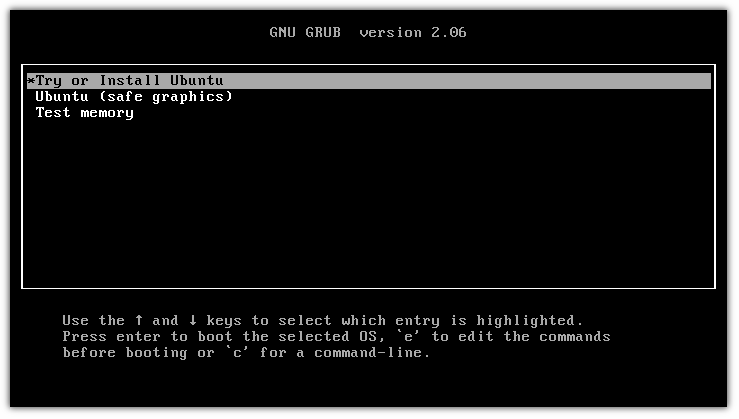
You will see a normal grub screen:

How to Create Persistent Live USB of Ubuntu

Once you boot, select the option to test Ubuntu and from there you can save changes and they won't be removed even if you reboot the system.

Method 2: Create a persistent Ubuntu drive on Ubuntu Linux

🚧
This method will likely only work with Ubuntu and Debian ISO.

For those who don't know, mkusb is a GUI tool that lets you flash ISO on a disk drive but with additional features like creating a persistent drive on Ubuntu.

And for the installation, you have to add mkusb PPA using the following:

sudo add-apt-repository ppa:mkusb/ppa

To take effect from the changes, update the repository index:

sudo apt update

Finally, install mkusb and other packages:

sudo apt install --install-recommends mkusb mkusb-nox usb-pack-efi

That's it!

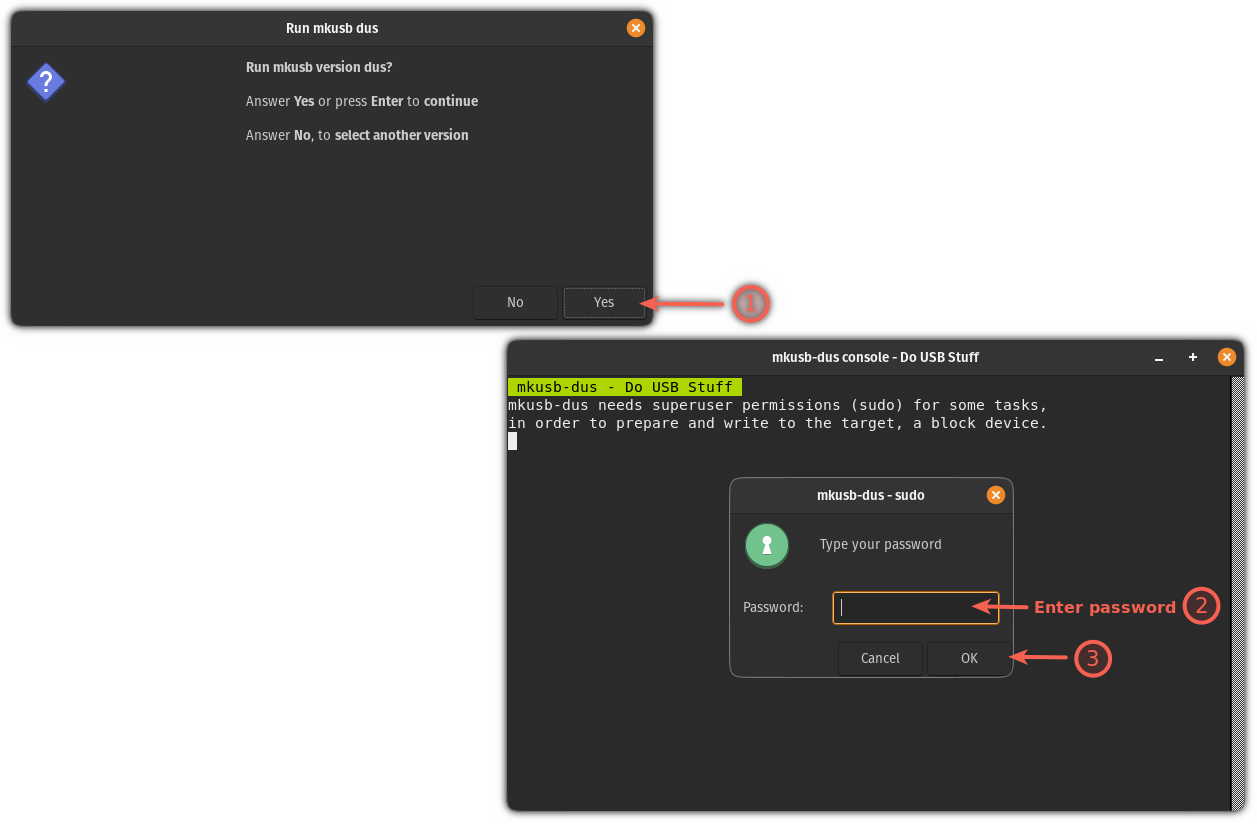
First, start what mkusb tool from the system menu. It will ask you to enter your superuser password:
How to Create Persistent Live USB of Ubuntu

Once done, it will show you the warning of all the data in the drive will be wiped with the new data.

Simply, press the OK button:
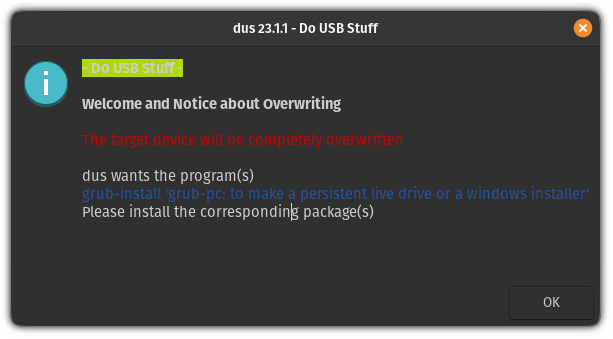
How to Create Persistent Live USB of Ubuntu

And it will show you multiple actions that can be performed with the mkusb tool. From which, you have to select the first option "Install (make a boot device)":
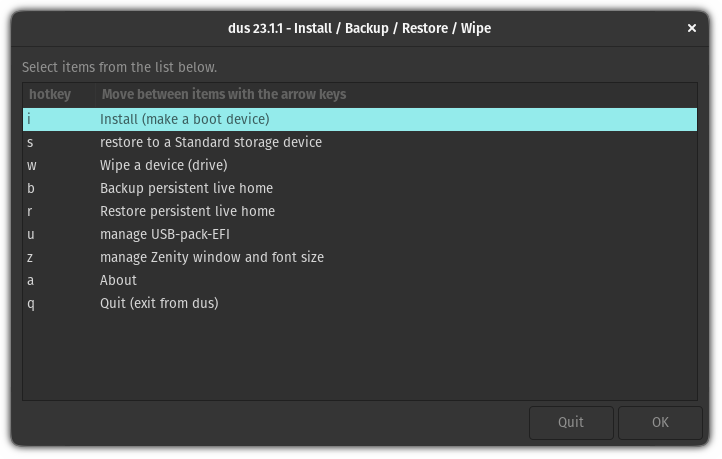
How to Create Persistent Live USB of Ubuntu

After that, it will show you multiple options for the installation. From there, you select the third option 'Persistent live' - only Debian and Ubuntu:
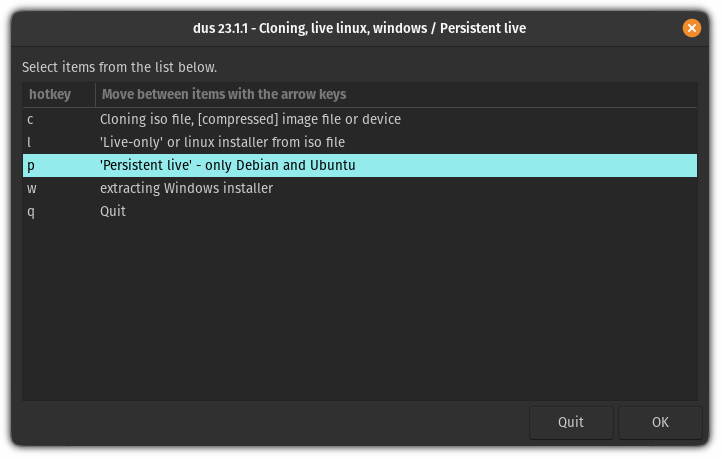
How to Create Persistent Live USB of Ubuntu

In the next step, it will ask you to choose between multiple methods.

And unless you're using something specific like an extremely stripped-down version, go with the first method named dus-Iso2usb:
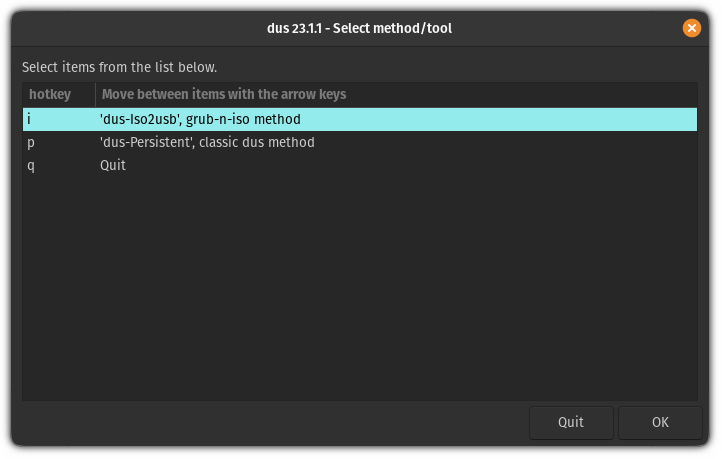
How to Create Persistent Live USB of Ubuntu

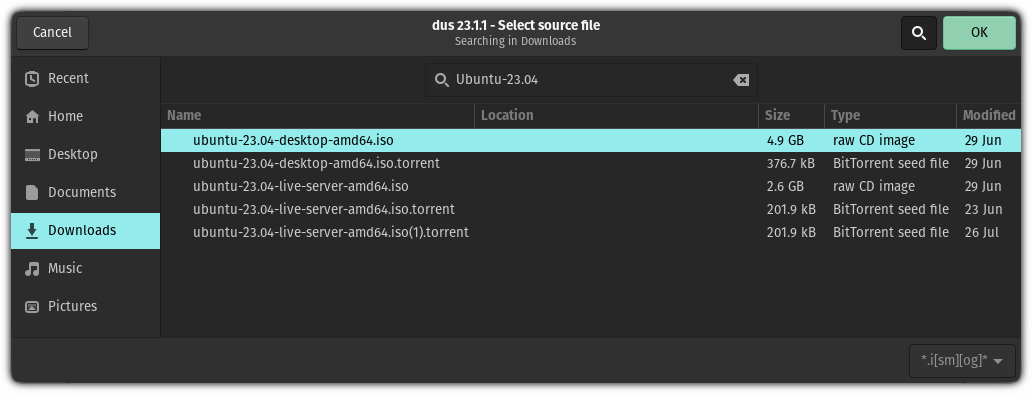
Next, it will ask you to select the ISO file from the file manager:
How to Create Persistent Live USB of Ubuntu

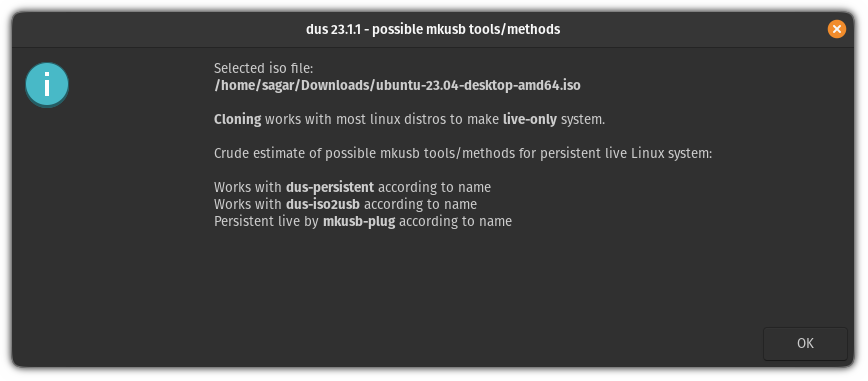
It will show you the name of the selected ISO file along with what tools it will be using to create a persistent USB drive:
How to Create Persistent Live USB of Ubuntu

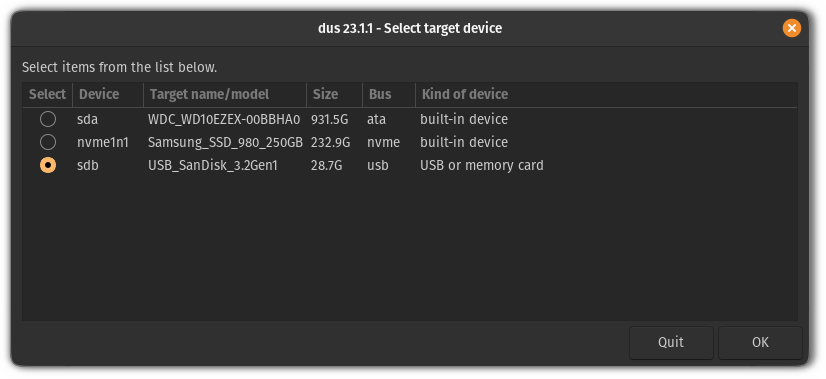
Next, you have to select the drive that needs to be flashed with the previously selected ISO file:
How to Create Persistent Live USB of Ubuntu

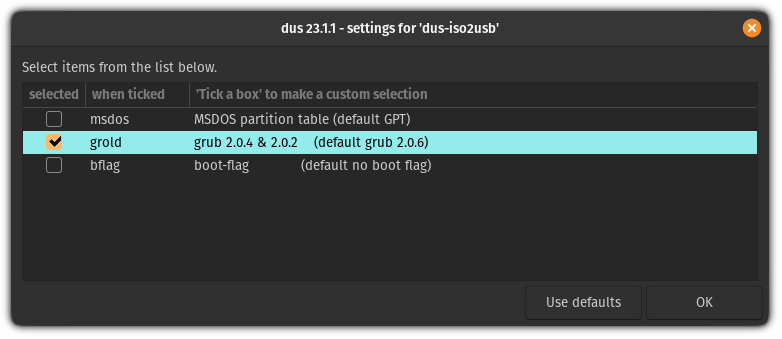
Once done, you will be given 3 choices. If you don't know which one to use, then press the Use defaults button but for most users, going with the 2nd option grold will get the job done (I'm going with the same):
How to Create Persistent Live USB of Ubuntu

After everything is correct, choose Go option to start the flashing process:
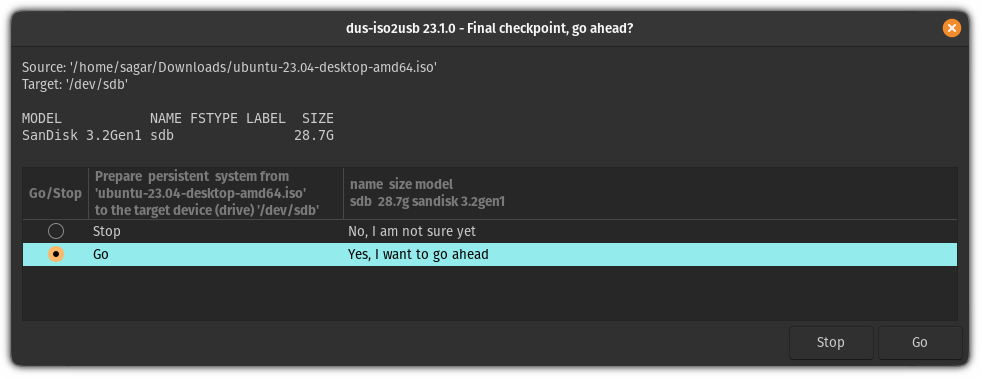
How to Create Persistent Live USB of Ubuntu

And it will start the flashing process!
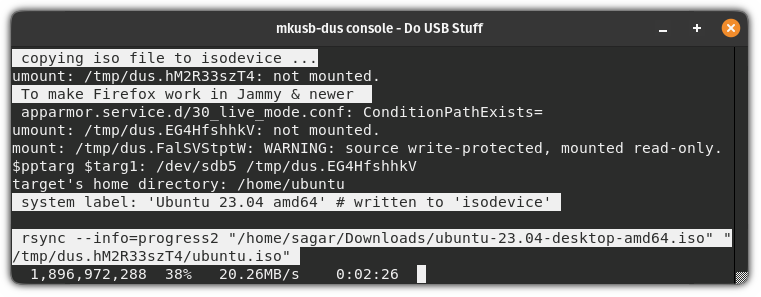
How to Create Persistent Live USB of Ubuntu

Remember, it will take longer compared to the usual flashing that you do using BalenaEtcher!

Once done, you'll be notified that the process has been completed and you can unplug and re-plug the drive to see changes:
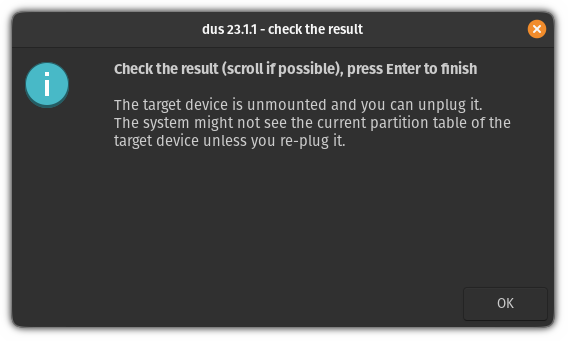
How to Create Persistent Live USB of Ubuntu

Boot from persistent USB drive

To boot from the USB drive, you can reboot your system, press the respective key multiple times, and get there but NO!

That's a decade-old method.

There's a simple way to access BIOS in Linux where all you have to do is execute the following command in your terminal:

systemctl reboot --firmware-setup

Here, go to the Boot menu and select the USB drive as a first priority to boot from:
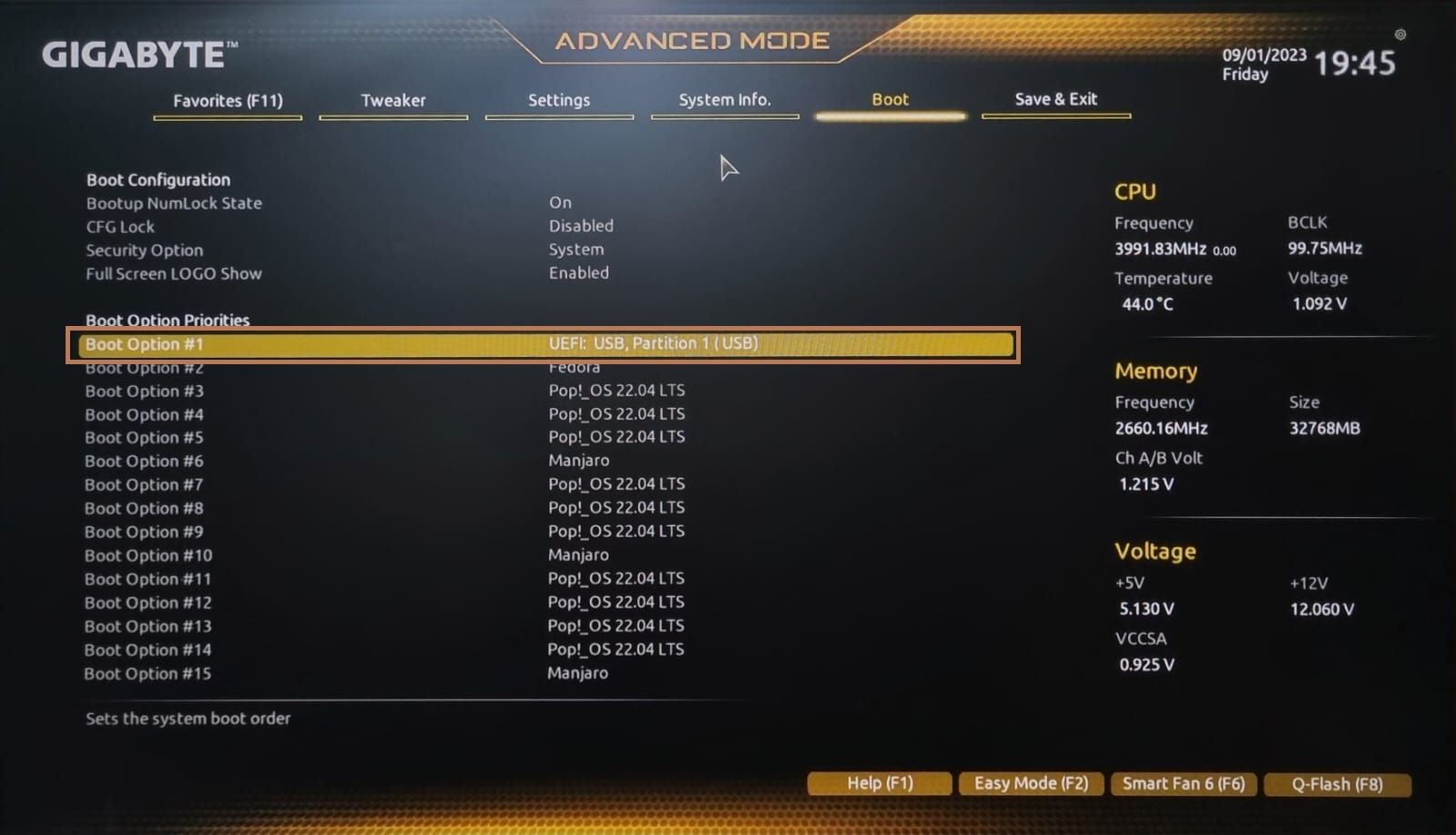
How to Create Persistent Live USB of Ubuntu

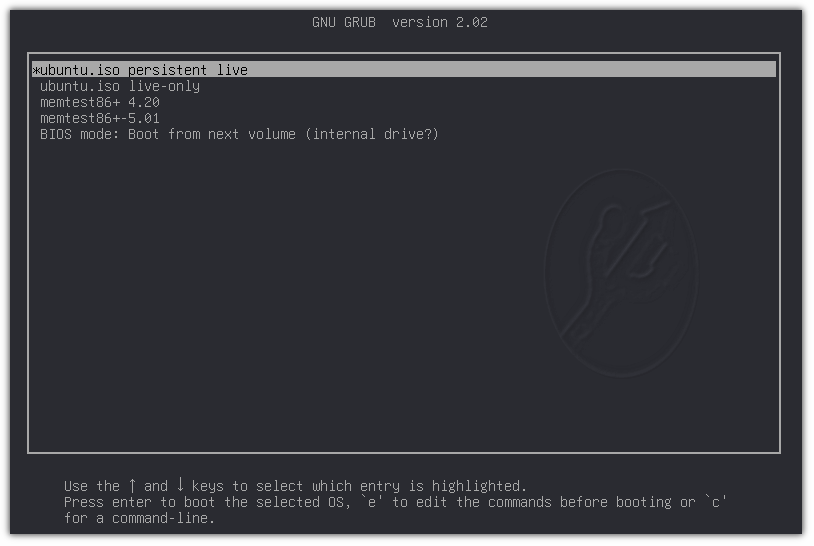
Once you boot from the USB, you'll have two options:

  • ISO with persisted mode
  • Booting from live mode

As the name suggests, you go with the first option to boot into the Ubuntu persisted mode:
How to Create Persistent Live USB of Ubuntu

And now, you can make changes like installing your favorite packages, creating a new user, and a lot more!

Carry multiple ISOs in one drive!

Did you know that you can carry multiple ISOs in a single drive and those ISOs could be any Linux distro or even a Windows ISO file? Ventoy is an awesome tool for that.

Install and Use Ventoy on Ubuntu [Complete Guide]
Tired of flashing USB drives for every ISO? Get started with Ventoy and get the ability to easily boot from ISOs.
How to Create Persistent Live USB of Ubuntu
How to Install Multiple Live Linux Distros on One USB
This tutorial shows the steps you can take to create a live USB stick that allows you to boot into more than Linux distributions without needing to re-image the drive.
How to Create Persistent Live USB of Ubuntu

I hope you will find this guide helpful.


from It's FOSS https://ift.tt/0QtD3c6
via IFTTT

Minggu, 03 September 2023

Boot From a USB Drive in VirtualBox in Linux

Boot From a USB Drive in VirtualBox in Linux

Got a live Linux USB? The usual way to test it on your current system is to reboot and choose to boot from the live USB when the system restarts.

But that's annoying as you need to quit working on your computer and restart it.

A less disruptive way is to use a VM.

Yes, you can boot from a USB in a virtual machine with VirtualBox. This way, you don't have to install a distribution in VM just to try it. Use the live session instead.

In this tutorial, I'll show the steps to boot from a USB drive in VirtualBox on Linux systems. It takes some time and effort but saves you from rebooting your system.

Boot from USB drive in VirtualBox in Linux

Since this is a tutorial for advanced users, I am leaving out a few steps that you need beforehand:

  • VirtualBox installed on your Linux system
  • A live Linux USB, preferably Using Ventoy
How to Install VirtualBox on Ubuntu Linux [3 Simple Ways]
This beginner’s tutorial explains various ways to install VirtualBox on Ubuntu and other Debian-based Linux distributions.
Boot From a USB Drive in VirtualBox in Linux

This guide is divided into three parts:

  • Create a virtual machine disk file
  • Boot using USB in VM
  • Removing virtual machine disk (optional)

So let's start with the first one.

Step 1: Create a virtual machine disk file (VMDK)

First, you need to identify the disk name of the USB drive, and to do so, you have to list the drives of your system.

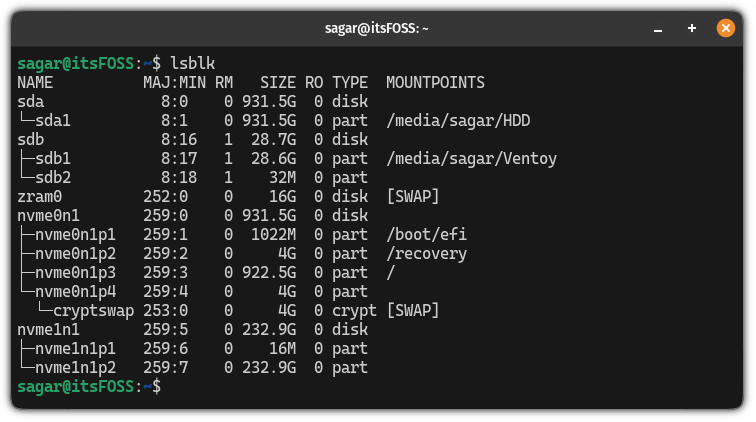
For that purpose, I'm going to use the lsblk command:

lsblk 
Boot From a USB Drive in VirtualBox in Linux
🚧
Make sure to use the disk name without any numbers. In my case, Ventoy is named with sdb1 but still, I have to use the sdb only.

From the above image, you can see, Ventoy is listed having the sdb1 but you have to use the name without any numbers. This means I have to use the sdb only, or else, it will throw an error.

Once you find your drive name, use the VBoxManage command in the following command to create

sudo VBoxManage createmedium disk --filename=/path/to/rawdisk.vmdk --variant=RawDisk --format=VMDK --property RawDrive=/dev/sda

In the above command, replace the path with /path/to/rawdisk.vmdk to where you want to save the file and /dev/sda with your target drive.

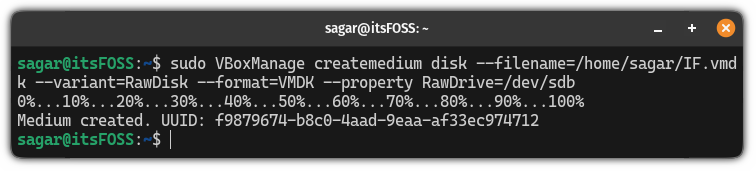
In my case, I want to create a file named IF.vmdk in my home directory and my target drive is /dev/sdb, then, I will be using the following:

📋
You have to give an absolute path to create the vmdk file!
sudo VBoxManage createmedium disk --filename=/home/sagar/IF.vmdk --variant=RawDisk --format=VMDK --property RawDrive=/dev/sdb
Boot From a USB Drive in VirtualBox in Linux

And finally, change the permissions using the chmod command:

sudo chmod 777 Filename.vmdk
Boot From a USB Drive in VirtualBox in Linux

Step 2: Boot from USB in VirtualBox in Linux

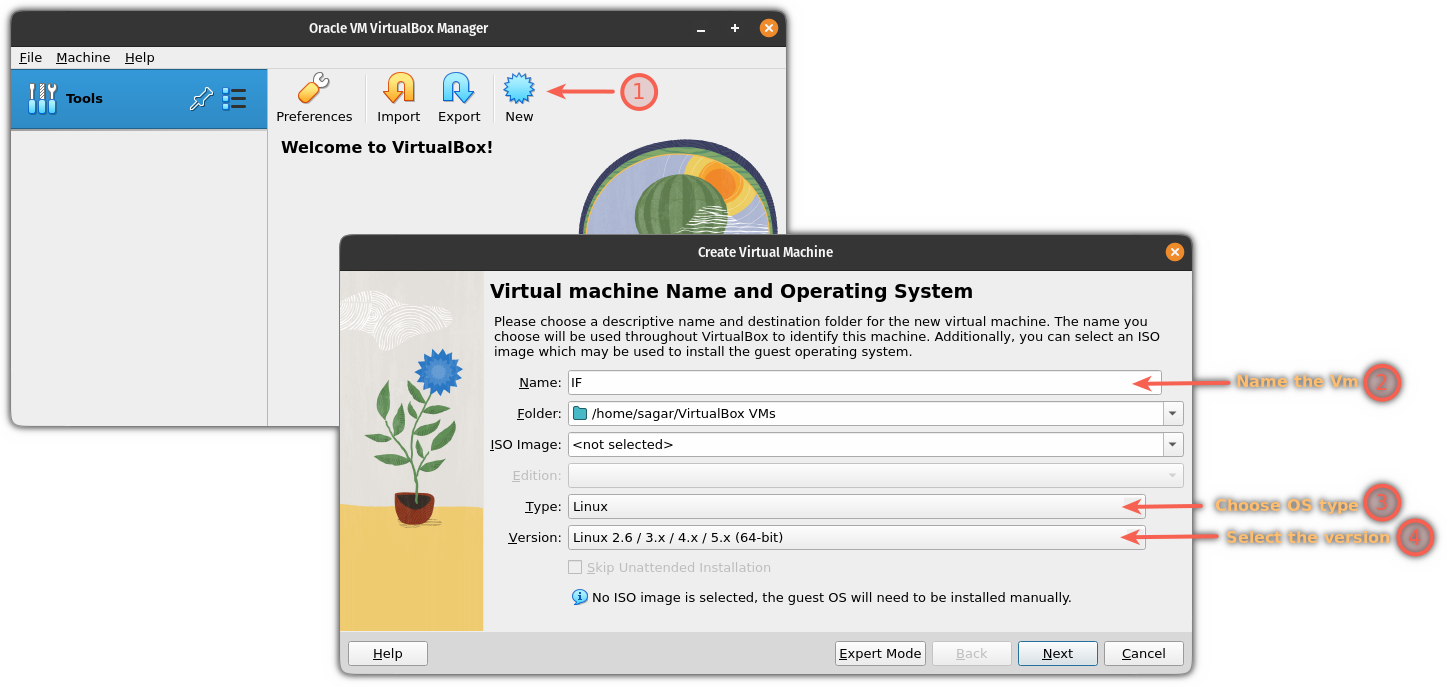
First, open the VirtualBox from your system menu and click on the New button.

There, name your VM and select the operating system type and its version:

Boot From a USB Drive in VirtualBox in Linux

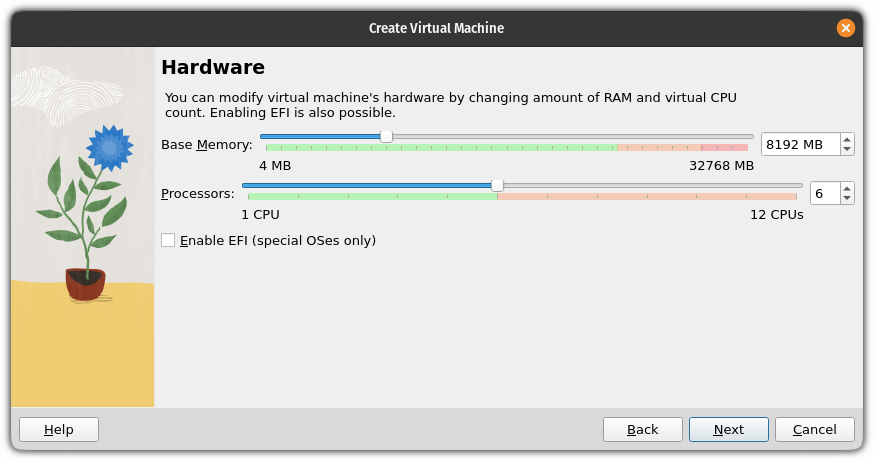
Now, click on the Next button and it will ask you to allocate hardware resources for your VM:

Boot From a USB Drive in VirtualBox in Linux

Once you are done allocating the hardware resources, click on the Next button.

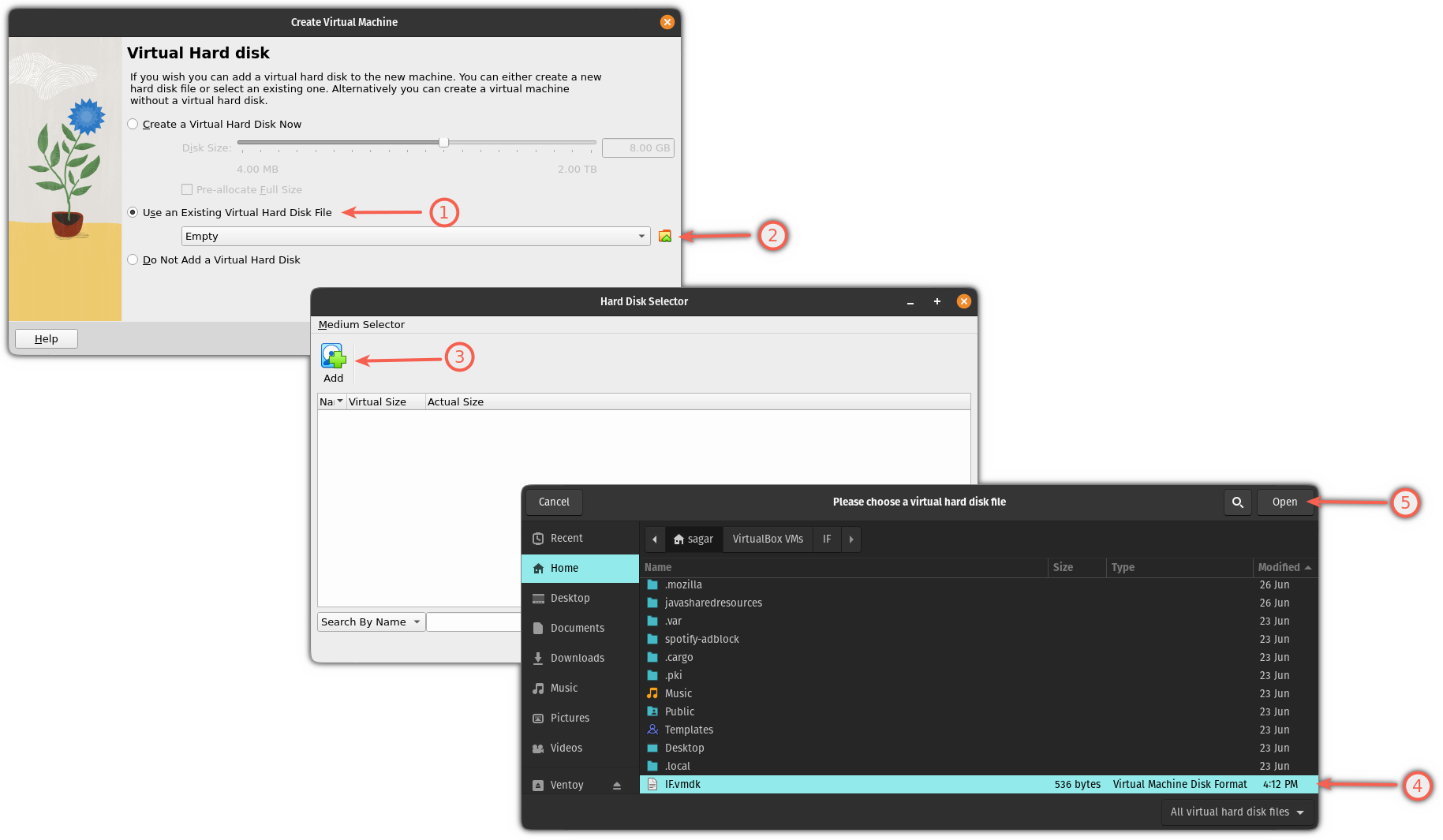
Here, you will find an option to create or add a virtual disk. Now, follow 3 simple steps:

  • Select the 2nd option saying Use an Existing Virtual Hard Disk File.
  • Click on the File icon.
  • Hit the Add button and select the file ending the .vmdk that you created recently.
Boot From a USB Drive in VirtualBox in Linux

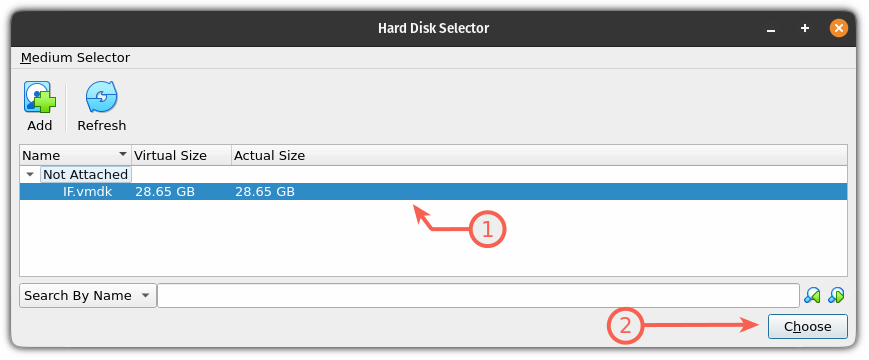
Once you select the file, it will show you the name of the file, select it and hit the Choose option:

Boot From a USB Drive in VirtualBox in Linux

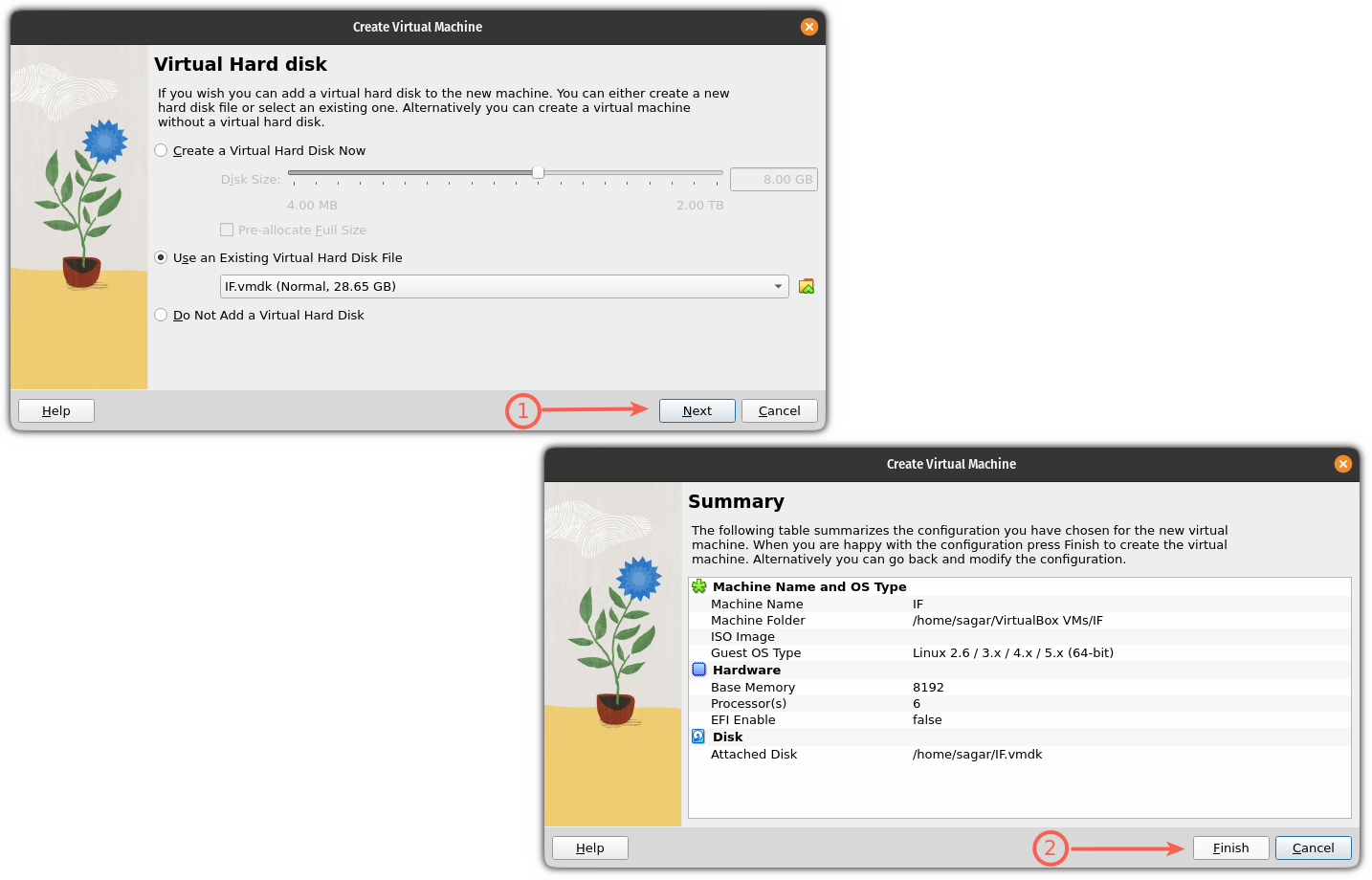
It will show you the file that has been selected to boot from. Click on the next and it will show the summery of choices you've made.

Hit the Finish button:

Boot From a USB Drive in VirtualBox in Linux

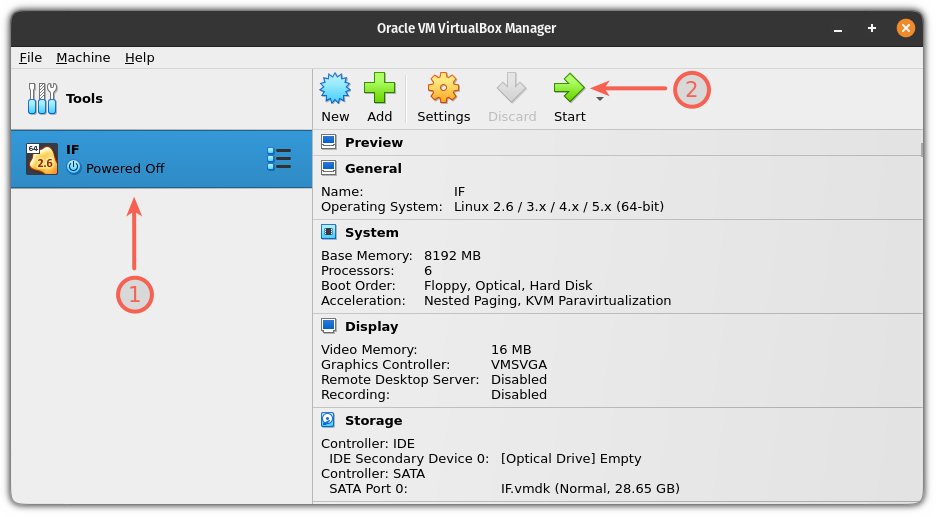
That's it! The VM has been created.

To start the VM, first, select the VM and hit the start button:

Boot From a USB Drive in VirtualBox in Linux

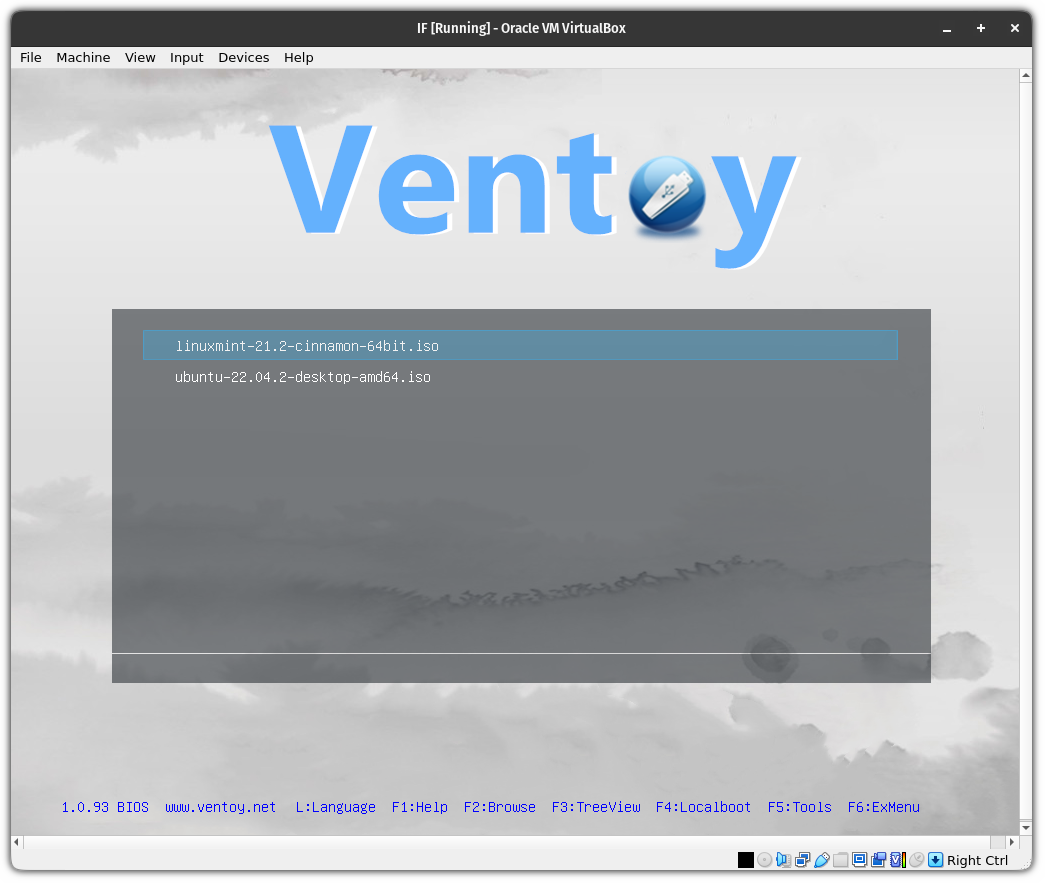
As my USB had Ventoy, you can see, multiple distros listed here:

Boot From a USB Drive in VirtualBox in Linux

Pretty cool. Right?

Step 3: Remove VM with vmdk file (optional)

When I tried removing the vmdk file after deleting the VM, sure, it was getting deleted but whenever I tried creating a new file having the same name, it gave me an error saying the file already exists!

So here, I will walk you through how you can remove the VM with the vmdk file.

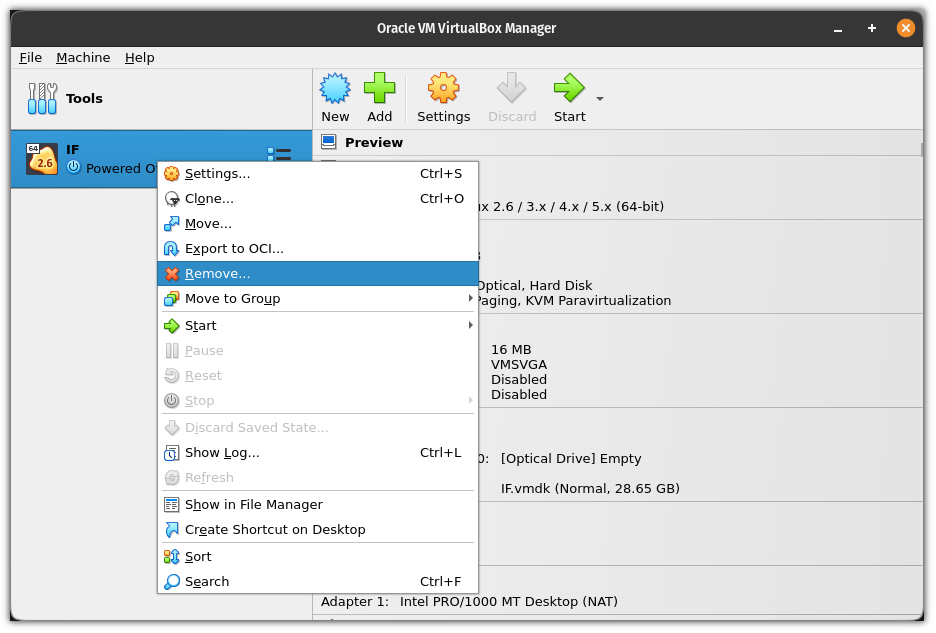
First, turn off the VM and remove it

Boot From a USB Drive in VirtualBox in Linux

Now, if you try to remove the vmdk file using the rm command and elevated privileges, you can remove it (but there's where the illusion starts).

For example, here, I removed the IF.vmdk file:

sudo rm IF.vmdk
Boot From a USB Drive in VirtualBox in Linux

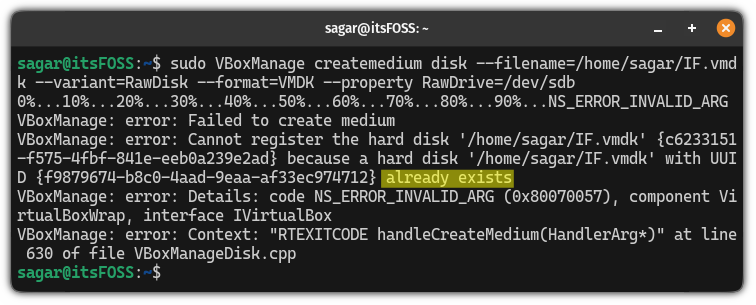
And now, if I try to create a new vmdk file with the same name, it gives me an error saying the file already exists:

Boot From a USB Drive in VirtualBox in Linux

To remove the vmdk file, first, you have to unregister the file using the following:

sudo VBoxManage closemedium disk /path/to/MyDrive.vmdk
Boot From a USB Drive in VirtualBox in Linux

Once done, you can remove the file using the rm command and it will be removed easily:

sudo rm Filename.vmdk

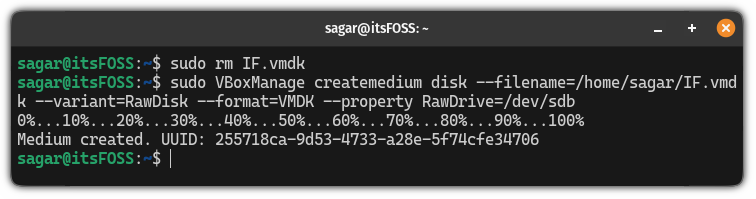
And then, if you try to create a vmdk file with the same filename, you can do that:

Boot From a USB Drive in VirtualBox in Linux

There you have it!

More VM tips

If you are looking for the fastest VM, you can use the combination of Qemu + KVM. I know it sounds complex.

But to make things easy, we made a dedicated guide on how to install and use Qemu on Ubuntu including enabling shared folders, clipboard, and auto-resizing:

How to Install and Use Qemu on Ubuntu
Learn how to properly install Qemu in Ubuntu and then configure a Linux distro in VM.
Boot From a USB Drive in VirtualBox in Linux

I hope you will find this guide helpful.


from It's FOSS https://ift.tt/qIRkPQ5
via IFTTT

Sabtu, 02 September 2023

Making your Windows System Ready for Virtual Machines

Making your Windows System Ready for Virtual Machines

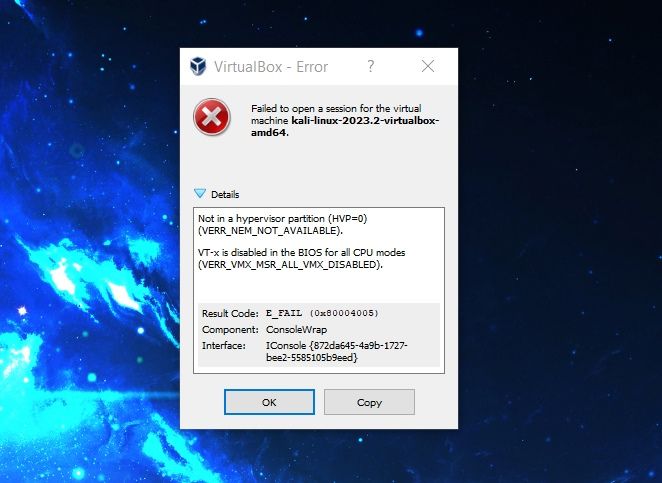
Seeing a 'failed to open a session for the virtual machine' error with VirtualBox?

Chances are that you do not have virtualization enabled on your system.

And that's one of the several things you need to do to create a virtual machine on any of your Windows-powered systems.

To give you an overview, you need to learn about:

  • Enabling virtualization support on your PC
  • Using a virtual machine program to create/manage VMs
  • Ensuring certain system resource requirements to seamlessly use virtual machines

Here's the first thing:

Enabling virtualization on Windows PC

If you have a system with Windows 10/11 pre-installed, chances are, you already have virtualization enabled. So you do not need to fiddle around with unnecessary settings.

But if you installed Windows manually on your system, you might have to check the BIOS settings to see if it supports virtualization. If disabled, the virtual machine program will not work and give you an error.

Here's what the error looks like when using VirtualBox program:

Making your Windows System Ready for Virtual Machines

How can you do that? Here are the basic steps:

Making your Windows System Ready for Virtual Machines
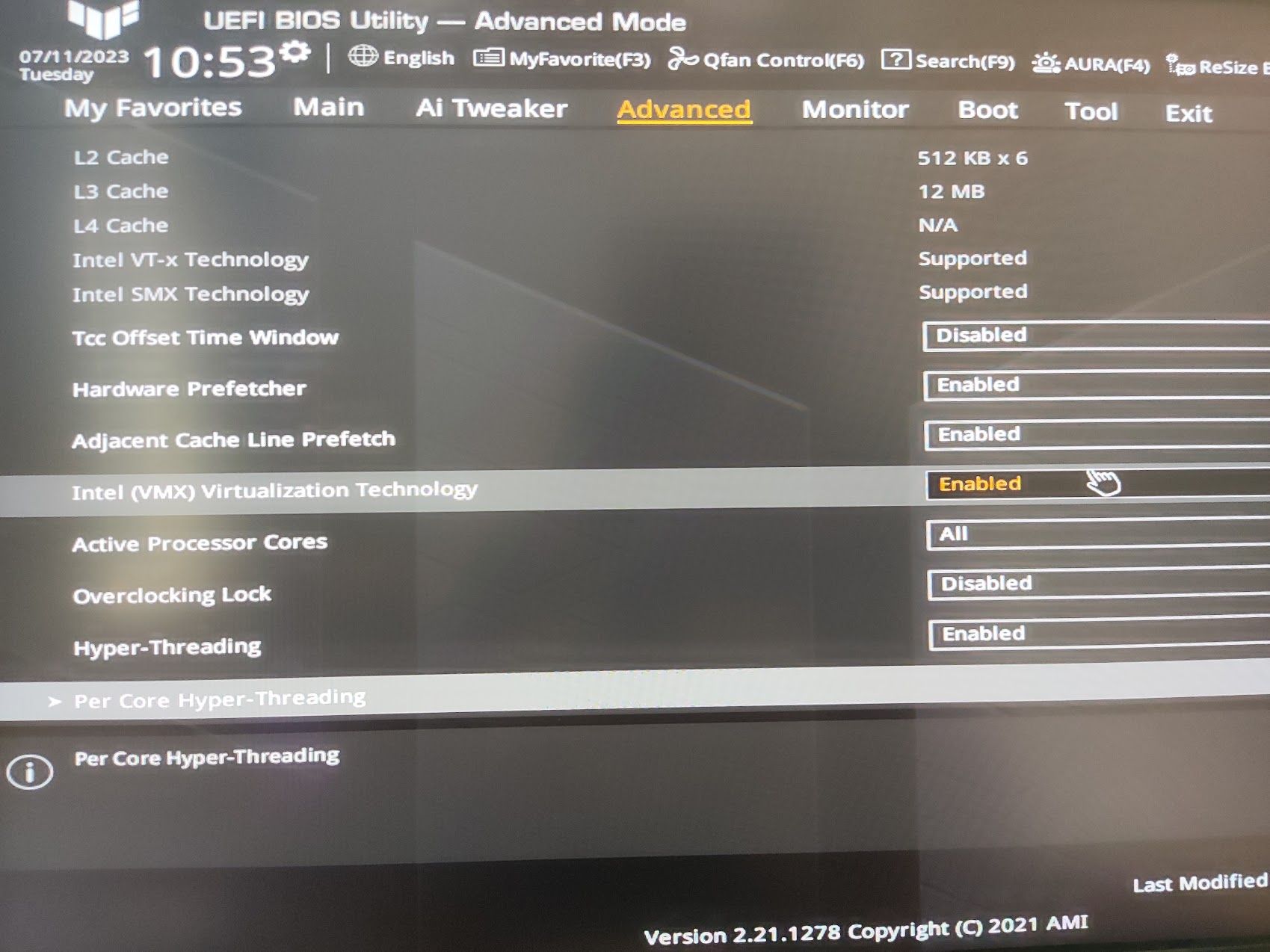
  1. Head to the UEFI Firmware settings (or BIOS menu). You can usually access it by pressing the "Del" button or F1, F2, F10, or F12.
  2. Depending on the motherboard manufacturer, the user interface will differ. However, in most cases, you have to navigate to the "Advanced" options in that, and access "CPU Configuration" settings.
  3. In the CPU configuration, you will have to enable "Intel (VMX) Virtualization Technology" or "SVM Mode" (for AMD processors).

What's next? Considering you already enabled the virtualization support, you need to use virtualization programs to help you finish the job.

Using virtualization programs

You can opt for third-party applications for ease of use, or choose to use Hyper-V that comes baked in with Windows.

Hyper-V

We will not be detailing how to use Hyper-V, but to save you some time, you can follow the steps below to enable it and then follow its documentation to use it.

📋
Hyper-V is not available for Windows 10/11 Home Edition.

Considering you have a Windows Pro/Education/Enterprise edition installed on your system, it is easy to enable it from the control panel or using the PowerShell.

Making your Windows System Ready for Virtual Machines

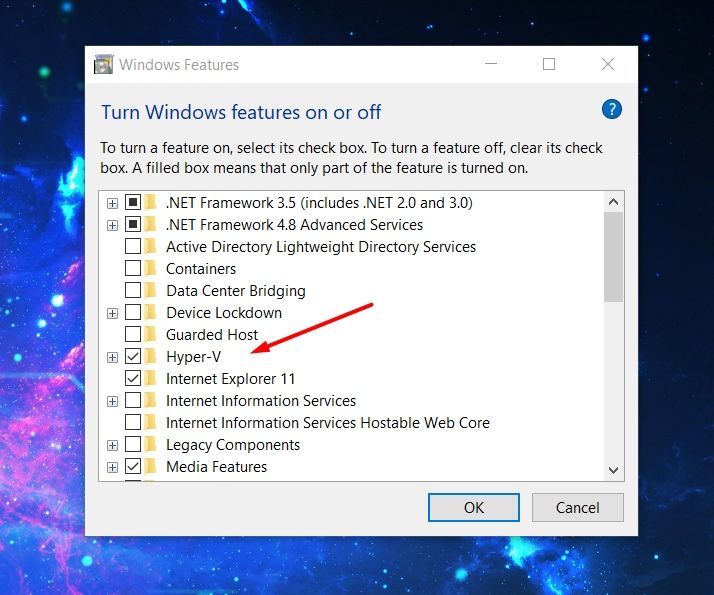
I prefer the control panel, just search for “Windows features” in the search bar or navigate your way through Control Panel → Programs → Turn Windows features on or off

Next, click on “Hyper-V” and hit “OK”. That's it.

Making your Windows System Ready for Virtual Machines

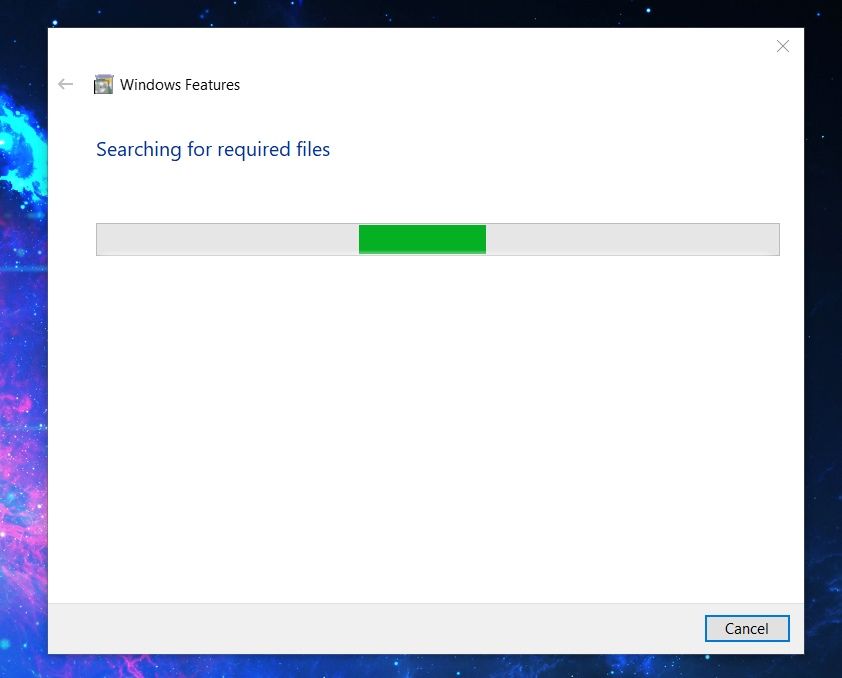
It will apply the changes by fetching the files needed for it. You just have to wait it out.

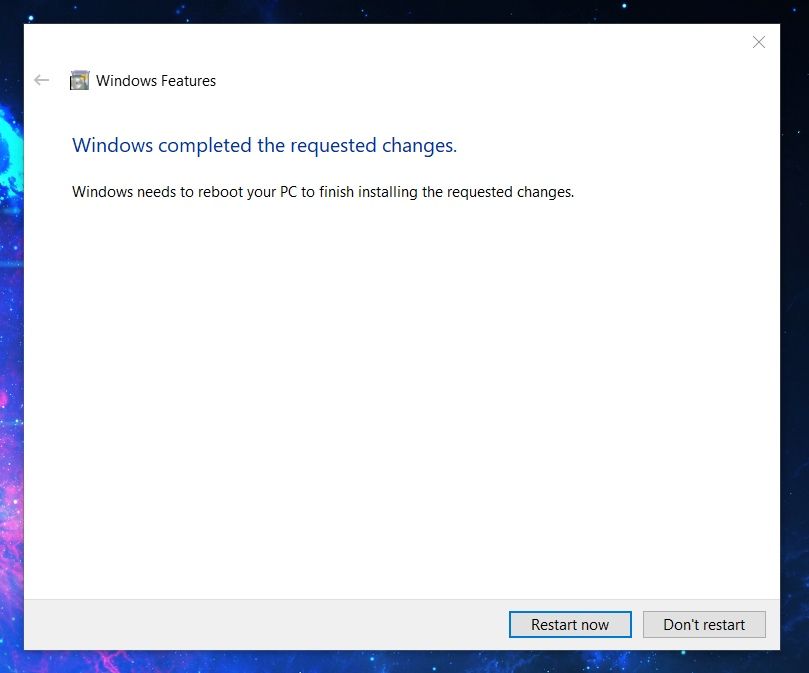
Once done, it will ask you to restart the system to put the new feature in effect.

Making your Windows System Ready for Virtual Machines

Third-party virtualization programs

While using Hyper-V allows you to get better performance for virtual machines, it is not as simple to use.

So, third-party virtual machine programs are recommended for end-users.

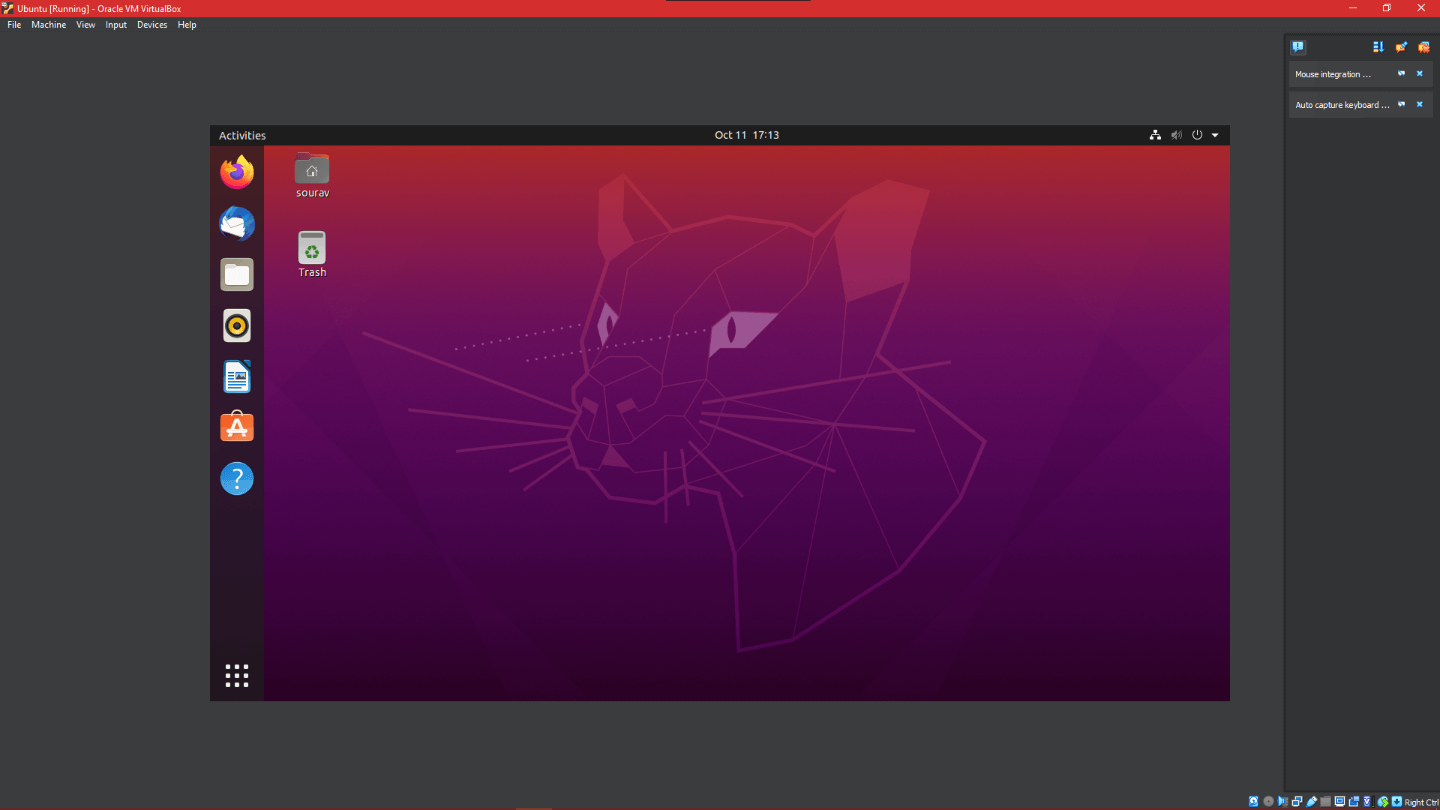
One of the best bets is VirtualBox. We also have a guide to help you use VirtualBox to install Linux.

Making your Windows System Ready for Virtual Machines

It is an open-source program with a range of features, and a user-friendly interface. You can use it on Windows, Linux, and macOS as well.

You can also opt for proprietary (but popular) options like VMware Workstation.

Want to get an idea on programs like these? You can check out some options available for Linux to see what kind of solutions are available:

Top 9 Best Virtualization Software for Linux [2023]
We take a look at some of the best virtualization programs that make things easy for users creating/managing VMs.
Making your Windows System Ready for Virtual Machines

Checking system resources and requirements

Creating and using a virtual machine is not entirely a super intensive process. However, there are a couple of variables that you might have to keep an eye on.

Some of those include:

  • Making sure that you have at least 4 GB RAM in your system (the more, the merrier)
  • 64-bit processor with dual-core or more

If you did not know, VMs use up resources of your system even if they are isolated machines. Most minimum specification recommendations include 4 GB of RAM, but I would recommend 8 GB instead.

If you want to run two virtual machines, you might need more than 8 GB of RAM on Windows.

Coupled with the memory, you should have a processor with multiple cores. So, some cores can freely let you do other things on your host while some are busy with the virtual machines.

Once you are sure about the processor and memory, next comes the disk space.

For virtual machines, the disk is usually dynamically allocated, meaning, the space from your physical storage drive is consumed as much as the OS and its files add up with time.

In some type of virtual disk, it reserves the entire space you specify. So, when you do that, check the free disk space before you initiate it. It is typically a good idea to choose a separate drive where you do not have Windows system installed.

Considering you follow all the above-mentioned tips, your Windows system will be ready to run and manage virtual machines. Now, you can easily install Linux in a virtual machine on Windows.

How to Install Linux Inside Windows Using VirtualBox
Using Linux in a virtual machine allows you to try Linux within Windows. This step-by-step guide shows you how to install Linux inside Windows using VirtualBox.
Making your Windows System Ready for Virtual Machines

💬 So, what would be your preferred way to handle virtual machines? Let us know your thoughts in the comments below.


from It's FOSS https://ift.tt/K3WPcT7
via IFTTT